Billing Types
Time & Materials | From Quote / Fixed Fee | Custom Invoice | Hybrid Options | Interim & Final Invoice | Consolidated Invoice | Automatic/Bulk Billing for Subscriptions | Invoice Without a ProjectTime & Materials
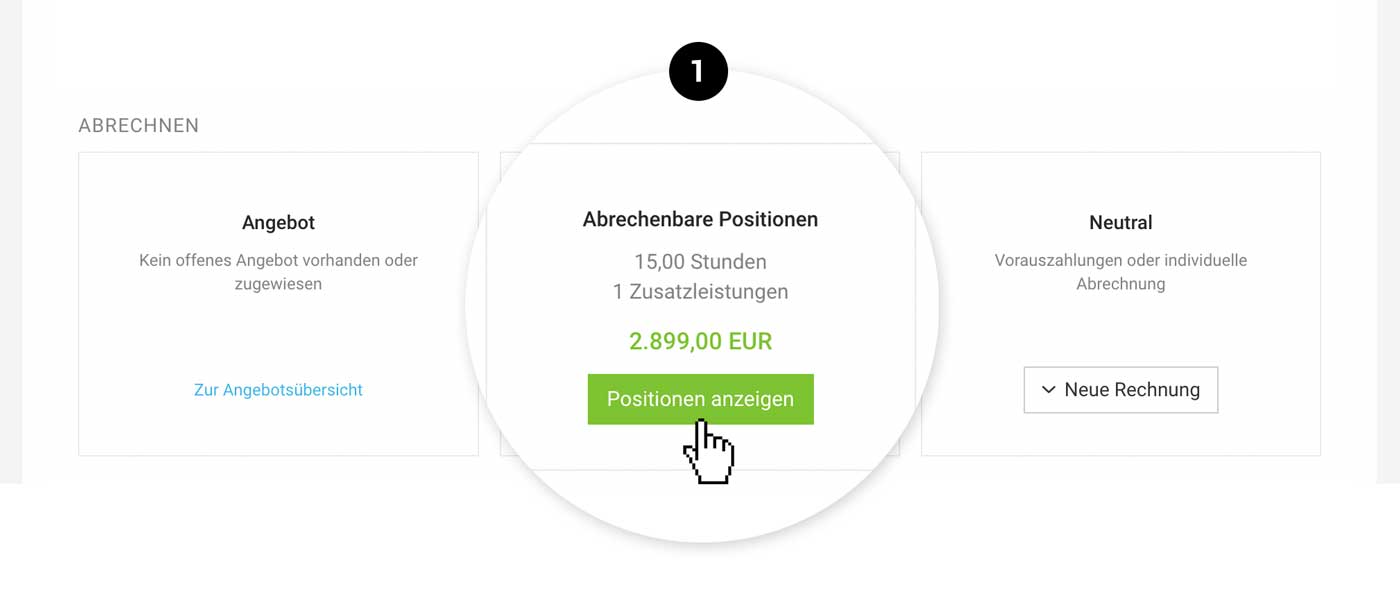
If the Billing type Time & Materials is selected in the project, billable hours and additional services are collected as potentially billable line items in the Project List and in the project or client under “Billing”. Click “Show Line Items” (1) to create the invoice directly.
 (English image not yet available)
(English image not yet available)Adjustments Before Billing
Time entries can be edited and adjusted for Billing. This lets you fix spelling mistakes in the activity description or round hours up or down.
Adjust hours for Billing
Adjust hours for Billing
Filter Options
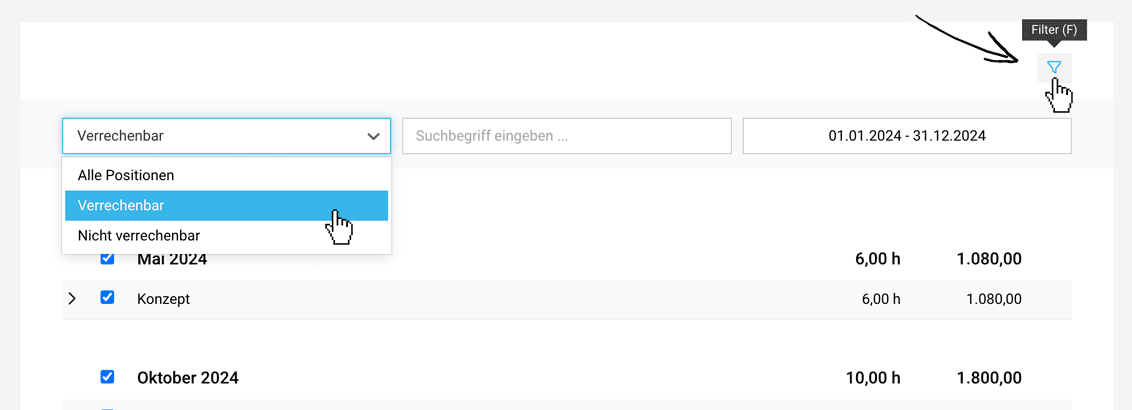
When Billing within a project, you can use the Filter (keyboard shortcut “F”)
- to review non-billable line items and include them on the invoice. For example, you can show goodwill items for the client on the invoice or the Timesheet.
- to filter by topics/tasks
- to filter by time period
 (English image not yet available)
Invoice Layout
You decide how detailed or compact the line items appear on the invoice.
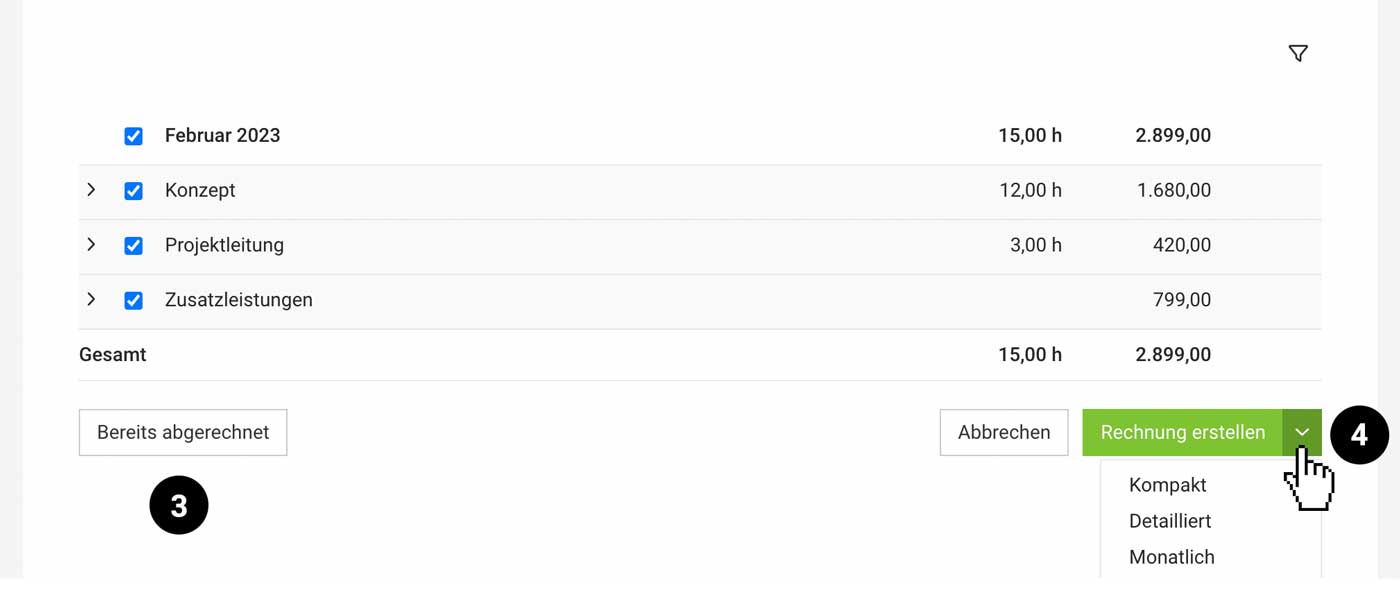
- Monthly: Line items are grouped by month.
- Detailed: Line items are shown with the activity description. You can bill selected hours from time tracking, including the description, as line items.
- Compact:Line items are not grouped by month, and services are summarised.
The default can be set globally and can also be changed per invoice (2) (alternative options can be selected via the button dropdown).
 (English image not yet available)
(English image not yet available)Billing services with an hourly rate per person
If “Hourly rate per person” is selected in the project, Billing is done per person by default. You can change this to “by service” in the settings. More about this setting
Billing in days
Instead of Billing by the hour (the default), you can switch to Billing in days. More about this setting
Automatically Attach the Related Timesheet
The Timesheet is created automatically for the invoice and can be integrated directly into the PDF (checkbox at the end of the invoice form). If you select this option in advance for the client or project, the checkbox is preselected automatically.
Mark Line Items as Already Invoiced
If billable line items have already been invoiced elsewhere, use “Show Line Items” to mark the selected line items as “Already invoiced” (see above – 3). This creates an entry in the invoice list for the client and project (traceable/approval possible).
When you archive the project, any remaining open line items are automatically marked by MOCO as already invoiced.
When you archive the project, any remaining open line items are automatically marked by MOCO as already invoiced.
Releasing Invoiced Hours Again
Hours that have been included in an invoice are locked. You can release them again by
a) cancelling or deleting the invoice
b) editing the invoice and deleting individual line items (if the invoice has not yet been sent).
a) cancelling or deleting the invoice
b) editing the invoice and deleting individual line items (if the invoice has not yet been sent).
Add Effort to the Invoice Later
Traceability: Which Invoice Line Items Were Billed On
In the Timesheet and under additional services, MOCO shows (on hover over the “i”) in a tooltip which invoice the line item was billed on, or whether and when the line item was marked as already invoiced. This information is also available via the API
Billing Forecast
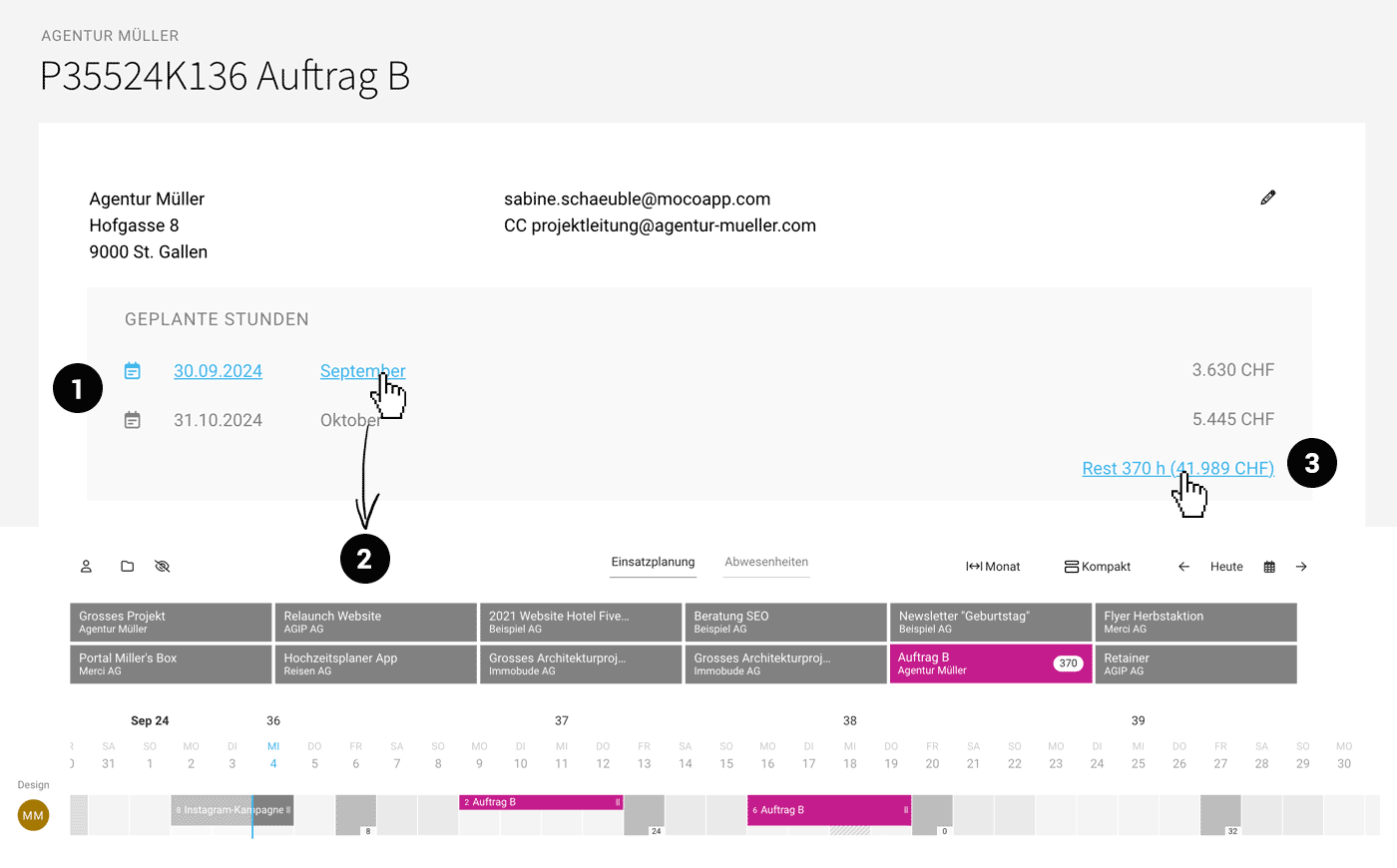
On the Billing page, planned hours (capacity planning) are shown as a total billable amount up to the end of the month (1).
The corresponding item in the Financial Report links directly to this project, and this view links on to planning (2). You can then adjust it there if needed.
More information on hour budgets (Time & Materials Billing with a monthly budget)
 (English image not yet available)
The corresponding item in the Financial Report links directly to this project, and this view links on to planning (2). You can then adjust it there if needed.
More information on hour budgets (Time & Materials Billing with a monthly budget)
(English image not yet available)From Quote / Fixed Fee
For a quote to be billed, it must be assigned to a client.
Project-Based
When a quote is billed, it is usually for a project with a fixed price/fixed fee. The billing plan to be completed (1) controls the billing note and the revenue forecast.
Project-Based
When a quote is billed, it is usually for a project with a fixed price/fixed fee. The billing plan to be completed (1) controls the billing note and the revenue forecast.
Billing directly in the project:
Select the quote if it has not already been selected (2) and choose "Bill Quote". In the modal, you can bill the entire quote or individual line items from it. Then tick the billing plan as completed.
Select the quote if it has not already been selected (2) and choose "Bill Quote". In the modal, you can bill the entire quote or individual line items from it. Then tick the billing plan as completed.
.png "Umsatzforecast Abrechnungsplan: Angebot abrechnen Teilrechnung") (English image not yet available)
(English image not yet available)Billing can also be done in the quote detail view at the top right or in all lists on the right via the dropdown:
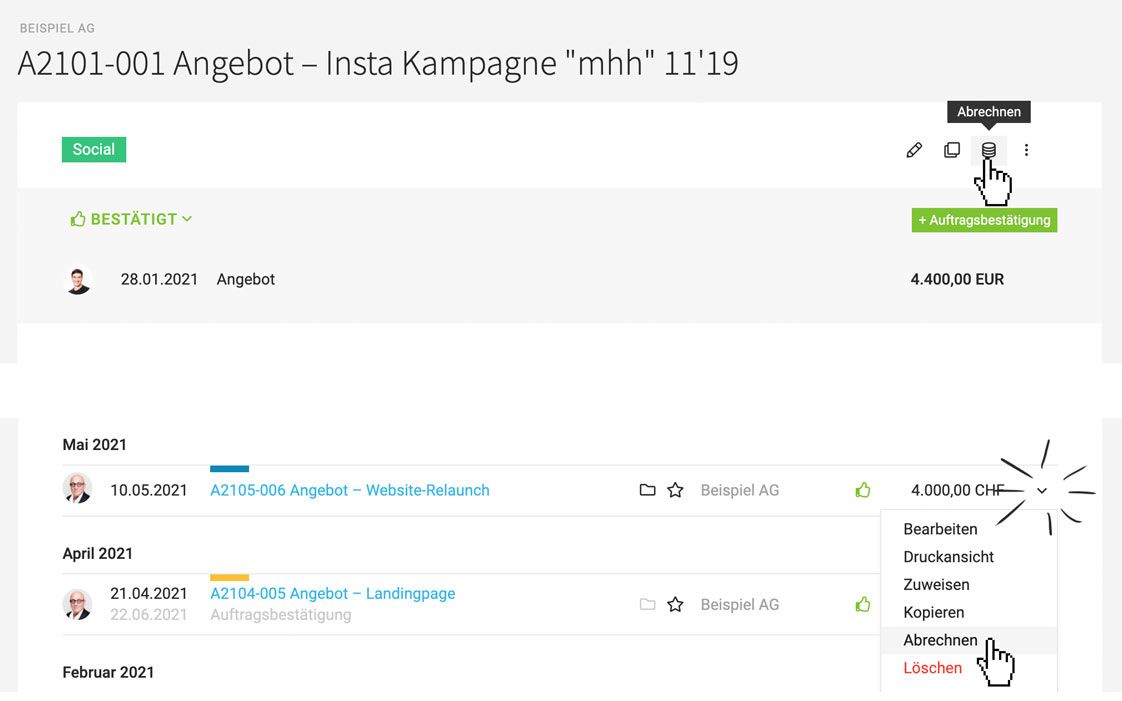 (English image not yet available)
Without a Project
If a quote is not assigned to a project, the invoice created is automatically assigned to the client. Under "Billing" in the client, you can bill for the client in the same way as at project level, and client-related invoices are listed there. You can also assign an invoice to a project later.
Part Invoice
You can also bill only certain line items (2 + 4) – MOCO will then show the remaining amount and offer the open line items for the next invoice. You can also use the small blue link to open all line items from the quote again.
Add Effort
Optionally, you can also add selected additional effort.
Interim & Final Invoice
If you want to bill an amount as a percentage, this is usually not a part invoice, but an interim invoice. Certain rules apply here: » Interim invoices and their automatic deduction on the final invoice.
Consolidated Invoice at Client Level
Line items recorded in the billing plan are also offered under "Billable Line Items". This can be useful for consolidated billing at client level for fixed fees.
Already Billed
If the quote has already been billed elsewhere, you can set it to "Already billed" (status Billed is assigned) via "Select Open Quote" (2).
Custom Invoice
In the Client or Project under "Billing", you can also create a completely custom invoice via "Neutral" (1).
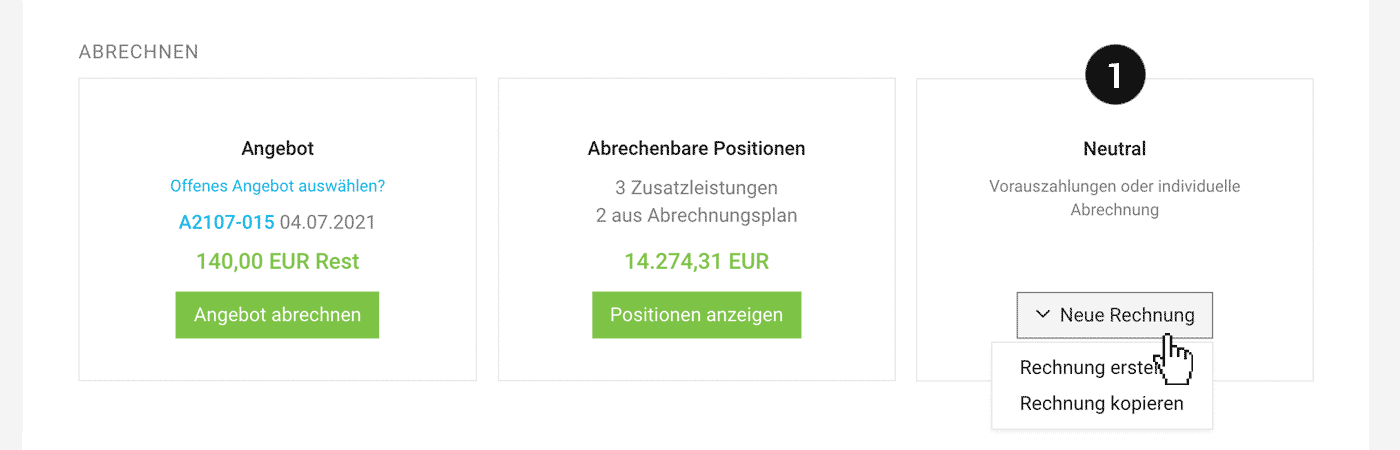 (English image not yet available)
(English image not yet available)- Pre-add line items/sections: If needed, you can manually insert items from the Service Catalogue or recorded billable items.
- Copy invoice: You can select any previous invoice as a template.
Neutralise items covered by this invoice
If this invoice covers any billable items, use "Show Items" to "mark as billed" so they are no longer shown as open. MOCO does this automatically when you archive a project.
Hybrid Options
Add billable items to an invoice later
You can now add individual or all billable items to a billed quote or a custom invoice. To do this, in the invoice select the green button "New Item" > "Billable Items".
(project-specific only)
(project-specific only)
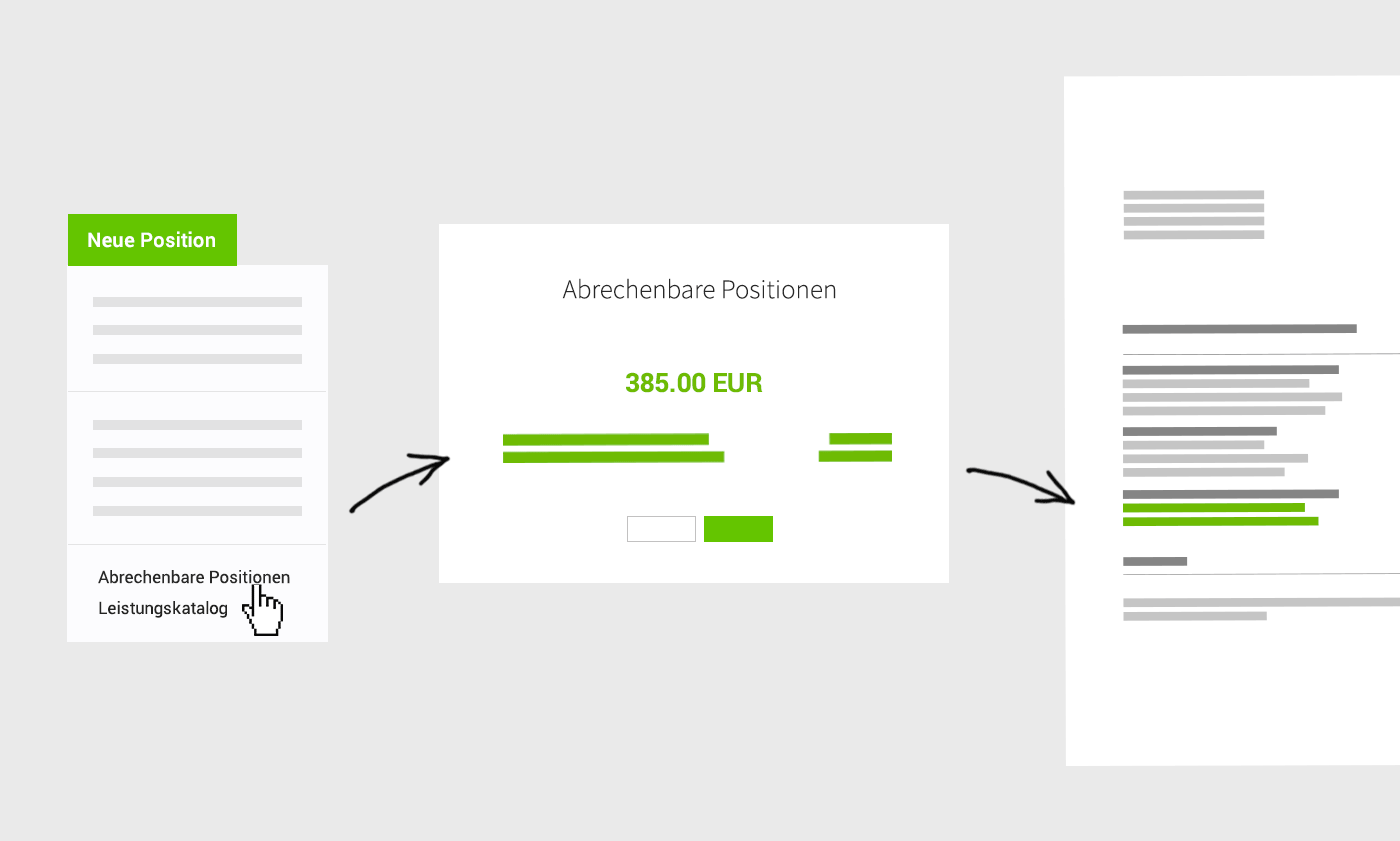 (English image not yet available)
Interim & Final Invoice
Interim payments (deposit invoices, advance payment invoices) are prepayments, regardless of any work already delivered. For interim and final invoices, certain content requirements are relevant. MOCO supports you with the automated process shown below to help you meet these requirements – and automatically deducts interim invoices. This always works within a project. If interim and final invoices are needed at client level, the steps must be done manually.
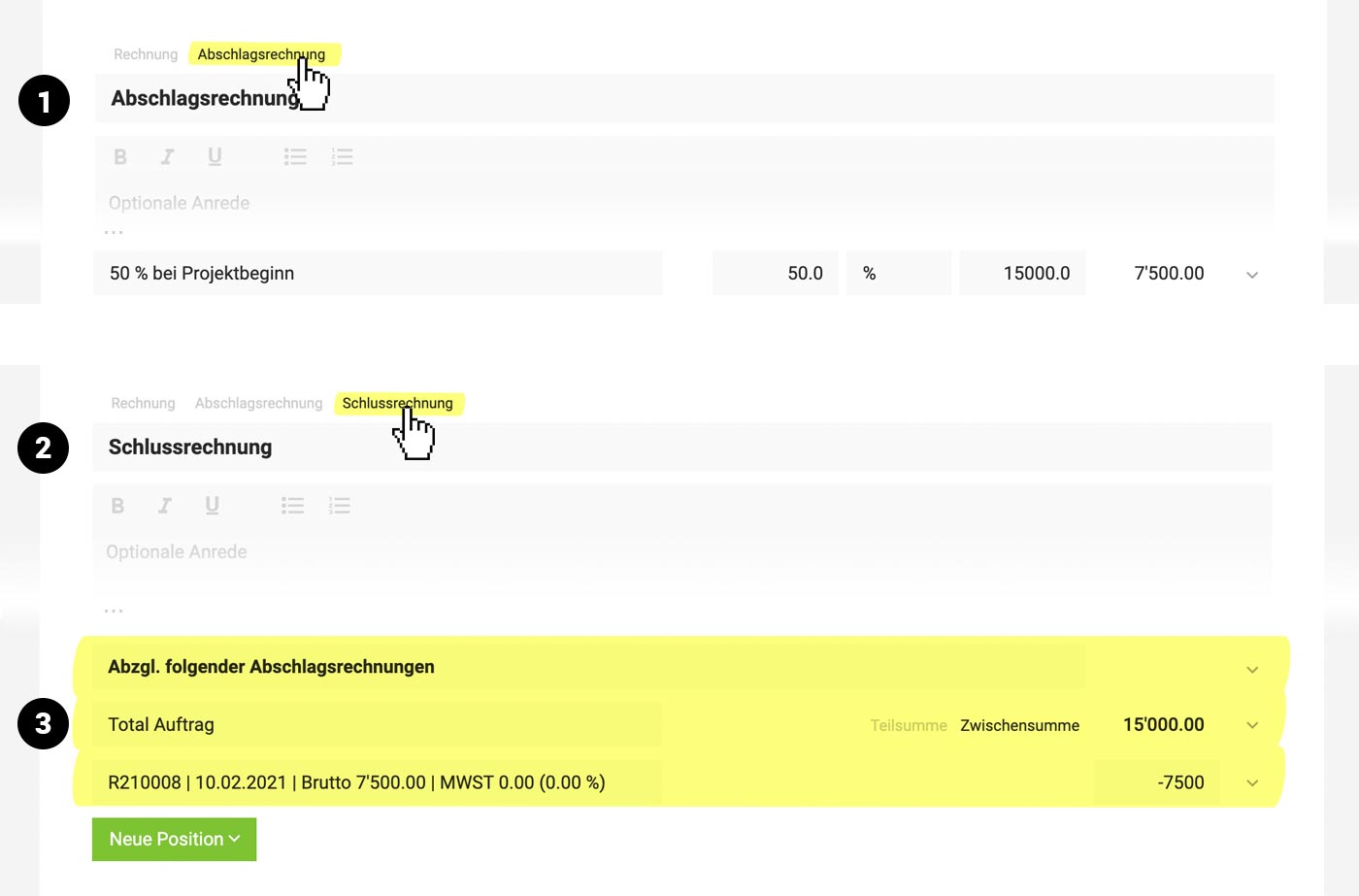 (English image not yet available)
Create an Interim/Deposit Invoice
1. As an interim invoice is a prepayment independent of work delivered, a single line item with a percentage amount (or a fixed amount, depending on what you have agreed) is usually the best option. To do this, use the entry you created in advance in the Billing plan, or in the project under "Billing" in the right-hand "Neutral" box, and add a percentage line item.
2. In the invoice form, above the title, select "Interim Invoice" (1). The term "Interim Invoice" is then automatically suggested in the title (the term Interim Invoice – or a comparable term – should appear in the title). If you have multiple interim invoices, numbering is recommended ("Interim Invoice 1", "Interim Invoice 2", etc.).
Interim invoices are always without discount, as they are an independent deposit amount. Any discount is only applied on the final invoice.
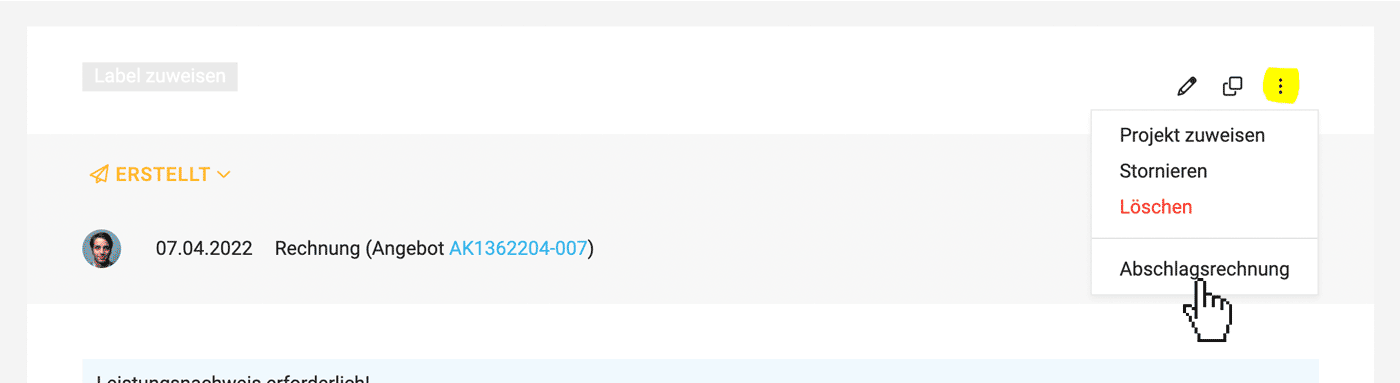
If you forgot to mark it as an interim invoice, you can do this later at the top right of the invoice (you may need to adjust the title manually):
 (English image not yet available)
2. In the invoice form, above the title, select "Interim Invoice" (1). The term "Interim Invoice" is then automatically suggested in the title (the term Interim Invoice – or a comparable term – should appear in the title). If you have multiple interim invoices, numbering is recommended ("Interim Invoice 1", "Interim Invoice 2", etc.).
Interim invoices are always without discount, as they are an independent deposit amount. Any discount is only applied on the final invoice.
If you forgot to mark it as an interim invoice, you can do this later at the top right of the invoice (you may need to adjust the title manually):
(English image not yet available)Tip for time-and-materials projects: Work against the interim amount
If you have created an interim invoice in a time-and-materials project, newly recorded items are still treated as "billable items" regardless. Here is one way to handle this for revenue forecasting:
a) Create a negative additional service (billable, not in budget, costs 0): a negative amount will be shown under "billable items" until the interim amount has been used up.
b) Each month, mark the services covered by the interim invoice as "already invoiced".
If you have created an interim invoice in a time-and-materials project, newly recorded items are still treated as "billable items" regardless. Here is one way to handle this for revenue forecasting:
a) Create a negative additional service (billable, not in budget, costs 0): a negative amount will be shown under "billable items" until the interim amount has been used up.
b) Each month, mark the services covered by the interim invoice as "already invoiced".
Create a Final Invoice
Existing interim invoices are deducted automatically
1. Invoice the Quote and, above the title, select "Final Invoice" (2).
2. The term "Final Invoice" is then automatically suggested in the title (a final invoice should be titled accordingly. The title "Final Invoice" implies that there have been interim payments).
3. In a separate section after a subtotal "Total order" (which indicates the total net amount of the Quote), MOCO automatically deducts the interim invoices net, including the relevant details (3) (invoice number, invoice date, gross amount, VAT amount, and VAT rate).
1. Invoice the Quote and, above the title, select "Final Invoice" (2).
2. The term "Final Invoice" is then automatically suggested in the title (a final invoice should be titled accordingly. The title "Final Invoice" implies that there have been interim payments).
3. In a separate section after a subtotal "Total order" (which indicates the total net amount of the Quote), MOCO automatically deducts the interim invoices net, including the relevant details (3) (invoice number, invoice date, gross amount, VAT amount, and VAT rate).
Special case: temporary VAT reduction in Germany
If an interim invoice was issued with a different tax rate from the final invoice, this difference must be corrected. MOCO calculates the tax correction and shows it on the final invoice.
Multiple final invoices within one project?
In principle, there is one final invoice per project. However, there are cases where you may want to create multiple final invoices, for example if a project is billed to several recipients. In this case, when creating the first final invoice, delete the interim invoices you do not need – they will be suggested for deduction again automatically when you create a new final invoice.
If an interim invoice was issued with a different tax rate from the final invoice, this difference must be corrected. MOCO calculates the tax correction and shows it on the final invoice.
Multiple final invoices within one project?
In principle, there is one final invoice per project. However, there are cases where you may want to create multiple final invoices, for example if a project is billed to several recipients. In this case, when creating the first final invoice, delete the interim invoices you do not need – they will be suggested for deduction again automatically when you create a new final invoice.
Part Invoice versus Interim and Final Invoice
Part invoices are invoices for work already delivered. The scope of work is specified on the invoice. Part invoices are self-contained and do not require a final invoice. Sometimes, however, you may still want to label the last invoice as "Final Invoice" to make it clear that it is the last part invoice for a project. Create a part invoice from a Quote.
Links
More detailed information on interim invoice versus part invoice
What do I need to consider for an interim and final invoice?
Links
More detailed information on interim invoice versus part invoice
What do I need to consider for an interim and final invoice?
Consolidated Invoice
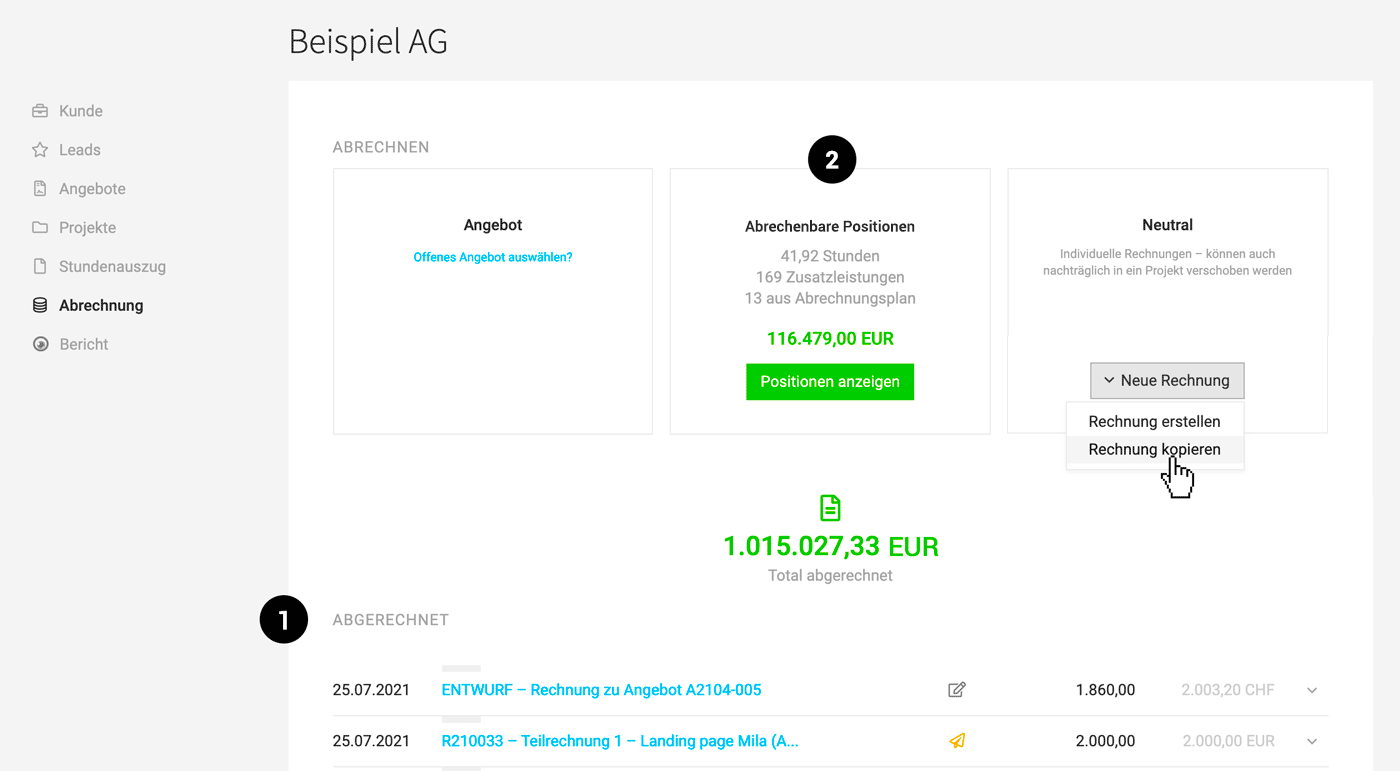
In the client under "Billing", all invoices for that client are listed (1).
Consolidated Invoice Across Projects
Under "Billable Items" (2), you can create consolidated invoices across multiple projects.
In the relevant projects, the consolidated invoice is listed under "Billing" with the note "Consolidated Invoice" – and is counted as revenue for the amount.
 (English image not yet available)
Consolidated Invoice for a Project Group
Clicking the billable total for the project group creates the Project Group Billing (an automatically filtered consolidated invoice).
Consolidated Invoice Across Projects
Under "Billable Items" (2), you can create consolidated invoices across multiple projects.
In the relevant projects, the consolidated invoice is listed under "Billing" with the note "Consolidated Invoice" – and is counted as revenue for the amount.
(English image not yet available)Consolidated Invoice for a Project Group
Clicking the billable total for the project group creates the Project Group Billing (an automatically filtered consolidated invoice).
Automatic/Bulk Billing for Subscriptions
Certain invoices can be created and sent via a bulk action. The triggers here are billable items – for example, the automatic Billing schedule for a retainer, or billable services recorded in a project.
Invoices you can create in bulk with one click
For example: domains, hosting, etc.
For subscriptions and hosting, etc., create a dedicated project (time & materials, without a budget) for the client and record a so-called recurring additional service under "Additional Services" (billable & not included in the budget). This acts as a trigger with a key date and a term. On the key date, the additional service is created and can be billed (optional: notification).
Retainer
If you set up a retainer in MOCO, it creates an automatic Billing schedule, and the monthly amount can be billed on the selected key date (including selectable text in the Billing schedule). All about retainers
For subscriptions and hosting, etc., create a dedicated project (time & materials, without a budget) for the client and record a so-called recurring additional service under "Additional Services" (billable & not included in the budget). This acts as a trigger with a key date and a term. On the key date, the additional service is created and can be billed (optional: notification).
Retainer
If you set up a retainer in MOCO, it creates an automatic Billing schedule, and the monthly amount can be billed on the selected key date (including selectable text in the Billing schedule). All about retainers
Monthly or periodic Billing for time & materials
All recorded billable hours and additional services are billed in projects with the Billing type "time & materials". All about time & materials projects
NOT intended for cases where individual quotes need to be billed or bespoke invoices created. In those cases, as usual, click the billable amount in the project list and create the invoice in the project under "Billing" (or under "Billing" in the client).
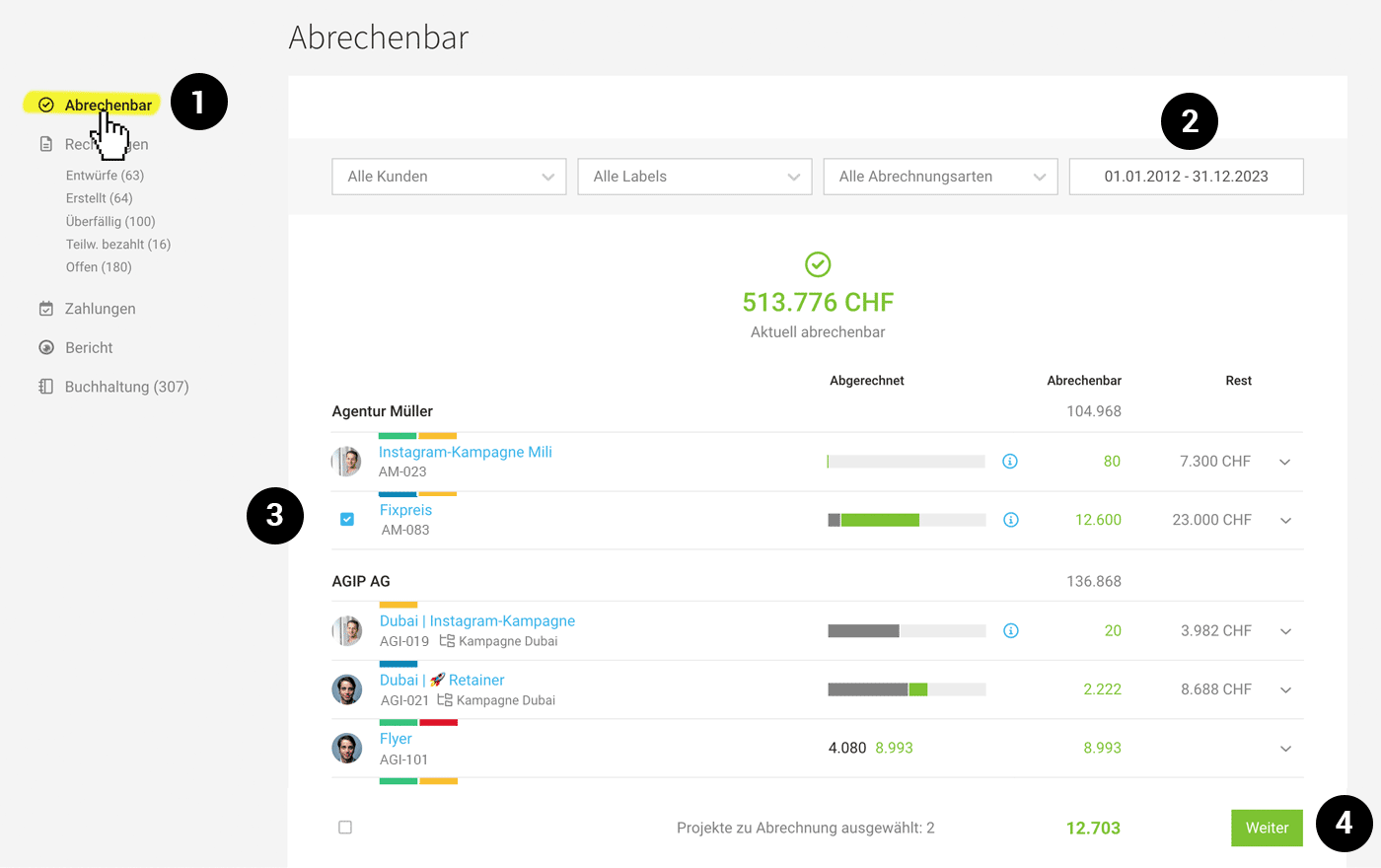
Go to "Billing" > "Billable"
1. Filter by period, label, etc.
2. Select all projects or specific projects and click "Next" (3)
4. Create invoices
Alternatively, you can create drafts first. You can delete these easily, which makes this ideal for initial tests.
 (English image not yet available)
The blue "i" shows any stored Billing info.
Bulk sending
Under "Billing" > "Invoices", select the "Created" smart filter on the left, choose the invoices to send, then start sending via "Next" at the bottom right.
2. Select all projects or specific projects and click "Next" (3)
4. Create invoices
Alternatively, you can create drafts first. You can delete these easily, which makes this ideal for initial tests.
(English image not yet available)The blue "i" shows any stored Billing info.
Bulk sending
Under "Billing" > "Invoices", select the "Created" smart filter on the left, choose the invoices to send, then start sending via "Next" at the bottom right.
Checklist for good preparation:
- Work with labels, e.g. "Bill monthly", "Bill annually", ...
→ This lets you filter the projects to be billed with one click (1) - Standardise key dates for recurring services across clients
→ For example, always record the recurring service with a key date of the 27th of the month, then bill at the end of the month or on the 1st of the following month. - Check the data MOCO uses for automatic invoice creation
→ As MOCO composes the invoice title as "Invoice – Project name", the project name should be clear and meaningful.
→ Check client-specific settings such as payment terms or the closing text
→ Capture project-specific details such as invoice contact, timesheet, and Billing note
Define defaults for clients and projects
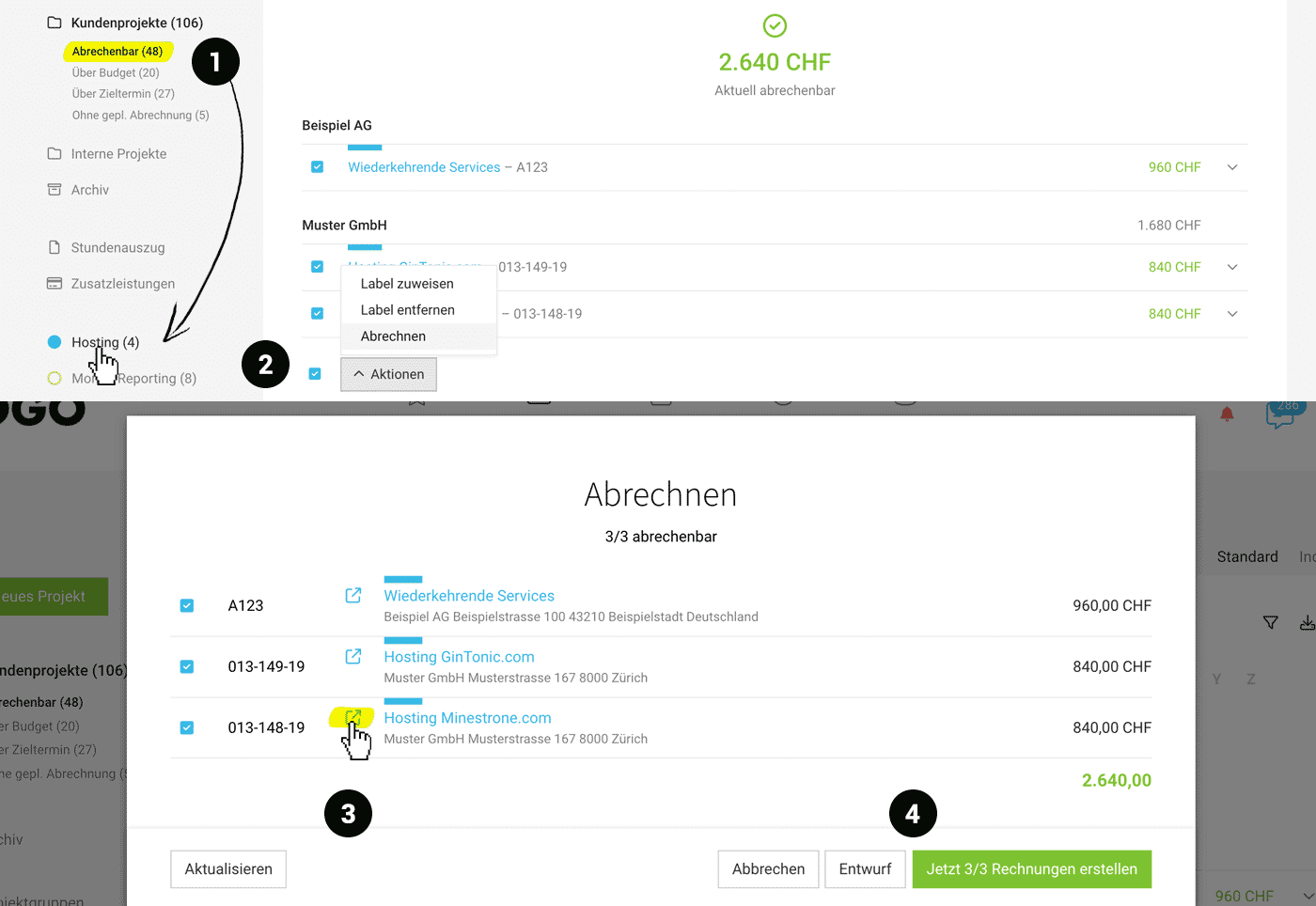
Alternative option: Use bulk creation under "Client Projects" in the "Billable" smart filter
The example shows an additional restriction to a label under "Billable". This allows you to apply the bulk action specifically to a particular project segment.
 (English image not yet available)
1. Auf Smart Filter "Abrechenbar" gehen, dann nach Label filtern, 2. Massenaktion "Abrechnen" wählen 4. Kontrollieren, korrigieren, aktualisieren und 4. Entwürfe oder Rechnungen direkt (mit Vergabe der Rechnungsnummer) erstellen.
Invoice Without a Project
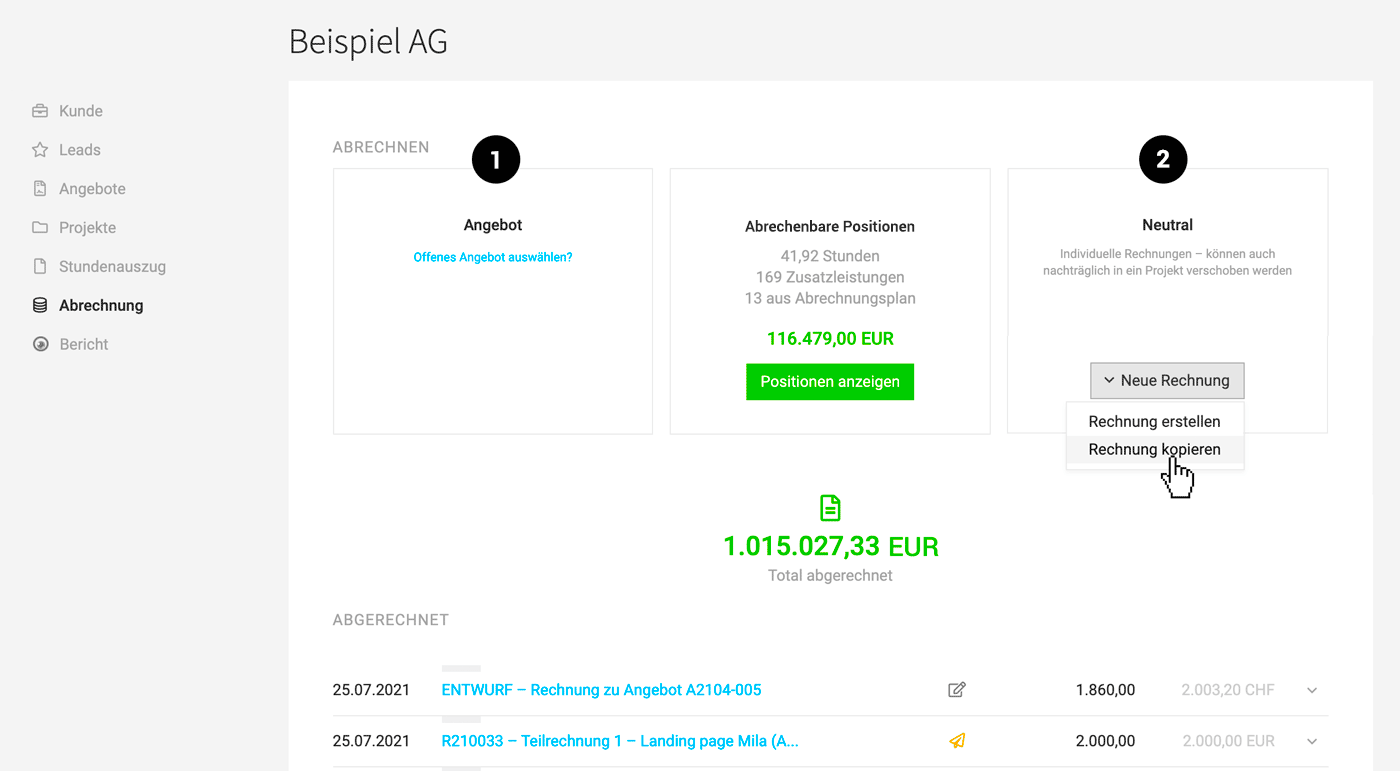
You can also create invoices without projects. The only thing you always need is a client. You then create the invoice directly from the quote or under the client:
 (English image not yet available)
Bill Quotes (2)
All open quotes assigned to the client are available to select and can be billed in full or in part. Quotes can also be billed from the lists or directly from the detail view.
Custom Invoice
Create an ad-hoc invoice via "Neutral" (4). You can also search for and copy any existing invoice.
If needed, ad-hoc invoices can also be assigned to projects later.
(English image not yet available)Bill Quotes (2)
All open quotes assigned to the client are available to select and can be billed in full or in part. Quotes can also be billed from the lists or directly from the detail view.
Custom Invoice
Create an ad-hoc invoice via "Neutral" (4). You can also search for and copy any existing invoice.
If needed, ad-hoc invoices can also be assigned to projects later.