Personal Profile
General: Language, Contact Details, etc. | Notifications | Working Hours | External Calendar | Password & Security | IntegrationsGeneral: Language, Contact Details, etc.
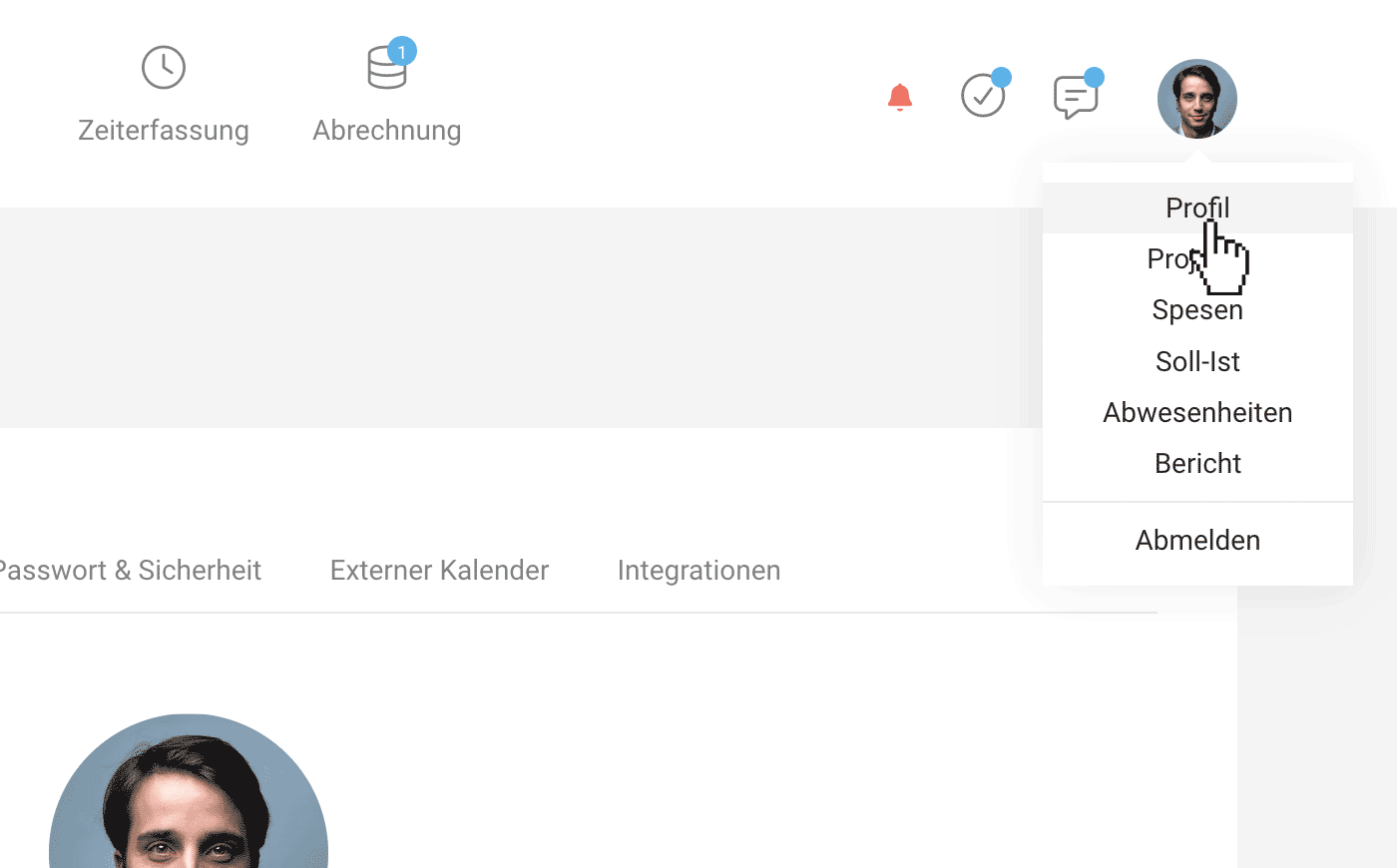
Top right > Profile > General
 (English image not yet available)
Enter or update
(English image not yet available)Enter or update
- Email address
- User language
- Time zone
- Display time tracking in decimal or hh:mm
- Contact details
- IBAN
- Date of birth
Notifications
Top right > Profile > Notifications
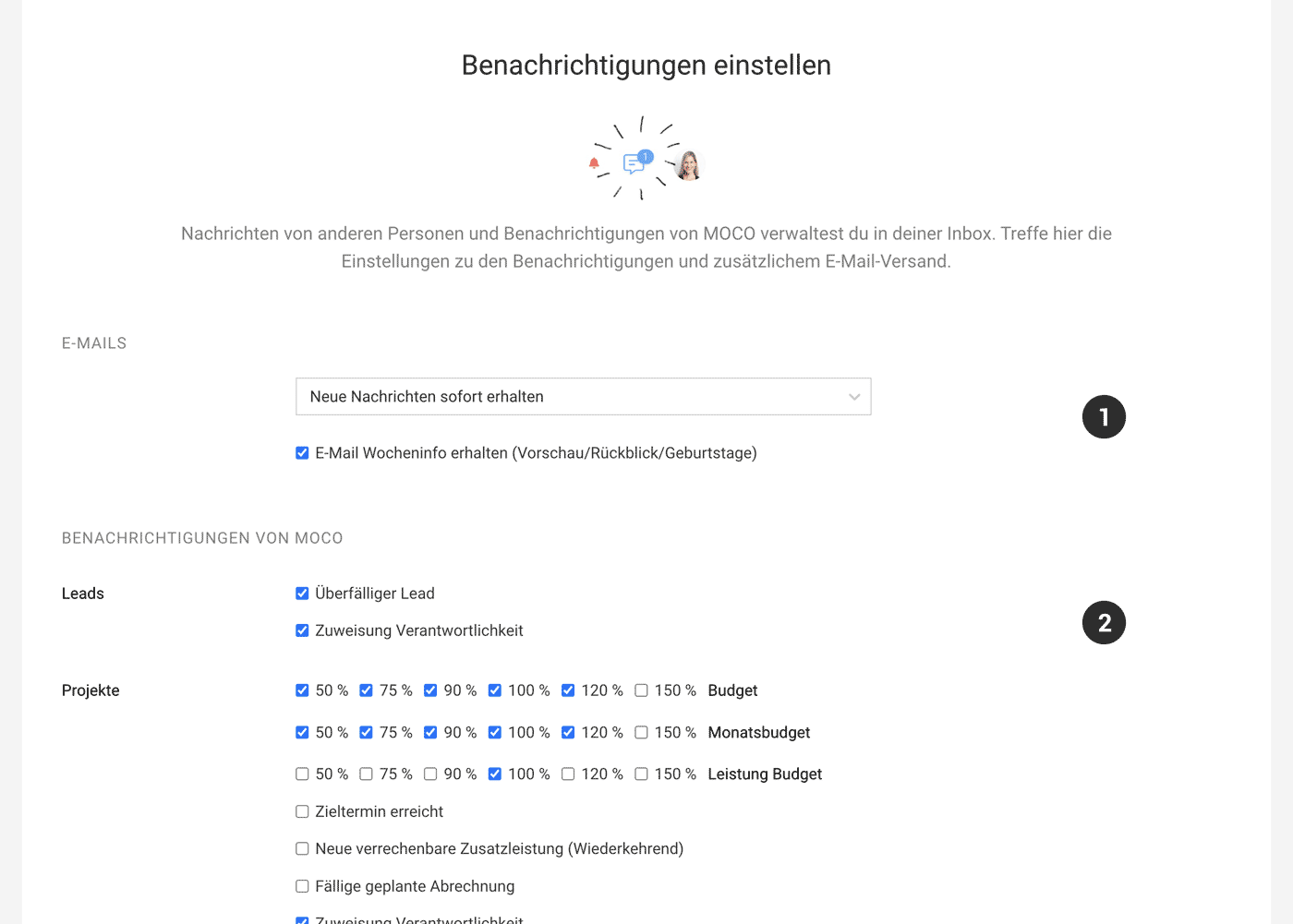
All your personal messages in MOCO are collected in the inbox at the top right, which is also accessible via the Mobile App: Mentions via @Name, event notifications, reminders for your own date fields, and due to-dos. You can customise these notifications in your profile settings.
Emails (1)
Additional Emails
Each user can choose whether to receive an email summary or individual emails in addition to the in-app notifications (inbox at the top right).
Weekly Info
Each user can decide whether to receive the weekly info, which includes a planning preview, a time tracking review, and birthday information.
Weekly Info
Each user can decide whether to receive the weekly info, which includes a planning preview, a time tracking review, and birthday information.
Notifications from MOCO (2)
In addition to direct messages from colleagues, MOCO notifies you about various events. For example, overdue invoices, budget progress, to-dos, etc.
Reminder for your own field of type "Date"
Besides the standard notifications offered, you can also set reminders for your own dates, which you have defined as your own field. Example "Sales Inquiry" with the Client. If you want a reminder, select a date there. MOCO will then remind you of this appointment.
Reminder for your own field of type "Date"
Besides the standard notifications offered, you can also set reminders for your own dates, which you have defined as your own field. Example "Sales Inquiry" with the Client. If you want a reminder, select a date there. MOCO will then remind you of this appointment.
 (English image not yet available)
Messages also in your MOCO iPhone App
You can also access notifications directly through your iPhone App - and enable push notifications if needed.
Working Hours
Top right > Profile > Working Hours
Only visible when time tracking is active.
Here, you can predefine times (start, breaks, end) for regular workdays.
» All information on predefining or automating time tracking
Only visible when time tracking is active.
Here, you can predefine times (start, breaks, end) for regular workdays.
» All information on predefining or automating time tracking
External Calendar
Top right > Profile > External Calendar
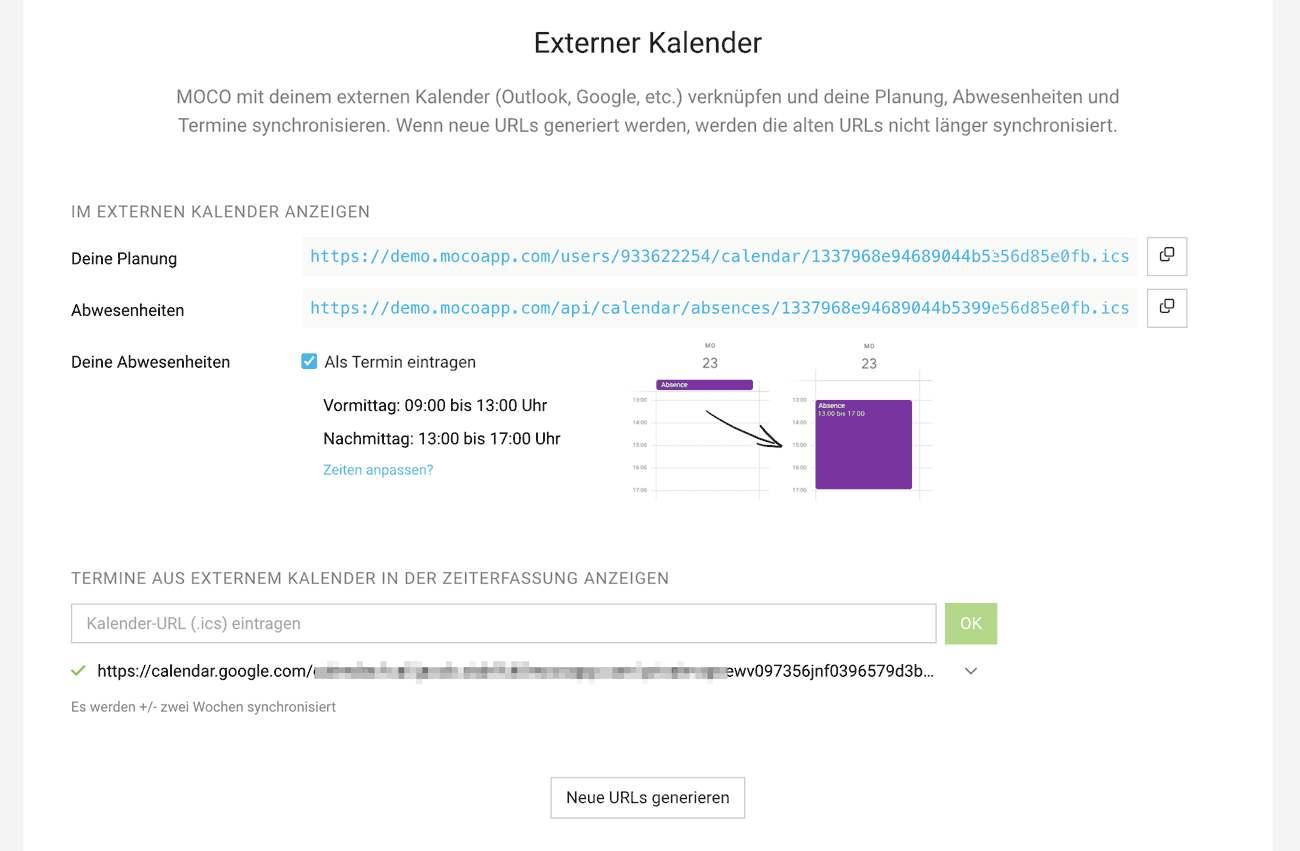
Connect your external appointment calendar here
- Display absences or your schedule in the external calendar
- Show external appointments in your time tracking See time tracking on calendar appointments
The specific absences displayed are set in the settings under "Planning" for the entire account.
 (English image not yet available)
Password & Security
Top right > Profile > Password & Security (Tab available as long as SSO is not activated)
Password
Here, users can set a new password.
2FA Recovery Code
If 2FA is enabled on the account, the recovery code can be accessed here.
Password
Here, users can set a new password.
2FA Recovery Code
If 2FA is enabled on the account, the recovery code can be accessed here.
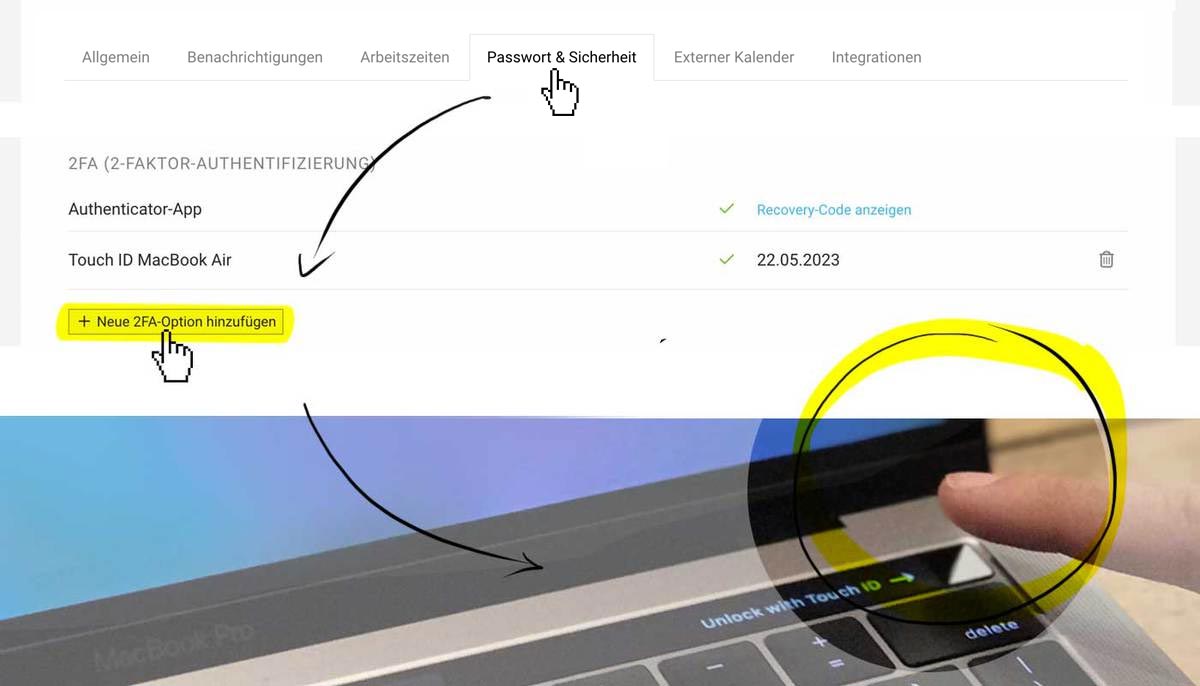
Add Additional Personal Authentication Options for 2FA
Each user can add additional authentication options according to their preferences. These are confirmed via the 2FA code from the authentication app.
 (English image not yet available)
(English image not yet available)Beispiel: Touch ID
For example, add the following 2FA options
- Touch ID: Confirm via MacBook by placing your finger.
- Yubikey: USB security key with fingerprint recognition or password entry.
- Apple Passkey: Passwordless sign-in method from Apple on multiple devices.
Integrations
Top right > Profile > Integrations
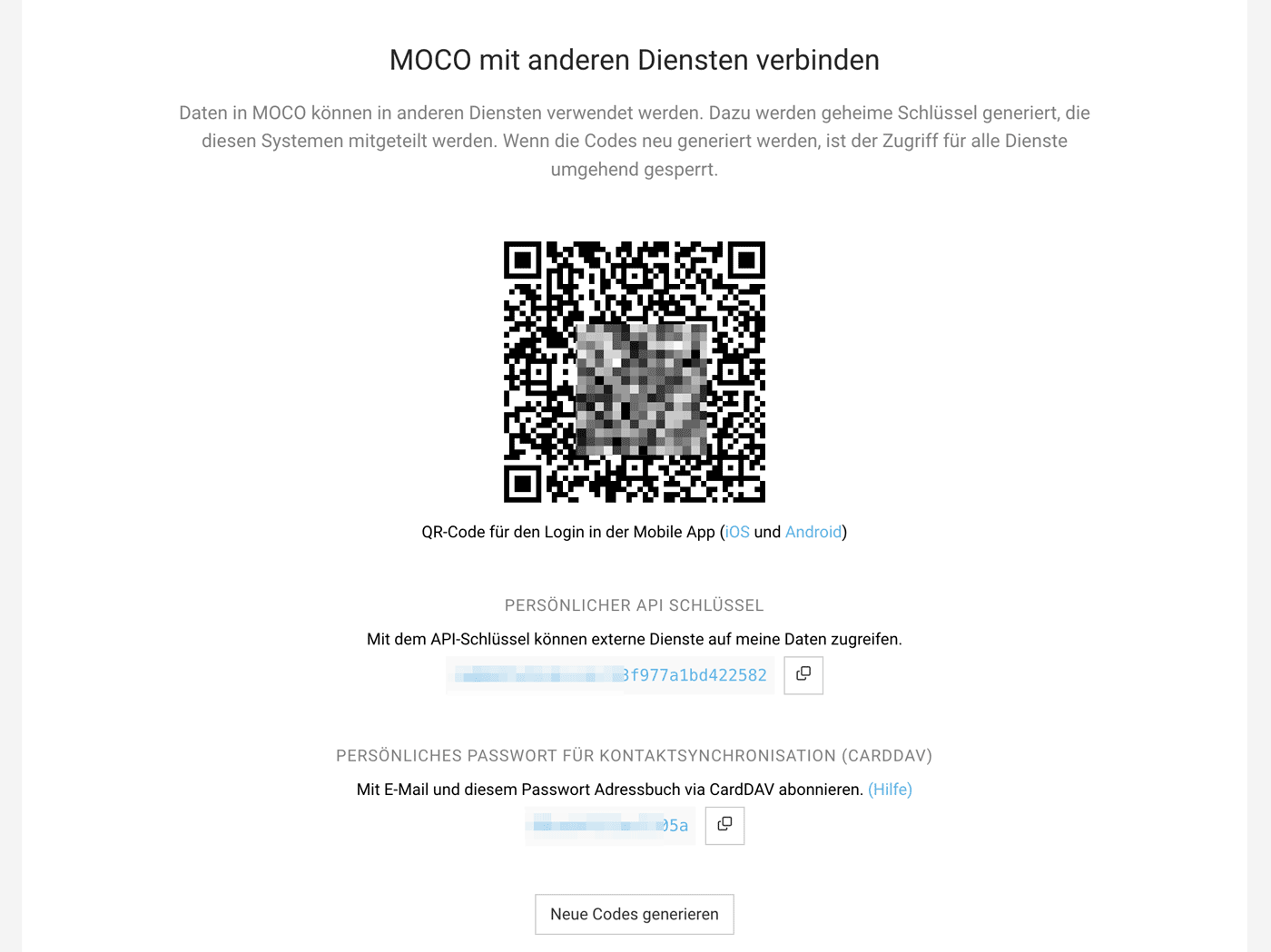
Here, every user will find a quick option to log in to the mobile app, a personal API key, and a password for contact sync (CardDAV).
 (English image not yet available)
Here, every user will find a quick option to log in to the mobile app, a personal API key, and a password for contact sync (CardDAV).
(English image not yet available)







