Planning
Controlling Remaining Hours Display | Activate Leads for Planning | Managing Absences | Choose Holiday ModelControlling Remaining Hours Display
The remaining hours indicate the difference between target and planned hours. This provides a quick insight into a person's workload per week (normal view) or per day (zoom).
By default, MOCO displays the remaining hours directly when a person is under-scheduled or significantly over-scheduled (< 80 or > 120%). The rest is shown only on mouseover. This display of remaining hours can be controlled through this setting:
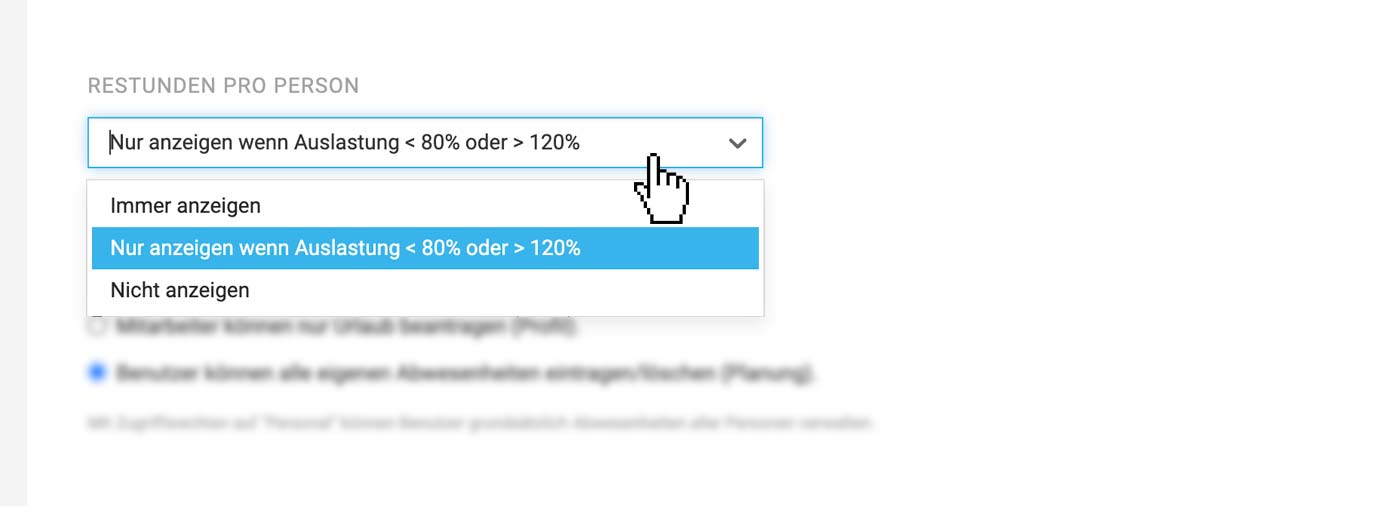 (English image not yet available)
By default, MOCO displays the remaining hours directly when a person is under-scheduled or significantly over-scheduled (< 80 or > 120%). The rest is shown only on mouseover. This display of remaining hours can be controlled through this setting:
(English image not yet available)Activate Leads for Planning
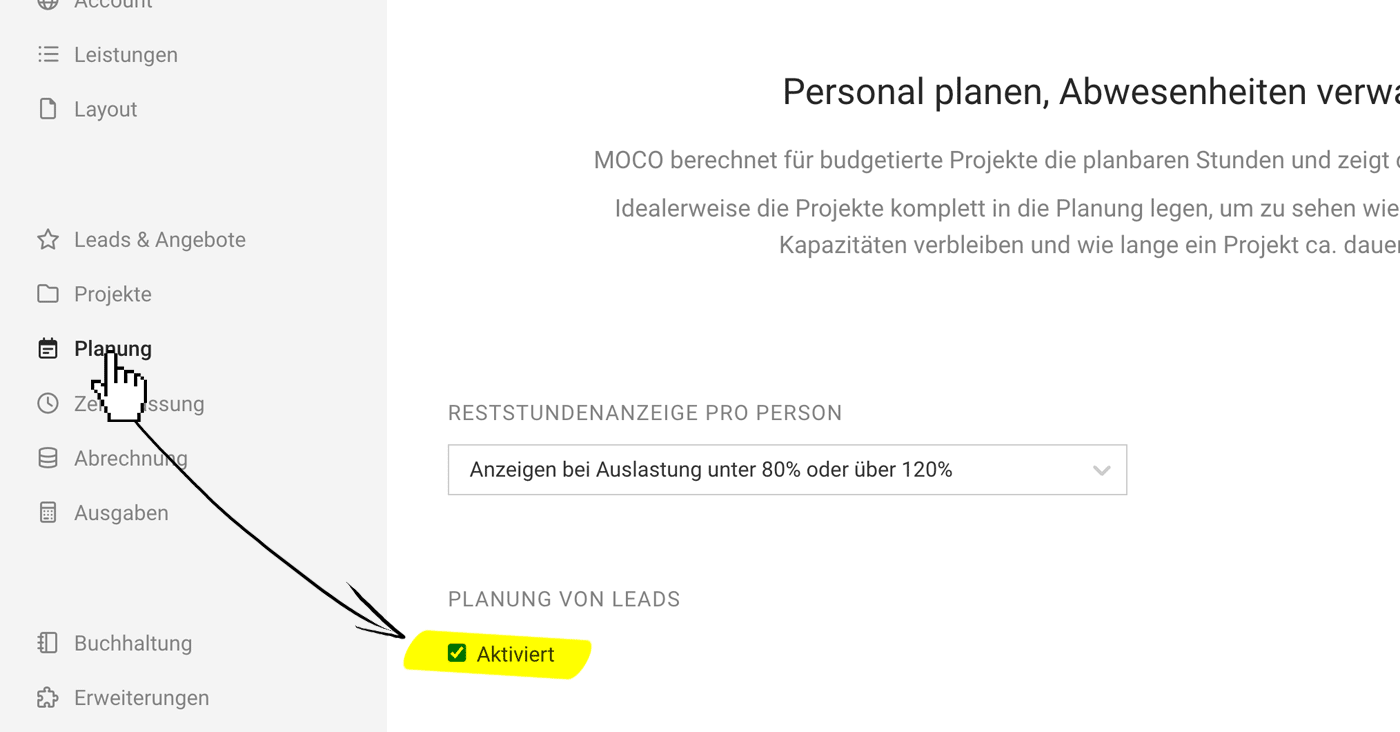 (English image not yet available)
Leads are offered alongside projects in capacity planning to identify potential capacity bottlenecks early. If you prefer not to plan leads, you can deactivate them here. Alternatively, if you want to initially leave this option aside, you can activate it later.
Learn more about planning leads
Managing Absences
HR managers with access rights to "Staff" can generally manage absences for everyone.
Employees can enter/delete absences themselves, or only request Leave/Sickness/Neutral
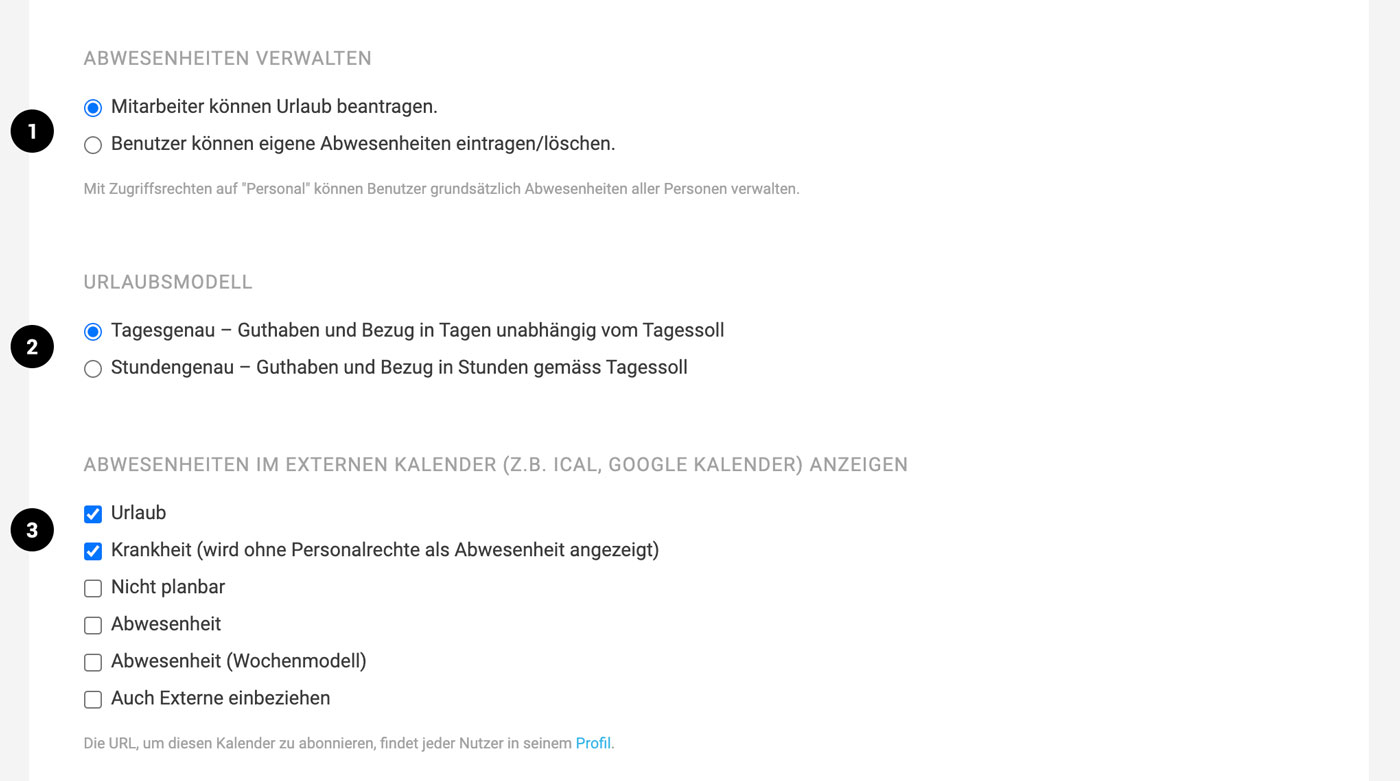
In the settings under "Planning", you also define whether all users can enter their own absences, or whether the average employee records their Leave/Sickness/Neutral via an absence request (1).
Display in an external calendar
Employees can enter/delete absences themselves, or only request Leave/Sickness/Neutral
In the settings under "Planning", you also define whether all users can enter their own absences, or whether the average employee records their Leave/Sickness/Neutral via an absence request (1).
Display in an external calendar
- Absences entered in MOCO can also be shown in an external calendar. In the settings under "Planning", you can choose which ones (3).
- Your own absences can optionally be synced as appointment blockers (Profile > External Calendar)
GDPR note: Users without staff permissions only see the absence "Sickness" as a neutral "Absence".
 (English image not yet available)
Choose Holiday Model
In the settings under "Planning", you can select the holiday model for the account in the context of absences (2).








