Absences / Holidays
All Types of Absence | Public Holidays | Holiday Model | Leave Account | Leave Request | Holiday Overview for All Employees | Home Office | ExportsAll Types of Absence
Absences are entered under "Planning" with the relevant permissions. Leave, sickness and neutral absences can also be recorded under "Personnel" for the person in question, or in your own profile.
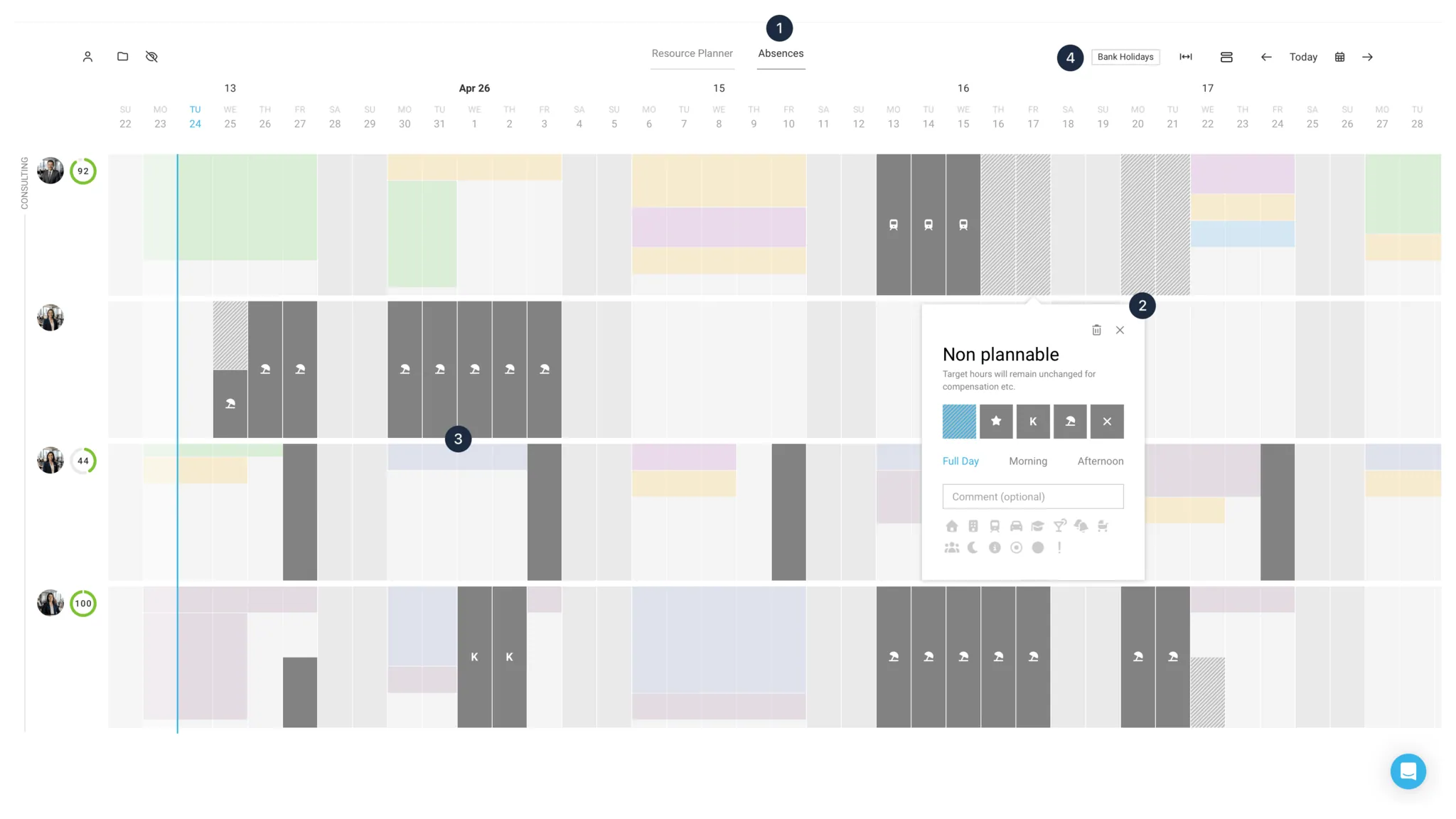
1) "Abwesenheiten" wählen 2) Nach Klick auf den Tag öffnet sich die Abwesenheitswahl 3) Abwesenheitsanträge werden blau angezeigt 4) Feiertage für das gesamte Personal wird über den Serieneintrag rechts oben eingetragen.
Regular Absences
On days with the following recorded absences, the employee does not need to work any hours (target hours on that day = 0).
Public Holiday (star icon)
Enter public holidays & how to enter public holidays fairly for part-time staff
Sickness (K)
Users only see the sickness note if they have "Personnel" access rights.
Absence because a child is ill: use Sickness + the pram icon.
For partial incapacity for work / sick leave recorded as a percentage, mark half days (50%) and, for other percentages, use the following workaround: credit the time in the Time Account with a note for traceability – alternatively, reduce the Target Hours for the relevant period.
Leave (sun umbrella)
Leave model, leave account, special leave, absence request
Neutral Absence (X)
For example, for vocational school or other days away, such as a team outing.
As an alternative to recording a special credit in the leave account, absences such as paternity leave, moving day, etc. can also be recorded as a neutral absence (add a comment or icon for traceability).
Not Plannable
(hatched)
"Not Plannable" is purely an informational marker. The stored target is still valid. If no time is recorded on that day and the target is therefore not balanced, the target hours are deducted (Target-Actual is reduced by the negative hours). A typical use of this absence is to compensate overtime. Employees can therefore enter this informational absence themselves.
"Not Plannable" is purely an informational marker. The stored target is still valid. If no time is recorded on that day and the target is therefore not balanced, the target hours are deducted (Target-Actual is reduced by the negative hours). A typical use of this absence is to compensate overtime. Employees can therefore enter this informational absence themselves.
Examples of use
a) Compensating (reducing) overtime: Anke is due to work 8 hours on Monday (8 target hours = -8 h). As she has built up 20 hours of overtime (+20), she compensates on Monday. She enters "Not Plannable". Because she then does not work the 8 hours on Monday, her overtime is reduced by those 8 hours and, by Monday evening, she has 12 hours of overtime (20 -8 = 12 hours of overtime).
b) Marking a swap of a day off that is defined via the weekly model.
c) Home Office workaround: Not Plannable can be used in combination with a comment/house icon to indicate Home Office
b) Marking a swap of a day off that is defined via the weekly model.
c) Home Office workaround: Not Plannable can be used in combination with a comment/house icon to indicate Home Office
Various / Longer Absences
For e.g. maternity leave / parental leave, the Target Weekly Model can be paused, or a weekly model of 0-0-0-0-0 can be set up for that period.
Hourly Absences, e.g. Doctor’s Appointments
For hourly absences that are tolerated within working hours (such as doctor’s appointments or client events), we recommend creating an internal project called "Absences". Time is then booked to this project and can also be reported on.
If needed, this project can also be scheduled in Planning with 1–2 hours.
Showing Planning in an External Calendar – e.g. Google Calendar
Public Holidays
For the Entire Company, Teams, and Individuals
For the annual entry of public holidays for the entire company, MOCO offers a template (1).
In case of changes or a newly added person during ongoing operations, holidays can be adjusted for individuals or entire teams, selected from the template, or adopted from another person (2). This is particularly useful for varying holidays by country or city.
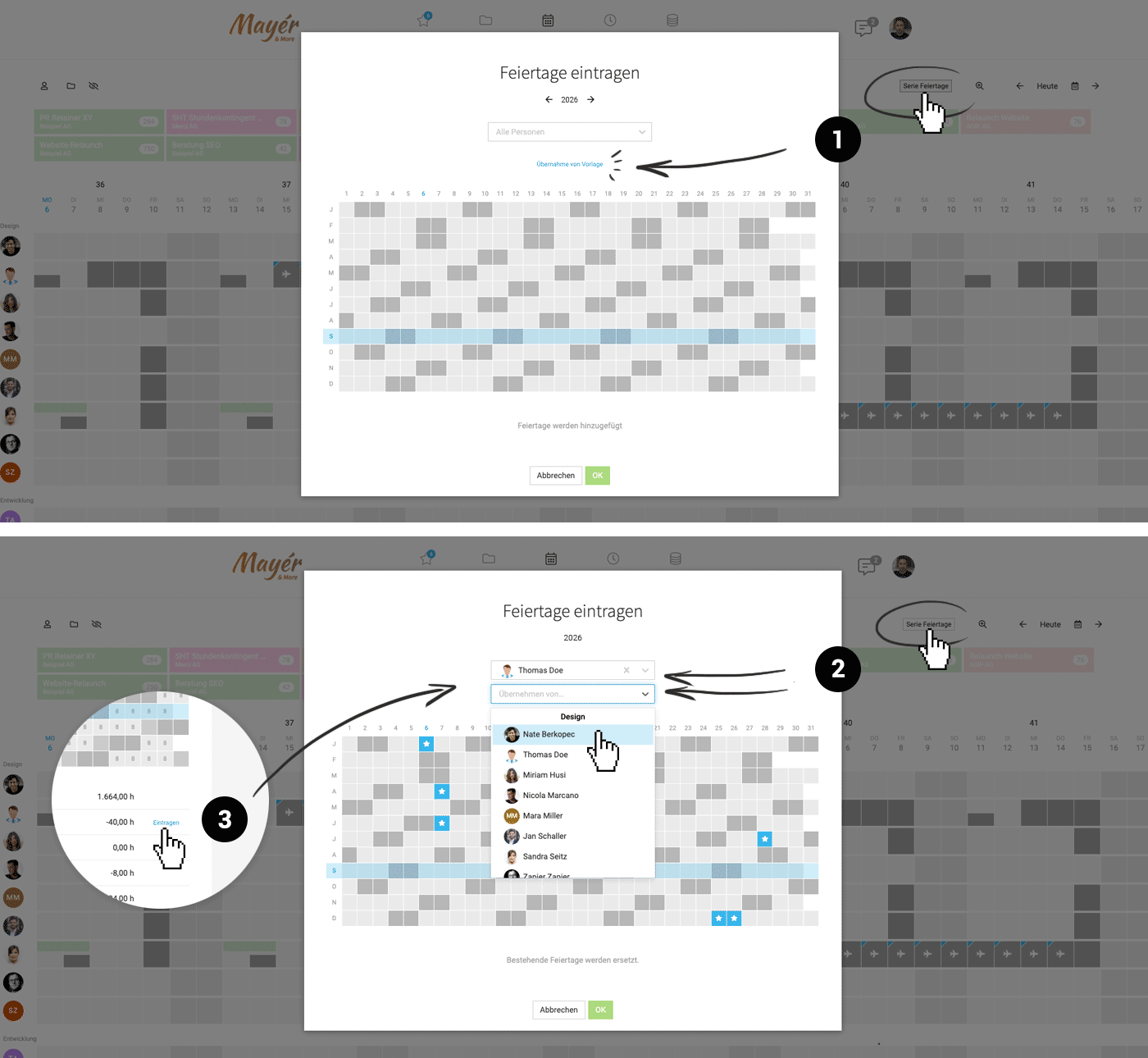 (English image not yet available)
Additionally, holidays can be directly entered under "Target-Actual" via a blue link (3).
Overview of Holidays by Country/State
Germany: https://www.timeanddate.de/feiertage/deutschland/2023
Switzerland: https://www.timeanddate.de/feiertage/schweiz/2023
Austria: https://www.timeanddate.de/feiertage/oesterreich/2023
Above, you can filter by year, country, and type of holidays.
In case of changes or a newly added person during ongoing operations, holidays can be adjusted for individuals or entire teams, selected from the template, or adopted from another person (2). This is particularly useful for varying holidays by country or city.
(English image not yet available)Additionally, holidays can be directly entered under "Target-Actual" via a blue link (3).
Overview of Holidays by Country/State
Germany: https://www.timeanddate.de/feiertage/deutschland/2023
Switzerland: https://www.timeanddate.de/feiertage/schweiz/2023
Austria: https://www.timeanddate.de/feiertage/oesterreich/2023
Above, you can filter by year, country, and type of holidays.
Entering Holidays Fairly?
When some individuals work part-time, discussions about holidays can arise.
There are two models commonly used in practice:
1. Entitlement to Holidays Only When They Occur
The employee has a clearly defined schedule with regular working days. For holidays that do not fall within the defined schedule, there is no entitlement to compensation. In the worst case, the employee is simply out of luck.
> Enter holidays for everyone regularly with the star symbol.
2. Holidays Proportional to Schedule
If there are ten holidays in a year with a 50% schedule, this results in an entitlement of five paid days. This model is generally perceived as fairer by part-time employees.
> Here, an additional credit of 5 days is entered in the leave account, using the leave symbol instead of the official holiday symbol.
There are two models commonly used in practice:
1. Entitlement to Holidays Only When They Occur
The employee has a clearly defined schedule with regular working days. For holidays that do not fall within the defined schedule, there is no entitlement to compensation. In the worst case, the employee is simply out of luck.
> Enter holidays for everyone regularly with the star symbol.
2. Holidays Proportional to Schedule
If there are ten holidays in a year with a 50% schedule, this results in an entitlement of five paid days. This model is generally perceived as fairer by part-time employees.
> Here, an additional credit of 5 days is entered in the leave account, using the leave symbol instead of the official holiday symbol.
Holiday Model
In the settings under "Planning," you can choose the holiday model as either "Hourly precise" or "Daily precise" (default).
 (English image not yet available)
(English image not yet available)Select Daily precise if all employees work full-time or have the same daily hours.
Select Hourly precise if some part-time employees have varying daily hours.
The practical example vividly illustrates the difference and can aid in decision-making
Select Hourly precise if some part-time employees have varying daily hours.
The practical example vividly illustrates the difference and can aid in decision-making
Daily precise
→ Advantage Easy to understand (WYSIWYG).
→ Disadvantage It may lead to discussions. Part-time employees might feel disadvantaged or tend to take days off with the most target hours.
→ Disadvantage It may lead to discussions. Part-time employees might feel disadvantaged or tend to take days off with the most target hours.
Hourly precise
→ Advantage Fair for both employers and employees.
→ Disadvantage Requires careful consideration, especially when changing work hours mid-year.
Leave Account
You can find each person’s leave account under "Staff" > select person > "Absences" (1). Use the "Next Person" quick selector at the top right to switch quickly to another person’s overview.
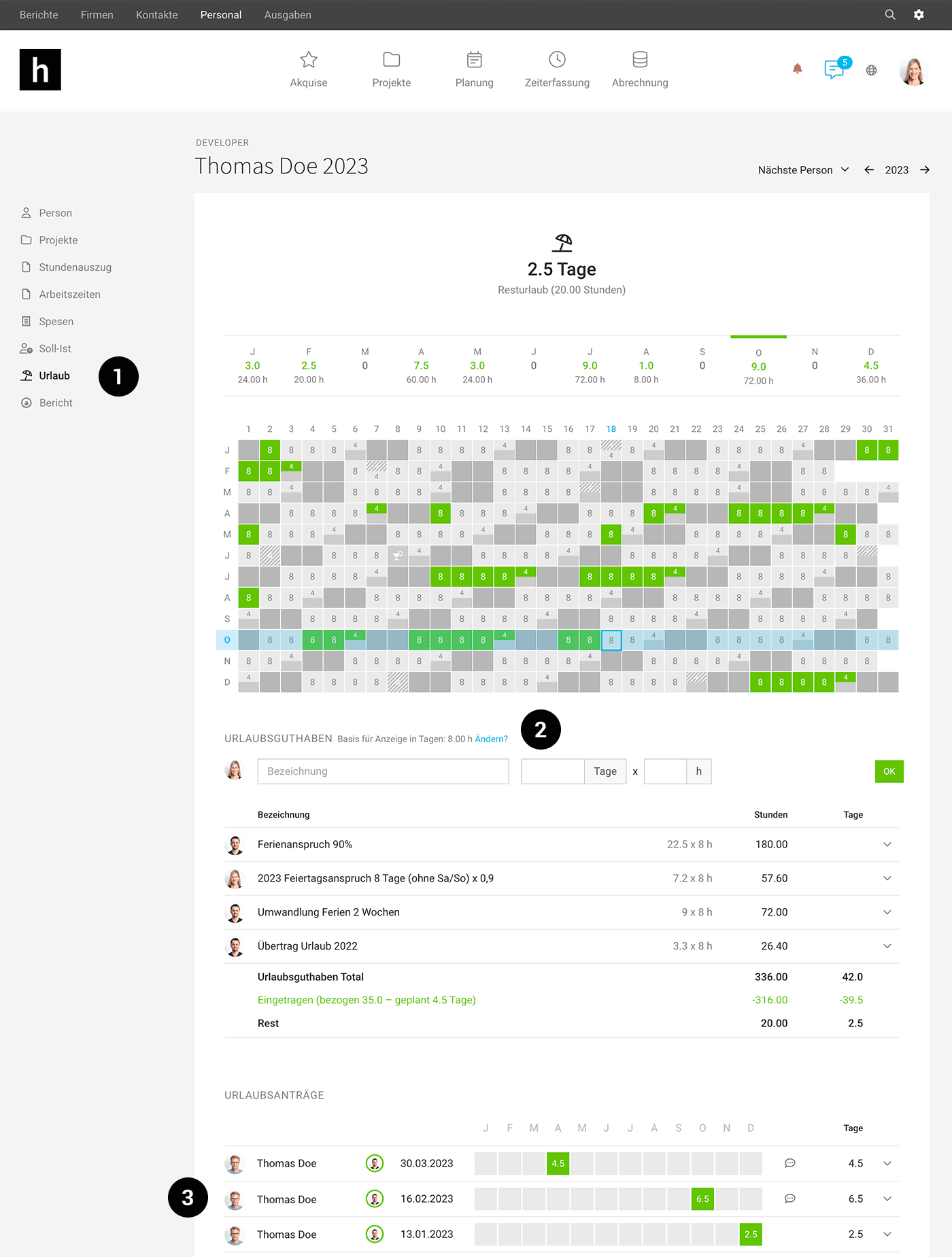 (English image not yet available)
Enter Leave Entitlement
Under "Leave Entitlement", enter all entitlements (including special entitlements, for example for moving house or getting married) after the target has been set up correctly.
→ Watch the video
→ Watch the video
If You Select the "Hourly" Leave Model
Employees usually take leave in full or half days. MOCO also displays leave entitlement in days. However, leave entries only deduct the hours that are stored in the weekly model for the relevant weekday. This ensures that leave is handled fairly for part-time employees with different target hours per day. More information on the hourly vs. daily leave model
The hours basis you set (2) determines how the balance is displayed in days.
Standard example
Irene works 100% / 40 h and is entitled to 25 days’ leave.
> Weekly model: 8 – 8 – 8 – 8 – 8
> Basis for display in days: 8 h
> Leave entitlement entry: 25 days at 8 h
Part-time: same hours per day
Mirko works 80% / 32 h spread over 5 days = 6.4 h per day. He is entitled to 25 days’ leave.
> Weekly model: 6.4 – 6.4 – 6.4 – 6.4 – 6.4
> Basis for display in days: 6.4 h
> Leave entitlement entry: 25 days at 6.4 h
Part-time: Fridays off
Stefan works 80% / 32 h. He has Fridays off. He is entitled to 25 days’ leave.
> Weekly model: 8 – 8 – 8 – 8 – 0
> Basis for display in days: 8 h
> Leave entitlement entry: 20 days at 8 h
Note: With 0.8 x 25 days = 20 days of leave entitlement, Stefan can take 5 full weeks of leave.
Part-time: different hours per day
Iris works 85% / 34 h. On Mondays she works 2 h, and Tuesday to Friday 8 h each. She is entitled to 25 days’ leave.
> Weekly model: 2 – 8 – 8 – 8 – 8
> Basis for display in days: 6.8 h (average per day)
> Leave entitlement entry: 25 days at 6.8 h
Note: The leave account will inevitably show "odd" day values. This is in the interest of equal treatment.
Because if you deducted 1 day per entry regardless of the target hours involved, one side would always be disadvantaged:
The employee loses out if they take leave on a Monday. The employer loses out if the employee mainly takes time off between Tuesday and Friday.
We recommend communicating this to the employee as follows:
This calculation ensures that neither employer nor employee is disadvantaged.
The hours basis you set (2) determines how the balance is displayed in days.
Standard example
Irene works 100% / 40 h and is entitled to 25 days’ leave.
> Weekly model: 8 – 8 – 8 – 8 – 8
> Basis for display in days: 8 h
> Leave entitlement entry: 25 days at 8 h
Part-time: same hours per day
Mirko works 80% / 32 h spread over 5 days = 6.4 h per day. He is entitled to 25 days’ leave.
> Weekly model: 6.4 – 6.4 – 6.4 – 6.4 – 6.4
> Basis for display in days: 6.4 h
> Leave entitlement entry: 25 days at 6.4 h
Part-time: Fridays off
Stefan works 80% / 32 h. He has Fridays off. He is entitled to 25 days’ leave.
> Weekly model: 8 – 8 – 8 – 8 – 0
> Basis for display in days: 8 h
> Leave entitlement entry: 20 days at 8 h
Note: With 0.8 x 25 days = 20 days of leave entitlement, Stefan can take 5 full weeks of leave.
Part-time: different hours per day
Iris works 85% / 34 h. On Mondays she works 2 h, and Tuesday to Friday 8 h each. She is entitled to 25 days’ leave.
> Weekly model: 2 – 8 – 8 – 8 – 8
> Basis for display in days: 6.8 h (average per day)
> Leave entitlement entry: 25 days at 6.8 h
Note: The leave account will inevitably show "odd" day values. This is in the interest of equal treatment.
Because if you deducted 1 day per entry regardless of the target hours involved, one side would always be disadvantaged:
The employee loses out if they take leave on a Monday. The employer loses out if the employee mainly takes time off between Tuesday and Friday.
We recommend communicating this to the employee as follows:
This calculation ensures that neither employer nor employee is disadvantaged.
Entitlements Such as Paternity Leave
If needed, you can also record additional entitlements such as moving days, paternity leave, etc. For longer absences, it can be helpful to pause the target weekly model accordingly, or define a weekly model with "0-0-0-0-0" for the relevant period (with 0 hours, MOCO shows an absence).
Leave Account at Year-End
In MOCO, at year-end you can carry over the balance automatically with one click per person, or across all people. For a manual carry-over, deduct the remaining days in the current year and credit them to the new year.
The new annual entitlement can be recorded for everyone in one action, or copied individually in the leave account from the previous year.
The new annual entitlement can be recorded for everyone in one action, or copied individually in the leave account from the previous year.
Leave Request
In MOCO, you can choose whether people are allowed to manage their own leave. If they are not, the Leave Request is used.
Setting location: Settings > Planning
Leave Request Process
1. The employee submits the leave request via their profile or the mobile app
In your profile under "Leave" (1, 2) select the days you want (3) and confirm using the blue button (4).
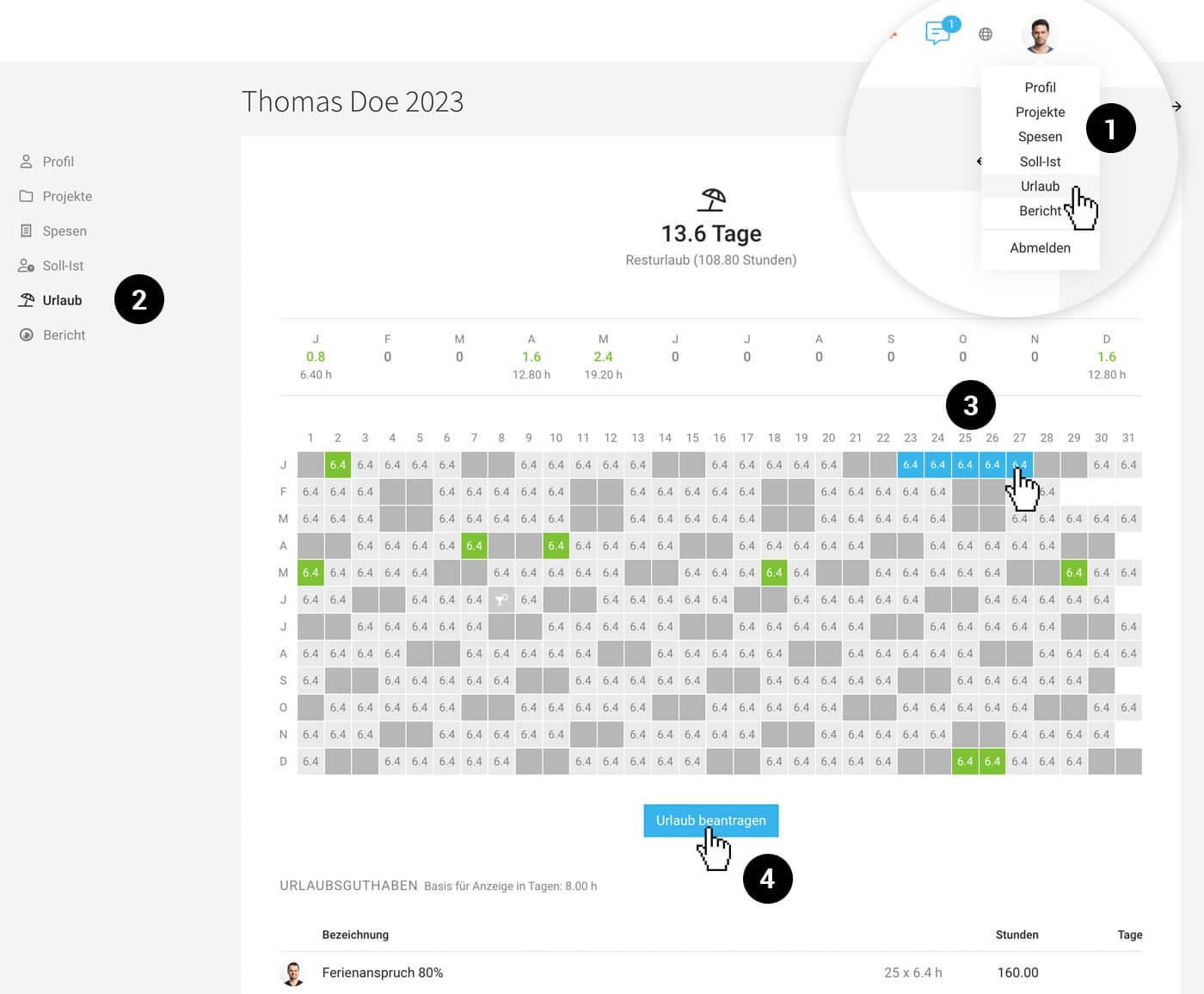 (English image not yet available)
Now choose the type of leave and the contact person for the notification (MOCO will suggest them automatically next time), add a comment (optional), and submit the request.
You can also do this easily on the go via the mobile app (example image: Android app):
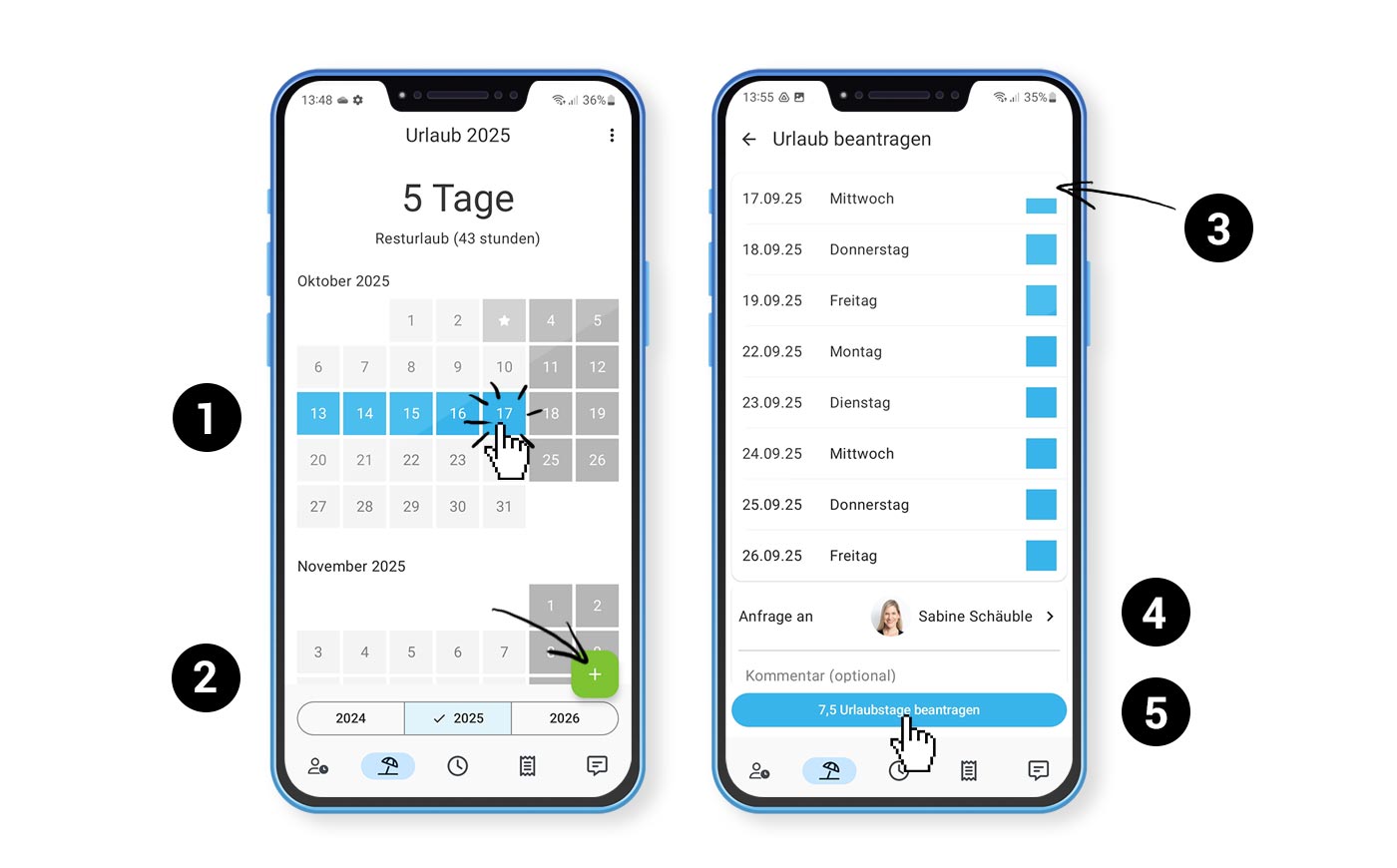 (English image not yet available)
In the calendar, simply tap the days you want (1), start a new request (2), adjust details such as half days (3), add any additional information if needed (4) – and then submit the leave request (5).
(English image not yet available)Now choose the type of leave and the contact person for the notification (MOCO will suggest them automatically next time), add a comment (optional), and submit the request.
You can also do this easily on the go via the mobile app (example image: Android app):
(English image not yet available)In the calendar, simply tap the days you want (1), start a new request (2), adjust details such as half days (3), add any additional information if needed (4) – and then submit the leave request (5).
2. The request is approved or rejected by someone with access rights to "Staff".
As soon as someone submits a leave request to you, the "Staff" menu item will flag it (1). Clicking the blue notice takes you straight to the request list filtered for you.
The "Leave Requests" page always lists all open leave requests, including the contact person (2). This means another HR-responsible person (for an overall view, or to cover absences) can also approve, edit, or reject the request (3).
In this list view, you can also use the "Q" keyboard shortcut to filter for leave requests addressed to you – and press "Q" again to switch back to the full list.
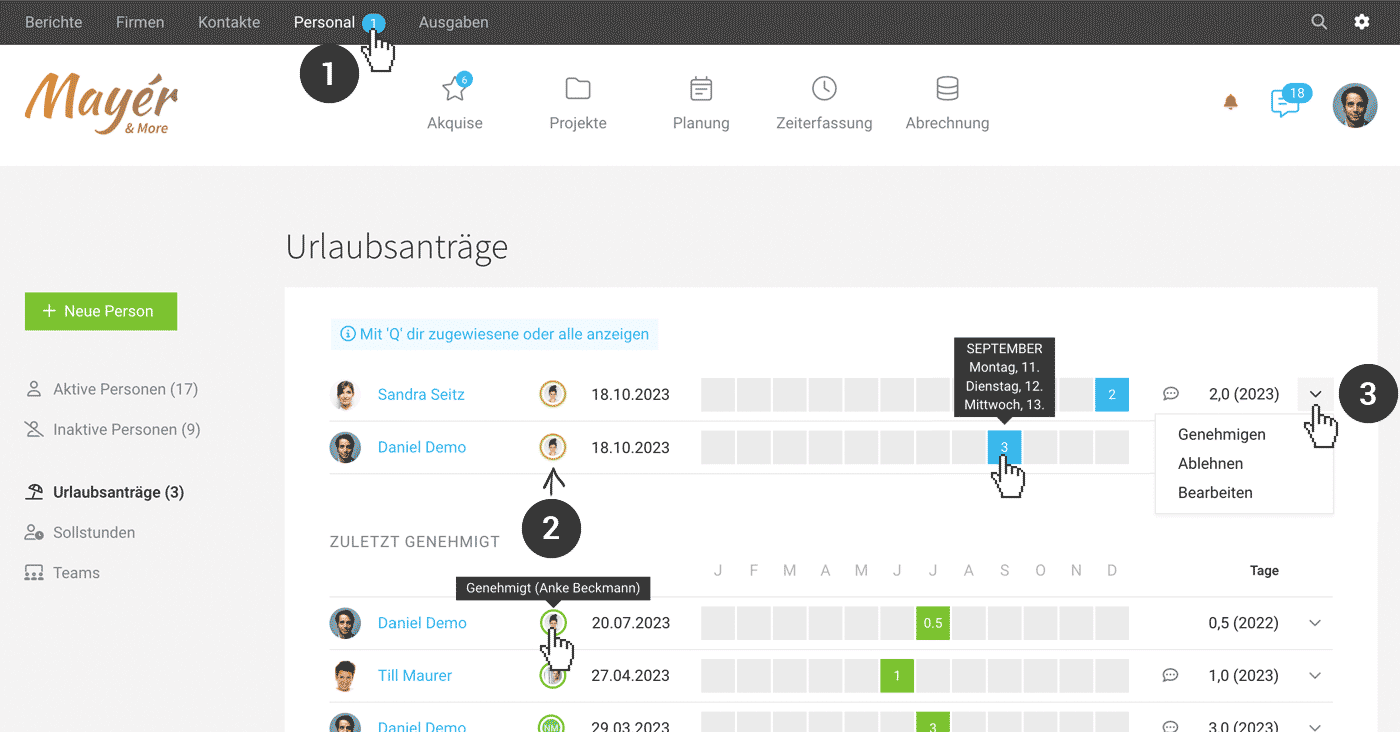 (English image not yet available)
The "Leave Requests" page always lists all open leave requests, including the contact person (2). This means another HR-responsible person (for an overall view, or to cover absences) can also approve, edit, or reject the request (3).
In this list view, you can also use the "Q" keyboard shortcut to filter for leave requests addressed to you – and press "Q" again to switch back to the full list.
(English image not yet available) Reviewing a Request in More Detail
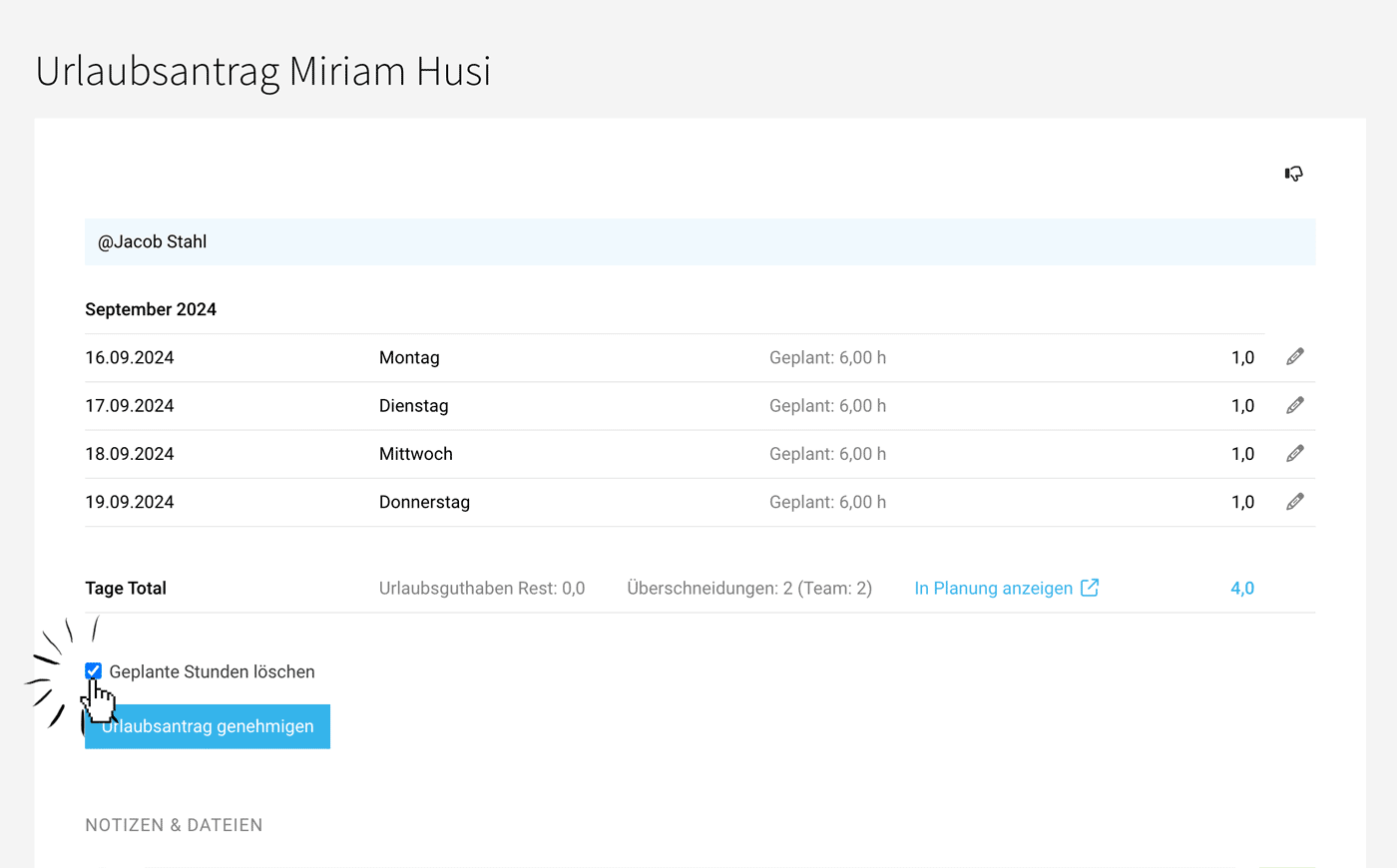
From the list, open the detail view via "Edit" on the right. There you can see all details of the leave request, edit it, or add a comment.
- Information on remaining leave entitlement (before approving the requested days) is shown.
- Who else is on leave at the same time: The link to Planning lets you jump straight to that period to see any overlaps with other people’s absences.
- Commenting and communication: The "Comments" section records the history. You can also communicate there using @name, for example if a request needs to be changed. Tip: Enable AI voice input for comments.
- You can delete individual days or replace them with a different type of leave. The person will be notified.
 (English image not yet available)
3. If the request is approved or rejected, the requester is notified
The employee will be informed whether the request has been approved or rejected (notification/email depending on the settings in their profile). For the business, requests and approvals remain traceable under "Staff".
Audit Trail
All requests can be tracked under "Staff" for the person > "Leave" – and likewise by the employee in their profile area.
Changing or Deleting a Leave Request
Requests that have not yet been approved can be deleted by the requester in their profile under "Leave".
Approved requests can only be edited or deleted by someone with Staff access rights (under "Staff"). To do this, use the dropdown on the right of the listed request and choose Edit or Delete. In the detail view under "Edit", you can also delete or replace individual days only. For example, if someone was ill during their leave and the days should be replaced with sickness.
Approved requests can only be edited or deleted by someone with Staff access rights (under "Staff"). To do this, use the dropdown on the right of the listed request and choose Edit or Delete. In the detail view under "Edit", you can also delete or replace individual days only. For example, if someone was ill during their leave and the days should be replaced with sickness.
Adding Custom Fields to the Leave Request
In addition to the contact person and the optional comment, you can request further company-specific information when leave is submitted – for example, a holiday cover contact. To do this, define a custom field in advance for the Leave Request type. The information is also shown when viewing the leave request.
Holiday Overview for All Employees
Under "Planning"
All staff are listed together. This allows you to quickly see which holidays overlap. Requests are highlighted in blue.
View in Planning
In the comprehensive staff report
there is also a compact annual overview:
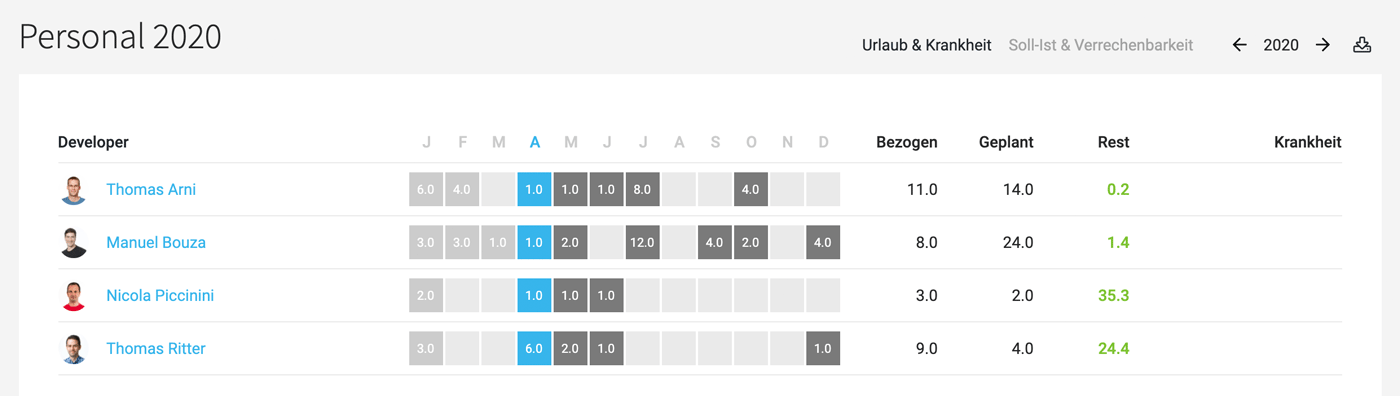 (English image not yet available)
All staff are listed together. This allows you to quickly see which holidays overlap. Requests are highlighted in blue.
View in Planning
In the comprehensive staff report
there is also a compact annual overview:
(English image not yet available)External Display
The absences of all employees can also be viewed externally in the calendar.
The absences of all employees can also be viewed externally in the calendar.
Home Office
Exports
There are numerous export options available for all individuals or specific individuals, depending on your needs. Link to the complete overview of all reports & exports
Direct links to
Direct links to








