Target-Actual
Target Hours/Weekly Model | Target-Actual Comparison | The Time Account | Overtime CompensationTarget Hours/Weekly Model
Target hours are the agreed hours defined in the employment contract. In MOCO, target hours are recorded using the weekly model.
Setting up the Weekly Model
When adding a new person, the weekly model can be adjusted on the detail page. Adjustments can also be made under "Target-Actual" for the individual. Central management and control can be found under "Personnel" > "Weekly Model" (1).
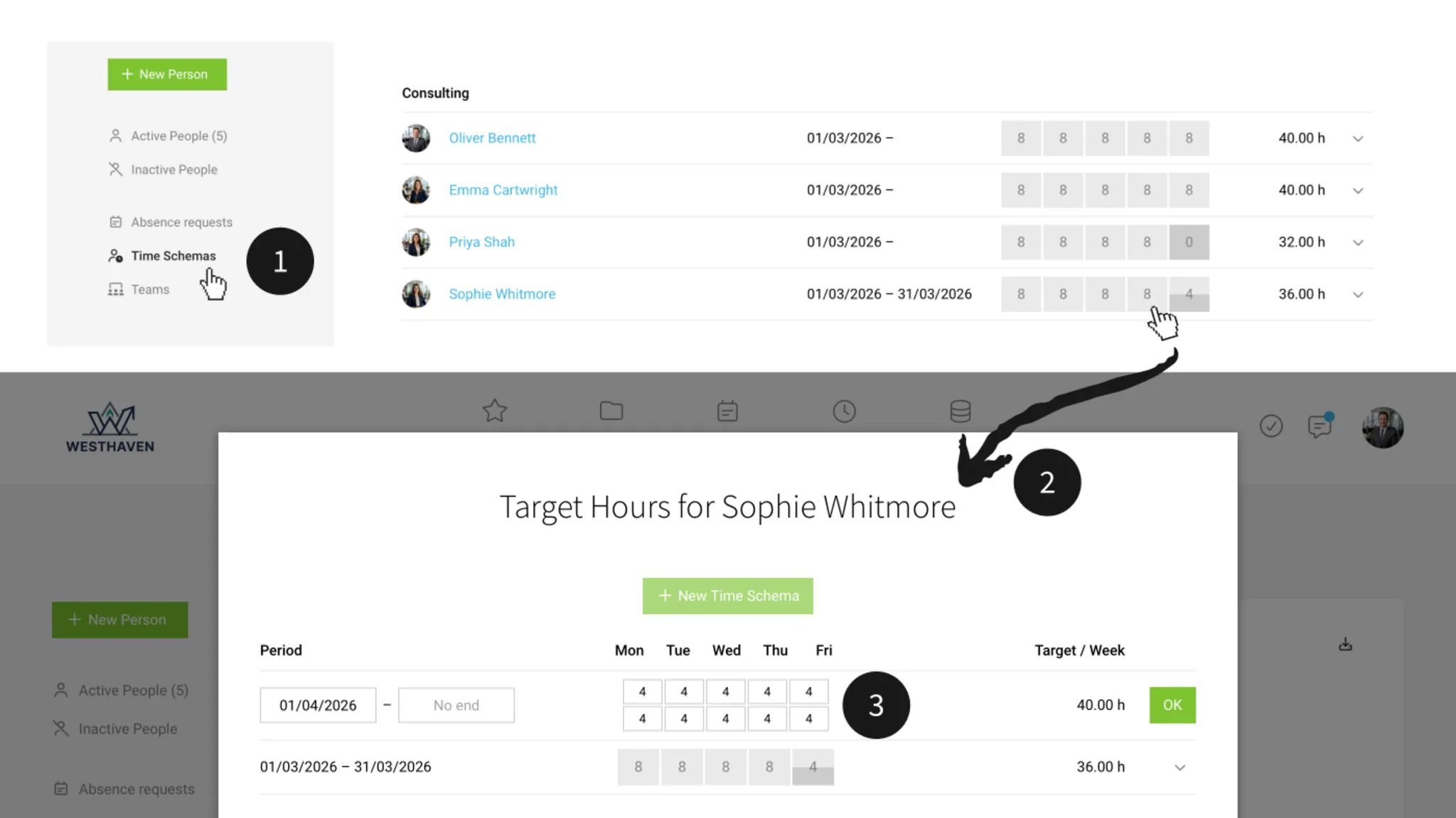
- A default weekly model with 100% workload is created for each new employee. This is based on the basic hours defined under "Account" settings. Adjust the model accordingly for part-time employees (2).
- Weekly hours are distributed from Monday to Friday, including morning/afternoon sessions. If 0 hours are entered for a whole day or just morning/afternoon (3), it will be shown as absent in planning and reports.
- Changing the workload: Each weekly model is assigned to a specific period. The current weekly model is ended, and a subsequent one is created (3).
Case Study: 90% and Absent Every Other Friday
Option 1 Enter 8 - 8 - 8 - 8 - 8 – and mark an absence day "x" every other week in planning. This allows flexibility to move the absence day to another weekday.
Option 2 Enter 8 - 8 - 8 - 8 - 4 – This balances the target over the weeks. This way, there's no need to manually enter absences. The employee can independently mark "Not schedulable" on Fridays when absent.
Option 2 Enter 8 - 8 - 8 - 8 - 4 – This balances the target over the weeks. This way, there's no need to manually enter absences. The employee can independently mark "Not schedulable" on Fridays when absent.
Target-Actual Comparison
Target vs. Project Time or Working Time
Whether you want to use time tracking or the optional working time tracking as the basis for comparison can be set for the entire account (Settings > Time Tracking). Regardless, we recommend that all employees in the company record all working hours on projects – including internal times. This is the only way to have a complete picture and see where all the non-billable time goes.
Whether you want to use time tracking or the optional working time tracking as the basis for comparison can be set for the entire account (Settings > Time Tracking). Regardless, we recommend that all employees in the company record all working hours on projects – including internal times. This is the only way to have a complete picture and see where all the non-billable time goes.
... across the board
For all personnel, there is a comprehensive report under "Reports" > "Time Tracking" and "Reports" > "Personnel"
... for the individual
Current, Year, Month, Day
under "Personnel" at the person > "Target-Actual".
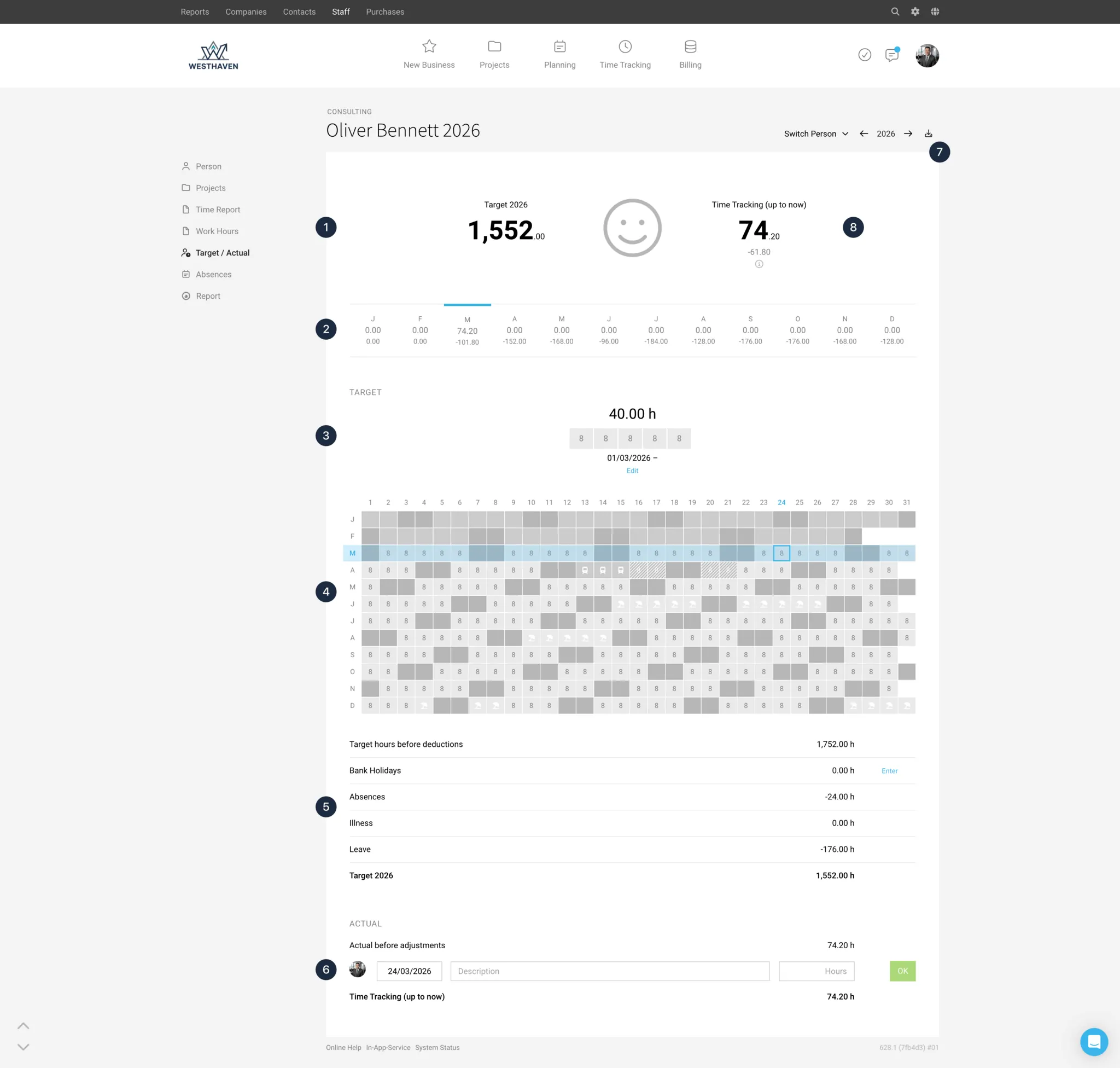
1. Annual Target Hours and Actual up to (and including) today.
2. Monthly Balance
3. Weekly Target Hours: The weekly model reflects the agreed weekly hours. Changes are directly visible in the calendar and totals.
4. Annual Calendar: The calendar visually displays the target hours per day.
5. Tabular Calculation of Target Hours
6. Time Account: Use for credits, compensations, or individual corrections. The employee does not see this option.
7. Excel Export: For a detailed breakdown per day (Target, Absences, Time Tracking, Working Time Tracking, Difference, Target-Actual per date, etc.).
8. Current Balance up to and including today. The negative or positive number below shows the current difference to the target up to today. This number is traceable below the "i" and via the export (7).
Each person also has this overview available in their own profile (click on the profile picture at the top right).
under "Personnel" at the person > "Target-Actual".
1. Annual Target Hours and Actual up to (and including) today.
2. Monthly Balance
3. Weekly Target Hours: The weekly model reflects the agreed weekly hours. Changes are directly visible in the calendar and totals.
4. Annual Calendar: The calendar visually displays the target hours per day.
5. Tabular Calculation of Target Hours
6. Time Account: Use for credits, compensations, or individual corrections. The employee does not see this option.
7. Excel Export: For a detailed breakdown per day (Target, Absences, Time Tracking, Working Time Tracking, Difference, Target-Actual per date, etc.).
8. Current Balance up to and including today. The negative or positive number below shows the current difference to the target up to today. This number is traceable below the "i" and via the export (7).
Each person also has this overview available in their own profile (click on the profile picture at the top right).
Weekly Status
Each person sees the Target-Actual in their time tracking as a progress bar with tooltip info. If working time tracking is chosen as the basis for the Target-Actual (account settings), this is visible in the tooltip.
 (English image not yet available)
Weekly Review, Reminder for Each Person
The weekly email on Monday contains a review of time tracking and the Target-Actual (the weekly email can be activated in the profile under "Notifications").
The Time Account
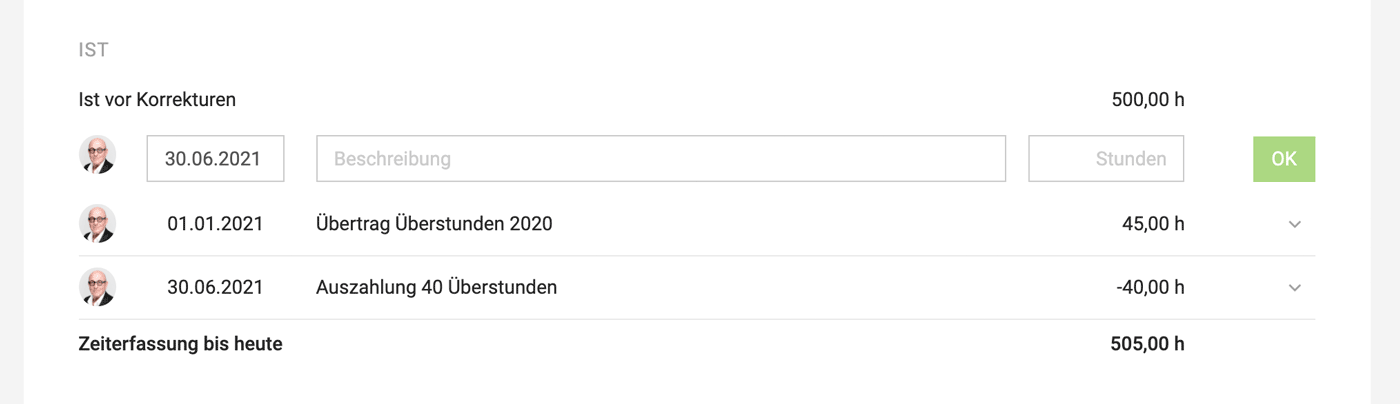
Under "Target-Actual" for employees, you'll find the time account. Here, you can record credits, compensations, or individual adjustments. The employee cannot edit anything in their profile under "Target-Actual".
 (English image not yet available)
With the time account, you can, for example
(English image not yet available)With the time account, you can, for example
- Enter the current hour balance when starting with MOCO.
- Deduct monetary compensations for overtime (see example).
- Make individual adjustments.
Overtime Compensation
Compensating Overtime
For overtime compensation, enter the details under Planning > Not Plannable. If the employee does not work on that day, the overtime hours automatically decrease by the daily target hours.
Deducting Paid Overtime
Paid overtime can be deducted in the Time Account with an appropriate comment.
Carrying Over Overtime to the Next Year
Carrying Over Overtime to the Next Year
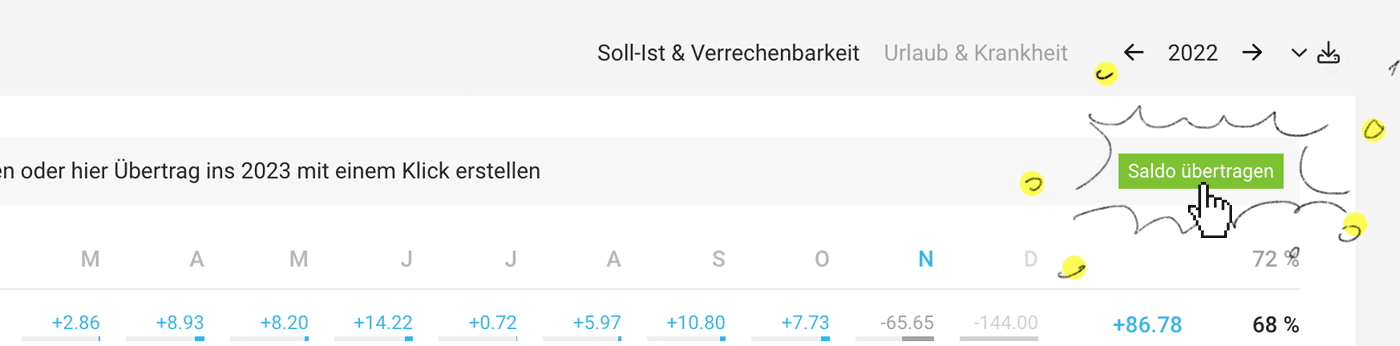
In MOCO, you can automatically carry over overtime with a click for each person or for all individuals (see image). For a manual carryover, deduct the remaining days in the current year and credit them to the new year.
 (English image not yet available)







