Time Tracking
Enable (Optional) | Manual or Automatic Tracking | Documenting Home Office | Overview, Extract, Exports | Filling Work Hours with Project Time | Irregularities, Compliance with Legal RequirementsEnable (Optional)
Enable Working Time Tracking
Working time tracking can be enabled as an additional feature. It is independent of regular (project) time tracking and is intended for businesses that are legally or contractually required to record start and finish times, as well as longer breaks.
The running working time also helps you keep track of how long a task took, and how many project hours should be recorded for the day.
Activation for individual employees Working time tracking can be enabled for an employee in the form, provided you have the access rights for "Personnel".
Activation for everyone If you select working time tracking as the basis for the Target-Actual comparison (Settings > Time Tracking), it will be enabled automatically for all employees.
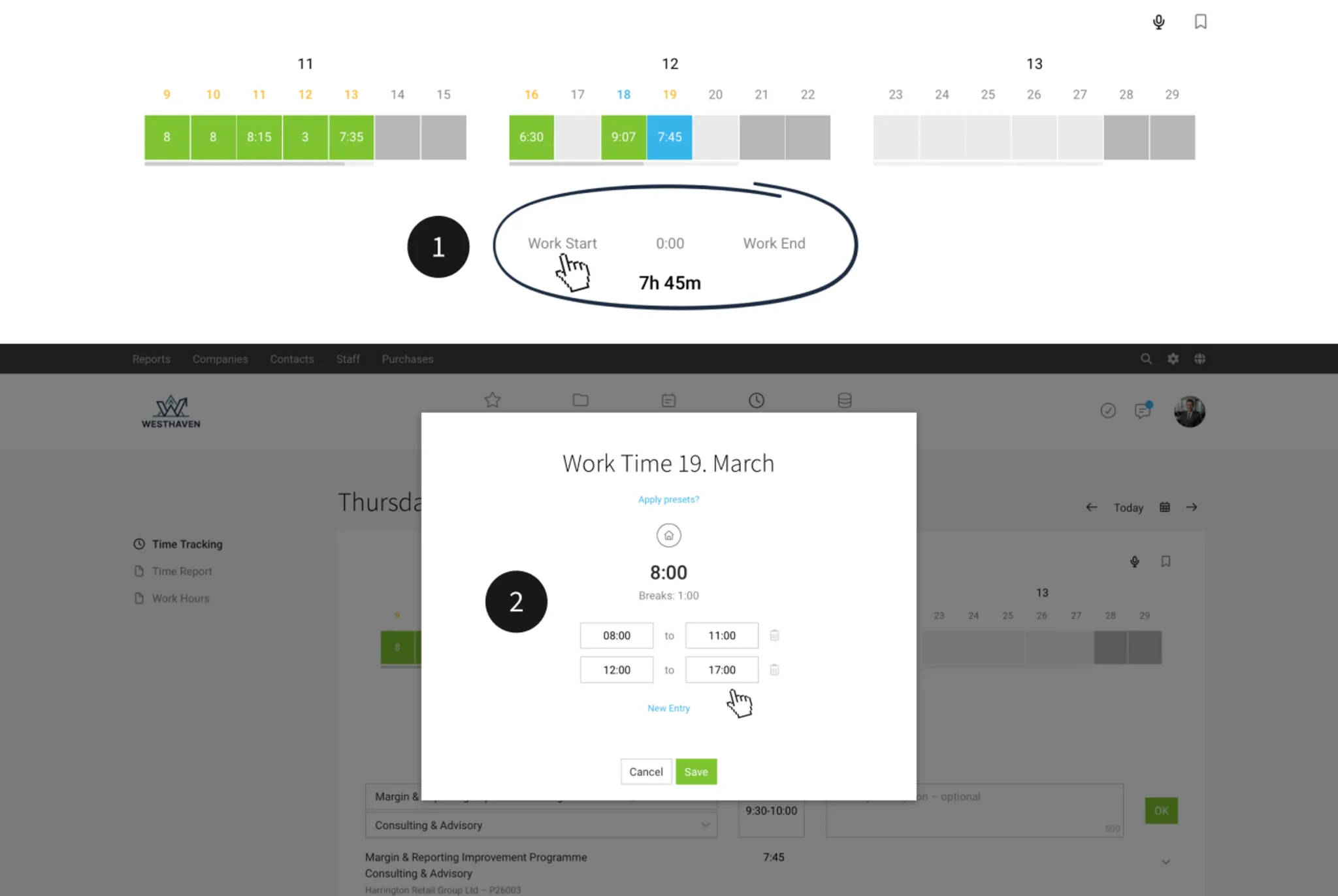
Once enabled, it appears in regular time tracking as an additional input option: "Start Work" and "Finish Work", shown above the entry form (1). Working time tracking documents work sequences and automatically calculates breaks (2).
The running working time also helps you keep track of how long a task took, and how many project hours should be recorded for the day.
Activation for individual employees Working time tracking can be enabled for an employee in the form, provided you have the access rights for "Personnel".
Activation for everyone If you select working time tracking as the basis for the Target-Actual comparison (Settings > Time Tracking), it will be enabled automatically for all employees.
Once enabled, it appears in regular time tracking as an additional input option: "Start Work" and "Finish Work", shown above the entry form (1). Working time tracking documents work sequences and automatically calculates breaks (2).
Manual or Automatic Tracking
As well as manual tracking via the web interface, there are other options: from the free MOCO iOS or Android app, to NFC tags, and even a physical button. For other bespoke options, you can use the API, the Zapier action “Record Presence”, and automation via the Shortcuts app (iPhone).
Manual Tracking
Use Play and Stop on hover to start and stop working time with one click (for the current day) – or click on the working time to open the pop-up and enter your work sessions manually.
Voice Input with AI
Once the AI feature is enabled, each user can simply dictate when they worked and when they took breaks. More on time tracking via voice input
Predefine Working Hours & Auto-Fill
If you work set hours, presets make working time tracking much easier. You then only need to make occasional adjustments. If you prefer, you can also use automatic tracking via an NFC/RFID tag, for example.
Preset in Your Profile
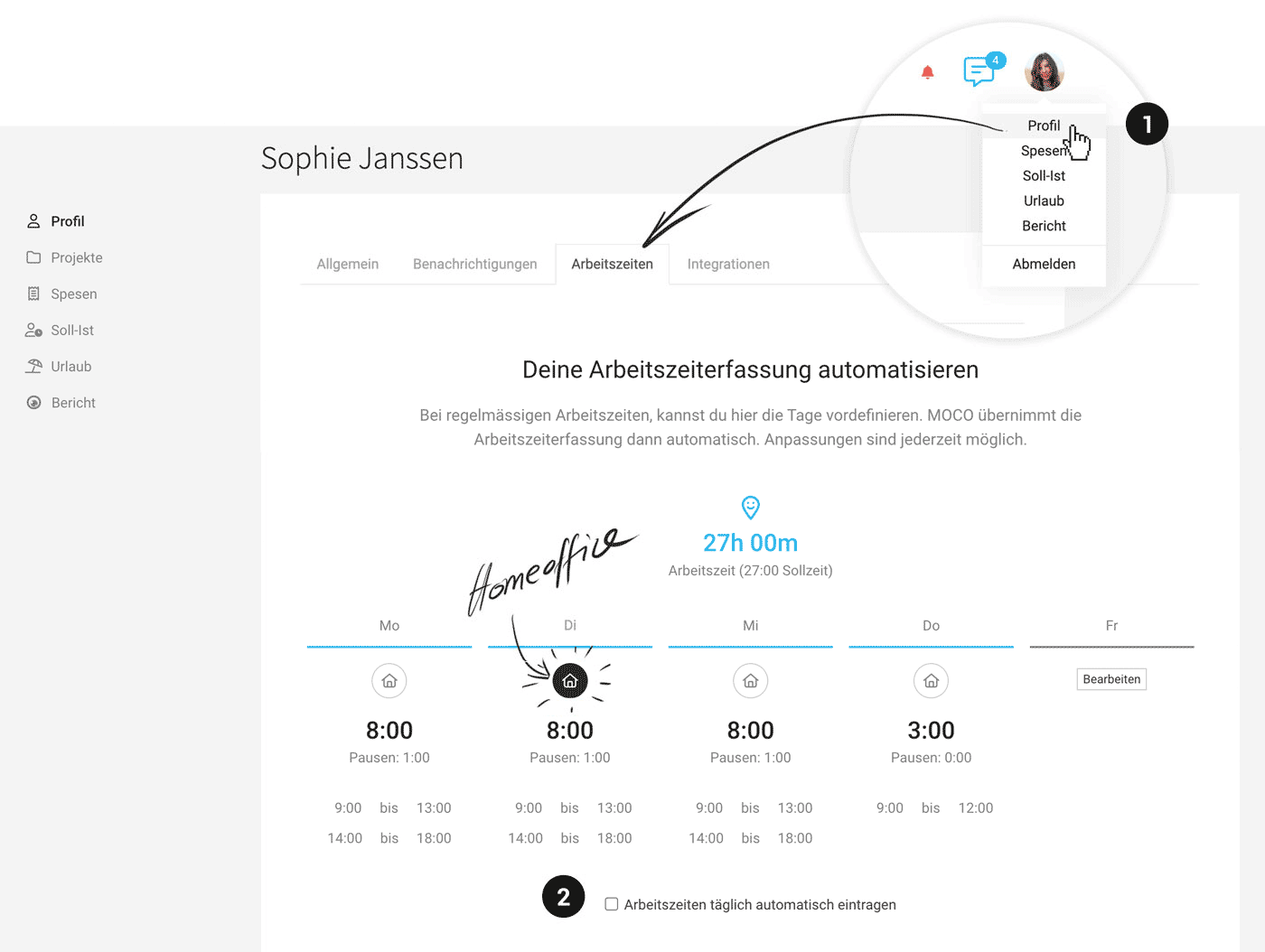
In your profile settings (1), you can save your working hours from Monday to Friday under “Working Hours”.
 (English image not yet available)
MOCO Fills It In for You
MOCO offers the predefined times as a blue link in working time tracking. If you tick the checkbox “Automatically enter working hours daily” in the settings (2), they will be entered each day shortly after the new day begins – and will be ready at the start of work to fill with project hours.
In your profile settings (1), you can save your working hours from Monday to Friday under “Working Hours”.
(English image not yet available)MOCO Fills It In for You
MOCO offers the predefined times as a blue link in working time tracking. If you tick the checkbox “Automatically enter working hours daily” in the settings (2), they will be entered each day shortly after the new day begins – and will be ready at the start of work to fill with project hours.
Mobile App
With the free Android and iPhone MOCO Mobile App, you can track working time as well as project time (including AI voice input).
Long-Press the App Icon for Check-In/Check-Out
On iOS and Android, you can now also check in and out for working time tracking by long-pressing the app icon.
Long-Press the App Icon for Check-In/Check-Out
On iOS and Android, you can now also check in and out for working time tracking by long-pressing the app icon.
Automate
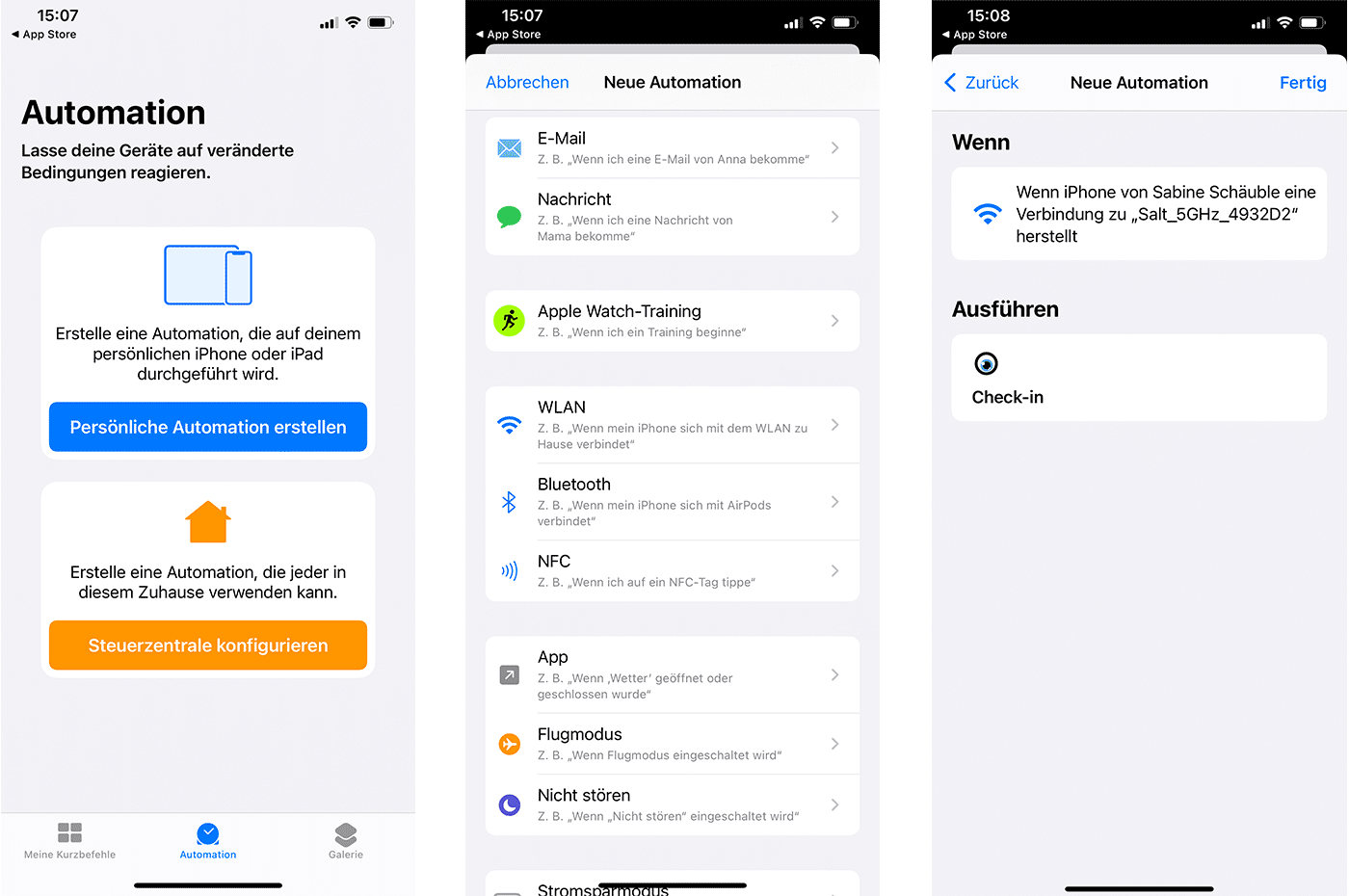
The iPhone app can be combined with Apple’s Shortcuts app. MOCO provides two actions for automation: Check-in (“clock in” for a new work phase) & Check-out (“clock out” to end an ongoing work phase). This lets you create different automations.
3 examples of bespoke automation
3 examples of bespoke automation
- Check in when you arrive at a defined location (and check out in the same way)
- Check in when you connect to a defined Wi-Fi
- Check in when you tap an RFID/NFC tag (stickers that can be placed in various locations, such as your desk or front door, e.g. via Amazon or branded via Flyeralarm).
- Practical example of a simple, self-built “time tracking terminal”
With the upgrade to iOS 13, all iPhone 7 models and later can read and write NFC tags.
The iPhone is compatible with all NFC Forum chips from type 1 to 5, including: NTAG®, ICODE®, FeliCa™, MIFARE® (Desfire, Plus, Ultralight).
 (English image not yet available)
(English image not yet available)Physical Button
Working time can also be tracked using a button. It’s simple and works without any programming knowledge. We show how in this case study: “Push the button” – time tracking made easy – with MOCO & Flic.
Documenting Home Office
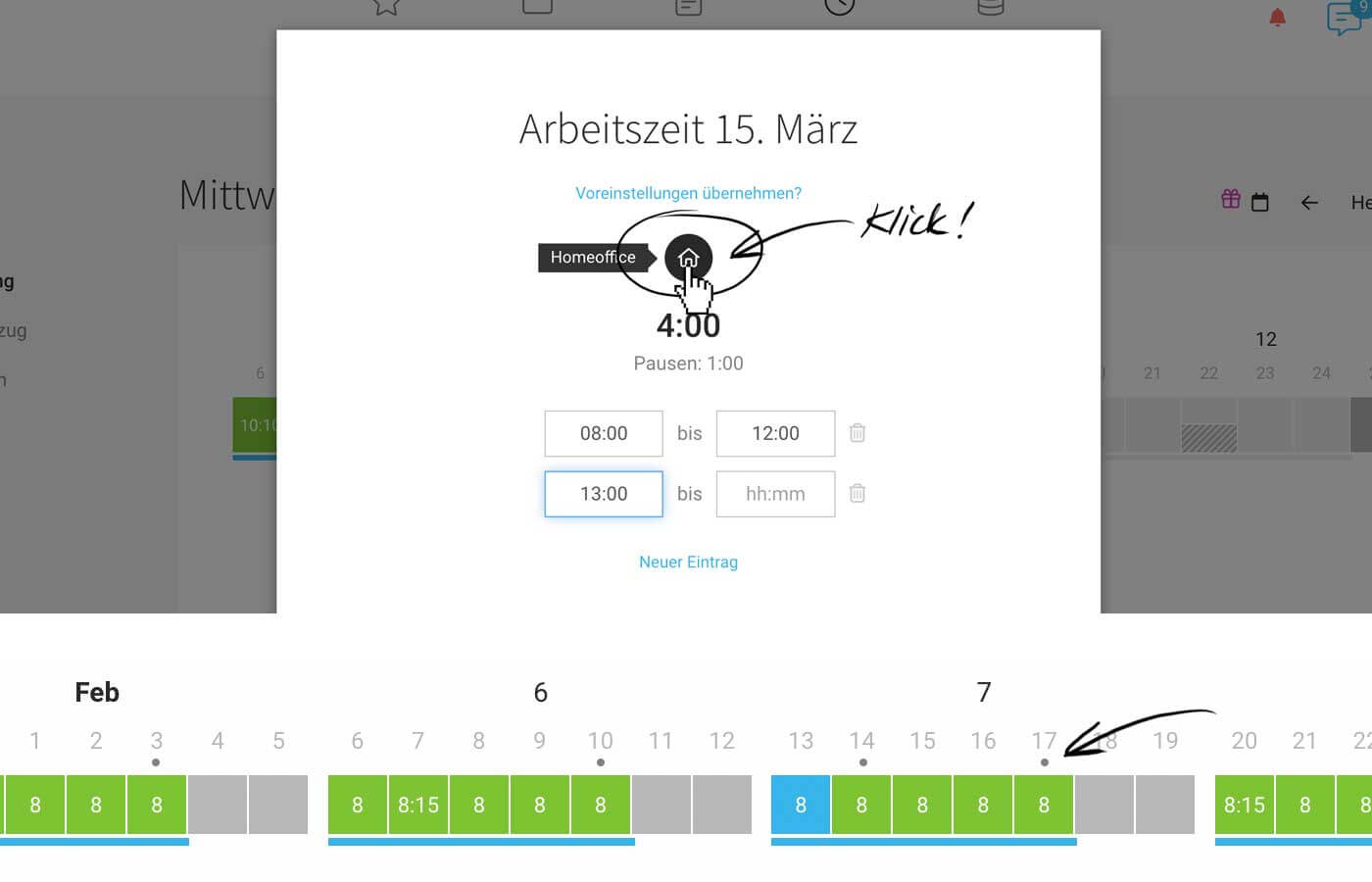
The time tracking feature also includes an option to document home office days.
 (English image not yet available)
(English image not yet available)Print or Export Documentation:
Export with Number of Home Office Days per Person
In the Target-Actual export, there is also a column "Home Office". Per Day & Person under "Target-Actual" for the individual. Per Month and Person under "Reports" > "Personnel".
Display
Display
Under "Working Hours", home office days are displayed in an extra column. The PDF extract there also includes a "Home Office" column.
See next section:
Overview, Extract, Exports
 (English image not yet available)
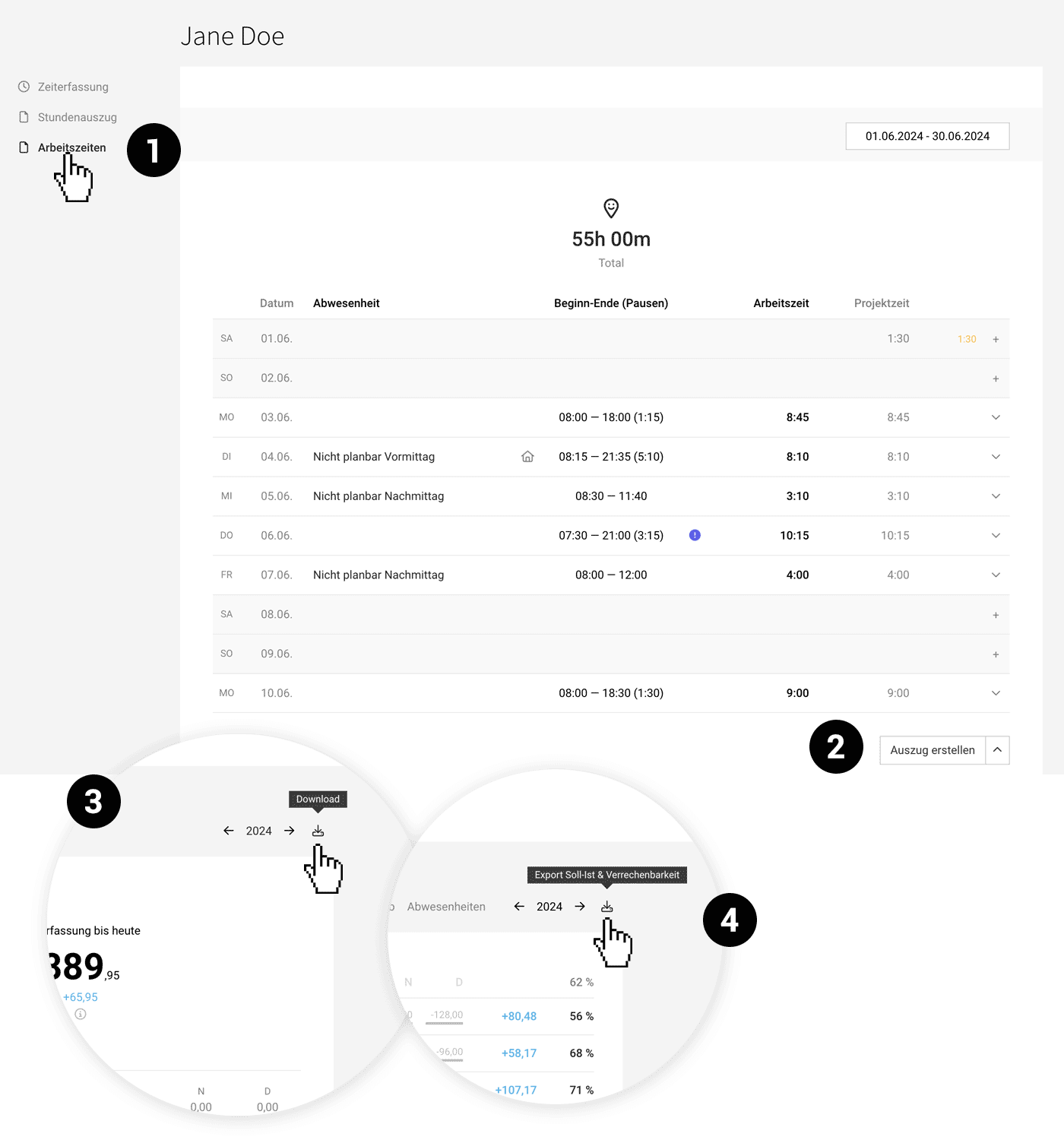
 In addition to the time tracking option under "Time Tracking", users can access an overview and extract under the "Working Hours" menu (1). As a personnel manager, you have this overview and extract option mirrored under "Personnel" for the individual.
- Filterable by time period
- Absences and home office are traceable.
- Entries can still be edited here.
- An extract can be created as a PDF (overview similar to web view) with relevant details: date, start of working hours, end of working hours, duration of daily working hours, weekly working hours
- Additionally, individual work slots or break times can be tracked via the alternative CSV or XLS extract. (2)
Custom fields selected for the timesheet will be displayed on the PDF extract for working hours.
Working hours are also part of the
- Target-Actual export per person and day (3) – for the individual under "Target-Actual"
- Target-Actual export per person and month (4) under "Reports" > "Personnel"
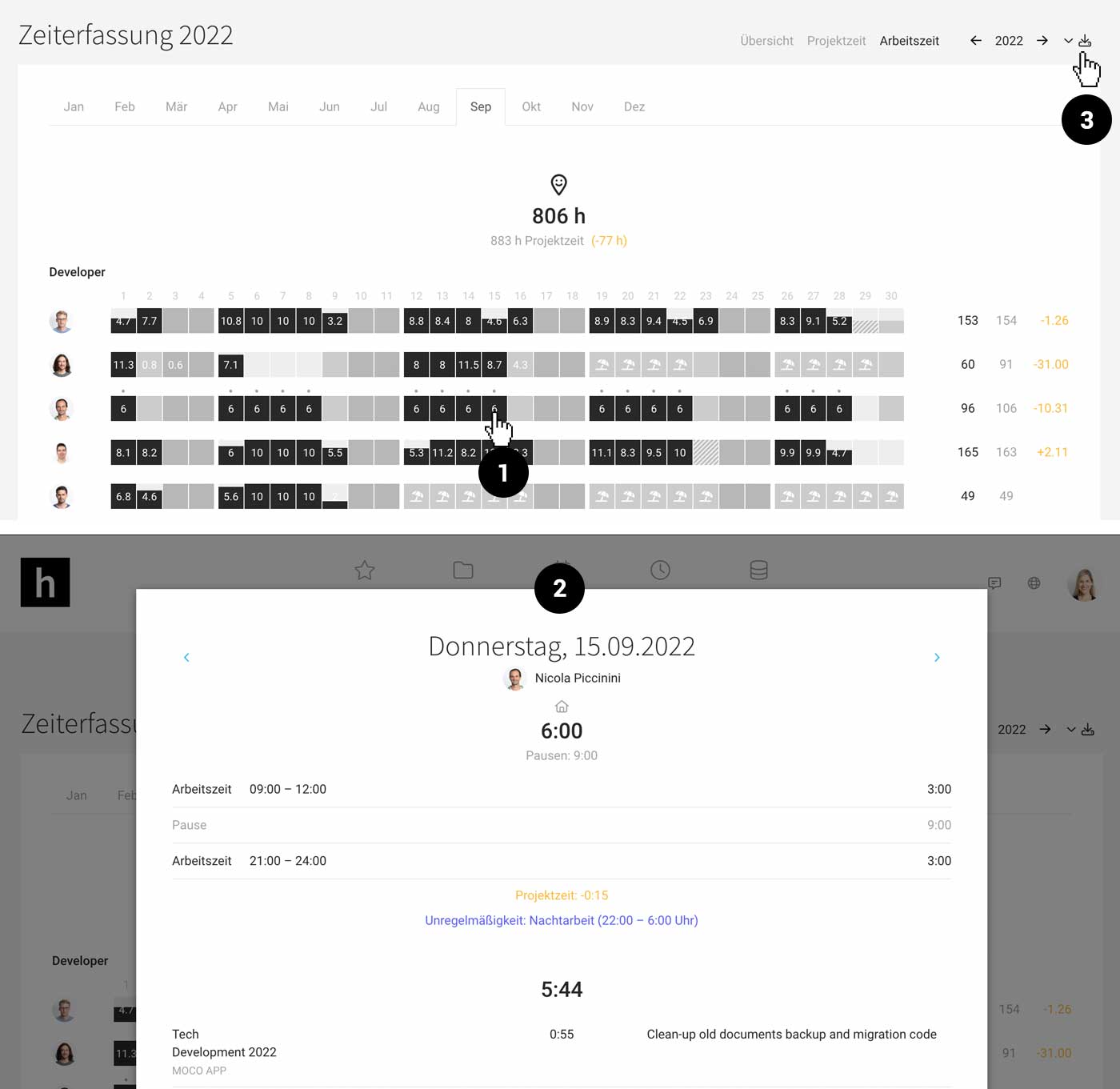
An overview for all individuals is also available under "Reports" > "Time Tracking" > "Working Hours":
 (English image not yet available)
Clicking on the day (1) provides details (2).
Global export (Excel) of working hours (Excel) per month and year: top right (3).
Filling Work Hours with Project Time
 (English image not yet available)
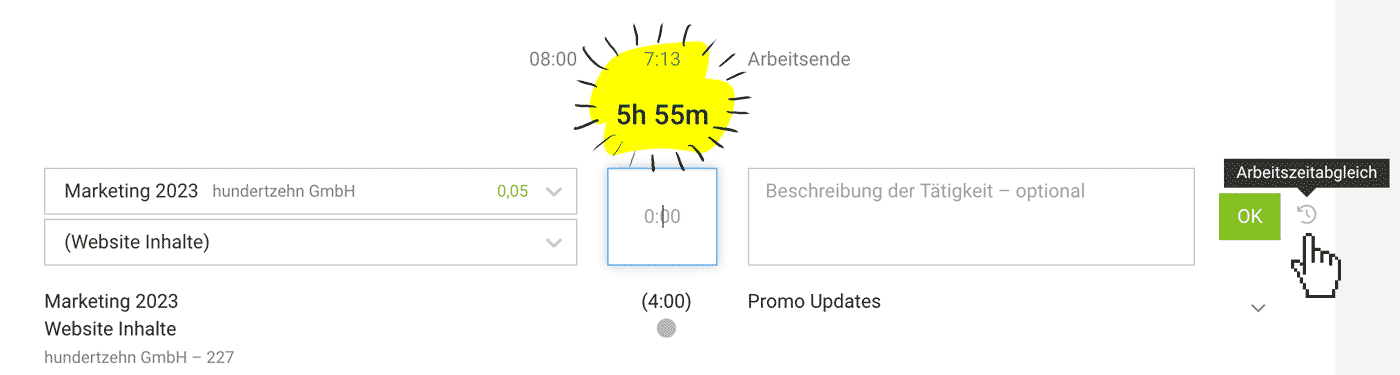
The gap between project time and work hours can be filled with a single click. This works for both new and existing entries.
Tip for accounts with automatic rounding of project hours enabled
Generally, a slight discrepancy in work hours is not an issue. However, if you wish to avoid any deviation, we recommend recording work hours in quarter-hour or 5-minute increments.
Stopwatch Automatically Ends at Work Time End
If you use the stopwatch and click the stop icon, the running timer for project time will also stop automatically.
Irregularities, Compliance with Legal Requirements
Employees quickly identify the need for corrections, easing the burden on supervisors
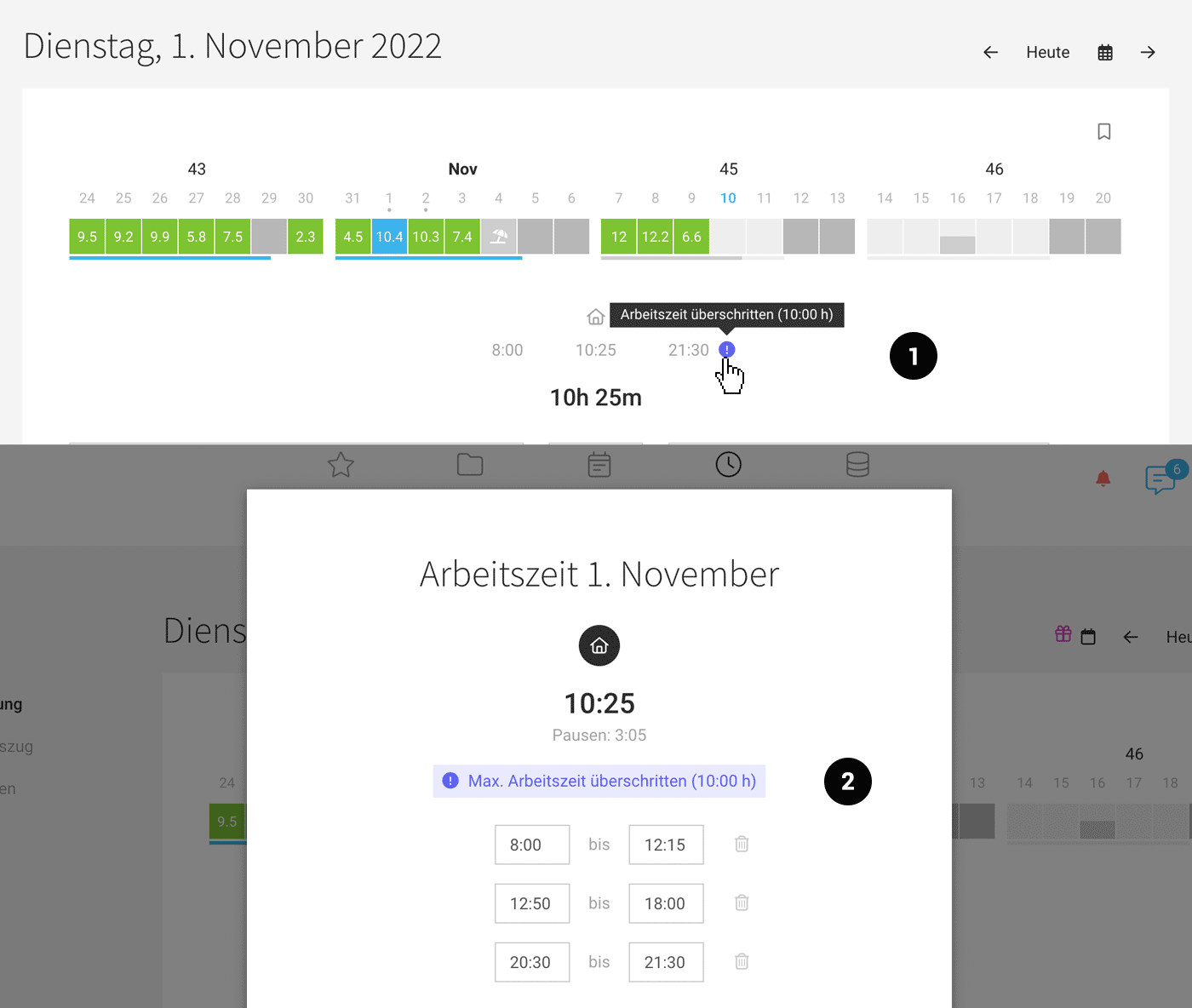
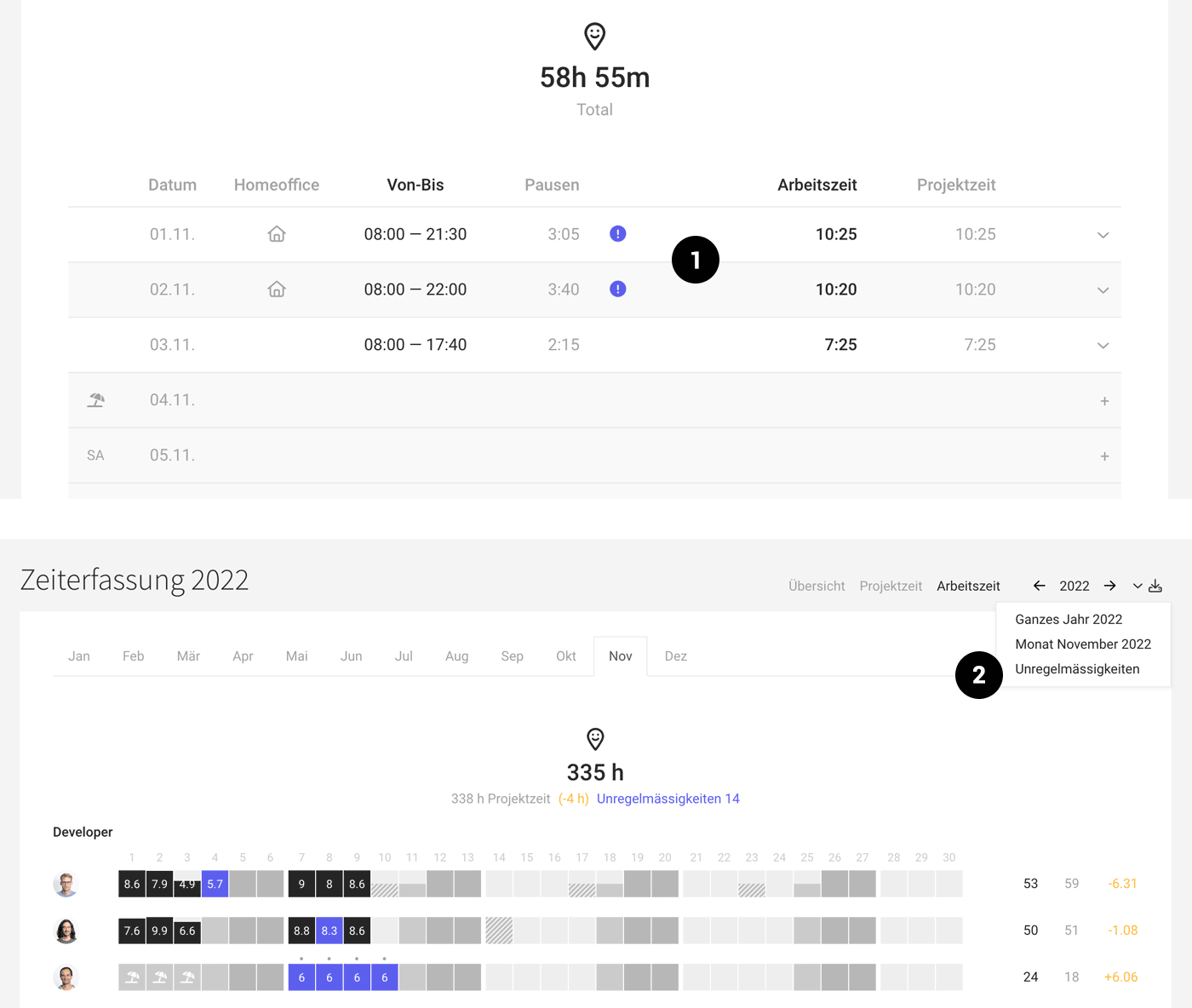
MOCO can notify about deviations or irregularities. Once the display is activated in the settings under "Time Tracking" > "Work Time Tracking", the information is shown for the individual as well as in the overview.
Personal Notification
Directly in their own time tracking, individuals can see if there are any deviations for the day and correct them (1,2).
In the "Work Times" section, each person can also review the entire month (or a specific period).
 (English image not yet available)
In the "Work Times" section, each person can also review the entire month (or a specific period).
(English image not yet available)Overview for Individuals and All Employees
Under "Work Times" (1) for employees and in the overall report under "Reports > "Time Tracking" > "Work Time" (2), the person responsible for personnel can quickly see if there are any irregularities. In both places, details for the day can be accessed with a click. Additionally, in the top right corner, there's an Excel download listing the irregularities.
 (English image not yet available)
(English image not yet available)Notification for Time Tracking Despite Illness
If there are entries for time tracking despite a day of absence, an irregularity is displayed. This is particularly helpful when using automatic time tracking and entering a sick day retrospectively!








