Time Tracking
General | Time TrackingGeneral
Settings > Time Tracking > General
 (English image not yet available)
(English image not yet available)Period Lock
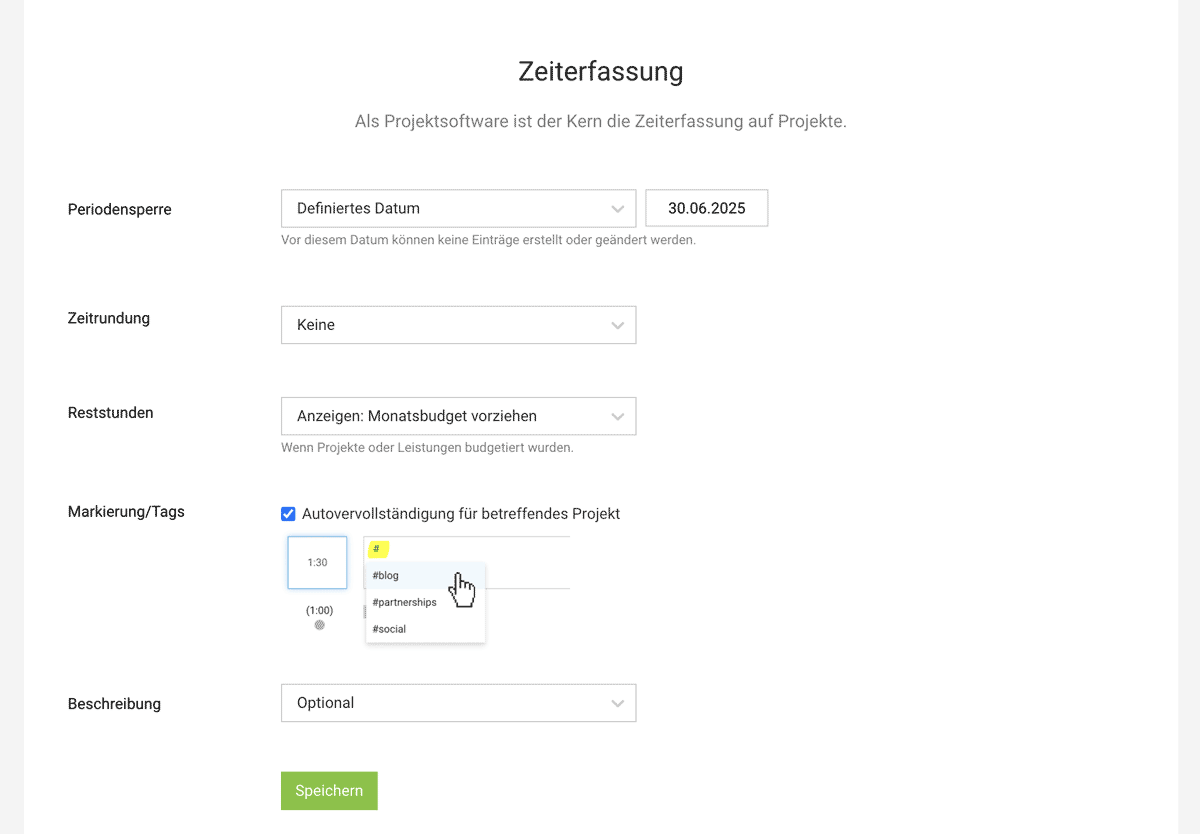
The period lock allows you to lock the entire time tracking. No changes can be made to the time tracking before the selected date. This is particularly helpful when you review and invoice times monthly.
Through a release request, a person can temporarily unlock their time tracking again.
Lock only a project or a service
Individual services that should no longer be booked can also be locked within the project. If you want to lock the entire project for time tracking, select "Lock services" in the actions at the top right of the project.
Through a release request, a person can temporarily unlock their time tracking again.
Lock only a project or a service
Individual services that should no longer be booked can also be locked within the project. If you want to lock the entire project for time tracking, select "Lock services" in the actions at the top right of the project.
Time Rounding
Under "Time Rounding," you can set whether time entries for projects should be automatically rounded by MOCO. Options include
quarter-hour or 5-minute increments and the variants:
a) Round up and down. Entries under 15 or 5 minutes are always rounded up.
b) Round up only
quarter-hour or 5-minute increments and the variants:
a) Round up and down. Entries under 15 or 5 minutes are always rounded up.
b) Round up only
Remaining Hours
If a project, service, or person is budgeted, the available remaining hours can be displayed in the time tracking. If you use the "Monthly Budget" option for projects, you can also set the remaining hours display to refer to the month here.
Tags
Under "Tags," you can set whether MOCO should automatically suggest tags already used for the project while typing.
All information about tags for time tracking
All information about tags for time tracking
Description
By default, entering a task description for the time entry in MOCO is optional. You can set here whether this input should be mandatory.
Time Tracking
Settings > Time Tracking > Time Tracking
 (English image not yet available)
(English image not yet available)Select Basis for Target-Actual Comparison
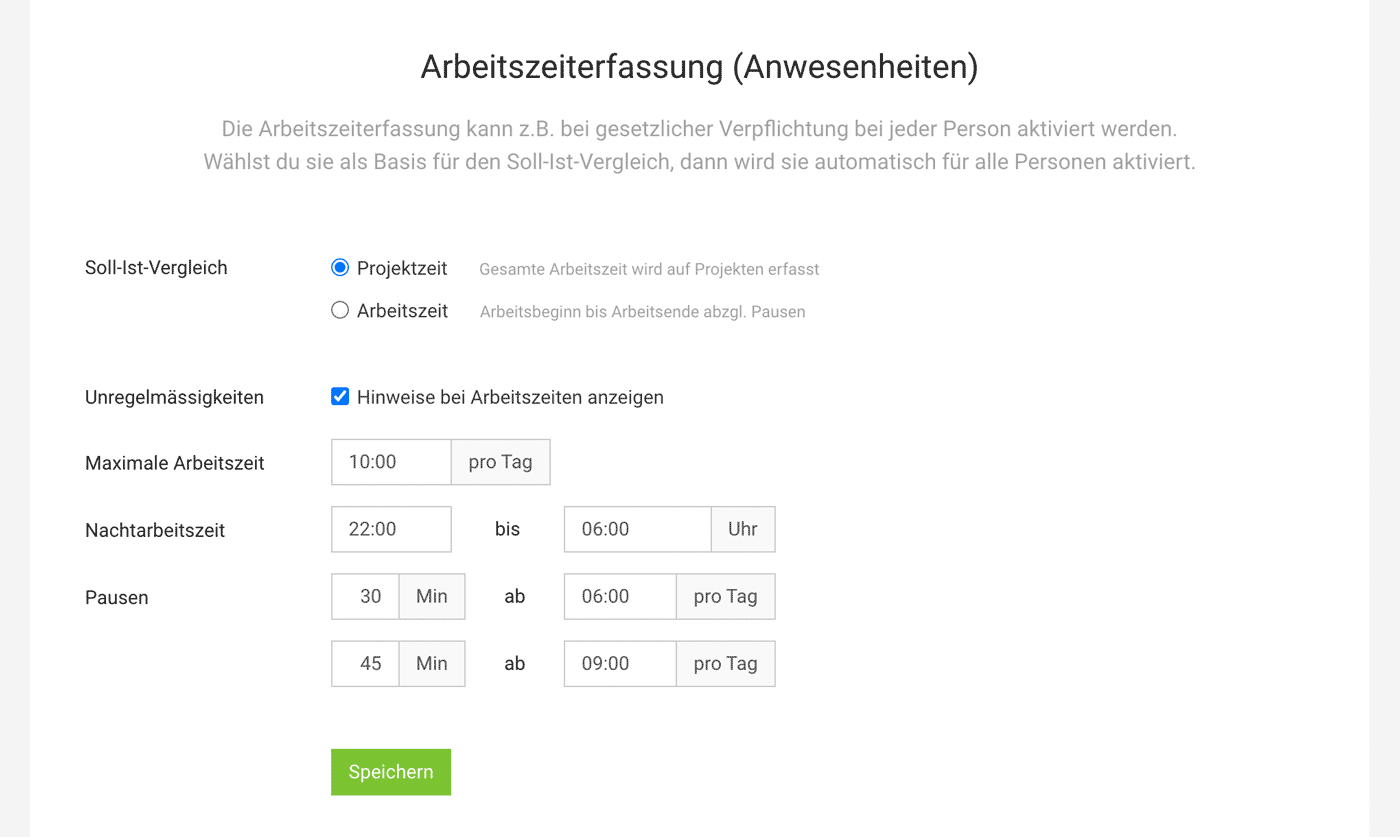
If you use time tracking as a supplement, you can alternatively choose working hours as the calculation basis for the Target-Actual comparison. This setting applies to the entire account.
Options:
a) Project Time: Based on recorded project hours (= regular time tracking).
b) Time Tracking: Based on recorded working hours (supplementary time tracking from-to)
When this calculation basis is selected, time tracking is activated by default for all users. If project time is the basis, you can choose per user whether time tracking should be activated.
Time tracking is optional and is generally used as a supplement to project time tracking due to legal obligations. It can also be useful to fully capture project time or automatically fill it in.
More info on time tracking
Options:
a) Project Time: Based on recorded project hours (= regular time tracking).
b) Time Tracking: Based on recorded working hours (supplementary time tracking from-to)
When this calculation basis is selected, time tracking is activated by default for all users. If project time is the basis, you can choose per user whether time tracking should be activated.
Time tracking is optional and is generally used as a supplement to project time tracking due to legal obligations. It can also be useful to fully capture project time or automatically fill it in.
More info on time tracking
Display Irregularities
If you activate irregularities, you can enter your own regulations or follow the legal regulations of your country.
Predefine Personal Working Hours
Each person can predefine their regular working hours in their profile under "Working Hours".
» Predefine in Profile
» Predefine in Profile








