AI
Time Tracking by Voice Input | Comments via Voice Input | Intelligent Import | MCPTime Tracking by Voice Input
With time tracking by voice input, you can now simply speak your times – MOCO does the rest. Here’s how it works and what the AI does for you.
AI Recognises and Records
- Working hours
- Projects & services
- Task description
- Remaining time (if your end of working hours is clear)
- Knows your most frequent projects and entries from the last few weeks
Enable
The AI feature can be enabled in Settings under Account > AI.
Speak
In time tracking in the browser, or on your iPhone, all users can now use voice input to add information for individual time entries – or speak your entire working day in one go. The AI analyses it, creates project times, and records your working hours.
Start and stop using M on the keyboard, or by clicking the microphone icon. In the iOS app, choose the option at the top right. Check and adjust entries if needed.
Start and stop using M on the keyboard, or by clicking the microphone icon. In the iOS app, choose the option at the top right. Check and adjust entries if needed.
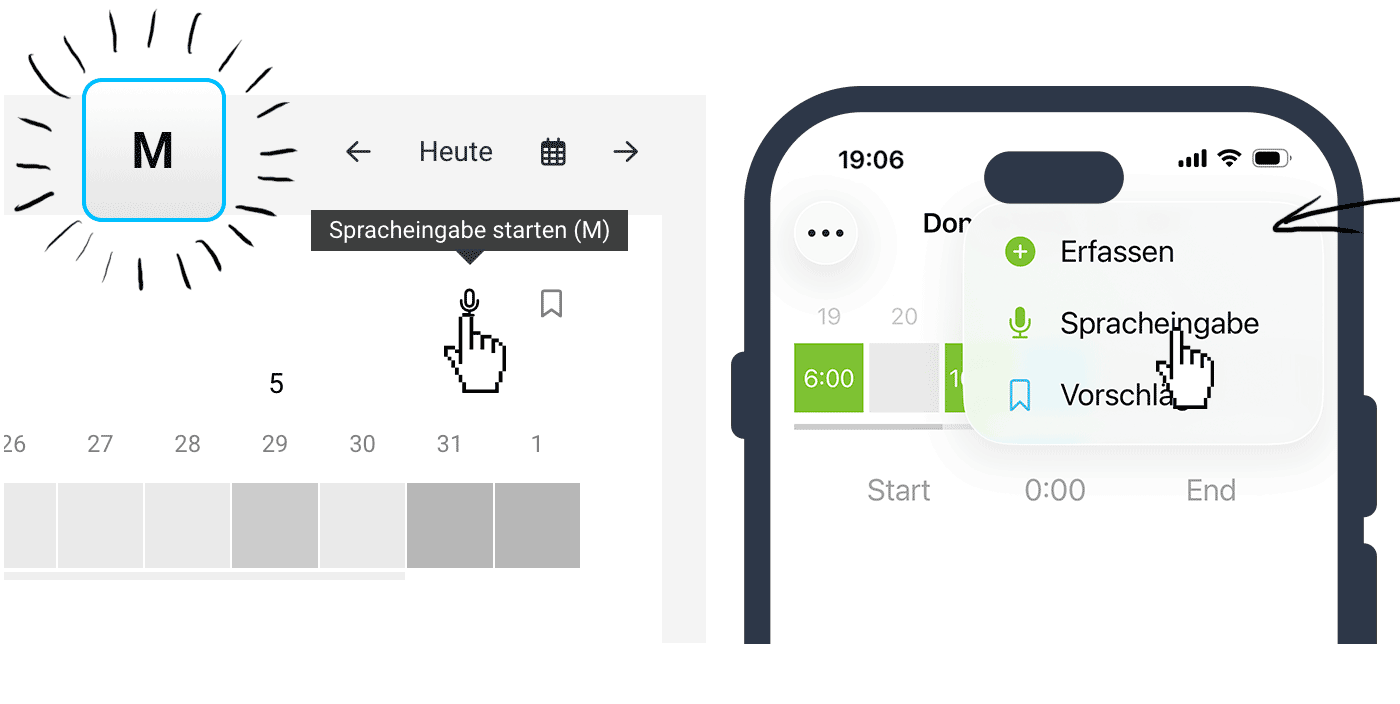 (English image not yet available)
Example
“8–17, break 11–12, 2 h team meeting, 1 h client meeting Summer campaign Müller AG, remainder general support.” → Working hours + fixed blocks + remainder are calculated correctly.
Cancel
Press "ESC" to cancel the input.
Comments via Voice Input
With voice input for comments, you can capture information quickly and easily by speaking. MOCO turns it into a clean, easy-to-read comment – including structure, mentions, and a summary where useful.
AI Recognises and Writes
The AI processes your voice input and helps you to:
- create clear, well-written comments
- correct minor errors (capitalisation, missing words)
- automatically structure several spoken points
- recognise mentioned people and suggest suitable @mentions
- create a short, one-sentence summary for longer comments
Enable
The AI feature can be enabled in Settings under Account > AI.
All AI features are optional (opt-in).
All AI features are optional (opt-in).
Dictate
Voice input is available on all pages with a comment section – for example, for clients, projects, or leads.
- Start and stop using M on your keyboard, or by clicking the Microphone Icon
- Dictate your comment freely, for example straight after a client or sales call
- The AI analyses the input and suggests a well-written comment
- Review the text and confirm with OK if everything looks right
The input time window is usually 60 seconds. 10 seconds before it ends, the countdown is shown in red.
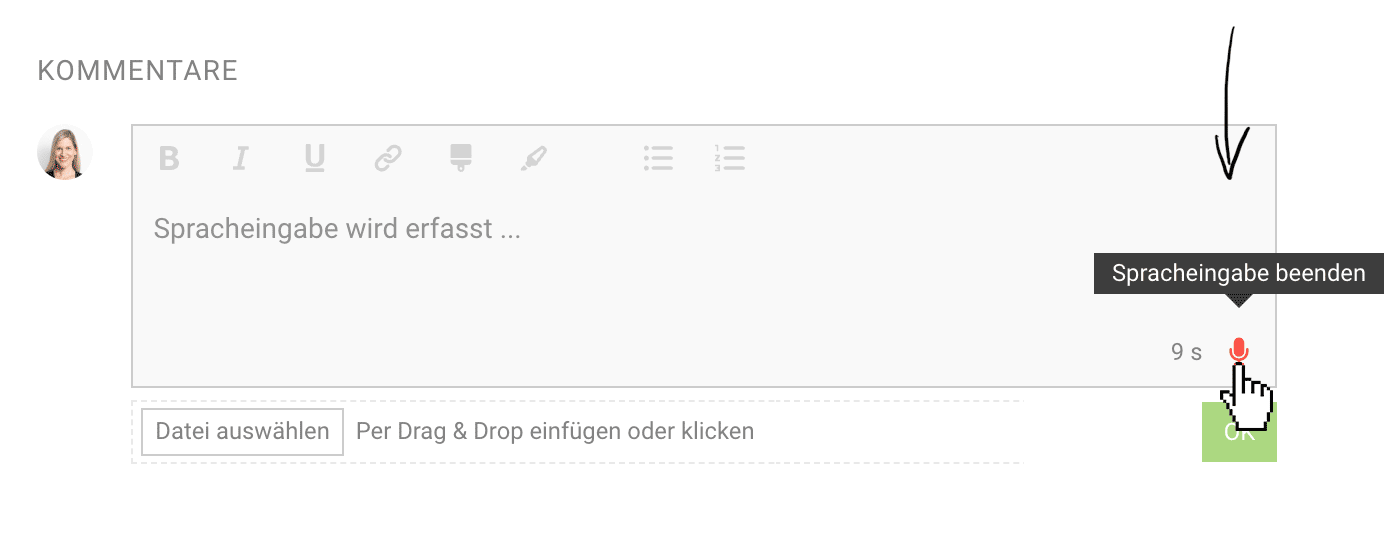 (English image not yet available)
(English image not yet available)Example
Spoken:
“Spoke to the client today. Feedback on the quote is generally positive. Budget still open, response next week. Please inform Thomas.”
Result:
- a cleanly written comment
- structured paragraphs or a list
- @Thomas is recognised and mentioned automatically
Cancel
You can cancel voice input at any time with ESC.
Intelligent Import
With Intelligent Import, you can migrate companies, contacts, and leads to MOCO. Instead of manually adapting your data to an import template, simply upload your existing XLSX file – the AI automatically assigns the columns to the right MOCO fields.
Enable AI Import
Enable the feature under Account > AI.
Import
- Go to Companies/Contacts/Leads > Import > Intelligent (1).
- Upload your XLSX file.
- MOCO analyses the columns and suggests the right mapping.
- Review the mapping and start the import.
If individual records could not be imported, you will receive an XLSX file with error messages (2). Correct the data and import it again.
Review or Undo an Import
Every import – whether classic or via AI – automatically gets an import label with the date and time (3). This makes it easy to find imported companies again and, if needed, delete them via a bulk action.
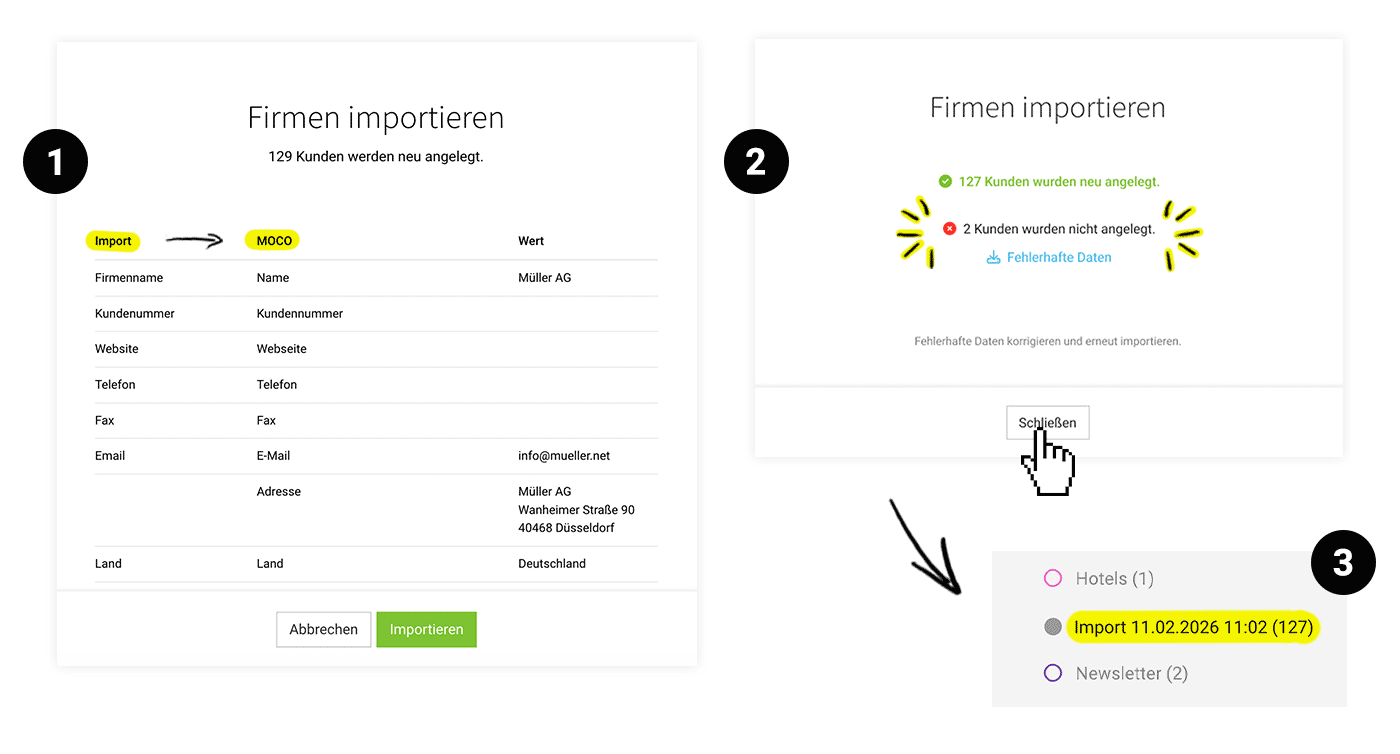 (English image not yet available)
MCP
With the Model Context Protocol (MCP), you can connect MOCO directly to your AI chatbot. This lets you query your MOCO company data easily via chat – and, if you want, trigger actions directly in MOCO.
Enable & Use
You can enable the MCP interface optionally (opt-in). During the beta phase, you can try the feature free of charge. We’ve summarised how to use the interface, which commands are available, and what you can do with it on the MCP Integration page.
Whether you give the AI read-only access as standard or also allow write access is up to you. In addition, each person in MOCO, of course, only has access to the areas they can see in MOCO.








