
-------
.png)
MOCO + MCP
Access MOCO data via the Model Context Protocol.
With the Model Context Protocol (MCP), you can connect MOCO directly to your AI chatbot. This lets you query your MOCO company data easily via chat and, if you want, trigger actions directly in MOCO.
The AI feature can be enabled in Settings under Account > AI (opt-in).
After that, the MCP server must be connected to MOCO. If your AI chatbot (Claude, ChatGPT, etc.) supports the Model Context Protocol (MCP) and OAuth, you can use the interface. Depending on the provider, connecting may require a paid account and admin rights.
After that, the MCP server must be connected to MOCO. If your AI chatbot (Claude, ChatGPT, etc.) supports the Model Context Protocol (MCP) and OAuth, you can use the interface. Depending on the provider, connecting may require a paid account and admin rights.
Connect Securely
Always connect your AI chatbot directly to your MOCO account. Only use the address provided by MOCO: https://your-account.mocoapp.com/mcp
Do not use MCP proxy services, aggregators, or third-party relay servers. Such intermediaries can read content from MOCO and, if write access is enabled, also make changes to your MOCO data.
Before authorising, check that your browser address ends with mocoapp.com. If you did not set up the connection yourself, or a different domain is shown, cancel the process.
Do not use MCP proxy services, aggregators, or third-party relay servers. Such intermediaries can read content from MOCO and, if write access is enabled, also make changes to your MOCO data.
Before authorising, check that your browser address ends with mocoapp.com. If you did not set up the connection yourself, or a different domain is shown, cancel the process.
Setup guides can be found here:
Access Rights
In Settings, you can define at account level whether the interface grants read-only access or also write access. When someone connects to a MOCO account via MCP, their personal login is used for verification. They therefore only have the same access rights via MCP as they do in the app.
Recommendation: Start by enabling read-only access. Only enable write access once you have checked the connection and the AI service you are using. You should review any actions that change data before they are carried out.
 (English image not yet available)
Your Practical Helper for Day-to-Day Work
Use your AI chatbot to retrieve information from MOCO or understand relationships:
- "What is this month’s revenue by client?"
- "Which projects are currently over budget?"
- "What is our team’s utilisation over the next four weeks?"
- "Which clients had the highest margin last quarter?"
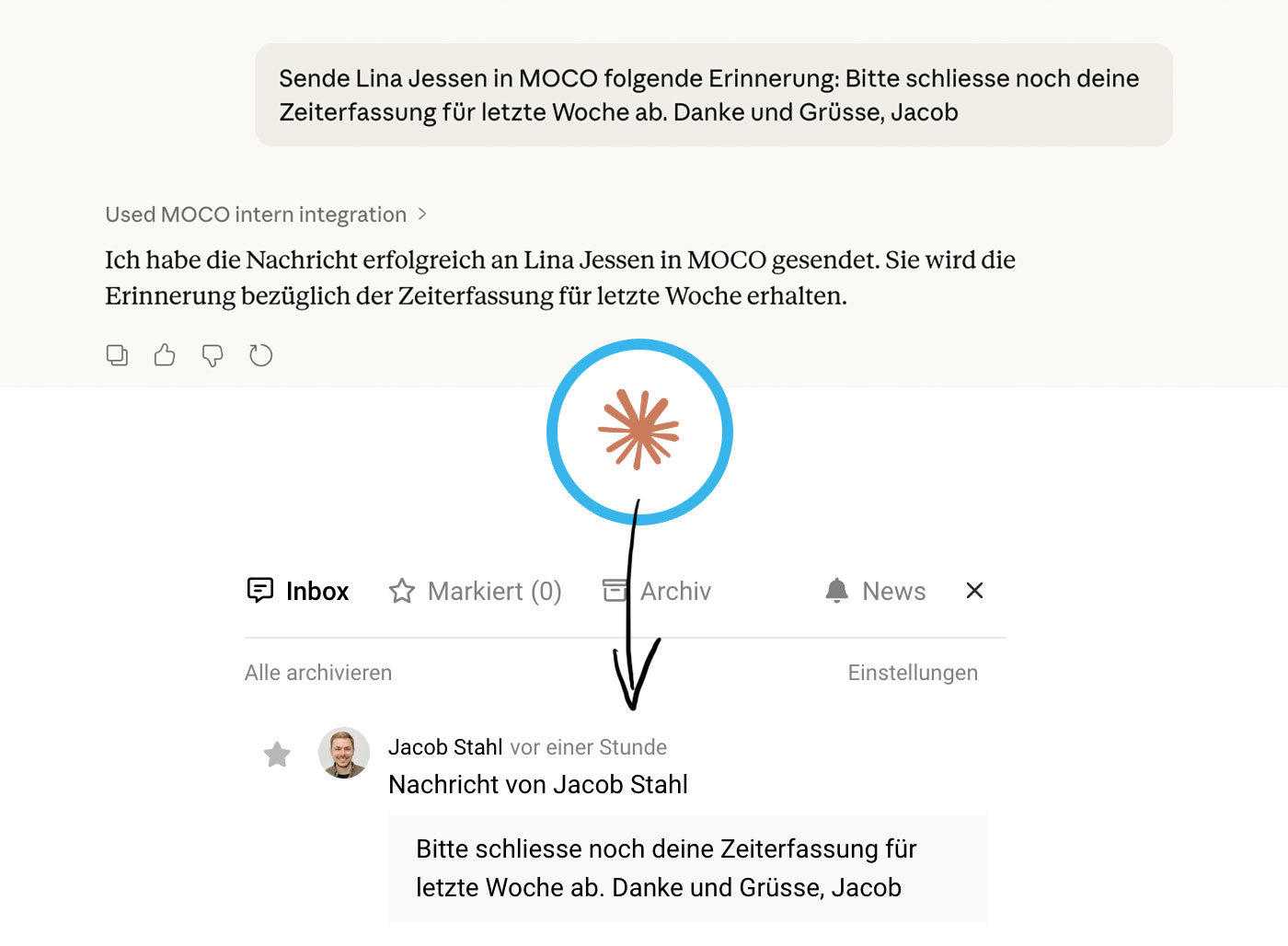
You can also have your chatbot actively complete tasks in MOCO, for example:
- "Send a short reminder to everyone who didn’t log any time last week."
- "Create a new project for Client X: name, period, budget €25,000, category Consulting."
- "Create a new contact for Client Y with email address and phone number."
- "List all billable services for Client B this month."
The quality of the answers depends not only on the data in MOCO, but also on the AI model being used.
Available MCP Tools
The following commands are available via the MCP interface (limited by the person’s individual access rights):
Leads
- find_leads – Retrieve leads
- create_lead – Create a new lead
- update_lead – Update a lead
Quotes
- find_offers – Retrieve quotes
- get_offer – Retrieve a single quote with all details
- create_offer – Create a new quote
- update_offer – Update a quote
Projects
- find_projects – Retrieve projects
- find_project_tasks – Retrieve a project’s services
- find_contracted_projects – Retrieve projects for time tracking
- create_project – Create a new project
- update_project – Update a project
- project_profitability_report – Retrieve a profitability report for projects
Planning
- find_planning_entries – Retrieve your own planning entries
- find_global_planning_entries – Retrieve planning entries for all people
- create_planning_entry – Create a new planning entry
- update_planning_entry – Update a planning entry
Time Tracking
- find_activities – Retrieve your own project time
- find_global_activities – Retrieve project time for all people
- create_activity – Create a new time entry
- find_activity_suggestions – Retrieve suggestions
- find_presences – Retrieve working hours
- find_global_presences – Retrieve working hours for all people
- create_presence – Log working hours
- touch_presence – Start/stop working hours
Billing
- find_invoices – Retrieve invoices
Companies
- find_companies – Retrieve companies
- create_company – Create a new company
- update_company – Update a company
Contacts
- find_contacts – Retrieve contacts
- create_contact – Create a new contact
- update_contact – Update a contact
People
- list_users – Retrieve all people
- find_my_employments – Retrieve your weekly working pattern
- find_user_employments – Retrieve the weekly working pattern for all people
To-dos
- find_todos – Retrieve your own to-dos
- create_todo – Create a new to-do
Other
- create_user_notification – Send a notification to one or more people
- find_services_catalog – Retrieve standard services/additional services and the services catalogue








