
-------

MOCO + Claude
Access MOCO Data in Claude.
Chat with your MOCO company data in Claude. Via the MCP server, Claude can access your company data – within your existing access rights.
1. Enable the MCP Feature in MOCO
Enable the AI feature under Settings > Account > AI (opt-in) and choose whether Claude should have read-only access or also write access. Data access per user is based on the access rights set in MOCO.
2. Connect Claude to MOCO
- In Claude, open Customise > Connectors in the side navigation.
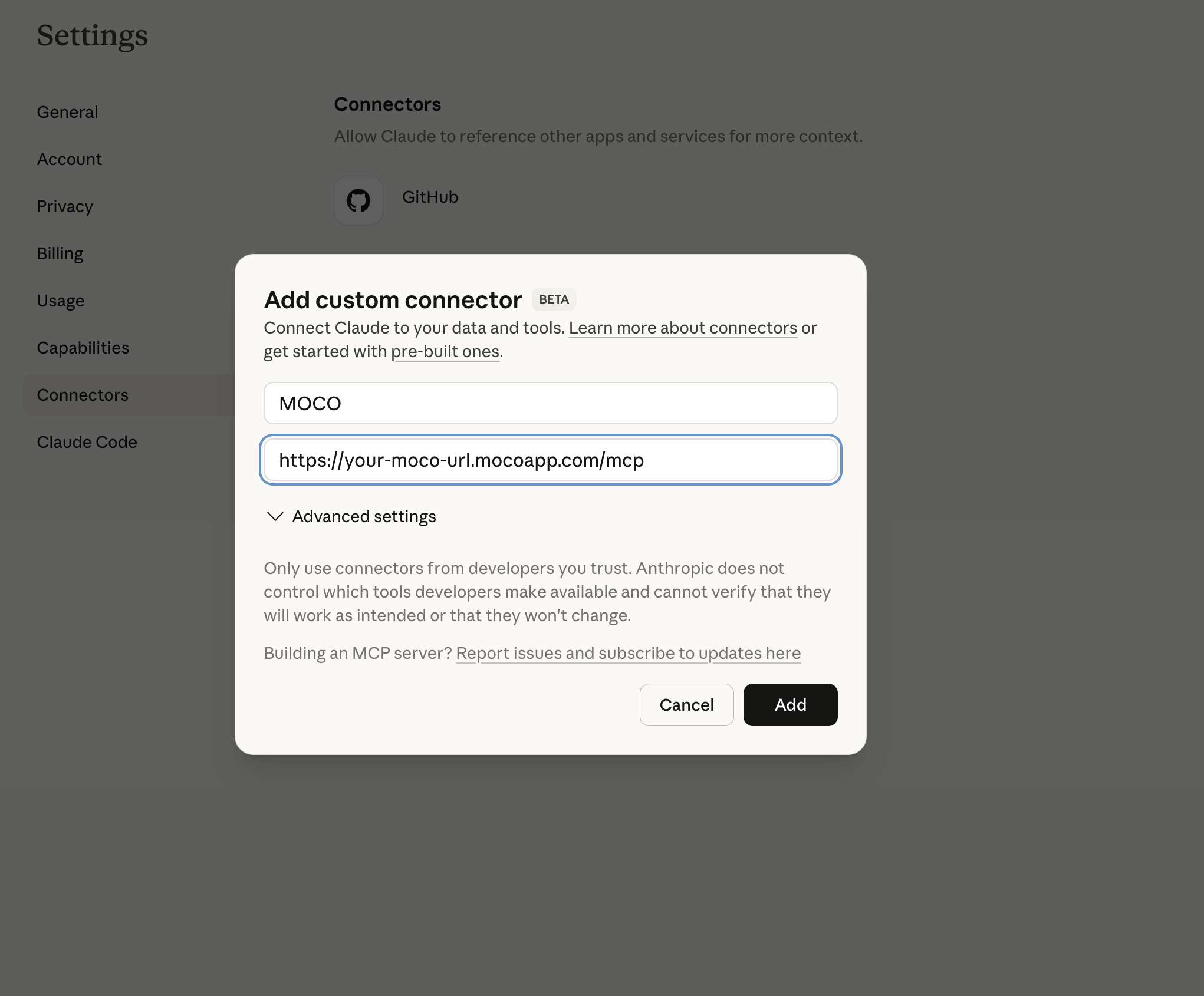
- Click Add custom connector and enter the following details:
- Name: MOCO
- MCP Server URL: https://deine-subdomain.mocoapp.com/mcp
- Confirm your entry by clicking Add.
- In the next step, log in to MOCO using your user details.
Once authorisation is successful, Claude will be shown as connected and the MCP server will be ready to use. You can find example prompts and use cases to try out here.
Can’t see "Add custom connector" in Claude? You probably don’t have the required access rights. You can find more information in the Claude Help Centre.
Can’t see "Add custom connector" in Claude? You probably don’t have the required access rights. You can find more information in the Claude Help Centre.
 (English image not yet available)







