
-------
.png)
MOCO + CardDAV
Synchronise Contacts with CardDAV
CardDAV ensures that contacts from MOCO are synchronised to other locations, keeping them up-to-date for every team member.
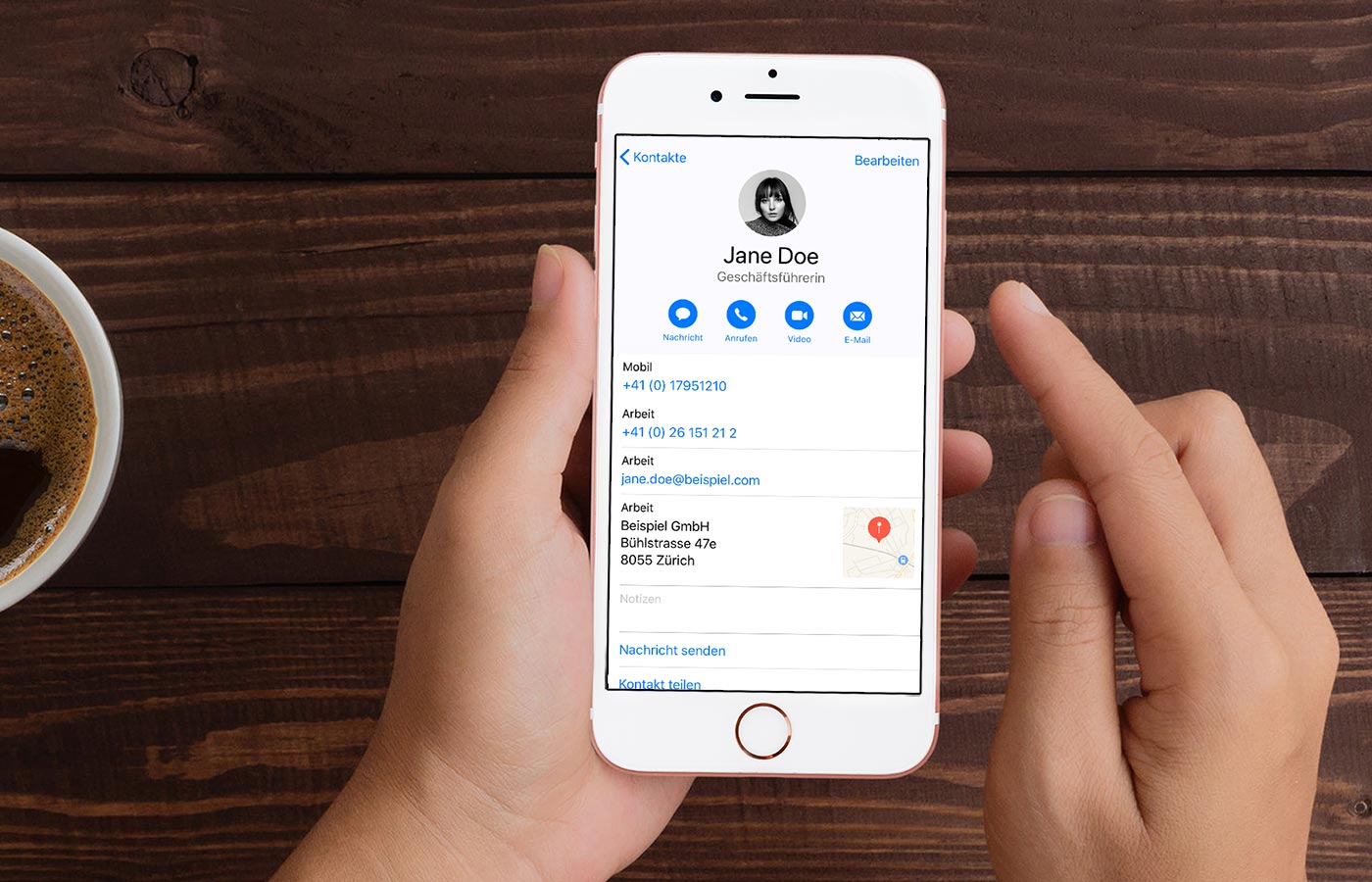 (English image not yet available)
Benefits of Integration
When a contact is updated in MOCO, it is automatically refreshed.
Need to call a client on the go and always have the current number at hand? Simply add MOCO as your address book. Synchronisation always occurs from MOCO. To adjust a contact, it must be changed in MOCO for proper synchronisation.
Setting Up Connection on iOS Example
Step by step for iOS (iPad, iPhone)
1. First, activate the CardDAV access in MOCO under Settings -> Extensions -> CardDAV.
1. First, activate the CardDAV access in MOCO under Settings -> Extensions -> CardDAV.
2. Go to "Contacts" > "Accounts" in iOS settings
3. Select "Add Account"
4. Choose "Other"
5. Select "Add CardDAV Account" (Option: Manual)
6. Enter Server (Your MOCO address e.g. company.mocoapp.com), Username (Your email), Password (CardDAV password in profile under "Integrations") and Description (MOCO). Some CardDAV implementations may require a longer path: https://company.mocoapp.com/carddav/principal or even https://company.mocoapp.com/carddav/principal/addressbook
Entering server data on MacOS, which works similarly to iOS:
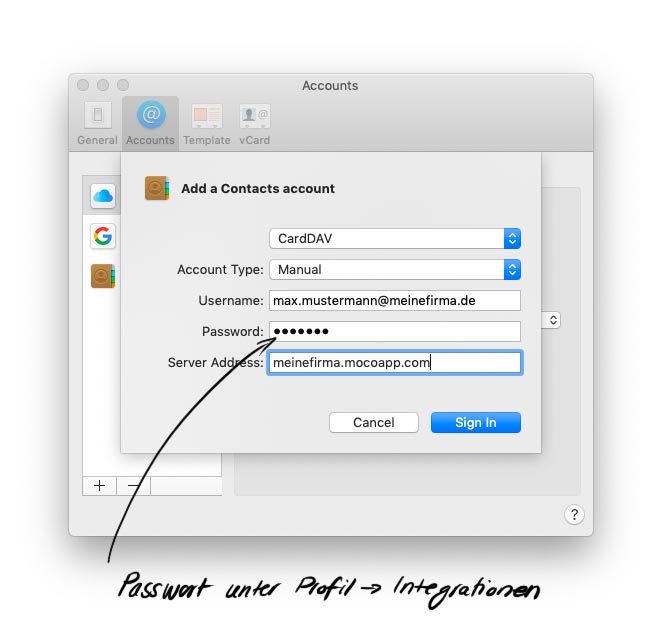 (English image not yet available)
Entering server data on MacOS, which works similarly to iOS:
(English image not yet available)Additional Options with MOCO + CardDAV
Mac OS > Contacts App (similar to iOS)
Android > DAVx⁵ https://www.davx5.com/ (App that synchronises personal contacts with a CardDAV server)
Windows / Linux (Thunderbird) > built-in since version 102, older versions require: https://addons.mozilla.org/de/thunderbird/addon/cardbook/
Windows / Linux (Thunderbird) > built-in since version 102, older versions require: https://addons.mozilla.org/de/thunderbird/addon/cardbook/
Windows (Outlook) > https://caldavsynchronizer.org/de/








