Cancellation & Credit Note
Cancellation Invoice / Invoice Correction | Credit Note | Delete InvoiceCancellation Invoice / Invoice Correction
If you need to withdraw an incorrectly issued invoice, you cancel it. When you cancel an invoice, a cancellation invoice is created. The original invoice remains on file.
Cancelling
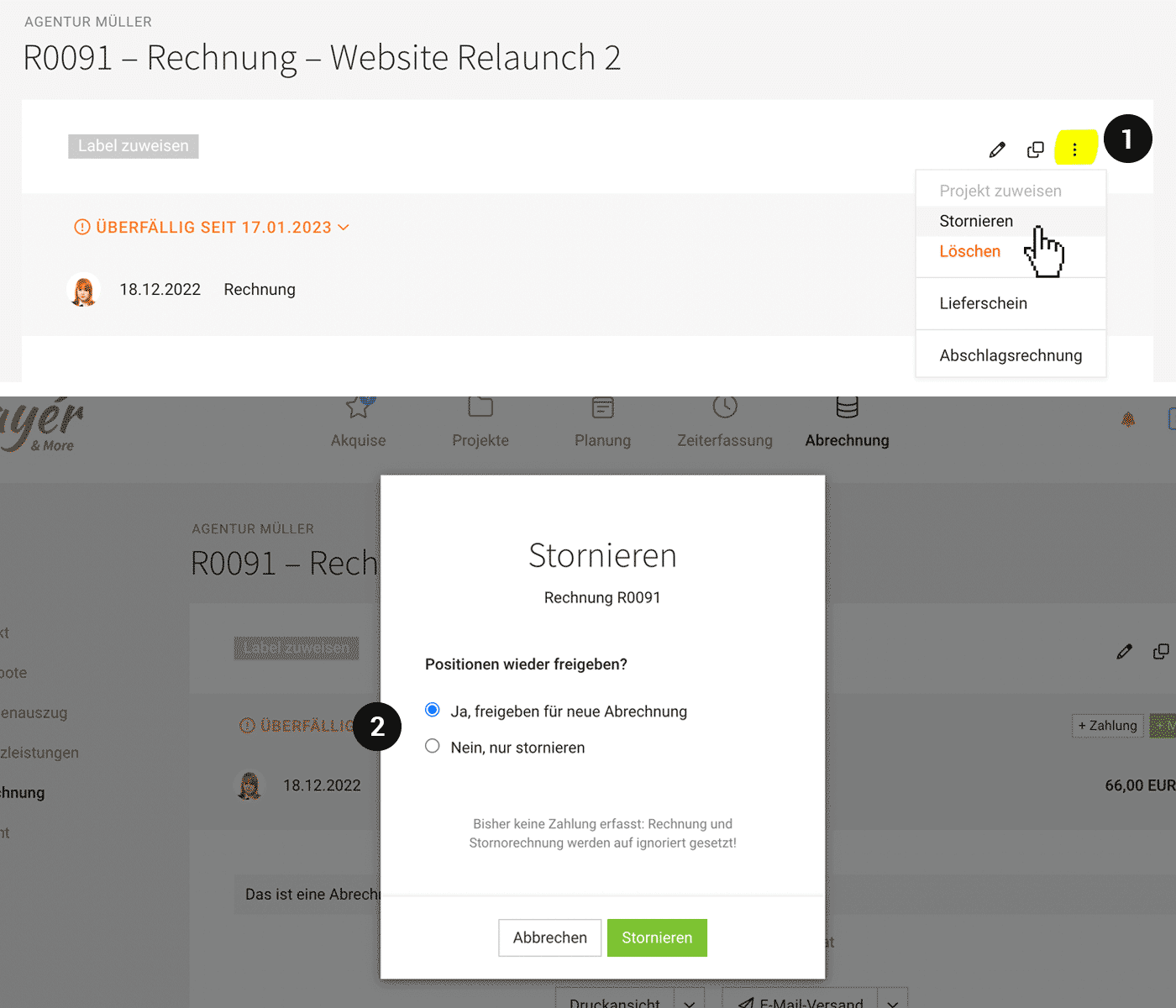
1. On the invoice, in the top right, select (1) “Cancel”.
 (English image not yet available)
2. Choose whether the hours should be released for re-billing.
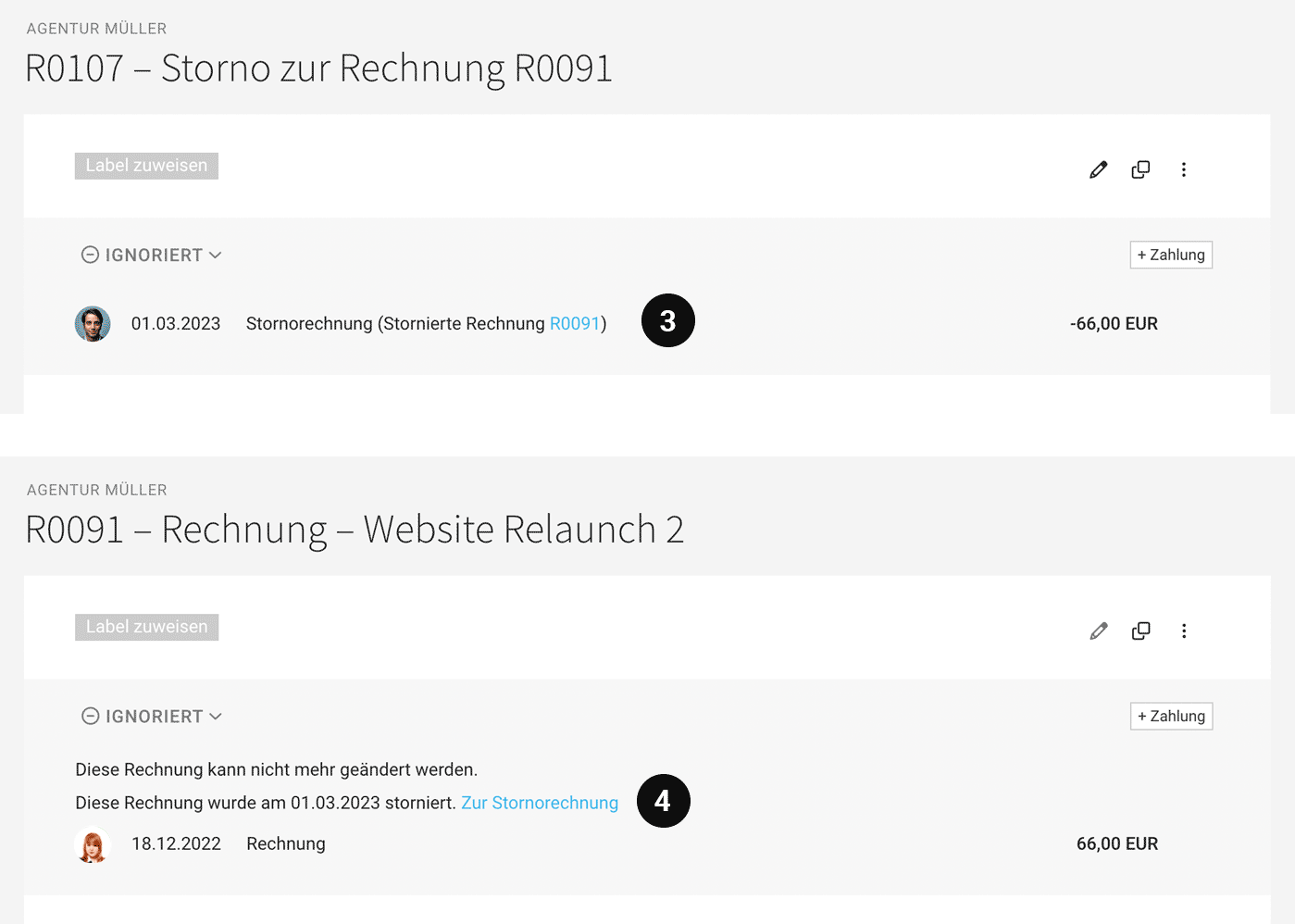
3. Create the cancellation invoice (adjust or add to it if needed). The cancellation invoice contains the same line items, but as negative line items, as well as a new invoice number. The cancelled original invoice is linked.
 (English image not yet available)
4. The original invoice links to the corresponding cancellation invoice. It is locked once cancelled.
Create a New Corrected Invoice
Copy the original invoice and create a new corrected invoice from it, or
create a new invoice from the released line items (see 2.).
create a new invoice from the released line items (see 2.).
Invoice Status “Ignored” or “Paid”
If no payments have been recorded yet, MOCO automatically sets both the cancelled invoice and the cancellation invoice to “ignored” (see example). If the invoice has been paid, the payment and refund are recorded as usual, and the invoice and cancellation invoice will appear under “paid” as normal.
Partial Cancellation
If you only want to cancel individual line items on an invoice, proceed as follows:
1. Create the cancellation invoice (see above)
2. Delete all line items you do NOT want to cancel, and label the invoice as “Partial Cancellation”.
3. Save & done
You can predefine a standard text for cancellation invoices, including variables, in the settings.
1. Create the cancellation invoice (see above)
2. Delete all line items you do NOT want to cancel, and label the invoice as “Partial Cancellation”.
3. Save & done
You can predefine a standard text for cancellation invoices, including variables, in the settings.
Credit Note
Invoice Correction
Important: “credit note” is often used as an informal term. In most cases, what you actually mean is an invoice correction – and in Germany this must be labelled as a cancellation invoice.
All information on cancellation invoices
All information on cancellation invoices
Creating Genuine Credit Notes – e.g. for Commissions
Genuine credit notes are independent of an issued invoice. MOCO cannot create credit notes with their own numbering sequence. Current options:
a) Ideally, the other party can issue an invoice.
b) Create an invoice with a negative amount and title it “Credit Note”.
a) Ideally, the other party can issue an invoice.
b) Create an invoice with a negative amount and title it “Credit Note”.
Receiving a Credit Note
If you receive credit notes, e.g. commissions with supporting documentation, you can
a) record them as a supplier invoice with a negative amount. If you assign the supplier invoice to a project, it generates negative costs on the project and has a positive effect on the profitability calculation.
b) Alternatively, you can record an invoice within the project, name it “Credit note from xy number (see attachment)”, and upload the original document as an attachment. This way, the document is integrated directly into the invoice PDF.
Other income at account level can be recorded under “Billing” > “Payments” > “+” as a “Payment without invoice”.
a) record them as a supplier invoice with a negative amount. If you assign the supplier invoice to a project, it generates negative costs on the project and has a positive effect on the profitability calculation.
b) Alternatively, you can record an invoice within the project, name it “Credit note from xy number (see attachment)”, and upload the original document as an attachment. This way, the document is integrated directly into the invoice PDF.
Other income at account level can be recorded under “Billing” > “Payments” > “+” as a “Payment without invoice”.
Delete Invoice
Typically, you cancel incorrect invoices and issue a new corrected invoice.
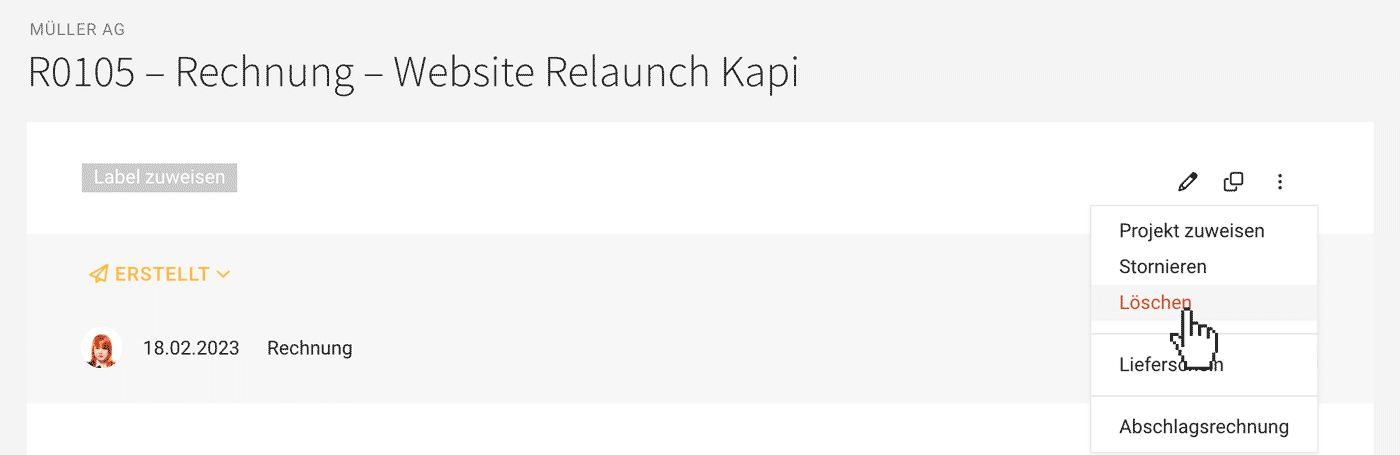
In exceptional cases where deletion is more appropriate, the invoice can be deleted from the top right corner depending on its status. MOCO ensures retrospective traceability.
In exceptional cases where deletion is more appropriate, the invoice can be deleted from the top right corner depending on its status. MOCO ensures retrospective traceability.
What Happens When an Invoice is Deleted
When deleting, the billed efforts can be released again. Deletion also requires entering a comment for future traceability. The number of the deleted invoice is not automatically reassigned.
 (English image not yet available)
(English image not yet available)Common Misconception "There Must Be No Gaps"
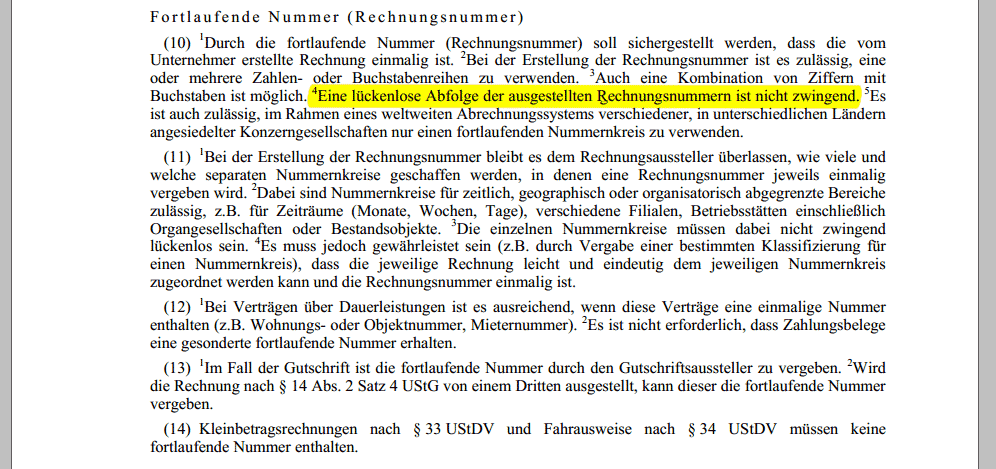
Germany requires continuous invoice numbering according to § 14 Abs. 4 S. 1 Nr. 4 UStG. The continuous number (invoice number) ensures that the invoice created by the entrepreneur is unique. However, a seamless sequence of these invoice numbers is not mandatory, according to the VAT Application Decree
 (English image not yet available)
 In any case: MOCO guarantees the traceability of deleted invoices and their numbers (see below).
Reassigning an Invoice Number
Manipulating the automatic numbering sequence is always tricky. However, a number can be reassigned as follows:
1. Create an invoice draft
2. Temporarily switch the numbering sequence to "manual"
3. Assign the number (the invoice will be set to "Created")
4. Switch the numbering sequence back to "automatic"
1. Create an invoice draft
2. Temporarily switch the numbering sequence to "manual"
3. Assign the number (the invoice will be set to "Created")
4. Switch the numbering sequence back to "automatic"
Traceability: Finding Deleted Invoices
Document with Deletion Reason as Watermark:
Enter the full invoice number or deletion comment in the search (magnifying glass top right or keyboard shortcut "/").
Excel Export
The export includes the invoice with the comment.
Enter the full invoice number or deletion comment in the search (magnifying glass top right or keyboard shortcut "/").
Excel Export
The export includes the invoice with the comment.