Customization
Custom Layout | Standards, Variables, Custom Fields | Billing Information | Invoice Numbers | VAT Rate & "Reverse Charge" | Delivery NotesCustom Layout
Your Unique Look-and-Feel
With customisable letterhead and numerous formatting options, you can usually adapt to your existing look-and-feel independently.
Detailed information on layout settings
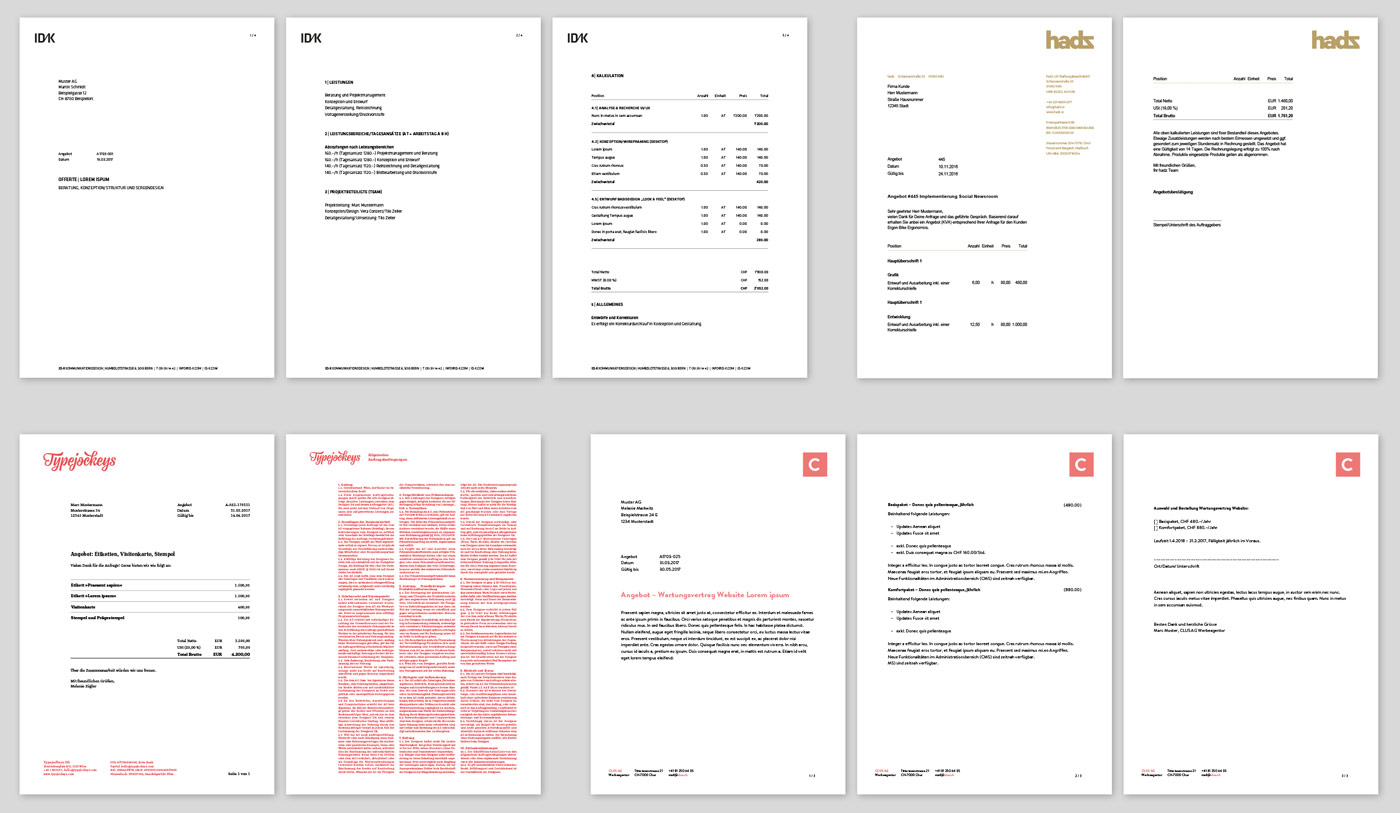 (English image not yet available)
Detailed information on layout settings
(English image not yet available)Bild: Beispiellayouts
Invoice Structure: Compact, Monthly, Detailed
For billing items, MOCO offers three options:
- Monthly (Grouped by months)
- Detailed (Every single time entry)
- Compact (No grouping by months).
When selecting the "Create Invoice" button (1), MOCO always uses the default defined in the settings – however, this can be preset differently here for project billing.
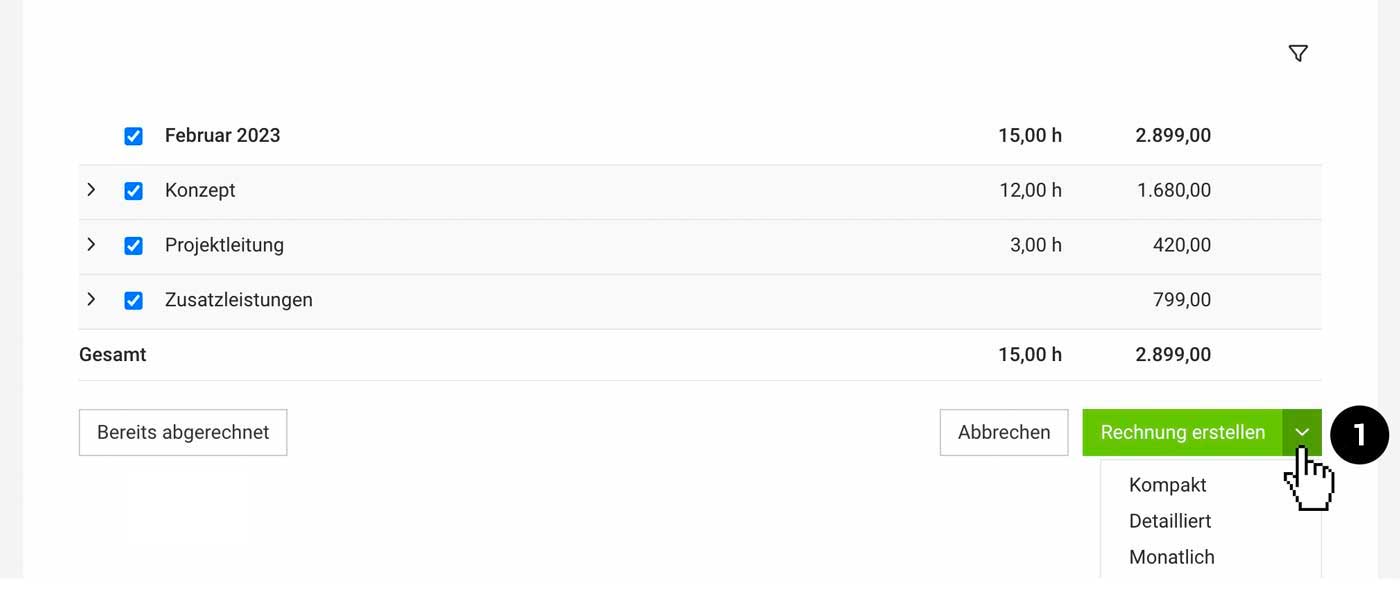 (English image not yet available)
(English image not yet available)Hourly Rate by Person but Billing by Service
With "Hourly Rate by Person," MOCO automatically breaks down the invoice by person. If you prefer to break down by service, you can choose that here as well.
Standards, Variables, Custom Fields
Define Global Standards
Global standard texts and values for invoices and reminders are predefined in Settings under "Billing".
» All information about the Settings section
» You are not VAT-registered
» All information about the Settings section
» You are not VAT-registered
Define Client Standards
For each client, you can define
- Invoice address, invoice format, invoice email, VAT ID, etc.
- Main currency
- Alternative language for documents and emails
- "More Options" (see image): Here you can capture additional details such as a different closing text, additional CC email addresses, payment terms and early payment discount, automatic timesheet attachment or a custom price list ("Different hourly rates").
- Special information for Billing: Can be defined on the client under "Billing" or in the form.
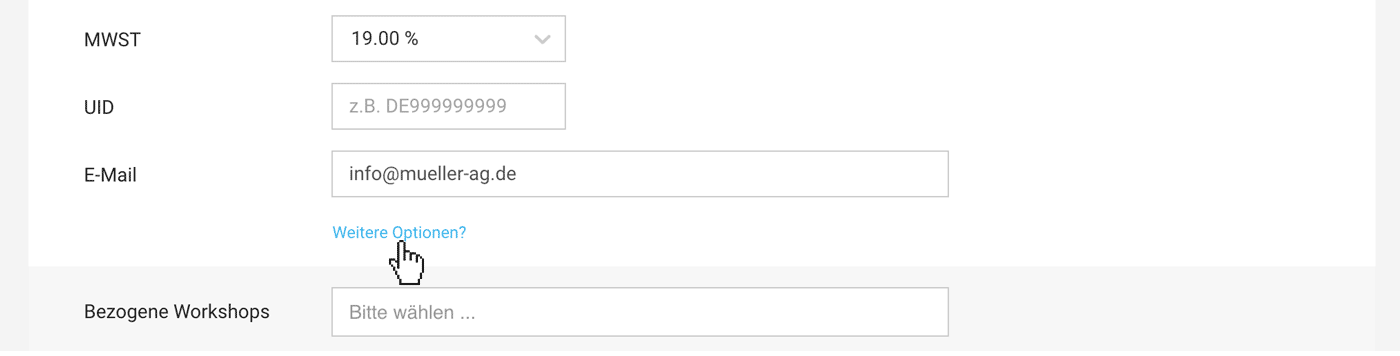 (English image not yet available)
Define Project Standards
- Project currency
- Invoice address, email, CC email addresses, timesheet, invoice contact (personalisation): Can be overridden in the project under "Billing"
- Special information for Billing that you don’t want to forget More about Billing info
You can also make further adjustments on the invoice itself.
Variables
You can use variables at every level in the opening and closing text, as well as in email messages. Simply type "{" and MOCO will suggest all available options for you to insert.
» What it looks like when you call up variables with {
» What it looks like when you call up variables with {
Custom Fields for the Info Block
In the info block, MOCO suggests common document details, which you can show or hide. Alternatively, MOCO can also display this information via variables (see above) in the opening or closing text.
These mandatory details are essential on an invoice
With Custom Fields, you can add to or customise the info block – e.g. with a field for the purchase order number
Custom fields created directly for invoices can also be for internal use only. In that case, do not select the option to show them on the PDF.
These mandatory details are essential on an invoice
With Custom Fields, you can add to or customise the info block – e.g. with a field for the purchase order number
Custom fields created directly for invoices can also be for internal use only. In that case, do not select the option to show them on the PDF.
Billing Information
Use these options for very specific agreements with the client, or for a specific project:
Billing Information: an information note that appears during invoice creation
Add an information note in the "Billing Information" field (1 + 2). This note is carried through from the Billing section (3) to the final invoice.
You can enter this note for the client or project in the Billing section (menu item "Billing" in the client) (2).
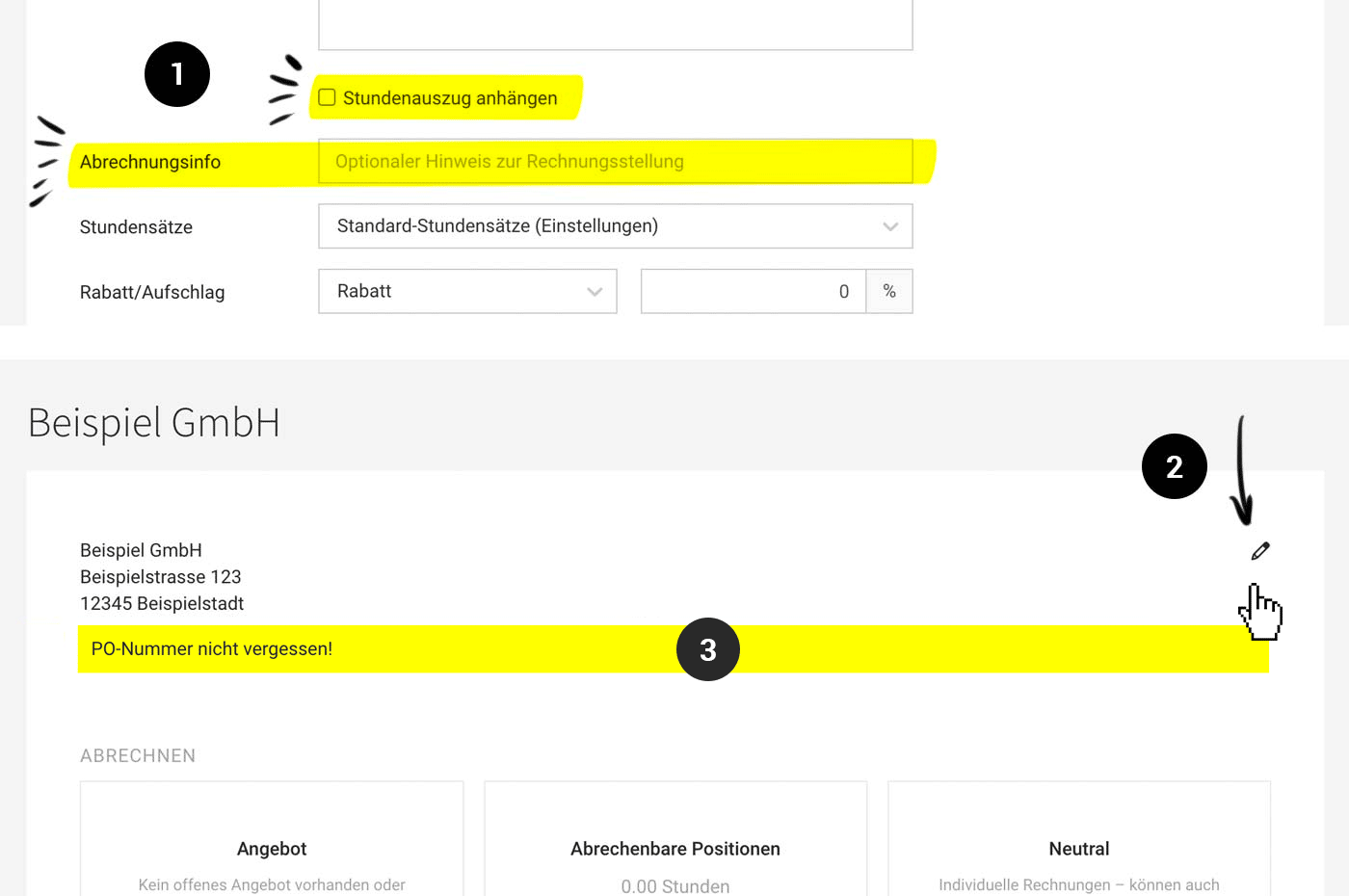 (English image not yet available)
Automatically include the timesheet
If you want the automatically generated timesheet to be included in the invoice PDF during Billing, you can predefine this on the client (1). Alternatively, you can set it on the project, or only when creating the invoice.
Closing text, early payment discount, discount, flat-rate expenses
Record other agreements such as early payment discounts, flat-rate expenses, or discounts directly in the client form under "Further Options".
Add an information note in the "Billing Information" field (1 + 2). This note is carried through from the Billing section (3) to the final invoice.
You can enter this note for the client or project in the Billing section (menu item "Billing" in the client) (2).
(English image not yet available)Automatically include the timesheet
If you want the automatically generated timesheet to be included in the invoice PDF during Billing, you can predefine this on the client (1). Alternatively, you can set it on the project, or only when creating the invoice.
Closing text, early payment discount, discount, flat-rate expenses
Record other agreements such as early payment discounts, flat-rate expenses, or discounts directly in the client form under "Further Options".
Invoice Numbers
Invoice numbers can be entered manually or automated. The corresponding setting can be found in the settings under "Account" > "Numbering Sequences". Generally, automatic numbering is recommended as it is reliable and ensures seamless numbering automatically. Information & tips on choosing invoice numbering
A seamless numbering is not legally mandatory. However, it is advisable to have gaps documented in a traceable manner. This is easily possible in MOCO. Detailed information on this
A seamless numbering is not legally mandatory. However, it is advisable to have gaps documented in a traceable manner. This is easily possible in MOCO. Detailed information on this
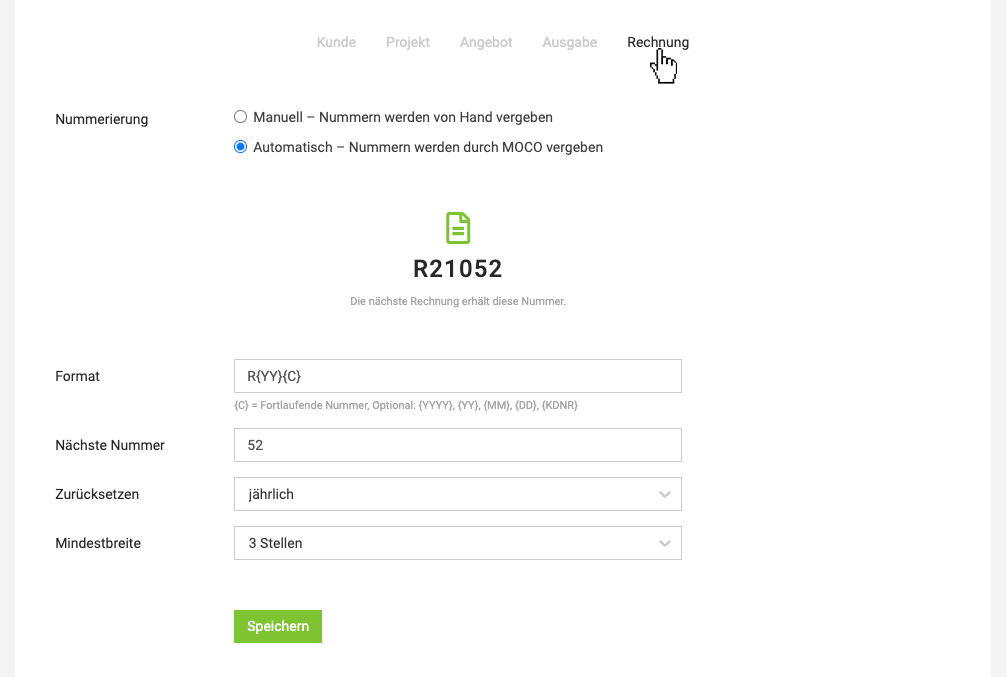 (English image not yet available)
VAT Rate & "Reverse Charge"
One VAT rate per invoice
In MOCO, each invoice is set up with one VAT rate (the correct abbreviation is USt. in Germany and MWST in Switzerland), because service providers, under the main-and-ancillary-services principle, bill using a single VAT rate.
Adding travel expenses, etc. with a different VAT rate to the invoice
As a rule, these are ancillary services to the main service. They are added to the invoice net, and the VAT rate of the main service applies to all line items.
Invoices abroad & small businesses
If you issue an invoice to a client based abroad and the VAT liability is transferred to the recipient of the service, this is referred to within the EU as the reverse-charge procedure. A prerequisite for applying the reverse-charge procedure is that the client is also the holder of a tax number/VAT identification number (UID).
You enter the text note for the VAT exemption, which is then displayed automatically on the invoice, just once for the relevant VAT rate under Settings > Accounting > VAT Rates
In this case, under "Further Options" for the client (see image), enter:
In MOCO, each invoice is set up with one VAT rate (the correct abbreviation is USt. in Germany and MWST in Switzerland), because service providers, under the main-and-ancillary-services principle, bill using a single VAT rate.
Adding travel expenses, etc. with a different VAT rate to the invoice
As a rule, these are ancillary services to the main service. They are added to the invoice net, and the VAT rate of the main service applies to all line items.
Invoices abroad & small businesses
If you issue an invoice to a client based abroad and the VAT liability is transferred to the recipient of the service, this is referred to within the EU as the reverse-charge procedure. A prerequisite for applying the reverse-charge procedure is that the client is also the holder of a tax number/VAT identification number (UID).
You enter the text note for the VAT exemption, which is then displayed automatically on the invoice, just once for the relevant VAT rate under Settings > Accounting > VAT Rates
In this case, under "Further Options" for the client (see image), enter:
- UID – If this is entered, it will be shown in the info block on the invoice.
- VAT rate "0% (EU)" or "0% (Abroad)"
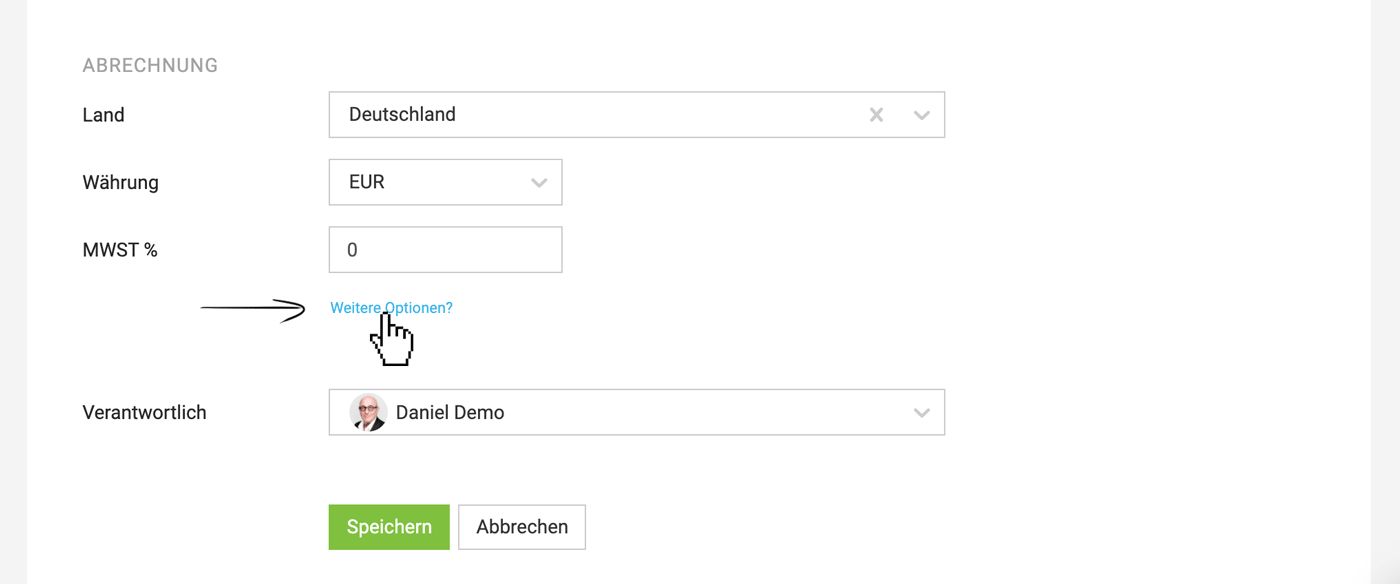 (English image not yet available)
Delivery Notes
When a service provider ships goods, they will usually want to create a delivery note as a dispatch note. The delivery note helps your client, on receipt of the goods, to check and match the quantity and type of goods ordered.
The invoice is usually sent separately from the delivery note.
Creating a Delivery Note
In the invoice, select "Delivery Note" at the top right → confirm/amend the accompanying text and select the line items → the delivery note is created and can be printed straight away and enclosed with the delivery.
» Standard details on the delivery note and other information
The invoice is usually sent separately from the delivery note.
Creating a Delivery Note
In the invoice, select "Delivery Note" at the top right → confirm/amend the accompanying text and select the line items → the delivery note is created and can be printed straight away and enclosed with the delivery.
» Standard details on the delivery note and other information