Layout
General | Font | Letterhead | Quotes & Invoices | Labels | TimesheetsGeneral
Customise Quotes & Invoices to Match Your CI/CD
In the settings under "Layout" you can personalise the design and content of your Quotes and Invoices. From the letterhead background (logo & sender details) to fonts, margins, formatting, and colours.
General
Settings > Layout > General
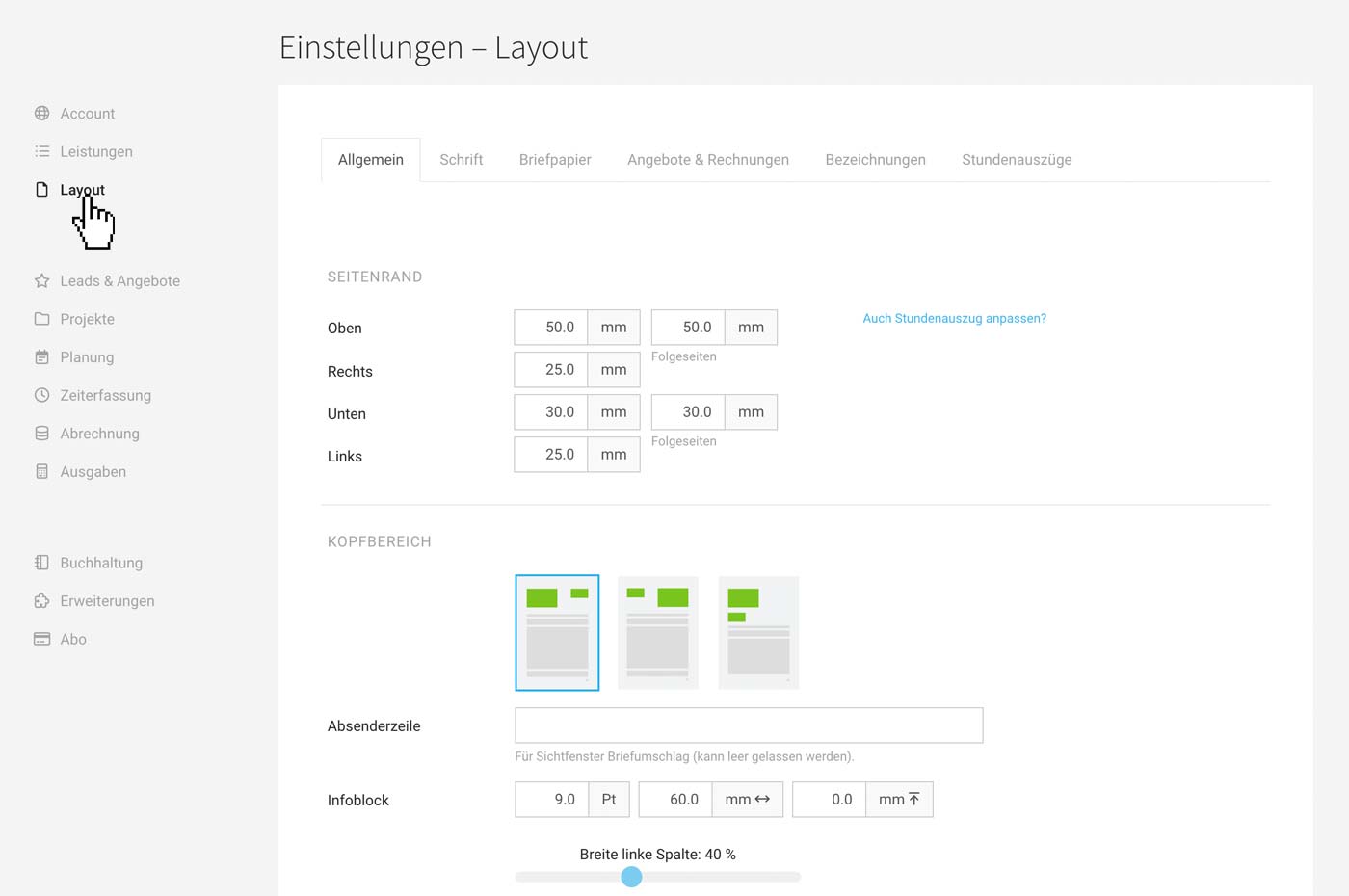
Under "General", you can choose basic settings depending on the letterhead background or envelope window. For example, margins, font sizes & colours, text description width, page numbers, table header display, automatic numbering, etc.
 (English image not yet available)
(English image not yet available)Font
Settings > Layout > Font
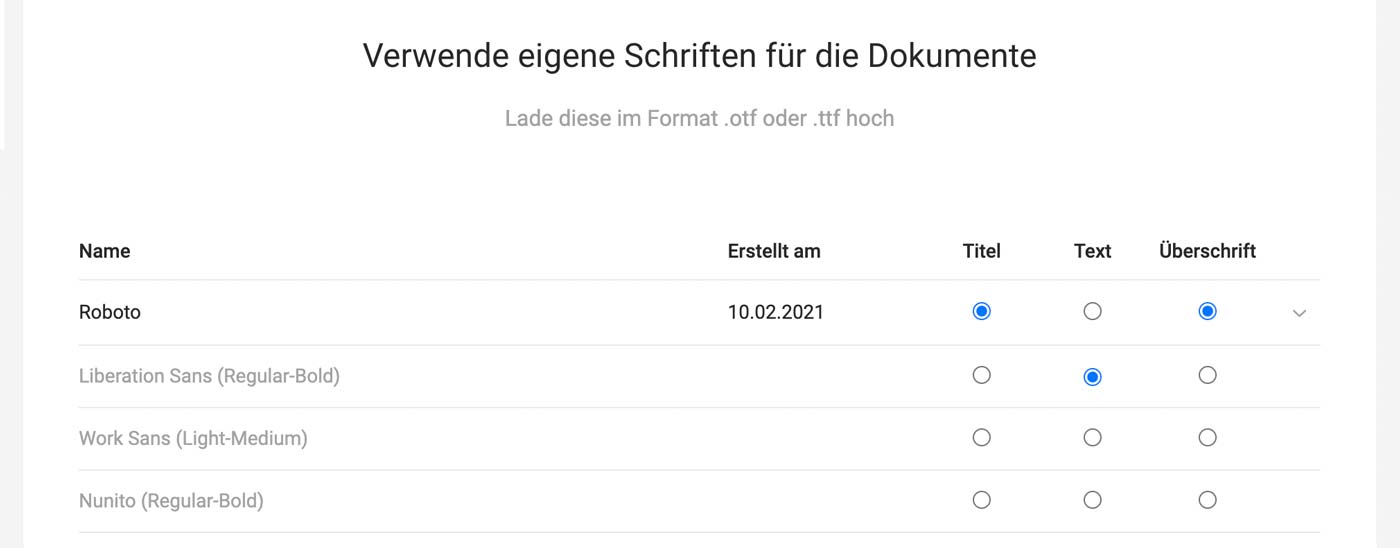
In addition to available fonts, you can also use custom font style combinations (.otf or .ttf format) for your documents.
In addition to available fonts, you can also use custom font style combinations (.otf or .ttf format) for your documents.
 (English image not yet available)
Letterhead
Settings > Layout > Letterhead
 (English image not yet available)
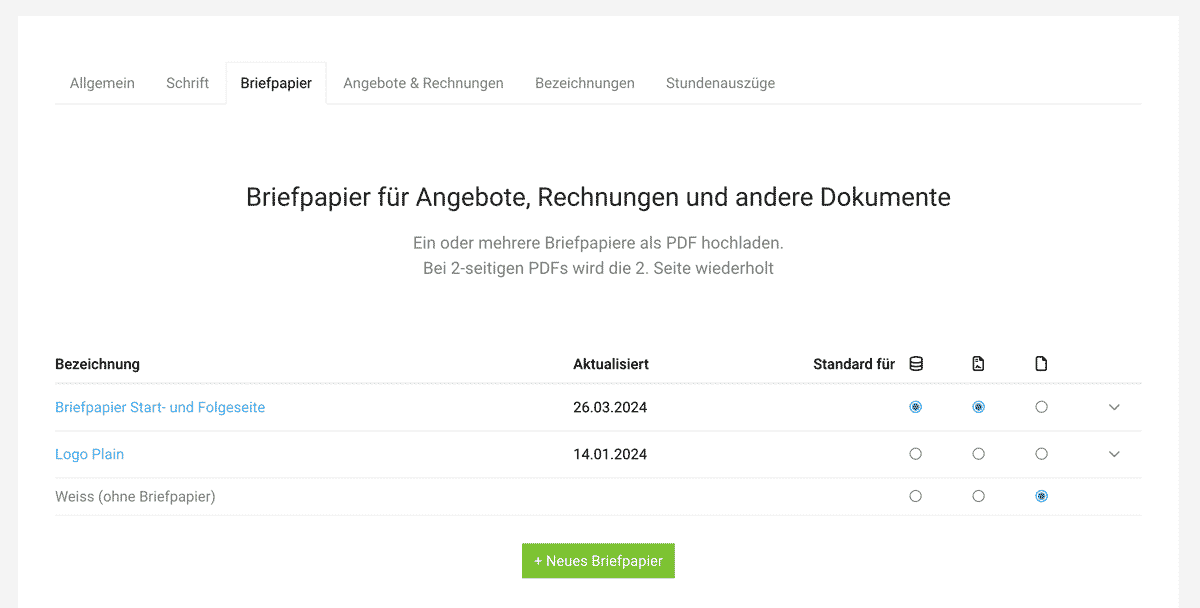
Upload a standard letterhead background to use as your base. This “frame” can be designed freely and, for Quotes and Invoices, includes your logo and sender details (including VAT ID / VAT number). For Timesheets, a simplified letterhead (logo only) is usually chosen as the default.
You can select additional alternative backgrounds per document under “Print Preview” (for printing or download) and “Send by Email” via the dropdown on the right. For printing on pre-printed letterhead, choose “white”.
Your freely designed background should take the following into account
(English image not yet available)Upload a standard letterhead background to use as your base. This “frame” can be designed freely and, for Quotes and Invoices, includes your logo and sender details (including VAT ID / VAT number). For Timesheets, a simplified letterhead (logo only) is usually chosen as the default.
You can select additional alternative backgrounds per document under “Print Preview” (for printing or download) and “Send by Email” via the dropdown on the right. For printing on pre-printed letterhead, choose “white”.
Your freely designed background should take the following into account
- PDF in A4 size (210 x 297 mm) without crop marks
- Recommended: RGB colour space, 150 dpi resolution. The file size should be under 300 KB.
- Following pages: If you use a different design from page 2 onwards, upload a two-page PDF — page 2 will then be used for all subsequent pages.
Note on Attachments
In most cases, you will want attachments such as Terms and Conditions, price lists, etc. to use the same letterhead. If you do not want a letterhead background to be shown here, add a white area in the background of the attachment document before saving and uploading it as a PDF. This will cover the letterhead background.
What to Consider for E-Invoices (ZUGFeRD)
If you create e-invoices with MOCO, any sender details on your uploaded letterhead must match the details on the e-invoice settings page. The recipient receives the payment details via the XML data.
We therefore recommend leaving bank details off the letterhead and, if needed, adding them to the closing text for greater flexibility.
Different Letterhead for ZUGFeRD
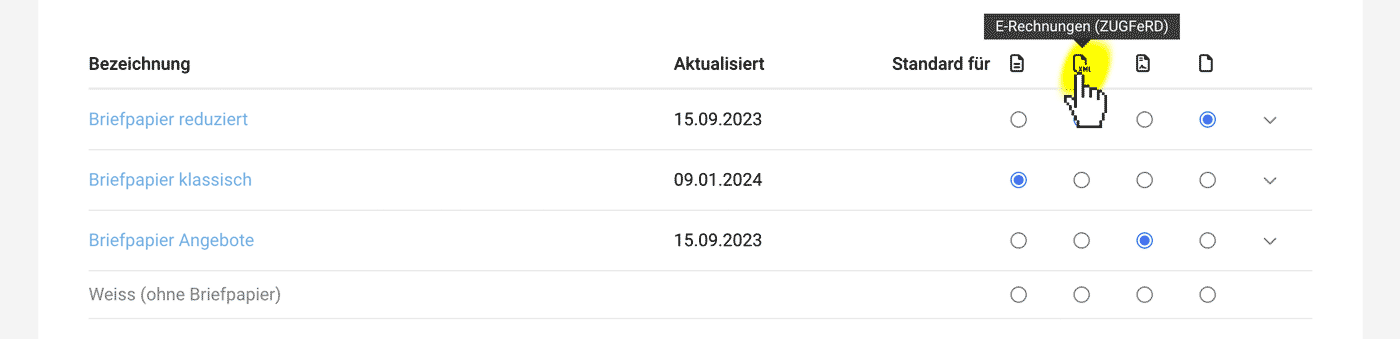
If you select “Different Letterhead” on this settings page, you can upload a different letterhead for ZUGFeRD (a new type column will be shown).
 (English image not yet available)
We therefore recommend leaving bank details off the letterhead and, if needed, adding them to the closing text for greater flexibility.
Different Letterhead for ZUGFeRD
If you select “Different Letterhead” on this settings page, you can upload a different letterhead for ZUGFeRD (a new type column will be shown).
(English image not yet available)Disable Letterhead
If a letterhead has already been used for a document, it can no longer be deleted. However, you can disable letterheads that are no longer current. They will then no longer be offered for selection.
If a letterhead has already been used for a document, it can no longer be deleted. However, you can disable letterheads that are no longer current. They will then no longer be offered for selection.
Quotes & Invoices
Settings > Layout > Quotes & Invoices
 (English image not yet available)
(English image not yet available)Info Block
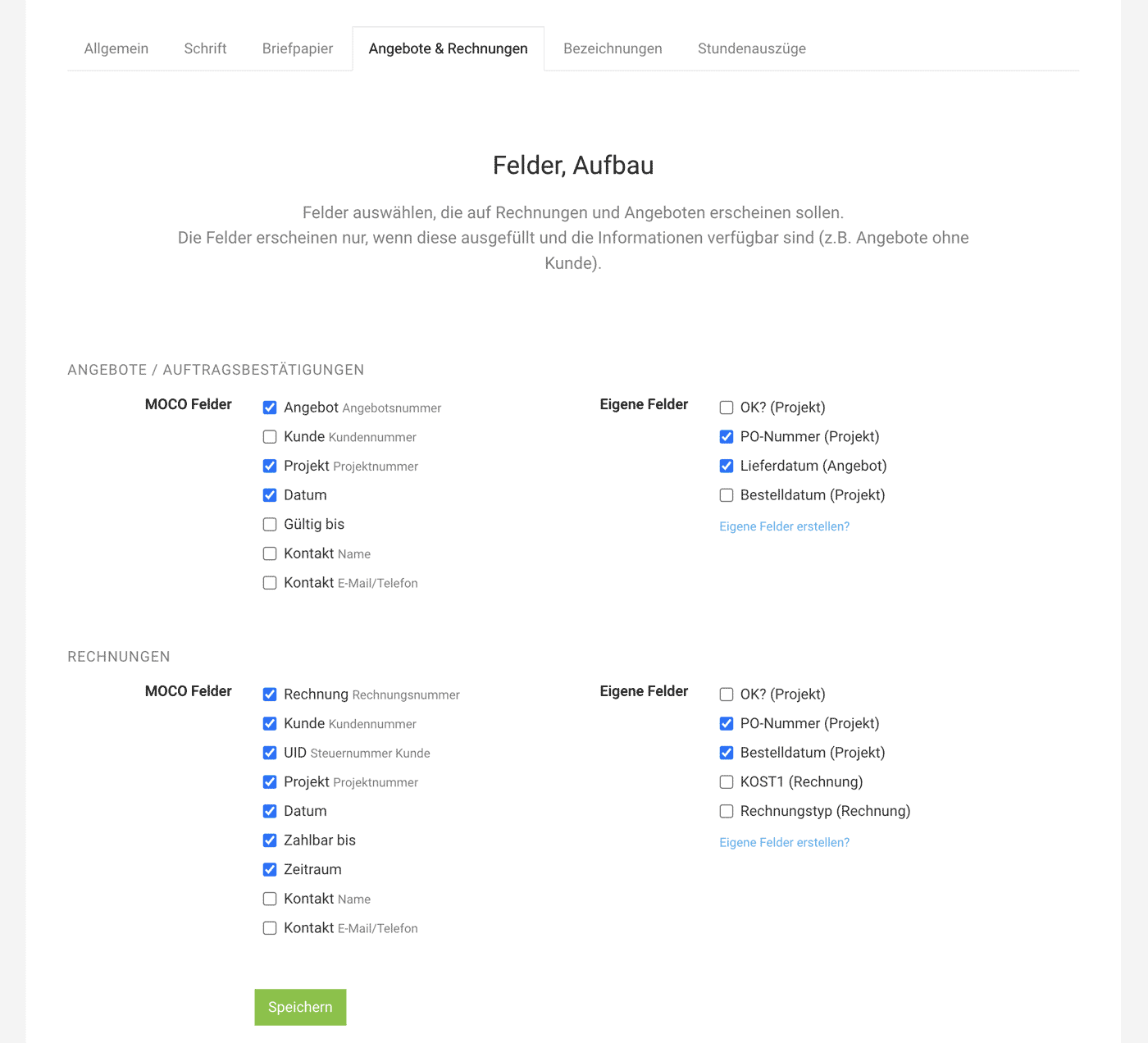
You select the standard information for quotes and invoices here. This is shown in the so-called “info block” in two columns, in a position you can define yourself in the header area (above the title).
MOCO Fields
Fields that MOCO provides automatically
Custom Fields
Your own data for the client, project, or invoice can be displayed automatically here
How custom fields work
MOCO Fields
Fields that MOCO provides automatically
Custom Fields
Your own data for the client, project, or invoice can be displayed automatically here
How custom fields work
Labels
Settings > Layout > Labels
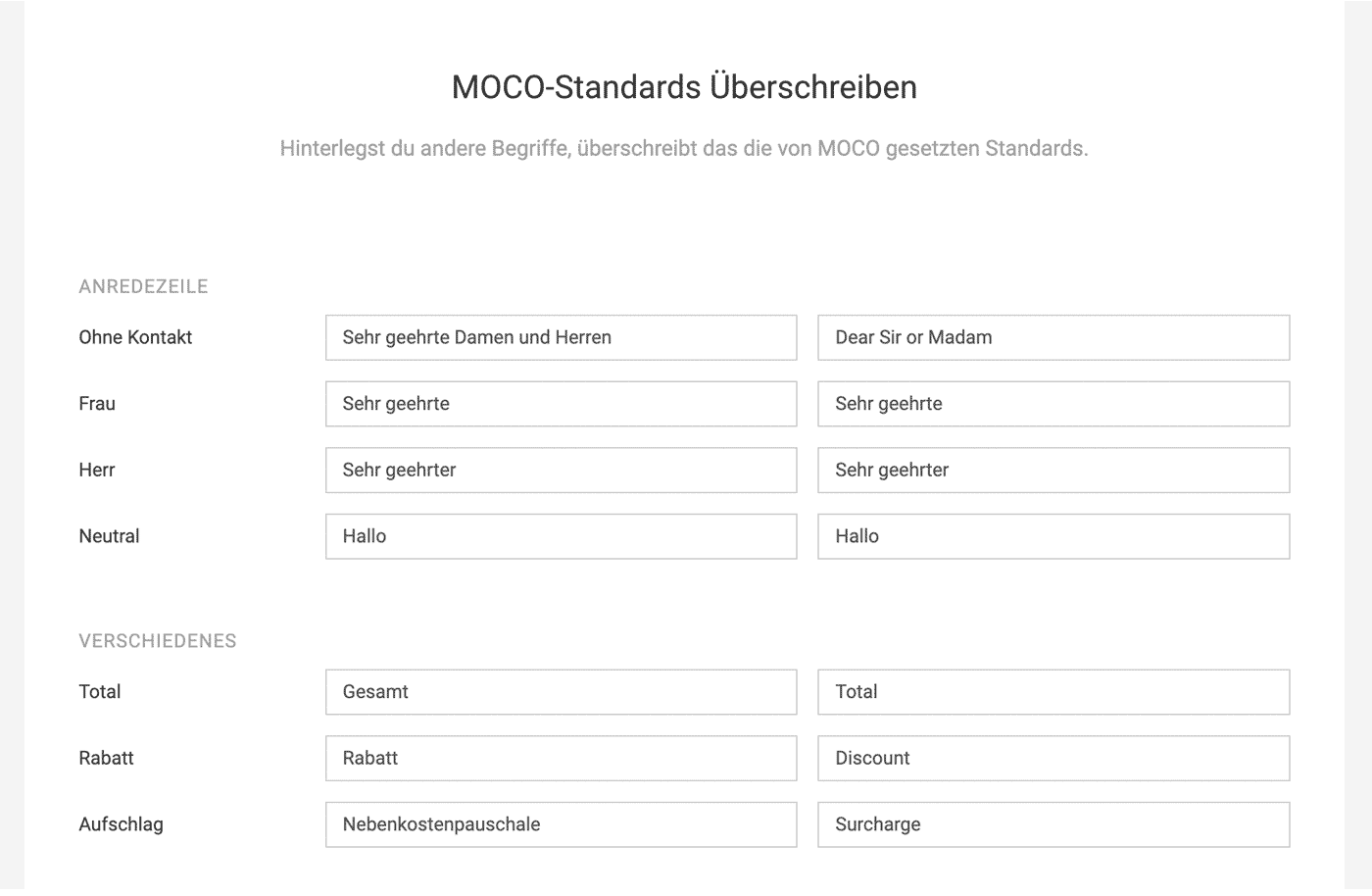
The Salutation Fallbacks and MOCO standard terms like "Total" can be customized here.
 (English image not yet available)
The Salutation Fallbacks and MOCO standard terms like "Total" can be customized here.
(English image not yet available)Timesheets
Settings > Layout > Timesheets
 (English image not yet available)
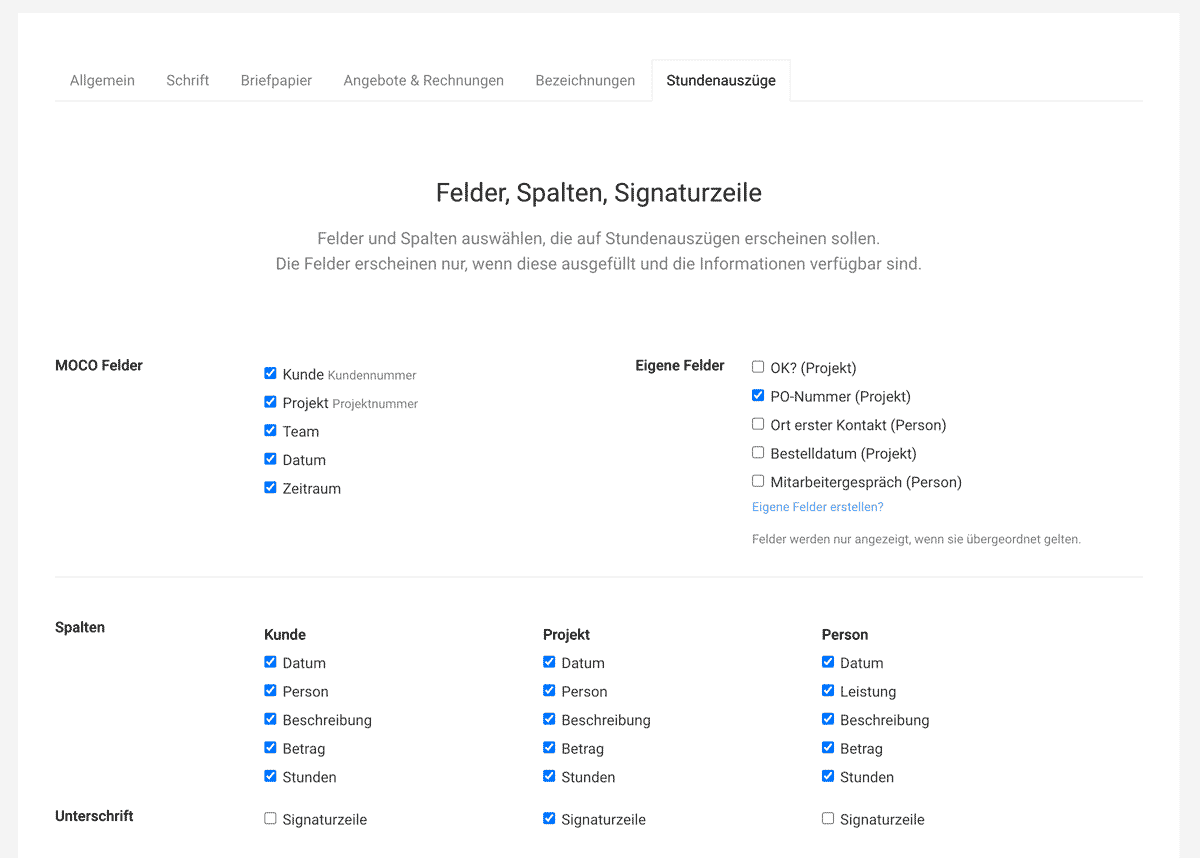
Here you can configure the following settings
(English image not yet available)Here you can configure the following settings
- Standard information to be displayed in the info block
- Columns to be shown in the PDF extract (e.g., omit the name but include the amount)
- Signature line for signing display








