Leads & Proposals
Leads | Proposals and Order Confirmations | Proposal Attachments (e.g. Terms and Conditions)Leads
Settings > Leads & Quotes > Leads
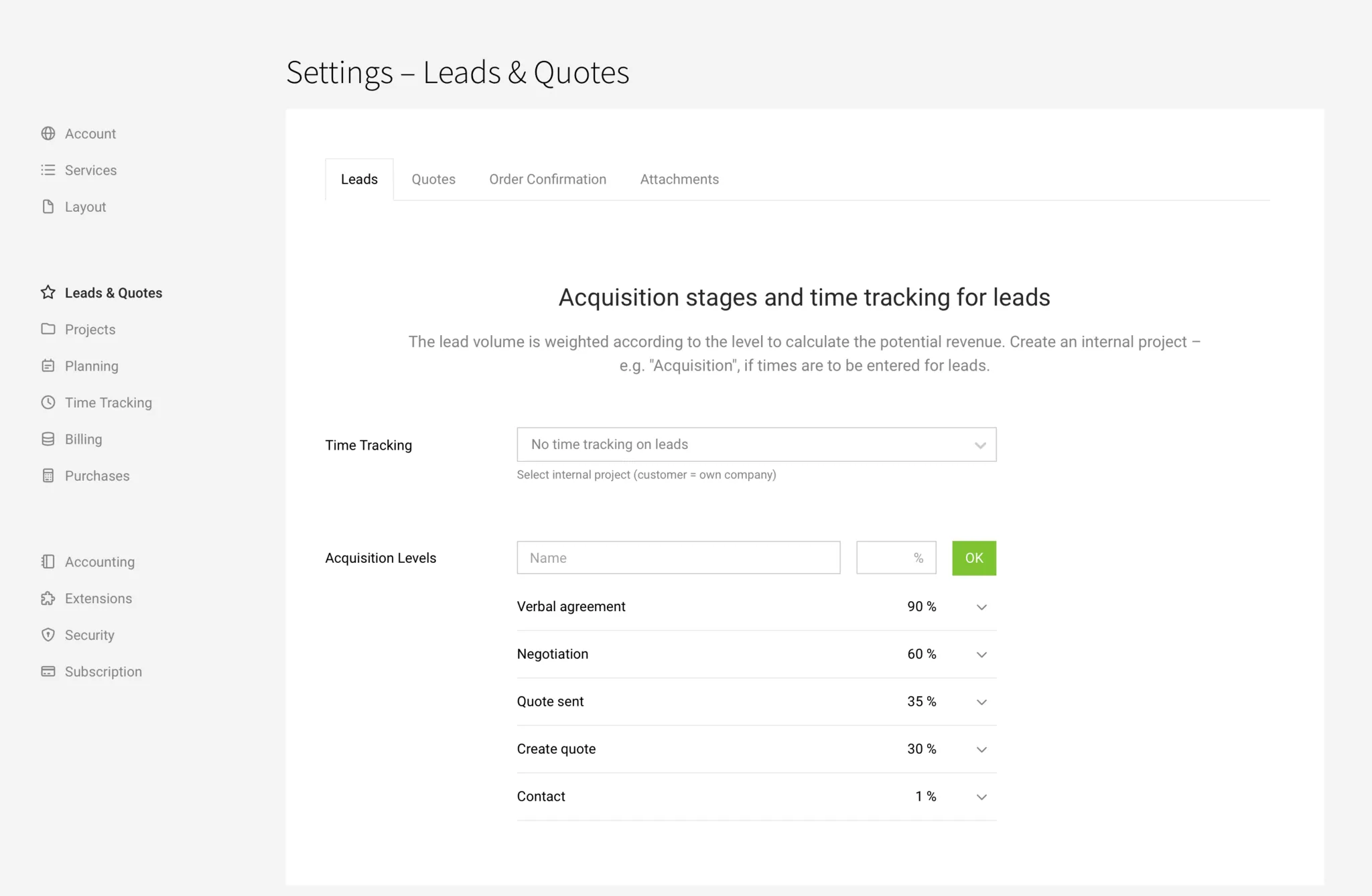
Time Tracking
Create a new internal project (select your own company as the client) that you call, for example, "Business Development", and record a service called "Leads". Add the relevant people for time tracking. Select this service here. Optionally, you can require access to Leads as a prerequisite.
MOCO displays a note for the service in the project, and the service cannot be locked or deleted.
More on time tracking for leads
Define Sales Stages
You can tailor the sales stages to your own needs and processes.
Time Tracking
Create a new internal project (select your own company as the client) that you call, for example, "Business Development", and record a service called "Leads". Add the relevant people for time tracking. Select this service here. Optionally, you can require access to Leads as a prerequisite.
MOCO displays a note for the service in the project, and the service cannot be locked or deleted.
More on time tracking for leads
Define Sales Stages
You can tailor the sales stages to your own needs and processes.
Proposals and Order Confirmations
Settings > Leads & Proposals > Proposals
This section allows you to predefine standards for proposals and order confirmations.
This section allows you to predefine standards for proposals and order confirmations.
General
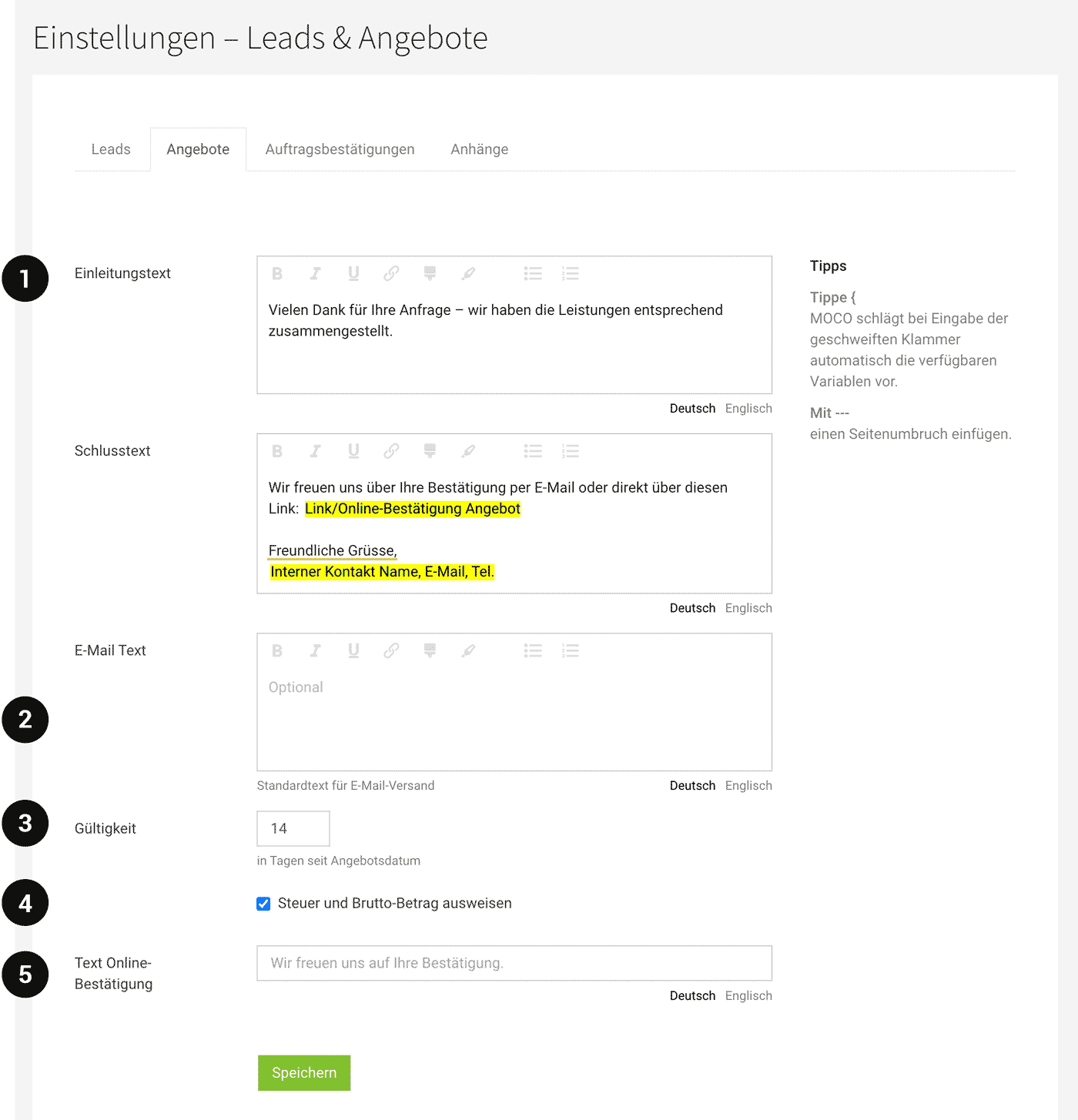
Insert Personalized Salutation & Other Variables
Variables are available and can be accessed using "{" (Press alt + "("). (Example 2: Variables are highlighted in yellow)
The salutation line uses fallbacks if not individually set for the contact.
English
The predefined English texts here are used for English proposals (select "Correspondence in English" in the company form beforehand).
 (English image not yet available)
Variables are available and can be accessed using "{" (Press alt + "("). (Example 2: Variables are highlighted in yellow)
The salutation line uses fallbacks if not individually set for the contact.
English
The predefined English texts here are used for English proposals (select "Correspondence in English" in the company form beforehand).
(English image not yet available)Introduction and Closing Text (1)
Insert Page Break
A page break can be inserted in the introduction and closing text with "---" (see also note in the screenshot).
This allows for a kind of cover letter or a signature area for a proposal confirmation to be placed on its own page.
A page break can be inserted in the introduction and closing text with "---" (see also note in the screenshot).
This allows for a kind of cover letter or a signature area for a proposal confirmation to be placed on its own page.
Email Text Including Signature
Insert Logo for Email Signature
A previously defined signature image under Account > Email can also be inserted via variables in the email text field (2).
A previously defined signature image under Account > Email can also be inserted via variables in the email text field (2).
Validity
Standard for the validity of the proposal (3). This can be displayed via the info block or placed using variables.
Hide VAT and Gross Amount
Choose whether only the net final amount is shown by default (4). In this case, add a note in the closing text "All prices net plus VAT".
Customize Text for Online Confirmation
Replace the MOCO standard "We look forward to your confirmation", which is shown to the client with the online confirmation (5). It can also be overwritten per proposal.
Proposal Attachments (e.g. Terms and Conditions)
Settings > Leads & Proposals > Attachments
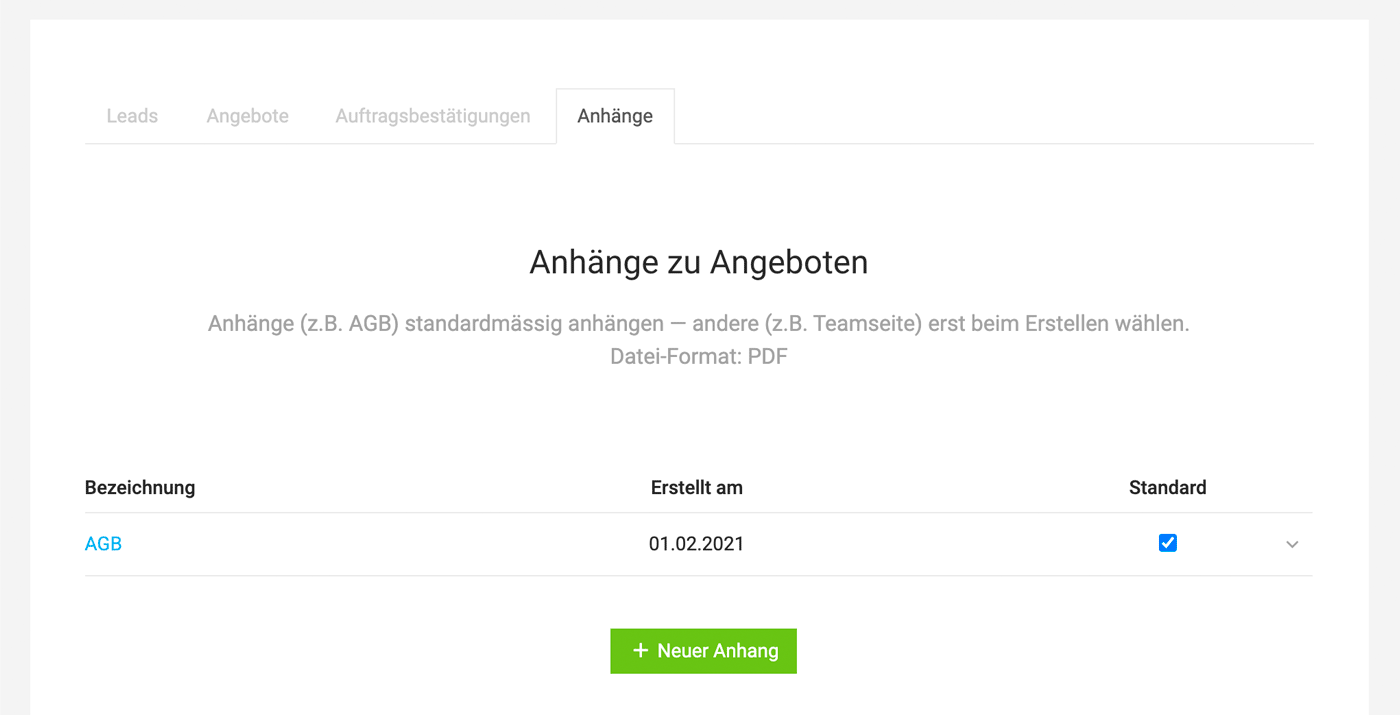
Here you can upload standard attachments (PDF pages). Ideal for items such as Terms and Conditions, team page, or a price list.
 (English image not yet available)
Here you can upload standard attachments (PDF pages). Ideal for items such as Terms and Conditions, team page, or a price list.
(English image not yet available)Important to know:
- The uploaded attachment can be selected for each proposal.
- The letterhead background also affects attachments. If you don't want this, place a white area in the background of the attachment file to cover the letterhead.
- The pages are not numbered consecutively – it is advisable to reference the attachments in the proposal document "in the attachment: xxx".








