Proposal Confirmation
Proposal Confirmation | Order Confirmation & Delivery Note | Create Project from ProposalProposal Confirmation
With the proposal confirmation (also known as commissioning or order placement), the client confirms the proposal and thereby places the order. The confirmation can be informal via email, online confirmation, or signature on the proposal.
Via Email
Usually, an email is sufficient for confirmation.
Online Confirmation
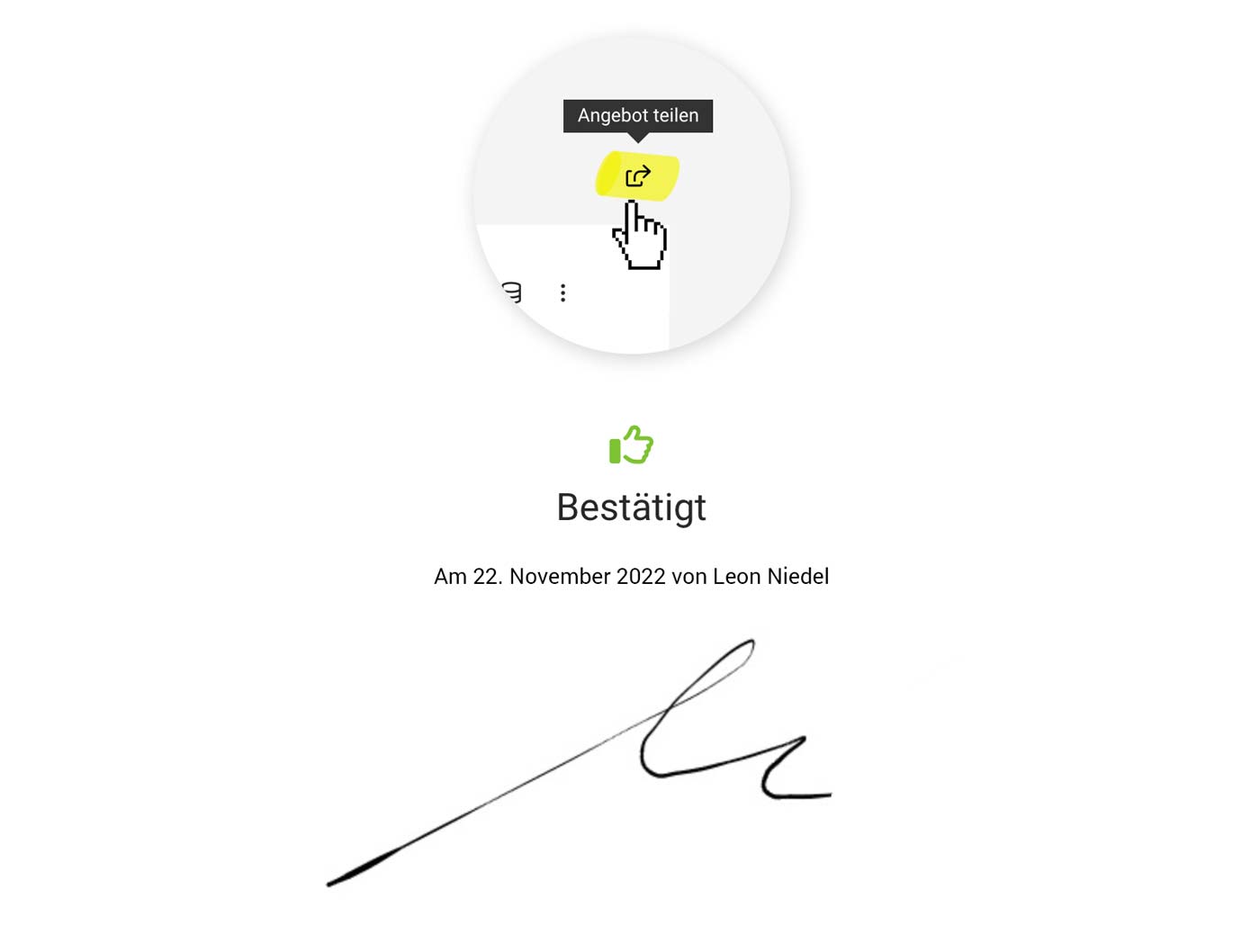
Through "Share Proposal," you can retrieve the link through which the client can confirm the proposal online.
 (English image not yet available)
1. Online Confirmation Link
Send the link for confirmation to clients via email and/or PDF. The short accompanying text is standard and can be customized per proposal.
2. Client Confirms
The recipient or another person in the company confirms online (with name, email, and signature)
3. Proposal is Set to Confirmed & Contractor Informed
The person chosen as "Internal Contact" in the proposal is notified, a note is created on the proposal, and the proposal status is set to "Confirmed."
Automate Link for Proposal PDF or Email
To automatically send the link for online confirmation with the proposal, use the variable "Link/Online Confirmation Proposal" in the standard email text. The variable can also be inserted situationally upon sending.
Allow/Deny Online Access
Access via link is automatically activated upon sending – also when using the link in the proposal closing text. Otherwise, access must be consciously activated, similar to sharing the project report.
(English image not yet available)1. Online Confirmation Link
Send the link for confirmation to clients via email and/or PDF. The short accompanying text is standard and can be customized per proposal.
2. Client Confirms
The recipient or another person in the company confirms online (with name, email, and signature)
3. Proposal is Set to Confirmed & Contractor Informed
The person chosen as "Internal Contact" in the proposal is notified, a note is created on the proposal, and the proposal status is set to "Confirmed."
Automate Link for Proposal PDF or Email
To automatically send the link for online confirmation with the proposal, use the variable "Link/Online Confirmation Proposal" in the standard email text. The variable can also be inserted situationally upon sending.
Allow/Deny Online Access
Access via link is automatically activated upon sending – also when using the link in the proposal closing text. Otherwise, access must be consciously activated, similar to sharing the project report.
Signature Area in PDF
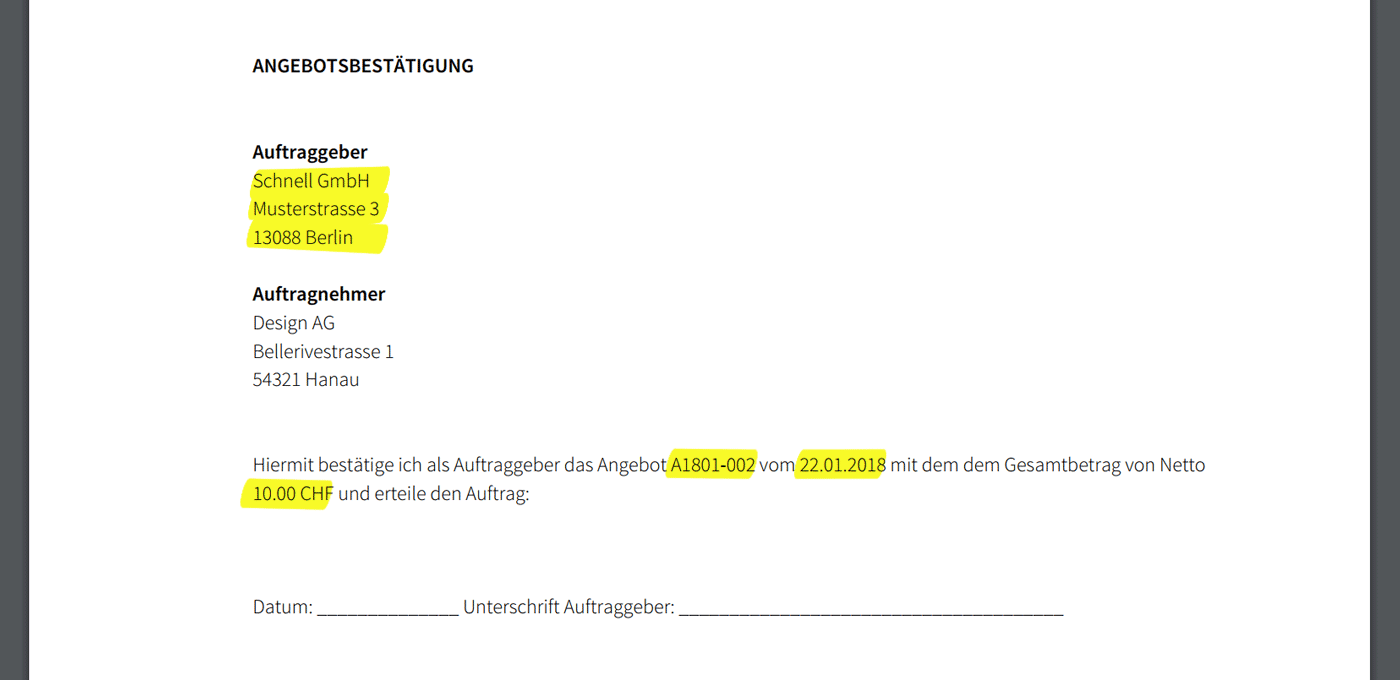
A signature area can be directly integrated into the proposal closing text or placed on a separate page for proposal confirmation. To do this, consider the proposal confirmation content in the proposal closing text in the settings under "Leads & Proposals" > "Proposals".
- Using variables (marked in yellow in the example) MOCO automatically fills in the proposal details. Simply select variables by entering a curly brace "{". In the example, the suggested variables are marked with an asterisk and italicized.
- Ideally, mark the lines with "..." or "___" as "---" creates a page break.
Example:
 (English image not yet available)
---Example to Copy: Please insert variables at the yellow spots with "{" ---
We look forward to your confirmation online (via link) or by email.
Kind regards,
Internal Contact Name, Email, Tel.
---
PROPOSAL CONFIRMATION
Option to Confirm Online
Link/Online Confirmation Proposal
Option via Email
Hereby, I as the client confirm the proposal Proposal Number
dated Proposal Date for the amount of Net Amount net and place the order:
Client
Recipient Address
____________________________________________________
Date
____________________________________________________
Signature
--- End Example ---
Note: The terms "proposal confirmation" and "order confirmation" are often confused. > Here we clarify the difference between confirming a proposal and confirming an order
Order Confirmation & Delivery Note
Order confirmations and delivery notes are used less often. They are not legally required, so they are optional in MOCO and can be used as needed.
Order Confirmation
An order confirmation should not be confused with confirming a quote/placing an order. After the client has confirmed the quote, you as the contractor confirm to the client, via the order confirmation document, that you will carry out the commissioned services with due care. » Confirming a quote vs confirming an order: what’s the difference?
Create an Order Confirmation
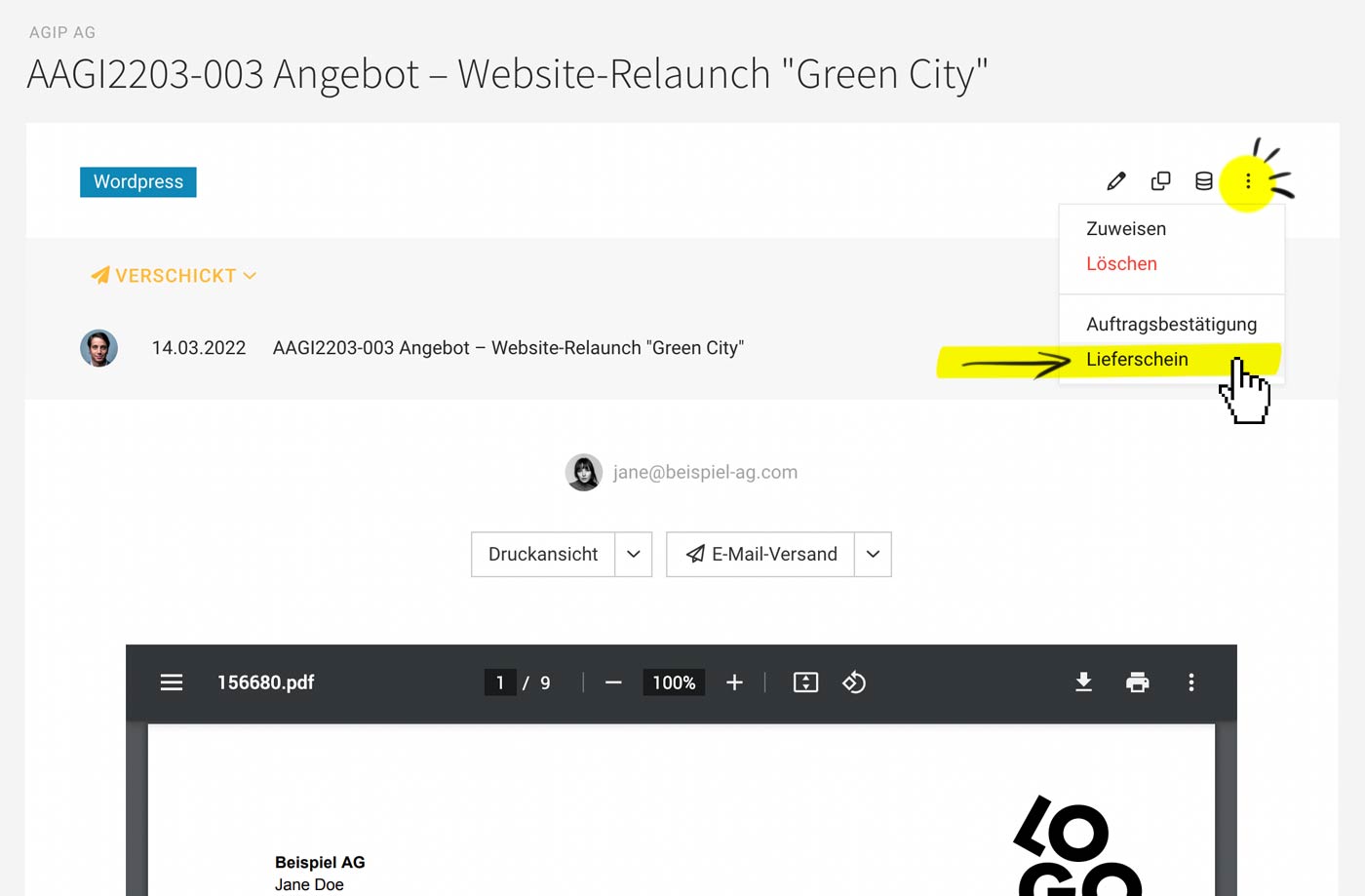
In the quote, select “Order Confirmation” at the top right (see image) → confirm or adjust the accompanying text → an order confirmation is created from the quote and the quote status is automatically set to “confirmed”. You can predefine the default accompanying texts in Settings.
Create an Order Confirmation
In the quote, select “Order Confirmation” at the top right (see image) → confirm or adjust the accompanying text → an order confirmation is created from the quote and the quote status is automatically set to “confirmed”. You can predefine the default accompanying texts in Settings.
Do the commissioned services differ from the quote?
The order confirmation should be seen purely as an optional additional document. Billing is always based on the quote. So if anything differs, adjust the quote first and then create the order confirmation. The changes are documented in the change log.
Change Log – Traceability of Versions
To track versions, a change log (as with invoices) is available below the quote. Alternatively, before making changes, you can save the downloaded quote PDF below the quote under “Comments”.
 (English image not yet available)
Delivery Note
If a service provider ships goods, they will usually want to create a delivery note as a goods accompanying document. The delivery note helps the client, on receipt of the goods, to check and match the quantity and type of the ordered goods.
In most cases, the invoice is sent separately from the delivery note – or there may be no invoice at all, for example when sending a product sample. » Standard details on the delivery note and other information
Create a Delivery Note
In the quote (or invoice), select “Delivery Note” at the top right → confirm/adjust the accompanying text and select line items → the delivery note is created and can be printed directly or sent by email. It is always accessible as a reference to the quote or invoice.
In most cases, the invoice is sent separately from the delivery note – or there may be no invoice at all, for example when sending a product sample. » Standard details on the delivery note and other information
Create a Delivery Note
In the quote (or invoice), select “Delivery Note” at the top right → confirm/adjust the accompanying text and select line items → the delivery note is created and can be printed directly or sent by email. It is always accessible as a reference to the quote or invoice.
Create Project from Proposal
Set a confirmed proposal to "Confirmed" (this happens automatically if an order confirmation is created) and directly create the project:
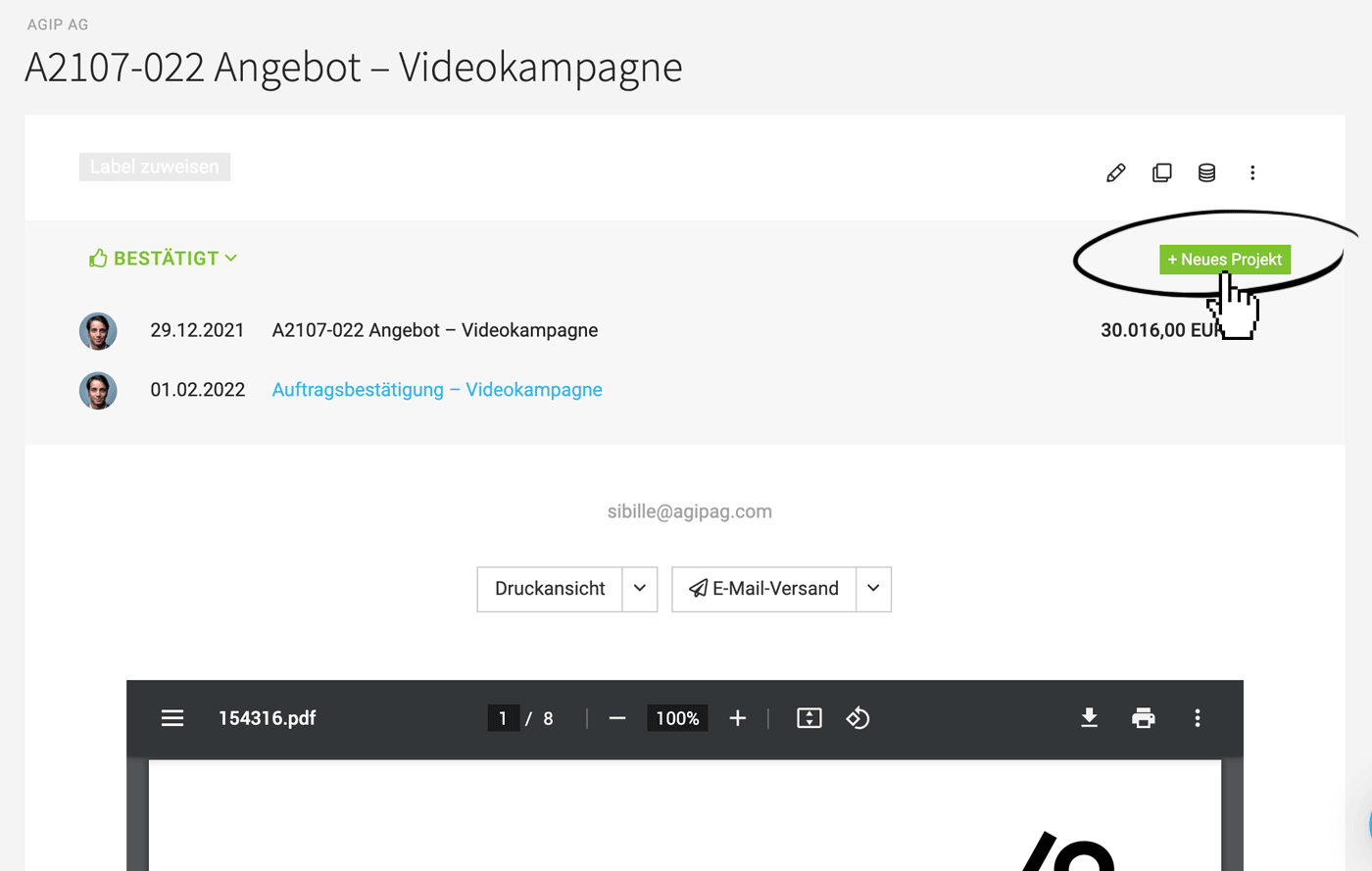 (English image not yet available)
If you are working with leads or have already created the project, you can also assign the proposal afterwards
» Detailed information on creating projects from leads/proposals.
(English image not yet available)If you are working with leads or have already created the project, you can also assign the proposal afterwards
» Detailed information on creating projects from leads/proposals.








