Create Proposals
Where do I create the Proposal? | Building Blocks, Copying, Templates | Images, Cover Page, Seamless Integration | Attachments | Proposal with Options | Quote with a Price Range/Without a Final TotalWhere do I create the Proposal?
Independent
Under "Acquisition" > "Proposals" (1), you can create proposals independently (2) – and assign them to a company, lead, or project later if needed.
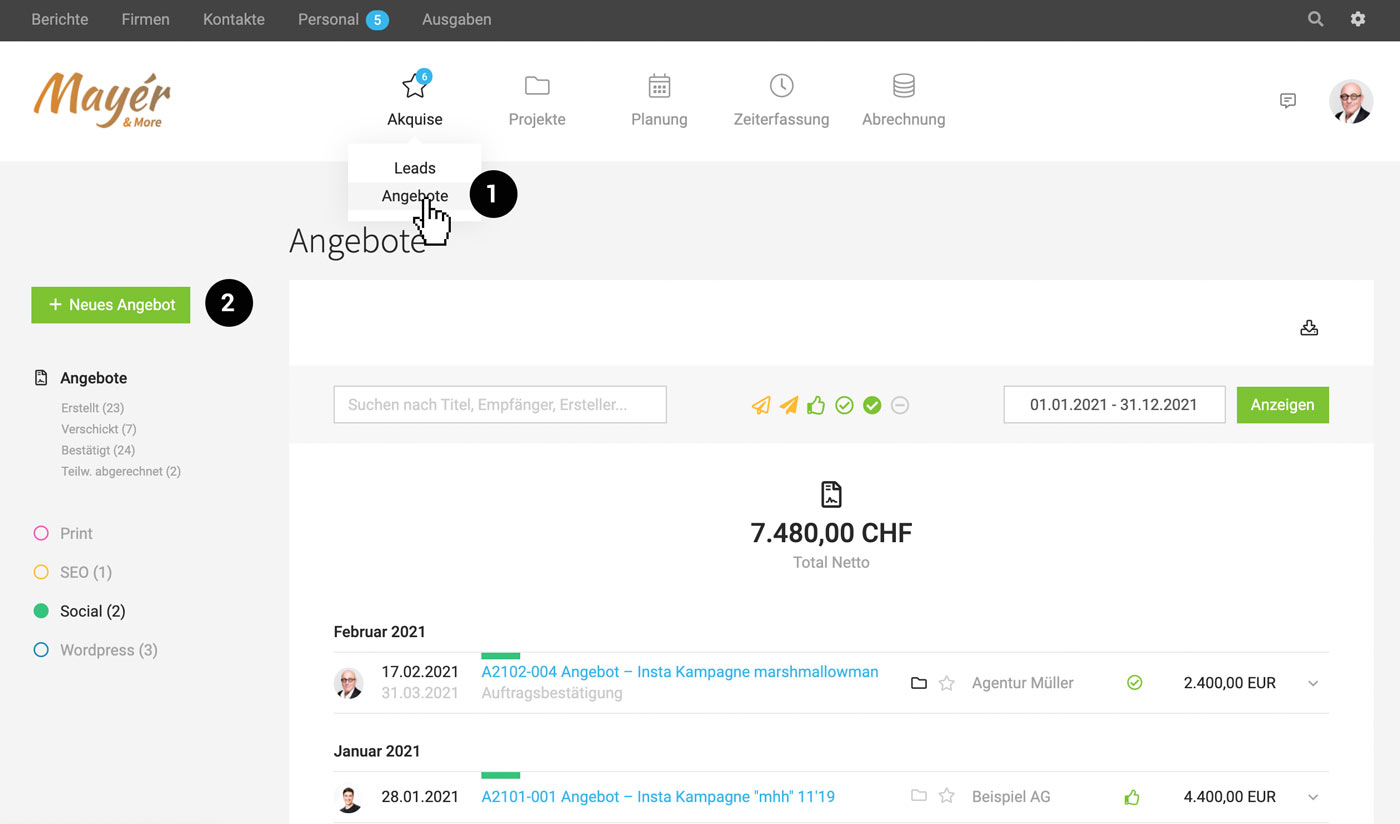 (English image not yet available)
(English image not yet available)Directly Assigned
If the company, lead, or project already exists, it makes sense to create the proposal directly there under "Proposals".
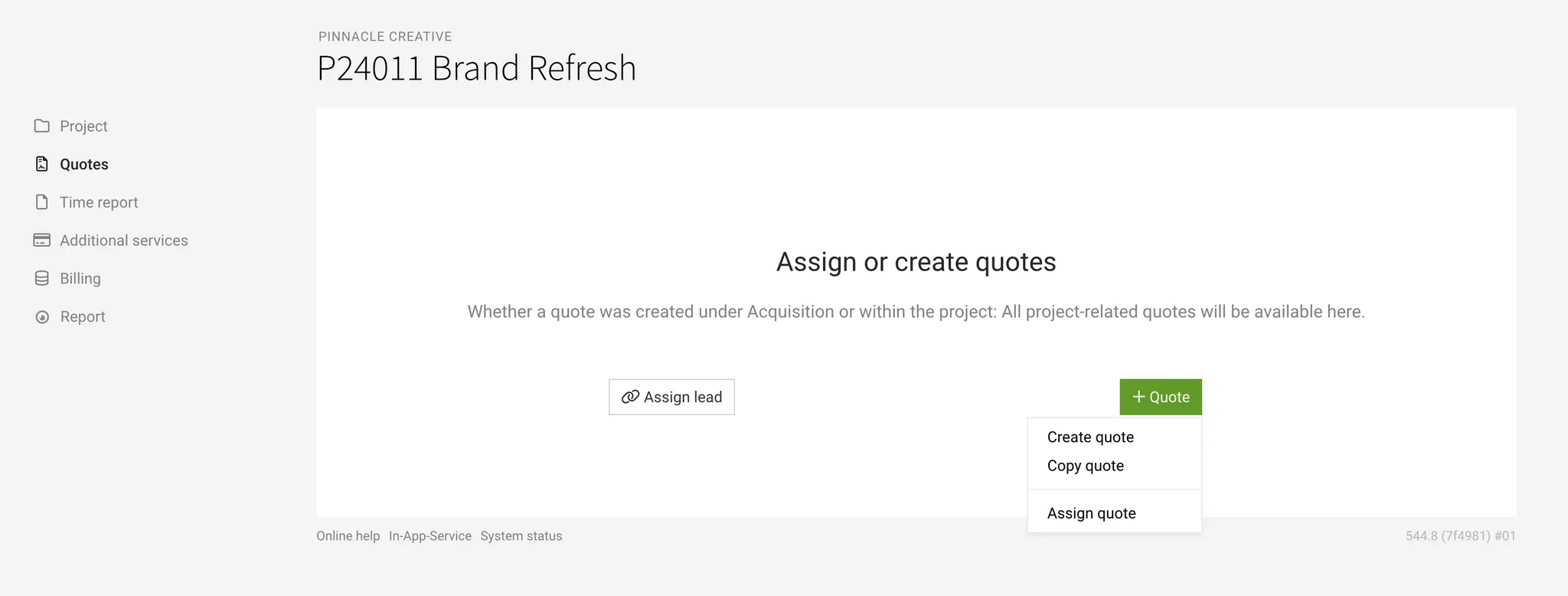
If a project is created from a lead, the lead including proposals is automatically linked (for future invoicing). You can also assign a lead later (in the project under "Proposals" at the top right).
Assign proposal later.
Building Blocks, Copying, Templates
Utilising Service Catalogue for Building Blocks and Checklists
Individual items, sections, or entire proposal templates (item section) can also be inserted into a proposal via the service catalogue. An entry can be used as a "checklist".
Using Proposals or Invoices as Templates
Using Proposal Copy
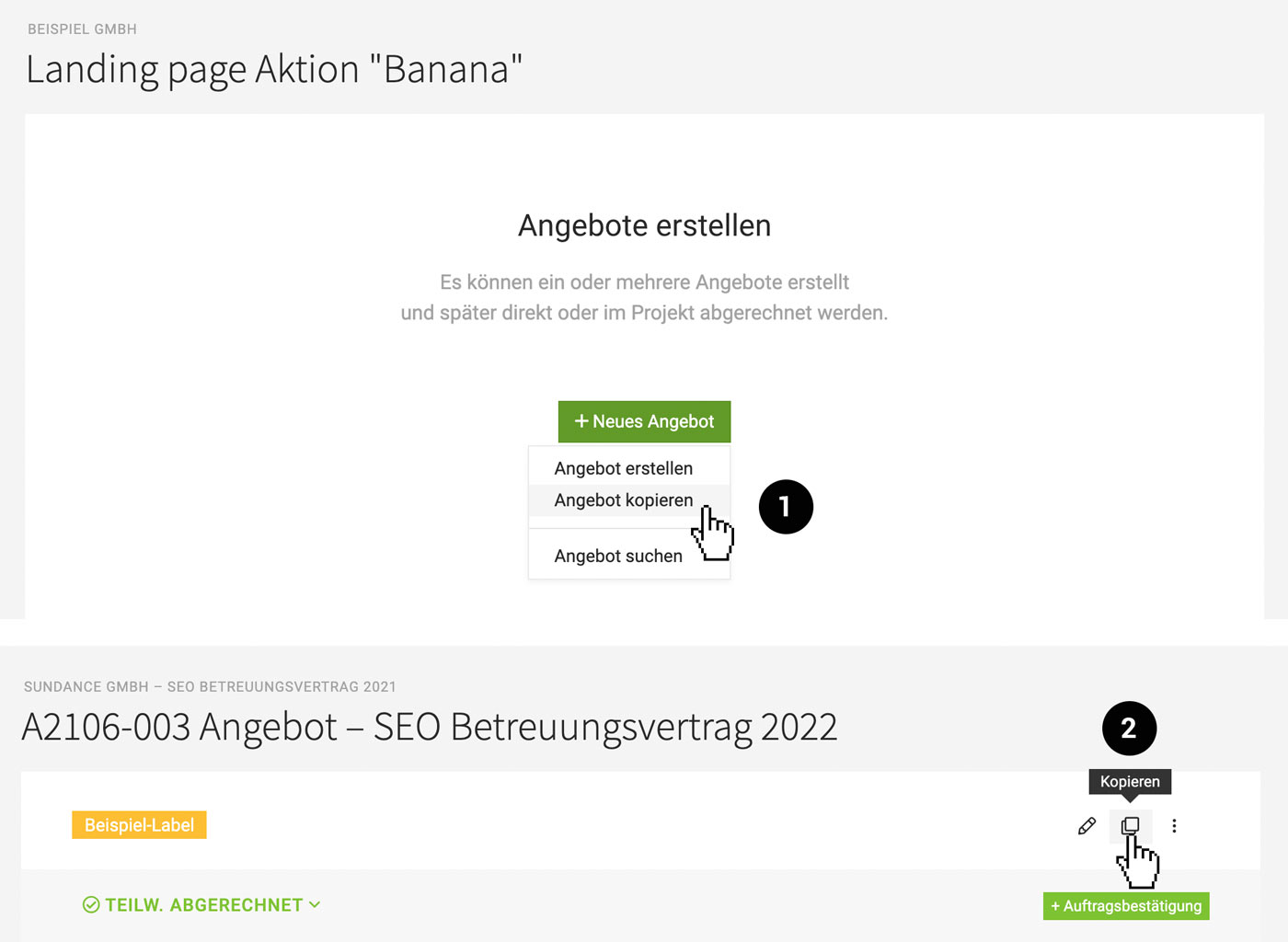
In Client, Lead, or Project, new proposals can be created, existing proposals copied (1), and adjusted under "Proposals". If you want to use an existing invoice for a new proposal, go to the invoice and select "Create Proposal" from the actions in the top right.
Save Proposal as Catalogue Entry
You can adopt a proposal (as well as an invoice) as a catalogue entry through the catalogue.
In Client, Lead, or Project, new proposals can be created, existing proposals copied (1), and adjusted under "Proposals". If you want to use an existing invoice for a new proposal, go to the invoice and select "Create Proposal" from the actions in the top right.
Save Proposal as Catalogue Entry
You can adopt a proposal (as well as an invoice) as a catalogue entry through the catalogue.
Direct Copying and Assignment
Each proposal can also be copied directly from the list (2). If needed, it can then or later be assigned to a (different) client, lead, or project.
 (English image not yet available)
(English image not yet available)Creating Templates
Every created proposal can be used as a template. To specifically create and differentiate templates, proceed as follows:
1. Create a proposal template independently or under "Proposals" in the client
2. Give it a meaningful name (a short code is helpful for identification): e.g., "_Template xxxx"
3. The template can then be quickly found via search (keyboard shortcut Shift + 7 -> enter search term)
4. Create a copy (top right of the proposal)
5. To prevent templates from cluttering the proposal list, set them to "ignored"
Images, Cover Page, Seamless Integration
Images
The "Image" element is also available as a position. The maximum width displayed in the PDF is defined via the settings (Layout > General). If you insert a smaller image, it will be aligned to the left.
Hide Table Header for Flexibility or Cover Page
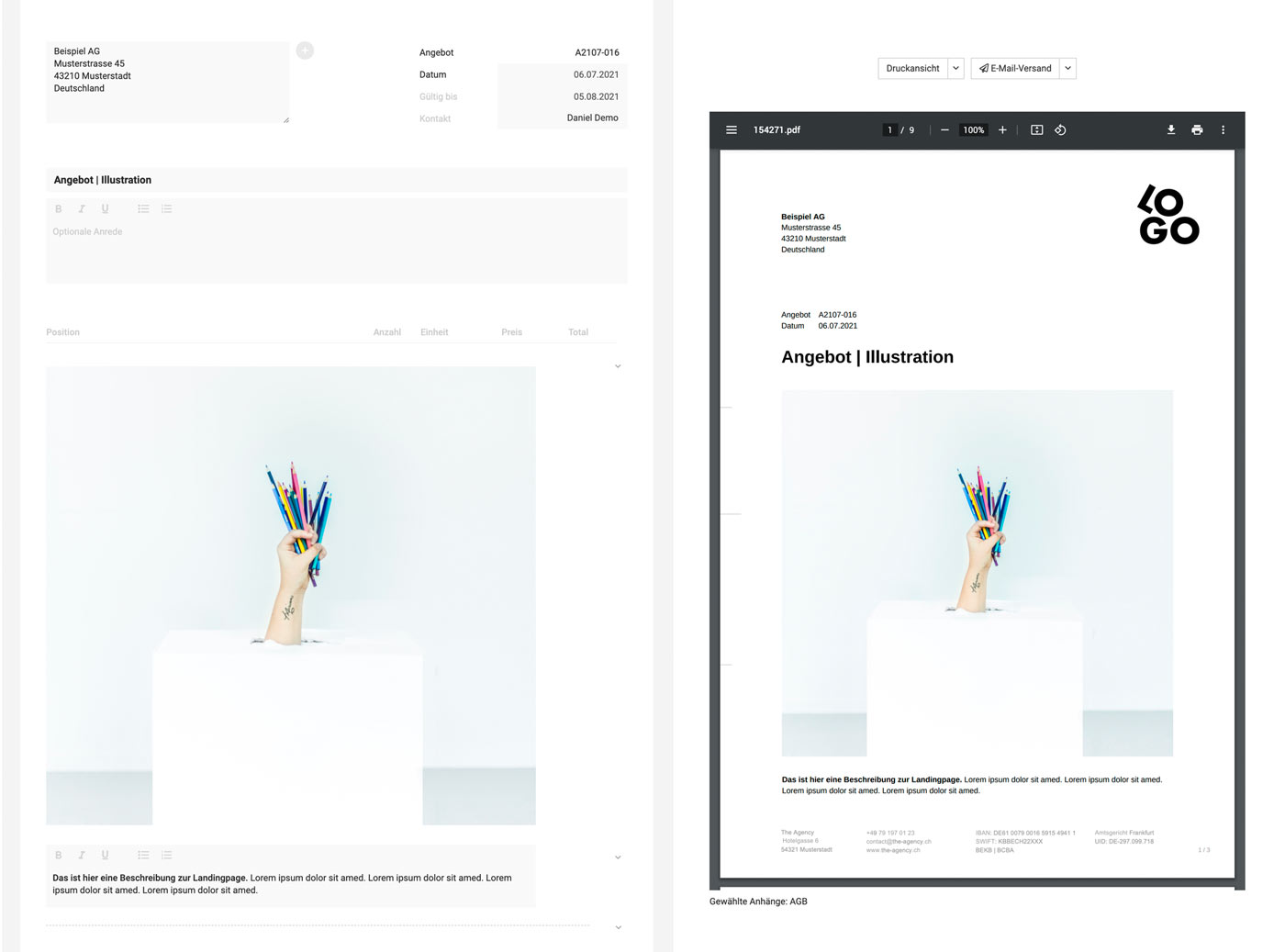
A type of cover page can currently be created by hiding the table header, which is usually too rigidly tabular for illustrated proposals. This allows elements to be used seamlessly. See example edit mode vs. PDF preview:
 (English image not yet available)
In the example, the width for description & images is set to 100%. With page margins of 25 mm, an image size of 160 mm width at 150 dpi & RGB is recommended. This ensures the proposal can still be printed in the best quality while keeping the data reasonably small. Ideally, create a template (e.g., in Photoshop) to quickly optimize the images.
(English image not yet available)In the example, the width for description & images is set to 100%. With page margins of 25 mm, an image size of 160 mm width at 150 dpi & RGB is recommended. This ensures the proposal can still be printed in the best quality while keeping the data reasonably small. Ideally, create a template (e.g., in Photoshop) to quickly optimize the images.
Attachments
Standard Attachments
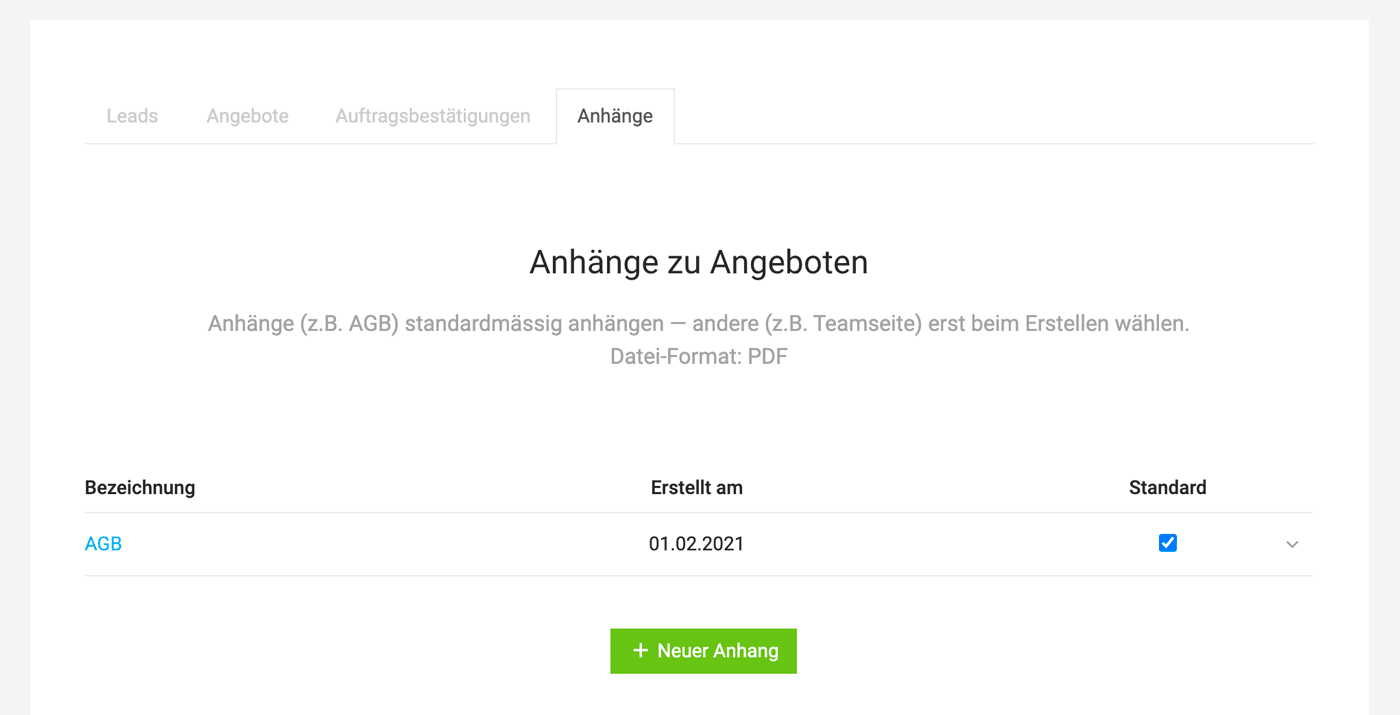
In the settings under "Leads & Proposals" you can upload additional pages (PDF) for the PDF – such as terms and conditions or a price list.
Consider the following:
Consider the following:
- If you want to cover the letterhead, place a white area in the background of the file before generating the PDF.
- Select default in advance
- If necessary, explicitly mention the attachment in the proposal (The attachment is not numbered by MOCO).
 (English image not yet available)
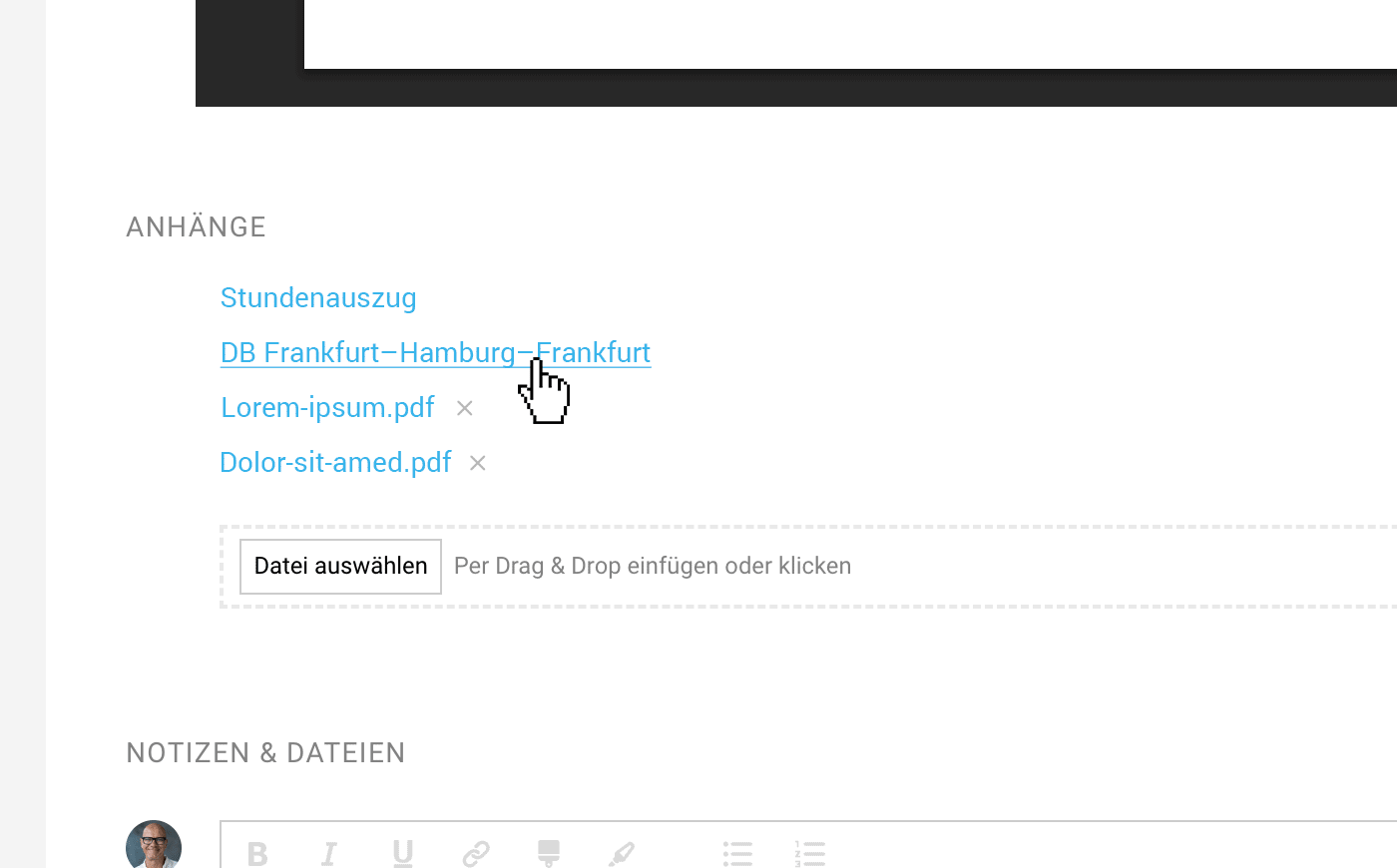
Custom Attachments
To do this, upload the PDF file to the saved proposal:
 (English image not yet available)
(English image not yet available)Proposal with Options
Optional Items
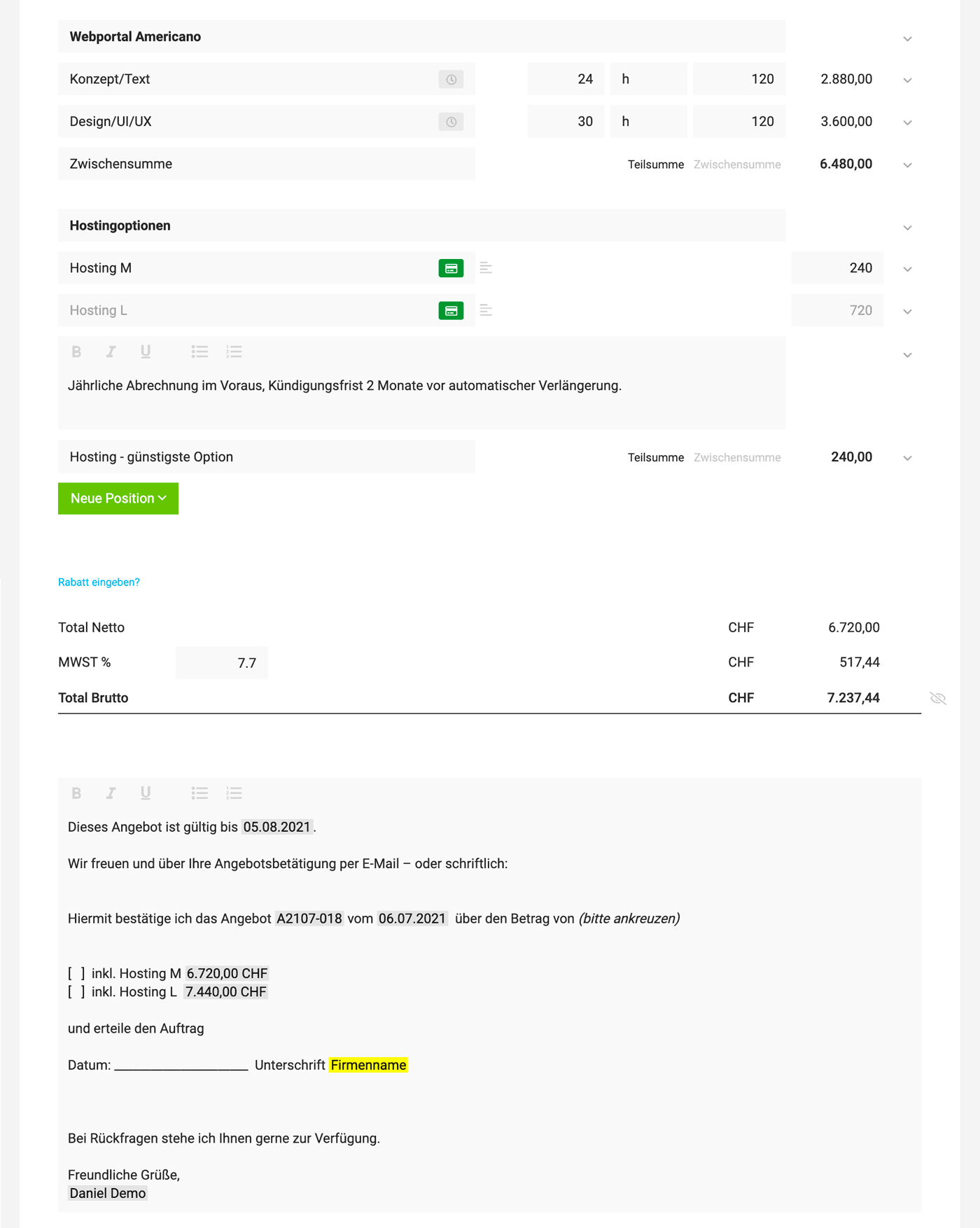
In proposals, you can mark certain items as "Optional." The amount for these items does not directly contribute to the final total. When inserting an interim or partial total, you can sum up optional items.
Representing the Total Including Options with Variables
The client then confirms an option as part of the proposal confirmation via email or an insertable signature area (see example).
 (English image not yet available)
(English image not yet available)Quote with a Price Range/Without a Final Total
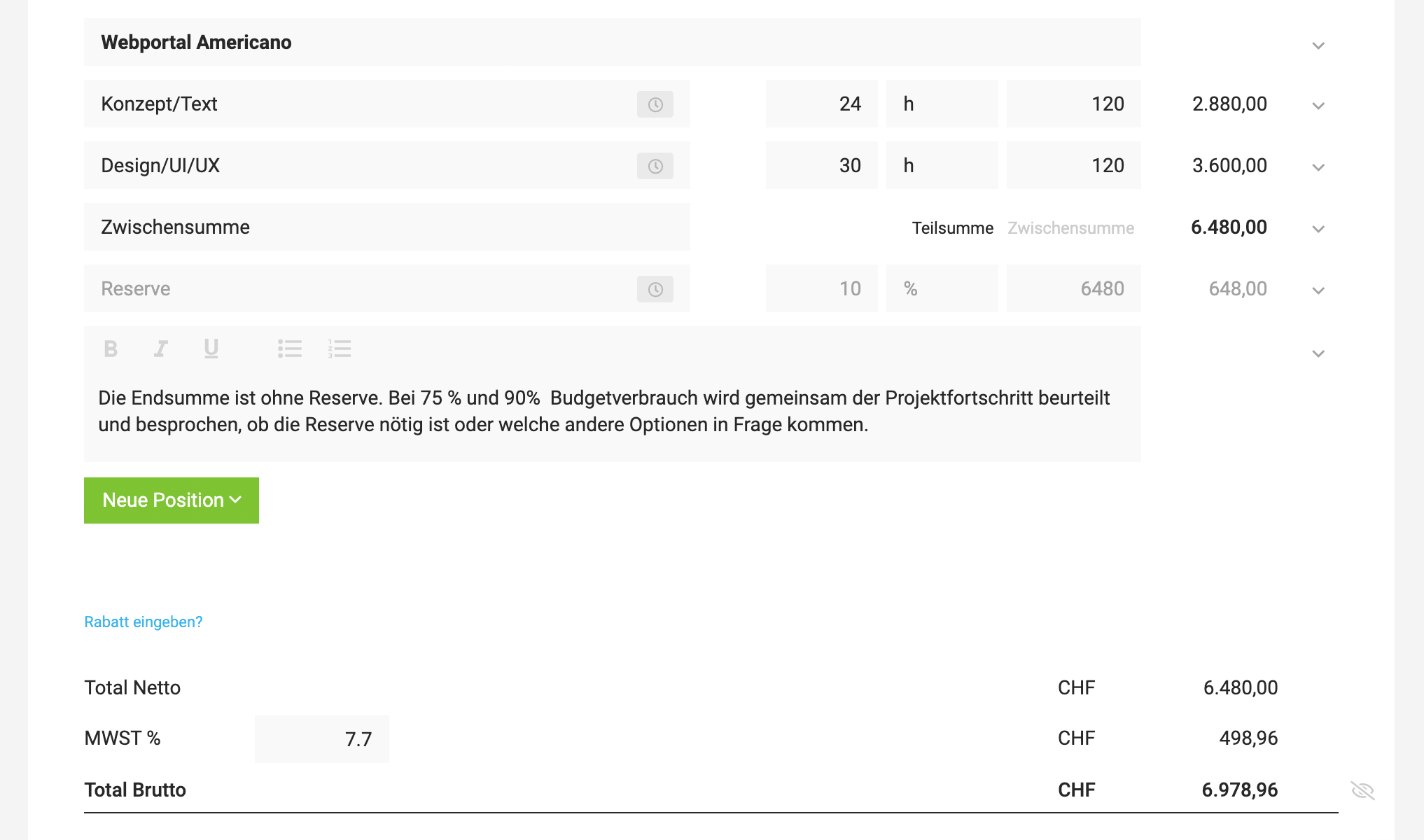
MOCO generally focuses on a clear overall total. If you do want to create a quote or cost estimate with a price range, the following approach could work, for example:
List a contingency as an optional line item:
 (English image not yet available)
Hide the final total section
This can also be useful for a quote for a monthly retainer/maintenance contract. If a quote contains only optional line items, images, or text-only items, no final total is shown automatically.








