Manage Leads
Lead Management and Forecast | Resubmission | Comments, Emails, History | Time TrackingLead Management and Forecast
Sales > Leads
With the lead list, you can keep an eye on all active leads. Show filter options or the live forecast, and use Smart Filters and various inline tools to work through them efficiently.
 (English image not yet available)
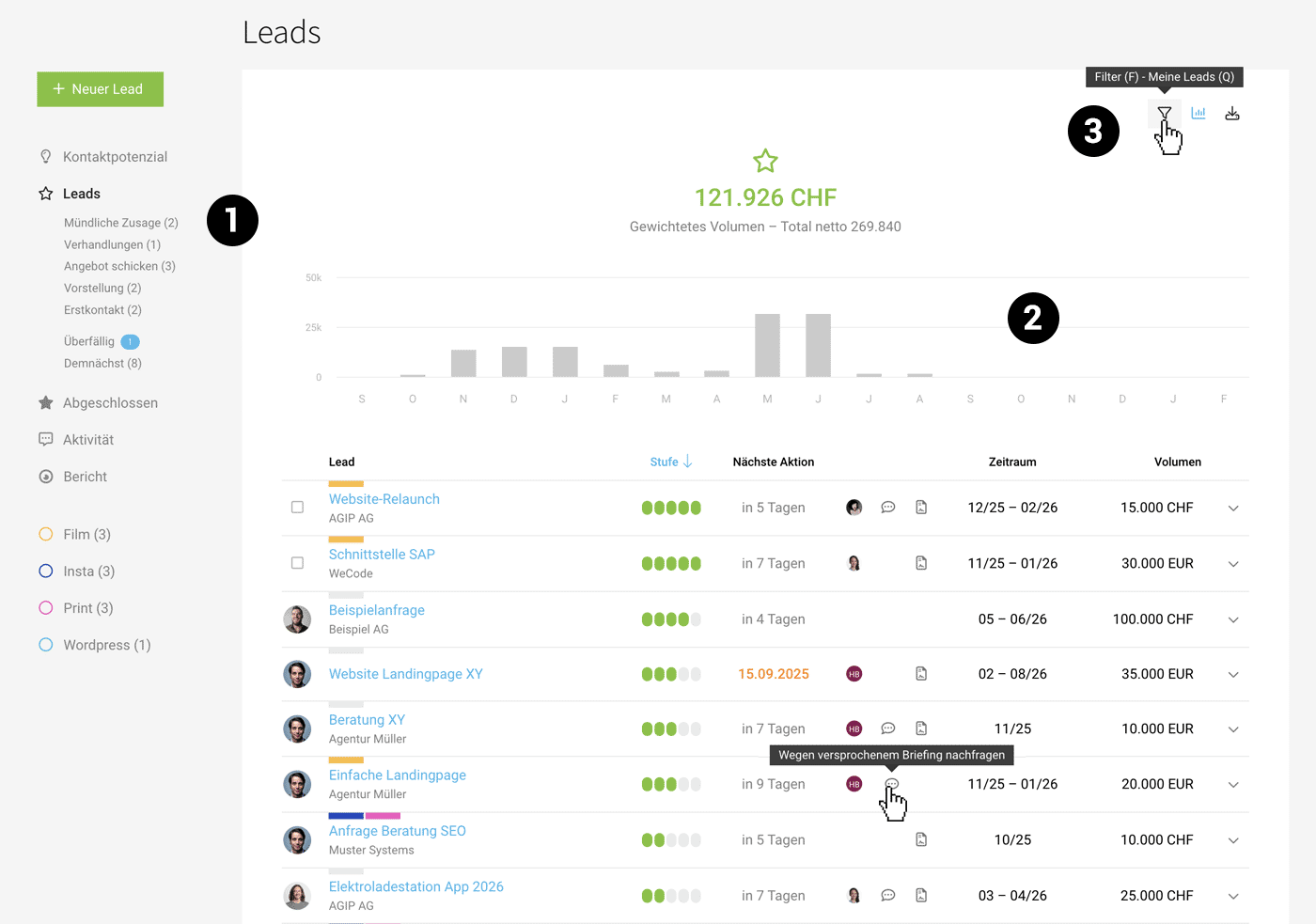
“Leads” (1) lists all ongoing leads and is your central hub for managing them. The key figure at the top shows the current weighted volume of all active leads and indicates your likely future revenue (probability of the sales stage x lead volume).
Customising sales stages
Assign a time period for the live forecast
If you assign a time period, MOCO spreads the weighted volume evenly across that period. Show this chart via the icon in the top right (2). The forecast updates live when you make changes in the list:
MOCO also visualises this volume for you in the Financial Report, so your specifically planned billable services are complemented by the likely revenue from your sales pipeline.
MOCO also visualises this volume for you in the Financial Report, so your specifically planned billable services are complemented by the likely revenue from your sales pipeline.
Filter options & keyboard shortcuts
Use the icon in the top right (3) or the keyboard shortcut “F” to show the filter area and quickly filter by stage, company, keyword, etc. “Q” filters to your leads with a single click.
Smart Filters help you manage
Smart Filters help you manage leads. They let you filter directly by stage and work through it, or filter for overdue leads, or leads where you need to adjust the time period.
Smart Filters for Leads
Labels
Use labels to mark or categorise leads. If you select multiple leads at the front, you can assign labels to them in bulk with a single click.
More about labels
Use options directly in the list
- Adjust the lead stage
- Move the next action or follow-up reminder
- Open contact details
- Show a comment or add a new one
- Open quotes
- Set or adjust the time period
- Change the estimated volume
Export active leads for further, custom analysis
In the top right, you can export the lead list (filtered beforehand if needed).
Resubmission
Resubmission or "Next Action"
MOCO alerts you to due actions
- In the main menu: direct notification (1)
- In the list: Date highlighted in red (2)
- Smart Filter: for a filtered view with one click (3)
.png) (English image not yet available)
(English image not yet available)- Notification when the date is reached via Inbox, Email, or Mobile App
Settings in Profile > Notifications
Comments, Emails, History
The comments section brings together different information to create a history.
Documents events
MOCO tracks events for you, e.g. when the lead was created, when the responsible person was changed, etc.
Add comments and files
Manually capture relevant information to follow up the lead. You can also use Voice Input for this.
Requests & messages via @mention
Notify other people in your business via @mention, e.g. if you want to ask them to help.
Find out more
Emails captured automatically
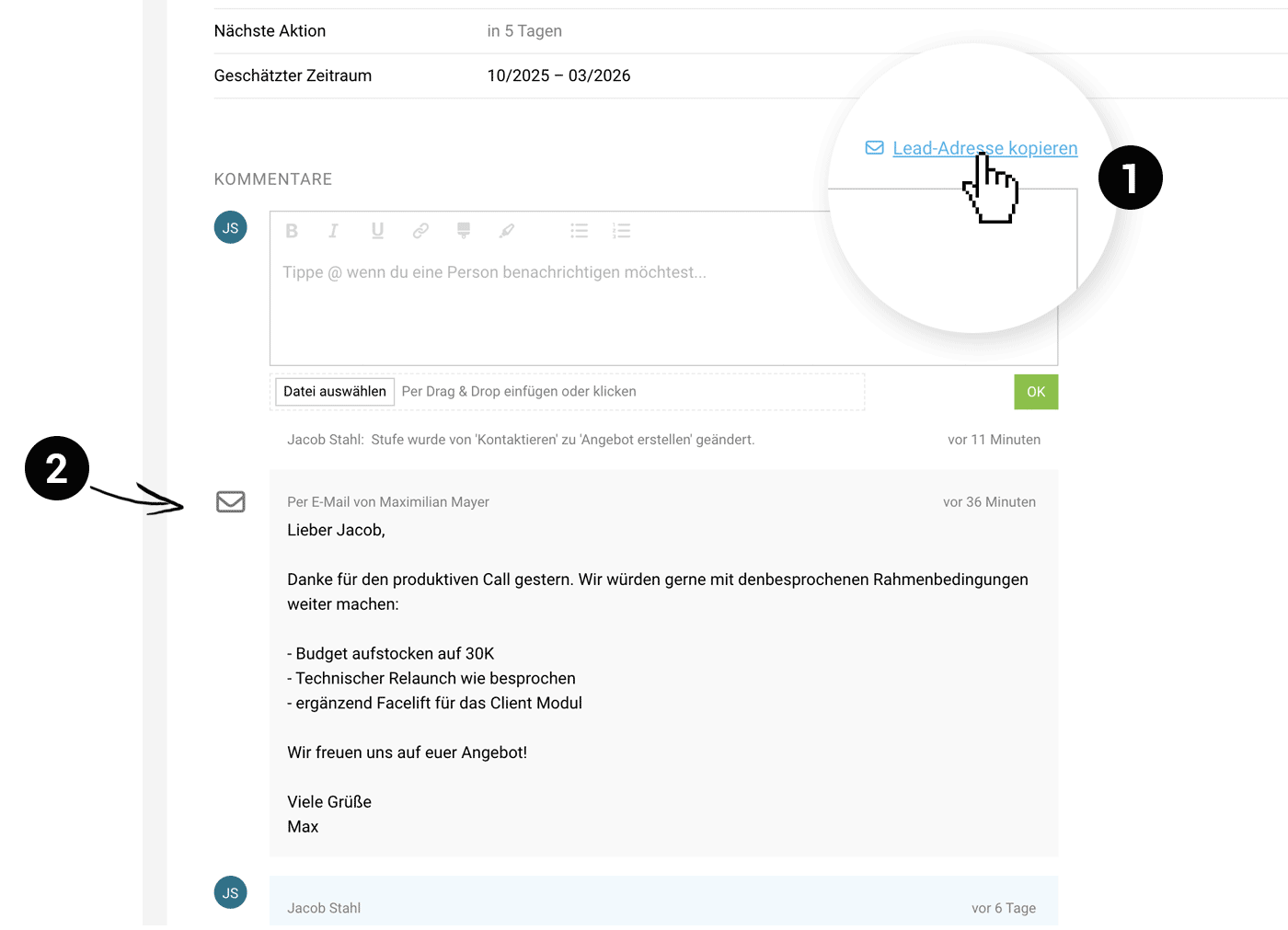
Forward emails directly to the lead address (1) or add it in CC/BCC. The email text is then automatically captured as a comment (2).
 (English image not yet available)
(English image not yet available)Time Tracking
Time tracking on leads helps you clearly quantify business development effort that didn’t lead anywhere.
Enable
To enable time tracking on leads, select an internal project in Settings where the hours should be recorded.
More on the setting
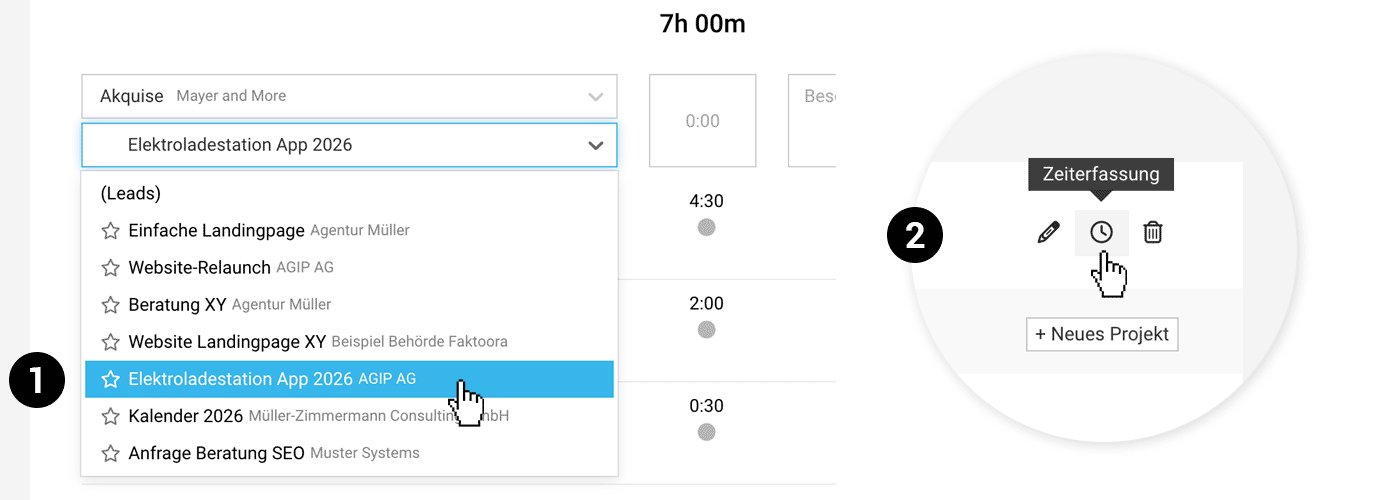
People assigned to the project can now record time on leads in Time Tracking via this project (1). Tip: In the lead, you can also click Time Tracking at the top right (2). The lead will then already be selected for time tracking.
Optionally, you can restrict time tracking so that only people with full access to leads, or the person set as responsible in the lead, can record time on a lead.
 (English image not yet available)
Time recorded on leads can now be analysed via the Leads export.
Carry Over When Creating a Project
If you create the project from the lead, you can carry the hours over directly. This means the costs are included in the project. If needed, you can also set the service to billable and adjust the hourly rate.
 (English image not yet available)
Pitch With Larger Effort
For pitches, you can also create a project directly from the lead (the link is created automatically). If you don’t win the pitch, archive the project.








