Create an Invoice
Currently Billable | In The Project & Client | Invoice Details | Line Items | Copy, Assign | Discount, Surcharge, Cash Discount | Receipts, Timesheet, Attachments | Invoice FormatsCurrently Billable
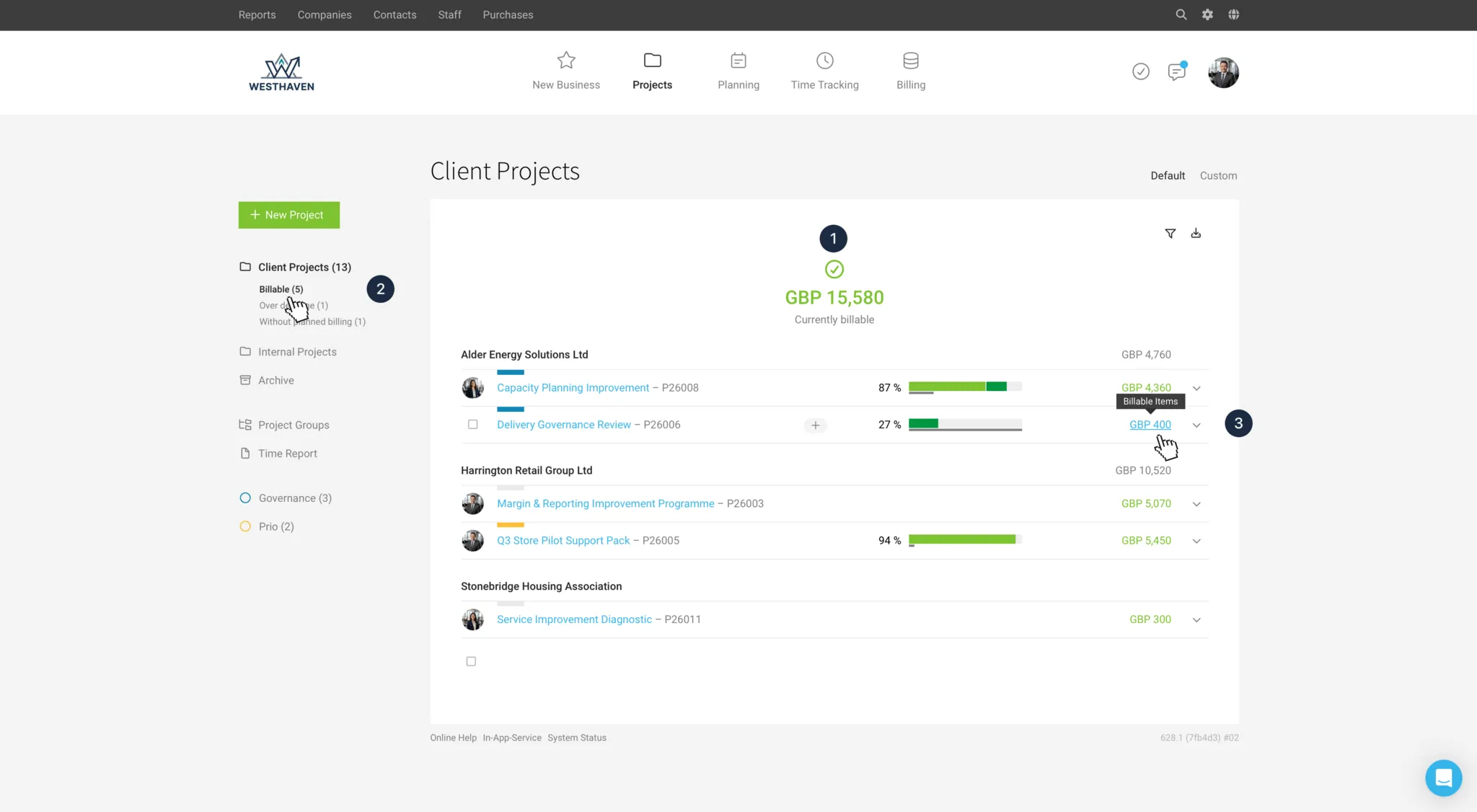
“Currently Billable” = green amounts
- Recorded billable hours (time & materials projects)
- Planned invoices via billing schedules (fixed-price projects)
- Billable additional services
Viewing and billing via the project list
Under “Client Projects”, MOCO shows billable amounts in green: the total amount (1), per client & per project (3). Use the “Billable” smart filter (2) to filter specifically for billable projects only.
Create an invoice directly from the project list
A click on the total (3) in the row takes you straight to the billing option in the project or client (consolidated invoice).
Tip: Hold down the Command key to open the billing page in a new tab. After creating the invoice and closing the new tab, you’ll be right back on the filtered list.
Tip: Hold down the Command key to open the billing page in a new tab. After creating the invoice and closing the new tab, you’ll be right back on the filtered list.
Viewing, breakdown, and billing under “Billing”
Under “Billing” > “Billable” (1), MOCO shows you only projects with billable items. You can also filter these by period (2) and bill them selectively. Either individually or in bulk (3 select -> 4 create invoices).
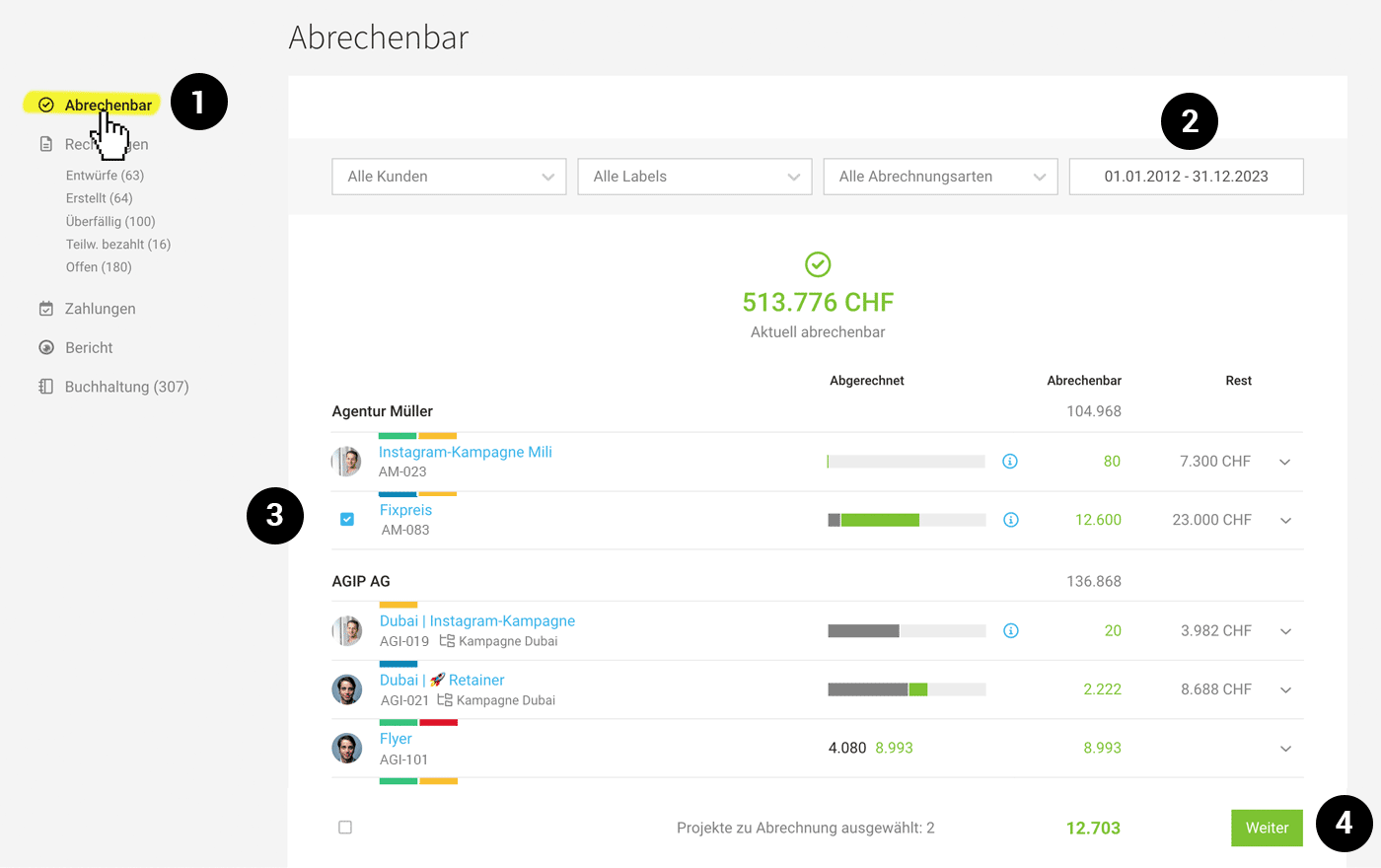 (English image not yet available)
(English image not yet available)Use the “Q” keyboard shortcut to filter for your projects only.
In The Project & Client
Instead of going via the lists (see above), you can also create the invoice directly in the project or client under "Billing" (1).
Tip: The quickest way to get to a project or client is via the global search (magnifying glass at the top right or "/" on your keyboard).
Flexible Billing Options
Using the options "Quote", "Billable Items" and "Neutral" (see image), you can set up the following billing types, for example:
- Time and materials
- From a quote
- Free invoice (can also be a copy of a template or an existing invoice)
- Combinations (e.g. bill a quote and add billable items)
- Deposit invoice, interim invoice, final invoice
- Client invoices (without a project)
- Consolidated client invoice (across multiple projects)
- Automatic invoices (bulk creation)
Important: An invoice that has been created cannot be moved to another client. However, you can create it as a copy for another client.
Time and Materials Billing
Adds up all recorded billable hours and additional services. After clicking "Show Items" (2), you can review the items and create an invoice from them. You can also use the free-text search to filter by topics/tasks.
Using the "Show Items" button, items can also be marked as "already billed" (in case the hours were covered differently or billed elsewhere).
Fixed Price / Flat Fee Billing
Shows due items from the billing schedule in green (3). These items are then offered under "Billable Items" (4), together with additional services, for invoice creation.
You can also simply tick off the item in the billing schedule once it has been billed.
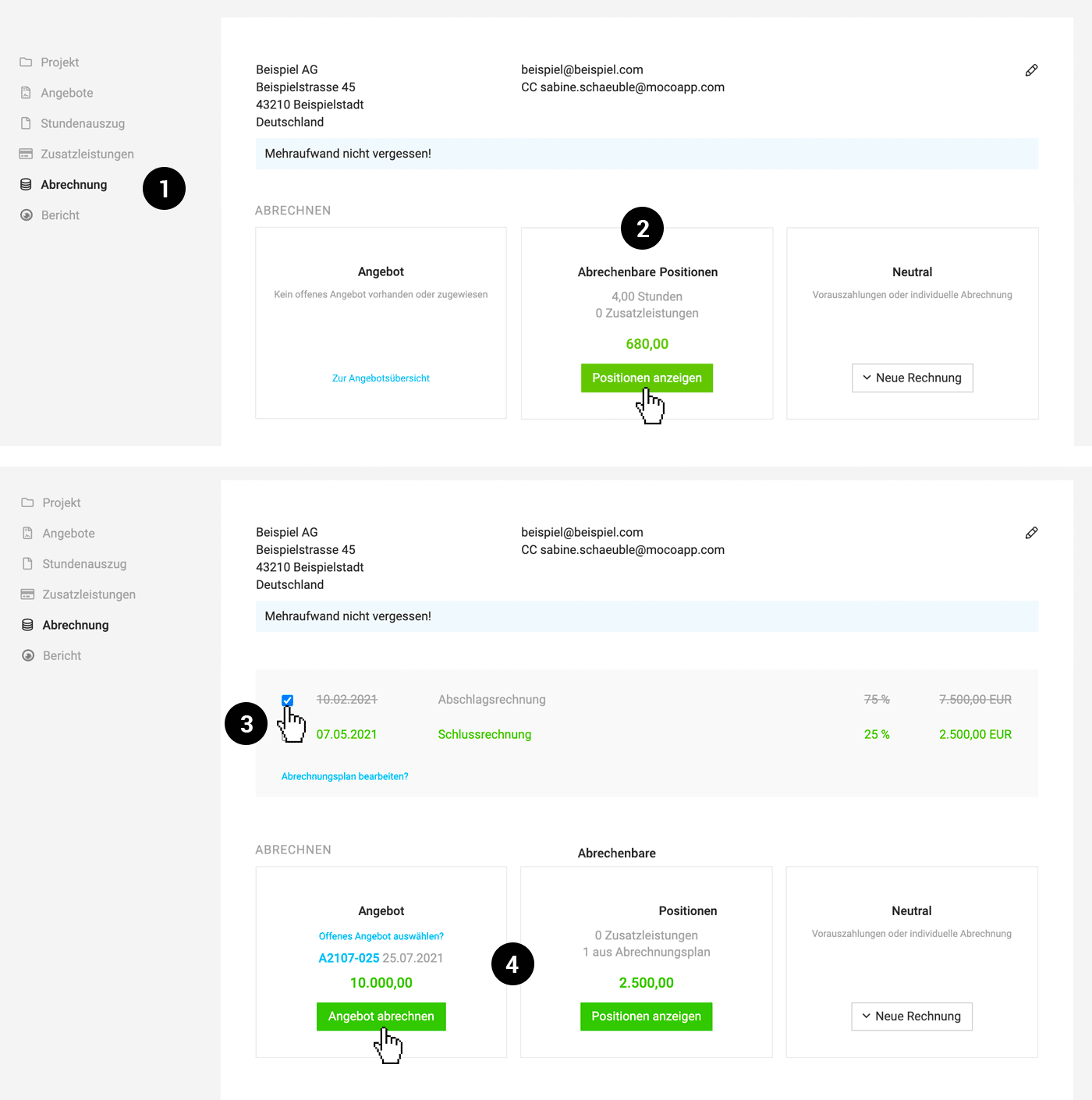 (English image not yet available)
Im Beispiel wurde bereits über den Abrechnungsplan die Abschlagsrechnung erstellt – am Ende soll dann über die linke Box das Angebot abgerechnet und die Abschlagsrechnung abgezogen werden. MOCO macht den Abzug automatisch. Danach noch die Schlussrechnung im Abrechnungsplan abhaken.
Across Projects
There are also corresponding billing options for the client under "Billing".
Invoices at client level
Invoice Details
Billing Info (1)
If there are important client- or project-specific points to consider when creating an invoice, you can store these in the Billing Info (in the client or project under "Billing"). They will then accompany you throughout the entire invoice creation process.
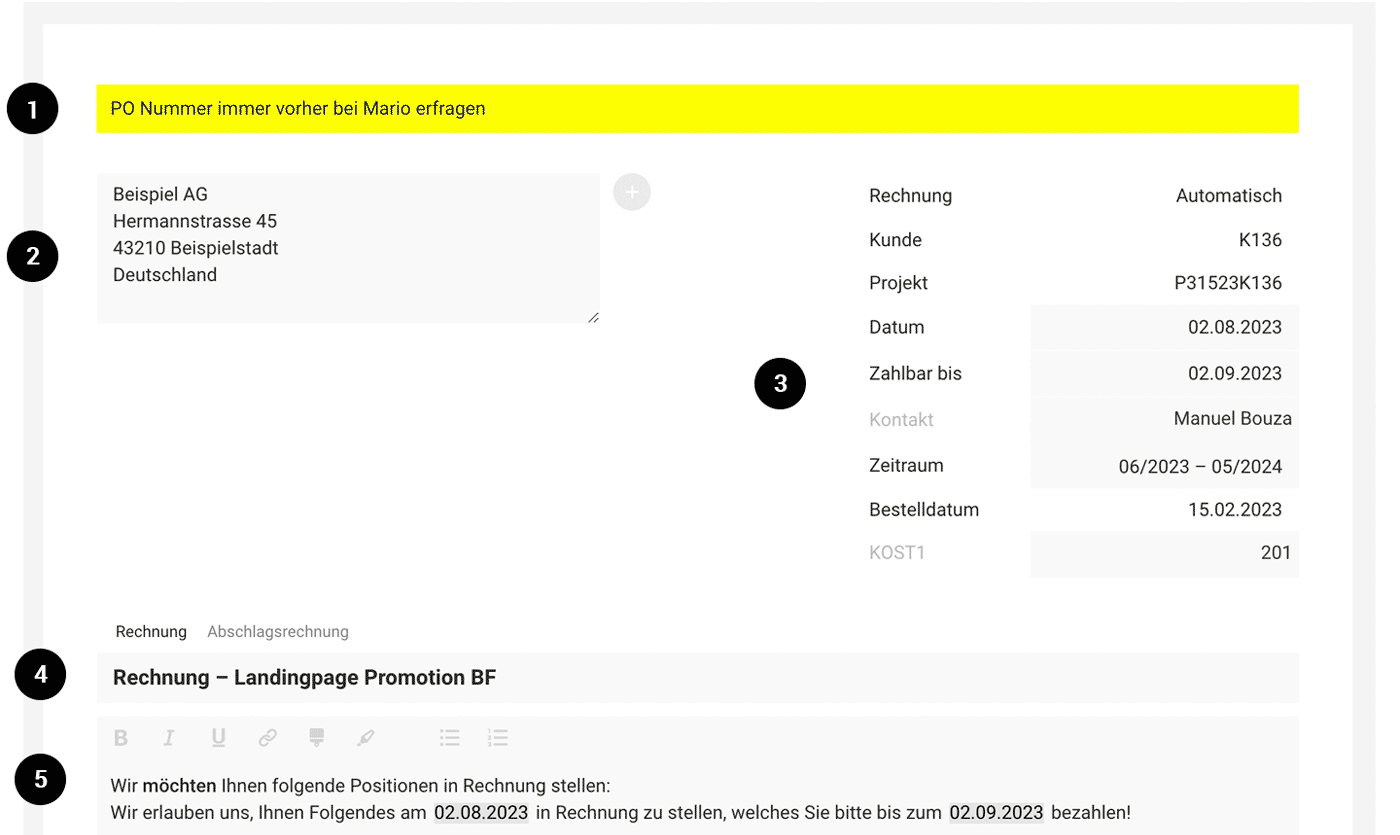 (English image not yet available)
Invoice Recipient (2)
MOCO automatically fills the recipient field with the stored client address and also uses the stored email address for sending. By storing an individual invoice address/email in the project (Billing > Billing Info) or selecting a contact person at the top right (personalised salutation), you can override the client default.
For checking, the email recipient is shown above the document after saving. Any defined CC email addresses are also shown.
If there are important client- or project-specific points to consider when creating an invoice, you can store these in the Billing Info (in the client or project under "Billing"). They will then accompany you throughout the entire invoice creation process.
(English image not yet available)Invoice Recipient (2)
MOCO automatically fills the recipient field with the stored client address and also uses the stored email address for sending. By storing an individual invoice address/email in the project (Billing > Billing Info) or selecting a contact person at the top right (personalised salutation), you can override the client default.
For checking, the email recipient is shown above the document after saving. Any defined CC email addresses are also shown.
Invoice Info / Info Block (3)
Core invoice details such as number, date, payable by, VAT ID, and period are set automatically by MOCO, or can be adjusted at the top right of the invoice. The display can be defined in the settings. Using Custom Fields (at client or project level, or directly on the invoice), you can automate or add your own details if needed, such as a purchase order number.
Useful information about invoice numbers
Core invoice details such as number, date, payable by, VAT ID, and period are set automatically by MOCO, or can be adjusted at the top right of the invoice. The display can be defined in the settings. Using Custom Fields (at client or project level, or directly on the invoice), you can automate or add your own details if needed, such as a purchase order number.
Useful information about invoice numbers
Title (4)
It is recommended to use a meaningful title, as it later plays a role in the debtors list and the file name. Option for interim invoice (= deposit invoice) and final invoice
It is recommended to use a meaningful title, as it later plays a role in the debtors list and the file name. Option for interim invoice (= deposit invoice) and final invoice
Introduction (5)
You usually do not need an introductory text on an invoice, so you can leave it blank. If required, you can predefine a standard text with variables (e.g. for a personalised salutation, period). You can create a page break using three dashes (---).
You usually do not need an introductory text on an invoice, so you can leave it blank. If required, you can predefine a standard text with variables (e.g. for a personalised salutation, period). You can create a page break using three dashes (---).
After the Line Items
Note for Tax Exemption
You can store a note about tax exemption (small business, reverse charge, abroad) directly on the relevant tax rate (Settings > Accounting > Tax Rates). It will then be displayed automatically.
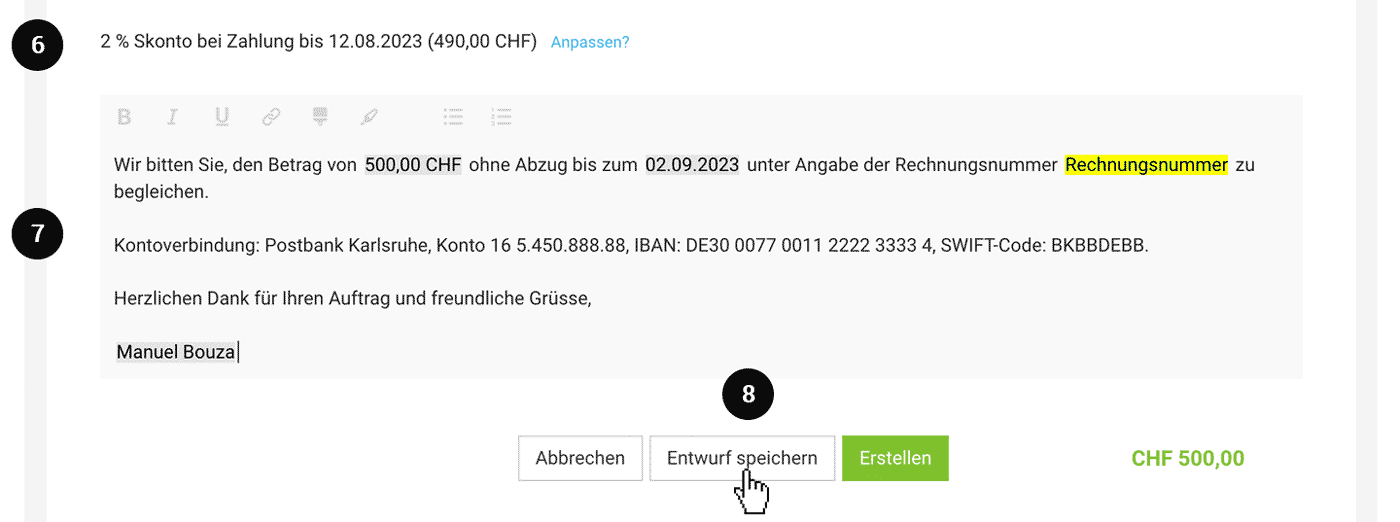 (English image not yet available)
(English image not yet available)Early Payment Discount
If it has not already been predefined globally or for the client, you can still adjust it on the invoice below the total (6). More information
Closing Text with Payment Instructions and Your Tax Number
The closing text usually consists of payment instructions and a closing greeting. It is best to place your tax number on your letterhead; if it is not there, include it in the standard closing text.
Your bank details belong in the closing text, not fixed on the letterhead, so you stay flexible. If you create e-invoices, MOCO also transmits the bank details in a structured format from the e-invoice settings; then you do not need to include them in the text as well.
The standard closing text can be predefined in the settings, and various details can be automated using variables. It can also be overridden per client.
Save Draft
You can also create an invoice draft first (8). In this case, no invoice number is assigned yet.
PDF, Print, Email Sending, Export
After saving, the document is displayed with the stored Standard Letterhead and can be downloaded as a PDF, printed, or sent individually or in bulk.
Exports
Exports
- Documents: In addition to downloading individual files, invoice documents can be downloaded in full.
- Excel for archiving and individual analysis
- Accounting export for keeping your accounting in sync and easier pre-account assignment in MOCO
BCC
In the email settings, invoices can also be automatically sent to a general BCC address.
In the email settings, invoices can also be automatically sent to a general BCC address.
Line Items
Line items are generally structured in a modular table format.
Table Header
The table header can be hidden (Settings > Layout).
Hide Detail Columns?
Detail columns (i.e. quantity, unit, and unit price when using detailed line items) are shown by default. You can hide them by default in the layout settings – and then still decide for each individual invoice whether to show them (see image).
Automatic Line Item Numbering
You can enable automatic line item numbering in the settings.
.png "Hohe Flexibilität bei der Rechnungserstellung") (English image not yet available)
(English image not yet available)Select Line Items
When billing recorded work, line items are created automatically. You can also add additional line items manually (green button (1) or the dropdown on the right). Line items can be reordered via drag and drop (2) (click and hold the mouse button to drag).
Billable Line Items from Projects
Via "Billable Line Items", you can later add individual billable line items from the project to the invoice. Normally, you create the invoice directly from the project or client rather than using an empty invoice.
Insert Predefined Line Items
You can insert predefined standard services or bundled line items from the catalogue via the "Service Catalogue".
"Empty" line items can also be inserted
Billable Line Items from Projects
Via "Billable Line Items", you can later add individual billable line items from the project to the invoice. Normally, you create the invoice directly from the project or client rather than using an empty invoice.
Insert Predefined Line Items
You can insert predefined standard services or bundled line items from the catalogue via the "Service Catalogue".
"Empty" line items can also be inserted
- Detailed line item: Line item with automatic calculation and optional display
- Fixed-fee line item
- Line item group: groups several line items together
- Subtotal: totals everything, or up to the last heading
- Heading
- Description
- Divider line
- Page break
Individual Discounts, Overall Discount, Surcharge
Individual discounts and surcharges (e.g. a flat-rate expenses charge (see image)) are possible.
Learn more
Learn more
Detailed & Fixed-Fee Line Items
Distinguishing Between Service & Additional Service
Detailed and fixed-fee line items are marked by the type "Service" (= usually your own work – grey label) and "Additional service" (usually third-party services – dark green label). This type distinction runs from the quote through the project to the invoice, and the totals can be analysed via the invoice export. You can change the service type by clicking the label. Service types with “No category” stand out quickly thanks to the reduced colours.
Service Categories
If needed, you can define categories across the board and use them to map income by category, cost centres, and revenue accounts. The categories expand the selection under the label to include the defined categories.
Enable Categories
Detailed and fixed-fee line items are marked by the type "Service" (= usually your own work – grey label) and "Additional service" (usually third-party services – dark green label). This type distinction runs from the quote through the project to the invoice, and the totals can be analysed via the invoice export. You can change the service type by clicking the label. Service types with “No category” stand out quickly thanks to the reduced colours.
Service Categories
If needed, you can define categories across the board and use them to map income by category, cost centres, and revenue accounts. The categories expand the selection under the label to include the defined categories.
Enable Categories
Copy, Assign
Copy Across Projects and Clients (e.g. for Templates)
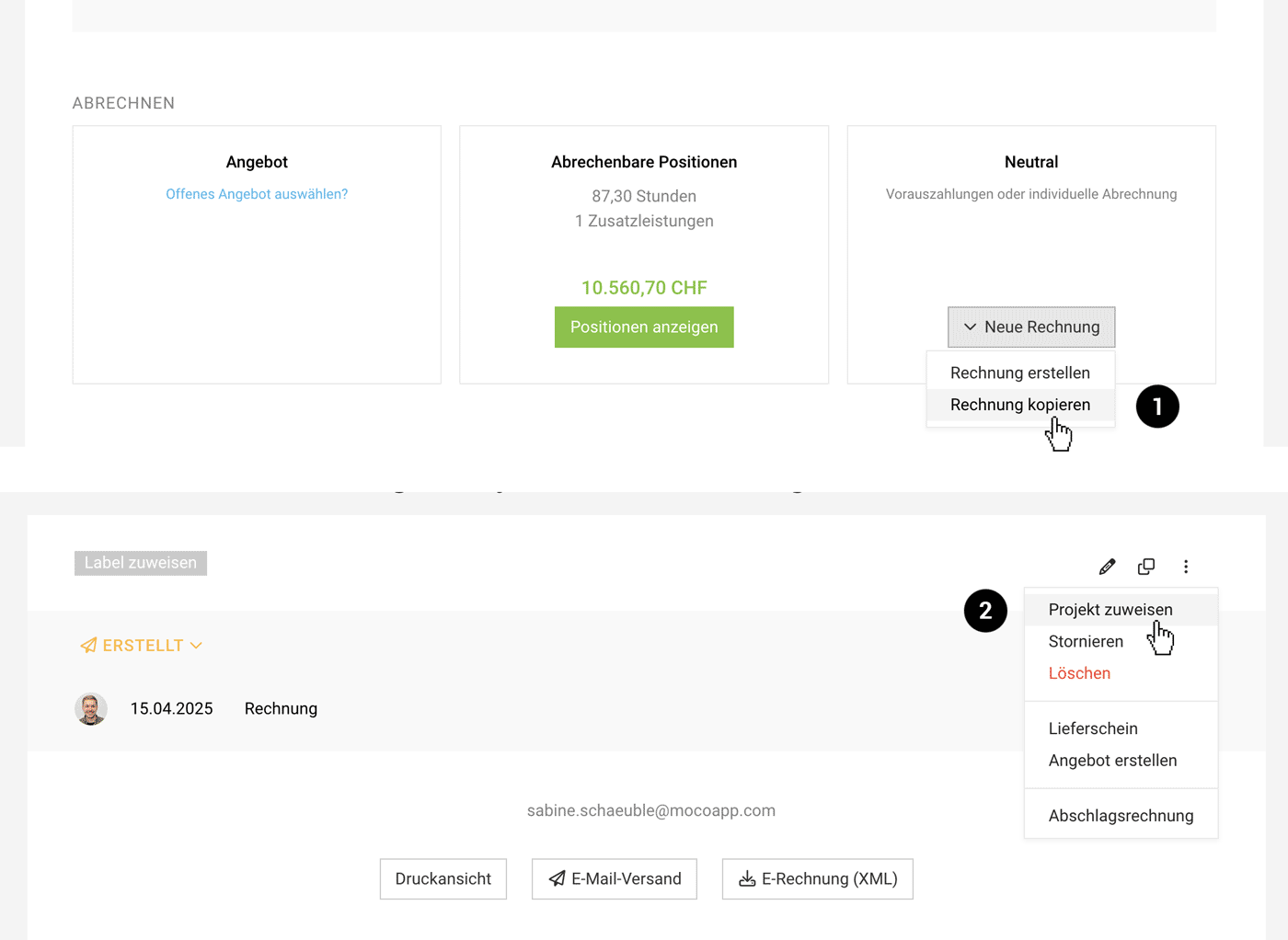
If you want to use an existing invoice as a template, go to the target project under "Billing" > "Neutral" > "Copy Invoice" (1). At this step, you can search for an existing invoice or invoice draft and copy it into the project. You can do the same at client level under "Billing".
For templates, invoices can also be saved as a catalogue item
For templates, invoices can also be saved as a catalogue item
 (English image not yet available)
Copy Within a Project/Client
On the invoice itself, select "Copy" (dropdown in the invoice list or the action icon at the top right in the invoice detail view).
Assign an Invoice to Another Project
Invoices that were not created directly from work can be moved within a client. To do this, in the invoice view, select the relevant action at the top right (2).
Discount, Surcharge, Cash Discount
Discount or surcharge on the total amount
You can add a percentage discount or surcharge to the entire quote or invoice via the small blue link at the end of the line items.
If needed, you can override the labels in Settings under "Layout". If you usually apply a flat-rate overhead charge, you can store that term there and save the percentage on the client.
Flat-rate deduction
For a custom deduction, use a flat-rate line item and enter the amount as a negative value.
Custom discount or surcharge
If you use "%" as the unit for a detailed line item, percentage amounts can be calculated and then deducted or added:
 (English image not yet available)
Cash discount on invoices
You can set a cash discount as a default for the whole account, or set a different one for a client. You can also add a cash discount option only when creating the invoice (small blue link under the totals area: "Add cash discount?"). MOCO automatically adds a corresponding sentence at the start of the footer text and, when you record a payment, shows the date and reduced amount.
You can add a percentage discount or surcharge to the entire quote or invoice via the small blue link at the end of the line items.
If needed, you can override the labels in Settings under "Layout". If you usually apply a flat-rate overhead charge, you can store that term there and save the percentage on the client.
Flat-rate deduction
For a custom deduction, use a flat-rate line item and enter the amount as a negative value.
Custom discount or surcharge
If you use "%" as the unit for a detailed line item, percentage amounts can be calculated and then deducted or added:
(English image not yet available)Cash discount on invoices
You can set a cash discount as a default for the whole account, or set a different one for a client. You can also add a cash discount option only when creating the invoice (small blue link under the totals area: "Add cash discount?"). MOCO automatically adds a corresponding sentence at the start of the footer text and, when you record a payment, shows the date and reduced amount.
Receipts, Timesheet, Attachments
Receipts
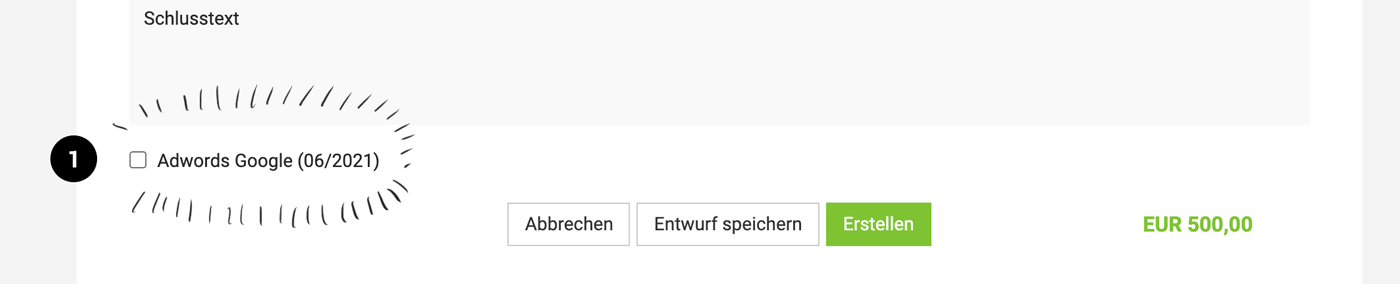
If you want PDF receipts from billed additional services (third-party costs, allocated personal expenses) to be included with the invoice, select them in the invoice edit mode below the closing text (1)
 (English image not yet available)
(English image not yet available)Timesheet
If you bill hours, MOCO automatically creates a timesheet, which you can download separately or send integrated with the invoice. Here too, you’ll find the checkbox directly when creating the invoice (see 1). The option is selected by default if this was already defined for the client or in the project’s Billing information before the invoice was created.
Custom Attachments
To do this, upload the PDF below the saved invoice.
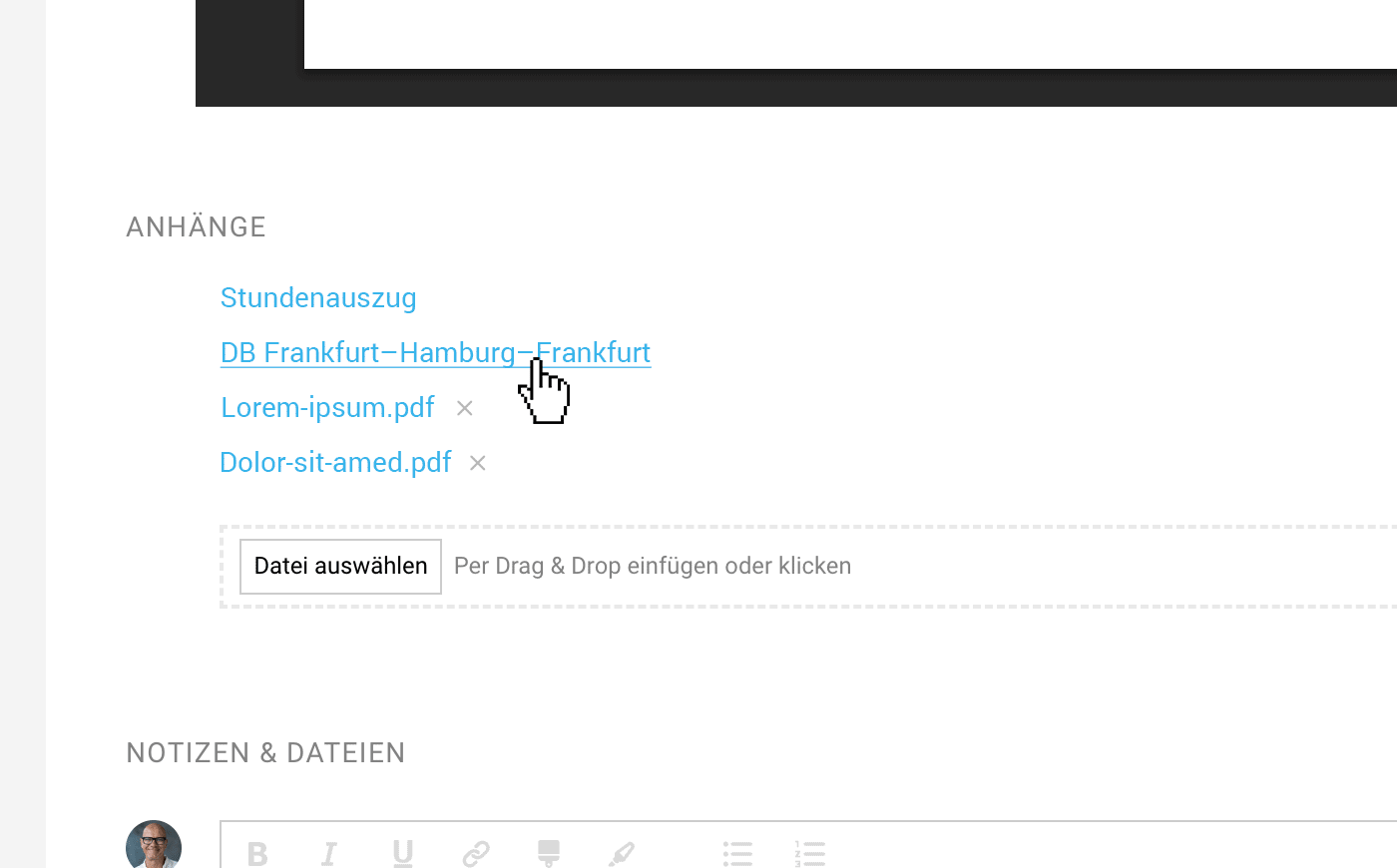
The additional pages are integrated directly into the invoice. For the PDF/Print to PDF invoice format and for e-invoices, they are added to the invoice data. All selected attachments are also listed below the invoice view and can be opened with a click.
 (English image not yet available)
The additional pages are integrated directly into the invoice. For the PDF/Print to PDF invoice format and for e-invoices, they are added to the invoice data. All selected attachments are also listed below the invoice view and can be opened with a click.
(English image not yet available)Invoice Formats
Paper
On the invoice, select the "Print View" button. This lets you print the invoice directly either with your uploaded letterhead background or on pre-printed letterhead (select "white").
The PDF is generated automatically (in PDF/A-3 format) and shows the invoice you created with your letterhead/CI. You can send the PDF invoice directly from MOCO by email.
If you have set up e-invoices (only relevant for Germany), two additional e-invoice formats are available:
If you have set up e-invoices (only relevant for Germany), two additional e-invoice formats are available:
XRechnung (B2B & Public Sector)
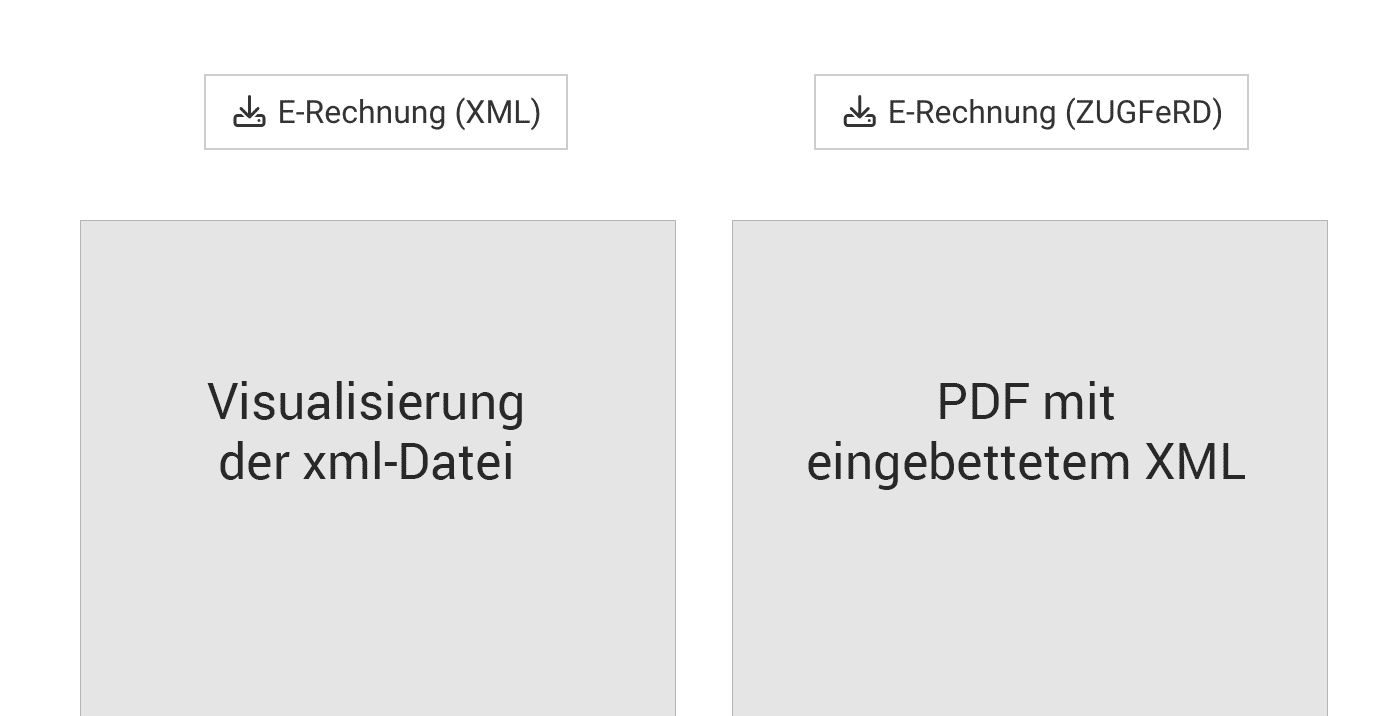
With this format, the invoice is created as an XML file – a machine-readable data format without layout or PDF. So you can still easily review the content, MOCO visualises the invoice data for you.
As usual, you send it by email directly from MOCO – only the XML file is sent, as only the structured data is relevant. On the recipient’s side, the XRechnung is imported into an accounting tool and displayed there accordingly.
When is XRechnung the right choice?
For public authorities and public-sector clients – it is usually required there. And for clients who process incoming invoices using their own e-invoicing or accounting software: they do not need a PDF, as they generate the invoice view from the data anyway.
When is XRechnung the right choice?
For public authorities and public-sector clients – it is usually required there. And for clients who process incoming invoices using their own e-invoicing or accounting software: they do not need a PDF, as they generate the invoice view from the data anyway.
ZUGFeRD (B2B)
With this format, the invoice is created as a PDF with embedded, machine-readable data. With this hybrid format, it is important that the sender details permanently stored on your letterhead match the details in your e-invoice settings . If in doubt, the data takes precedence. As usual, you send it by email directly from MOCO.
When is ZUGFeRD the right choice?
For mixed recipient groups – anywhere you do not know how well set up the client is technically. Because a ZUGFeRD invoice is a normal PDF, anyone can open and read it. The data is embedded invisibly and is read by accounting software, if one is being used.
When is ZUGFeRD the right choice?
For mixed recipient groups – anywhere you do not know how well set up the client is technically. Because a ZUGFeRD invoice is a normal PDF, anyone can open and read it. The data is embedded invisibly and is read by accounting software, if one is being used.
 (English image not yet available)