Additional services
Third-Party Costs, Fixed Fees, Subscriptions, etc. | Recharging | Budgeting | Predefine / Copy from Quote | Costs, Cost Groups | Central Management & FilteringThird-Party Costs, Fixed Fees, Subscriptions, etc.
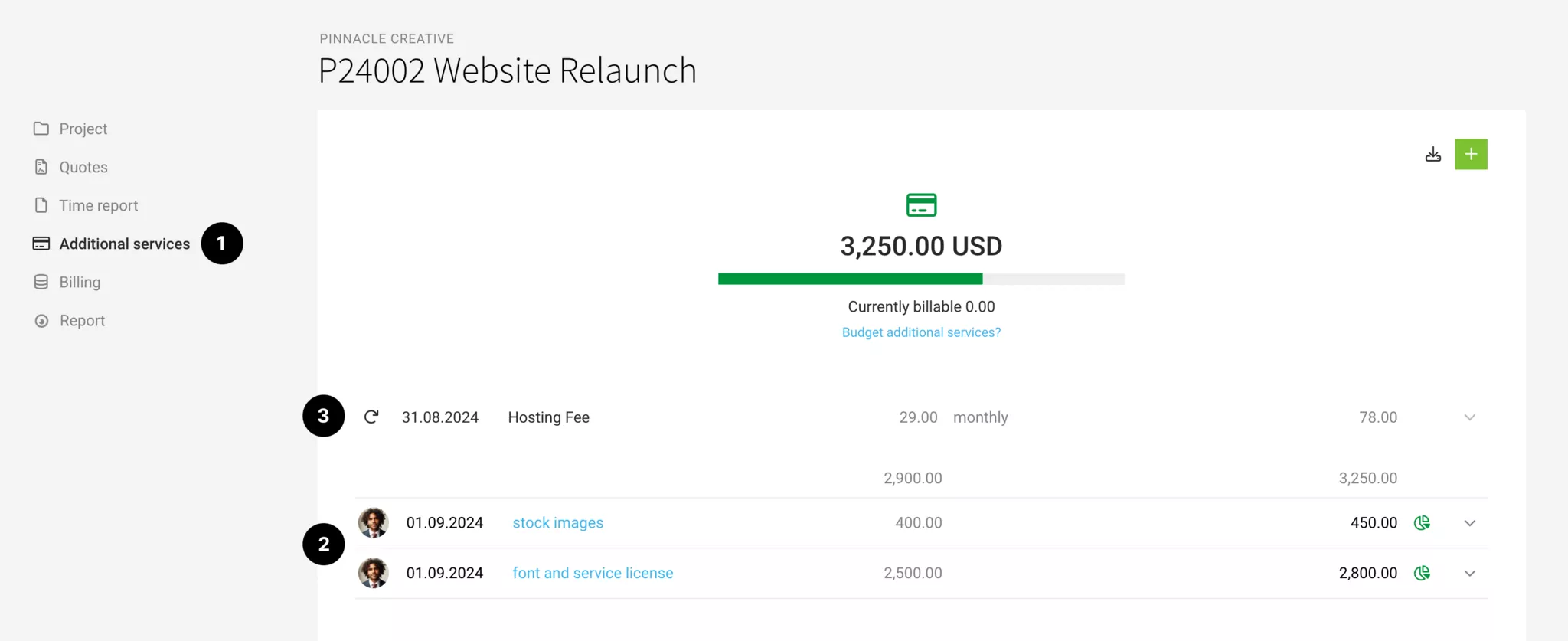
In MOCO, additional services are services that are independent of time tracking. You record them in the project under "Additional Services" (1) for recharging and/or cost tracking. If you use the Purchases section, you can allocate costs.
One-Off & Recurring Additional Services
One-off additional services (2) can include, for example:
- Personal expenses, travel costs
- Third-party costs
- Fixed fees (e.g. workshops)
- Percentage-based ancillary cost flat rate
- Items
Recurring additional services (3) are regular services such as:
- Subscriptions
- Domain, hosting
- Recurring fixed fees (see the alternative option Retainer)
Recurring Additional Services:
Never forget to bill recurring services such as hosting again
If you create a recurring additional service, it acts as a "trigger" (3). On the specified key date and according to the recurrence, the additional service is created automatically and shown as billable in the project list. This means you will never forget to bill for a service such as hosting again.
If you want to create the line item before the key date, select the "Create" action for the recurring additional service. You can then find it under "Billable Items" in the project or client, select it, and bill it.
If you want to create the line item before the key date, select the "Create" action for the recurring additional service. You can then find it under "Billable Items" in the project or client, select it, and bill it.
Other
Reallocate an additional service
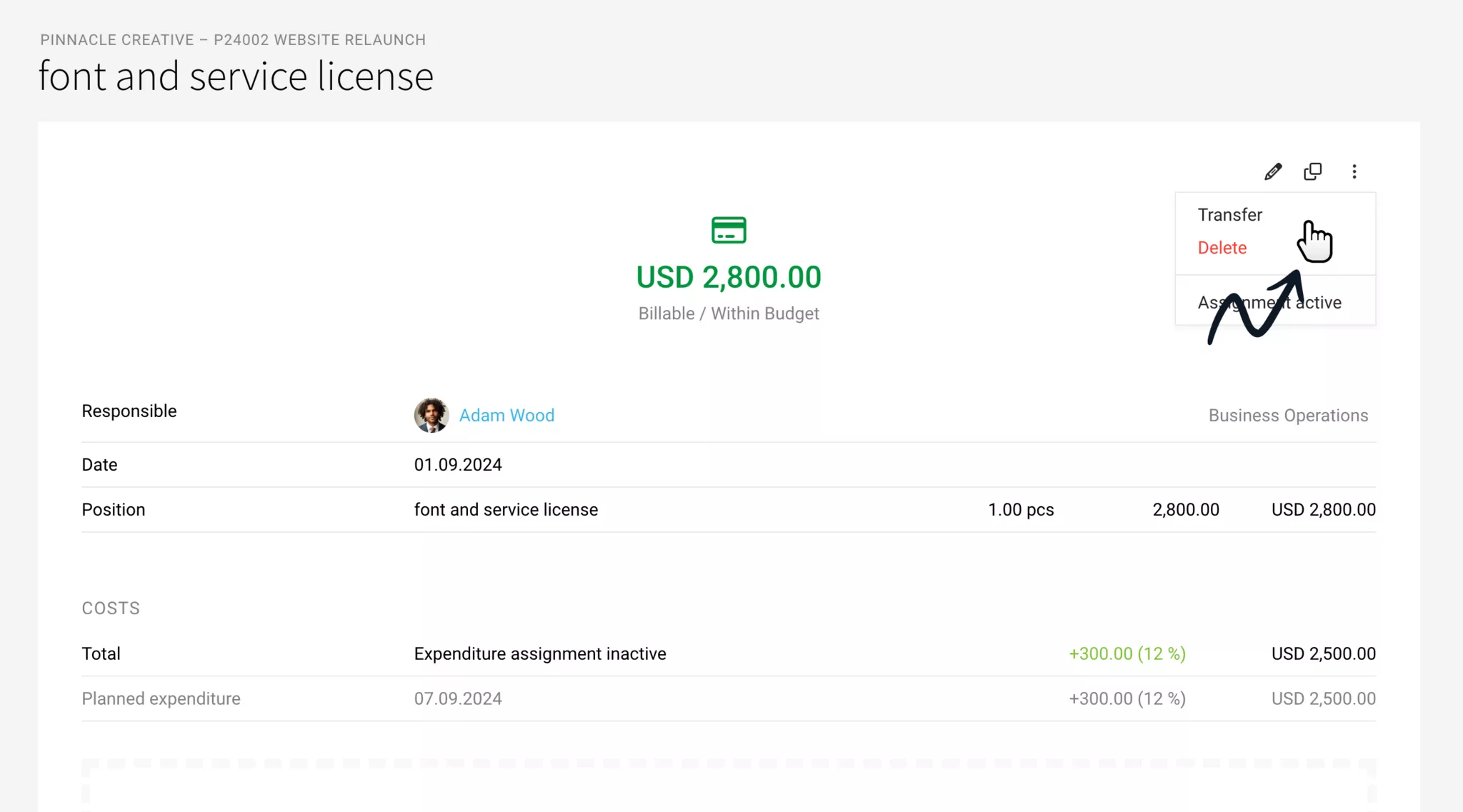
Additional services can be reallocated to another project, similar to hours, as long as they have not been billed. To do this, go to "Additional Services" in the project and use the dropdown on the right in the list, or select the action in the detail view at the top right:
Predefine and insert additional services
In Settings under "Services" > "Additional Services", you can predefine additional services and then add them to a project via the "Standard Additional Services" selection.
Export at project level
You can export a project’s additional services from the overview at the top right: either the receipts as a bundle or the Excel overview.
Service categories for cost centres & revenue accounts
For income reporting and your bookkeeping, you can also define categories. Simply enable them and extend services with this dimension. Define categories
Service categories for cost centres & revenue accounts
For income reporting and your bookkeeping, you can also define categories. Simply enable them and extend services with this dimension. Define categories
Recharging
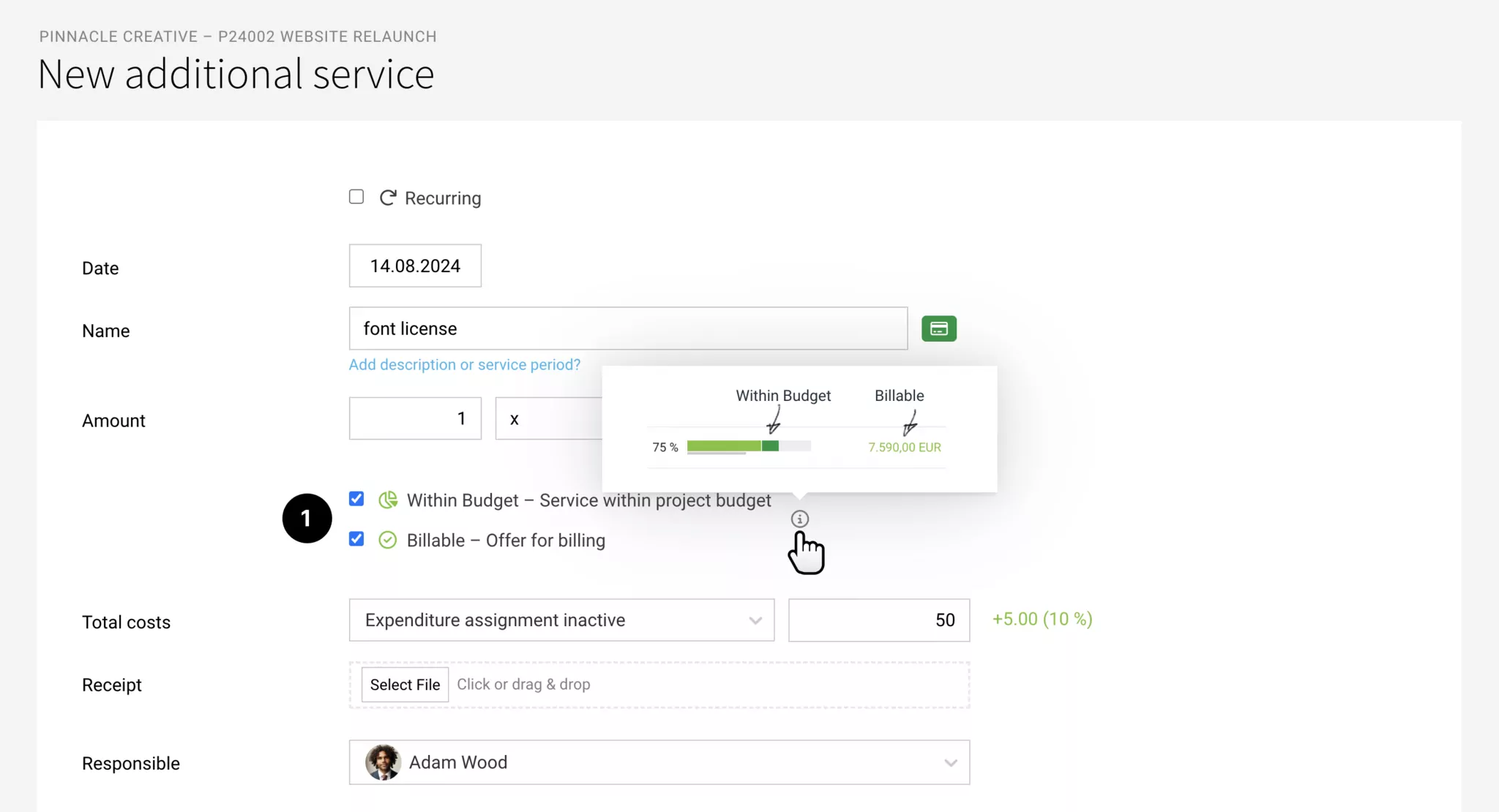
For additional services, you can choose whether a service is billable and should count towards budget progress (1).
In Budget & Billable
In Budget
Yes → The service is within the project budget
No → The service is not within the project budget.
Billable
Yes → Should be included for Billing.
No → Should not be included on the invoice (the costs are only used to calculate profitability).
Yes → The service is within the project budget
No → The service is not within the project budget.
Billable
Yes → Should be included for Billing.
No → Should not be included on the invoice (the costs are only used to calculate profitability).
Assign a Supplier Invoice
If you use the "Purchases" section, you can assign the costs recorded there to projects (supplier invoices and personal expenses). Depending on your selection, you can have an additional service created, or assign the purchase to an existing additional service. Multiple assignments are possible per additional service.
You can also carry over additional services directly from a quote when you start a project (see below).
More detailed information on assigning purchases
Complete the Assignment
Once all purchases have been assigned, complete the additional service or select "Purchase assignment inactive" (also possible via a bulk action in the list).
You can also carry over additional services directly from a quote when you start a project (see below).
More detailed information on assigning purchases
Complete the Assignment
Once all purchases have been assigned, complete the additional service or select "Purchase assignment inactive" (also possible via a bulk action in the list).
Receipts as Invoice Attachments
When Billing an additional service, any existing PDF receipts are automatically offered as invoice attachments. Receipts from assigned purchases override any document that may already have been added to the additional service.
Plan a Purchase for the Financial Forecast and for Matching Supplier Invoices
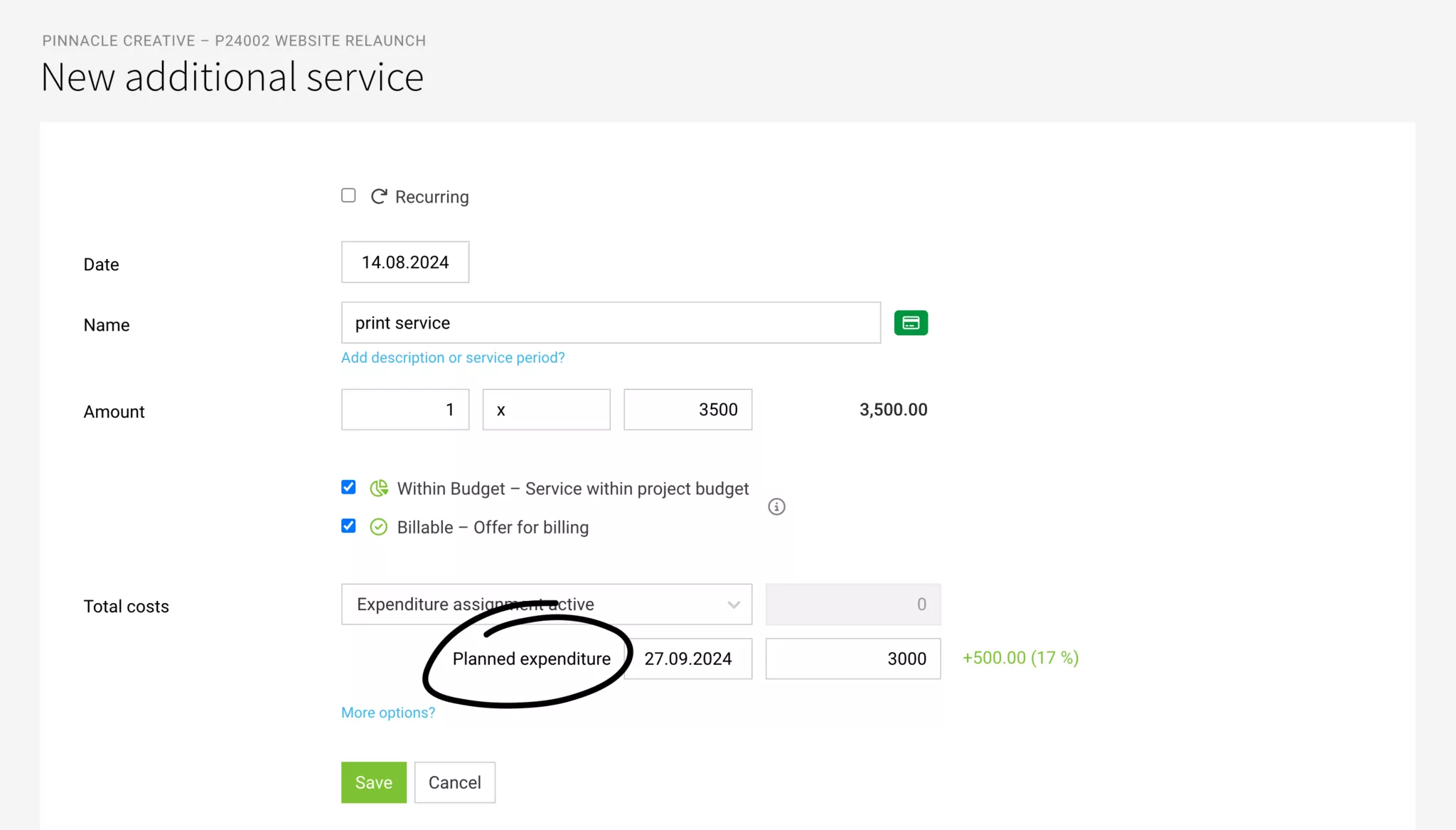
With MOCO, you can plan additional services as project purchases. To do this, enable the "Planned" area in Purchases, then under "Purchase assignment active" enter the date and planned amount for the additional service. The additional service will then be suggested directly for matching supplier invoices.
All information on planning purchases
All information on planning purchases
Select Default Settings
- In Budget/Billable, as well as Purchase assignment active, under Settings > Projects.
- Default markup when assigning purchases to a project without an existing additional service: Settings > Purchases
Budgeting
The additional services budget is a share of the project budgets (sales price or total of the quoted services excluding internal work). This means it cannot be higher than the project budget itself.
Budgeting for Allocation & Control
→ Allocate internal work and reduce the remaining hours for time tracking accordingly.
→ Keep the budget under control with the progress bar under "Additional services" and the remaining amount shown in the project report. Alternatively, use cost pools for this
→ Keep the budget under control with the progress bar under "Additional services" and the remaining amount shown in the project report. Alternatively, use cost pools for this
Ways to Set the Budget
Directly in the project form below the project budget (1). When entering the value, you can also enter a percentage (e.g. 20%), and MOCO will automatically calculate the amount. Example: project budget 12,000 > enter "50%" > result 6,000
Import from quote: On the project page, MOCO offers to import the quote amount (2). If the additional services are marked accordingly in the quote, MOCO will also automatically fill in the proportional additional services as the budget.
In the project under "Additional services", directly below the blue link "Budget additional services? (3)"
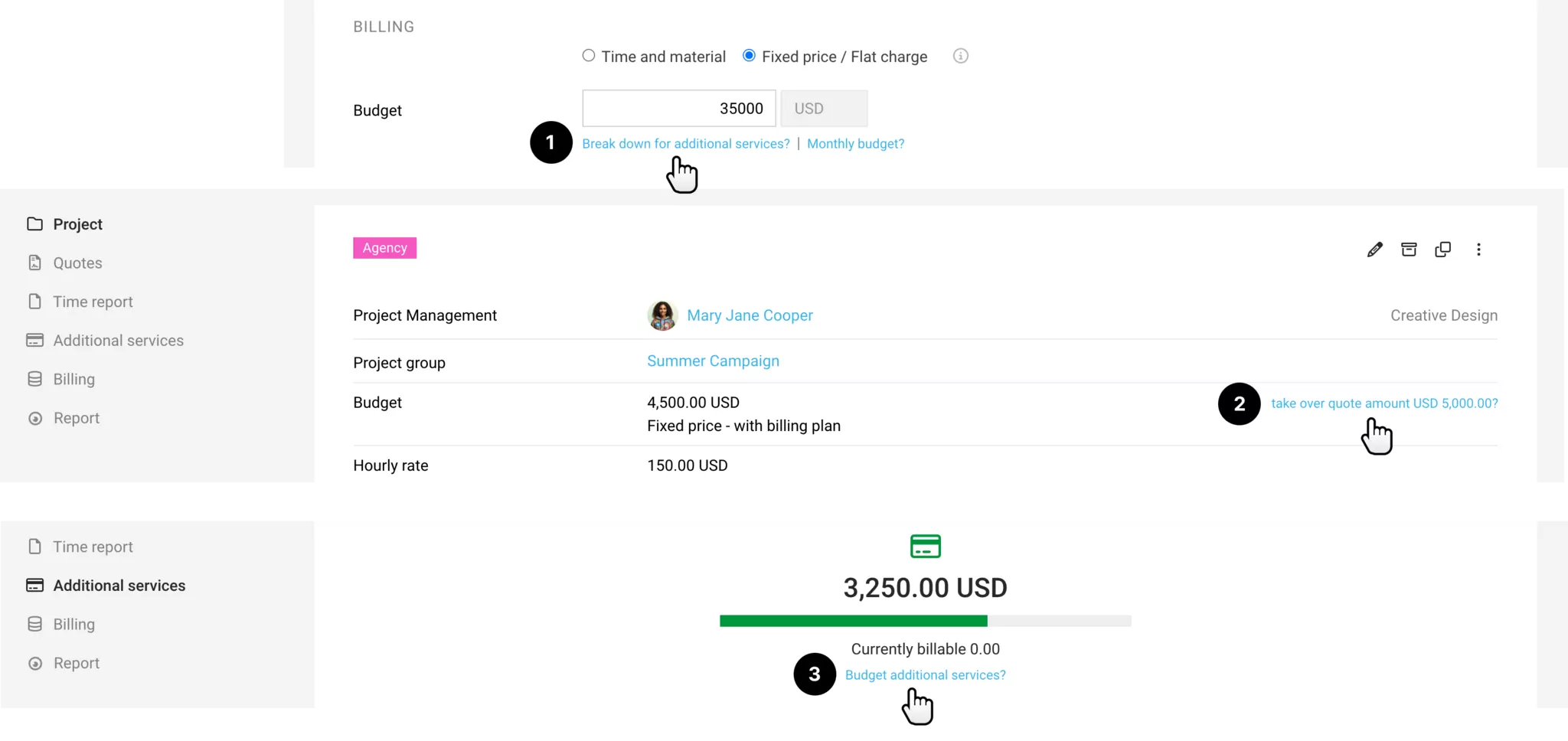
Import from quote: On the project page, MOCO offers to import the quote amount (2). If the additional services are marked accordingly in the quote, MOCO will also automatically fill in the proportional additional services as the budget.
In the project under "Additional services", directly below the blue link "Budget additional services? (3)"
Predefine / Copy from Quote
Additional services recorded in Settings or in a quote can be copied into the project.
Predefining additional services
If you provide certain services regularly, it makes sense to set up standard additional services in Settings. You can then insert these predefined additional services via the “Service Catalogue” wherever you need them (quote, project, invoice).
Copying additional services from a quote
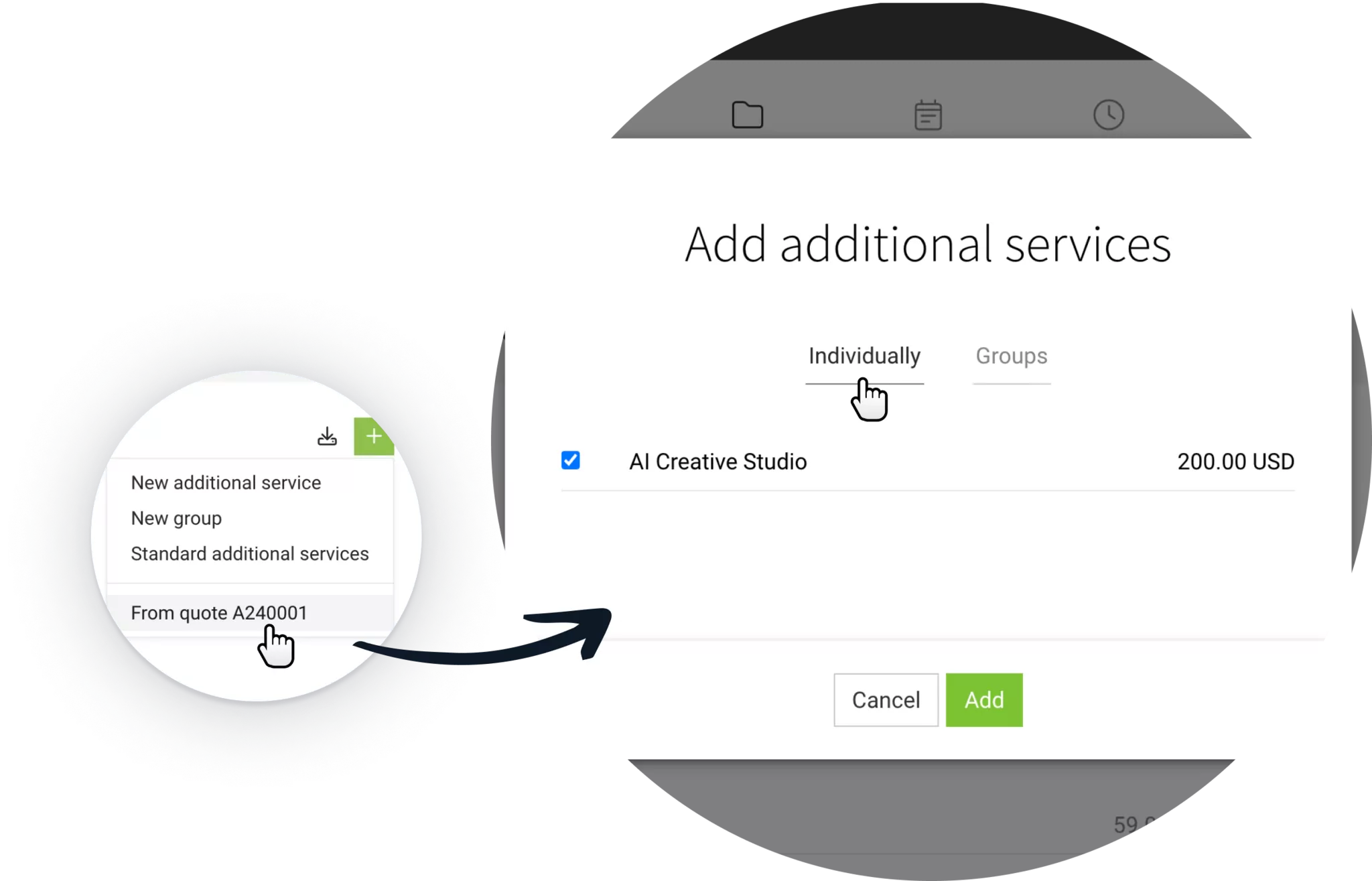
1. The project must have a quote linked to it, with additional services selected in that quote.
2. In the project, go to “Additional Services” > “+ New Additional Service” and select the quote.
3. You can then copy individual additional services, or all of them, into the project. If you have a flat-rate line item (e.g. flat-rate incidental costs), you can copy it as a group (= cost pot) and then allocate future purchases against it:
To help you judge when this feature is particularly useful, here is a closer look at how additional services are handled:
Additional services are only recorded when they actually occur
Quotes often include an estimated price for third-party costs (external services). In this case, it makes sense to only record the service in the project once it has actually been incurred, or once it has been approved by the client. At that point, it is also clear what the service costs your business — and at what price it will be recharged to the client. If the amounts differ, enter them accordingly under Amount and Cost.
If you use the Purchases section to record all supplier invoices for your business, you can assign that supplier invoice to the project. This indirectly creates the additional service — or you can select an additional service that has already been recorded. The actual cost amount is then updated on the additional service if needed.
You want all additional services listed in the project straight away.
If services that are not related to time tracking are already clearly defined and confirmed by the client, it can make sense to copy all of these services from the quote into the project. They can initially serve as a “shell” and immediately show firmly planned services in the budget progress.
2. In the project, go to “Additional Services” > “+ New Additional Service” and select the quote.
3. You can then copy individual additional services, or all of them, into the project. If you have a flat-rate line item (e.g. flat-rate incidental costs), you can copy it as a group (= cost pot) and then allocate future purchases against it:
To help you judge when this feature is particularly useful, here is a closer look at how additional services are handled:
Additional services are only recorded when they actually occur
Quotes often include an estimated price for third-party costs (external services). In this case, it makes sense to only record the service in the project once it has actually been incurred, or once it has been approved by the client. At that point, it is also clear what the service costs your business — and at what price it will be recharged to the client. If the amounts differ, enter them accordingly under Amount and Cost.
If you use the Purchases section to record all supplier invoices for your business, you can assign that supplier invoice to the project. This indirectly creates the additional service — or you can select an additional service that has already been recorded. The actual cost amount is then updated on the additional service if needed.
You want all additional services listed in the project straight away.
If services that are not related to time tracking are already clearly defined and confirmed by the client, it can make sense to copy all of these services from the quote into the project. They can initially serve as a “shell” and immediately show firmly planned services in the budget progress.
Costs, Cost Groups
Entering costs helps you assess profitability. Using a group, you can control a cost budget within a project.
Costs
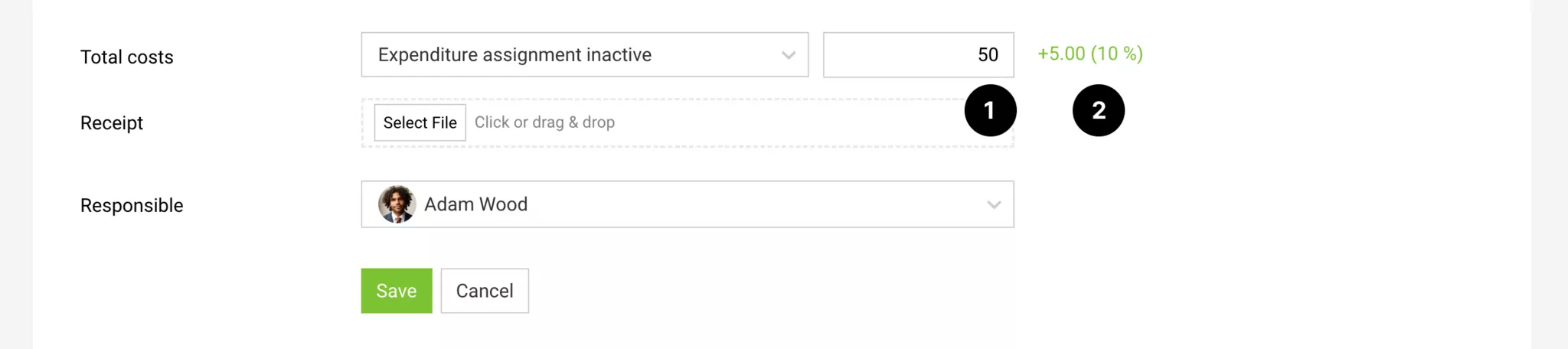
Your own (expected) costs are recorded under the additional service in "Total Costs" (1). MOCO then automatically calculates the margin/markup (2). Costs affect the profitability reports.
Pre-calculate in the quote
If needed, you can enter expected costs in the quote cost calculation and carry them over when you transfer the additional service into the project.
Actual costs when assigning purchases
If you use purchase assignment (select Activate Purchase Assignment), the assignment of purchases/supplier invoices (or individual line items from them) records the actual costs. Once all expected purchases have been assigned, you can lock the additional service for further assignments (= purchase assignment inactive).
Pre-calculate in the quote
If needed, you can enter expected costs in the quote cost calculation and carry them over when you transfer the additional service into the project.
Actual costs when assigning purchases
If you use purchase assignment (select Activate Purchase Assignment), the assignment of purchases/supplier invoices (or individual line items from them) records the actual costs. Once all expected purchases have been assigned, you can lock the additional service for further assignments (= purchase assignment inactive).
Cost Groups
With cost groups, you can control costs (budgets) across multiple additional services. Alongside the overall additional service budget (sales price), this gives you another level of cost control (cost price).
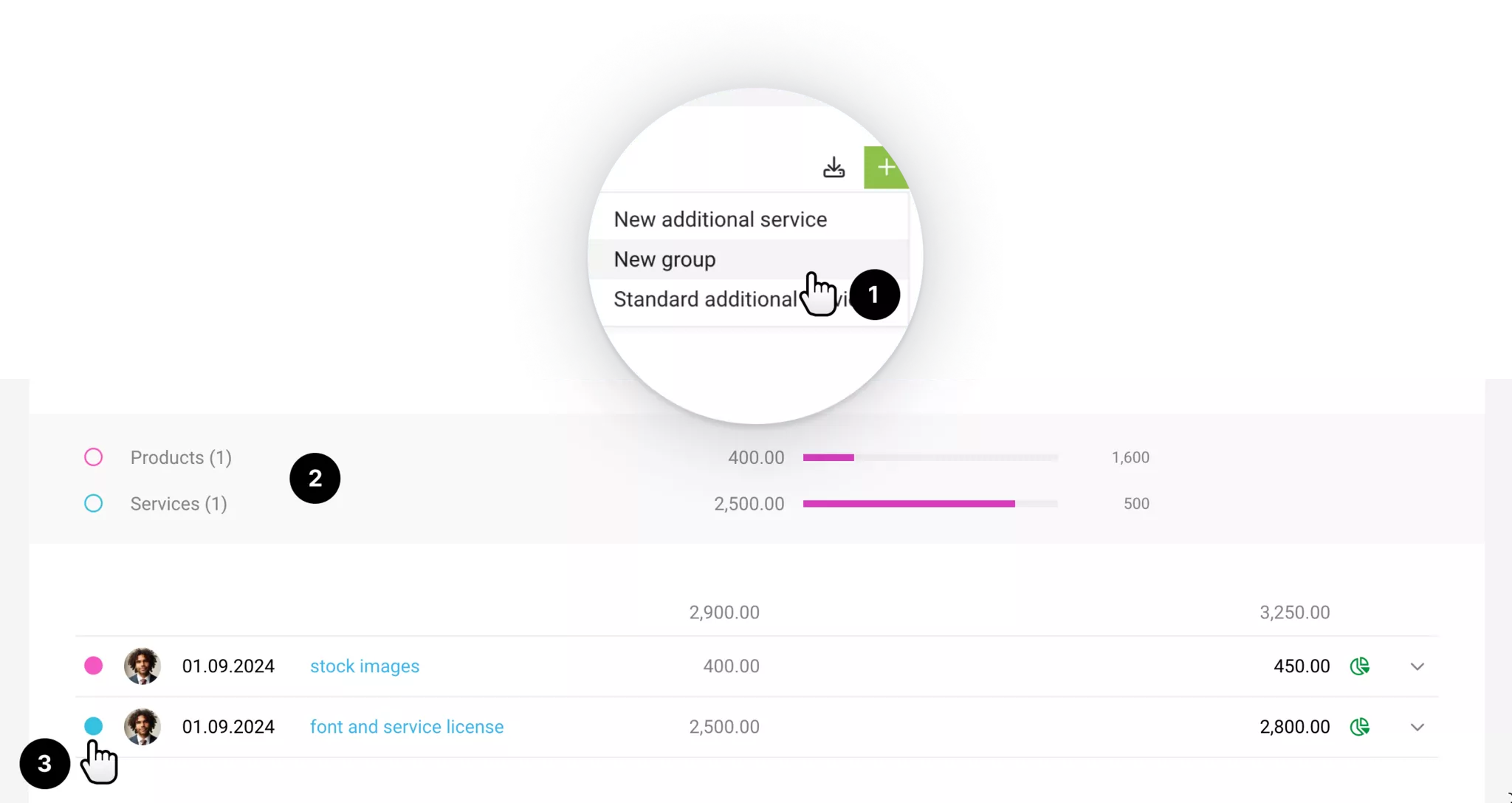
1. Create a new group via the "+": name it, and choose a budget and colour.
2. The group is shown as a parent item.
3. Assign additional services individually or via multi-select.
1. Create a new group via the "+": name it, and choose a budget and colour.
2. The group is shown as a parent item.
3. Assign additional services individually or via multi-select.
- Budget control via the progress bar: The costs (middle column) of the assigned additional services count towards the group’s set budget.
- Filter by assigned additional services: Click the group.
- Manage groups: Use the pencil icon on the right to manage groups (name, colour, budget amount, delete).
- Groups (e.g. a flat-rate overhead charge) can be transferred directly from quotes.
Billing Cost Groups
The grouped additional services appear on the invoice individually, as usual. When billing, you can see the group assignment, which allows for targeted billing.
If you want an additional service to appear on the invoice, it’s better to use that additional service as a summary line item. You can assign multiple purchases to it.
If you want an additional service to appear on the invoice, it’s better to use that additional service as a summary line item. You can assign multiple purchases to it.
Central Management & Filtering
Once at least 10 Additional services have been created, an overview will appear under "Projects" > "Additional services" (1). These services can be centrally managed in this list:
- Filter: Numerous filtering options - e.g., by Client, project management, or keyword. (3)
- Sort: Sort columns in ascending or descending order.
- Document Info: Indicates if a document is available - accessible directly from the list by clicking the icon.
- Incoming Invoice: Shows if an incoming invoice with a supplier is assigned.
- Group Affiliation: Displays the cost group (if available in the project).
- Edit: Adjust, copy, and reallocate the additional service as in the project.
- Create: Create new additional services.
- Export: Specifically export filtered additional services. (5)
If you select "+Recurring" in the filter, all additional services that will be created in the future through recurring services or are planned for creation will also be displayed.
You can find the list of recurring additional services in the second tab (2+4).









