Expenditures
General | Fixed Costs | Budgets | Planned | Personal expenses | KSK Report (DE)General
Settings > Purchases > General
Invoice Inbox Email Address
MOCO provides an account-specific, unguessable email address. Emails sent to this address are captured as a purchase draft in the Invoice Inbox. More information on how it works.
For security reasons, the email address is not a trivial address that can be easily guessed.
For security reasons, the email address is not a trivial address that can be easily guessed.
➜ Save it as a contact in your email client and use it for forwarding incoming invoices.
➜ If needed, you can set up automatic forwarding from a custom email address, e.g. "invoices@mycompany.co.uk".
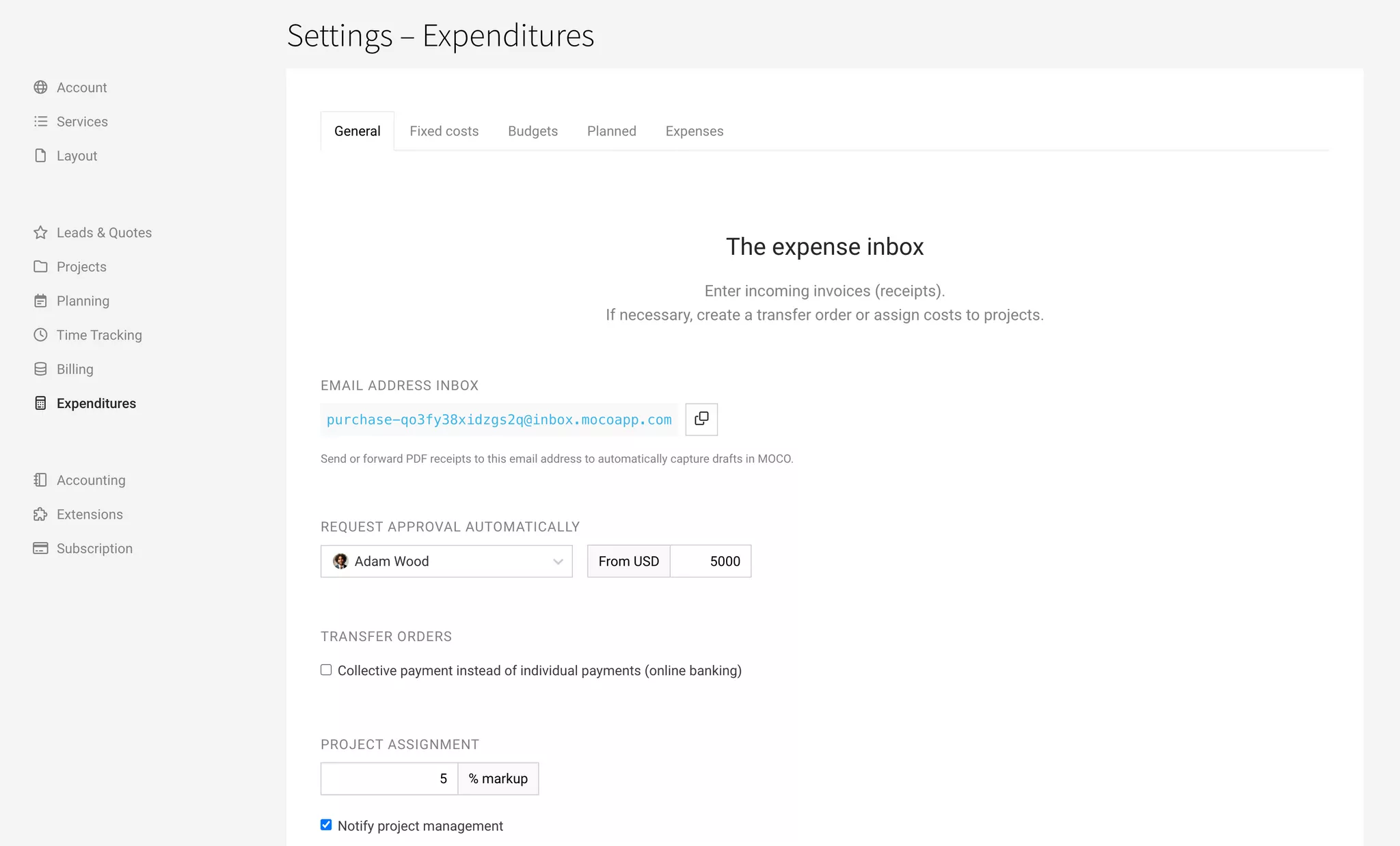
Automatically Request Approval
In MOCO, you can have invoices approved individually, or use the automation defined here to specify from which amount purchases must be approved by a specific person. MOCO then requests approval automatically.
Use Cases – When Multiple People or Thresholds Can Make Sense
- Cover: if the first person is unavailable, the second person can approve.
- Division of responsibilities: more than one person can be responsible for approvals and share the workload – and approvals are granted faster.
- Execution & monitoring: you can define one person who grants approvals and a second person who is only informed.
- Approval levels: with two thresholds, you can also map two approval processes, e.g. a low-level approval via the back office and a high-level approval via senior management.
Payment Orders
Tick the box if you want batch payments.
The expected date of the batch payment is shown when creating the payment order.
A batch payment is always executed on the earliest possible date. An individual payment without a target date (Payable By) – or a batch payment where at least one target date is missing – is executed immediately.
The expected date of the batch payment is shown when creating the payment order.
A batch payment is always executed on the earliest possible date. An individual payment without a target date (Payable By) – or a batch payment where at least one target date is missing – is executed immediately.
Defaults for Project Allocation
The purchase, or individual line items from it, can be allocated to projects for cost tracking and recharging. Here in the settings, you can predefine defaults for this – for example, whether a general markup should be applied.
The default "Rechargeable & In Budget" can be predefined under Settings > Projects.
The default "Rechargeable & In Budget" can be predefined under Settings > Projects.
KSK
Fixed Costs
Settings > Purchases > Fixed Costs
In addition to supplier invoices under "Purchases", you can record your fixed costs here.
Fixed costs include, for example, expenses such as rent, wages, and bank charges – any costs where there is no supplier invoice and which are posted differently in your accounts. This does not include regular billings such as mobile phone subscription invoices – these are recorded as supplier invoices.
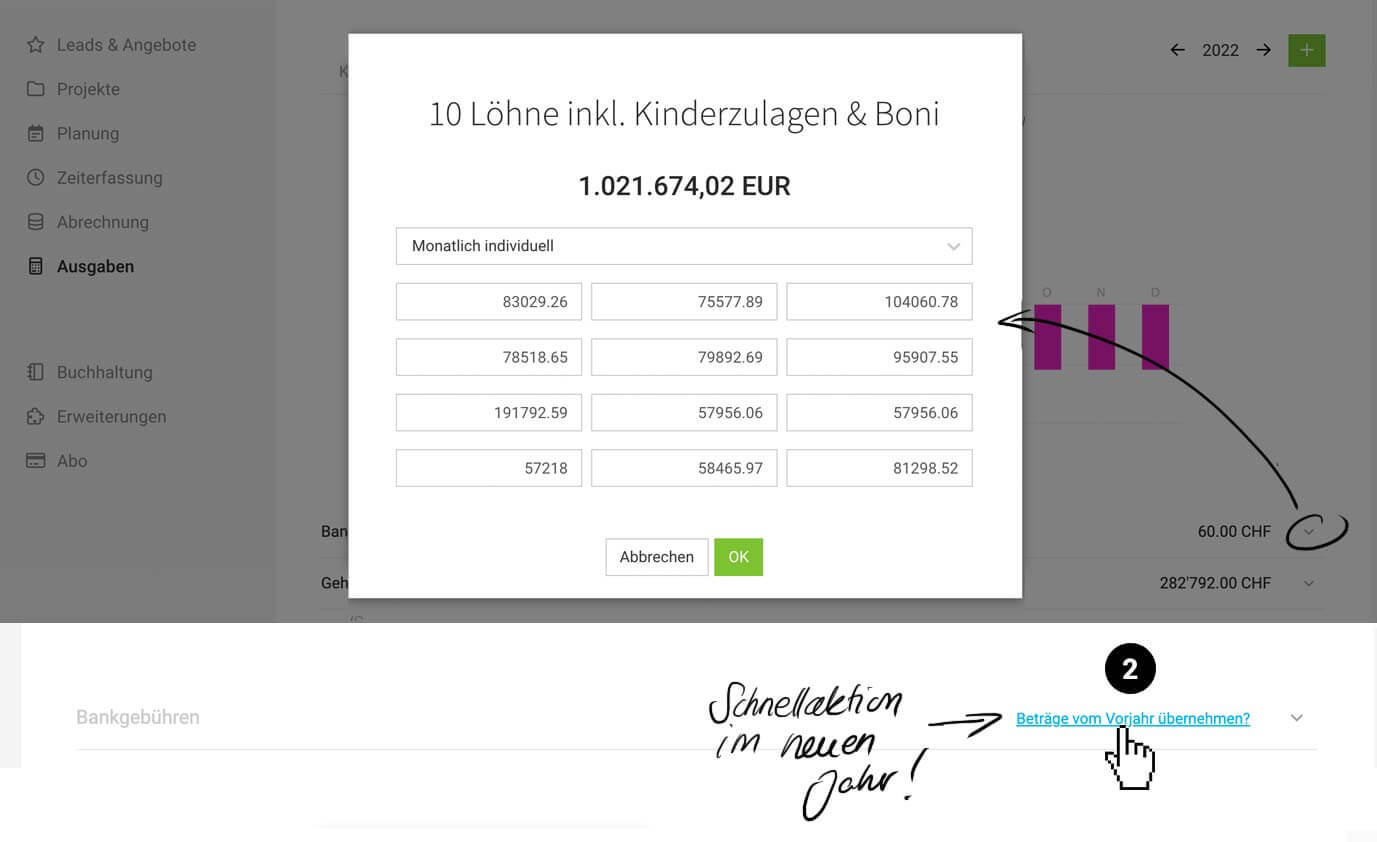 (English image not yet available)
(English image not yet available)Included in Reports
- In the Company Report and Financial Report
- Purchases Report: fixed costs are included in payments
Record Standalone Payments
You can also record individual standalone payments under "Purchases" > "Payments" > "Payment Without Receipt" (top right).
Budgets
Settings > Expenditures > Budgets
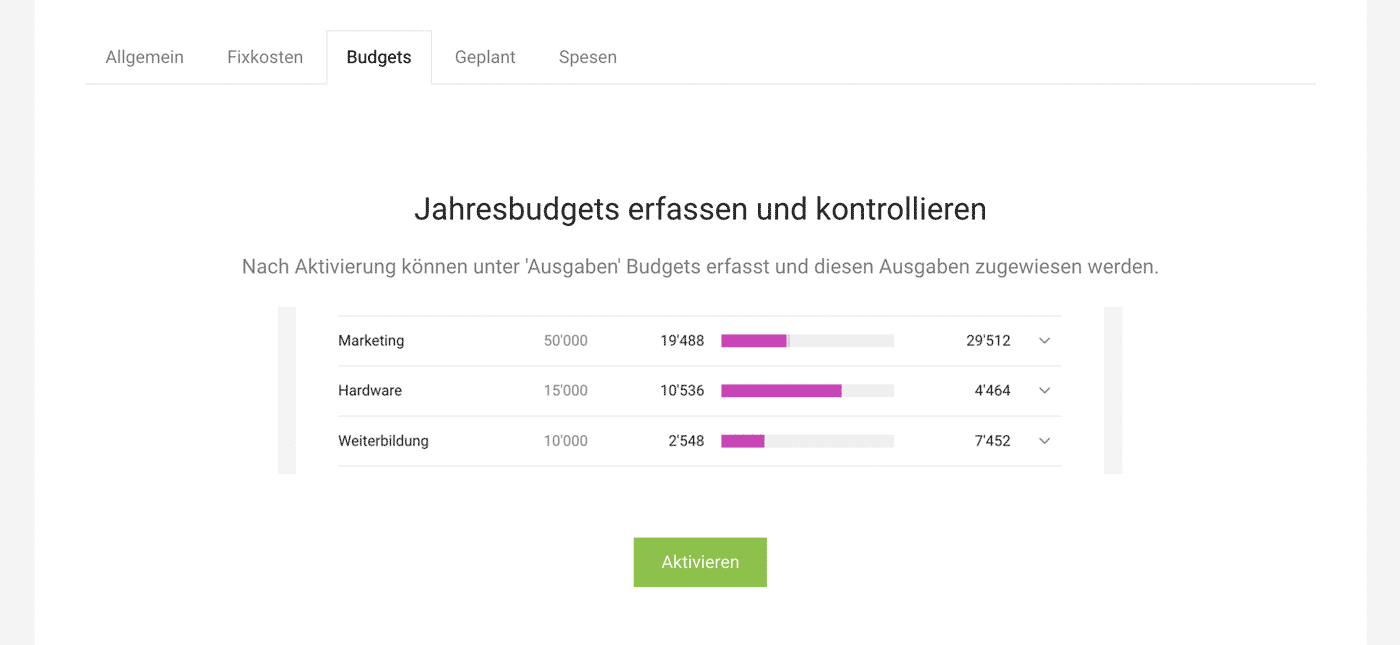
If you manage all your expenditures and incoming invoices through MOCO, activate the budgets here. You can use budgets for cost centres.
Personnel, marketing, training, cloud services, etc. – incoming invoices and fixed costs can then be assigned to these recorded budgets. This way, you always have an overview of the actual and planned status.
Once activated, you can
Once activated, you can
- record the budgets directly here
- assign expenditures to a budget
- see the new "Budgets" menu item under expenditures for budget control
Planned
Settings > Expenditures > Planned
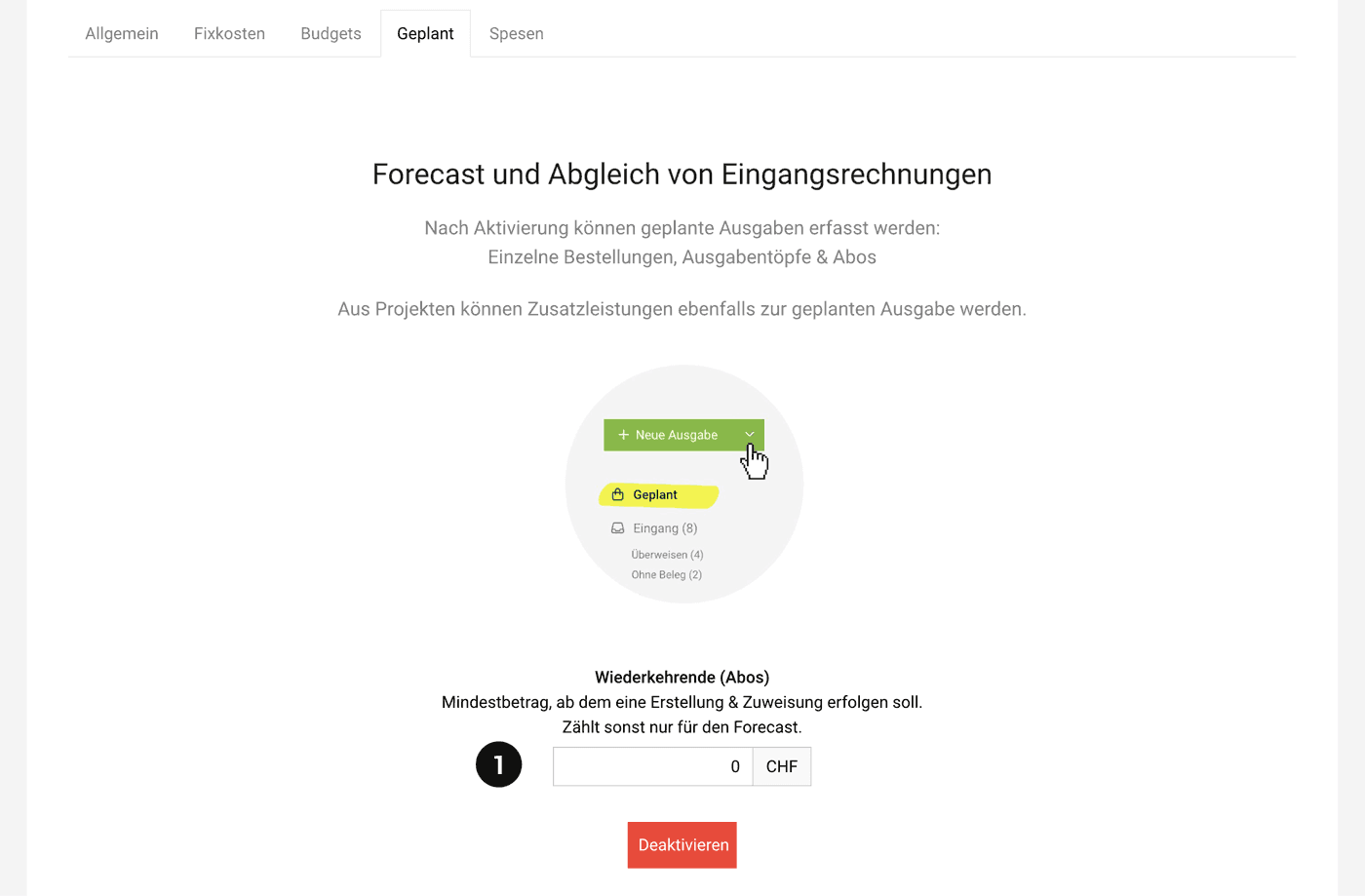
Planned expenditures guide financial reports and allow you to match incoming invoices precisely.
 (English image not yet available)
Enable planned expenditures in the settings if you wish to plan expenditures/liquidity with MOCO. This feature also allows you to match incoming invoices.
The minimum amount for recurring planned expenditures (1) indicates the threshold above which the amount is not only planned but also created for the assignment of incoming invoices.
More information about the feature
Personal expenses
Settings > Expenditures > Personal expenses
Once activated, all users can record outlays, travel expenses, and daily allowances under "Personal expenses" in their profile.
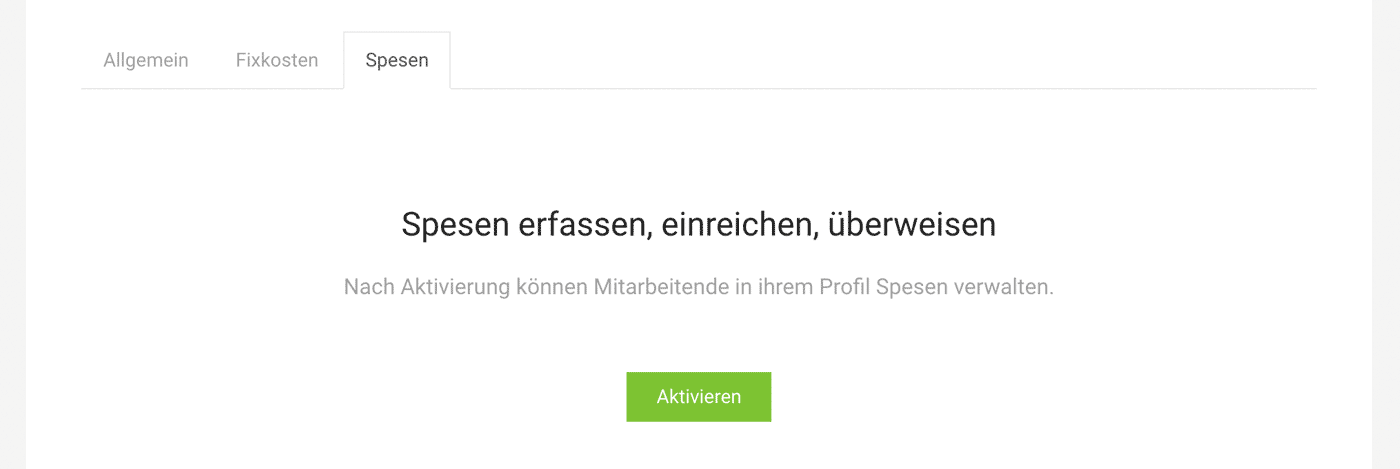 (English image not yet available)
Overview of the Workflow
The employee records receipts or allowances (in their profile, via MobileApp, or by email) and submits an expense report. The person responsible for their expenses is notified, reviews the receipts, and approves or rejects them. Upon approval, the expense report is converted into a company expenditure.
Detailed information on the expense workflow
If the person recording expenses should also be able to select a category (with an associated expense account), ensure that previously defined categories are marked as relevant for expenses in the settings.
KSK Report (DE)
Once activated, you can mark and report on incoming invoice line items for KSK.
In Germany, businesses that use the services of self-employed artists or publicists must pay a levy to the Künstlersozialkasse (KSK). The amount is based on the fee and is 5%.
Enable the Option
German MOCO accounts can now enable this option under Settings > Purchases > General.
Mark Line Items
In the incoming invoice form, you can mark the relevant line items (similar to the familiar labels) (1).
.png) (English image not yet available)
(English image not yet available)
(English image not yet available)Export
Under "Purchases", in the Incoming & Archive lists, you will find a new "KSK" export at the top right (2). Select a date range to export the marked KSK-liable line items.
If you don’t record incoming invoices in MOCO:
Custom Field on Additional Services
1. Create a custom field for Additional services and label it "KSK", with the placeholder text "Amount".
2. Enter the amount for each relevant Additional service.
3. In the Excel export (Projects > Additional Services), there will then be a dedicated "KSK" column, which you can use to total the amounts for a selected period.
Custom Field on Invoices
1. Create a custom field for invoices (not shown on the invoice) and label it "KSK", with the placeholder text "Amount".
2. Enter the amount for each invoice at the top right of the invoice.
3. In the Excel export (under Billing), there will then be a dedicated "KSK" column, which you can use to total the amounts for a selected period.








