Personal expenses
How It Works | Capture | Personal Expenses Billing | Approve, Pay Out | Project AssignmentHow It Works
Workflow
The employee records their expenses (personal expenses, travel expenses, and allowances), submits their expense claim, and addresses it to their line manager. The notified person checks the receipts and approves or rejects the claim. Once approved, the expense claim is turned into a company purchase. Line items can be assigned to projects. The amount can be paid out via a bank transfer order. The employee can always see in their profile which expense claims have already been paid.
Enable the Feature & Access Rights
Accounts that want to record personal expenses in MOCO enable the feature in Settings. People who need to manage expense claims also require full access or restricted access rights to "Purchases".
Then you’re ready to go:
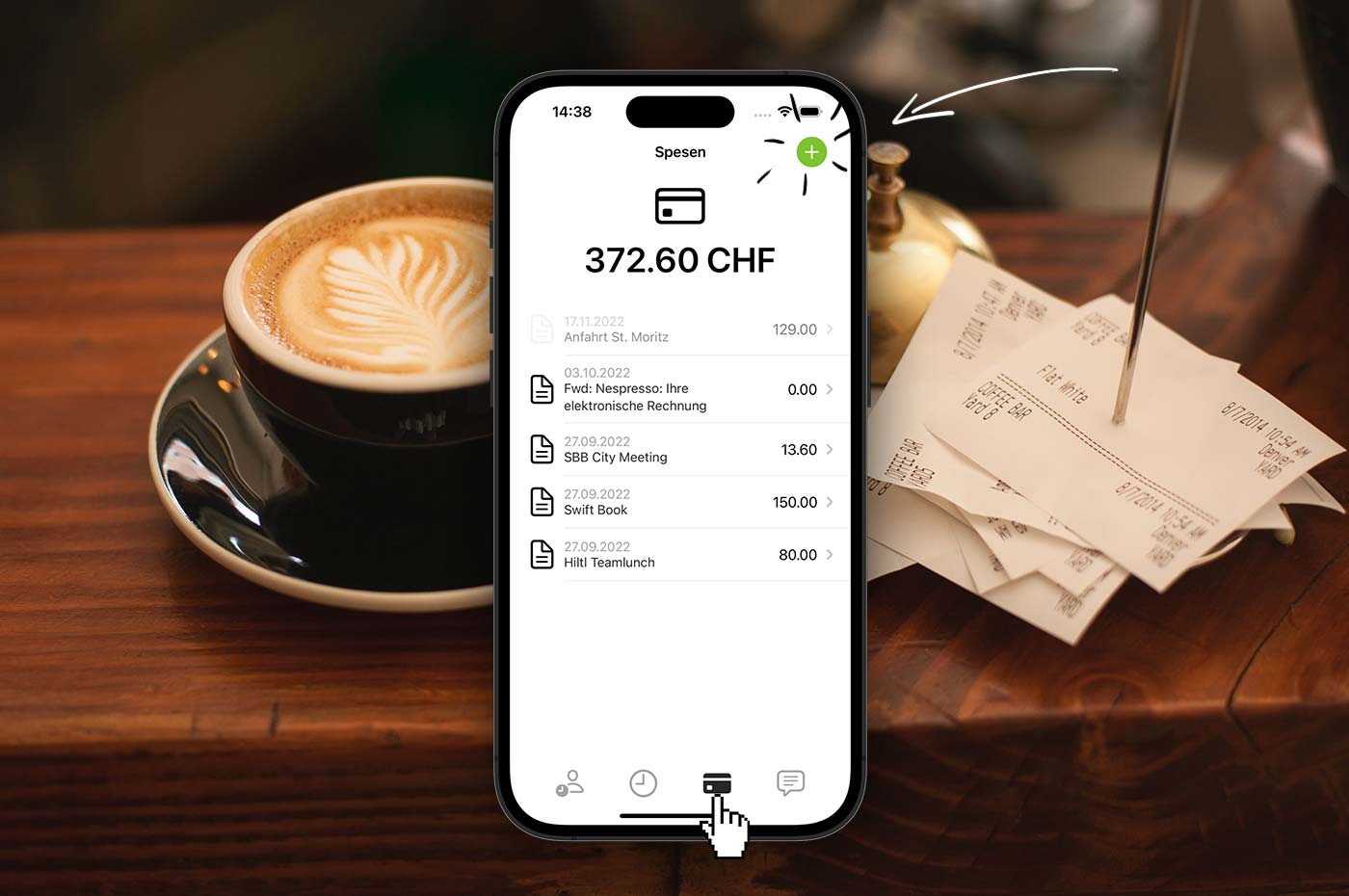 (English image not yet available)
Then you’re ready to go:
(English image not yet available)Capture
Receipts, purchases, travel expenses, or per diems can be captured in three ways: by forwarding an email, via the mobile app, or directly in the desktop software.
Send an Email to MOCO
You have a personal, spam-resistant inbox email address (see image below: 3). Save it as a contact for sending emails, so you can access it quickly. If you want to include a receipt, attach it to the email as a PDF. JPGs and PNGs are currently not supported (as images are often used in email signatures, which would otherwise create a receipt).
Mobile App
Scan a receipt on the go. This captures the personal expenses entry in your account.
Links: Mobile app for iPhone in the Apple Store and Android Google Play Store
Links: Mobile app for iPhone in the Apple Store and Android Google Play Store
In MOCO
On your computer or iPad you can also capture personal expenses manually in your profile under "Personal Expenses" (see image).
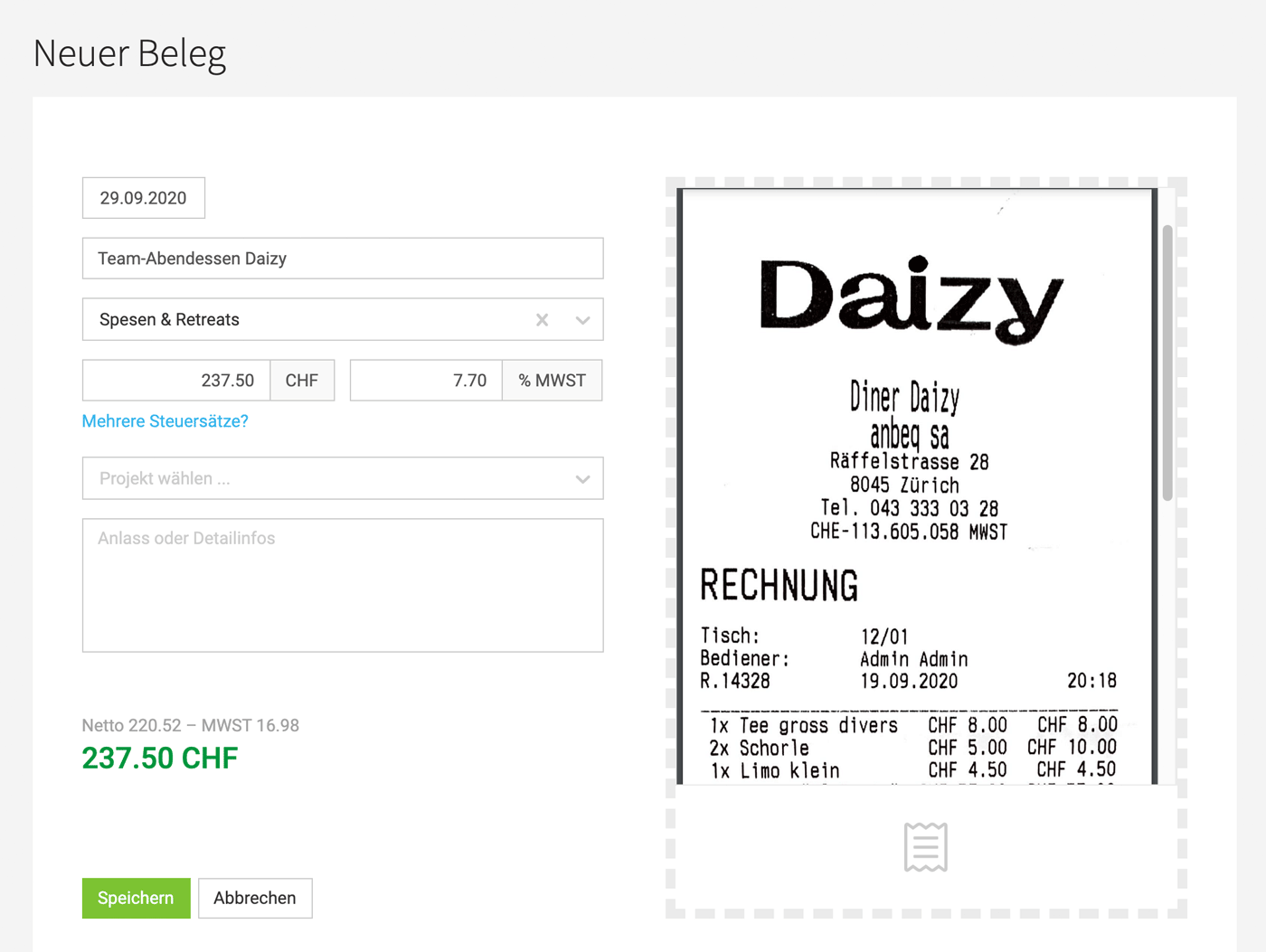 (English image not yet available)
Personal Expenses in Foreign Currency
By default, personal expenses are captured in your account currency. If you store other currencies in your account, they will also be available to select here.
Personal Expenses Billing
As a rule, you collect receipts for a month and then submit them together as a personal expenses claim. When submitting, you can address it directly to a person in the company and add a comment.
Submitting Personal Expenses
Select the receipts you have collected in your profile under "Personal expenses" and submit them as a personal expenses claim. Choose a contact person and add a comment if needed.
Required details
Date, title, and amount are required and must be completed (4) before the item can be submitted (5). Optional details are category, project, billable, detailed information, receipt (PDF, PNG, JPG).
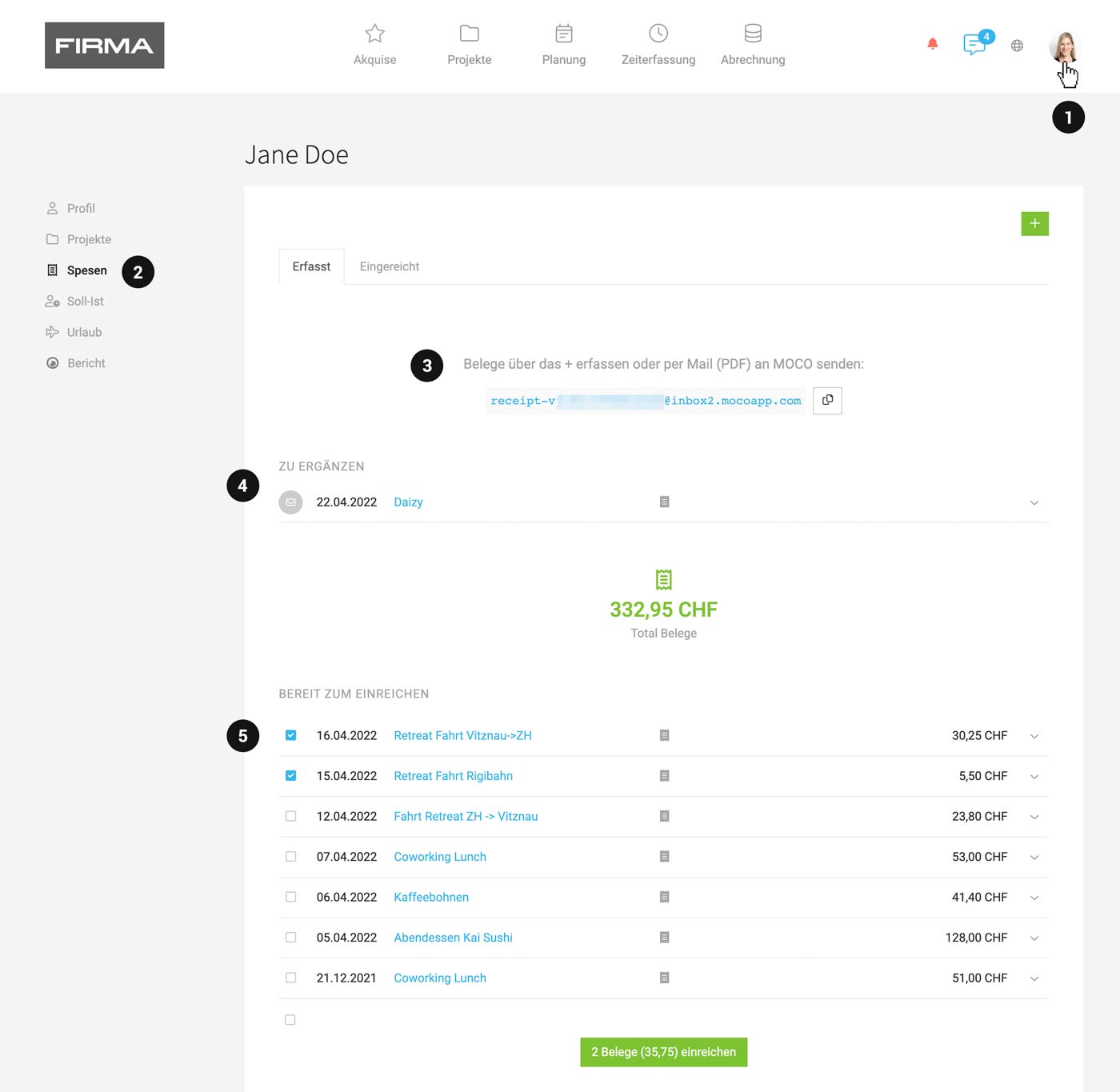 (English image not yet available)
Daily allowances, car journeys
MOCO cannot currently calculate daily allowances or car journeys automatically. For traceability, you can add the calculation details as information on the item.
Workaround idea: use an Excel template, save the calculation as a PDF, and upload it as a receipt.
Required details
Date, title, and amount are required and must be completed (4) before the item can be submitted (5). Optional details are category, project, billable, detailed information, receipt (PDF, PNG, JPG).
(English image not yet available)Daily allowances, car journeys
MOCO cannot currently calculate daily allowances or car journeys automatically. For traceability, you can add the calculation details as information on the item.
Workaround idea: use an Excel template, save the calculation as a PDF, and upload it as a receipt.
Approve, Pay Out
Once a personal expenses claim has been created, the selected contact person is notified, and the claim is available in your account under "Purchases" for approval.
Contact Person Is Notified
The selected contact person (MOCO will suggest them directly next time) is notified about the submitted personal expenses claim.
Approval
The responsible person approves the personal expenses claim under "Purchases"
Under "Purchases" > "Incoming" > "Personal expenses" (1,2), all open personal expenses claims are collected and need to be checked. Details can still be completed or adjusted at this stage. Individual receipts can also be removed. They will be sent back to the person who submitted them.
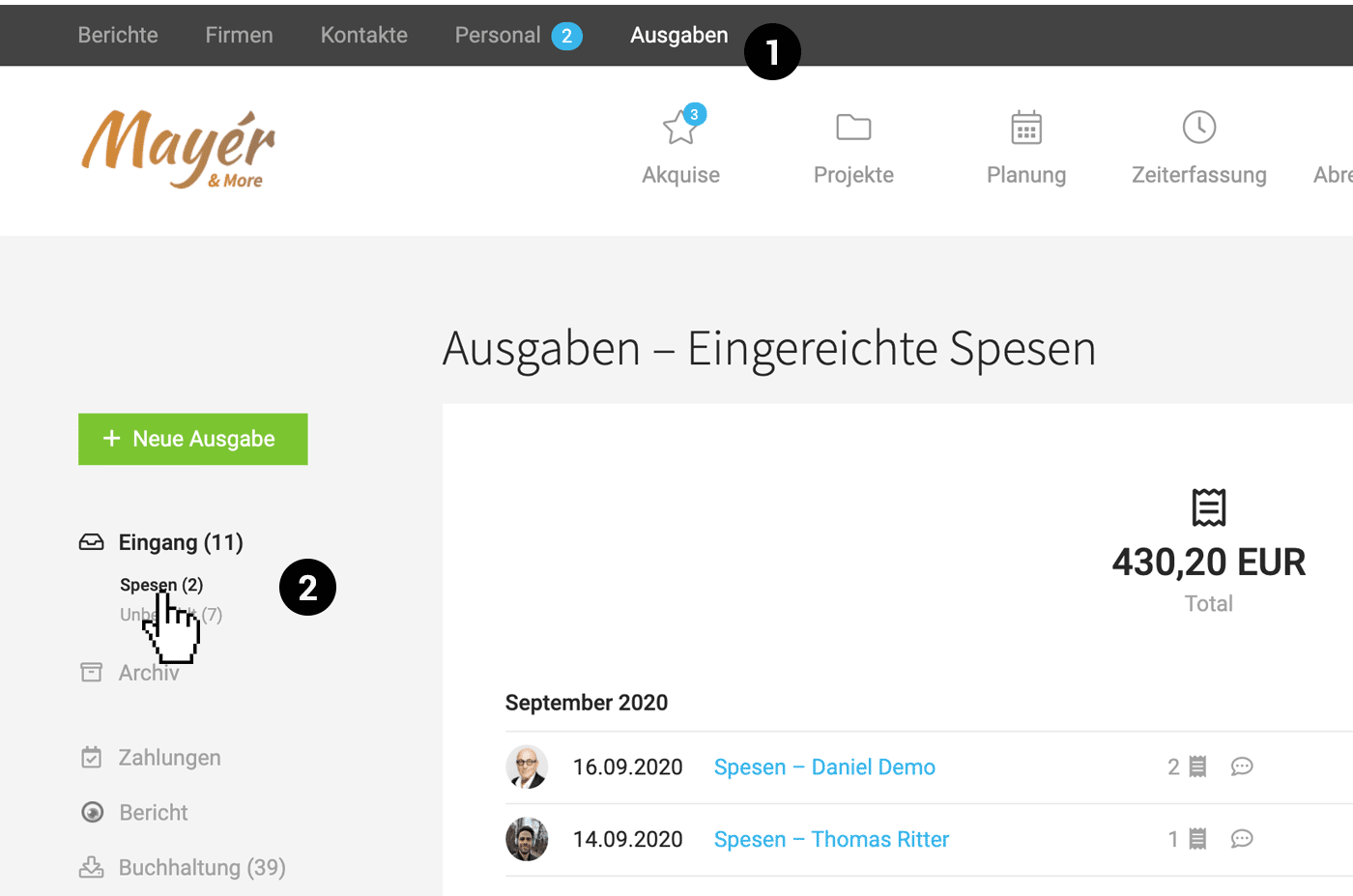 (English image not yet available)
Approve or Reject
When you approve, the personal expenses claim is converted into a regular purchase with the corresponding line items. The personal expenses claim can also be rejected (action at the top right, "thumbs-down" icon). The receipts will be sent back to the person who submitted them.
Automatic Project Allocation of Costs on Approval
When approving, for the assigned projects, the additional service is created from the line items for cost tracking and recharging.
Paying Out Personal expenses
Personal expenses claims can be paid conveniently via a payment order. The prerequisite is that the employee’s IBAN is stored.
Transparency for Employees
Each employee can see in their profile whether the personal expenses claim has been paid. If needed, you can also send the person a personal message via "Comments".
Transparency for Employees
Each employee can see in their profile whether the personal expenses claim has been paid. If needed, you can also send the person a personal message via "Comments".
Finding Personal expenses Claims Later
- Under "Purchases", you can use the filters to narrow down by the type Personal expenses, or use the search term to filter by name.
- Under "People", all personal expenses claims are listed for the relevant person.
Correcting Personal expenses Claims Afterwards
1. Delete the purchase or approved personal expenses claim: Delete the purchase at the top right of the detail view (including any payment already recorded). It’s best to take a quick screenshot so you have the amount and date to hand later.
2. The claim is submitted for approval again: You can access the claim directly via the smart filter on the left under "Personal expenses submitted".
3. Adjust line items: In the claim’s detail view, you can edit the line items.
4. Approve and create the purchase: Approve the claim again to recreate the purchase. Re-enter any payment you may have deleted earlier.
Project Assignment
When recording personal expenses, employees can directly assign a project. If an incorrect project is assigned, it should be corrected in the submitted expense report BEFORE approval, as approving it will immediately create the Additional service in the project (cost tracking/rebilling).
Projects can also be assigned at a later stage.
Receipts paid with the company credit card
Such receipts can be recorded by an employee without access rights to expenditures by sending them via email to the general inbox address. A draft will then be created for review.
If the employee should record incoming invoices but not see information on all expenditures, they are given restricted access rights for "Expenditures". They can then manage only the expenditures they have recorded and assign them to projects for rebilling and/or cost tracking.
Projects can also be assigned at a later stage.
Receipts paid with the company credit card
Such receipts can be recorded by an employee without access rights to expenditures by sending them via email to the general inbox address. A draft will then be created for review.
If the employee should record incoming invoices but not see information on all expenditures, they are given restricted access rights for "Expenditures". They can then manage only the expenditures they have recorded and assign them to projects for rebilling and/or cost tracking.








