Overview
Filter & Find | Annual Budgets (Cost Centres) | Purchase Report, Financial ReportsFilter & Find
Filter in Inbox and Archive
Search & Filter
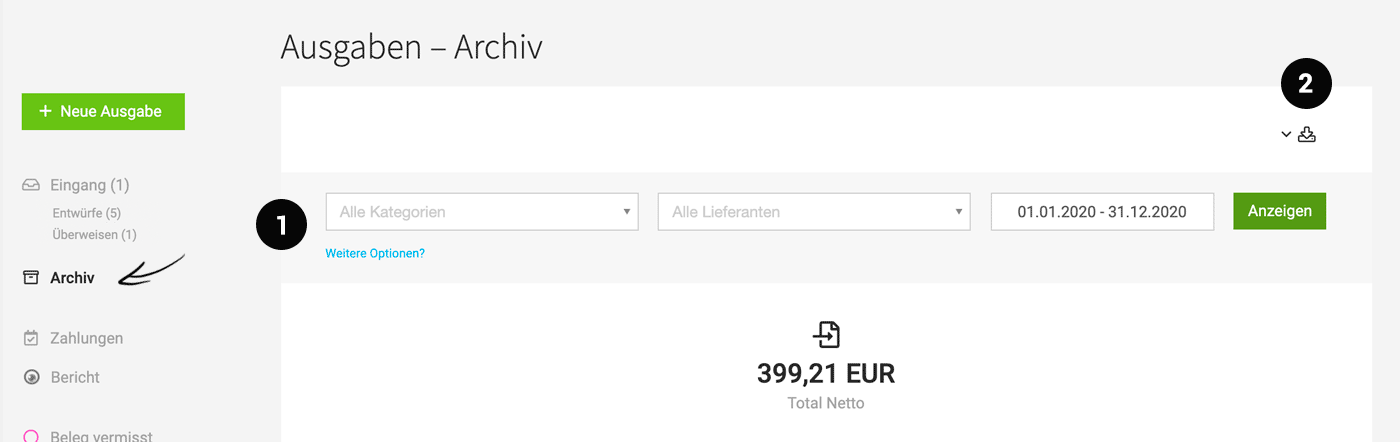
Invoices in the inbox and archive can be searched or filtered (1).
As always, in the work list (in this case the "Inbox"), the filter can be accessed via "F" or the icon in the top right corner – in the archive, however, the filter is displayed by default and can be easily expanded for further options. Use the keyboard shortcut "Q" to filter all your expenditures.
Invoices in the inbox and archive can be searched or filtered (1).
As always, in the work list (in this case the "Inbox"), the filter can be accessed via "F" or the icon in the top right corner – in the archive, however, the filter is displayed by default and can be easily expanded for further options. Use the keyboard shortcut "Q" to filter all your expenditures.
Export
The filtered incoming invoices can be exported as Excel from the top right (2) – or the documents can be downloaded as a PDF batch.
 (English image not yet available)
Listing by Supplier
All incoming invoices are listed and grouped by year under the respective supplier.
Quickly Find Supplier or Expenditure
The fastest way to find the desired expenditure or supplier is through the global search (magnifying glass in the top right or keyboard shortcut "/").
Annual Budgets (Cost Centres)
Purchases > Budgets
Marketing, training, etc. With annual purchase budgets, you can always keep an eye on your actual and planned position.
Overview
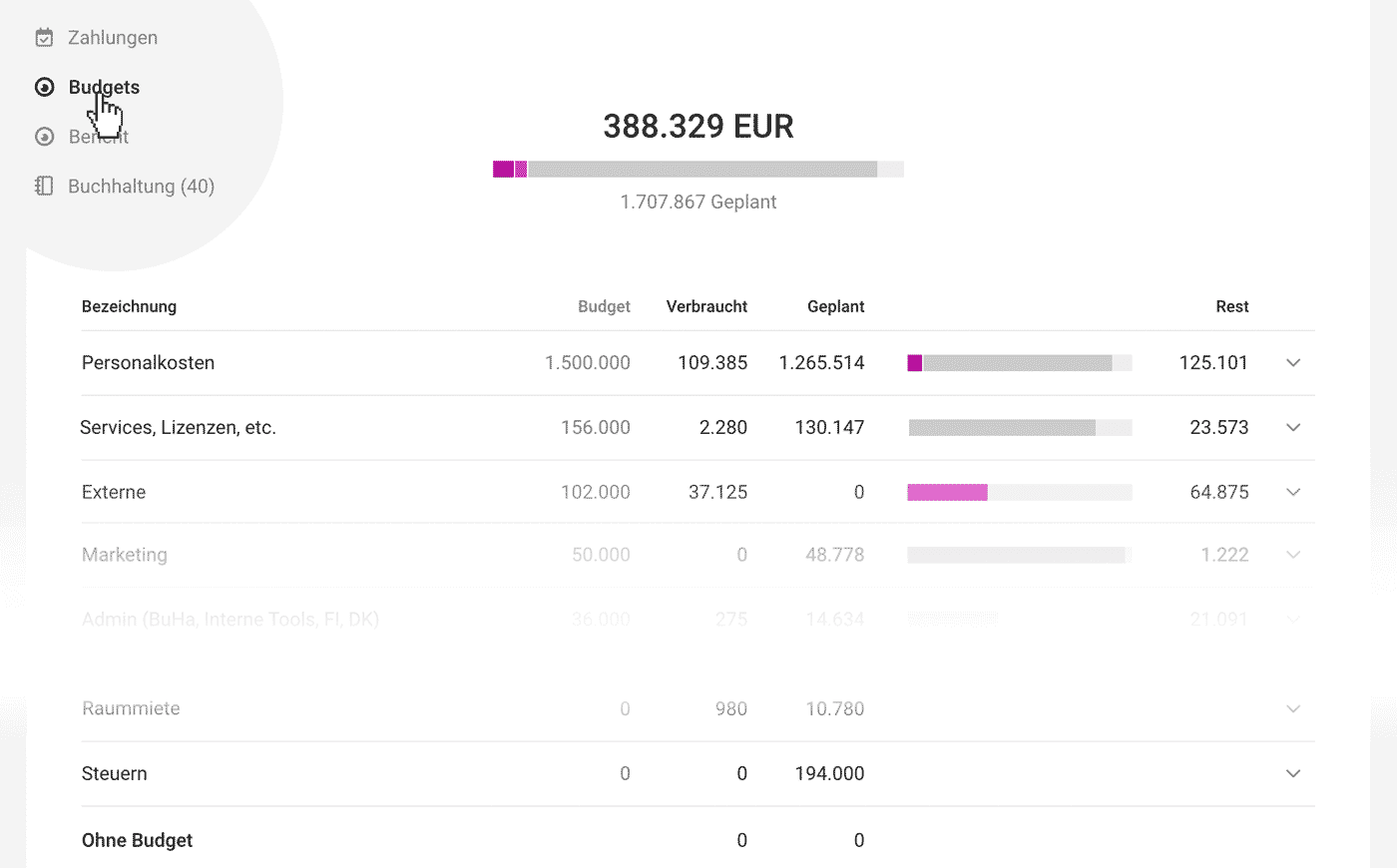
Once activated in Settings, an additional "Budgets" page appears under "Purchases". Here you can review the budgets you have already created.
Assign Budgets
Under "Purchases", in the purchase inbox or archive, assign purchases (supplier invoices, personal expenses claims, fixed costs) to budgets. If you want to assign several purchases at once, select them and use the bulk action "Select Budget" at the bottom left. If you have activated "Planned Purchases", you can also assign these to budgets for forecasting.
 (English image not yet available)
Cost Centre
This field is optional. If you want to analyse income by cost centre or pass the cost centre on to your accounts, you can also define a cost centre for budgets. Cost Centres for Accounting
Budgets with an Amount of 0
Use budgets with an amount of 0 if you only want to see the total – for example, "Room Rent".
Filter Purchases That Are Not Assigned to a Budget
Filter Purchases That Are Not Assigned to a Budget
In the purchase inbox, you can use the smart filter "Without Budget" to view all purchases that have not yet been assigned to a budget.
Alternatively, the filter also offers "Without Budget". This lets you catch up on the assignment later for purchases in the archive, if needed.
Alternatively, the filter also offers "Without Budget". This lets you catch up on the assignment later for purchases in the archive, if needed.
When Should I Use Budgets, and When Categories?
Budgets
- Bring together all types of purchases (supplier invoices, personal expenses, fixed costs) and provide an easy-to-check overall overview.
- Per purchase
- They can be used to map cost centres.
Categories
- Can only be assigned at line-item level for supplier invoices and personal expenses.
- Per line item
- They can be used to map revenue accounts for accounting preparation.
Purchase Report, Financial Reports
Purchases > Report
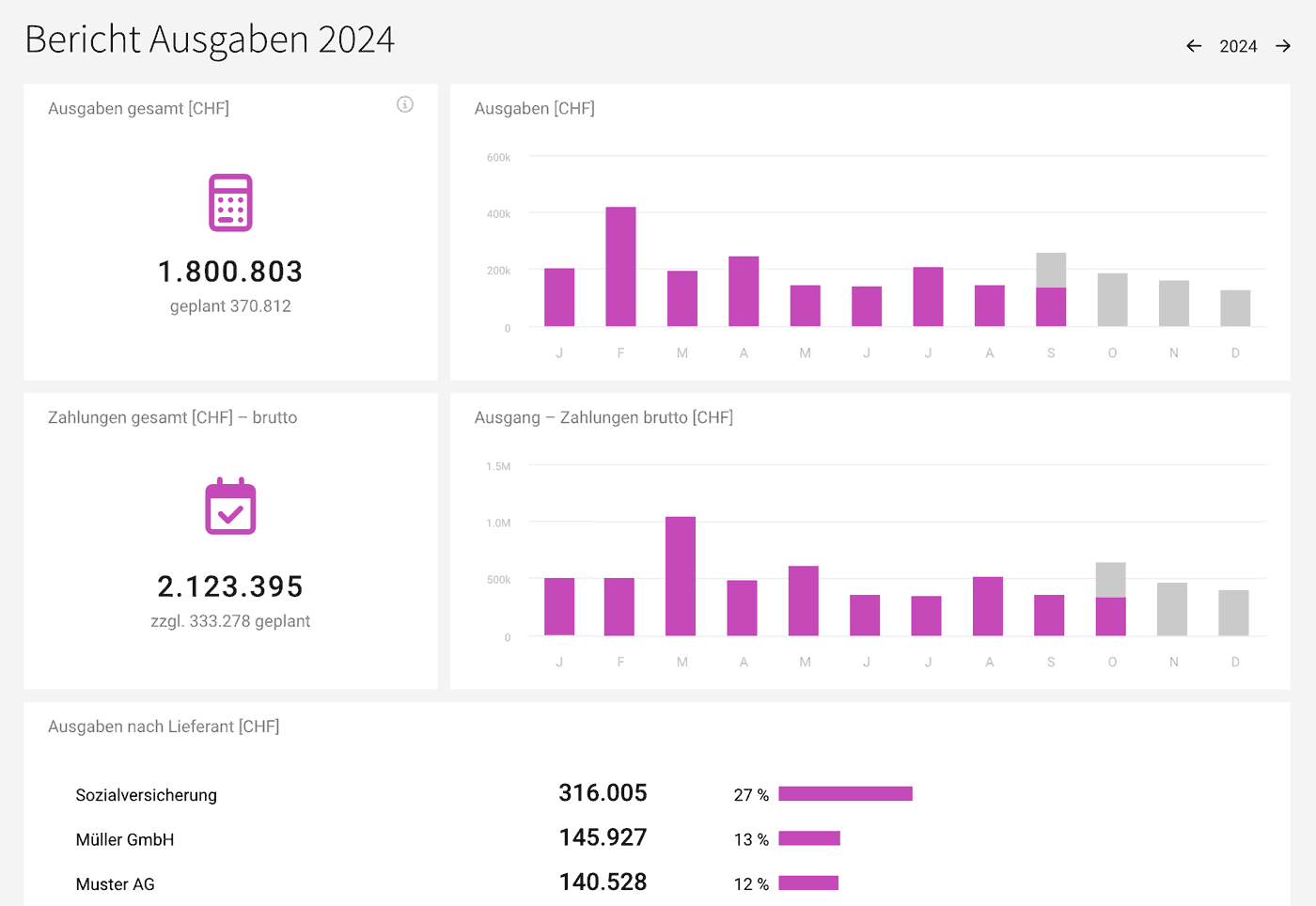
The report shows recorded and planned purchases (including fixed costs), recorded and planned payments, as well as purchases by supplier and purchases by expense account/category (if enabled). For analysis by annual budgets/cost centres, enable the budget feature.
The report shows recorded and planned purchases (including fixed costs), recorded and planned payments, as well as purchases by supplier and purchases by expense account/category (if enabled). For analysis by annual budgets/cost centres, enable the budget feature.
 (English image not yet available)
Cross-Report Financial Reports
Purchases vs. Income
Reports > Finance > Overview
The financial report “Overview” shows all income and purchases net, and breaks them down.
More on the Finance Overview
More on the Finance Overview
Cashflow / Liquidity Planning
Reports > Finance > Cashflow
The cashflow report compares the gross payment amounts for purchases with invoices, showing your liquidity position.
More on the Cashflow Report
The cashflow report compares the gross payment amounts for purchases with invoices, showing your liquidity position.
More on the Cashflow Report








