Control
Project List: Standard & Custom | Budgeting Options | Project Groups | Filters, Smart Filters, Labels | Project Report and Profitability | Timesheet | Integrate External ProjectsProject List: Standard & Custom
Projects > Client Projects
Standard: Quick Check Across All Projects
Budget Bar
How much has been delivered compared to the budget?
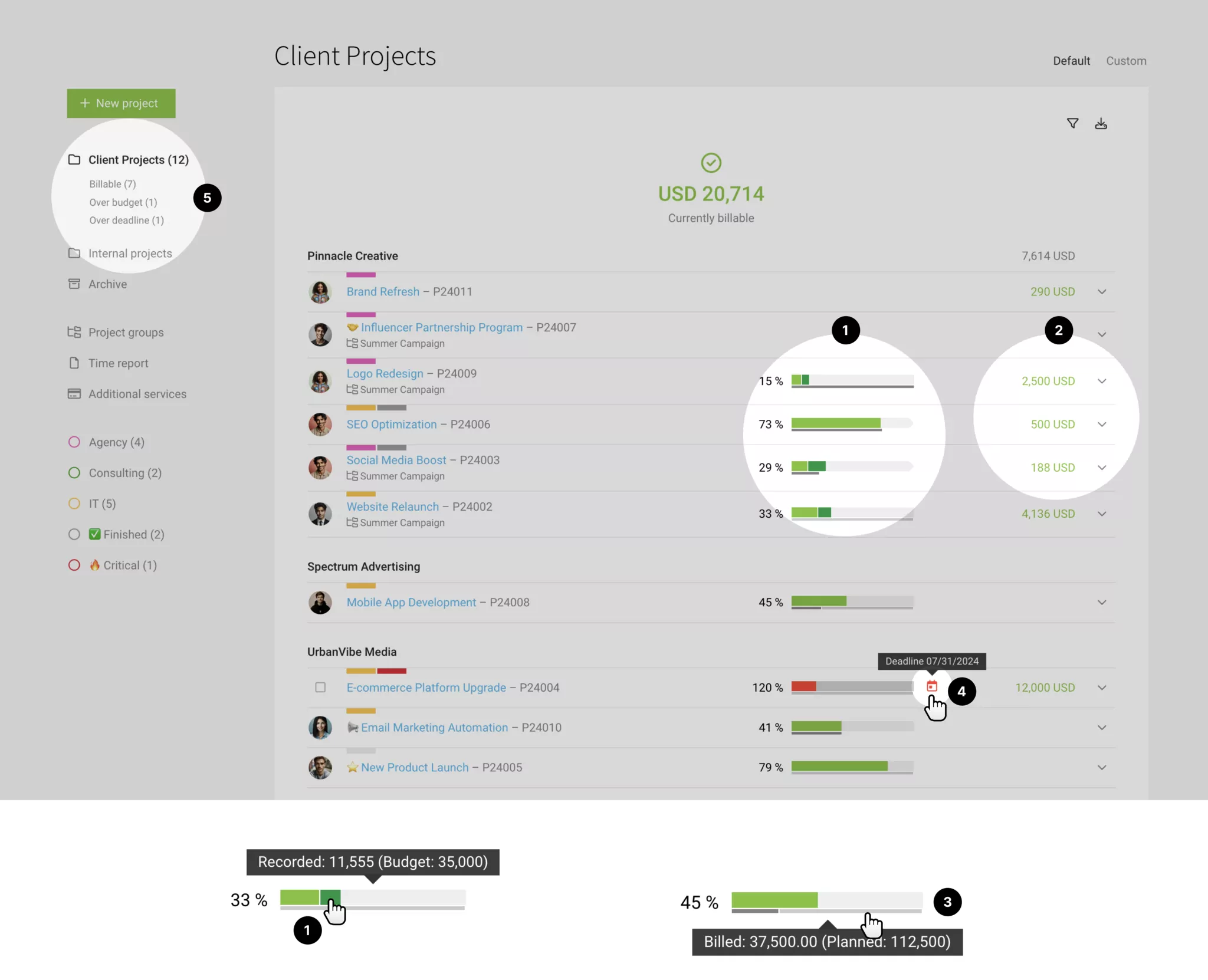
The budget progress bar (1) in the project list gives you a clear view of how much of the budget has already been delivered (hours = light green, and additional services = dark green). Clicking the bar takes you straight to the more detailed project report.
How much has already been billed?
A small grey bar below the budget progress (3) shows how much of the budget has already been billed. If further amounts are planned for billing via the Billing Schedule, these are also shown here in light grey.
Use the Smart Filter "Over Budget" (5) to filter specifically for projects that are over budget.
» Notification Options
The budget progress bar (1) in the project list gives you a clear view of how much of the budget has already been delivered (hours = light green, and additional services = dark green). Clicking the bar takes you straight to the more detailed project report.
How much has already been billed?
A small grey bar below the budget progress (3) shows how much of the budget has already been billed. If further amounts are planned for billing via the Billing Schedule, these are also shown here in light grey.
Use the Smart Filter "Over Budget" (5) to filter specifically for projects that are over budget.
» Notification Options
What Can Currently Be Billed?
The green amount (2) shows the items that could potentially be billed. These can be hours (time-and-materials projects), additional services, and/or items from billing schedules (fixed-price projects). Clicking takes you straight to the billing options.
Use the Smart Filter "Billable" (5) to filter specifically for projects with billable items and, if needed, use bulk billing.
» Notification Options
Use the Smart Filter "Billable" (5) to filter specifically for projects with billable items and, if needed, use bulk billing.
» Notification Options
Target Date
Where is a target date coming up, or has been reached?
In the project list, an exclamation mark appears to the right of the budget bar (4). On hover, the target date is shown; on click, you can move or delete it.
Use the Smart Filter "Past Target Date" (5) to filter specifically for projects that have reached the target date.
» Notification Option
In the project list, an exclamation mark appears to the right of the budget bar (4). On hover, the target date is shown; on click, you can move or delete it.
Use the Smart Filter "Past Target Date" (5) to filter specifically for projects that have reached the target date.
» Notification Option
Project Status
The project list should only contain active projects. Fully billed projects are archived, keeping the project list tidy. Debtor management is handled under "Billing".
Mark projects as completed, but not yet billed?
If needed, you can mark completed projects as completed using an appropriately created Label, and then display them via a filter with a single click. Archive the project after the final invoice.
» More Information on the Project Workflow – From Creating to Archiving
Mark projects as completed, but not yet billed?
If needed, you can mark completed projects as completed using an appropriately created Label, and then display them via a filter with a single click. Archive the project after the final invoice.
» More Information on the Project Workflow – From Creating to Archiving
Filter Options
- You can open the general filter at the top right via the filter icon, or by pressing "F".
- Press "Q" to filter directly for your own projects.
- You can use labels to mark/categorise projects, and use them as filters.
- Smart Filters provide an additional option for outstanding tasks.
Custom: Show Your Own Columns
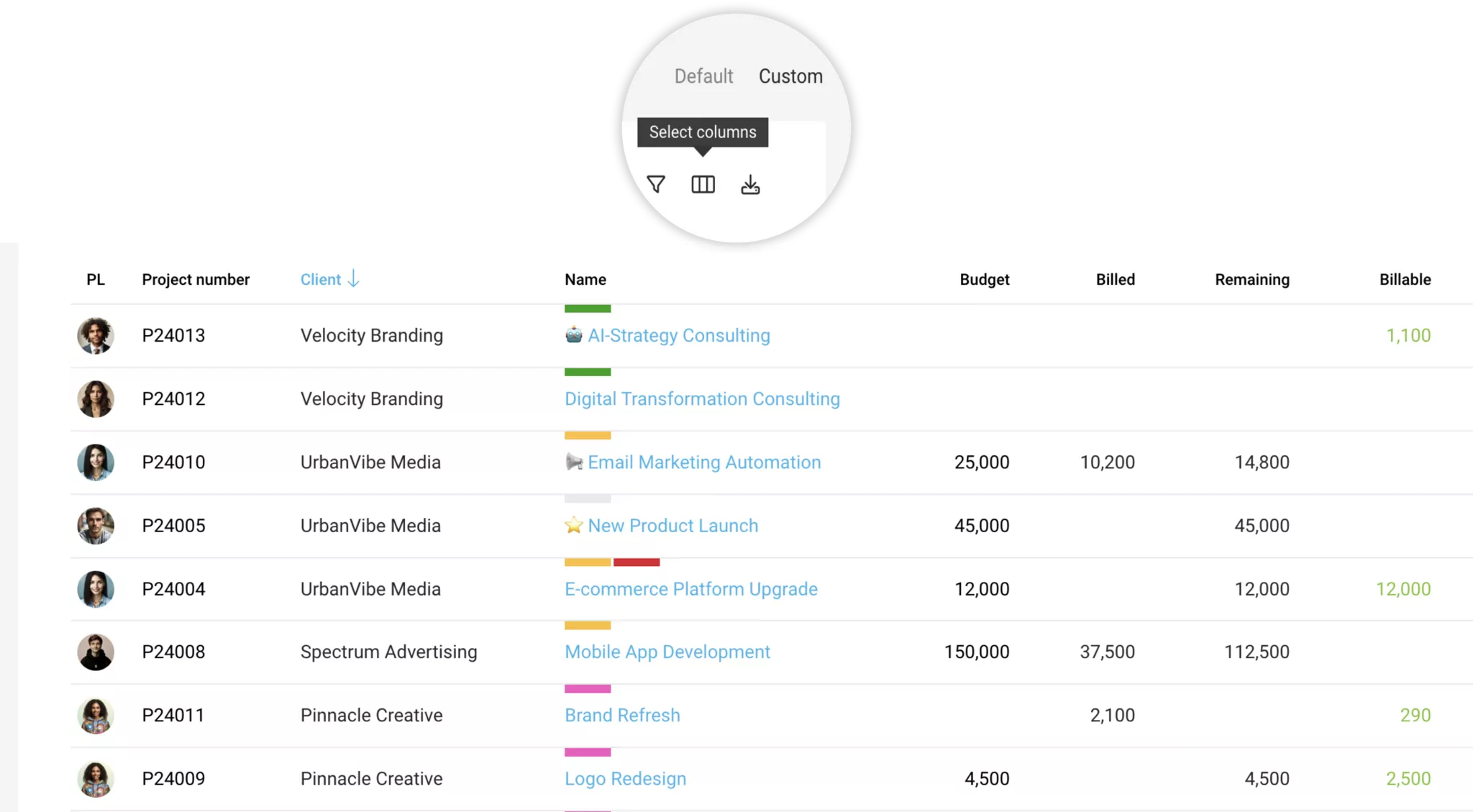
Are certain details particularly important to you for project controlling? All users with full project access rights will see the "Custom" option at the top right, which lets you compile your own flat list that can be filtered and sorted.
The following additional columns are available, among others:
- Custom Fields
- Delivered: Total (number) of recorded work delivered. Linked to the project report.
- Hours: Total number of hours recorded for the project. Linked to the project timesheet.
- Billable Hours and Additional Services: While "Billable" includes all billable items (including from billing schedules), this lets you focus more specifically on the individual types. Linked to the project’s billing page.
- Remaining: Shows the budget not yet billed, in line with the figure under "Billing" > "Billable". Linked to the project’s billing page.
- Effective Hourly Rate: The effective hourly rate is calculated based on the amount already billed, minus additional service costs, to show the hourly rate per hour delivered. (Shown in the account currency).
- Created On: Shows when the project was created. You can find this in the history on the project page (comments).
- Planning: Shows whether the project is over- or under-planned.
- Etc.
Filter & Export
Use the filter to narrow down projects, e.g. by label, and then export the selected project data at the top right.
Budgeting Options
Project
A budget for the entire project (entered in the project form) is optional.
» Budget monitoring for recorded work in the Project List and in the Project Report – including notification options.
» Budget monitoring for billed amounts in the Project List
» If enabled, the remaining budget is shown as remaining hours in time tracking.
» Budget monitoring for recorded work in the Project List and in the Project Report – including notification options.
» Budget monitoring for billed amounts in the Project List
» If enabled, the remaining budget is shown as remaining hours in time tracking.
From quote, as an amount, number of hours
When you import quotes, MOCO fills in the budget automatically.
If you enter the budget manually, this is usually done as an amount (in line with your quote) – or in hours (the number of hours plus an "h" – MOCO then calculates the amount automatically). For the budget to be calculated unambiguously, the project must have a single hourly rate.
If you enter the budget manually, this is usually done as an amount (in line with your quote) – or in hours (the number of hours plus an "h" – MOCO then calculates the amount automatically). For the budget to be calculated unambiguously, the project must have a single hourly rate.
 (English image not yet available)
Additional Services (usually external costs)
If part of the project budget is reserved for external costs, you can enter this share within the project budget (blue link below the input field).
» Budget progress is shown in the project under "Additional Services" based on the recorded additional services ("in budget").
» The remaining hours for time tracking (your own work) are reduced accordingly.
» The plannable hours (capacity planning) are reduced accordingly.
» In addition to a proportional budget, there is also the option of cost pots
» Budget progress is shown in the project under "Additional Services" based on the recorded additional services ("in budget").
» The remaining hours for time tracking (your own work) are reduced accordingly.
» The plannable hours (capacity planning) are reduced accordingly.
» In addition to a proportional budget, there is also the option of cost pots
Month
For retainers or an hour allowance, MOCO offers a monthly budget as an alternative to the budgeting options listed above. Alongside monthly monitoring in the Project Report, there is also a notification option.
Service & Person
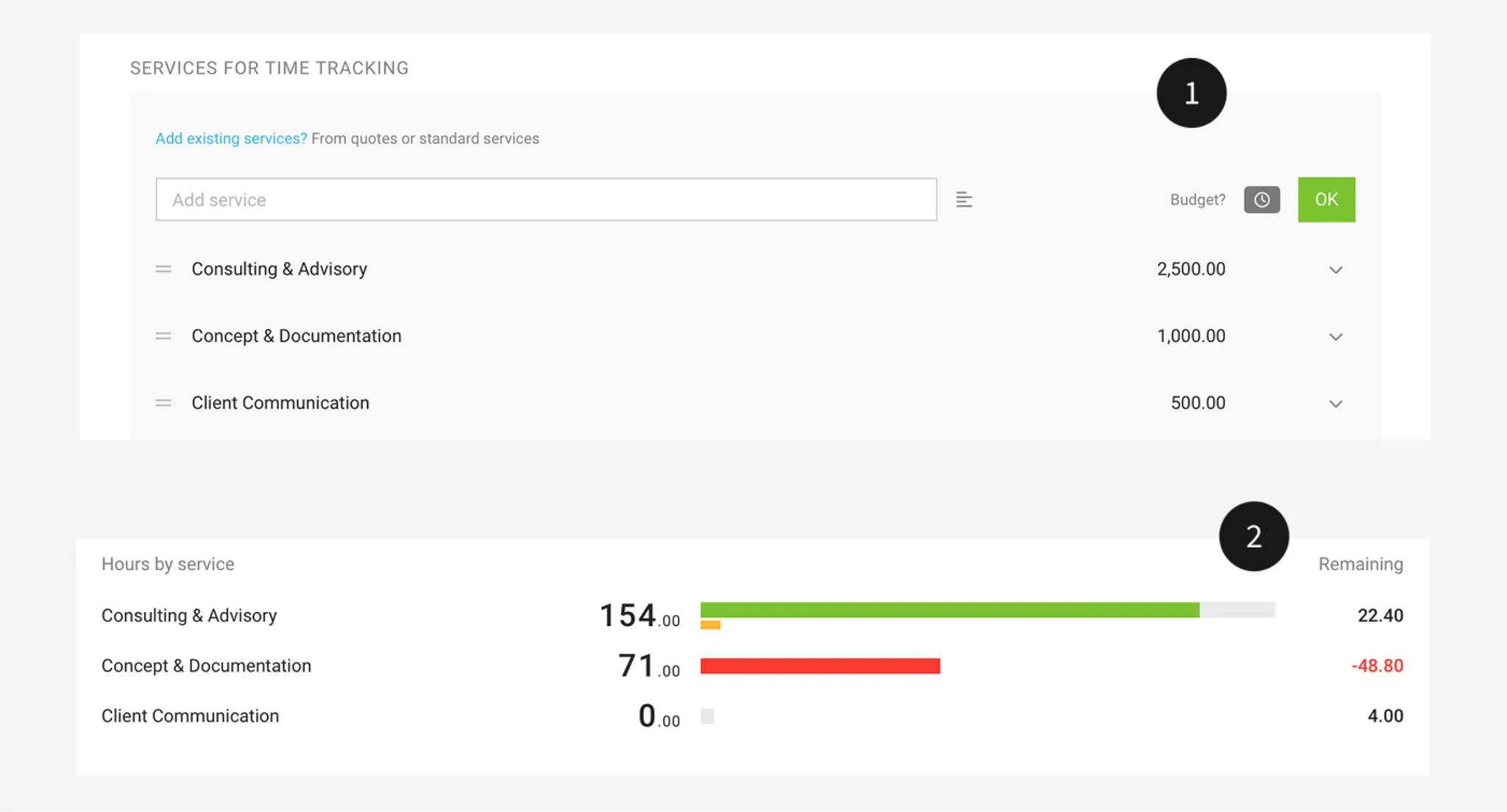
If needed, you can budget services or employees (1). If services are taken from a quote for time tracking, MOCO sets the budgets automatically.
» Budget monitoring in the Project Report (2) – including notification options.
» For budgeted services, if enabled, the remaining budget is shown as remaining hours in time tracking.
If you enter the budget manually, this is usually done as an amount (in line with your quote) – or in hours (the number of hours plus an "h" – MOCO then calculates the amount automatically). For the budget to be calculated unambiguously, the project must have a single hourly rate, or the hourly rate must be defined for the relevant service or person.
» Budget monitoring in the Project Report (2) – including notification options.
» For budgeted services, if enabled, the remaining budget is shown as remaining hours in time tracking.
If you enter the budget manually, this is usually done as an amount (in line with your quote) – or in hours (the number of hours plus an "h" – MOCO then calculates the amount automatically). For the budget to be calculated unambiguously, the project must have a single hourly rate, or the hourly rate must be defined for the relevant service or person.
Project Groups
Large projects – such as budgets or campaigns – are usually broken down into smaller sub-projects. In MOCO, sub-projects are simply standard projects. A group consists of selected projects.
Creating Project Groups
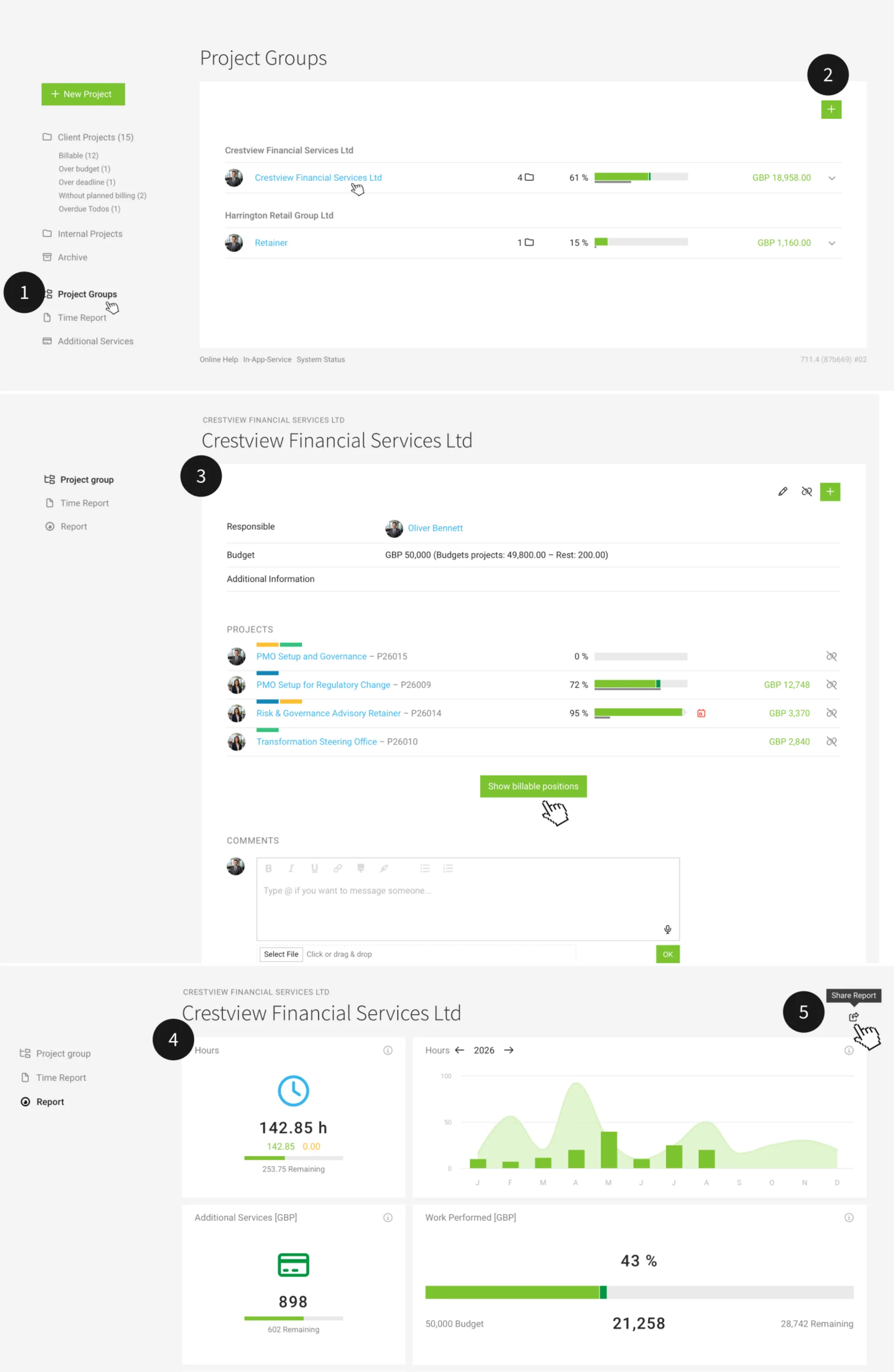
Enable Project Groups in Settings under "Projects". A new navigation item, "Project Groups" (1), will then appear under "Projects". This is where you can create (2) and manage project groups.
Custom Fields
The project group details (3) can also be extended to suit your needs via Custom Fields.
Custom Fields
The project group details (3) can also be extended to suit your needs via Custom Fields.
Controlling and Reporting
Budget
The budget is the total amount, for example the overall budget, and you assign projects to it step by step. If you do not enter a budget, it is automatically calculated from the budgets of the assigned projects.
Tracking Progress on Work and Billing
As in the Project List, the budget bar shows progress on work and Billing (3).
Timesheet
In the project group side menu, as on the client and project levels, you will find the Timesheet. It lets you create a PDF for the client, as well as correct or reallocate entries.
Report
The report for the project group is similar to the Project Report and provides information on total hours, profitability, etc. at group level (4). Like the project report, it can be shared with the client (5).
The budget is the total amount, for example the overall budget, and you assign projects to it step by step. If you do not enter a budget, it is automatically calculated from the budgets of the assigned projects.
Tracking Progress on Work and Billing
As in the Project List, the budget bar shows progress on work and Billing (3).
Timesheet
In the project group side menu, as on the client and project levels, you will find the Timesheet. It lets you create a PDF for the client, as well as correct or reallocate entries.
Report
The report for the project group is similar to the Project Report and provides information on total hours, profitability, etc. at group level (4). Like the project report, it can be shared with the client (5).
Billing a Project Group
In the list under "Project Groups", click the green billable amount on the right to create a consolidated invoice straight away – just as you are used to in the Project List. Alternatively, on the project group detail page, you can also use "Show Billable Items" (see 3).
Filters, Smart Filters, Labels
Filter (1)
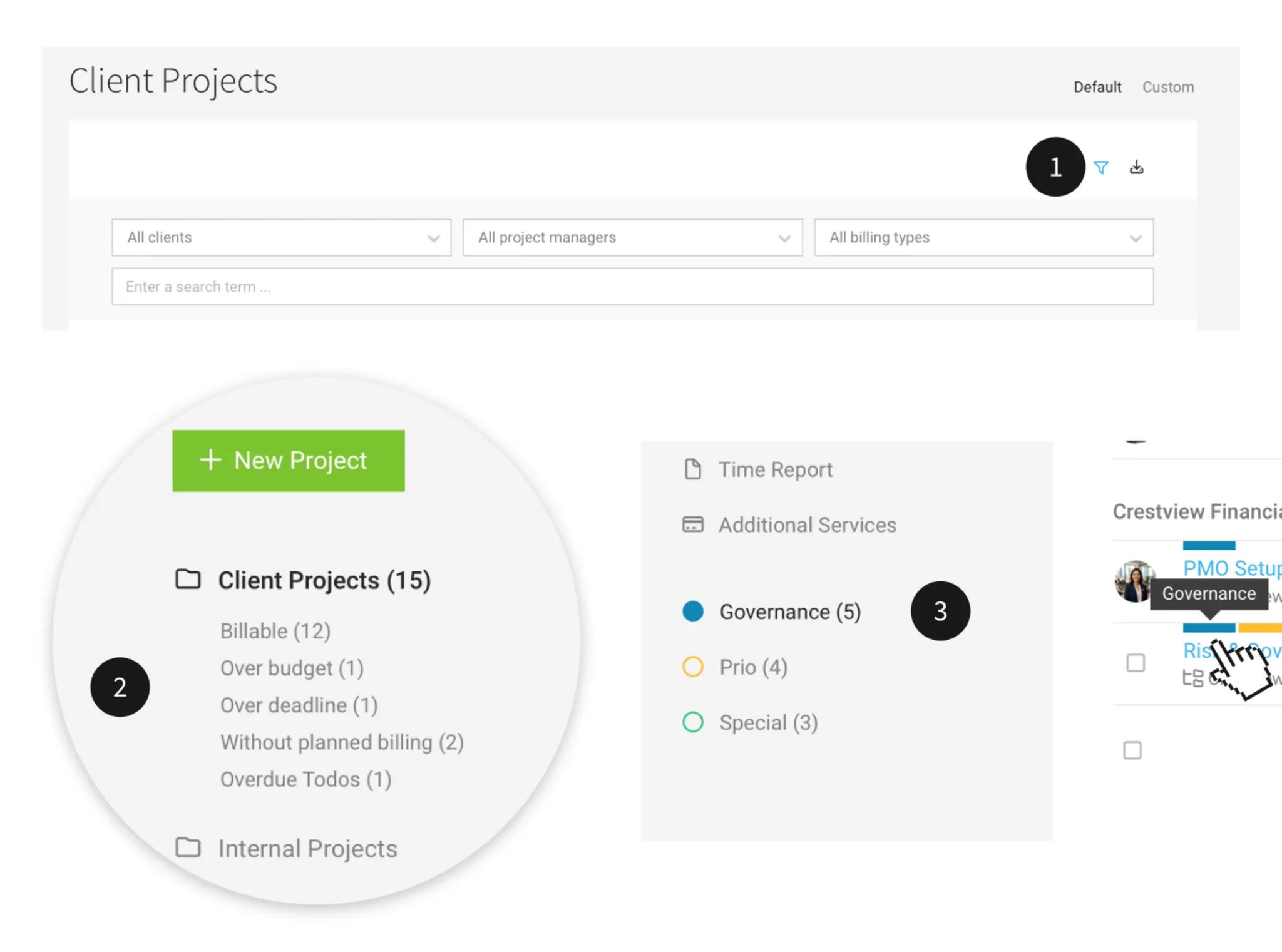
Projects can be filtered individually. The filter option opens when you click the filter icon at the top right – or even better: press "F" on your keyboard.
Keyboard shortcuts for quick filtering:
F = Toggle filter on and off
Q = My Projects
Keyboard shortcuts for quick filtering:
F = Toggle filter on and off
Q = My Projects
Smart Filter (2)
Targeted filtering for task completion
MOCO uses Smart Filters to highlight projects with specific characteristics. Typically, an action is required here, such as exceeding the budget, approaching the deadline, billable, or lacking a billing plan. Clicking on the small navigation point filters these projects specifically. You can also choose to receive notifications for these matters.
"Without Label" is optional
"Without Label" is optional
Labels (3)
Mark or categorise projects
With the help of Labels, projects are categorised or colour-coded. This allows for targeted filtering and analysis.
Example Application 1
For personal workflows, projects can be temporarily marked. For instance, the project manager marks the project with the label "Completed" as a signal to the accounting department that the Invoice can be issued. The accounting department can then click on the label to display only these projects.
Example Application 2
Labels are popular for projects handled under a pure hosting contract. Simply create a "Hosting" label and label all relevant projects accordingly. Since the chosen filtered view is saved until the next visit, you can also hide hosting projects by selecting all other labels collectively.
Example Application 1
For personal workflows, projects can be temporarily marked. For instance, the project manager marks the project with the label "Completed" as a signal to the accounting department that the Invoice can be issued. The accounting department can then click on the label to display only these projects.
Example Application 2
Labels are popular for projects handled under a pure hosting contract. Simply create a "Hosting" label and label all relevant projects accordingly. Since the chosen filtered view is saved until the next visit, you can also hide hosting projects by selecting all other labels collectively.
Project Report and Profitability
In Project > Report
or click the progress bar in the project list
or click the progress bar in the project list
Current Project Status
The project report gives you a clear overview of all the key information on the current project status.
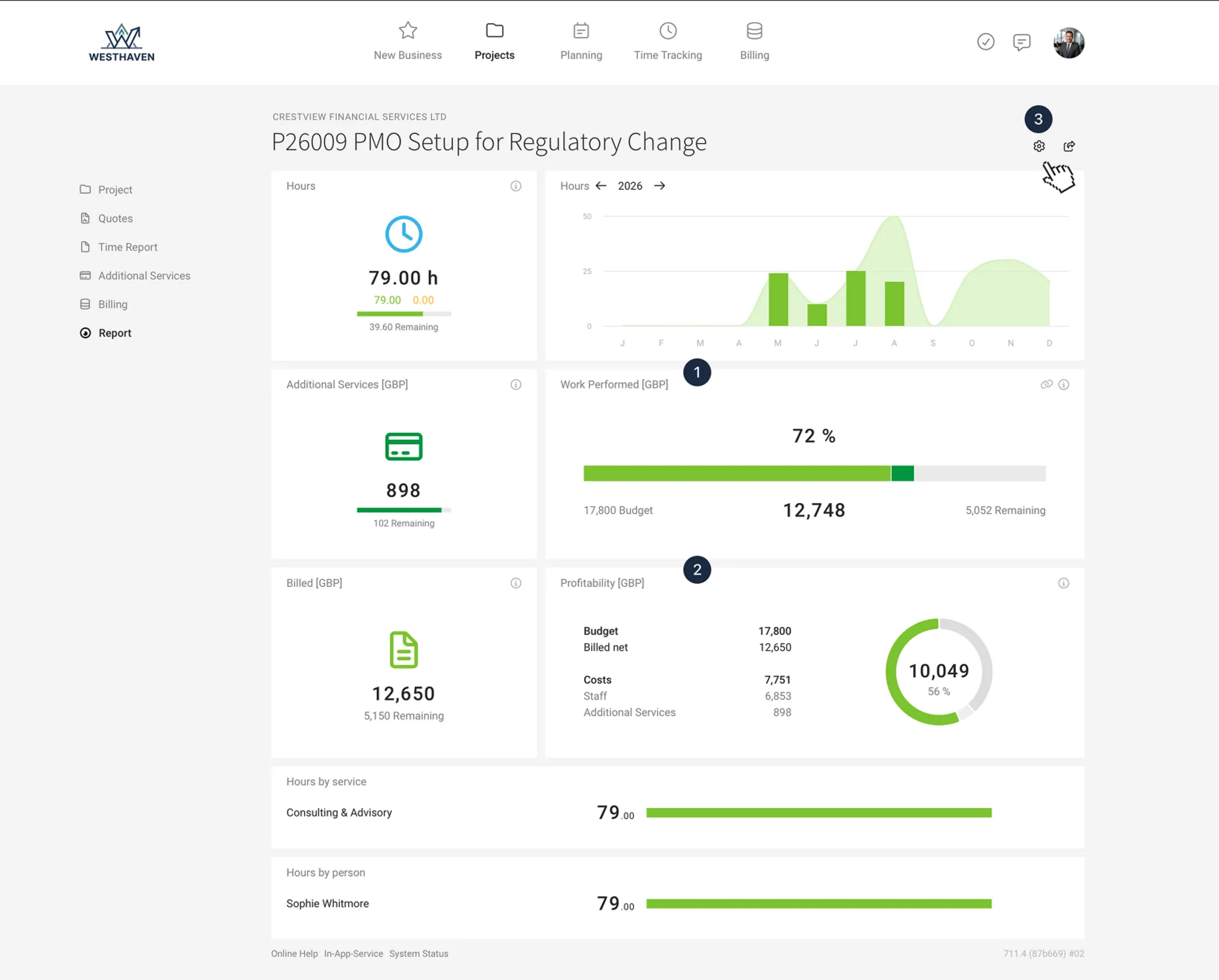
Der Projektbericht bezieht sich immer auf das gesamte Projekt. Über den Jahreswechsler wechselt nur die monatliche Betrachtung oben rechts. Das "i" rechts oben in den Berichte-Feldern informiert zur Zusammensetzung.
Additional option: Progress
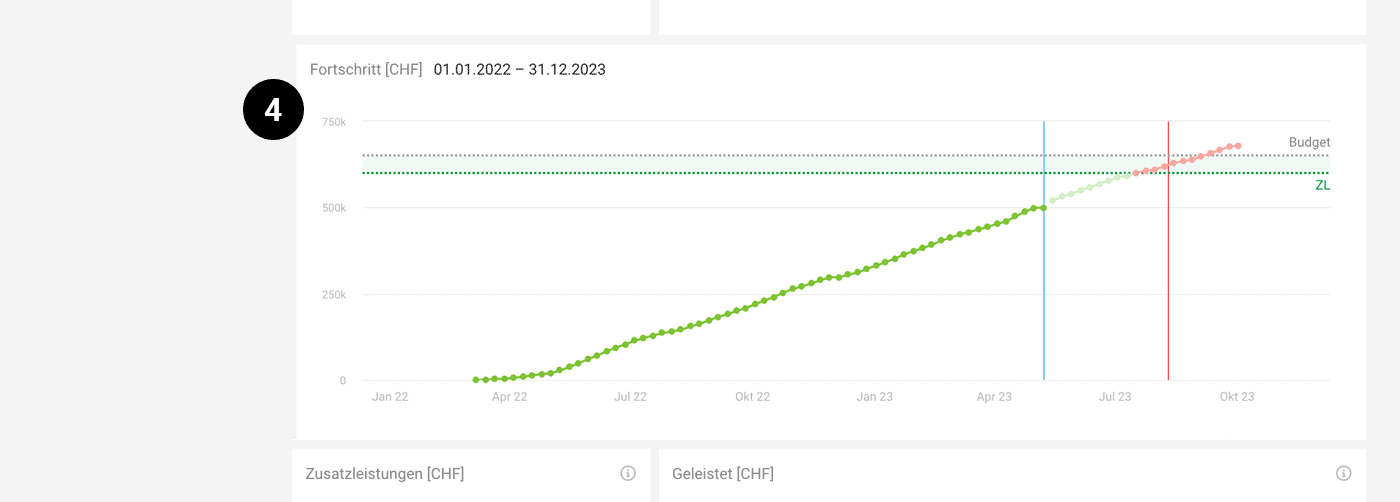
If it makes sense for the project, you can also show the (4) “Progress” field via the setting in the top right (3). Progress compares the total work delivered/planned with the budget on a timeline. The blue line shows today’s date; the red line shows the optional target date.
 (English image not yet available)
» More detailed explanation of the project report fields
Share the Project Report
You can share a restricted view with the client (top right – 3).
Profitability
Revenue vs costs. MOCO uses the budget for the profitability view while the project is active and the billed amount has not yet exceeded the budget. You can change this in the settings (Settings > Projects).
Compare All Projects
Location: Reports > Projects
Compare All Projects
Location: Reports > Projects
The overall report quickly shows which projects are performing particularly well or poorly in terms of profitability.
» Go to the report for all projects
» Go to the report for all projects
Delivered / Planned
In the “Delivered / Planned” tab, you can check whether work is on track. For each person, all planned and delivered hours are listed for the selected period.
The table shows, per person: delivered hours, planned hours, the difference between them, and the completion rate as a percentage (delivered / planned). If hours were logged to the project that were not planned, no bar is shown.
The table shows, per person: delivered hours, planned hours, the difference between them, and the completion rate as a percentage (delivered / planned). If hours were logged to the project that were not planned, no bar is shown.
Timesheet
The timesheet in the project provides detailed information on all time entries
The project management can adjust entries here, create a PDF for the client, or perform individual evaluations via Excel export.
In addition to the project timesheet, there are also overarching timesheets
Globally, for project groups, and for the client.
» All information on timesheets
The project management can adjust entries here, create a PDF for the client, or perform individual evaluations via Excel export.
In addition to the project timesheet, there are also overarching timesheets
Globally, for project groups, and for the client.
» All information on timesheets
Integrate External Projects
If a portion of your project is being handled by a partner company, you can keep track of the overall progress of your project through a linkage.
Here's how to link sub-projects managed by a partner company:
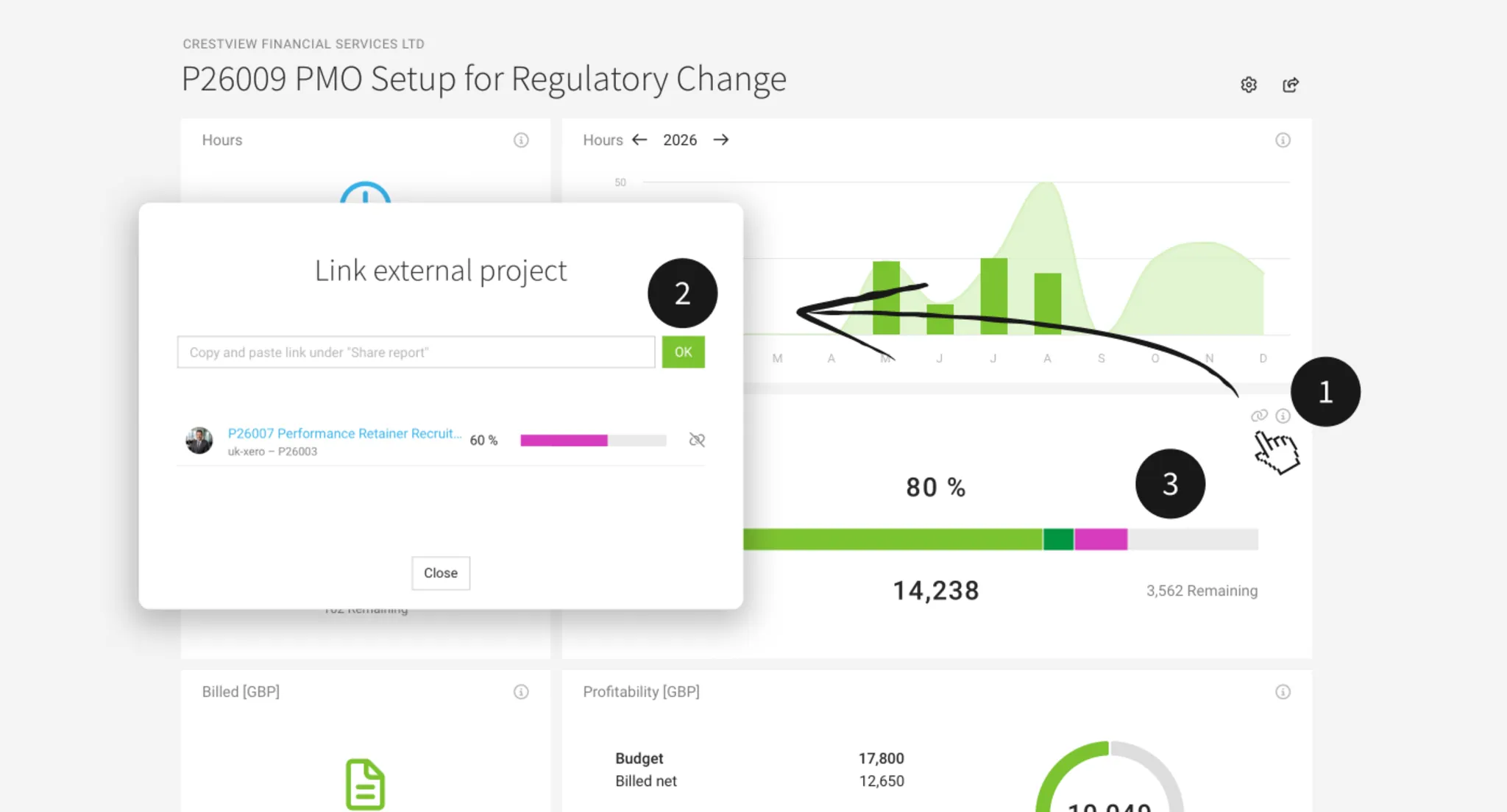
In the project report, under the "Completed" tile, you can enter the external project via the "Link" icon (1) using a link (2). The progress of the external project will then be included in your own project's progress. It is visible in both the project report and the project list – and it also affects the project progress notifications.
Where do I get the link?
To link an external MOCO project, you need the shared link to the project report. This can be activated and copied at the top right of the project report. Ask your partner to provide you with this link.
Good to know
Where do I get the link?
To link an external MOCO project, you need the shared link to the project report. This can be activated and copied at the top right of the project report. Ask your partner to provide you with this link.
Good to know
- If the expected external costs are set up as an additional service (as we recommend for freelancers), the additional service should be declared as "not in the budget" to avoid double counting the budget.
- The status of the external budget is synchronized every four hours.
- Internal projects cannot be linked. Use project groups for this purpose.
- Both projects – your own and the external – must be in the same currency.








