Individual Reports
Project & Project Group | Client & Supplier | Person | Team | SectionProject & Project Group
Project > Report
Tip: Quick Access to Project Report
Simply click on the budget progress bar in the project list to go directly to the project report:
 (English image not yet available)
Tip: Quick Access to Project Report
Simply click on the budget progress bar in the project list to go directly to the project report:
(English image not yet available)Der Projektbericht bezieht sich immer auf das gesamte Projekt. Über den Jahreswechsler wechselt nur die monatliche Betrachtung oben rechts. Das "i" rechts oben in den Berichte-Feldern informiert zur Zusammensetzung.
Explanation of Project Report Fields (from left to right)
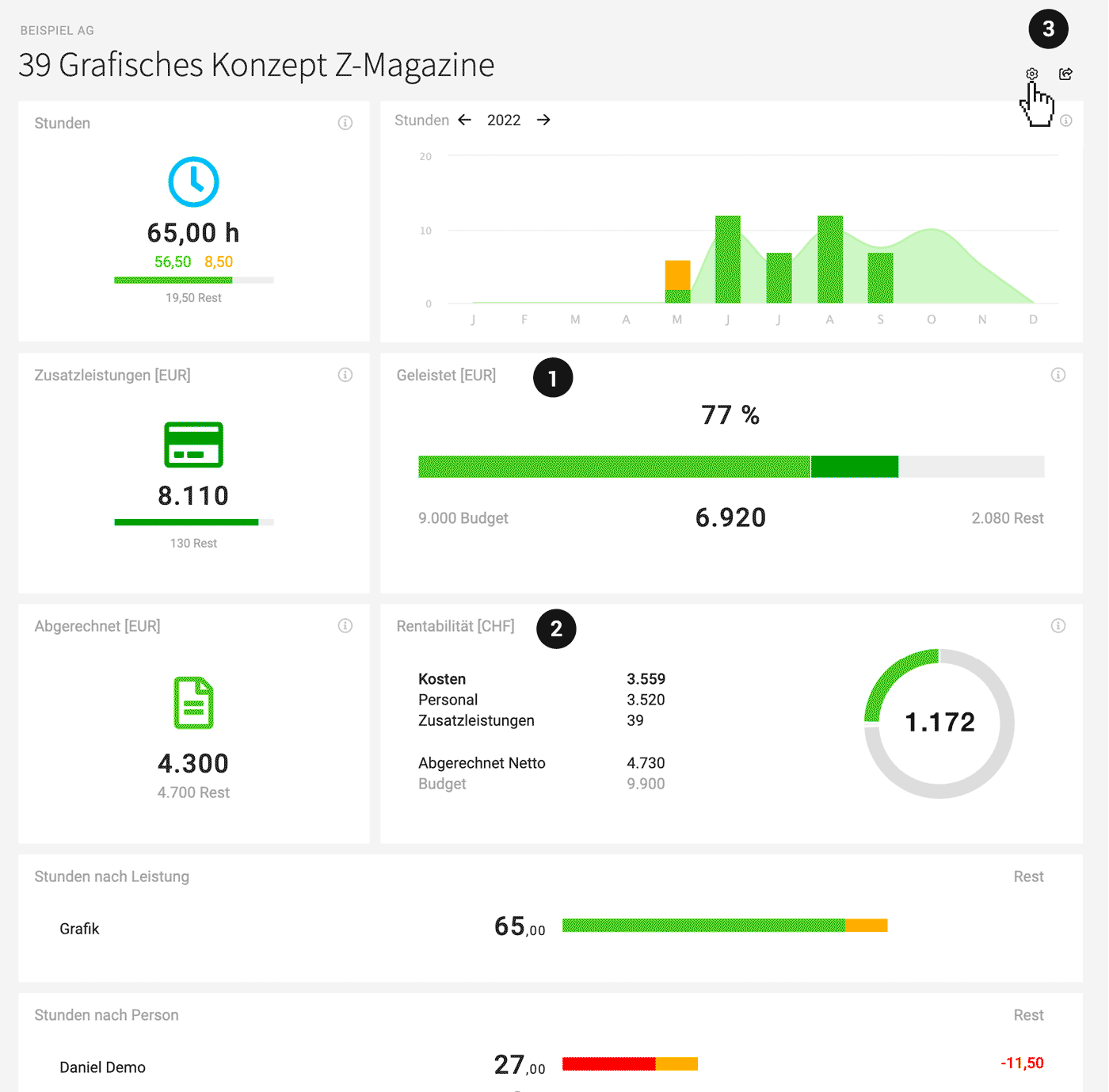
Hours
Total hours worked, share of billable and non-billable hours, and remaining hours if the project was budgeted. Also, hours and amounts per month. Planned hours are shown as a light green curve for comparison.
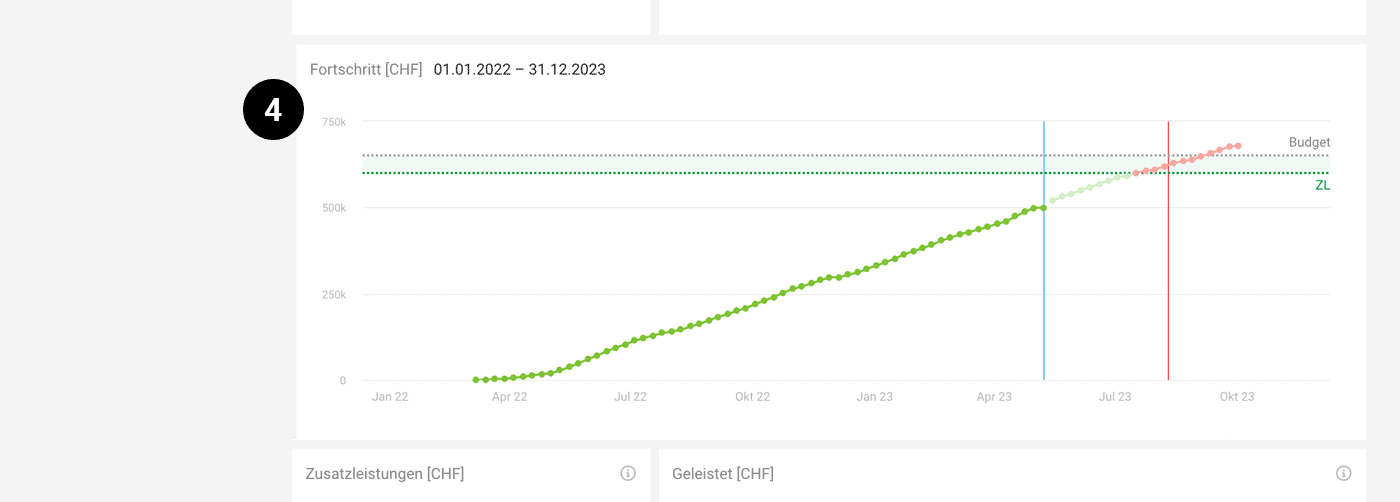
Progress
If relevant for the project, you can display the "Progress" field (4) via the setting at the top right (3). Progress compares the total completed/planned services with the budget over the timeline. The blue line indicates the current day – the red line shows the optional target date.
 (English image not yet available)
Additional Services
Total recorded additional services (sales price) and remaining amount if a partial additional service budget was recorded.
Completed (1)
With the recorded budget (price offered to the client), this shows what has already been completed and how much budget is left. It is one of the most important control tools to ensure a project stays on track. Typically, you proactively discuss with the client when the budget is nearly exhausted but the project is not yet complete. Individual notification options are available for budget progress.
Invoiced
Shows the amount invoiced so far. The recorded budget is displayed informatively below. However, more than the budgeted amount can be invoiced – for example, if external costs are billed based on effort.
Profitability (2)
This is about the internal view (always calculated in the account currency). All internal costs are compared to revenues (or in an ongoing project, to the budget as expected revenue – the standard can be defined in the settings – and the calculation can be switched with a click). Don't forget: To calculate personnel costs, record the internal hourly rate.
Hours by Service
Completed and remaining, if the service was budgeted.
Hours by Person
Completed and remaining, if the person was budgeted.
Hours by Month
Completed and remaining. This field is only displayed with a monthly budget (retainer or hour contingent).
Total hours worked, share of billable and non-billable hours, and remaining hours if the project was budgeted. Also, hours and amounts per month. Planned hours are shown as a light green curve for comparison.
Progress
If relevant for the project, you can display the "Progress" field (4) via the setting at the top right (3). Progress compares the total completed/planned services with the budget over the timeline. The blue line indicates the current day – the red line shows the optional target date.
(English image not yet available)Additional Services
Total recorded additional services (sales price) and remaining amount if a partial additional service budget was recorded.
Completed (1)
With the recorded budget (price offered to the client), this shows what has already been completed and how much budget is left. It is one of the most important control tools to ensure a project stays on track. Typically, you proactively discuss with the client when the budget is nearly exhausted but the project is not yet complete. Individual notification options are available for budget progress.
Invoiced
Shows the amount invoiced so far. The recorded budget is displayed informatively below. However, more than the budgeted amount can be invoiced – for example, if external costs are billed based on effort.
Profitability (2)
This is about the internal view (always calculated in the account currency). All internal costs are compared to revenues (or in an ongoing project, to the budget as expected revenue – the standard can be defined in the settings – and the calculation can be switched with a click). Don't forget: To calculate personnel costs, record the internal hourly rate.
Hours by Service
Completed and remaining, if the service was budgeted.
Hours by Person
Completed and remaining, if the person was budgeted.
Hours by Month
Completed and remaining. This field is only displayed with a monthly budget (retainer or hour contingent).
Share Project Report
Using the small arrow at the top right (3), the project report (limited view!) can be shared with the client. This enhances collaborative work and reduces tedious monthly reporting.
Project Group
Subprojects correspond to regular projects in MOCO. These individual projects can be grouped into a project group. The project group report considers assigned projects as a whole.
Client & Supplier
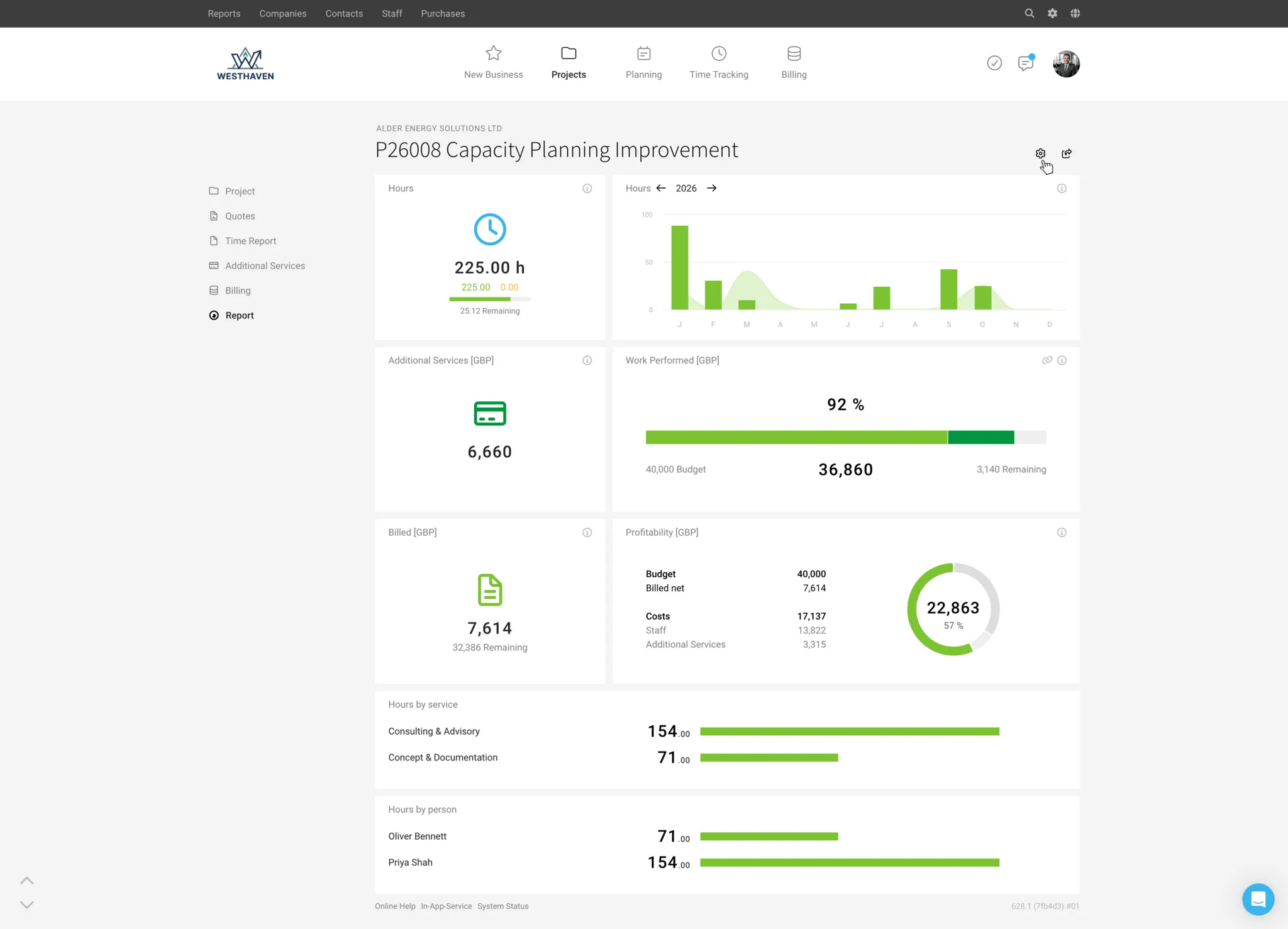
You can find the report for a client or supplier under "Report".
Tip: You can quickly jump to a company using "/" on your keyboard (global search)
Example Client Report
Tip: You can quickly jump to a company using "/" on your keyboard (global search)
Example Client Report
Das "i" rechts oben in den Berichte-Feldern informiert zur Zusammensetzung.
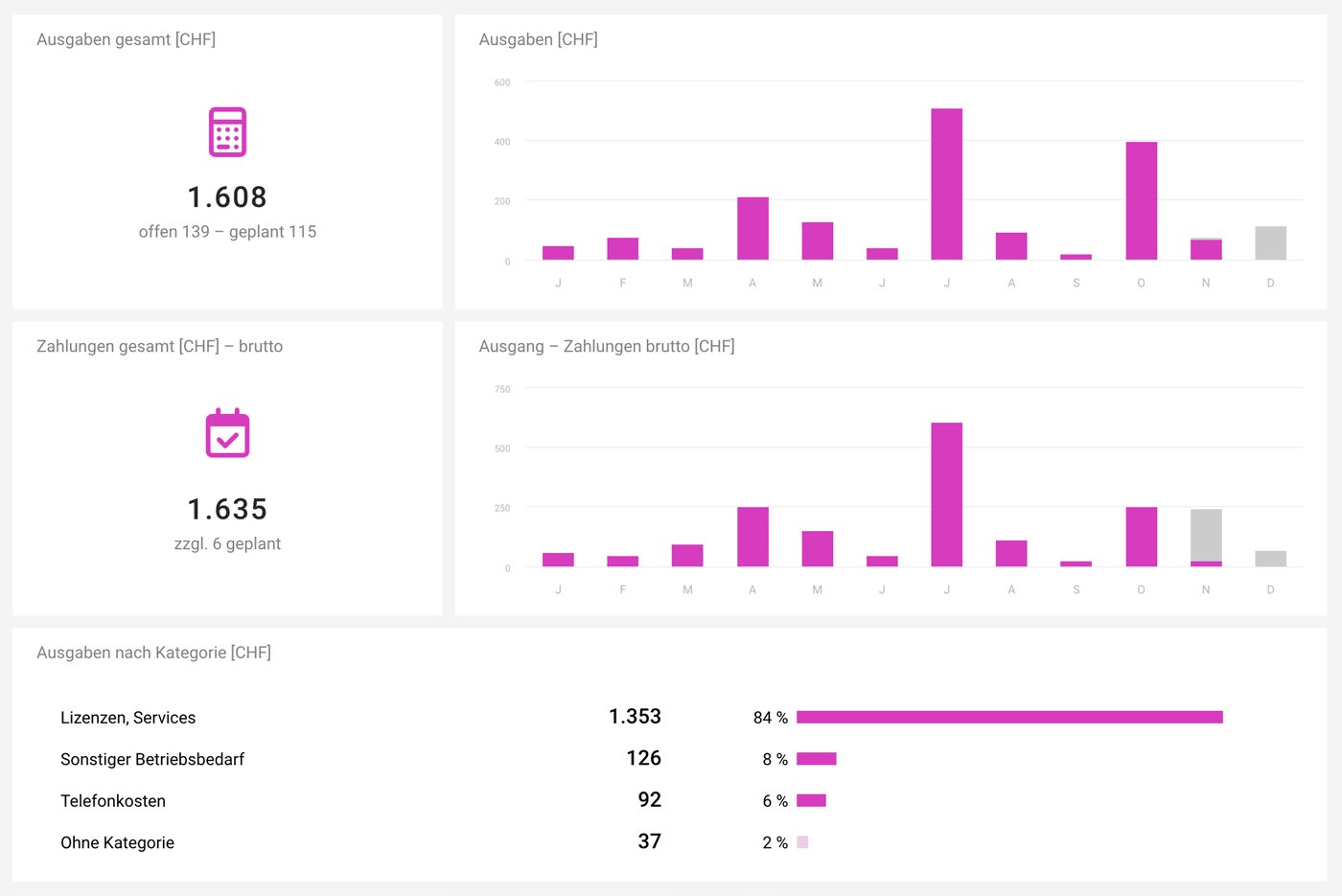
Example Supplier Report
 (English image not yet available)
Person
Under "Personnel" > Select Person > "Report". Hours, billability, etc., are visualised here for the selected year.
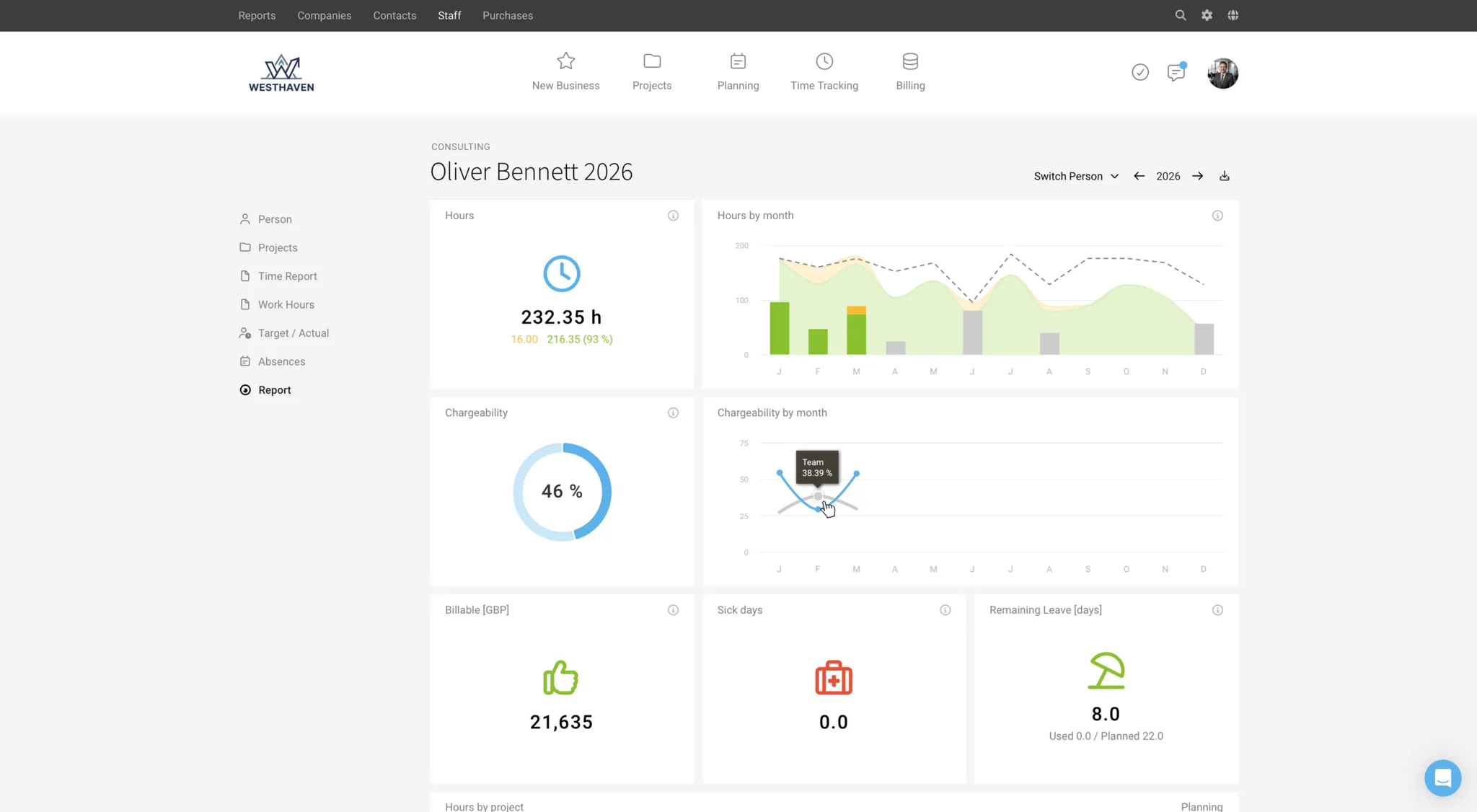
More detailed figures are displayed when you hover with the mouse. The "i" at the top right of the report fields provides information on the composition.
Additional Reports and Exports for the Person
- Timesheet All recorded project hours can be filtered and exported.
- Working Hours (visible if activated) An overview of the employee's attendance and break times.
- Target-Actual Graphical evaluation by month and year. In the Excel export, daily target hours, absences, working hours, and project times are listed.
- Holiday The holiday account with an annual calendar
Team
Personal > Teams > select the team and then in the submenu "Report"
Tip: Faster access to the team report
You can get there quicker using the global search: Keyboard shortcut "/" -> Enter team name
Hours on the left: Total recorded, share of billable and non-billable for the selected year
Hours on the right: Recorded per month, share of billable and non-billable. Includes amount. Comparison with the plan
Billability: Total and per month. Compared to the average across the entire company. (Calculation: Recorded billable hours compared to target hours – absences are considered except sick days)
Billable: Total amount of all recorded billable hours. Regardless of whether and how they were invoiced.
Invoiced: Amount of created invoices (net). Currently billable amounts as additional info if available.
Work at hand: Sum of the remaining project budgets = not yet completed - a team member is project responsible.
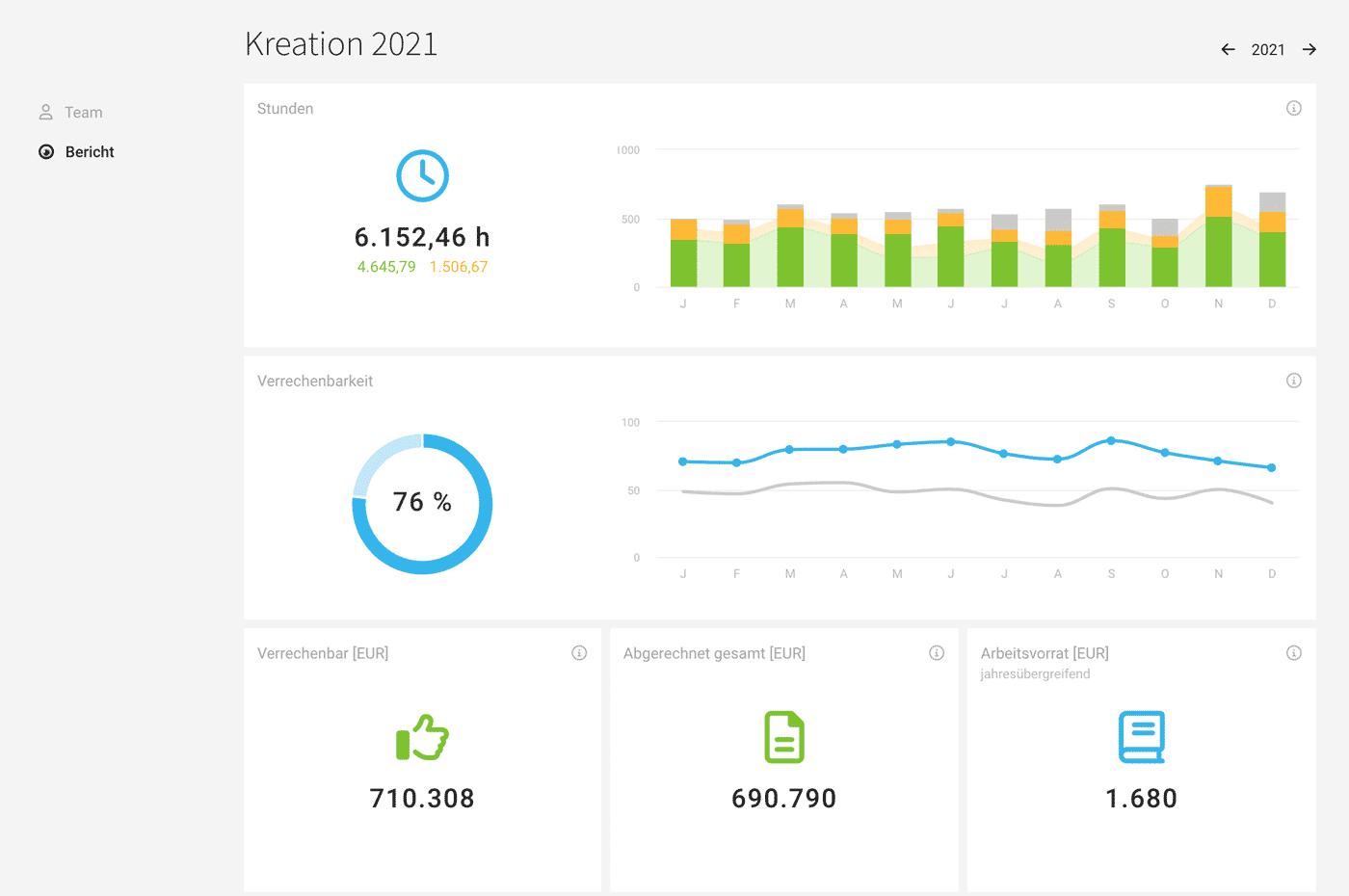 (English image not yet available)
Tip: Faster access to the team report
You can get there quicker using the global search: Keyboard shortcut "/" -> Enter team name
Hours on the left: Total recorded, share of billable and non-billable for the selected year
Hours on the right: Recorded per month, share of billable and non-billable. Includes amount. Comparison with the plan
Billability: Total and per month. Compared to the average across the entire company. (Calculation: Recorded billable hours compared to target hours – absences are considered except sick days)
Billable: Total amount of all recorded billable hours. Regardless of whether and how they were invoiced.
Invoiced: Amount of created invoices (net). Currently billable amounts as additional info if available.
Work at hand: Sum of the remaining project budgets = not yet completed - a team member is project responsible.
(English image not yet available)Genauere Zahlen werden bei Hover mit der Maus eingeblendet. Das "i" rechts oben in den Berichtefeldern informiert zur Zusammensetzung.
Section
Income
Billing > Report
Compact overview of income
Compact overview of income
Purchases
Purchases > Report
Compact overview of purchases
Compact overview of purchases
Leads
Sales > Leads > Report
Compact overview of leads with a visualised funnel, won/lost overview, activities, etc.
Compact overview of leads with a visualised funnel, won/lost overview, activities, etc.








