Projects – General Information
Client Projects & Internal Projects | Project Details | Project Management | Services & People | Copy, Archive, Delete | Info, History, File Upload, Communicating | External StaffClient Projects & Internal Projects
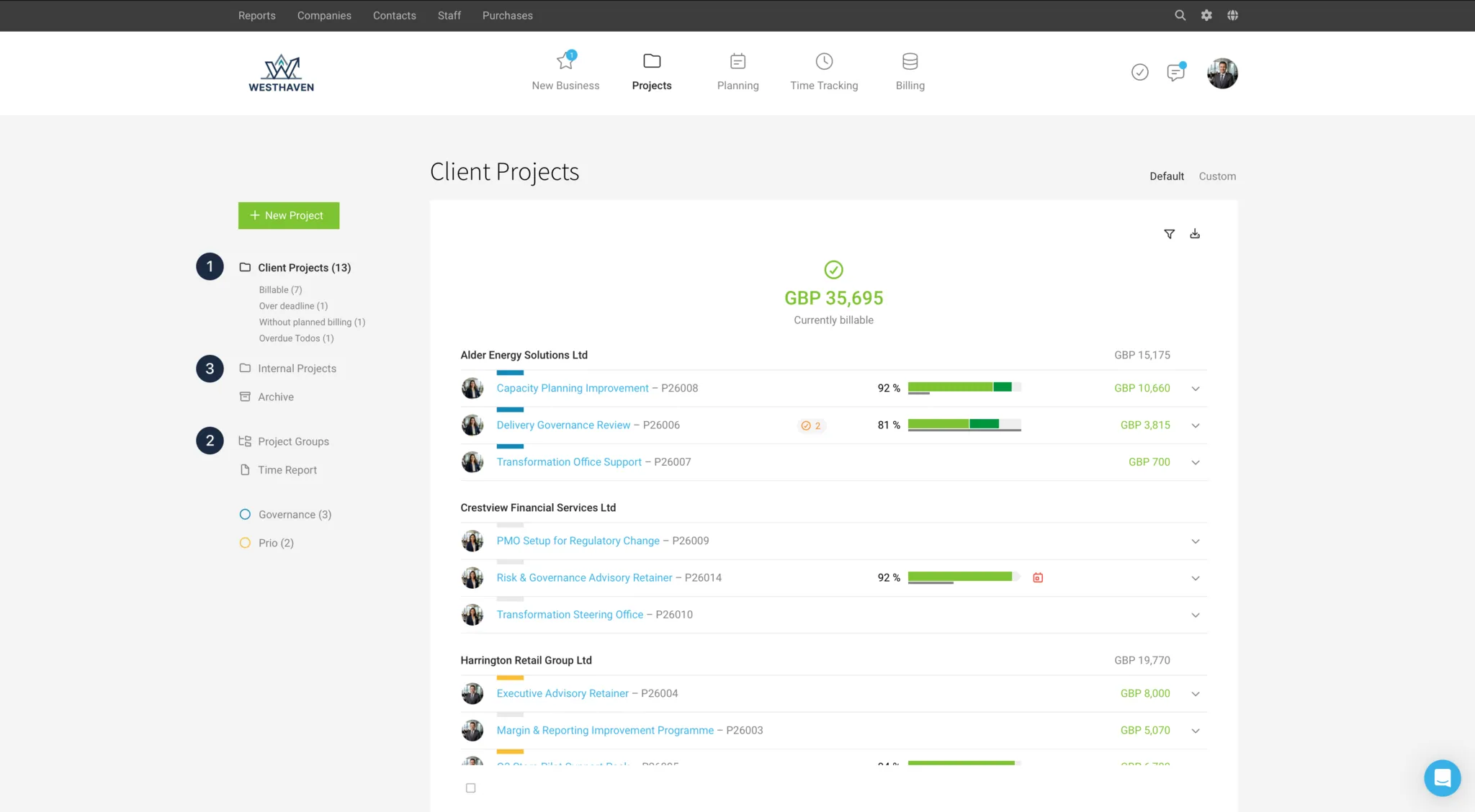
Client Projects
Record under "Projects" using the green button. If a client is selected, the project will be listed under "Client Projects" (1).
Internal Projects
If you select your own company as the client when creating a project, it creates an internal project. This will be listed under "Internal Projects" (3).
Internal projects are used to track internal efforts. For example, admin tasks, acquisition, HR, accounting, or an internal website. These non-billable services, such as acquisition efforts, can be reallocated to a client project later.
Subproject/Partial Project
Partial projects in MOCO are equivalent to regular projects. These individual projects can be grouped into a project group (2). Project groups must be activated in the settings beforehand.
Project with Invoices to Different Clients/Persons
Create the project under a neutral client "Example Name" for a compact evaluation – and then issue the invoices to the client contacts.
If you want to create projects for your own company that should be treated like client projects, add your own company as a client under "Companies" and select it for the project.
Project Details
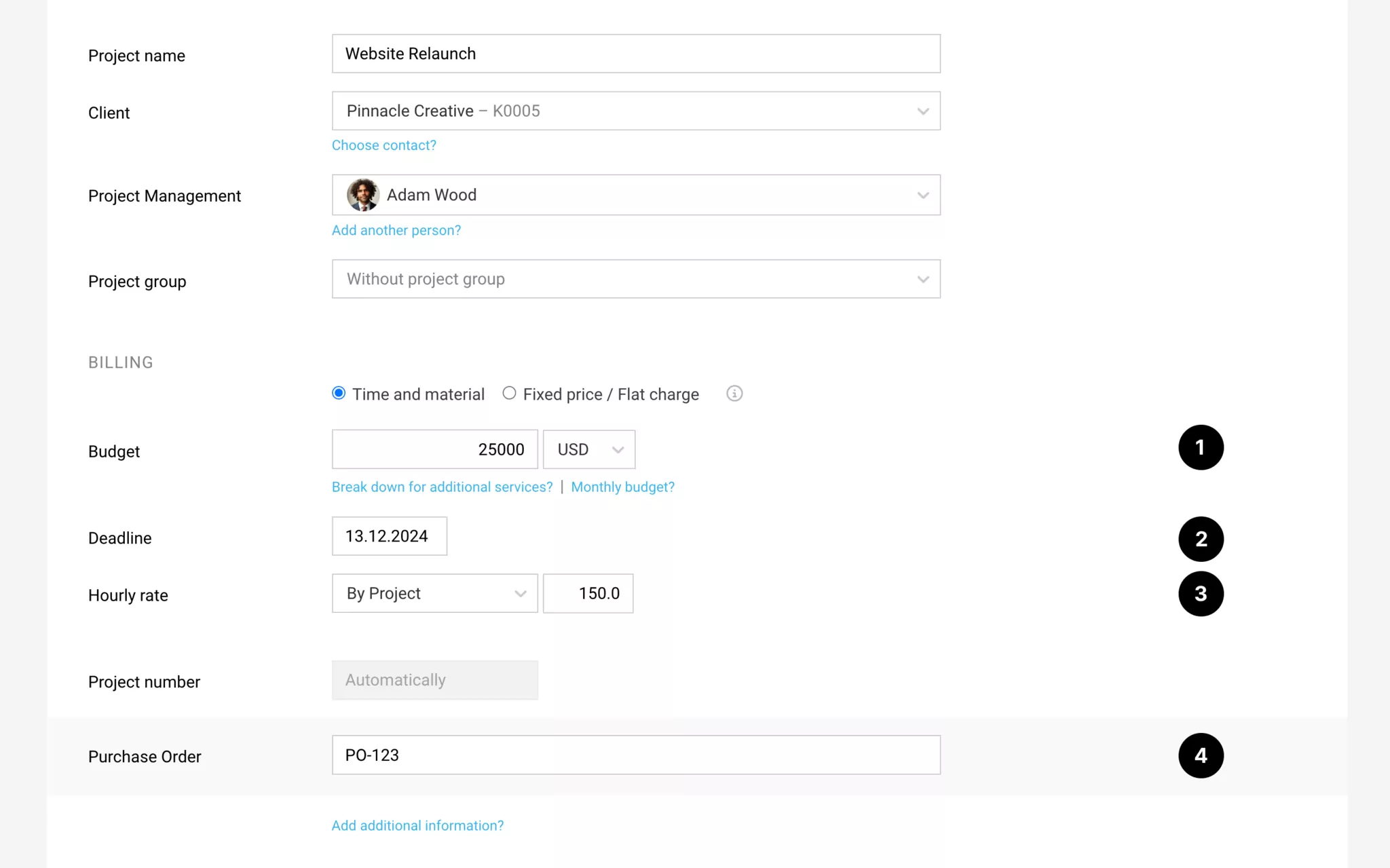
When you create a project, in addition to the project name, client, client contact (optional), and project manager, you define the following:
1) Project Type
You choose whether Billing is time and materials (time and materials project) or fixed fee/fixed price (fixed-price project).
By also selecting "Monthly budget?", you add either a monthly hours allowance or a retainer.
» Overview of All Project Types
Entering a budget (quote amount, cost cap from the client’s perspective) is optional. This is particularly important for projects where you need to keep a close eye on scope, and speak to the client in good time if things start to run away. More on budgeting
2) Target Date The optional target date is shown in the project list, and you can set up notifications for it.
3) Hourly Rate
Here you choose whether the quoted hourly rate is set by service, by person, or as a single standard rate. The stored standard hourly rates apply, or the client-specific rates you have defined as exceptions.
Make sure you also enter your internal hourly rates in Settings (what an hour of work costs you), as these are essential for profitability calculations.
» Store Standard Hourly Rates and Your Internal Hourly Rate
4) You can add forms via "Custom Fields". This information can also be included on the Invoice in the info block.
» Create Custom Fields and Learn More
» Store Standard Hourly Rates and Your Internal Hourly Rate
4) You can add forms via "Custom Fields". This information can also be included on the Invoice in the info block.
» Create Custom Fields and Learn More
Project Management
Each project is assigned a person under "Project Management".

This person
This person
- can use the keyboard shortcut "Q" in the project list to filter to their own projects in one go (alternatively via the filter option at the top right).
- with restricted project access rights, can only see their own projects.
- with restricted Billing access rights, can only bill their own projects.
- receives the various configurable project notifications.
- can, if required, be automatically shown as the contact on the invoice – in the info block or via the variables.
A second person can be assigned if needed (small blue link). This can be a deputy, or a team lead who, when filtering (Q) to their projects, will also see those of their team. With restricted project rights, this allows you to view and edit other people’s projects. The configured project notifications are also sent to the second person.
Services & People
Once the project has been saved, you can manage services and people in the detail view:
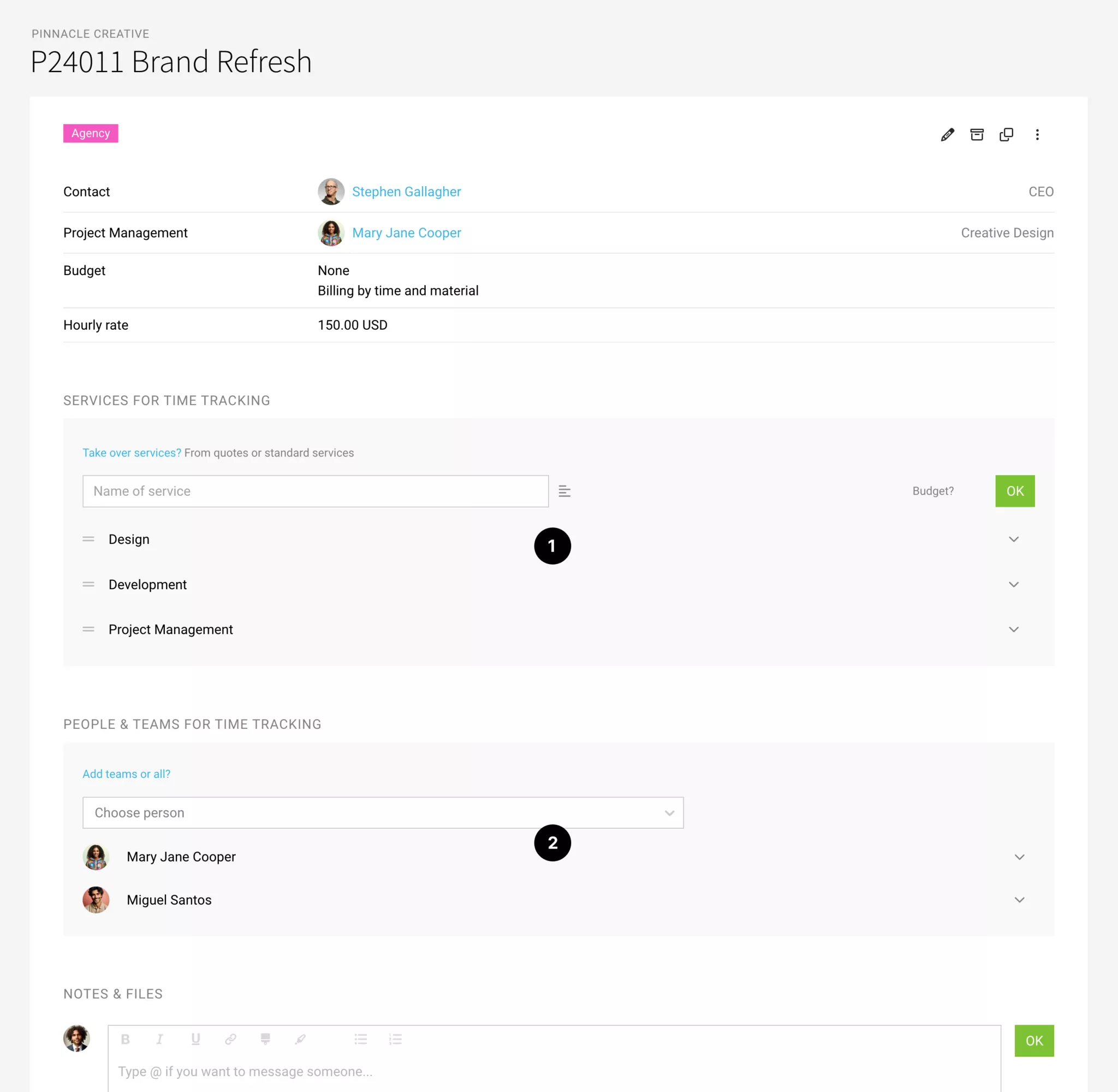
Services for Time Tracking
Select Services
When you create the project, the predefined and selected standard services for time tracking are filled in automatically. At least one service must be defined/active in the project for it to be available in time tracking.
Use the blue link “Apply Services?”
a) Select individual services or all services
b) Apply services from the quote – these are budgeted automatically accordingly.
When you create the project, the predefined and selected standard services for time tracking are filled in automatically. At least one service must be defined/active in the project for it to be available in time tracking.
Use the blue link “Apply Services?”
a) Select individual services or all services
b) Apply services from the quote – these are budgeted automatically accordingly.
The settings can also be carried over by copying a project.
Services cannot be restricted to specific users. However, MOCO remembers the last selected service for the project in time tracking.
Edit Services
- Delete: Available via the dropdown on the right, as long as no hours have been logged against it yet.
- Lock: Via the dropdown on the right. This service will then no longer be available in time tracking.
- Billable/non-billable – selectable via the dropdown on the right.
- Change the order of services: Drag and drop, just like with the standard services.
Additional Services In the project submenu “Additional Services”, you record all services that are independent of time tracking, e.g. third-party services, fixed fees, travel costs, subscriptions, etc. More detailed information
Service Categories
You can define categories and use them to analyse income (category, cost centre, revenue account). Enable Categories -> Assign Categories.
Service Categories
You can define categories and use them to analyse income (category, cost centre, revenue account). Enable Categories -> Assign Categories.
People & Teams for Time Tracking
Only the people you add will see the project in Time Tracking. When you create the project, the creator is automatically added as a person. If you want all people to be added by default, you can select this in Settings under “Projects”.
Assign Specific People or Teams
You can assign specific people, entire teams, or everyone. This reduces the project selection in time tracking for each employee and helps prevent incorrect entries.
In addition to the permanently defined Teams, which usually represent departments, you can also use Labels to mark temporary project teams and assign them with a single click.
In addition to the permanently defined Teams, which usually represent departments, you can also use Labels to mark temporary project teams and assign them with a single click.
Assign Specific or All Projects to a New User
Under “Staff” > Person > “Projects”, use the “+” at the top right to assign specific projects, or all projects, for time tracking.
Information on Assigned Projects
Each user sees their assigned projects listed in their Profile. This provides an overall view without any additional access rights to “Projects”, and independently of the time tracking selection.
Budgeting
In addition to the overall project and additional services, you can also budget individual services or people. MOCO then shows you progress in the project report and notifies you according to your settings.
More budgeting options and entry as an amount or in hours
More budgeting options and entry as an amount or in hours
Copy, Archive, Delete
Edit, Archive, Copy, Delete
You can edit, archive, copy, or delete a project either from the list via the dropdown on the right, or within the project itself at the top right.
.png.webp "Archiving a Project in MOCO")
Copy
Projects can be copied. The client and the properties to carry over are selected directly during the copy step.
Archive
Projects should be archived once they are complete (usually after the final invoice) (see illustration). During this step, MOCO informs you about any open items and quotes and, once you confirm, takes care of key steps for you when archiving a project:
You can edit, archive, copy, or delete a project either from the list via the dropdown on the right, or within the project itself at the top right.
Copy
Projects can be copied. The client and the properties to carry over are selected directly during the copy step.
Archive
Projects should be archived once they are complete (usually after the final invoice) (see illustration). During this step, MOCO informs you about any open items and quotes and, once you confirm, takes care of key steps for you when archiving a project:
- Open quotes are set to "ignored".
- Open items (hours and additional services) are marked as billed.
- Recurring additional services are paused.
Delete
Only empty projects can be deleted. Reallocate or delete any hours that may already exist.
Only empty projects can be deleted. Reallocate or delete any hours that may already exist.
Info, History, File Upload, Communicating
Additional Info: In the project, you can add further information in the project form under "Additional Info" (see the small blue link).
Billing Info: Under "Billing", you can set a billing address, email address, CC address, and a text note (carried through the entire Billing process) for the project that differs from the Client’s details (1).
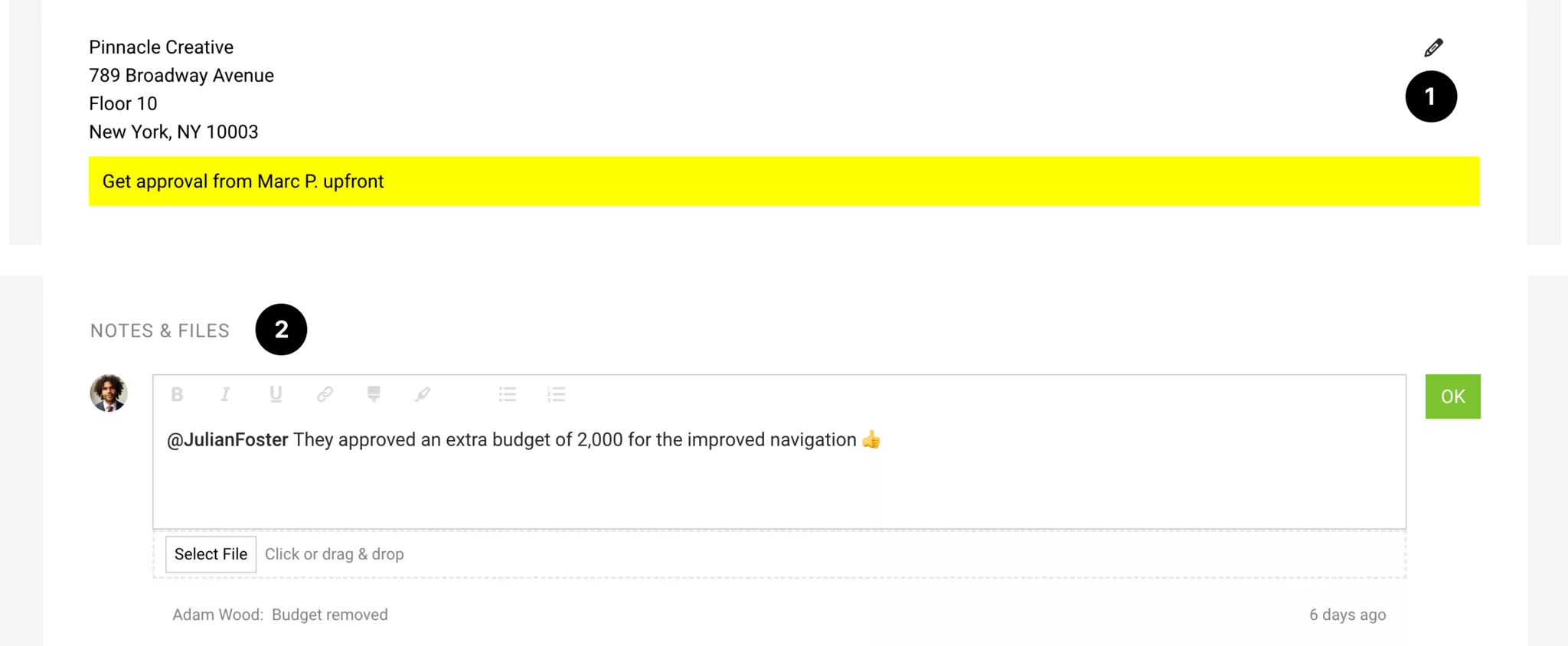
Comments: For notes or a project history, you can use the notes area. In this area, you can also upload informative files, or notify people (2). Tip: Enable the AI voice input option
Capture Custom Project Data: Depending on your needs, you can define general custom fields for the project. These can also be shown on an Invoice.
External Staff
These are usually the typical setups:
A) External staff log hours in MOCO
If, for example, freelancers bill their services by the hour, it is helpful if they log their hours in MOCO promptly.
→ This way, you can see the current budget progress (Delivered) at any time.
→ The hours can be billed directly, and you also have the timesheet.
If freelancers bill the hours 1:1, you can store this hourly rate as an internal hourly rate. However, do not assign the purchase invoice to the project.
If freelancers invoice differently from the hours logged, set the internal hourly rate to 0 and assign the freelancer’s invoice to the project as costs (with the property “not in budget”). If you do not use MOCO’s purchase invoice feature, log the invoice manually in the project as an Additional service.
→ This way, you can see the current budget progress (Delivered) at any time.
→ The hours can be billed directly, and you also have the timesheet.
If freelancers bill the hours 1:1, you can store this hourly rate as an internal hourly rate. However, do not assign the purchase invoice to the project.
If freelancers invoice differently from the hours logged, set the internal hourly rate to 0 and assign the freelancer’s invoice to the project as costs (with the property “not in budget”). If you do not use MOCO’s purchase invoice feature, log the invoice manually in the project as an Additional service.
B) External staff do NOT log hours in MOCO
When setting up the project, log the freelancer’s amount as an Additional service (or take the line item directly from the quote). This amount is then reserved in the budget progress (Delivered).
When the freelancer’s invoice arrives, assign it to the Additional service.
→ Either a) upload the invoice for traceability and adjust the cost amount if needed.
→ Or b) if you use MOCO’s purchase invoice feature: Assign a purchase to the Additional service. The receipt is linked automatically, and the costs are updated and locked.
When the freelancer’s invoice arrives, assign it to the Additional service.
→ Either a) upload the invoice for traceability and adjust the cost amount if needed.
→ Or b) if you use MOCO’s purchase invoice feature: Assign a purchase to the Additional service. The receipt is linked automatically, and the costs are updated and locked.








