The User Profile
Personal Menu | Switch to Another PersonPersonal Menu
A click on the profile picture at the top right leads to the profile section.
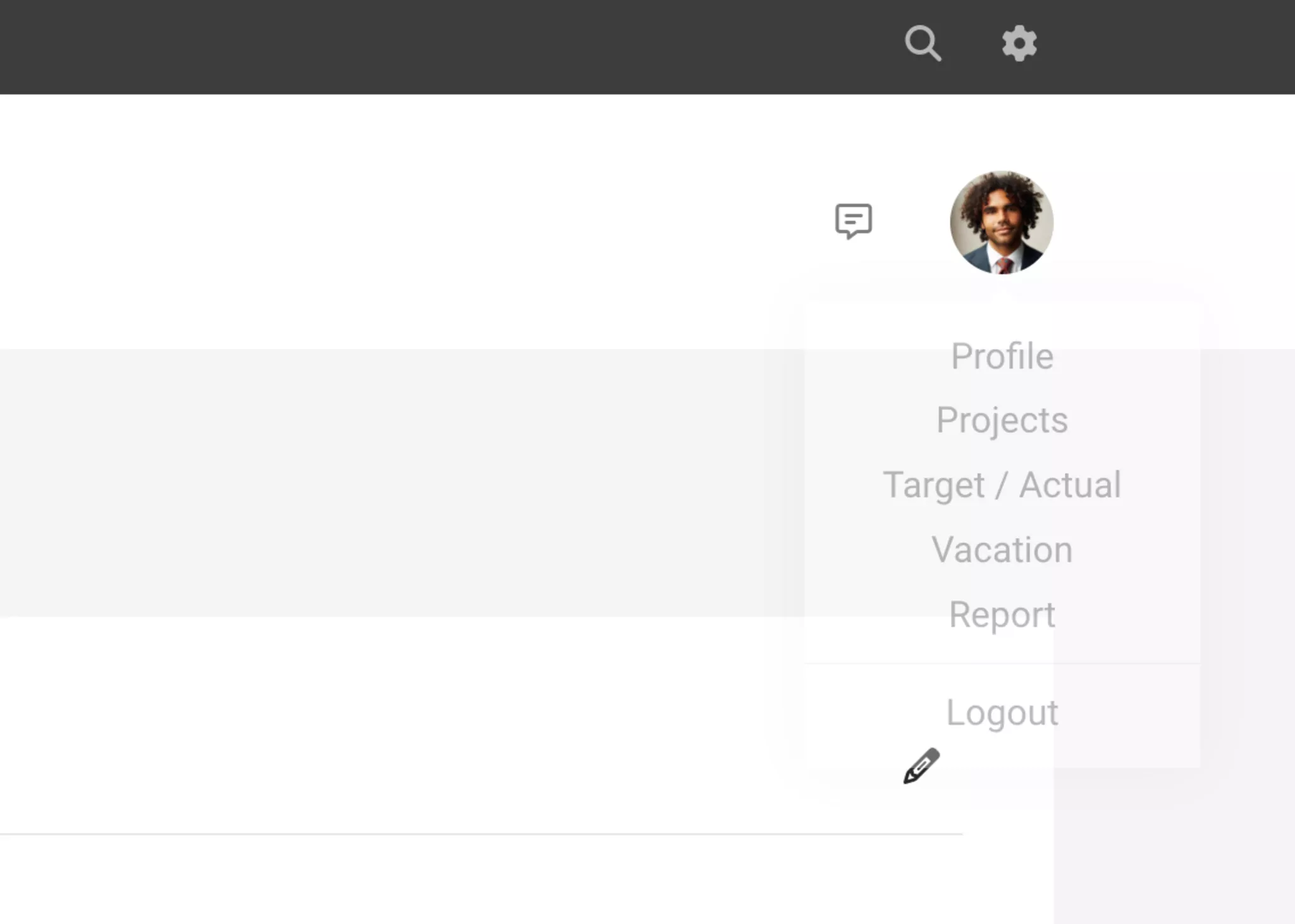
Profile: Personal profile settings (email, password, address, language, etc.), notification settings, predefined working hours, personal keys for integrations, etc.
Projects: Overview of assigned projects for time tracking
Personal expenses: Only displayed if the personal expenses feature is activated.
Target-Actual: Mirrored page from "Personal" without editing function
Projects: Overview of assigned projects for time tracking
Personal expenses: Only displayed if the personal expenses feature is activated.
Target-Actual: Mirrored page from "Personal" without editing function
Leave: Mirrored page from "Personal". The place where the leave request (activatable) is submitted.
Report: A comprehensive report on oneself similar to that under "Personal"
Logout: Log out from the account or another profile.
Report: A comprehensive report on oneself similar to that under "Personal"
Logout: Log out from the account or another profile.
Icons
Depending on the situation, icons are displayed to the left of the profile picture.
Speech bubble: Messages area
Red bell: Appears when MOCO informs about updates.
Globe: If a user is registered with the same email address in multiple accounts, they can easily switch between accounts using this icon.
Red bell: Appears when MOCO informs about updates.
Globe: If a user is registered with the same email address in multiple accounts, they can easily switch between accounts using this icon.
Switch to Another Person
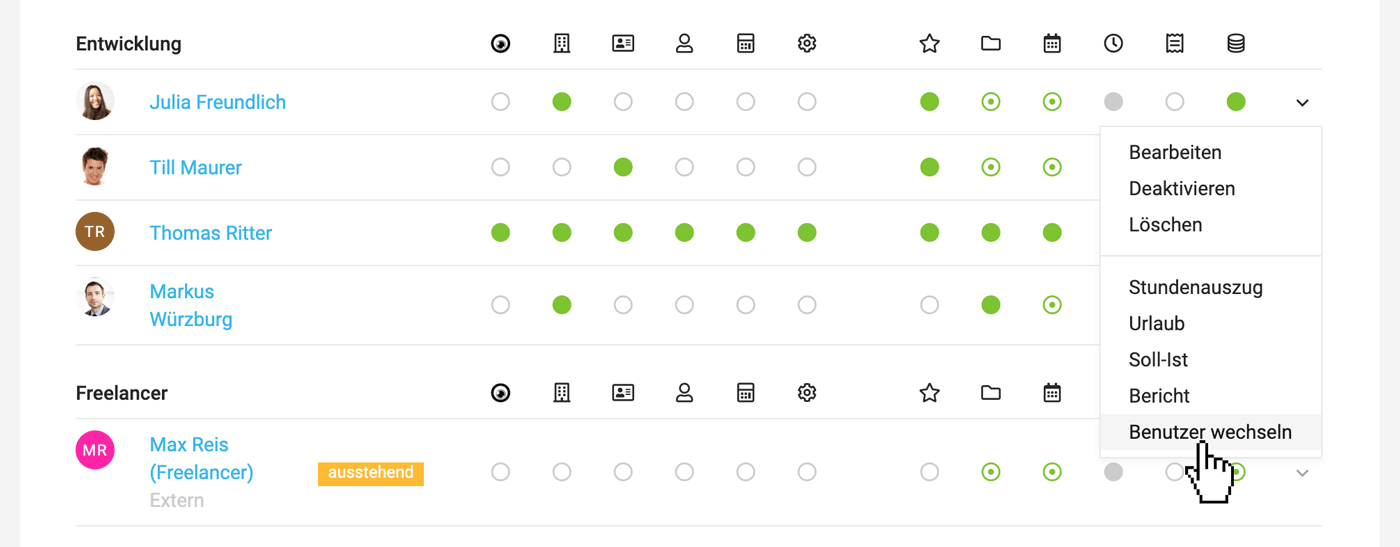
With access rights to "Personnel," you can switch to another person's MOCO. Simply select "Switch User" from the dropdown menu next to the target person in the personnel list on the right. Clicking on the orange notification bar or "Log out" will automatically return you to your own user profile.
This feature is useful, for example, when setting up access rights to easily view the perspective of the relevant user.
 (English image not yet available)
Exceptions
For security reasons, you cannot switch to the account owner's view. Switching to accounts with higher privileges is also not possible for security reasons.
This feature is useful, for example, when setting up access rights to easily view the perspective of the relevant user.
(English image not yet available)Exceptions
For security reasons, you cannot switch to the account owner's view. Switching to accounts with higher privileges is also not possible for security reasons.








