Record Expenditures
Workflow | Capture | Multiple Items | Fixed Costs | e-invoicesWorkflow
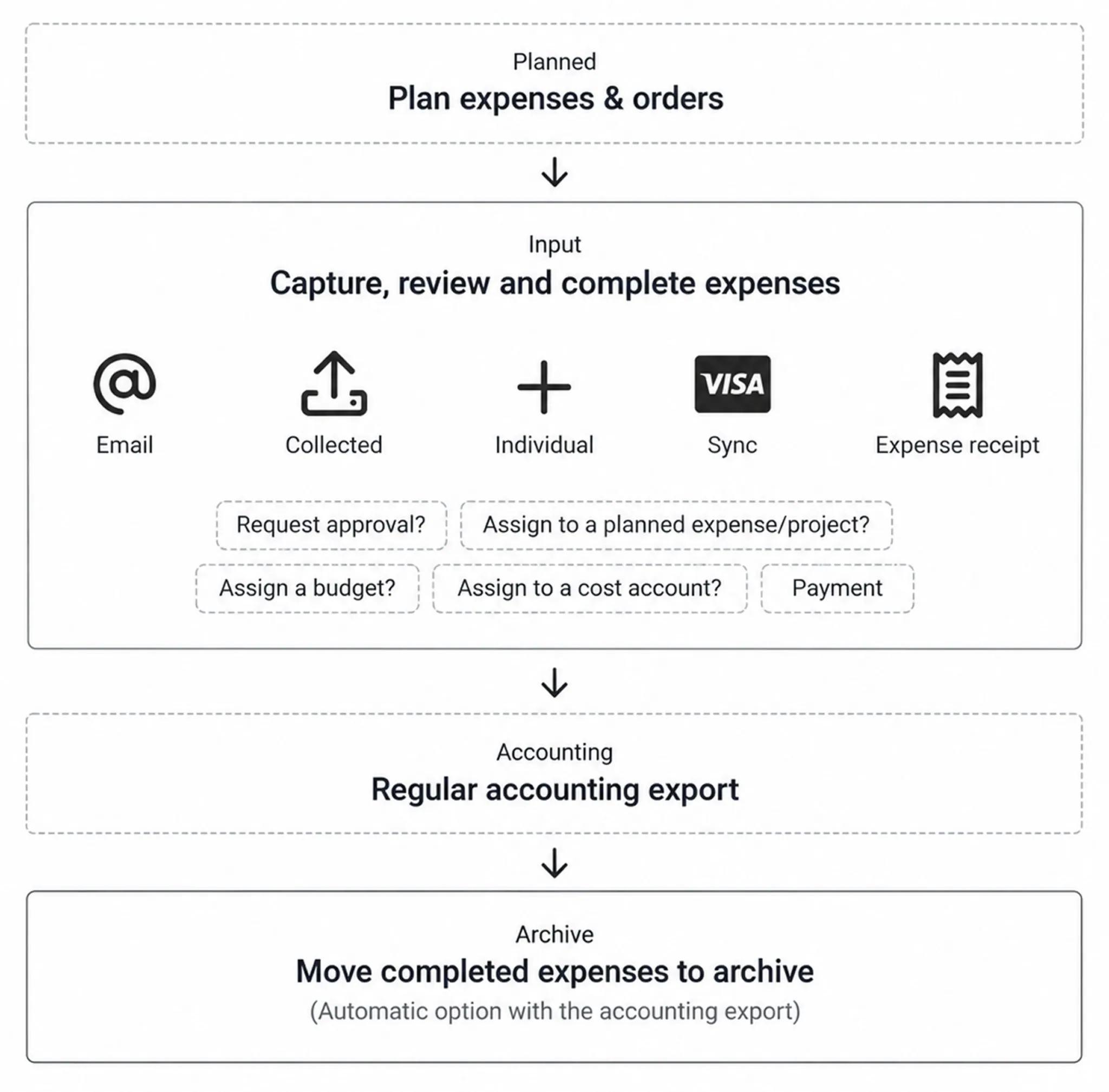
In MOCO’s central digital invoice inbox, all your business purchases and receipts are collected in one place.
The recorded purchases are reviewed and processed. Completed purchases are moved to the archive and then exported for accounting. You can also plan your purchases.
Capture
Purchases can be captured directly or automatically. If you have lots of receipts, use the AI-based automatic text recognition (OCR). You can extend purchase data as needed with your own fields.
Invoices that arrive by email can be forwarded directly to the Email-to-Inbox address, or you can store this email address with the relevant services. You can find this address in Settings under "Purchases".
➜ The long character string ensures the address cannot be misused by spammers.
➜ Save the address as an email contact called "Receipts to MOCO" so you can access it quickly.
➜ Store the inbox address with services: If you can set the billing address yourself for subscription services (such as MOCO), enter the inbox address provided by MOCO.
➜ Option: your own email address: automatic forwarding from your own email address to the MOCO address can be set up with your email provider. For security reasons, we recommend choosing a dedicated invoice-receipt email address that cannot easily be guessed from the outside. You can then share this address with suppliers.
➜ The long character string ensures the address cannot be misused by spammers.
➜ Save the address as an email contact called "Receipts to MOCO" so you can access it quickly.
➜ Store the inbox address with services: If you can set the billing address yourself for subscription services (such as MOCO), enter the inbox address provided by MOCO.
➜ Option: your own email address: automatic forwarding from your own email address to the MOCO address can be set up with your email provider. For security reasons, we recommend choosing a dedicated invoice-receipt email address that cannot easily be guessed from the outside. You can then share this address with suppliers.
Bulk Upload
Upload multiple receipts at once (PDF, JPG, or PNG) via the upload icon in the top right. Find it here
Tip: Digital and paper invoice documents have been treated equally for VAT purposes for years – yet plenty of paper invoices still arrive. Let existing and new suppliers know you would like them to email invoice PDFs to your accounts email address. As invoices can usually be paid more quickly this way, it benefits suppliers too.
Tip: Digital and paper invoice documents have been treated equally for VAT purposes for years – yet plenty of paper invoices still arrive. Let existing and new suppliers know you would like them to email invoice PDFs to your accounts email address. As invoices can usually be paid more quickly this way, it benefits suppliers too.
Capture Individually (Manual)
Individual invoices can be captured directly via the green "+ New Purchase" button.
Paper Receipts
Scan with the MOCO Mobile App
Scan receipts with your personal MOCO iPhone app – or use the "Share document" option for photos. For receipts to be captured not only as personal expenses but also as a business purchase, a user needs access rights for Purchases. If certain people do not have access rights for Purchases, you can alternatively use email forwarding to the inbox address (see above). More about the mobile apps
Scan receipts with your personal MOCO iPhone app – or use the "Share document" option for photos. For receipts to be captured not only as personal expenses but also as a business purchase, a user needs access rights for Purchases. If certain people do not have access rights for Purchases, you can alternatively use email forwarding to the inbox address (see above). More about the mobile apps
Other capture option via smartphone
1. Scan the document – for example with Adobe Scan (free)
2. Save as PDF
3. Use Share to send it to MOCO by email
Efficient office scanner
If you have accumulated several or multi-page paper invoices, use an efficient scanner (e.g. high-performance desktop scanners with an automatic document feeder – 2022 review, for example Fujitsu ScanSnap iX1500) to send them straight to the cloud.
2. Save as PDF
3. Use Share to send it to MOCO by email
Efficient office scanner
If you have accumulated several or multi-page paper invoices, use an efficient scanner (e.g. high-performance desktop scanners with an automatic document feeder – 2022 review, for example Fujitsu ScanSnap iX1500) to send them straight to the cloud.
Capture via API, Zapier, or Make
Personal Expenses
Employees can also capture personal expenses and submit them as an expense claim. Approval happens in the purchase inbox, and the amount can be paid via a bank transfer order. All information about the personal expenses workflow
Credit Card Integration
Receipts paid by credit card can be captured using the standard capture options, or you can use the full integration. All credit card payments and receipts are then captured automatically or fully synced.
Sync credit card payments, including receipts, with MOCO.
Sync credit card payments, including receipts, with MOCO.
e-invoice
You capture e-invoices in the same way as PDF invoices: by email or upload. MOCO recognises them automatically and reads the data directly.
Formats, process, and benefits
Formats, process, and benefits
Automatic Data Extraction / OCR
Swiss QR-bill
Standard QR-bills are automatically read by MOCO.
AI-based OCR
Standard QR-bills are automatically read by MOCO.
AI-based OCR
MOCO offers an AI-based OCR add-on. Receipts are then read automatically, and you only need to review and add any missing details. The text recognition learns with every capture, improving reliability over time.
e-invoices are recognised directly and do not go through OCR.
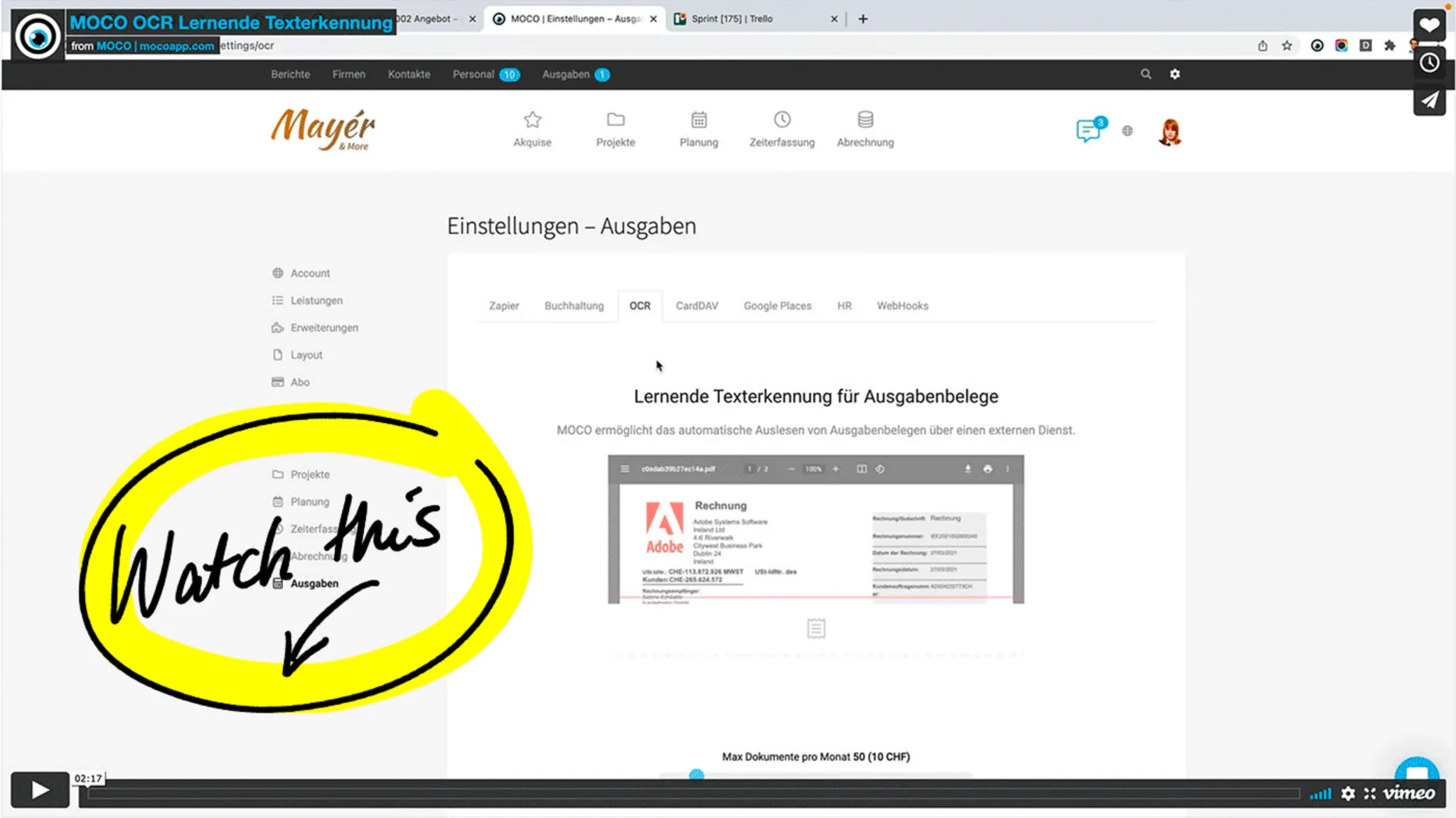
VIDEO: How to activate and use OCR (2:17)
More detailed information on activation, costs, and tips on what to consider in advance so text recognition can get off to a successful start
e-invoices are recognised directly and do not go through OCR.
VIDEO: How to activate and use OCR (2:17)
More detailed information on activation, costs, and tips on what to consider in advance so text recognition can get off to a successful start
Other
Custom Requirements for Data Capture
Purchase data can be extended with custom fields.
Budgets and Categories (Optional)
Incoming invoices can be assigned annual budgets and/or categories (expense accounts).
More about budgets and how they compare to categories
More about categories
More about budgets and how they compare to categories
More about categories
Duplicate Detection
MOCO detects receipts that have been uploaded twice and flags them.
Multiple Items
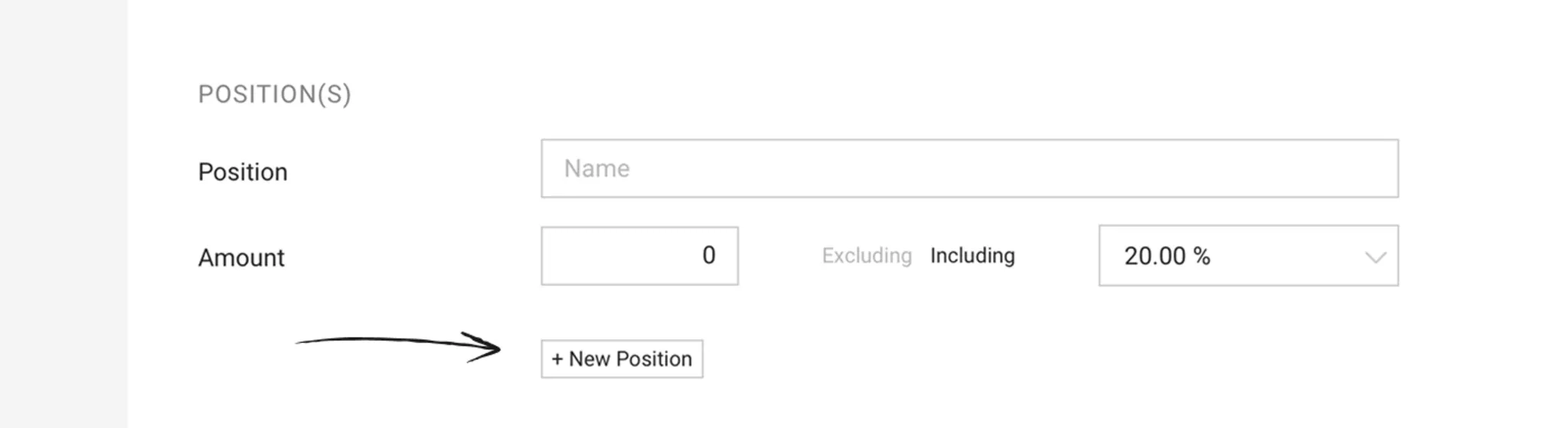
An expenditure can consist of multiple items. Each item can be assigned to a different project and expense account.
Typically, an expenditure is recorded with a single item. However, if there are different tax rates or if you wish to assign various items to different projects, multiple items can be recorded within the expenditure. Use the "+New Item" button for this.
Options via OCR
Using the OCR option, MOCO automatically reads the receipt as one item. Alternatively, you can choose to read the detailed items when creating the expenditure.
Categories (Expense Accounts)
Categories correspond to expense accounts. Activate them if needed in the settings under "Accounting".
KSK
Items can be marked and evaluated for KSK.
Options via OCR
Using the OCR option, MOCO automatically reads the receipt as one item. Alternatively, you can choose to read the detailed items when creating the expenditure.
Categories (Expense Accounts)
Categories correspond to expense accounts. Activate them if needed in the settings under "Accounting".
KSK
Items can be marked and evaluated for KSK.
Fixed Costs
Settings > Purchases > Fixed Costs
In addition to the receipts you record under "Purchases", you can record your fixed costs here.
Fixed costs include, for example, expenses such as rent, wages, and bank charges – in other words, any expenses for which there is no supplier invoice and which are posted differently in your accounts. This does not include regular bills such as mobile phone subscription invoices – these are recorded as supplier invoices.
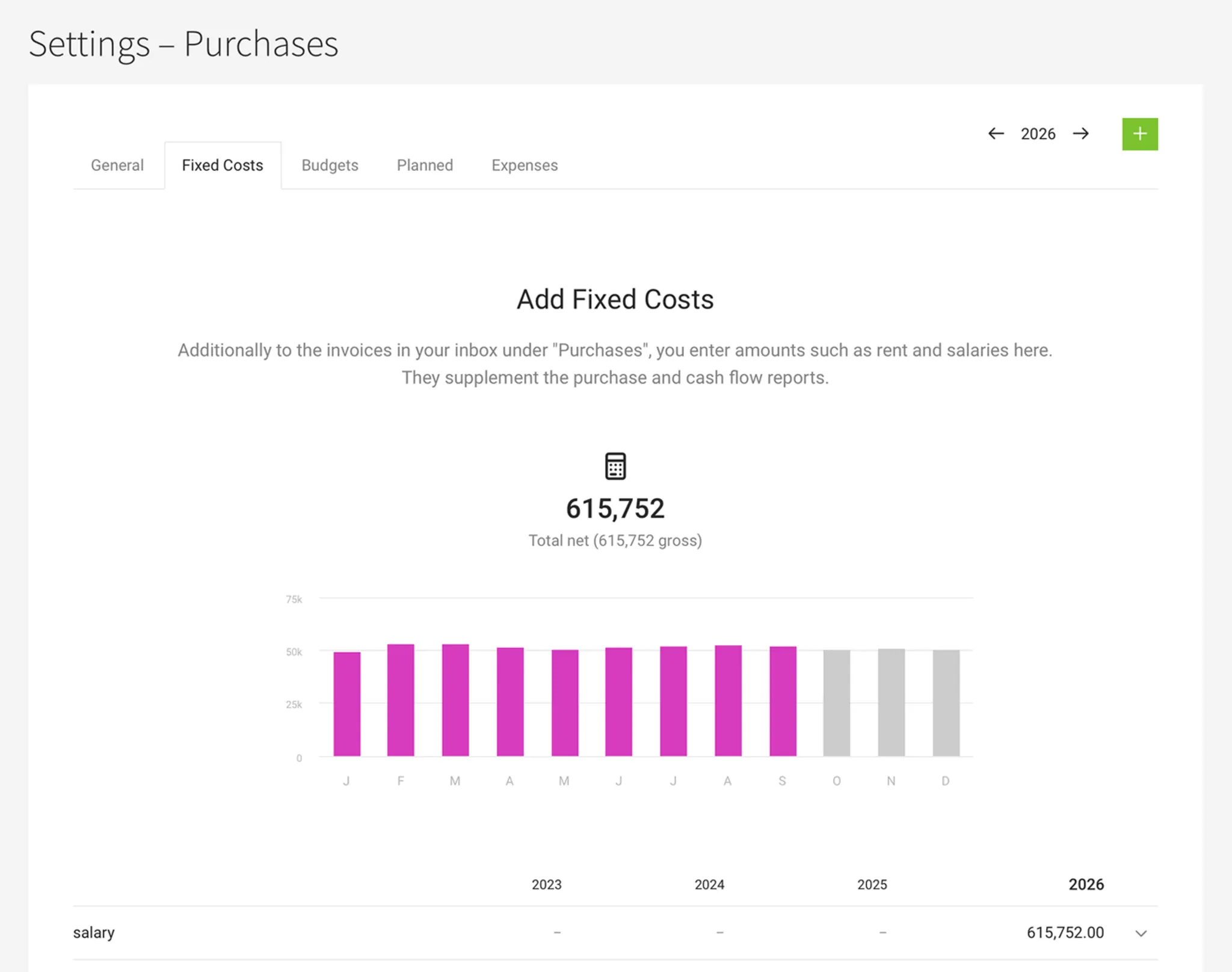
Included in Reports
- In the Company Report and Financial Report
- In the Purchases Report, fixed costs are included under "Payments"
Record Standalone Payments
If you are looking for an option to record individual standalone payments: under "Purchases" > "Payments", you can add a "Payment Without Receipt" in the top right.
e-invoices
MOCO automatically recognises e-invoices. Like PDF invoices, they are captured via email or upload – MOCO takes the data directly from the invoice, without OCR.
You already need to be able to receive them
Since 1 January 2025, every business in Germany must be able to receive and process e-invoices – with no transition period and regardless of size. This also applies to small businesses and associations. If you use MOCO for incoming invoices, you are set up for this.
Capture via Email or Upload
e-invoices are captured via email forwarding or upload – and, as before, are read and displayed directly. Accounting preparation and export work as usual.
Which Formats MOCO Reads
MOCO processes XRechnung, ZUGFeRD, and Peppol BIS. Country-specific formats from other countries – such as Italy’s FatturaPA – are not recognised as e-invoices. You can capture these documents like a normal invoice; the included XML remains attached to the document as a file.
Data Is Read Automatically
e-invoices save you time and money because they include unambiguous data. This means MOCO can fill in forms automatically. It protects your OCR budget and reduces manual work (such as checks or entering individual details).
Even a Pure XML Invoice Is Readable
If an XRechnung arrives without a PDF, you do not need to install anything: MOCO displays the invoice data as a document view – even in draft.
Download Embedded Attachments
Below the document, any attachments embedded in the XML part of the e-invoice are listed and can be downloaded for review.
The Supplier’s UID Is Added Automatically
If no UID has been set for the selected supplier yet, MOCO automatically adds it from the invoice data.
 (English image not yet available)