Overview
All Invoices | Targeted Search | Track Changes | Billing > Report | Financial Report | Cashflow and Liquidity PlanningAll Invoices
Under "Billing" > "Invoices", you’ll find a list of all invoices.
Filter Options
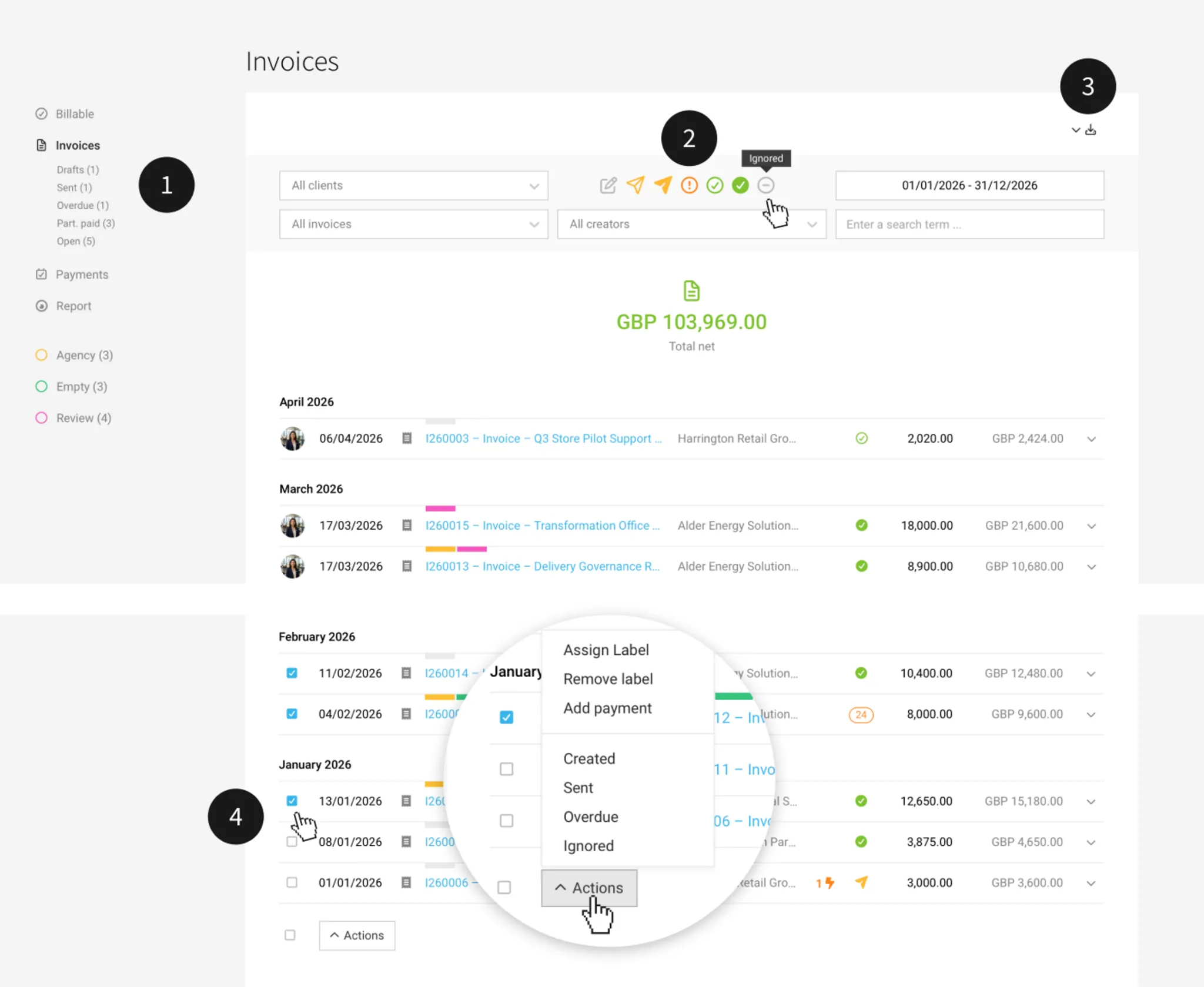
Smart Filter (1)
Quick filter for open statuses (= to do)
Filter Bar (2)
If you also want to see drafts or ignored invoices, select the statuses that are deselected by default using the icons. In the filter, you can also filter by invoice type (e.g. a cancellation invoice). Using the keyboard shortcut "Q", you can filter specifically for all invoices you created.
Filter Bar (2)
If you also want to see drafts or ignored invoices, select the statuses that are deselected by default using the icons. In the filter, you can also filter by invoice type (e.g. a cancellation invoice). Using the keyboard shortcut "Q", you can filter specifically for all invoices you created.
Export (3)
You can then export the filtered view (including text-based filtering) – as an Excel file or a combined PDF download. Another option: Accounting export
Bulk Actions (4)
You can select individual invoices or all invoices, and assign a status or label.
Using "Record Payment", the selected invoices are marked as paid on a chosen date. This can be useful if payment reconciliation happens outside MOCO, but you still want to capture the amounts roughly in your cashflow view.
Using "Record Payment", the selected invoices are marked as paid on a chosen date. This can be useful if payment reconciliation happens outside MOCO, but you still want to capture the amounts roughly in your cashflow view.
Targeted Search
Finding Invoices
In addition to the filter options under "Billing" > "Invoices" (see above), the global search offers another option:
You can quickly find any invoice by entering the full invoice number via the magnifying glass at the top right or using the "/" keyboard shortcut. This also applies to deleted invoices.
You can quickly find any invoice by entering the full invoice number via the magnifying glass at the top right or using the "/" keyboard shortcut. This also applies to deleted invoices.
Finding Reference Invoices
Interim and final invoices, as well as cancellation invoices and cancelled invoices, are now linked more clearly, so the reference is clear from any page.
Swiss QR-Bill
Search by the QR-bill invoice reference
You can also search by invoice reference via global search (or under "Billing" in the "More Options" filter).
You can also search by invoice reference via global search (or under "Billing" in the "More Options" filter).
Track Changes
Change Log
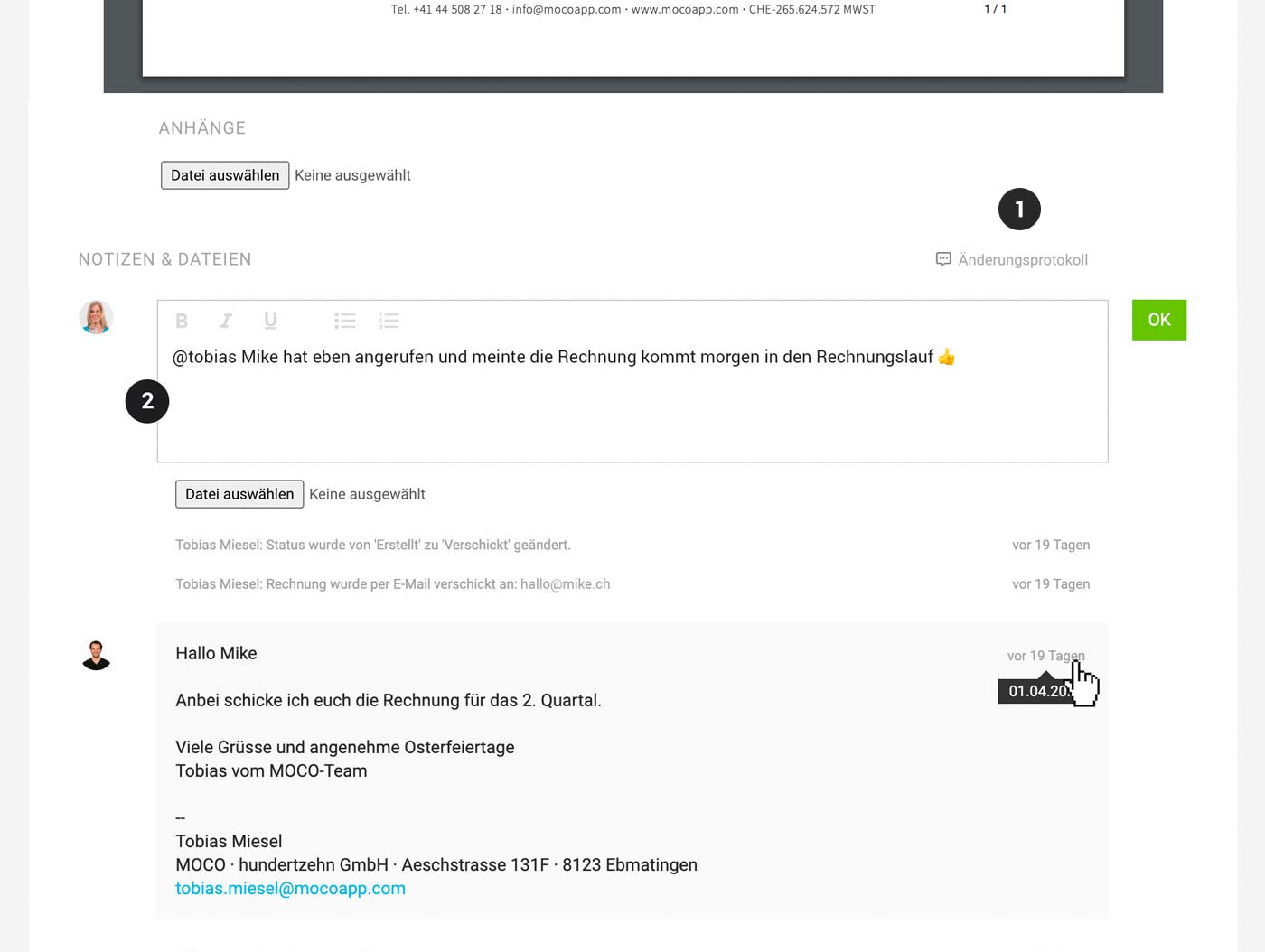
If an Invoice is changed after it has been created with an Invoice number, you can open a change log below the Invoice view (1). This lets you track all changes in detail.
Comments (History)
Below the Invoice (as with the Quote), there is a “Comments” section for notes and files (2).
- Other people can be notified (for approval, additions, etc.)
- MOCO shows information with the date for actions
- When an Invoice is sent, the email text & email address remain traceable
- You can enable the AI voice input option
 (English image not yet available)
Locked Invoice
If a payment or a reminder is recorded against an Invoice, editing of the Invoice is locked. The accounting export also locks it.
If you still need to edit the Invoice, we recommend creating a cancellation and issuing a new Invoice. In some cases, the export (by the account owner) and any recorded payments or reminders can be deleted to unlock the Invoice again.
If you still need to edit the Invoice, we recommend creating a cancellation and issuing a new Invoice. In some cases, the export (by the account owner) and any recorded payments or reminders can be deleted to unlock the Invoice again.
Billing > Report
Location: Billing > Report
 (English image not yet available)
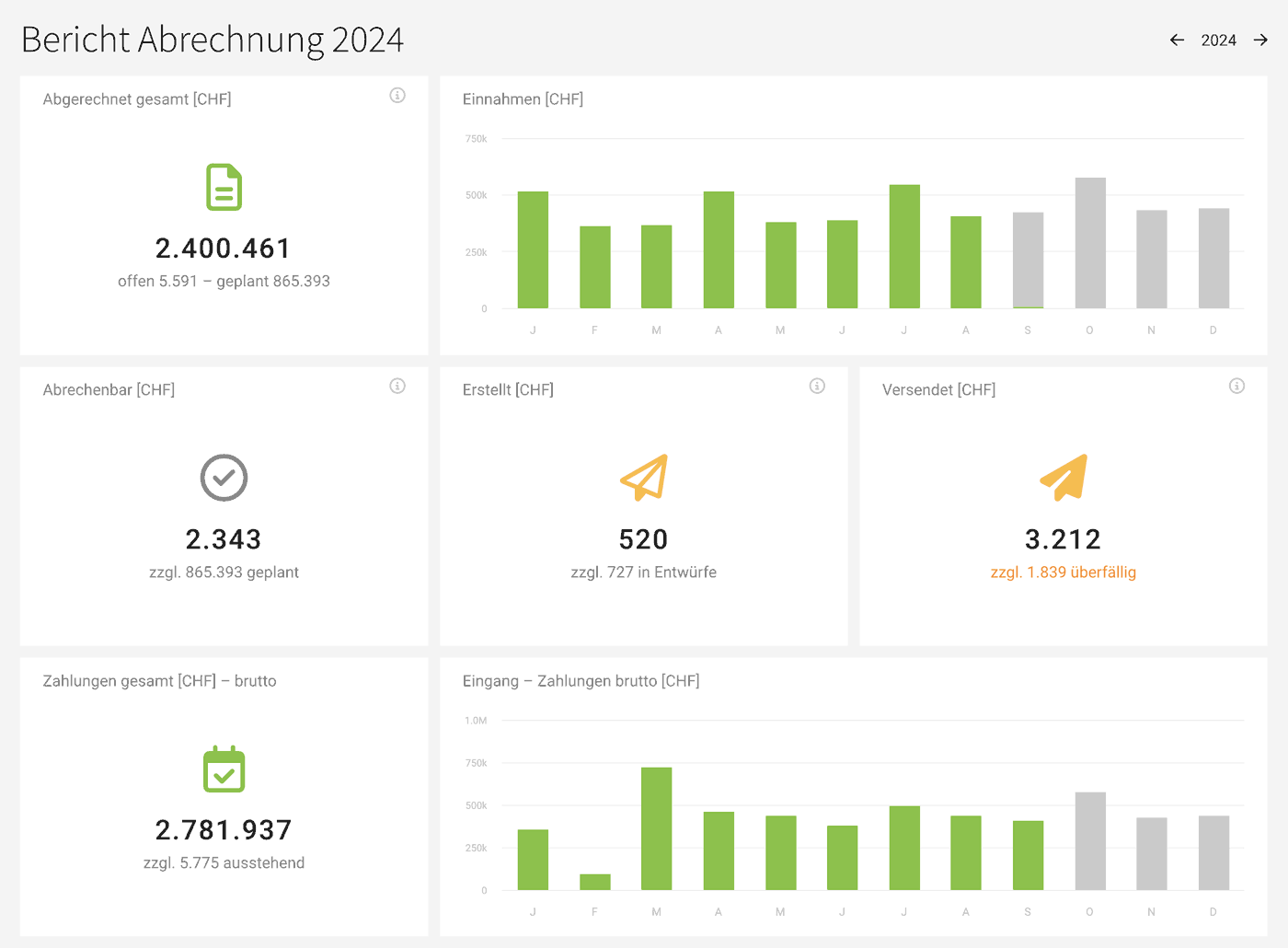
The report in "Billing" gives you a clear, at-a-glance overview of invoices that have been created and those planned, along with their status. Amounts are shown net. Payments are the exception. For clarity, these are labelled "Gross".
The tiles can also be shown in the customisable Reports Dashboard.
For a quick overview of all outstanding invoices, use the "Outstanding" smart filter in the menu on the left. It shows all outstanding invoices across all years.
Financial Report
Location: Reports > Finance > Overview
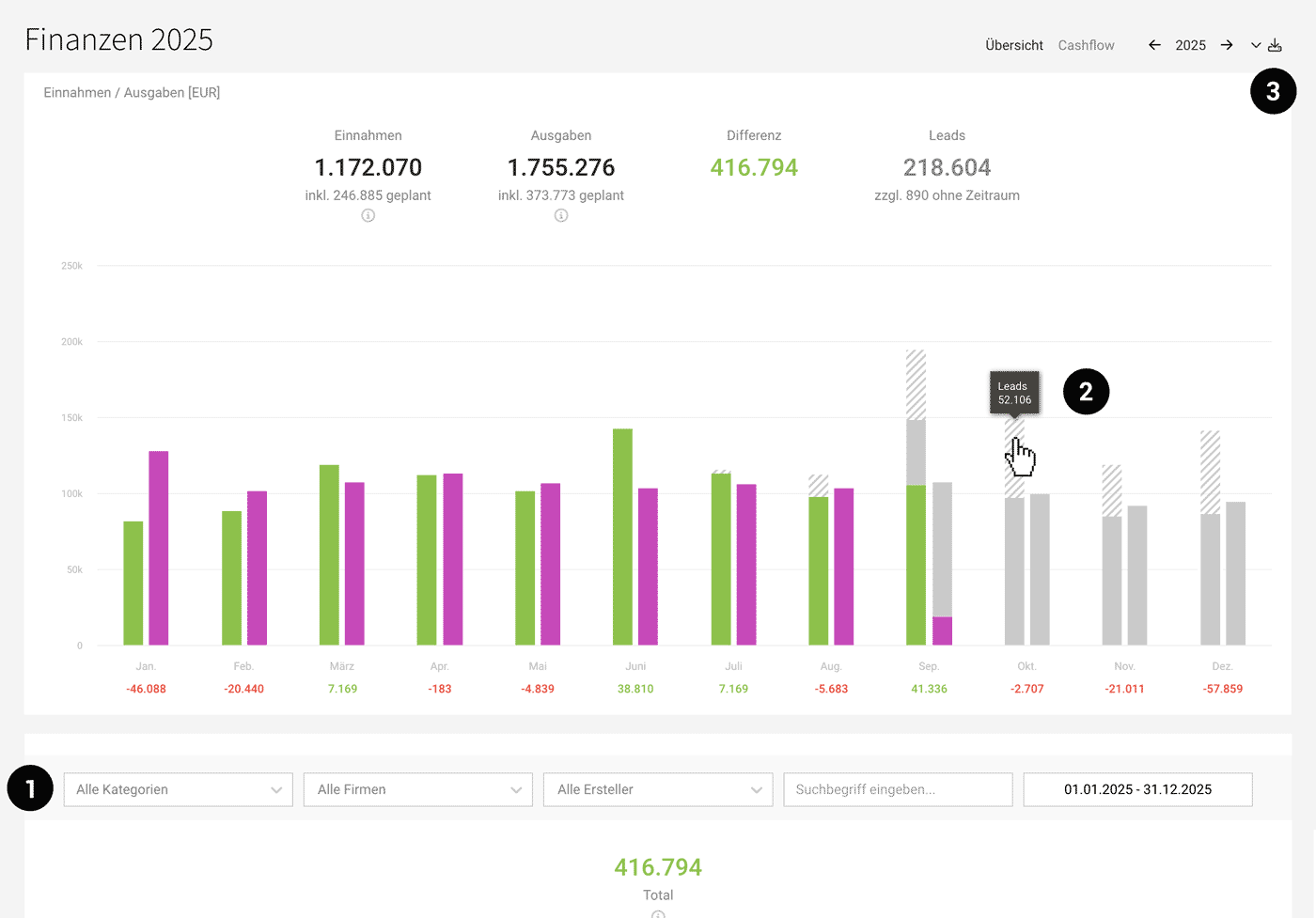
The cross-report Financial Report compares income with purchases. All items are broken down with filters (1). You can export filtered items specifically (3).
The cross-report Financial Report compares income with purchases. All items are broken down with filters (1). You can export filtered items specifically (3).
Income: Invoices, Billable, and Planned
All amounts are net (= excluding VAT). The “i” under the main figures shows how the totals are made up.
Green: All invoices net on the invoice date, from status Created through to Paid.
Green: All invoices net on the invoice date, from status Created through to Paid.
Grey: Currently billable and planned billable amounts (hatched: leads with a recorded time period)
 (English image not yet available)
Links
Cashflow and Liquidity Planning
Location: Reports > Finance > Cashflow
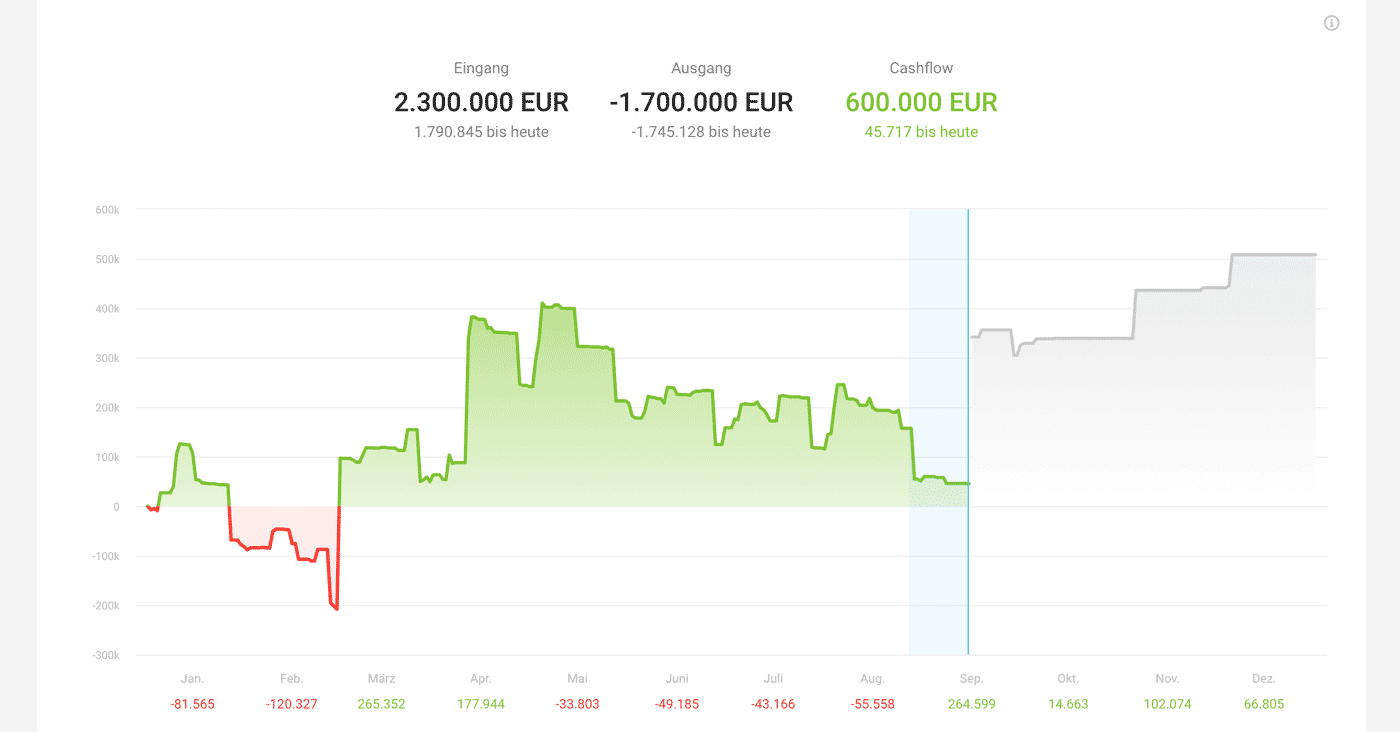
The "Cashflow" report shows completed and planned payments.
All past and future incoming and outgoing payments (gross amounts = incl. tax) are shown side by side here. Below the chart, you can filter and break down all items.
For example, you can filter by unpaid invoices (1), and the "Days Overdue" column (2) shows how far apart the payment terms and the actual payment are.
 (English image not yet available)
.png "cashflow-liste") (English image not yet available)
(English image not yet available)
Individual incoming and outgoing payments can be viewed under "Billing" and "Purchases" in the "Payments" section.
For example, you can filter by unpaid invoices (1), and the "Days Overdue" column (2) shows how far apart the payment terms and the actual payment are.
(English image not yet available)(English image not yet available)Individual incoming and outgoing payments can be viewed under "Billing" and "Purchases" in the "Payments" section.
More detailed information about financial reports in MOCO
Compact tiles for your dashboard
Under "Reports" > "Overview", you can use the "Cashflow – Gross Payments" and "Gross Incoming Payments" tiles in this context.