Payment Reminders
Create Payment Reminders / Reminder Stages | Chasing Part-Payments | Bulk Creation and Sending of Payment Reminders | Debt Collection / Receivables ManagementCreate Payment Reminders / Reminder Stages
Sending payment reminders takes tact
Clients are different. In most cases, the client has simply forgotten to pay the invoice within the deadline. A quick phone call is usually enough to point out the overdue payment in a friendly but firm way. Or you can create a payment reminder in MOCO (1).
MOCO offers three predefined reminder stages
The first reminder is usually phrased in a friendly way and titled “Payment Reminder”. It reminds the client of an outstanding amount – assuming it was an oversight that simply needs a nudge.
If no payment is received after the first reminder has been sent, the second reminder should follow after 14 days – usually with a deadline of 14 days. The third reminder should be the final request and can also outline consequences.
Predefine the text for reminder stages
Creating payment reminders in MOCO
As soon as invoices you have created become overdue, the “+ New Payment Reminder” button appears in the invoice detail view (1), allowing you to create one or more reminders. MOCO always automatically inserts the predefined text for the next reminder stage.
Clients are different. In most cases, the client has simply forgotten to pay the invoice within the deadline. A quick phone call is usually enough to point out the overdue payment in a friendly but firm way. Or you can create a payment reminder in MOCO (1).
MOCO offers three predefined reminder stages
The first reminder is usually phrased in a friendly way and titled “Payment Reminder”. It reminds the client of an outstanding amount – assuming it was an oversight that simply needs a nudge.
If no payment is received after the first reminder has been sent, the second reminder should follow after 14 days – usually with a deadline of 14 days. The third reminder should be the final request and can also outline consequences.
Predefine the text for reminder stages
Creating payment reminders in MOCO
As soon as invoices you have created become overdue, the “+ New Payment Reminder” button appears in the invoice detail view (1), allowing you to create one or more reminders. MOCO always automatically inserts the predefined text for the next reminder stage.
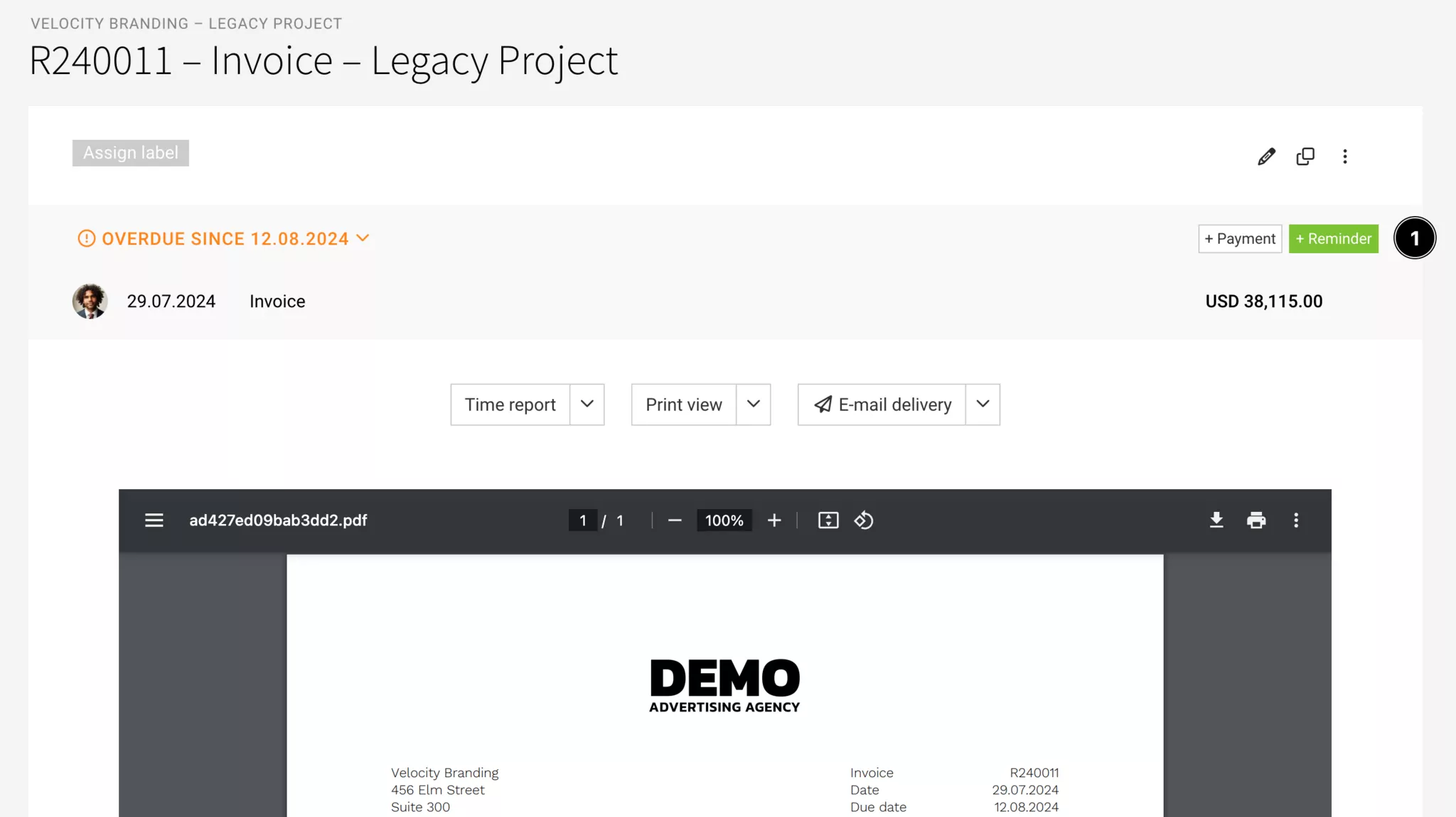
If at least one reminder has already been created, it will also be listed in the grey section. A payment reminder locks the invoice, so it can no longer be edited.
Chasing Part-Payments
If an invoice has only been paid in part and you want to chase just the outstanding balance, state the exact amount due in the reminder letter and request payment. MOCO currently does not offer any automation for this.
Bulk Creation and Sending of Payment Reminders
Billing > Invoices
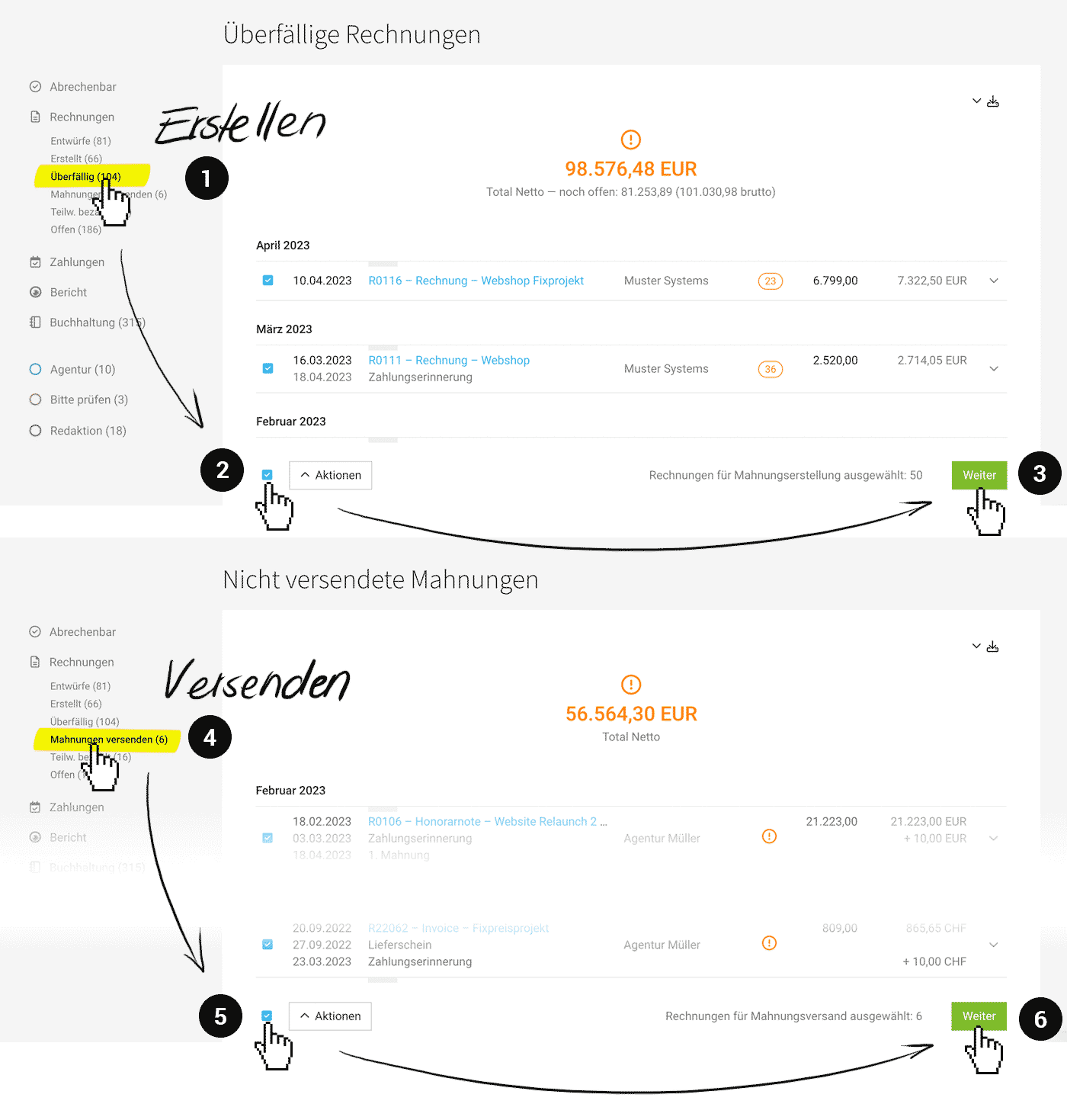
With the bulk actions, you can create and send payment reminders for all overdue invoices in one go.
 (English image not yet available)
Create
Under the "Overdue" smart filter (1), select individual or all overdue invoices (2). Then click "Next" (3) at the bottom right, review your selection, and create the payment reminders.
Note: Invoices with at least 3 payment reminders are ignored. These special cases need to be managed manually, one by one.
Note: Invoices with at least 3 payment reminders are ignored. These special cases need to be managed manually, one by one.
Send
Payment reminders that have not yet been sent are available via the "Send Payment Reminders" smart filter (4). Select all or the relevant invoices (5). Then click "Next" (6) at the bottom right to start the pre-send check (for an existing email address).
Debt Collection / Receivables Management
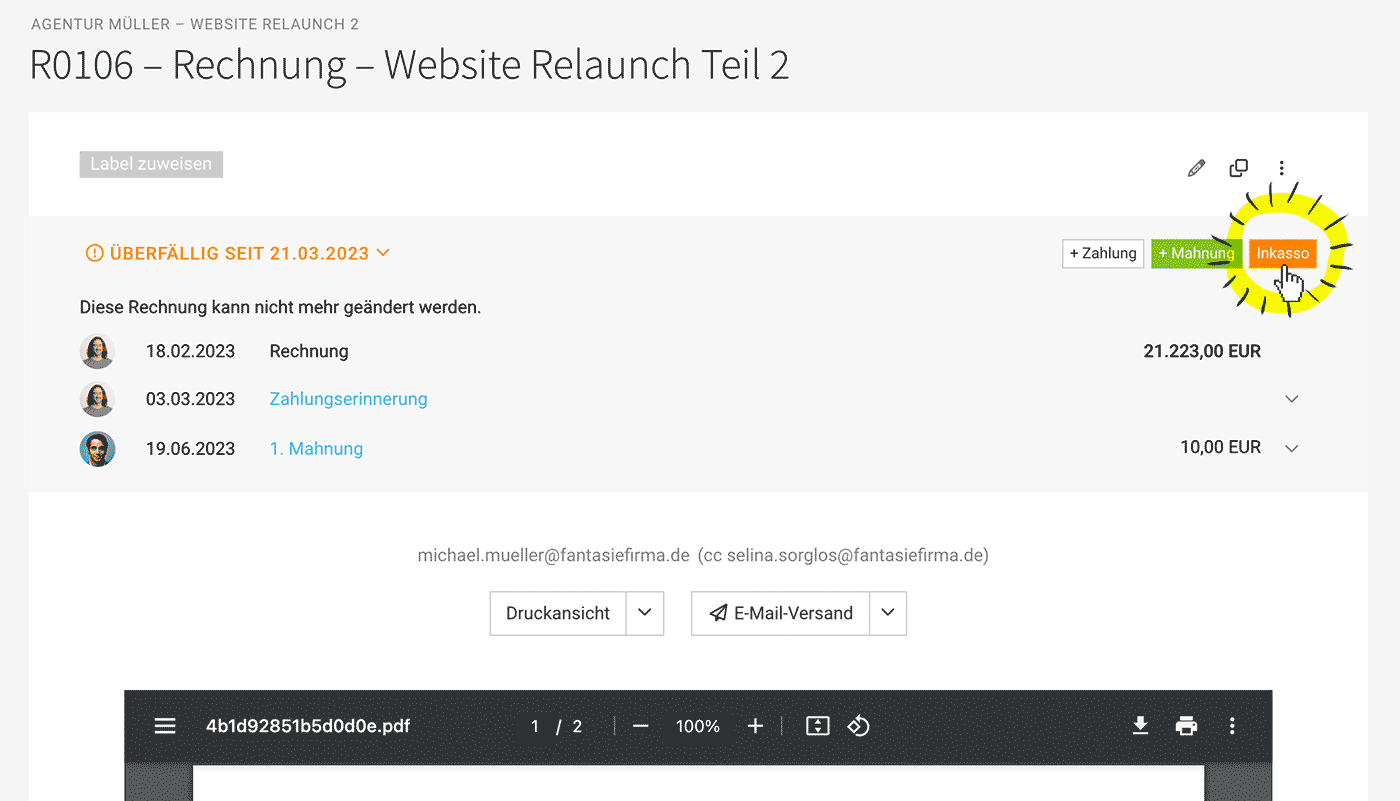
Ordered, delivered – but your client still hasn’t paid the invoice? With one click, you can hand the invoice over to the debt collection service.
The service is free for you as a MOCO user. You receive the full amount back via the debt collection partner paywise . The debtor covers the collection fees.
 (English image not yet available)
(English image not yet available)How It Works
1. Enable the Debt Collection Option
Create a free account with paywise and then enable the option in Settings under "Billing" > "Debt Collection".
Terms and activation
Create a free account with paywise and then enable the option in Settings under "Billing" > "Debt Collection".
Terms and activation
2. Submit an Invoice
On the invoice, in the top right, click the new "Debt Collection" button (see image) to pass the receivable to the debt collection service. If needed, you can also add information about what has happened so far. This information is transferred to paywise.
3. After Submission
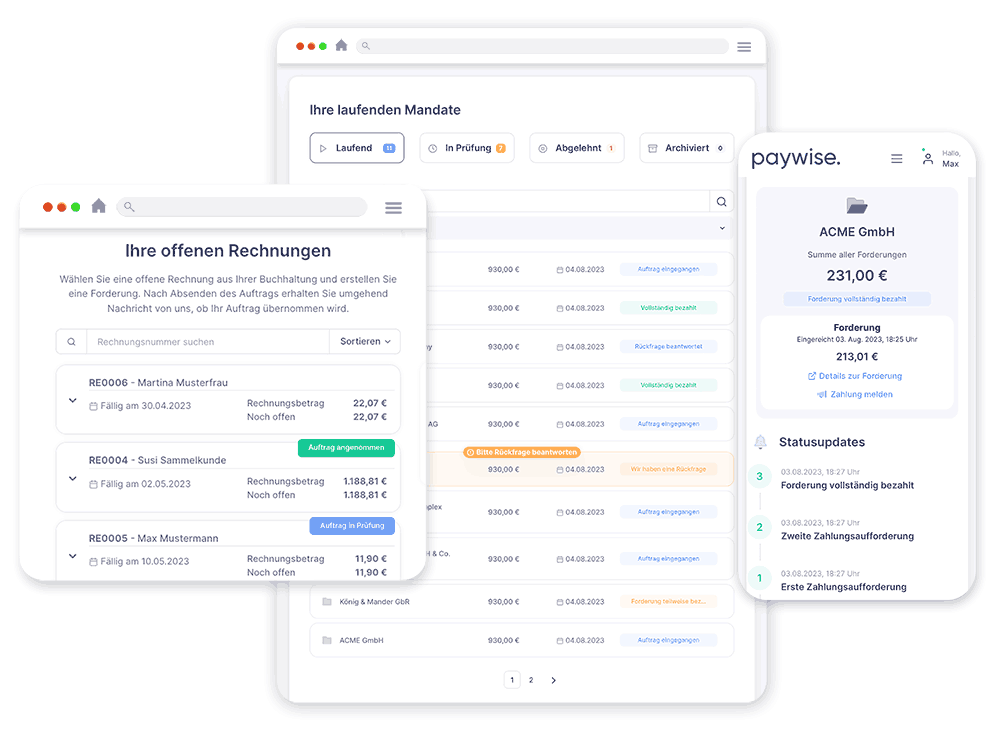
You can view and track all cases in your paywise client portal.
 (English image not yet available)
(English image not yet available)Overview in MOCO
Special Label for Debt Collection Cases
Submitted invoices are marked with a skull icon in MOCO’s receivables list under "Billing".
Filter by Debt Collection Cases
Under the "Overdue" smart filter, you can specifically filter for invoices that have already been submitted for debt collection.