Quote Elements
Header & Introduction | Line Items | Closing Text | Predefine Line ItemsHeader & Introduction
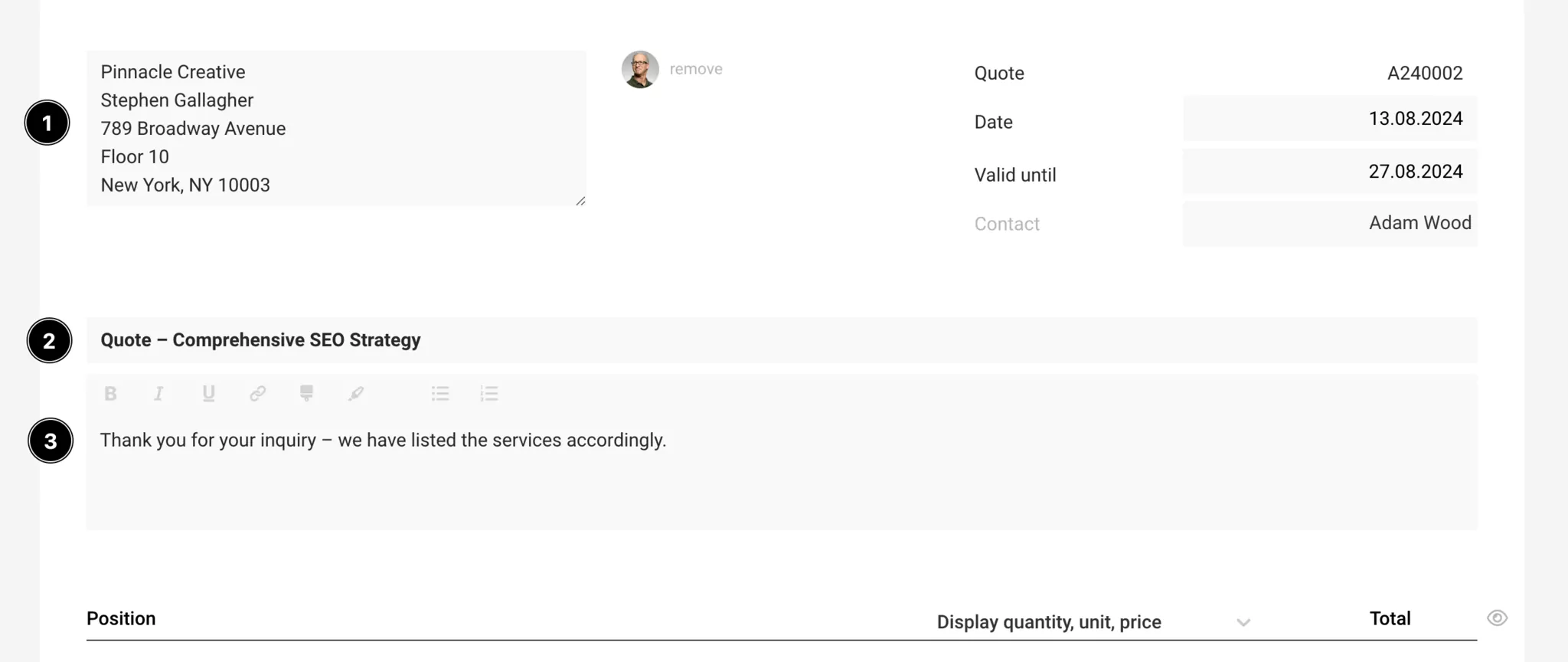
The header includes the recipient and document details (1)
Recipient
MOCO automatically inserts the address saved for the client. Alternatively, you can select a contact in the top right for personalisation.
MOCO automatically inserts the address saved for the client. Alternatively, you can select a contact in the top right for personalisation.
Document details: Standard document details are shown in the info box on the quote. The information can be shown/hidden or supplemented individually. Font size, width, etc. can be adjusted in the settings.
The content starts with the title and introduction
Title (2)
Make the title as meaningful as possible, as it will later be used in the quote list and the file name.
Make the title as meaningful as possible, as it will later be used in the quote list and the file name.
Introduction (3)
- The introduction text is similar to a covering letter.
- You can define a standard text with variables and/or personalise the salutation.
- You can insert page breaks using three dashes (---). For example, add this at the end of the introduction text if the line items should start on a new page.
Line Items
Line items are generally structured in a modular table format. You can set the width for descriptions and images independently.
 (English image not yet available)
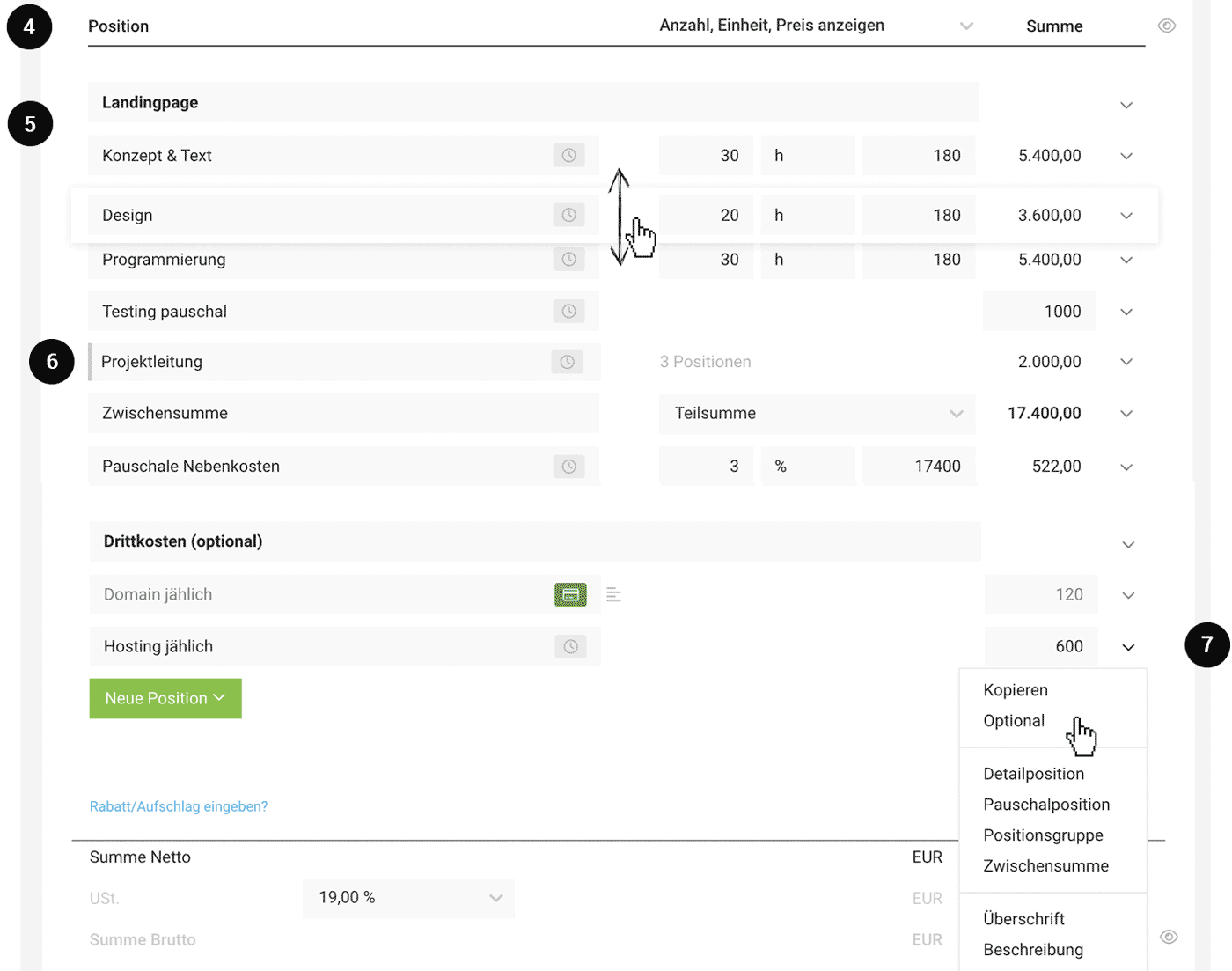
 Table Header (4)
The table header can be hidden, allowing you to create a seamless look (e.g. an image on the cover page).
Detail columns (= quantity, unit, unit price when using detailed line items) are shown by default. You can also hide them by default in the layout settings. You can still decide per quote whether to show them (see image).
You can enable automatic line item numbering in the layout settings.
Line Items (5)
Insert selected line items (green button or the dropdown on the right). Line items can be reordered via drag and drop.
- Detailed line item: Line item with automatic calculation and optional display
- Fixed-price line item
- Line item group: groups several line items together
- Subtotal: totals everything, or up to the last heading
- Heading
- Description
- Image
- Divider Line
- Page Break
Optional Line Items
You can set a detailed or fixed-price line item to "optional" via the dropdown on the right (7). Optional line items are shown in grey and are not included in the final total. However, if needed, you can use a variable that is called up by entering "{" to show the net total including options, for example as an additional figure in the closing text.
Line Item Group
Group several line items together and, for example, show only the total (6). To do this, add one via "+New Line Item" > "Line Item Group".
More information in the August 23 update news (the feature has since been developed further)
More information in the August 23 update news (the feature has since been developed further)
Service Types
Service / Additional service
Detailed and fixed-price line items are labelled as "Service" (usually your own services – grey label) and "Additional service" (usually third-party services – dark green label). This type distinction runs from the quote, through the project, and on to the invoice. You can change the service type by clicking the label.
Detailed and fixed-price line items are labelled as "Service" (usually your own services – grey label) and "Additional service" (usually third-party services – dark green label). This type distinction runs from the quote, through the project, and on to the invoice. You can change the service type by clicking the label.
Individual Discounts, Overall Discount, Surcharge
Individual discounts, surcharges (example: a flat-rate expenses charge (6)), and an overall discount on the quote (example: new client discount) are possible — just like with invoices.
See invoices for detailed information
See invoices for detailed information
Overall Totals Section
The overall totals section can also be hidden (eye icon on the right) — for example, when you have different variants within a quote.
Closing Text
.png) (English image not yet available)
(English image not yet available)Closing text (7): Typically, the closing text includes a friendly line such as “If you have any questions, you can reach me at any time on … We would be delighted to receive your quote confirmation … Kind regards …”
You can insert page breaks using three dashes (---). Here, you can predefine a standard text including contact details with a variable.
Quote confirmation: this can be implemented as follows: Quote confirmation for the client
Attachments (8): Predefined (e.g. Terms & Conditions), selectable, and individual attachments are possible
Go to Attachments
Attachments (8): Predefined (e.g. Terms & Conditions), selectable, and individual attachments are possible
Go to Attachments
PDF, Print, Email Sending
After saving, the document is displayed with the stored standard letterhead and can be downloaded as a PDF or sent.
Print
Under “Print View”, you can select an alternative uploaded letterhead. By selecting “white”, you can also simply print the quote on pre-printed letterhead.
Email Sending
This is done via the “Email Sending” button. The email text can be predefined as standard text with variables.
Under “Print View”, you can select an alternative uploaded letterhead. By selecting “white”, you can also simply print the quote on pre-printed letterhead.
Email Sending
This is done via the “Email Sending” button. The email text can be predefined as standard text with variables.
Predefine Line Items
In a quote, you can use the service catalogue to access standard services, standard additional services, and the catalogue of freely assembled blocks.
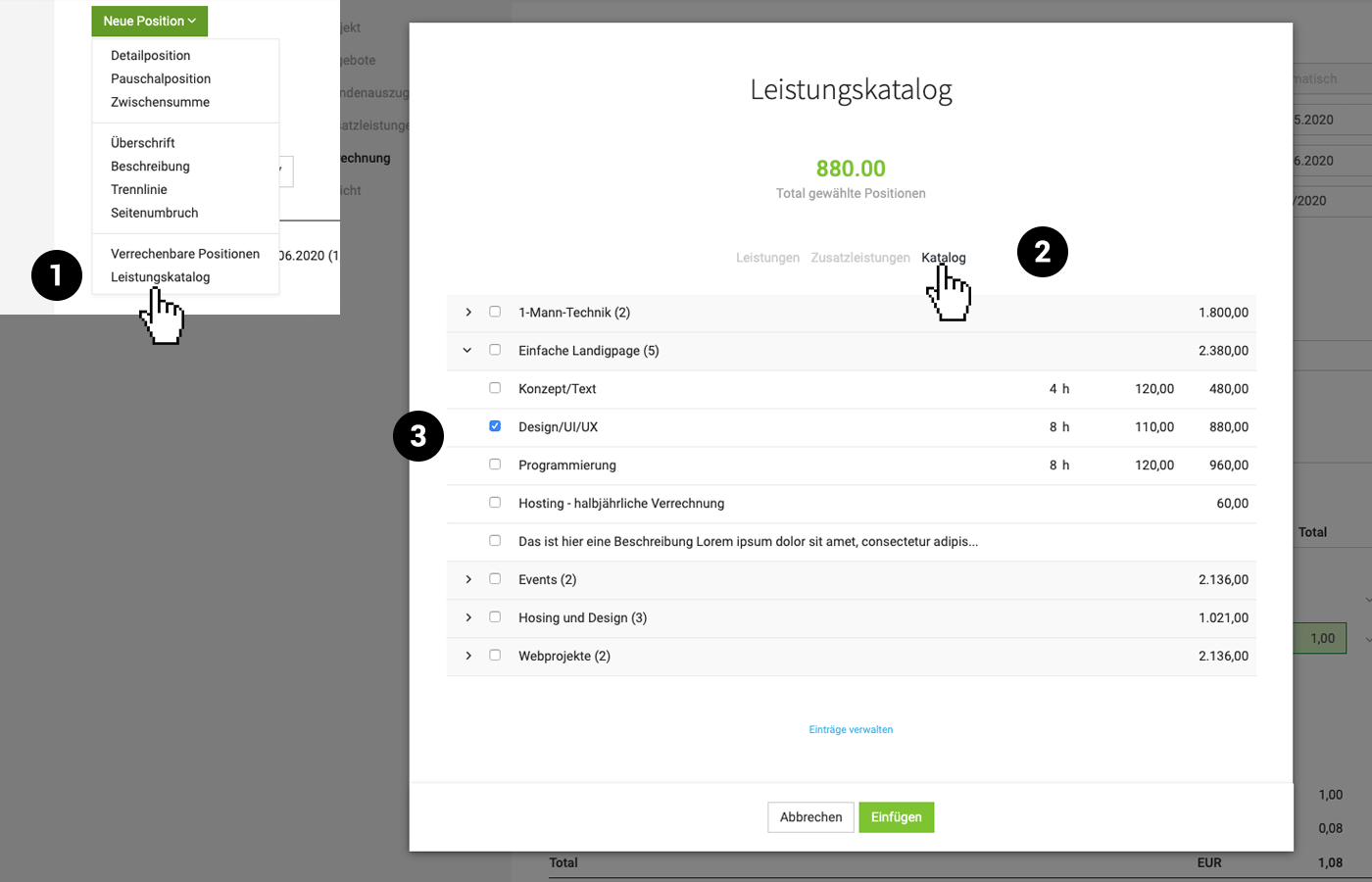
To do this, under "New Line Item", select "Service Catalogue" (1) from the list. Choose "Catalogue" (2) for the predefined blocks, then select an entire entry or individual elements to insert (3).
The blocks are predefined under Settings > "Services" > "Catalogue". You can predefine frequently used blocks or entire checklists.
To do this, under "New Line Item", select "Service Catalogue" (1) from the list. Choose "Catalogue" (2) for the predefined blocks, then select an entire entry or individual elements to insert (3).
The blocks are predefined under Settings > "Services" > "Catalogue". You can predefine frequently used blocks or entire checklists.
Tip: "Quote checklists": If you create a single entry containing all line items that are important for a project and add it to a quote later, you can quickly review and check which items are needed and which are not. The big advantage is that colleagues who need to create quotes can no longer forget line items. In practice, it happens far too often that "minor" things such as hosting are left off the quote.