Leads & Quotes
Leads | Quotes and Order Confirmations | Quote Attachments (e.g. Terms & Conditions)Leads
Settings > Leads & Quotes > Leads
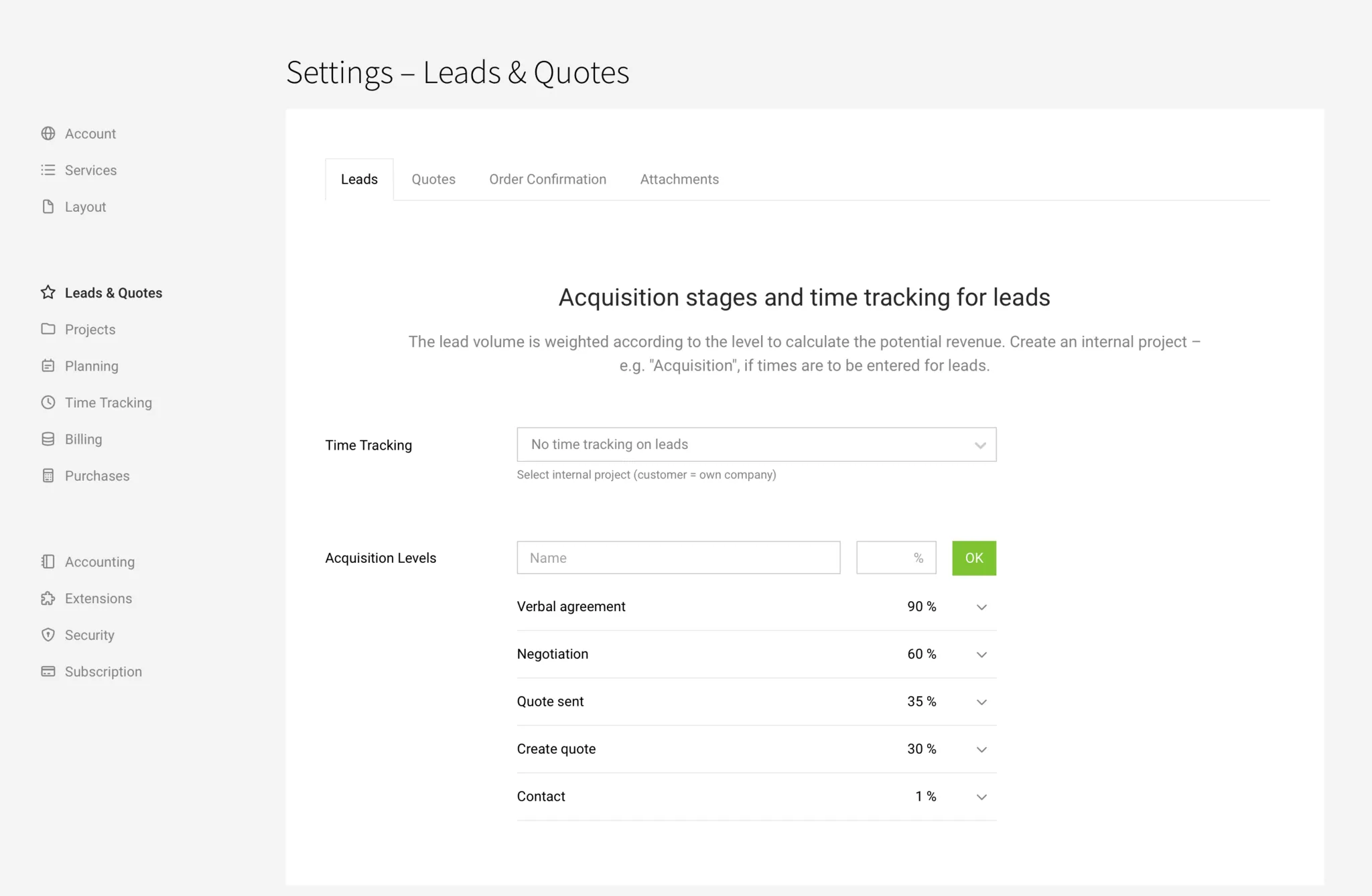
Time Tracking
Create a new internal project (select your own company as the client) that you call, for example, "Business Development", and record a service called "Leads". Add the relevant people for time tracking. Select this service here. Optionally, you can require access to Leads as a prerequisite.
MOCO displays a note for the service in the project, and the service cannot be locked or deleted.
More on time tracking for leads
Define Sales Stages
You can tailor the sales stages to your own needs and processes.
Time Tracking
Create a new internal project (select your own company as the client) that you call, for example, "Business Development", and record a service called "Leads". Add the relevant people for time tracking. Select this service here. Optionally, you can require access to Leads as a prerequisite.
MOCO displays a note for the service in the project, and the service cannot be locked or deleted.
More on time tracking for leads
Define Sales Stages
You can tailor the sales stages to your own needs and processes.
Quotes and Order Confirmations
Settings > Leads & Quotes > Quotes
This is where you define the default settings for quotes and order confirmations.
This is where you define the default settings for quotes and order confirmations.
General
Insert personalised greetings & other variables
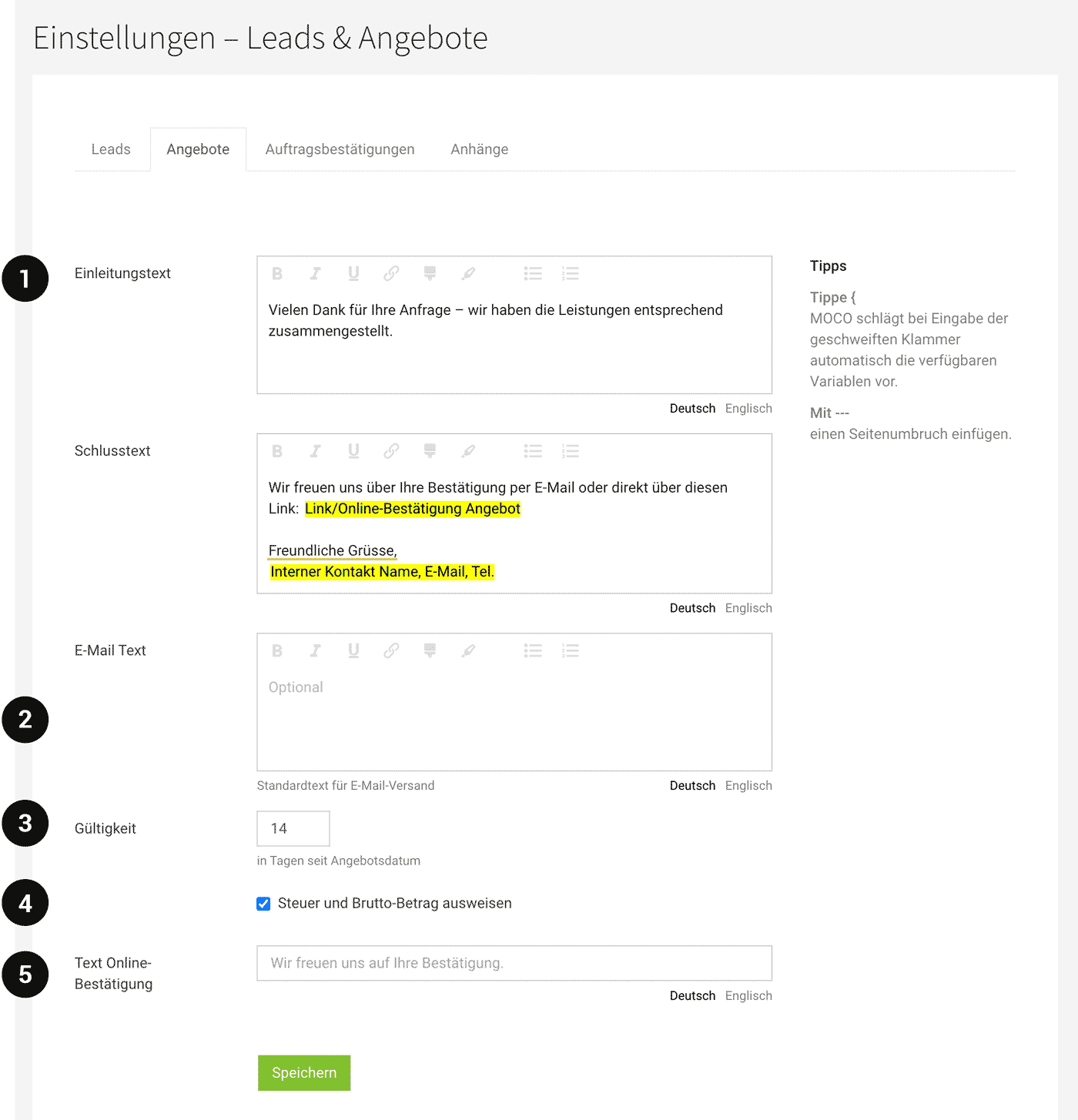
Variables are available. You can open them by typing "{" (press Alt + "("). (Example 2: variables are highlighted in yellow)
The greeting line uses fallbacks if it has not been set individually for the contact.
English
The English texts you define here are used for English quotes (select "Correspondence in English" in the form under Company beforehand).
 (English image not yet available)
Variables are available. You can open them by typing "{" (press Alt + "("). (Example 2: variables are highlighted in yellow)
The greeting line uses fallbacks if it has not been set individually for the contact.
English
The English texts you define here are used for English quotes (select "Correspondence in English" in the form under Company beforehand).
(English image not yet available)Introductory and Closing Text (1)
Insert a page break
You can insert a page break in the introductory and closing text using "---" (see also the note in the screenshot).
This lets you place a kind of cover page/cover letter or a signature section for a quote confirmation within the quote on its own page.
You can insert a page break in the introductory and closing text using "---" (see also the note in the screenshot).
This lets you place a kind of cover page/cover letter or a signature section for a quote confirmation within the quote on its own page.
Email Text Including Signature
Insert a logo into the email signature
A signature image previously defined under Account > Email can also be inserted via variables in the email text field (2).
A signature image previously defined under Account > Email can also be inserted via variables in the email text field (2).
Validity
Default for the quote validity period (3). This can be shown via the info block or placed using variables.
Hide VAT and Gross Amount
Choose whether, by default, only the net total is shown (4). In this case, add a note to the closing text: "All prices are net, plus VAT".
Customise the Text for Online Confirmation
Replace the MOCO default "We look forward to your confirmation", which is shown to the client during online confirmation (5). This can also be overwritten again for each quote.
Quote Attachments (e.g. Terms & Conditions)
Settings > Leads & Quotes > Attachments
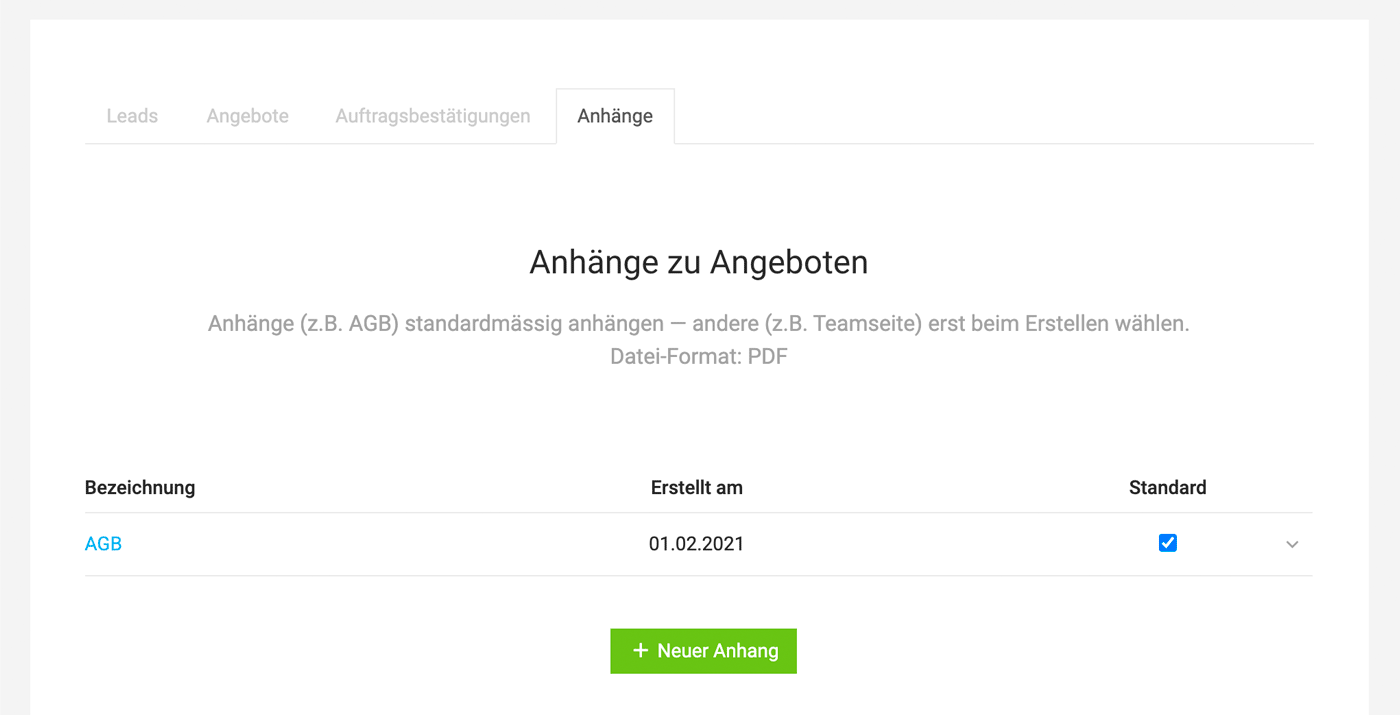
Here you can upload standard attachments (PDF pages). Ideal for, for example, Terms & Conditions, a team page, or a price list.
 (English image not yet available)
Here you can upload standard attachments (PDF pages). Ideal for, for example, Terms & Conditions, a team page, or a price list.
(English image not yet available)Good to know:
- The uploaded attachment can be selected for any quote.
- The letterhead background also affects attachments. If you do not want this, add a white area to the background of the attachment file to cover the letterhead.
- The pages are not numbered consecutively – we recommend referencing the attachments in the quote document, e.g. "Attachment: xxx".