Create Quotes
Where Do I Create the Quote? | Building Blocks, Copying, Templates | Images, Cover Page, Seamless | Attachments | Quote with Options | Quote with a Price Range/Without a Final TotalWhere Do I Create the Quote?
Independently
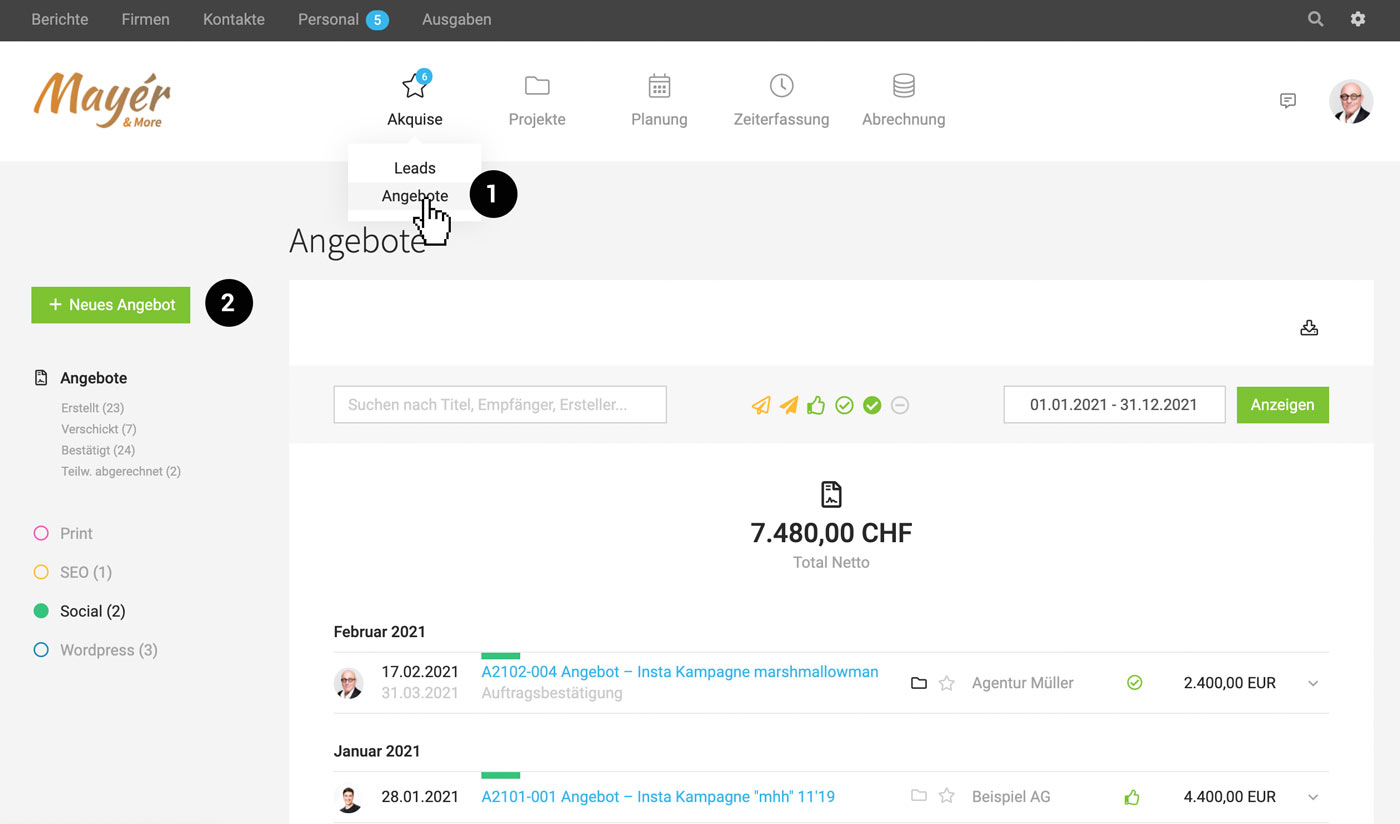
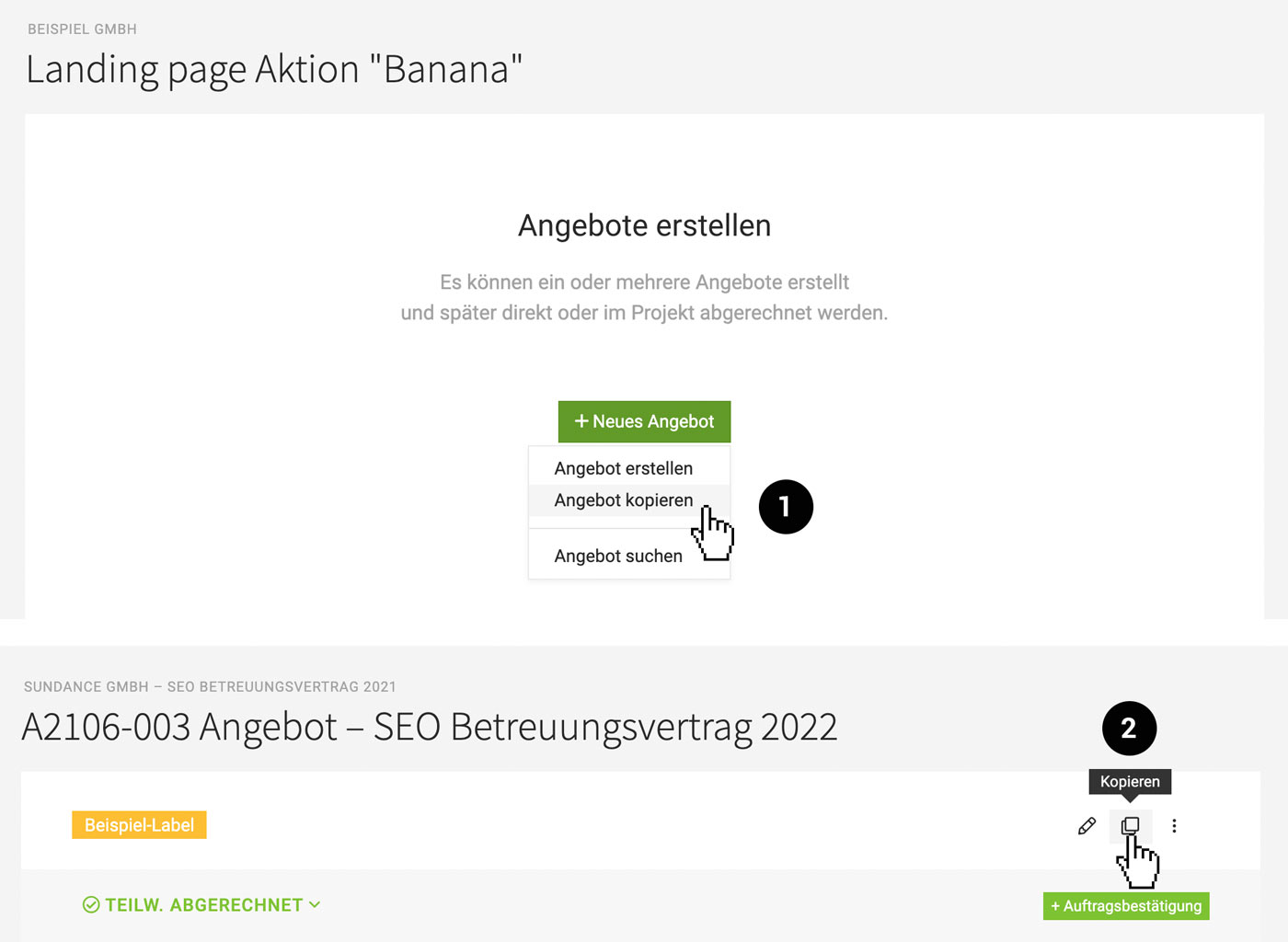
Under "Acquisition" > "Quotes" (1), you can create quotes independently (2) – and assign them to a company, lead, or project later if needed.
 (English image not yet available)
(English image not yet available)Directly Assigned
If the company, lead, or project already exists, it makes sense to create the quote directly there under "Quotes".
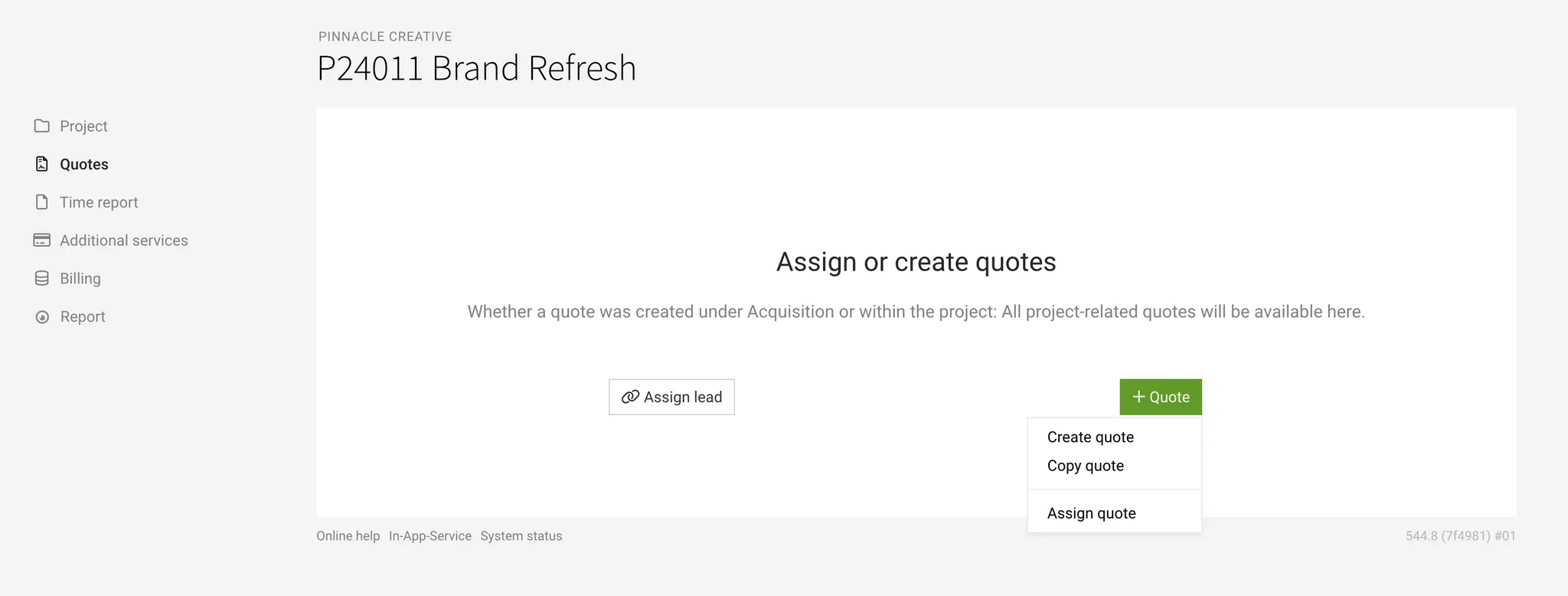
If a project is created from a lead, the lead (including its quotes) is automatically linked (for later Billing). You can also assign a lead later on (in the project under "Quotes" at the top right).
Assign a quote later.
Building Blocks, Copying, Templates
Use the Service Catalogue for Building Blocks and Checklists
Individual line items, sections, or entire quote templates (line items section) can also be inserted into a quote via the Service Catalogue. You can use an entry as a “checklist”.
Use Quotes or Invoices as Templates
Use a quote copy
In Client, Lead, or Project, you can create new quotes under “Quotes”, copy existing quotes (1), and adjust them. If you want to use an invoice you have created for a new quote, go to the invoice and, under Actions in the top right, select “Create Quote”.
Save a quote as a catalogue entry
Via the Catalogue, you can add a quote (as well as an invoice) as a catalogue entry.
In Client, Lead, or Project, you can create new quotes under “Quotes”, copy existing quotes (1), and adjust them. If you want to use an invoice you have created for a new quote, go to the invoice and, under Actions in the top right, select “Create Quote”.
Save a quote as a catalogue entry
Via the Catalogue, you can add a quote (as well as an invoice) as a catalogue entry.
Copy and Assign Directly
Any quote can also be copied from the list view or directly (2). If needed, you can then or later assign it to a (different) client, lead, or project.
 (English image not yet available)
(English image not yet available)Create Templates
Any quote you create can be used as a template. To create and clearly separate templates, proceed as follows:
1. Create the quote template independently, or under “Quotes” within the client
2.Give it a clear name (a prefix is helpful for identification), e.g. “_Template xxxx”
3. You can then quickly find the template via search (keyboard shortcut Shift + 7 → enter search term)
4. Create a copy (top right in the quote)
5.To keep templates from cluttering the quotes list, set them to “ignored”
Images, Cover Page, Seamless
Images
The “Image” element is also available as a line item. The maximum width shown in the PDF is defined in the settings (Layout > General). If you add a smaller image, it will be left-aligned.
Hide the Table Header for Flexibility or a Cover Page
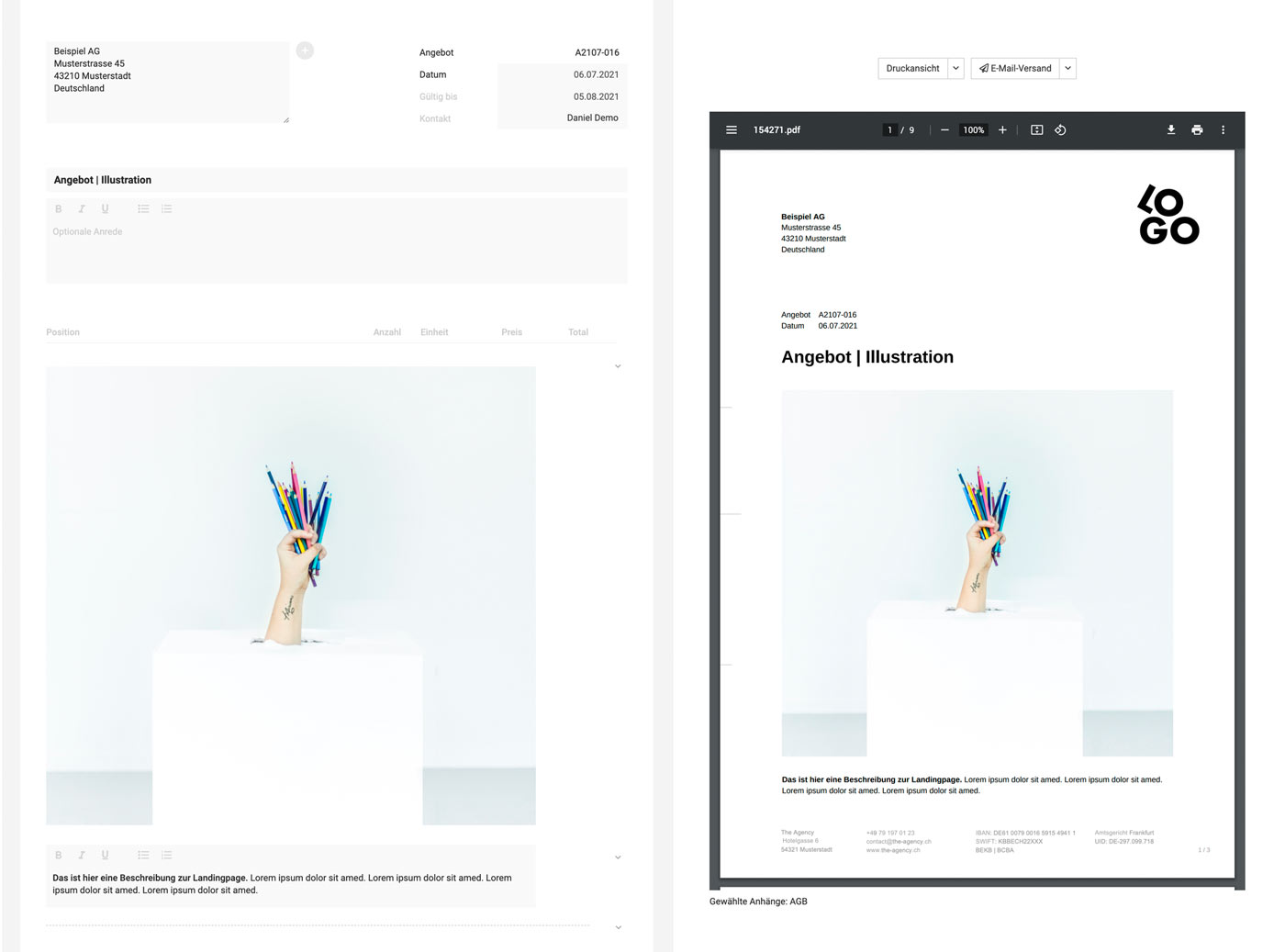
You can currently create a kind of cover page by hiding the table header, which is usually too rigidly tabular for quotes with images. This lets you use the elements seamlessly. See the example in edit mode vs. PDF preview:
 (English image not yet available)
In the example, the width for Description & Images is set to 100%. With page margins of 25 mm, we recommend an image width of 160 mm at 150 dpi & RGB, so the quote can still be printed in the best quality and the file size remains reasonable. Ideally, create a template (e.g. in Photoshop) so you can optimise images quickly.
(English image not yet available)In the example, the width for Description & Images is set to 100%. With page margins of 25 mm, we recommend an image width of 160 mm at 150 dpi & RGB, so the quote can still be printed in the best quality and the file size remains reasonable. Ideally, create a template (e.g. in Photoshop) so you can optimise images quickly.
Attachments
Standard Attachments
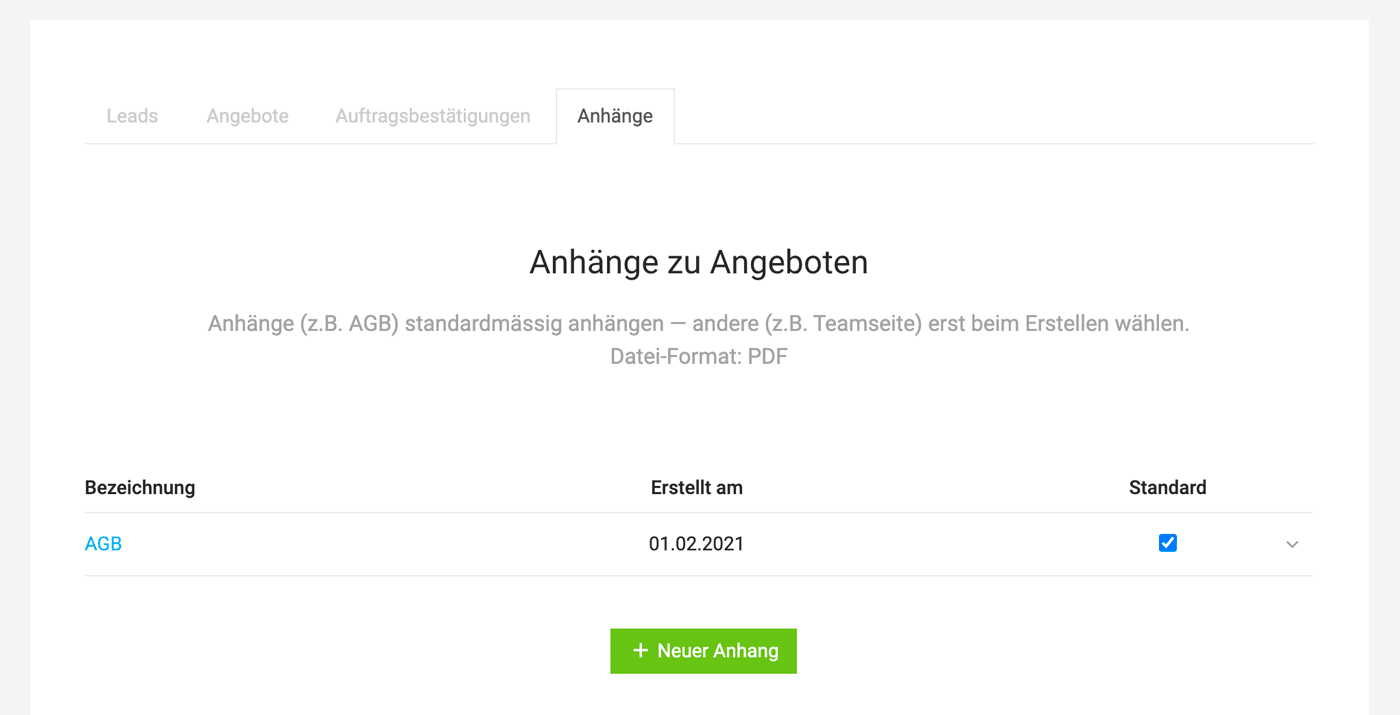
In the settings under "Leads & Quotes" you can upload additional pages (PDF) for the PDF – for example, Terms and Conditions or a price list.
Please note:
Please note:
- If you want to cover the letterhead, add a white area to the background of the file before generating the PDF.
- Preselect as standard
- If needed, explicitly refer to the attachment in the quote (the attachment is not numbered by MOCO).
 (English image not yet available)
Individual Attachments
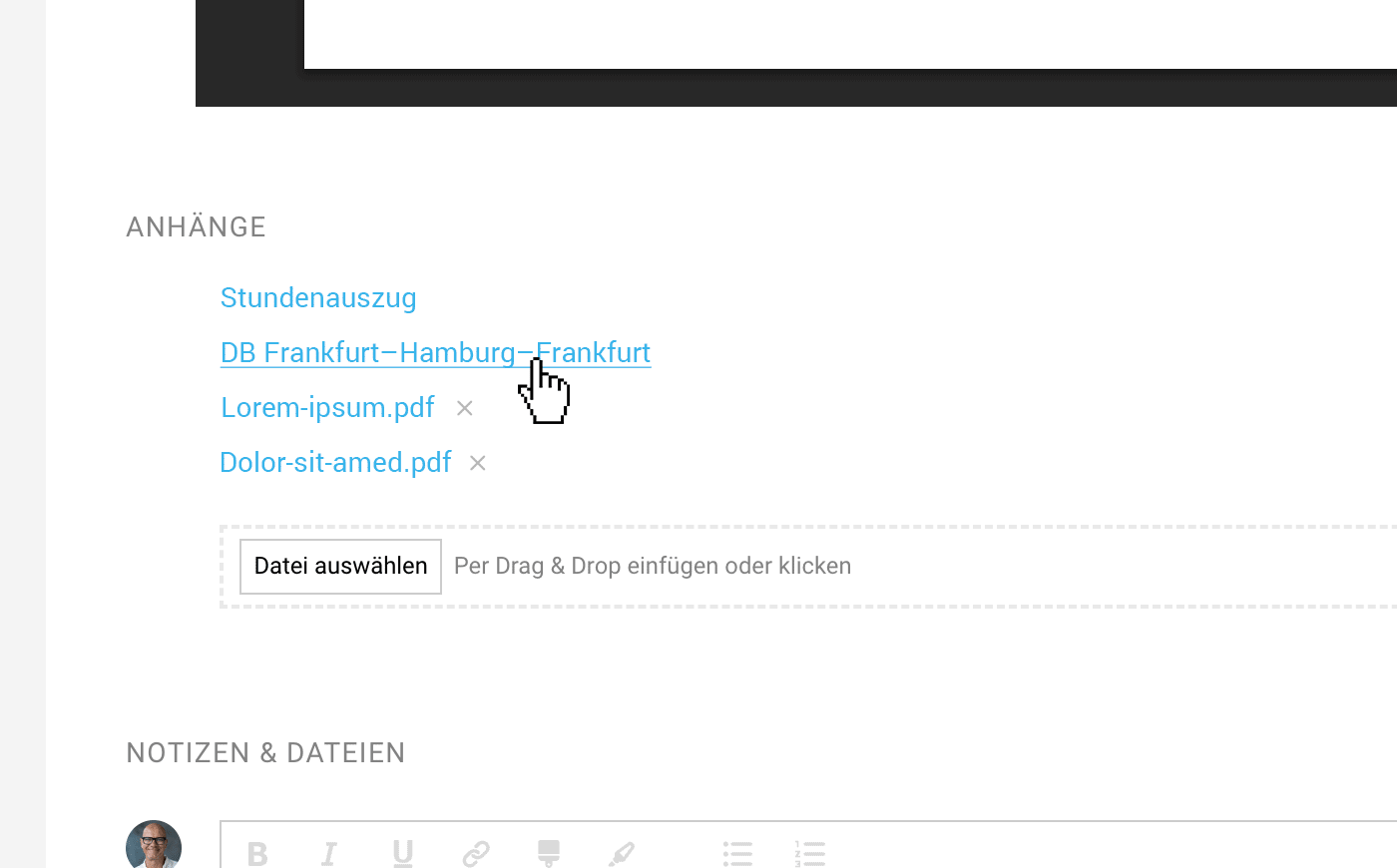
To do this, upload the PDF file to the saved quote:
 (English image not yet available)
(English image not yet available)Quote with Options
Optional Line Items
In quotes, you can set certain line items to "Optional". The amount is then not included in the total straight away. When inserting an interim total or subtotal, you can total up optional line items.
Use Variables to Show the Total Including Options
The client then confirms an option as part of the quote confirmation, either by email or via an insertable signature area (see example).
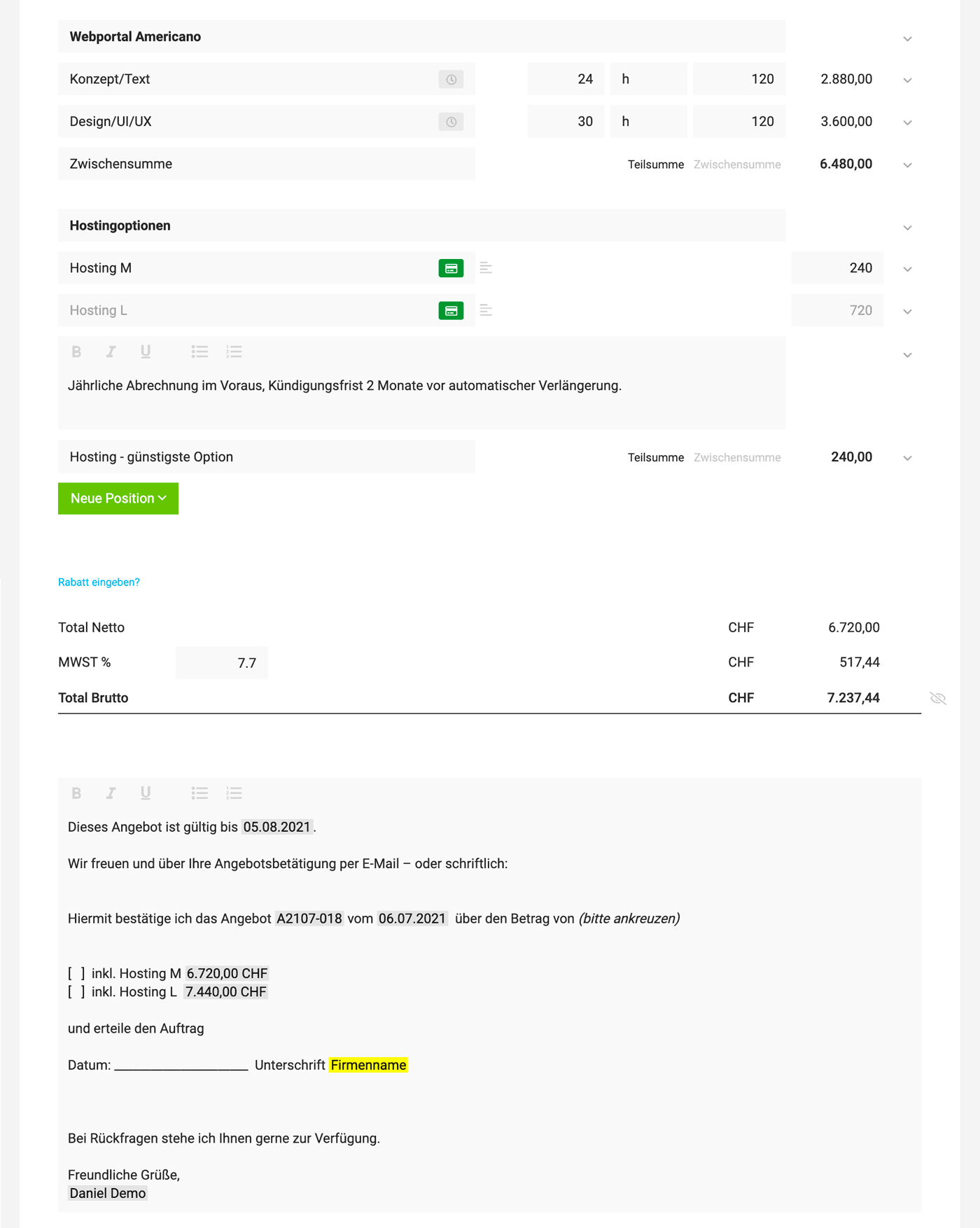 (English image not yet available)
(English image not yet available)Quote with a Price Range/Without a Final Total
MOCO generally focuses on a clear overall total. If you do want to create a quote or cost estimate with a price range, the following approach could work, for example:
List a contingency as an optional line item:
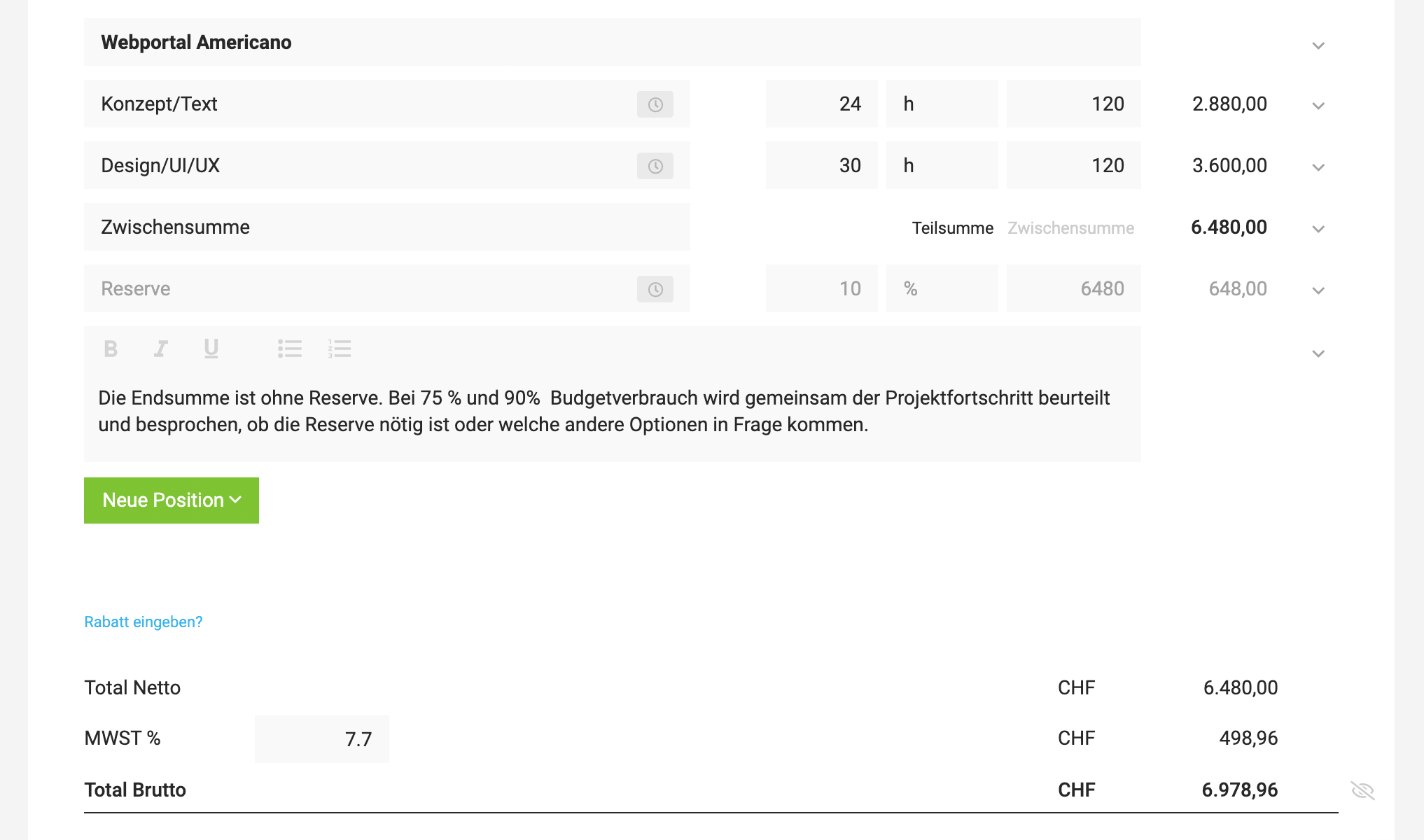 (English image not yet available)
Hide the final total section
This can also be useful for a quote for a monthly retainer/maintenance contract. If a quote contains only optional line items, images, or text-only items, no final total is shown automatically.