Manage Quotes
All Quotes in One Place & Filterable | Move/Assign Quotes | Live Info When Quotes Are Open in ParallelAll Quotes in One Place & Filterable
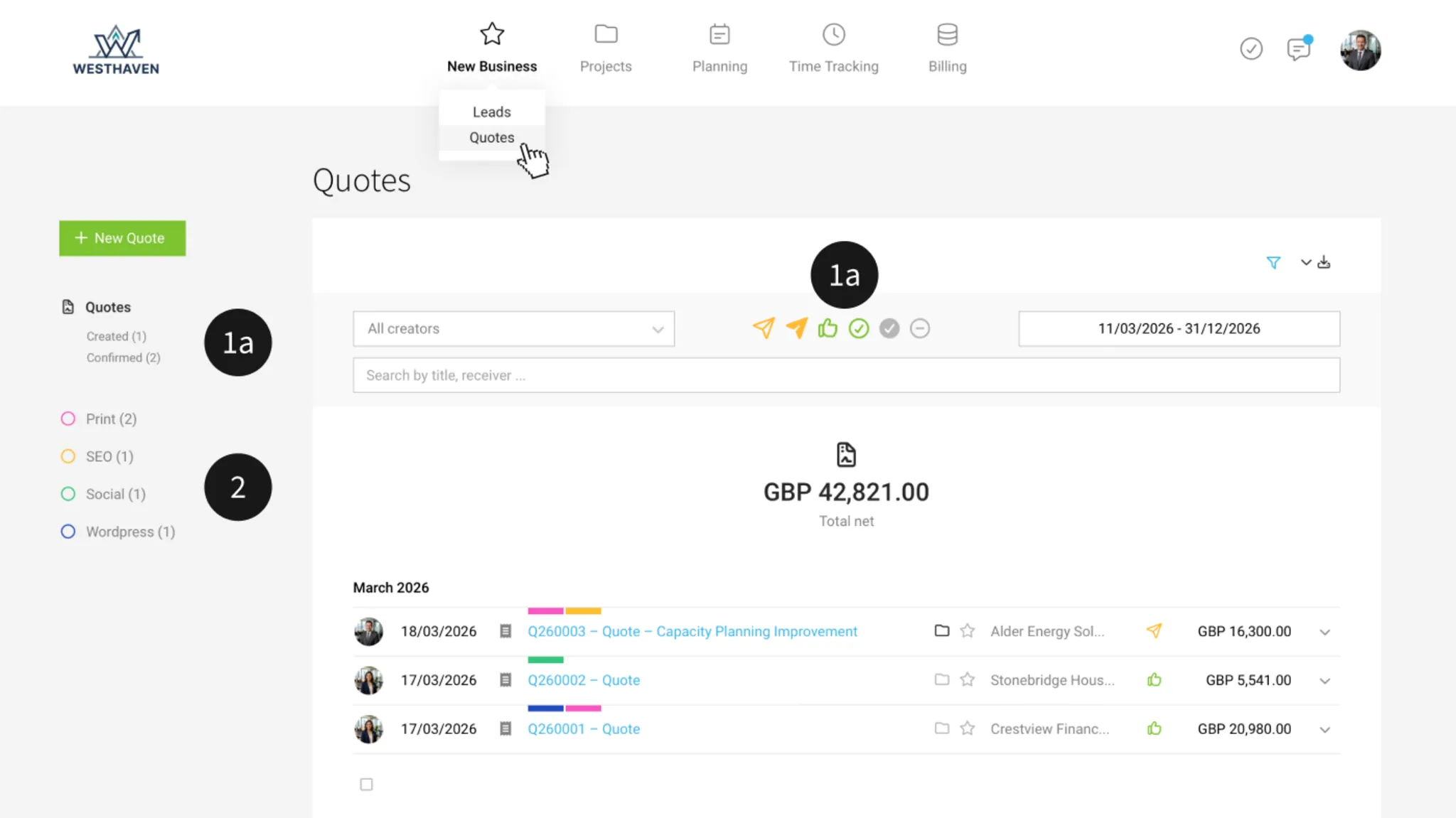
Under "Sales" > "Quotes", all quotes are listed.
In the top right, you can export them (Excel and documents).
In the top right, you can export them (Excel and documents).
Quick Filtering
Quickly filter open quotes by status using the Smart Filters (1a).
The filter panel (1b) offers various filter options. With the keyboard shortcut "Q", you can filter directly to your own quotes.
The filter panel (1b) offers various filter options. With the keyboard shortcut "Q", you can filter directly to your own quotes.
Status: "Ignored"
The default filtering ignores the "Ignored" status. "Ignored" is a general status meaning "quote no longer relevant". For example, you set it manually to "Ignored" if it was an alternative version of a quote or the client declined (if needed, you can also add a comment with the reason under "Comments" below – if enabled, also via voice input). Unbilled quotes are automatically set to "Ignored" when a project is archived.
You can also use the global search (magnifying glass at the top right or the "/" keyboard shortcut) to find quotes from anywhere by entering the quote number.
Categorise & Tag
Quotes can be tagged or categorised using Labels (2).
Bulk Actions
On the left, above the avatar, you can select multiple quotes at once and assign a shared status or a shared label.
Move/Assign Quotes
Assign a quote to a (different) company, lead, or project
Either from the central quote list via the icons or via the actions on the right in the dropdown (3)
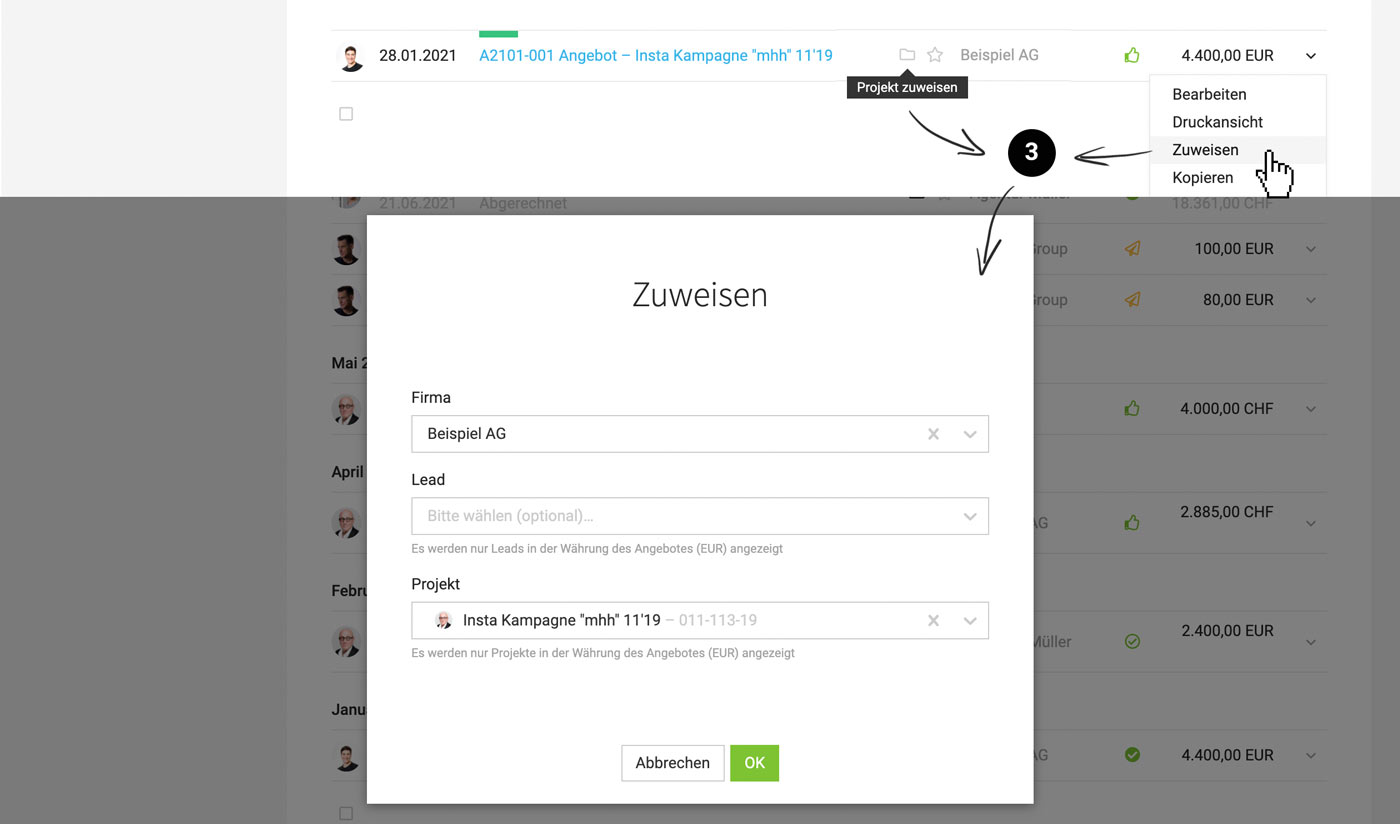 (English image not yet available)
– alternatively, on the quote details page at the top right (3). The assignment can also be tracked on the details page (4):
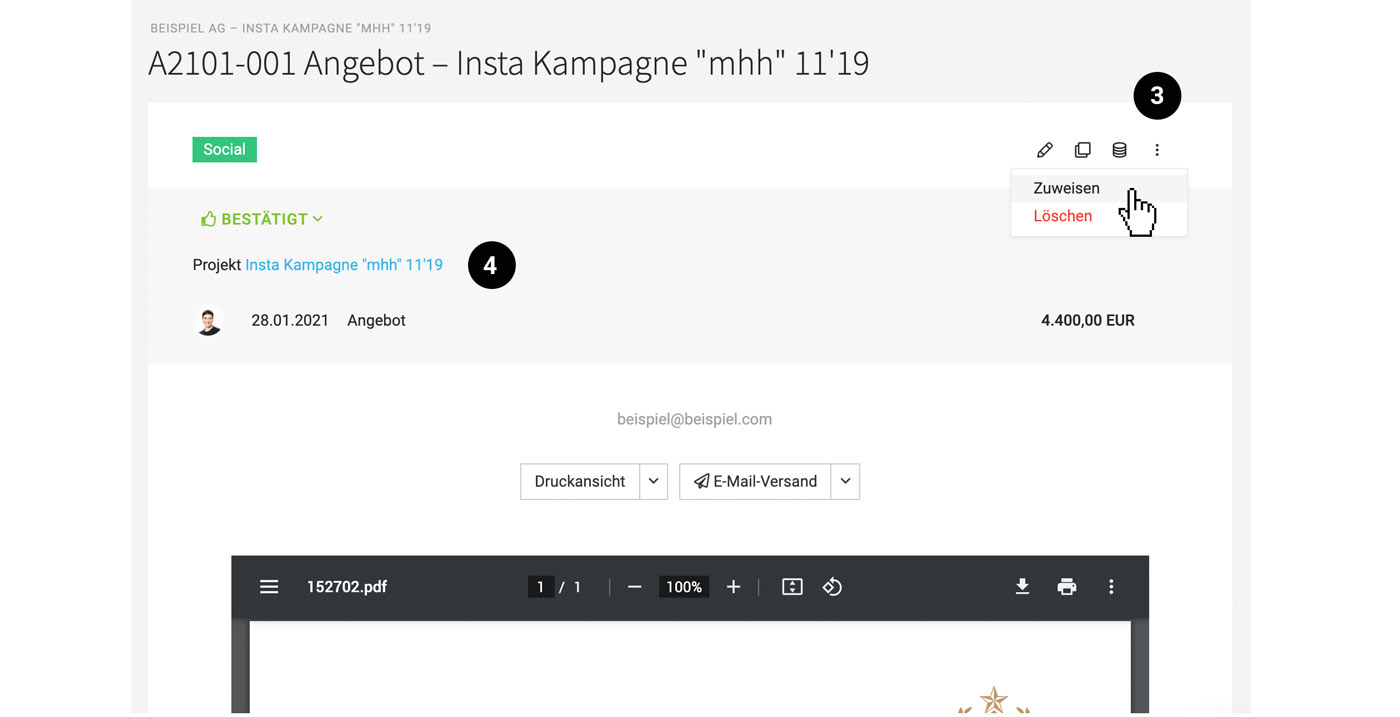 (English image not yet available)
If you create a project directly from the quote (without a lead), the quote is, as expected, assigned directly to the project.
Assign to an existing lead, project, or client
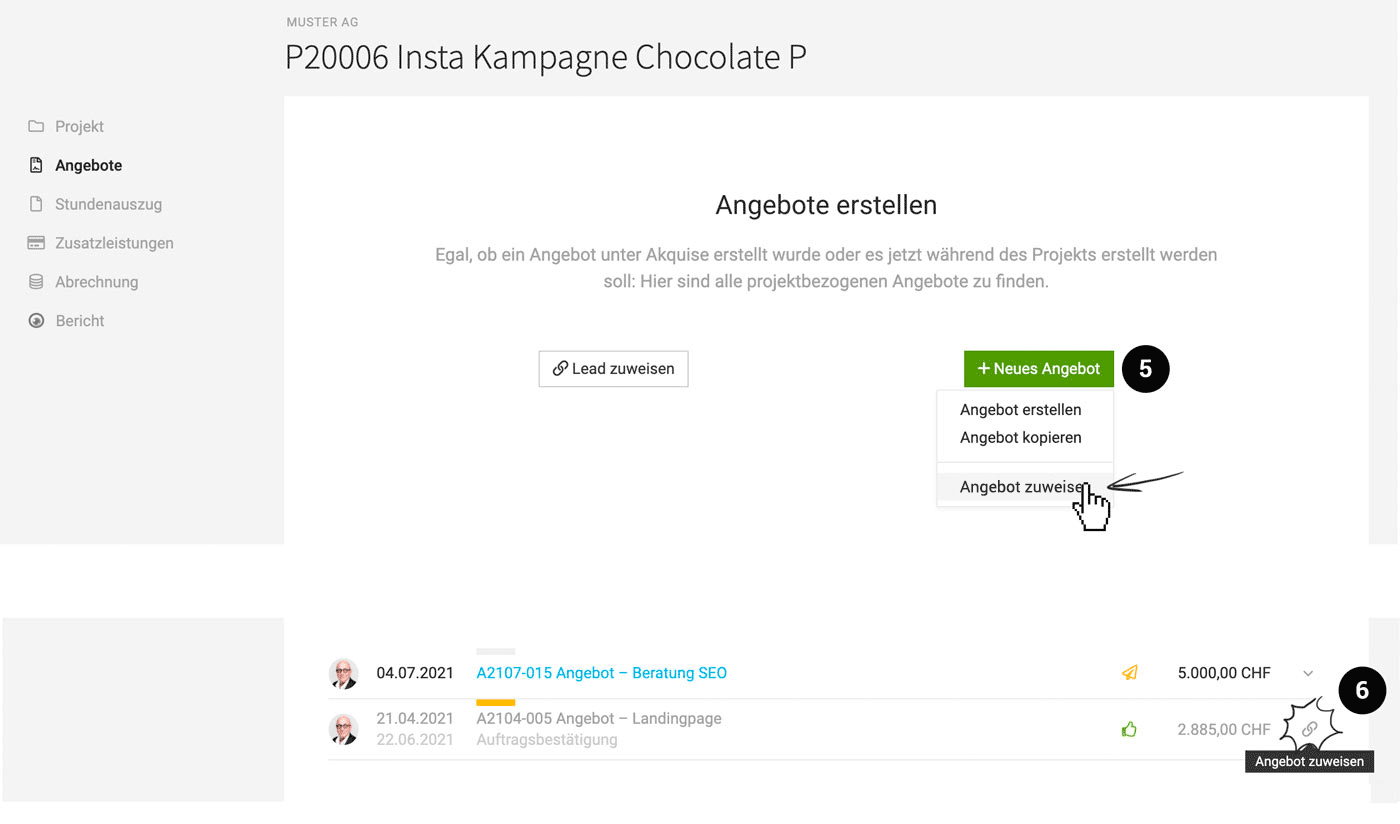
Existing quotes can be pulled into a lead, project, or client via "Assign Quote" (5).
 (English image not yet available)
(English image not yet available)Select only certain quotes from a lead for the project
When you create a project from a lead, all quotes not yet assigned to projects are automatically assigned to the project. You can assign quotes in the list (link icon) (6) or remove them (via the dropdown).
Copy quote details into the project
Details from assigned quotes are offered for copying into the project (e.g. budget, services, additional services).
Quote → Project Workflow
Quote → Project Workflow
Live Info When Quotes Are Open in Parallel
 (English image not yet available)
MOCO shows you directly in the quote or invoice if someone else currently has the same document open in edit mode. This helps you coordinate better as a team and avoid accidentally overwriting changes.