Quote Confirmation
Quote Confirmation | Order Confirmation & Delivery Note | Create a Project from a QuoteQuote Confirmation
With a quote confirmation (also known as commissioning or placing an order), the client confirms the quote and formally places the order. Confirmation can be informal, via email, online confirmation, or a signature on the quote.
By Email
In most cases, an email is sufficient for confirmation.
Online Confirmation
Via "Share Quote", you can retrieve the link that the client can use to confirm the quote online.
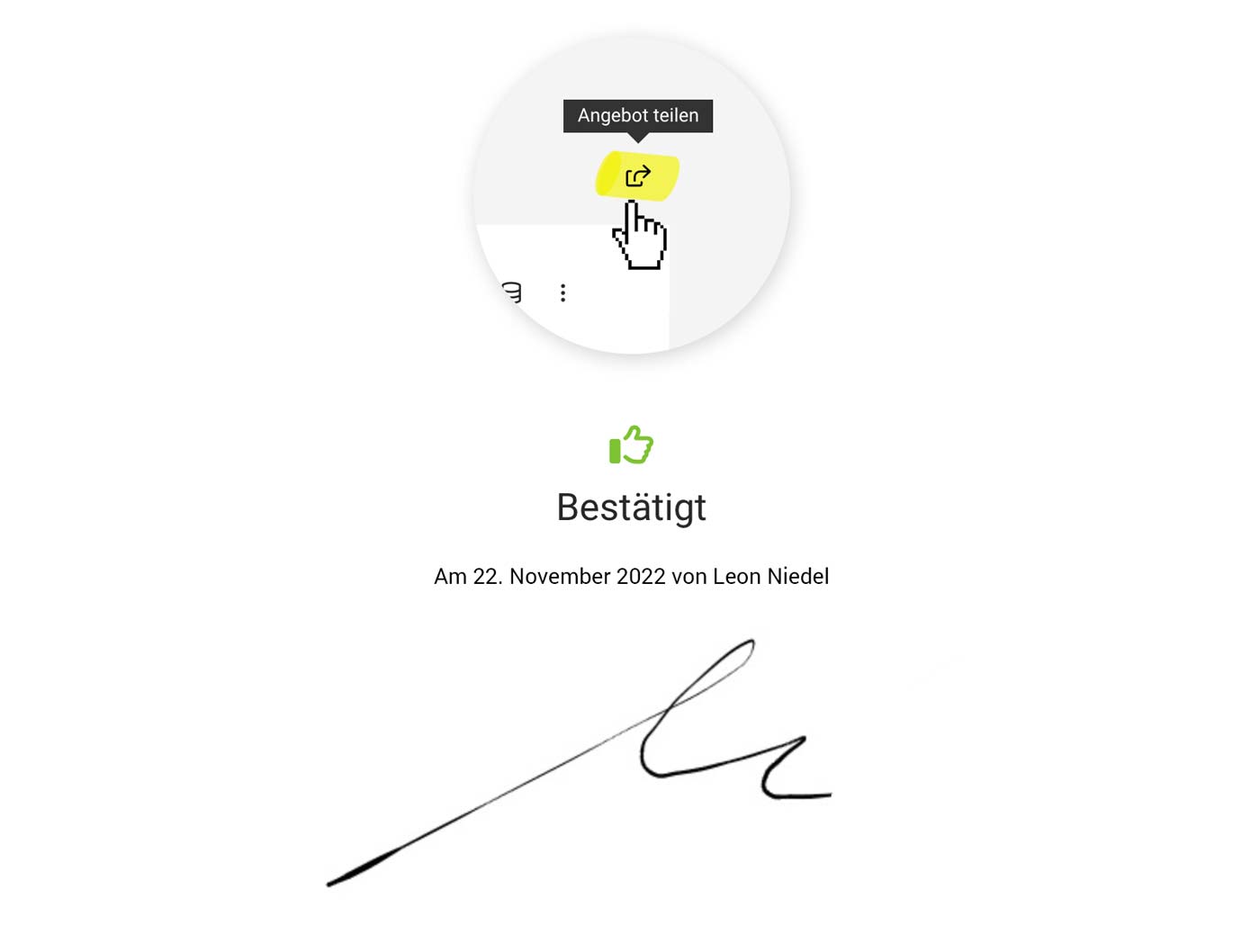 (English image not yet available)
1. Online confirmation link
Send the client the confirmation link by email and/or PDF. The short accompanying text is standard and can be customised for each quote.
2. Client confirms
The recipient or another person in the company confirms online (with name, email address, and signature)
3. Quote is set to confirmed & the contractor is informed
The person selected in the quote as the "Internal Contact" is notified, a note is created on the quote, and the quote status is set to "Confirmed".
Automate the link via a variable for the quote PDF or email
To automatically send the online confirmation link along with the quote, use the variable "Link/Online Quote Confirmation" in the standard email text. The variable can also be inserted only when sending, if needed.
Allow/block online access
When you send the quote, access via link is activated automatically – as it is when you use the link in the quote closing text. Otherwise, access must be activated deliberately, as you may know from sharing the project report.
(English image not yet available)1. Online confirmation link
Send the client the confirmation link by email and/or PDF. The short accompanying text is standard and can be customised for each quote.
2. Client confirms
The recipient or another person in the company confirms online (with name, email address, and signature)
3. Quote is set to confirmed & the contractor is informed
The person selected in the quote as the "Internal Contact" is notified, a note is created on the quote, and the quote status is set to "Confirmed".
Automate the link via a variable for the quote PDF or email
To automatically send the online confirmation link along with the quote, use the variable "Link/Online Quote Confirmation" in the standard email text. The variable can also be inserted only when sending, if needed.
Allow/block online access
When you send the quote, access via link is activated automatically – as it is when you use the link in the quote closing text. Otherwise, access must be activated deliberately, as you may know from sharing the project report.
Signature Area in the PDF
A signature area can be integrated directly into the quote closing text or placed on a separate page for quote confirmation. To do this, in Settings under "Leads & Quotes" > "Quotes", include the quote confirmation content in the quote closing text.
- Variables (highlighted in yellow in the example) are filled in automatically by MOCO with the quote details. Select variables simply by typing an opening curly bracket "{". In the example, the suggested variables are marked with an asterisk and in italics.
- Ideally, mark the lines with "..." or "___", as "---" creates a page break.
Example:
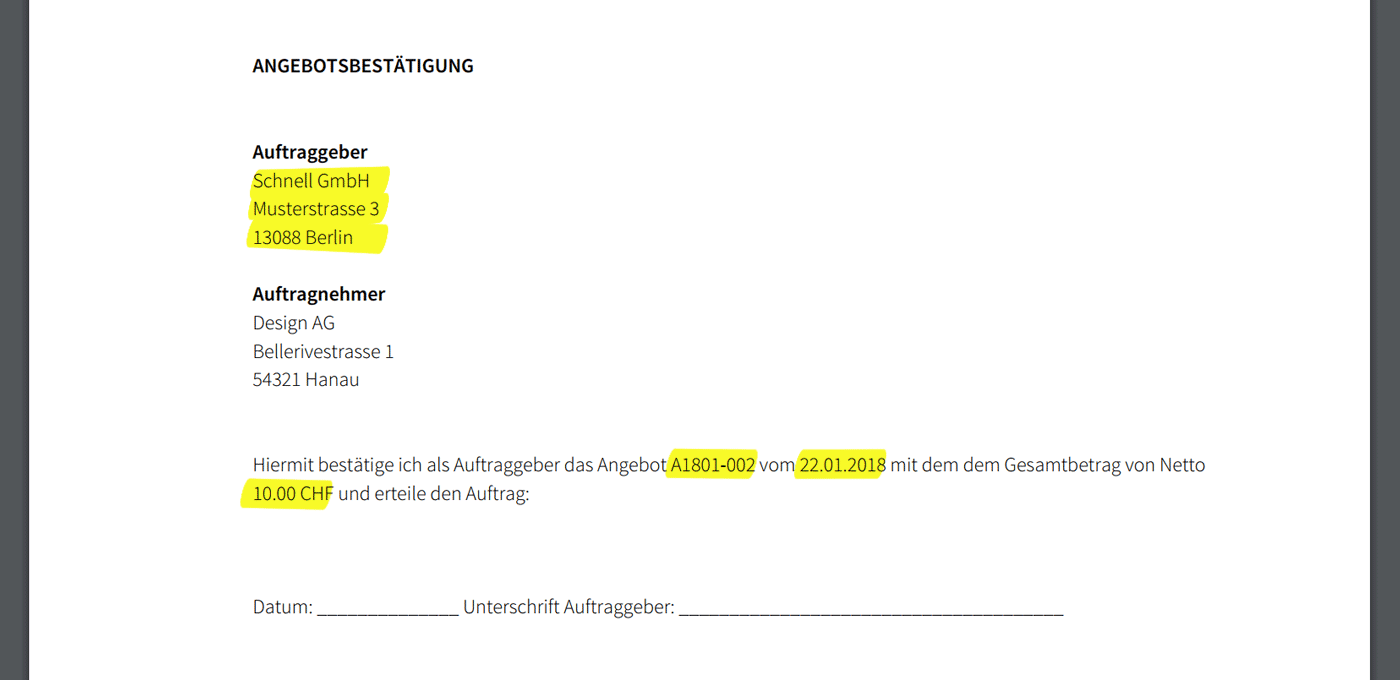 (English image not yet available)
---Example to copy: insert the variables at the yellow points using "{" ---
We would be pleased to receive your confirmation online (via link) or by email.
Kind regards,
Internal Contact Name, Email, Tel.
---
QUOTE CONFIRMATION
Option: confirm online
Link/Online Quote Confirmation
Option: by email
I hereby confirm the quote Quote Number
dated Quote Date for the amount of Net Amount net, and place the order:
Client
Recipient Address
____________________________________________________
Date
____________________________________________________
Signature
--- End of example ---
Note: The terms "quote confirmation" and "order confirmation" are often confused. > Here we explain the difference between confirming a quote and confirming an order
Order Confirmation & Delivery Note
Order confirmations and delivery notes are used less often. They are not legally required, so they are optional in MOCO and can be used as needed.
Order Confirmation
An order confirmation should not be confused with confirming a quote/placing an order. After the client has confirmed the quote, you as the contractor confirm to the client, via the order confirmation document, that you will carry out the commissioned services with due care. » Confirming a quote vs confirming an order: what’s the difference?
Create an Order Confirmation
In the quote, select “Order Confirmation” at the top right (see image) → confirm or adjust the accompanying text → an order confirmation is created from the quote and the quote status is automatically set to “confirmed”. You can predefine the default accompanying texts in Settings.
Create an Order Confirmation
In the quote, select “Order Confirmation” at the top right (see image) → confirm or adjust the accompanying text → an order confirmation is created from the quote and the quote status is automatically set to “confirmed”. You can predefine the default accompanying texts in Settings.
Do the commissioned services differ from the quote?
The order confirmation should be seen purely as an optional additional document. Billing is always based on the quote. So if anything differs, adjust the quote first and then create the order confirmation. The changes are documented in the change log.
Change Log – Traceability of Versions
To track versions, a change log (as with invoices) is available below the quote. Alternatively, before making changes, you can save the downloaded quote PDF below the quote under “Comments”.
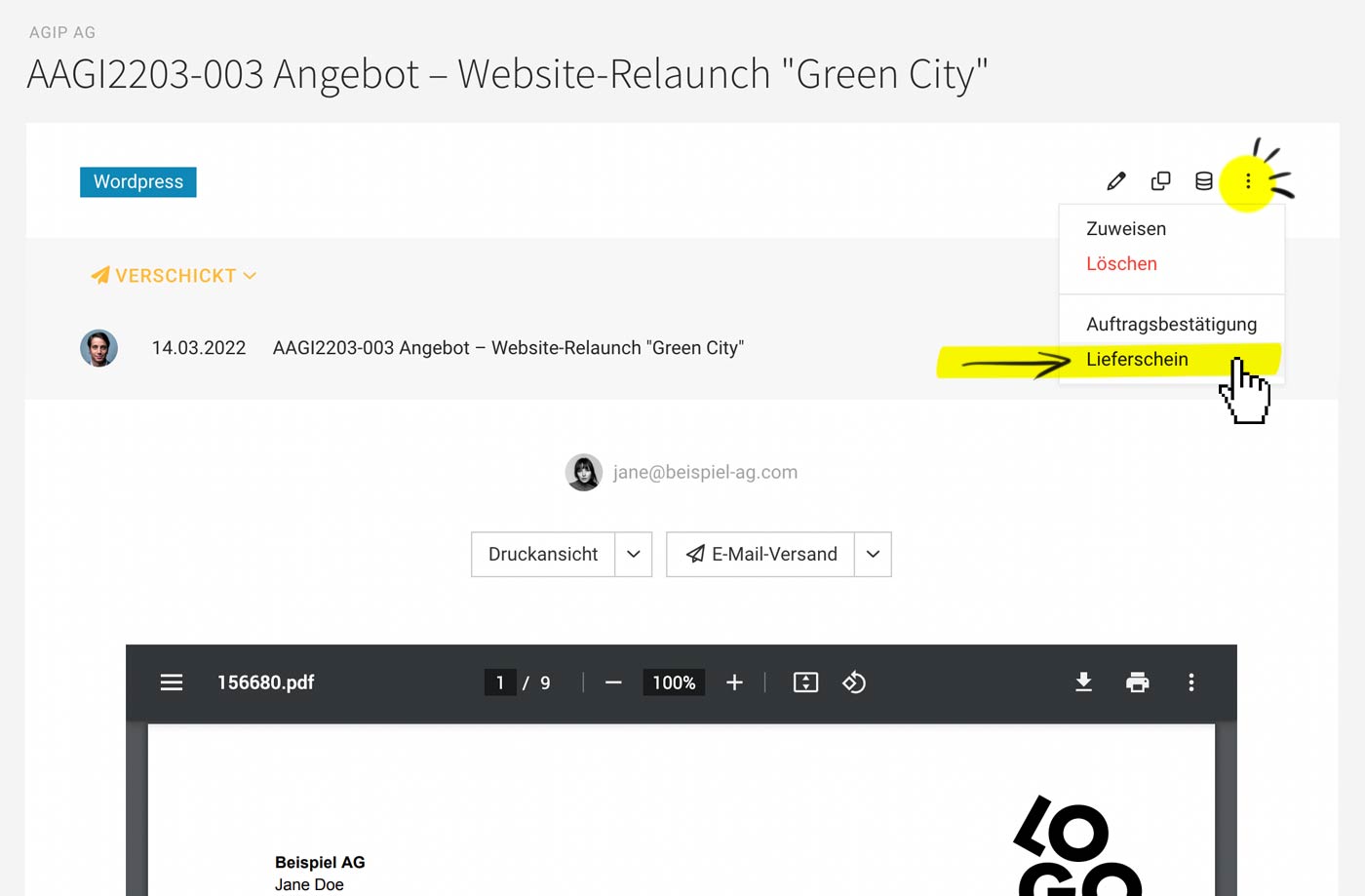 (English image not yet available)
Delivery Note
If a service provider ships goods, they will usually want to create a delivery note as a goods accompanying document. The delivery note helps the client, on receipt of the goods, to check and match the quantity and type of the ordered goods.
In most cases, the invoice is sent separately from the delivery note – or there may be no invoice at all, for example when sending a product sample. » Standard details on the delivery note and other information
Create a Delivery Note
In the quote (or invoice), select “Delivery Note” at the top right → confirm/adjust the accompanying text and select line items → the delivery note is created and can be printed directly or sent by email. It is always accessible as a reference to the quote or invoice.
In most cases, the invoice is sent separately from the delivery note – or there may be no invoice at all, for example when sending a product sample. » Standard details on the delivery note and other information
Create a Delivery Note
In the quote (or invoice), select “Delivery Note” at the top right → confirm/adjust the accompanying text and select line items → the delivery note is created and can be printed directly or sent by email. It is always accessible as a reference to the quote or invoice.
Create a Project from a Quote
Set a confirmed quote to "Confirmed" (this happens automatically if an order confirmation is created) and create the project straight away:
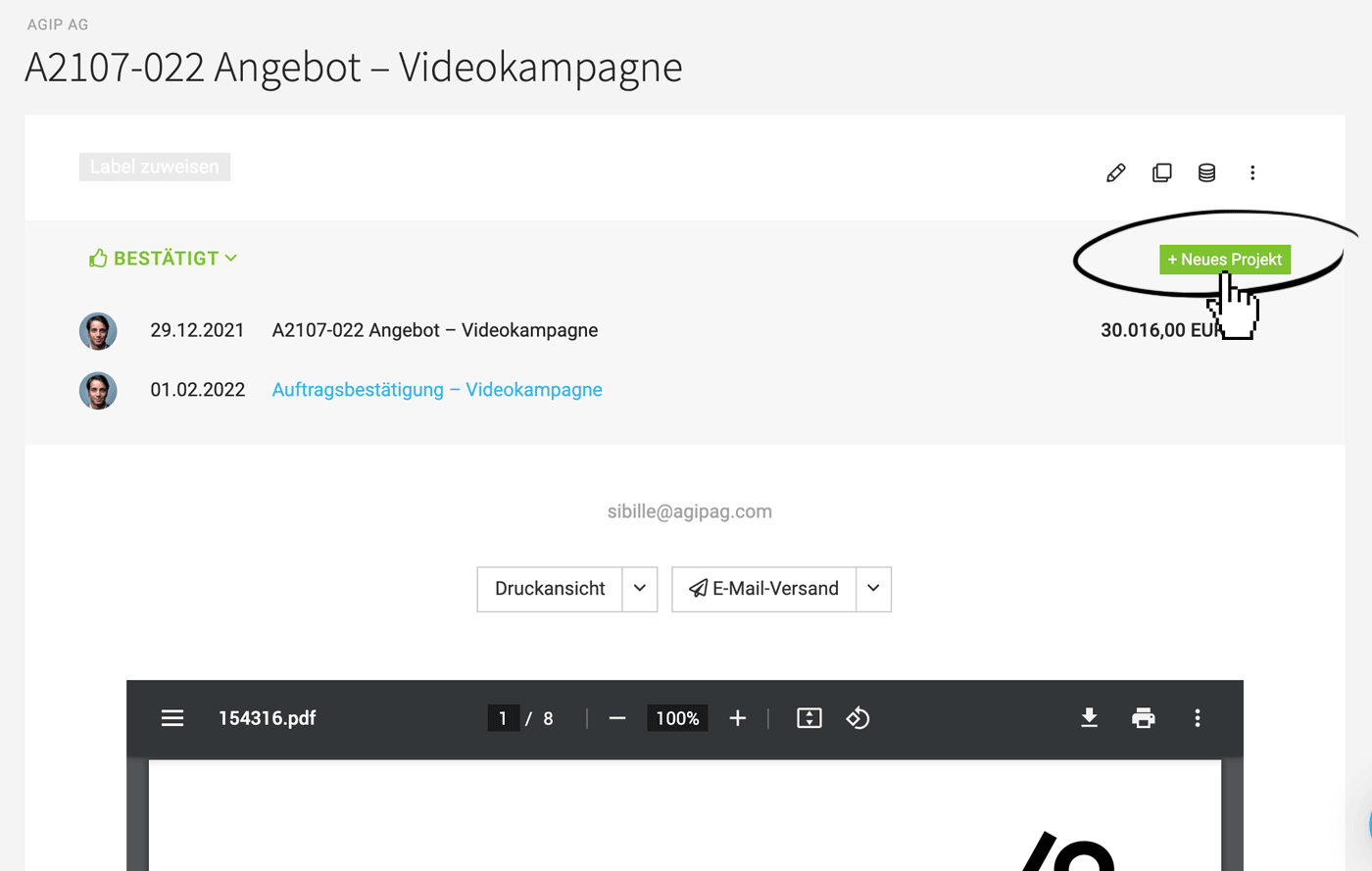 (English image not yet available)
If you work with leads or have already created the project, you can also assign the quote later on
» Detailed information on creating projects from leads/quotes.
(English image not yet available)If you work with leads or have already created the project, you can also assign the quote later on
» Detailed information on creating projects from leads/quotes.