Time Tracking (Projects)
Entry & Display | Move, Copy, Share, etc. | Stopwatch | Non-billable Hours | Self-MonitoringEntry & Display
In time tracking, employees enter their project time (client projects and internal work). The project and service last booked are preselected.
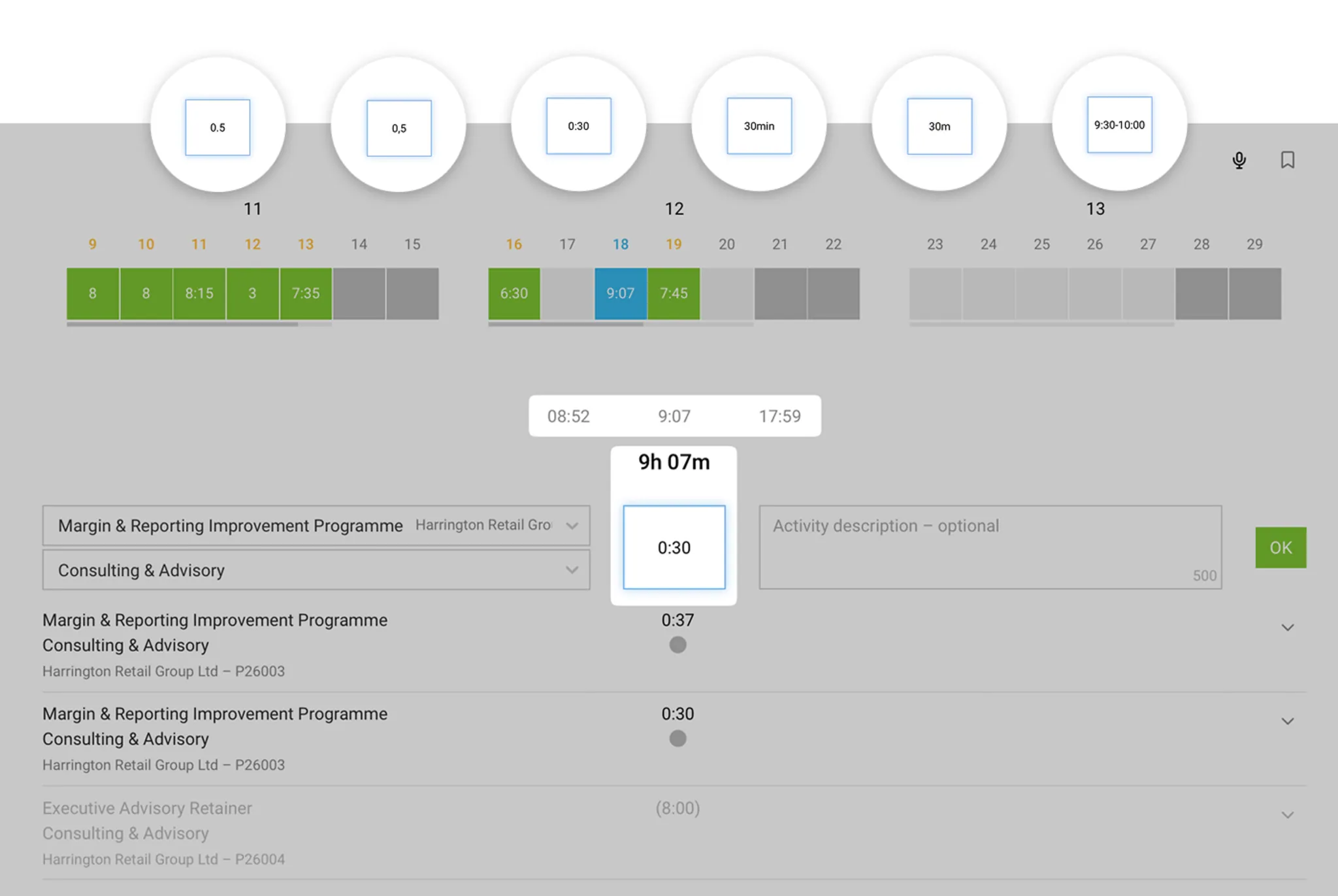
Free Entry
- Manual entry in various formats (see image)
- Use the stopwatch
- Via AI voice input
Popular: record time simply and pragmatically in 15-minute increments, as minute-by-minute tracking more often leads to discussions with the client. This distributes total working time realistically across client projects and internal work.
In Settings, you can also define whether entries should be rounded automatically and whether an activity description is mandatory. Go to Settings
Use Working Hours as a Framework & for Filling In
You can also record your working hours (start, breaks, end). The combination helps you keep track of how many hours the last task took. More on filling in and working hours reconciliation
Guidance Through Suggestions
With project planning, marking favourites and calendar integration, you can create helpful guidance in time tracking. You can create time entries directly from the suggestions.
If a description has been saved for a service in the project, it is shown in time tracking when you hover over the service.
Integrations
Other options include tracking in combination with activity recording via timeBro, or capturing time directly from a task management tool such as Trello or Asana.
In Settings, you can also define whether entries should be rounded automatically and whether an activity description is mandatory. Go to Settings
Use Working Hours as a Framework & for Filling In
You can also record your working hours (start, breaks, end). The combination helps you keep track of how many hours the last task took. More on filling in and working hours reconciliation
Guidance Through Suggestions
With project planning, marking favourites and calendar integration, you can create helpful guidance in time tracking. You can create time entries directly from the suggestions.
If a description has been saved for a service in the project, it is shown in time tracking when you hover over the service.
Integrations
Other options include tracking in combination with activity recording via timeBro, or capturing time directly from a task management tool such as Trello or Asana.
Display
- Saved entries are automatically shown in hh:mm or decimal (industrial minutes, which are also used for billing). Each employee can set their preferred display in their profile (click on the profile picture).
- Time tracking shows the last two weeks, the current week, and one future week.
- Absences are shown.
- Below the week, a progress bar shows live whether the weekly target has been met (details on mouseover).
- Project and client names are linked within an entry (subject to the relevant access rights).
Move, Copy, Share, etc.
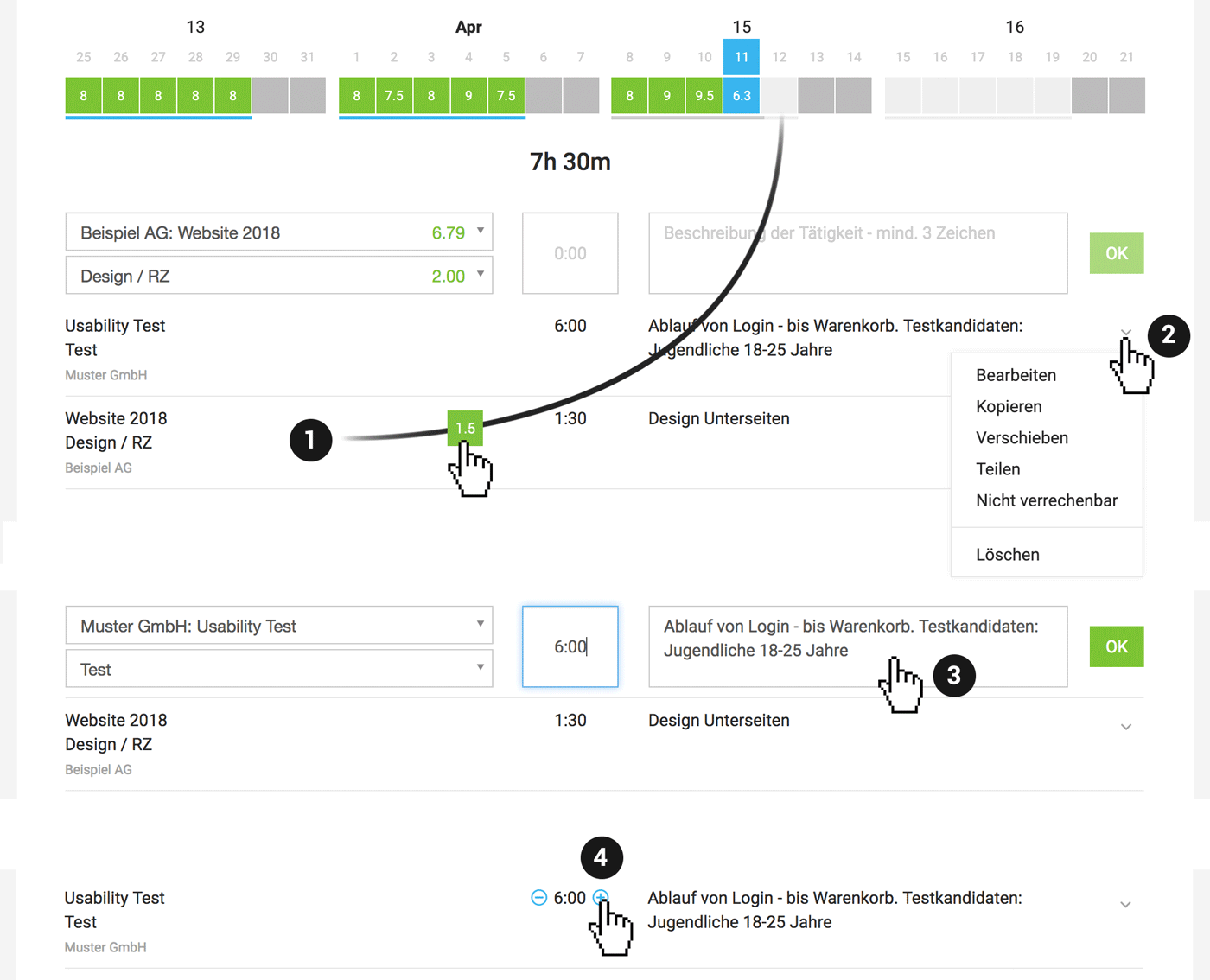
With a double-click on an entry, drag and drop (1) or the action dropdown (2) on the left, you can manage entries:
 (English image not yet available)
(English image not yet available)- Edit Double-click (3) or use the action dropdown.
- Copy Use the action dropdown or drag and drop entries while holding the "alt" key (1).
- Move Use the action dropdown or drag and drop to another day (1).
- Share Use the action dropdown to share the entry with the project team. Shared entries are marked accordingly.
- Non-billable Use the action dropdown or put the number in brackets. Efforts can also be set to "Non-billable" if they should not count against the budget.
Quickly Adjust Hours
When hovering over the entry, a +/- handle appears (4). This allows you to quickly round hours up or down to the nearest quarter-hour. Tip: with the Alt/Opt key pressed + click, you can alternatively round in 5-minute increments!
When hovering over the entry, a +/- handle appears (4). This allows you to quickly round hours up or down to the nearest quarter-hour. Tip: with the Alt/Opt key pressed + click, you can alternatively round in 5-minute increments!
Correct or Reallocate Another Person's Entries
Entries can be reallocated to other services or projects via the Timesheet reallocation.
Stopwatch
If you enjoy working with a stopwatch (works on the current day) – here's how:
- 1. Select a project and service
- 2. Enter a description (optional if not mandatory in your account)
- 3. Start the stopwatch with "Ok"
 (English image not yet available)
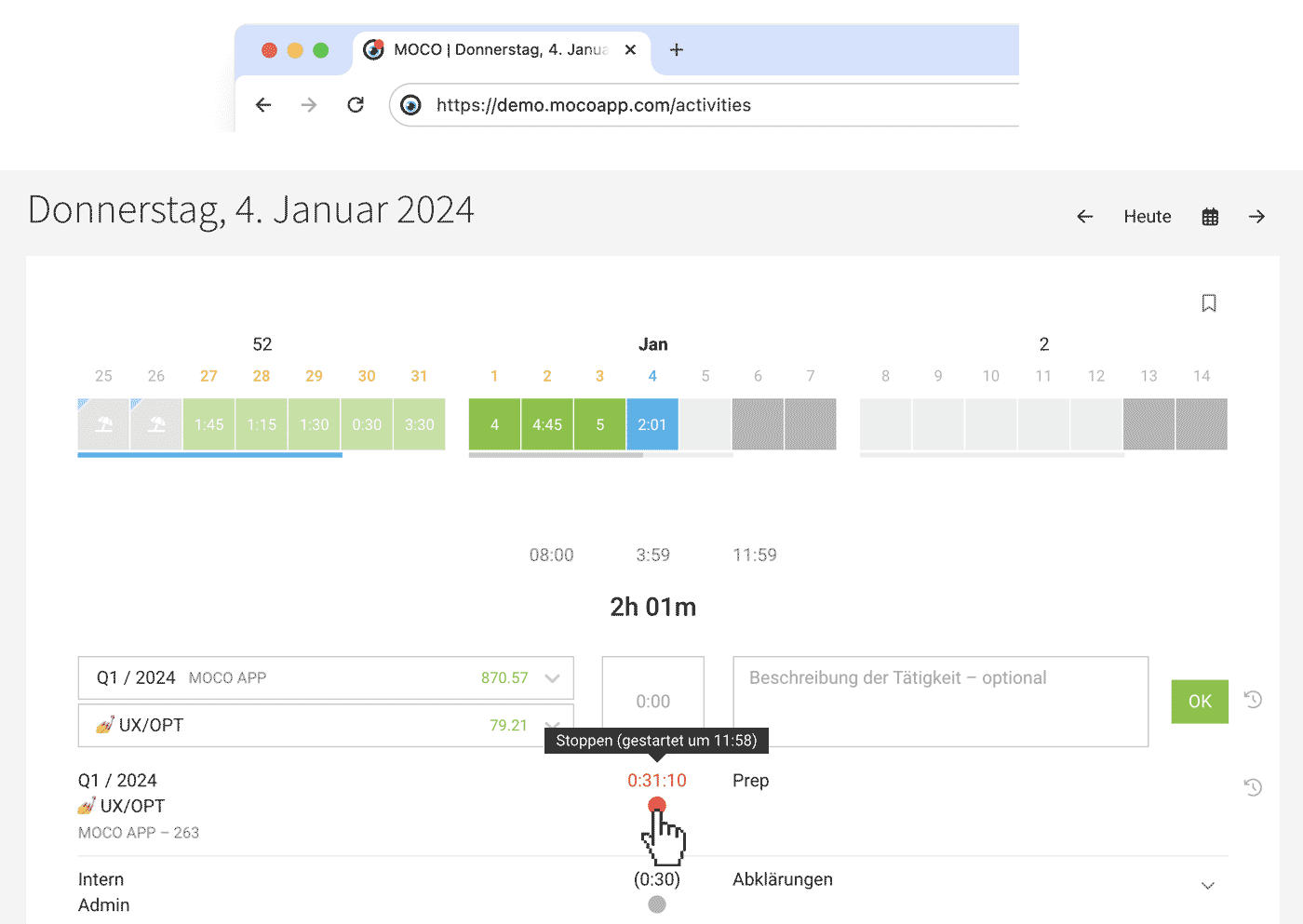
Meanwhile, a red dot in the tab indicates the running stopwatch (see illustration). The time recording stops when you click on the dot – and can be reactivated by clicking on it again – for example, if you continue working on a project after a phone call.
Good to know
- While the stopwatch is running, you can edit or add to the activity description by double-clicking the entry.
- The stopwatch automatically stops after 8 hours, as MOCO assumes it was forgotten. MOCO will notify you about this.
- The start time is displayed when hovering over the red dot for information.
- The iPhone and Android apps also feature the stopwatch function. The stopwatch is synchronized live with the web app and can be started and stopped in both locations.
Recommendation when using the stopwatch
It's recommended to deactivate the quarter-hour rounding when using the stopwatch (Settings > Time Tracking), as it rounds the stopped number each time it's saved. You can quickly round up or down with a click using the +/- if needed.
Stopwatch automatically ends at the end of working hours
If you use time tracking and click the stop symbol, the running timer for project time also stops automatically.
Non-billable Hours
As a gesture of goodwill towards the client, a time entry can be marked as "non-billable". This entry will then be excluded from the budget progress. Entire services, such as "acquisition" within a project, can also be set to "non-billable".
Non-billable hours are displayed in parentheses
Non-billable hours are displayed in parentheses
Parentheses can be added manually, or you can select "non-billable" from the dropdown on the right (1).
Internal projects are generally non-billable and therefore automatically appear in parentheses in the timesheet. If you later change an internal project to a client project, please check briefly if services need to be set to billable.
Internal projects are generally non-billable and therefore automatically appear in parentheses in the timesheet. If you later change an internal project to a client project, please check briefly if services need to be set to billable.
 (English image not yet available)
Self-Monitoring
Weekly Email
In your profile, you can enable/disable the weekly email.
This email provides information about the time tracking for the past week and highlights any potential oversights.
This email provides information about the time tracking for the past week and highlights any potential oversights.
Target-Actual
As an employee, you can check daily whether you have met your targets:
Weekly: Blue progress bar in the time tracking
Monthly, overall: In the profile under "Target-Actual"
More information here
Weekly: Blue progress bar in the time tracking
Monthly, overall: In the profile under "Target-Actual"
More information here
Filling Working Hours with Project Hours
The ongoing time tracking (optionally activatable for start, breaks, end) provides guidance on which project time should still be recorded for the last task or the entire day.
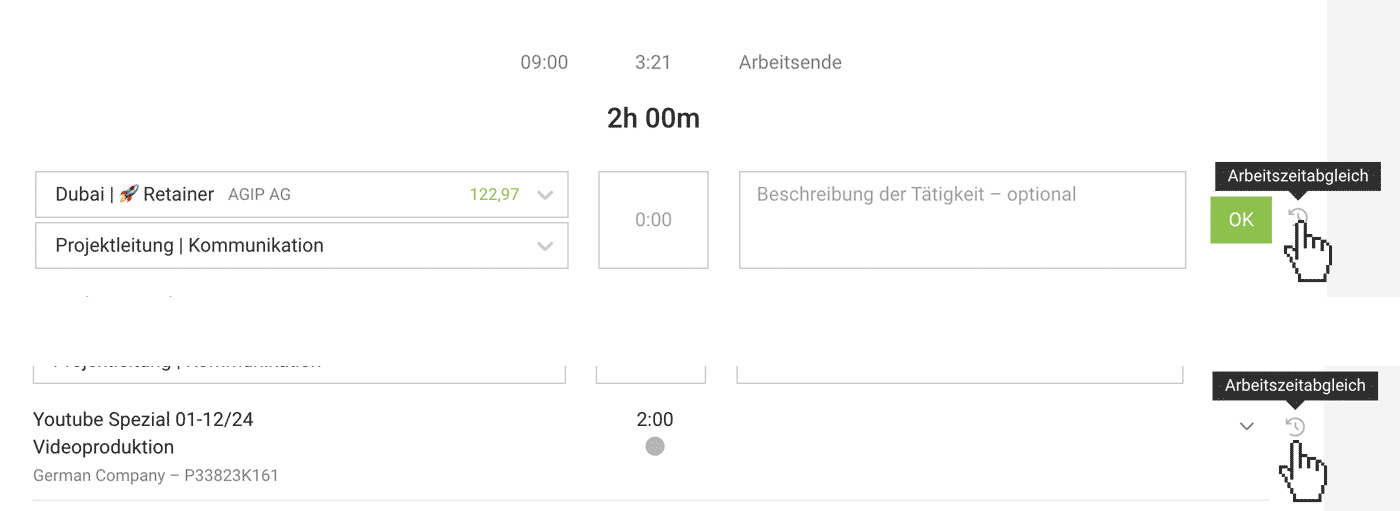
Using the Working Time Reconciliation (see illustration), you can automatically fill in the time.
 (English image not yet available)
Using the Working Time Reconciliation (see illustration), you can automatically fill in the time.
(English image not yet available)







