
-------

MOCO + Abacus (CH)
Transfer Invoice Data, Receipts, Debtors, and Creditors to Abacus
Option 1: Abacus-Specific Export
MOCO offers a standard export specifically for Abacus (free of charge), developed and tested with MOCO clients in practice.
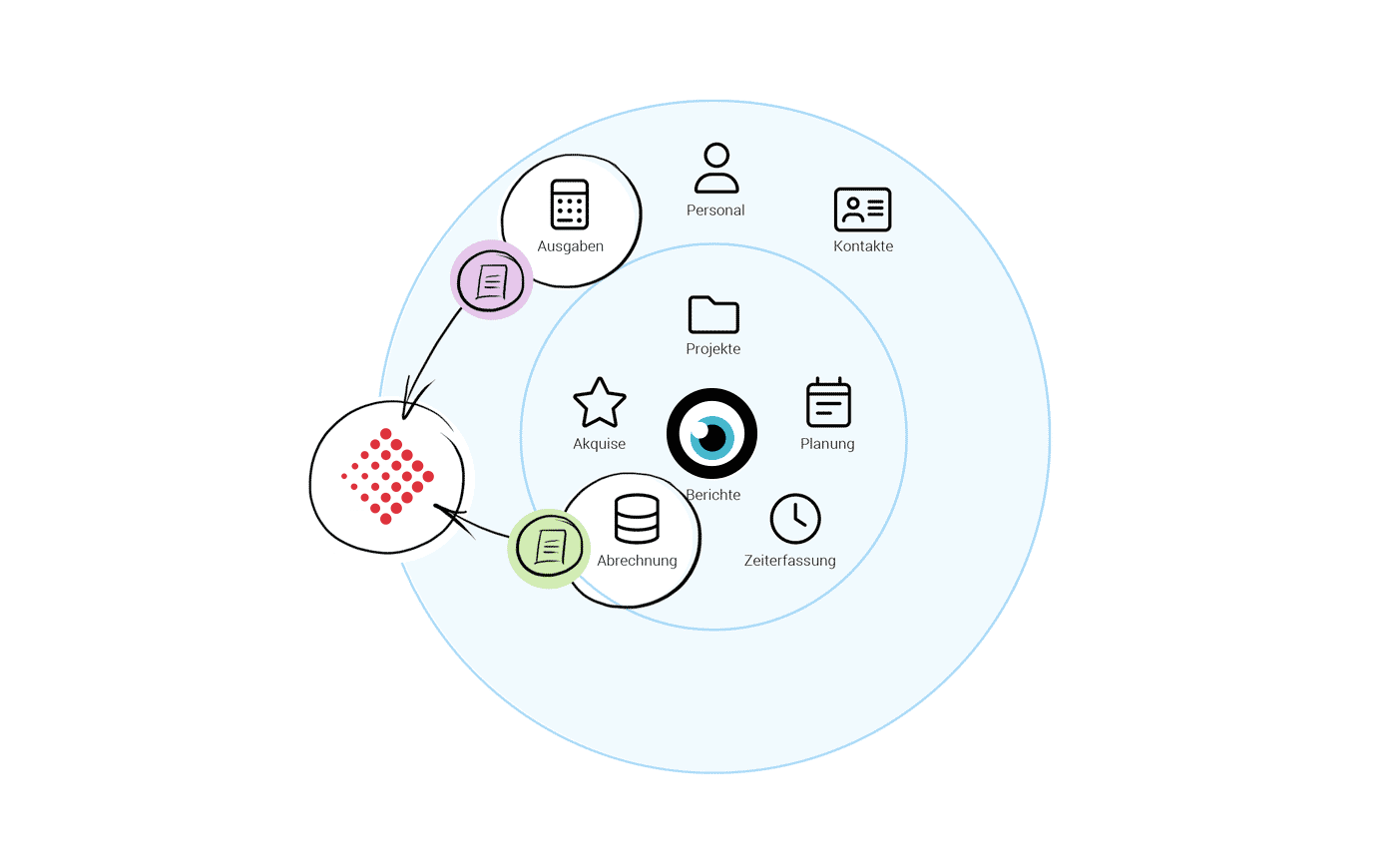 (English image not yet available)
What the Export to Abacus Includes
Invoice Data and Receipts
With the Abacus export, you can export invoice data and receipts as a zip file, which you can use directly for import into Abacus.
With the Abacus export, you can export invoice data and receipts as a zip file, which you can use directly for import into Abacus.
Identification & Automatic Creation of Debtors in Abacus
New clients are automatically created in Abacus during the next import of related outgoing invoices.
New clients are automatically created in Abacus during the next import of related outgoing invoices.
Identification & Automatic Creation of Suppliers in Abacus
New suppliers are automatically created in Abacus during the next import of related purchases.
New suppliers are automatically created in Abacus during the next import of related purchases.
How to Set Up the Export for Your Company
1. Activate Option
In the settings under "Accounting" > "General", select the option "Abacus (XML+Receipts)". This will later provide you with a new menu item "Accounting" for export under "Billing" or "Purchases".
2. Enter Tax Codes
On the settings page, record accounts and the tax codes (Abacus tax code) provided by your trustee.
3. Prepare Client Data (Debtors) in MOCO
For identification, instead of the debtor number, the client number is crucial for Abacus.
a) When Starting with MOCO import the numbers directly from Abacus with the client number column via client import.
b) If You Are Already a Client, you can temporarily set the numbering to manual and adjust the number for clients via "Edit". If you have many clients, we can support you for free: Export the client list in MOCO, update the client number in the Excel file, delete all columns except client ID and client number, and contact us via the import service.
Then adjust the automatic numbering (> Numbering) in the settings so that MOCO automatically assigns the next number for new clients. New clients will be automatically created in Abacus during the next import.
a) When Starting with MOCO import the numbers directly from Abacus with the client number column via client import.
b) If You Are Already a Client, you can temporarily set the numbering to manual and adjust the number for clients via "Edit". If you have many clients, we can support you for free: Export the client list in MOCO, update the client number in the Excel file, delete all columns except client ID and client number, and contact us via the import service.
Then adjust the automatic numbering (> Numbering) in the settings so that MOCO automatically assigns the next number for new clients. New clients will be automatically created in Abacus during the next import.
4. Prepare Supplier Data (Creditors) in MOCO
Identification is done via the creditor number: Unlike clients, suppliers in MOCO do not yet have a numbering system. Therefore, MOCO uses the creditor number, which can be set individually as usual when accounting is activated.
Note on Purchases: The Abacus export is currently designed for purchases in CHF. Foreign currencies are provided, but no exchange rate.
5. Test the Export
Under "Billing" > "Accounting"
Create an invoice in MOCO (e.g., a test invoice under client billing) and select it for export (> How the Accounting Area Works). Download the export and import the zip file (XML + PDF receipts) into Abacus.
If everything works perfectly – wonderful! If not, proceed as described in the following section.
Create an invoice in MOCO (e.g., a test invoice under client billing) and select it for export (> How the Accounting Area Works). Download the export and import the zip file (XML + PDF receipts) into Abacus.
If everything works perfectly – wonderful! If not, proceed as described in the following section.
Import Not Working?
If this is the case, send us the error log from Abacus via the data import service (follow steps 1-3). Depending on the case, we can alternatively offer a customised setup (for a fee).
- Settings for Accounting
- Accounting Export Outgoing Invoices
- Accounting Export Incoming Invoices/Purchases
Option 2: Use Abacus Deepbox
1. Activate "Neutral" Accounting Export
2. Collect all receipts in MOCO (for financial planning and project allocation)
3. Regularly create export
4. Upload the exported receipts directly into the deepbox
This allows financial planning and project allocation (re-invoicing, controlling) to be carried out in MOCO, ensuring clarity on which receipts are already in the accounting system.
The preparatory accounting (maintenance of tax codes, debtors, creditors, etc.) can be neglected here, as this is completely handled by deepbox.
2. Collect all receipts in MOCO (for financial planning and project allocation)
3. Regularly create export
4. Upload the exported receipts directly into the deepbox
This allows financial planning and project allocation (re-invoicing, controlling) to be carried out in MOCO, ensuring clarity on which receipts are already in the accounting system.
The preparatory accounting (maintenance of tax codes, debtors, creditors, etc.) can be neglected here, as this is completely handled by deepbox.








