Exports & Accounting
Excel Export & Receipts | Accounting Export | TransmissionExcel Export & Receipts
There is a straightforward export option for invoice data and receipts. For accounting purposes, we recommend the accounting export (topic to follow).
Export Invoices (XLS & Receipts)
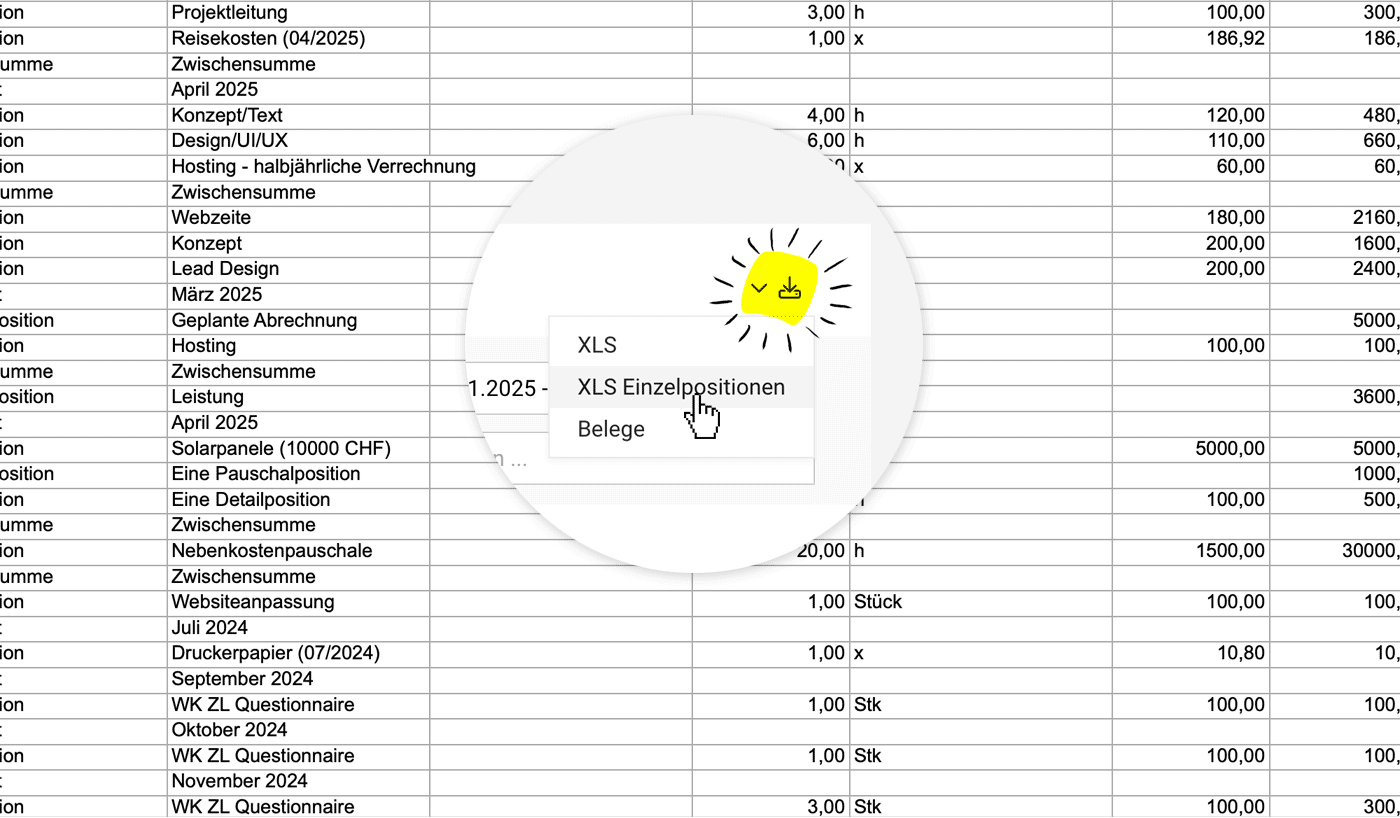
Under "Invoicing" > "Invoices", you can export the pre-filtered invoices (select the desired status using the icons when filtering) as Excel in the top right corner or download the invoice receipts collectively.
The Excel export "Individual Items" includes comprehensive data – including utilised service categories and cost centres. Learn more about defining categories and cost centres
The Excel export "Individual Items" includes comprehensive data – including utilised service categories and cost centres. Learn more about defining categories and cost centres
 (English image not yet available)
Export Payments
Under "Invoicing" > "Payments" you can
- Export payments as Excel.
- Export invoice receipts by payment date.
For cash accounting (the payment date is applicable, not the invoice date)
Export Invoices for Cash Accounting
For cash accounting, the payment date is applicable, not the invoice date, for tax calculation.
Use this export under "Invoicing" > "Invoices" as well. Filter the invoices from the relevant period and export as Excel. In Excel, filter by the "Paid on" column to get the tax sum for the desired period.
Use this export under "Invoicing" > "Invoices" as well. Filter the invoices from the relevant period and export as Excel. In Excel, filter by the "Paid on" column to get the tax sum for the desired period.
Accounting Export
Billing > Accounting
Use Accounting Export Without Pre-Posting
Use the Accounting Export even if you are not already optimising for a specific accounting setup. This way, you can benefit from all the advantages:
- Ignored cancellation invoices and cancelled invoices are automatically included (these are not relevant for debtor management under "Invoices", which is why they are excluded by the standard filtering).
- You can always see which invoices have not yet been exported for accounting
- You decide yourself how far you want to pre-post
With its Accounting area, MOCO bridges the gap to your accounting. Sales invoices can be transferred to accounting with pre-posting. This not only enables synchronised management of accounting & MOCO, but also reduces effort and costs in accounting.
▶️ Tobias from MOCO introduces the optional Accounting feature in this video.
Activating the Accounting Area
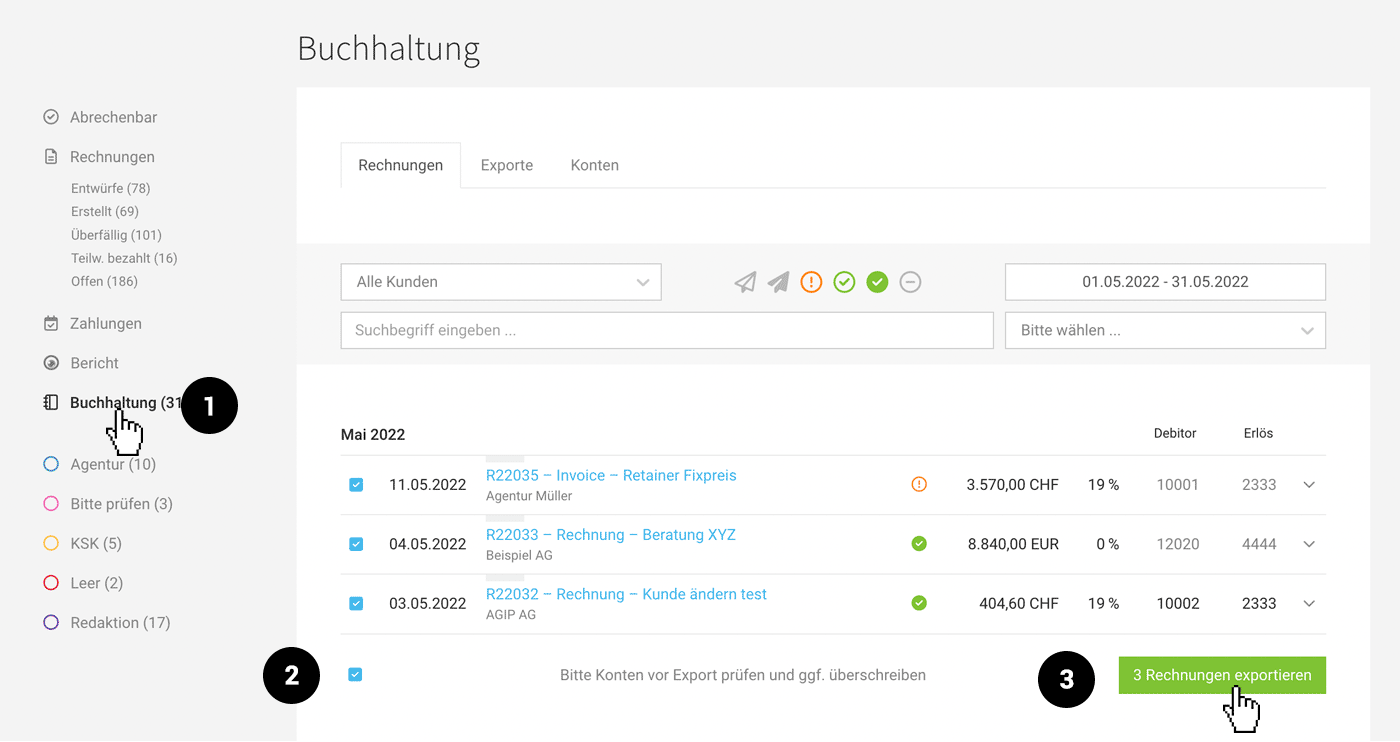
After selecting an accounting option in the settings, you will find the additional sub-item "Accounting" (1) under "Billing" (and similarly under "Purchases"). Before exporting, the accounts should be set up.
» All information on activation and accounting accounts
» All information on activation and accounting accounts
Reviewing and Editing in the Invoice List
Under "Accounting", MOCO provides all invoices for the accounting export.
As a rule, you export monthly and proceed as follows:
1. Check the debtor (debtor account) and revenue (offset account/revenue account) in the list
As a rule, you export monthly and proceed as follows:
1. Check the debtor (debtor account) and revenue (offset account/revenue account) in the list
2. Select invoices for export
3. Create the export using the "Export Invoices" button at the bottom right.
Exported invoices are automatically locked and cannot be selected for export a second time.
Using labels
The labels used to mark or categorise invoices are also available in the Accounting area (filtering in the side menu + in the manual export).
Ignored status / handling cancellation invoices
The "Ignored" status can include cancelled invoices as well as cancellation invoices, as MOCO automatically sets these invoices to cancelled if no payment has yet been recorded.
3. Create the export using the "Export Invoices" button at the bottom right.
Exported invoices are automatically locked and cannot be selected for export a second time.
Using labels
The labels used to mark or categorise invoices are also available in the Accounting area (filtering in the side menu + in the manual export).
Ignored status / handling cancellation invoices
The "Ignored" status can include cancelled invoices as well as cancellation invoices, as MOCO automatically sets these invoices to cancelled if no payment has yet been recorded.
If an invoice is cancelled immediately (instead of being deleted), you could ignore it and the cancellation invoice for export.
 (English image not yet available)
Debtors & Revenue Accounts
- The debtor account and revenue account can be overwritten directly here in the list by double-clicking.
- All debtors can be managed in the "Accounts" tab . » More about debtors
- You can define revenue accounts at service level or invoice level » More about revenue accounts
- In addition to revenue accounts, categories and cost centres can also be transferred to DATEV
Exports
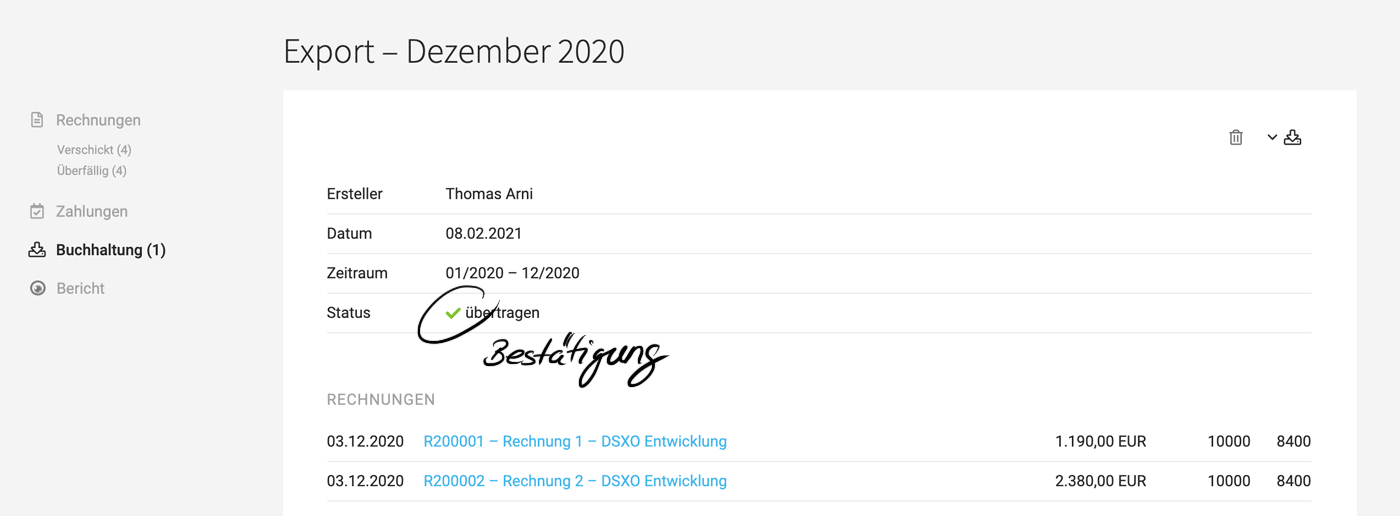
Under the "Exports" tab, all exports are listed with the relevant period. The sales invoices included in an export are listed and linked when you click on the export.
Undo accounting exports at any time
In MOCO, accounting exports can usually only be deleted within 24 hours to avoid discrepancies between MOCO and the accounting tool. For a bit more flexibility, the account owner can delete accounting exports at any time.
Transmission
Depending on the chosen accounting option, the transmission of invoice data and receipts to accounting/tax consulting is done manually or via direct transfer:
Manual
Generic CSV export, DATEV CSV format, etc. Find all accounting export options here
The created CSV export is listed under "Exports" with the specified period and is made available to the tax consultant (e.g., monthly) along with the collectively downloaded receipts.
Custom fields on the invoice (single choice & single line text input) are included in the generic CSV export.
Custom fields on the invoice (single choice & single line text input) are included in the generic CSV export.
Direct Transfer
DATEV Unternehmen online (DUO)
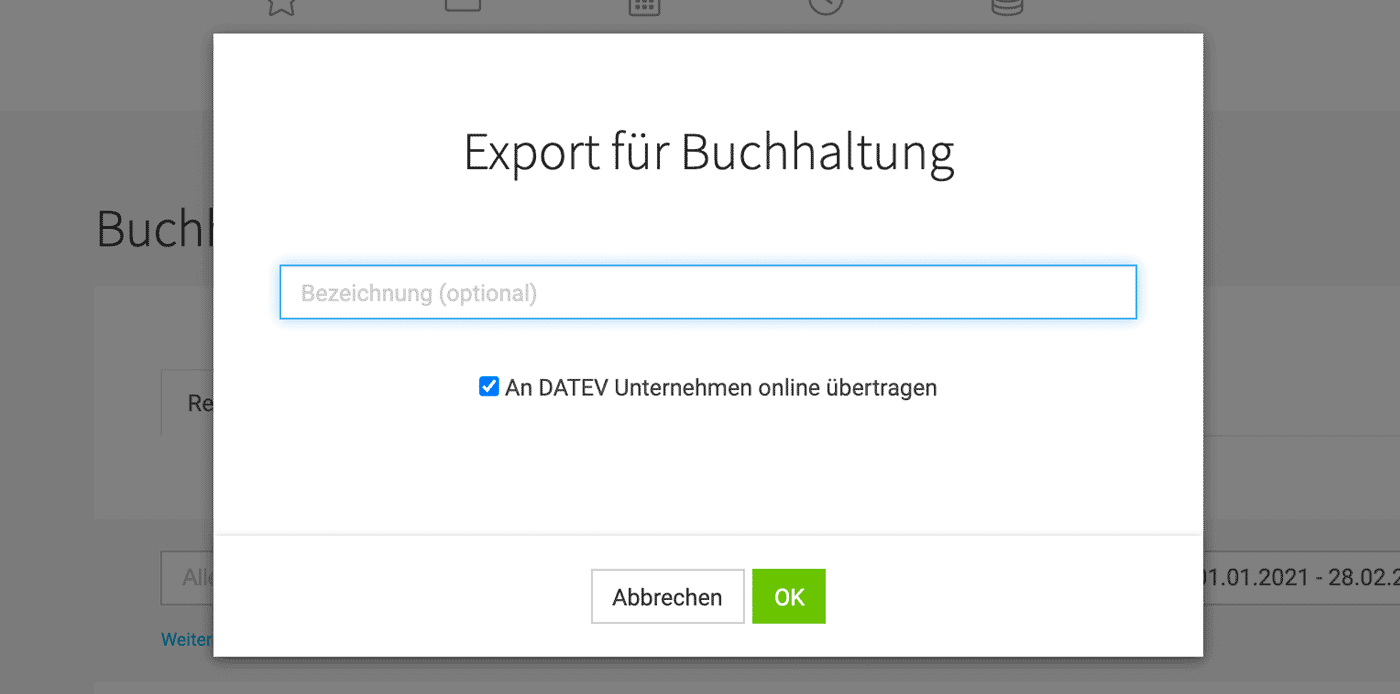
Invoice data including receipts are directly transferred to DATEV Unternehmen online with a click during the export process. After provision, the tax consultant can retrieve and further process the data as booking suggestions.
 (English image not yet available)
 (English image not yet available)
Assistance with error messages
(English image not yet available)(English image not yet available)Assistance with error messages
Delete Exports
You can track which invoices have been exported in the detail view. CSV exports can be deleted by all authorized users within 24 hours, later only by the account holder. Exports to DATEV Unternehmen online can only be deleted by the account holder.








