Proposal Elements
Header & Introduction | Items | Closing Text | Predefine ItemsHeader & Introduction
The header includes the recipient and document information (1)
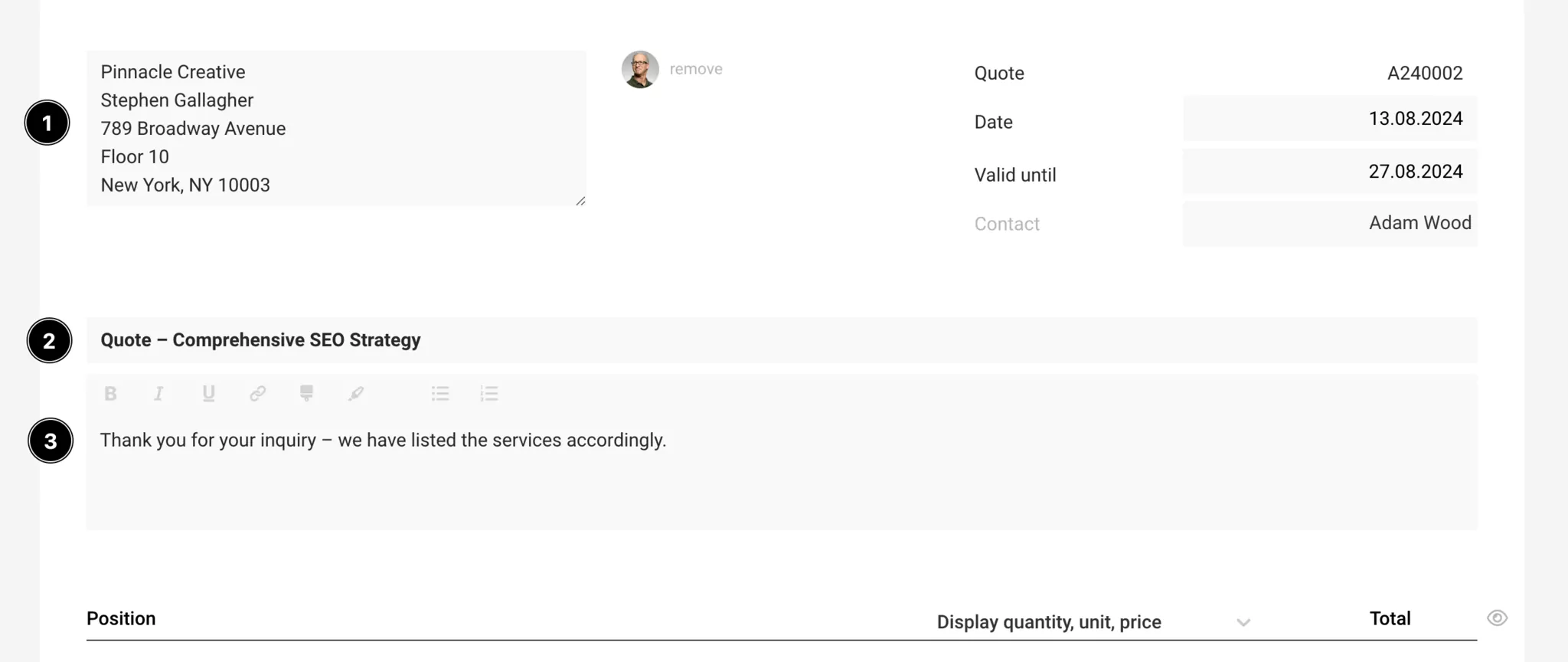
Recipient
MOCO automatically inserts the address recorded for the client. Alternatively, a contact for personalisation can be selected at the top right.
MOCO automatically inserts the address recorded for the client. Alternatively, a contact for personalisation can be selected at the top right.
Document Information: Standard information about the document is displayed in the proposal's info block. The information can be shown/hidden or individually supplemented. Font size, width, etc., can be adjusted in the settings.
The content begins with the title and introduction
Title (2)
Name the title as descriptively as possible, as it plays a role later in the proposal list and the file name.
Name the title as descriptively as possible, as it plays a role later in the proposal list and the file name.
Introduction (3)
- The introduction text is akin to a cover letter.
- A standard text with variable can be predefined, or the salutation personalised.
- Page breaks can be inserted with three dashes (---). For example, insert this at the end of the introduction text if the positions should start on a new page.
Items
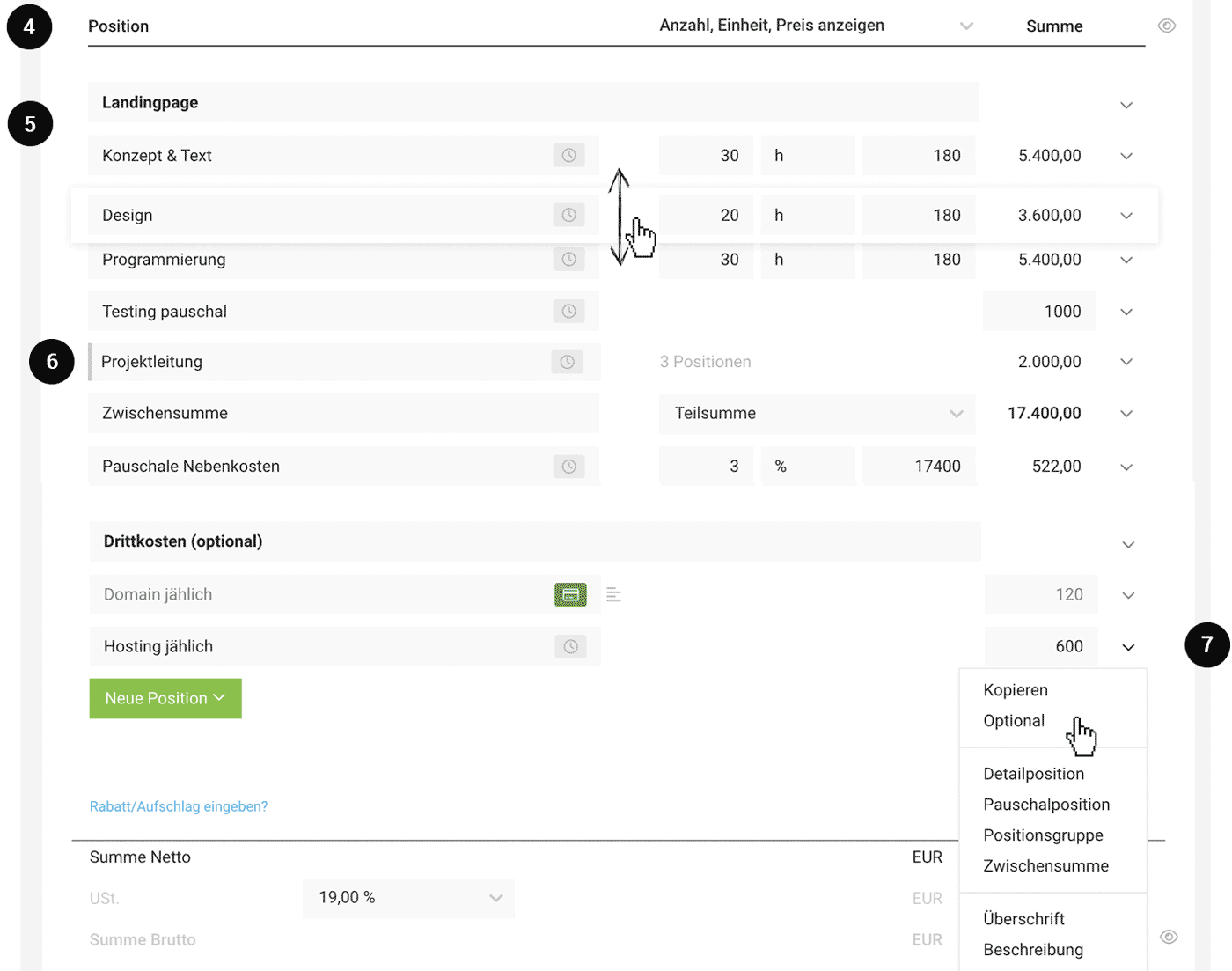
The items are fundamentally structured in a modular table format. The width for descriptions and images can be adjusted independently.
 (English image not yet available)
 Table Header (4)
The table header can be hidden: This allows for a seamless appearance, such as an image on the title page.
Detail columns (i.e., quantity, unit, unit price when using detailed items) are displayed by default. They can also be hidden by default in the layout settings. However, this can still be decided for each individual proposal (see illustration).
You can choose automatic item numbering in the layout settings.
Items (5)
Insert selected items (green button or dropdown on the right). Items can be moved via drag and drop.
- Detailed Item: Item with automatic calculation and optional display
- Flat Rate Item
- Item Group: combines multiple items
- Subtotal: sums up either the total or up to the last heading
- Heading
- Description
- Image
- Divider
- Page Break
Optional Items
A detailed or flat rate item can be set to "optional" via the dropdown on the right (7). Optional items are displayed in grey and are not included in the final total. However, a variable callable by entering "{" can be used to specify the net total including options, for example, in the closing text if needed.
Item Group
Combine multiple items and, for example, display only the total (6). Add this via "+New Item" > "Item Group".
More info in the August 23 update news (the feature has since been further developed)
More info in the August 23 update news (the feature has since been further developed)
Service Types
Service / Additional Service
Detailed and flat rate items are marked by the type "Service" (usually in-house services – grey label) and "Additional Service" (usually external services – dark green label). This type distinction is consistent from the proposal through the project to the invoice. The service type can be changed by clicking on the label.
Detailed and flat rate items are marked by the type "Service" (usually in-house services – grey label) and "Additional Service" (usually external services – dark green label). This type distinction is consistent from the proposal through the project to the invoice. The service type can be changed by clicking on the label.
Individual Discounts, Total Discount, Surcharge
Individual discounts, surcharges (example: incidental cost surcharge (6)), and total discounts on the proposal (example: new client discount) are possible - similar to invoices.
See invoices for detailed information
See invoices for detailed information
Total Summary Area
The total summary area can also be hidden (eye icon on the right) – for example, with different variants in a proposal.
Closing Text
.png) (English image not yet available)
(English image not yet available)Closing Text (7): Typically, the closing text includes a polite phrase such as "If you have any questions, feel free to reach me at any time at .... We would be delighted to receive your proposal confirmation ... Kind regards ..."
Page breaks can be inserted with three dashes (---). Here, a standard text including contact details with variable can be predefined.
Proposal Confirmation: can be implemented like this: Proposal confirmation for the client
Attachments (8): Predefined (e.g., terms and conditions), selectable, and individual attachments are possible
To the attachments
Attachments (8): Predefined (e.g., terms and conditions), selectable, and individual attachments are possible
To the attachments
PDF, Printing, Email Dispatch
After saving, the document is displayed with the stored standard letterhead and can be downloaded as a PDF or sent.
Printing
Under "Print View," you can select an alternative uploaded letterhead. By choosing "white," the proposal can also be easily printed on pre-printed letterhead.
Email Dispatch
This is done via the "Email Dispatch" button. The email text can be predefined as standard texts with variables.
Printing
Under "Print View," you can select an alternative uploaded letterhead. By choosing "white," the proposal can also be easily printed on pre-printed letterhead.
Email Dispatch
This is done via the "Email Dispatch" button. The email text can be predefined as standard texts with variables.
Predefine Items
In the proposal, you can directly access standard services, standard additional services, and a catalogue of custom-built modules via the service catalogue.
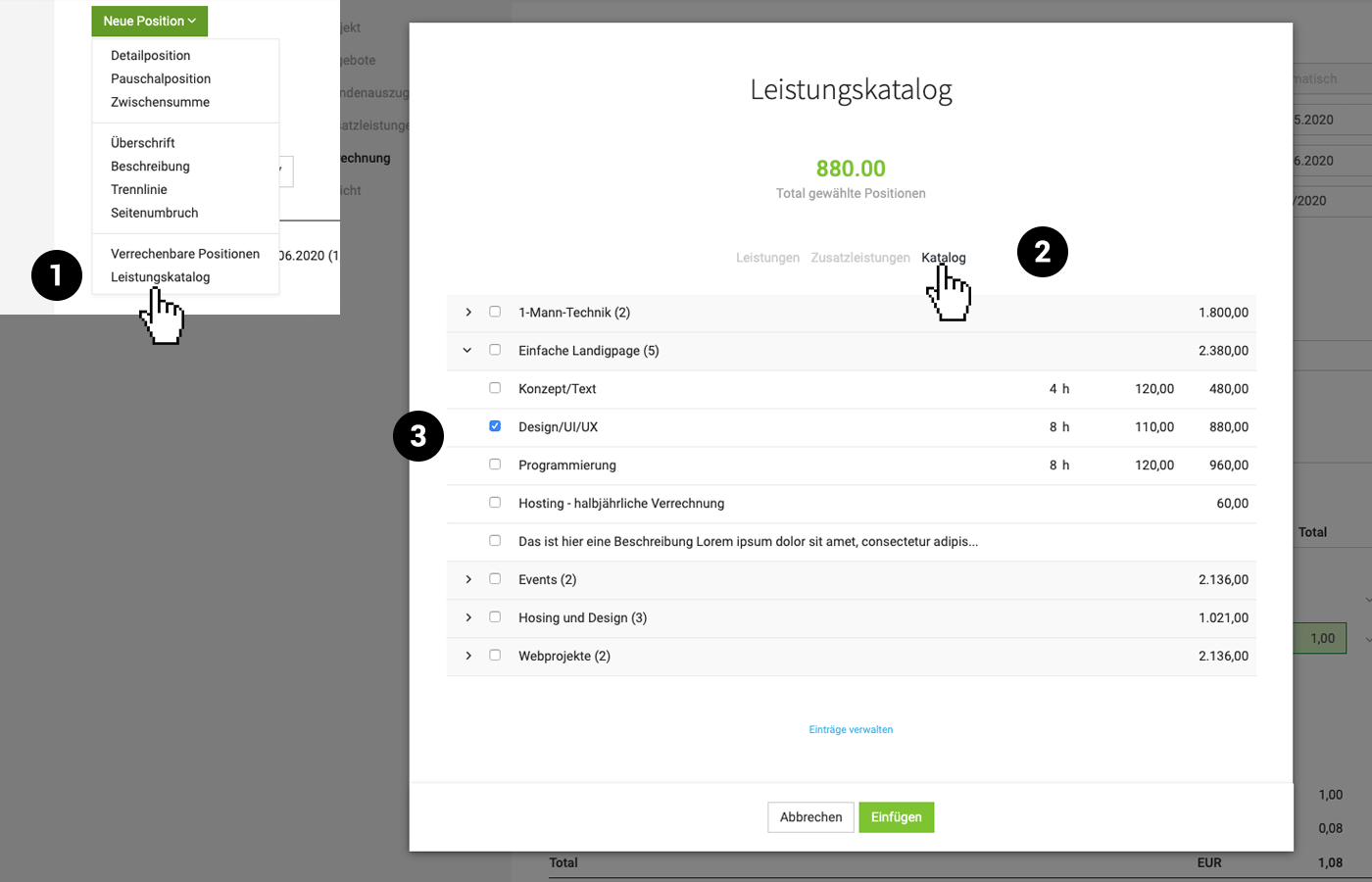
To do this, select "Service Catalogue" (1) from the list under "New Item". Choose "Catalogue" (2) for predefined modules and select an entire entry or individual elements to insert (3).
The modules are predefined in Settings > "Services" > "Catalogue". Frequently used blocks or entire checklists can be predefined.
To do this, select "Service Catalogue" (1) from the list under "New Item". Choose "Catalogue" (2) for predefined modules and select an entire entry or individual elements to insert (3).
The modules are predefined in Settings > "Services" > "Catalogue". Frequently used blocks or entire checklists can be predefined.
Tip: "Proposal Checklists": By creating all important items for a project in one entry and later adding them to a proposal, you can quickly review and determine which items are needed or not. The significant advantage is that colleagues responsible for creating proposals won't forget any items. In practice, it often happens that "minor details" like hosting are overlooked in the proposal.








