Article from
Checklist for Year-End Transition 2025 > 2026.
As one year ends and another begins, there are several tasks to complete regarding personnel management in the coming weeks. Here is your checklist for the year-end transition.
 (English image not yet available)
Prepare in December ...
1. Enter Public Holidays for 2026
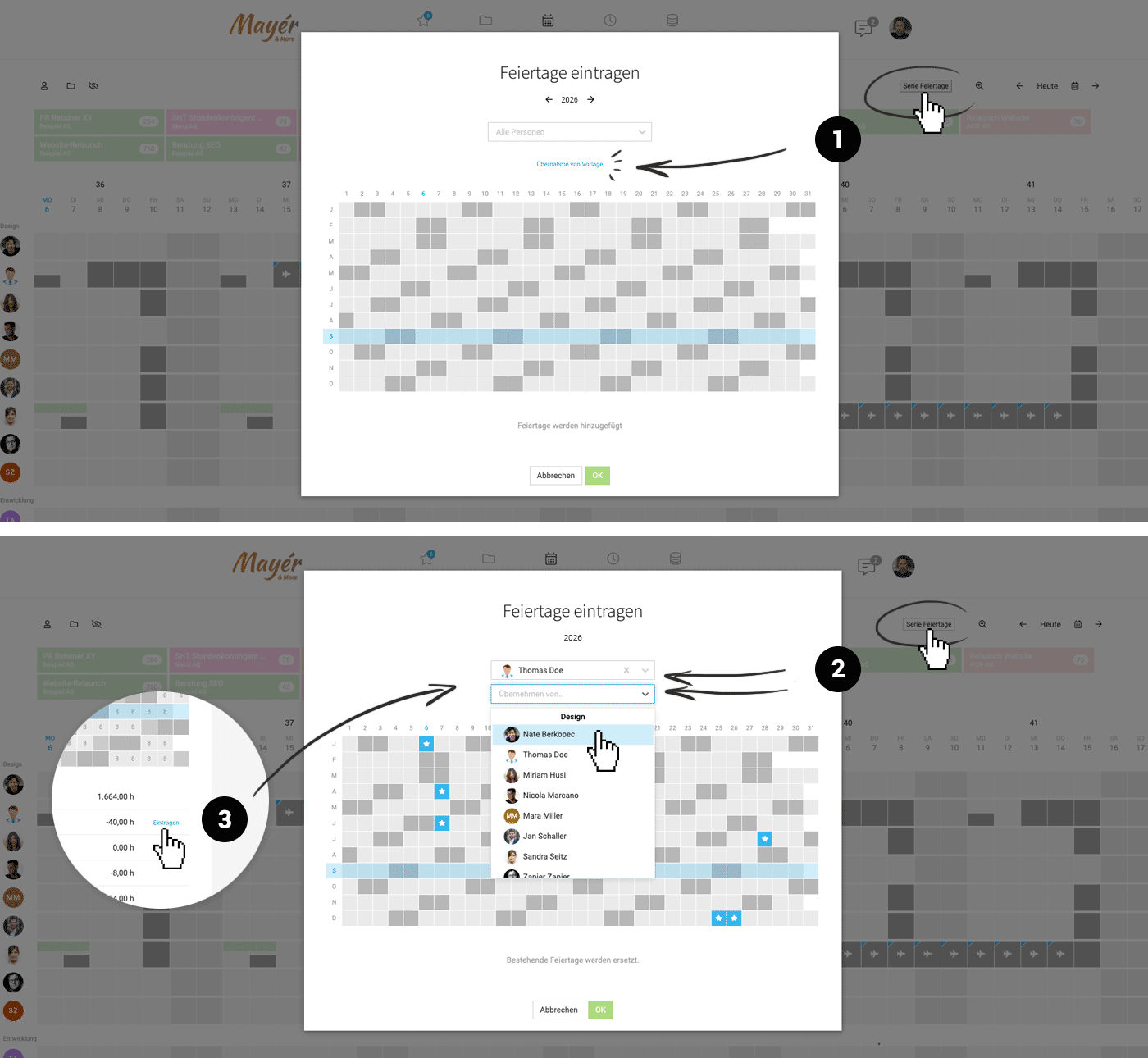
Using the batch entry in the absence overview, you can enter full and half public holidays for 2026 for all individuals with a single click. MOCO provides a template (1) with all common public holidays. Select this, adjust if necessary, and apply the selection to all individuals.
 (English image not yet available)
(English image not yet available)Different for Teams or Individuals
- Adjust for an individual: Modify the public holidays directly in the overall "Absences" overview.
- Apply to a person or team (2): Adjust the template accordingly and apply the different holidays for this person or team. Alternatively, you can adopt the holidays from one person and use it as a template.
In parallel, you will find the link to the batch entry of public holidays in the time account (Personnel > Person > Target-Actual) of each individual (3).
» More about public holidays in MOCO
» More about public holidays in MOCO
2. Reminder to Employees
Remind all employees to record all hours by December 31.
Note on Leave Requests for 2026
Leave can be requested for 2026 at any time, even if the leave balance has not yet been recorded. The balance will initially be negative and will be recalculated once the leave balance is recorded.
Note on Leave Requests for 2026
Leave can be requested for 2026 at any time, even if the leave balance has not yet been recorded. The balance will initially be negative and will be recalculated once the leave balance is recorded.
... Complete in Early January:
3. Lock Time Tracking for 2025
The period lock (Settings > Time Tracking) ensures that employees can no longer change their hours, preventing changes to overtime.
 (English image not yet available)
Export for Filing
Use all exports under "Reports" > "Time Tracking" for your records.
(English image not yet available)Export for Filing
Use all exports under "Reports" > "Time Tracking" for your records.
4. Manage Overtime/Undertime
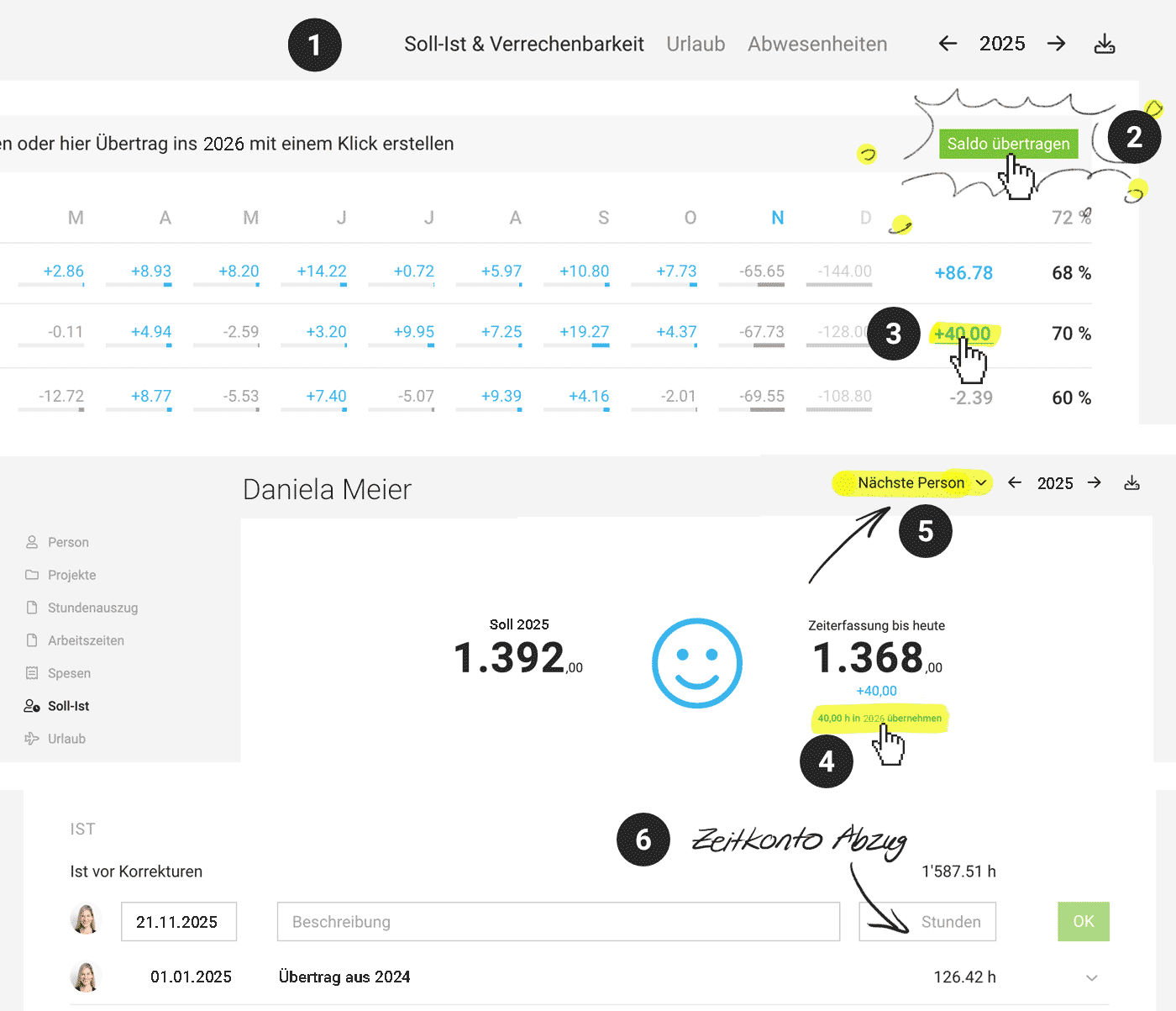
Go to Reports > Personnel > Target-Actual & Billability (1) and select the year 2025 in the top right. Get an overview of all individuals and export the status for your records.
Carry Over Target-Actual Balance to the New Year
a) Transfer all overtime/undertime to the new year with one click
The overview offers the automatic transfer of all balances (2). The option is active between December and February.
b) Transfer hours individually per person
By clicking on the balance of individual persons (3), you can access the "Target-Actual" detail view of the person. There, you can use the Quick Action (4) to transfer the balance to the new year.
 (English image not yet available)
The option is also available between December and February and replaces a manual transfer of the balance in the time accounts. You can quickly iterate through all individuals using the switcher in the top right (5).
If the hours are considered settled or overtime has been paid out, you must deduct the hours in the time account via a manual entry (6).
» All information about the time account
(English image not yet available)The option is also available between December and February and replaces a manual transfer of the balance in the time accounts. You can quickly iterate through all individuals using the switcher in the top right (5).
If the hours are considered settled or overtime has been paid out, you must deduct the hours in the time account via a manual entry (6).
» All information about the time account
5. Manage Leave Accounts
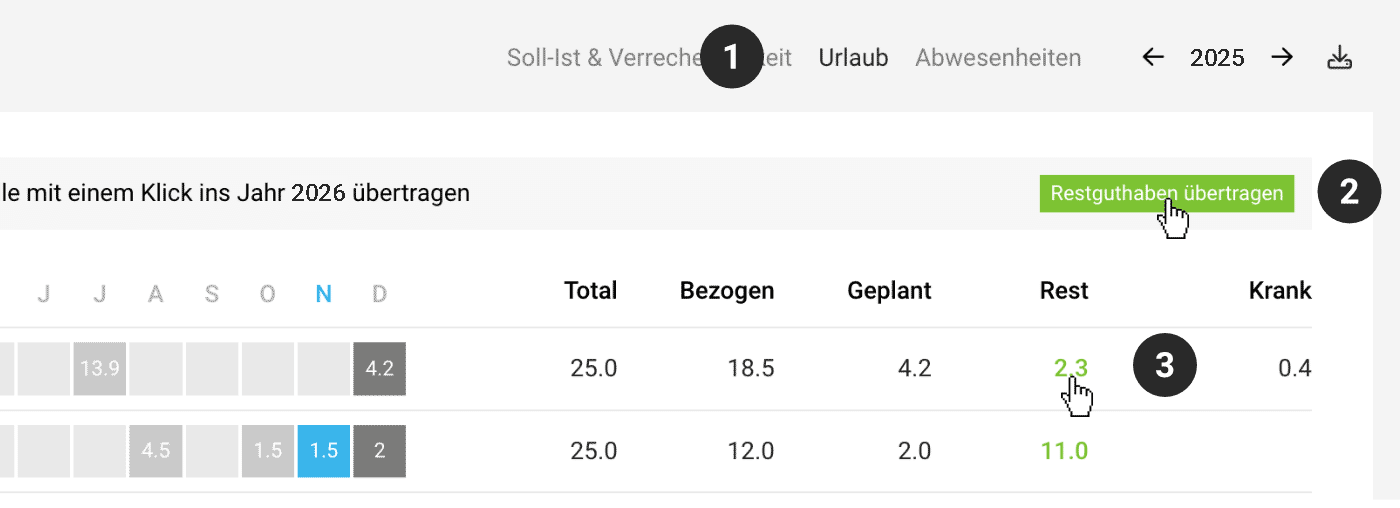
Go to Reports > Personnel > Leave (1) and select the year 2025 in the top right.
Get an overview of all individuals and export the current status at year-end for your records.
Get an overview of all individuals and export the current status at year-end for your records.
Carry Over Remaining Leave to the New Year
Similar to the overtime transfer (see above), the transfer of remaining balances for all with one click is offered between December and February (2).
 (English image not yet available)
Individually controlled
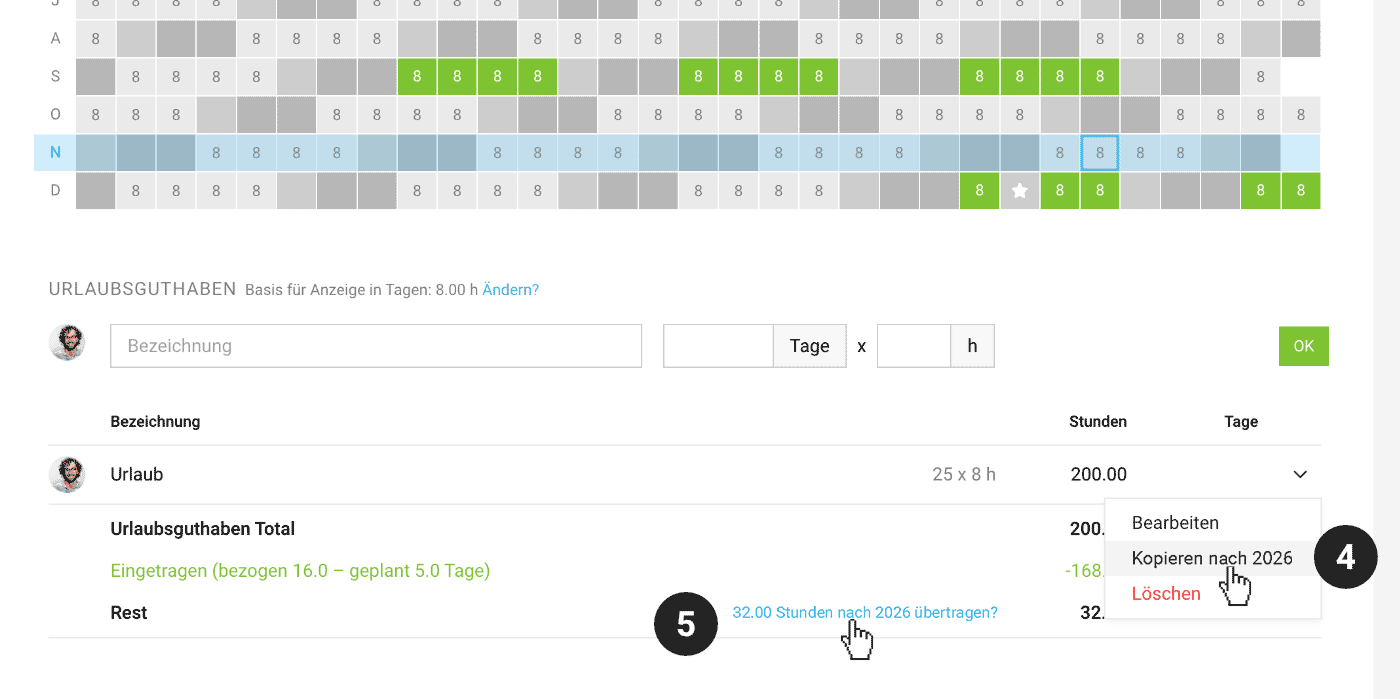
Alternatively, you can go through the leave accounts of individuals and transfer the balance in a controlled manner (blue link – see below (5)).
(English image not yet available)Individually controlled
Alternatively, you can go through the leave accounts of individuals and transfer the balance in a controlled manner (blue link – see below (5)).
 (English image not yet available)
Record Leave Balances for 2026
a) Same for all or very few exceptions
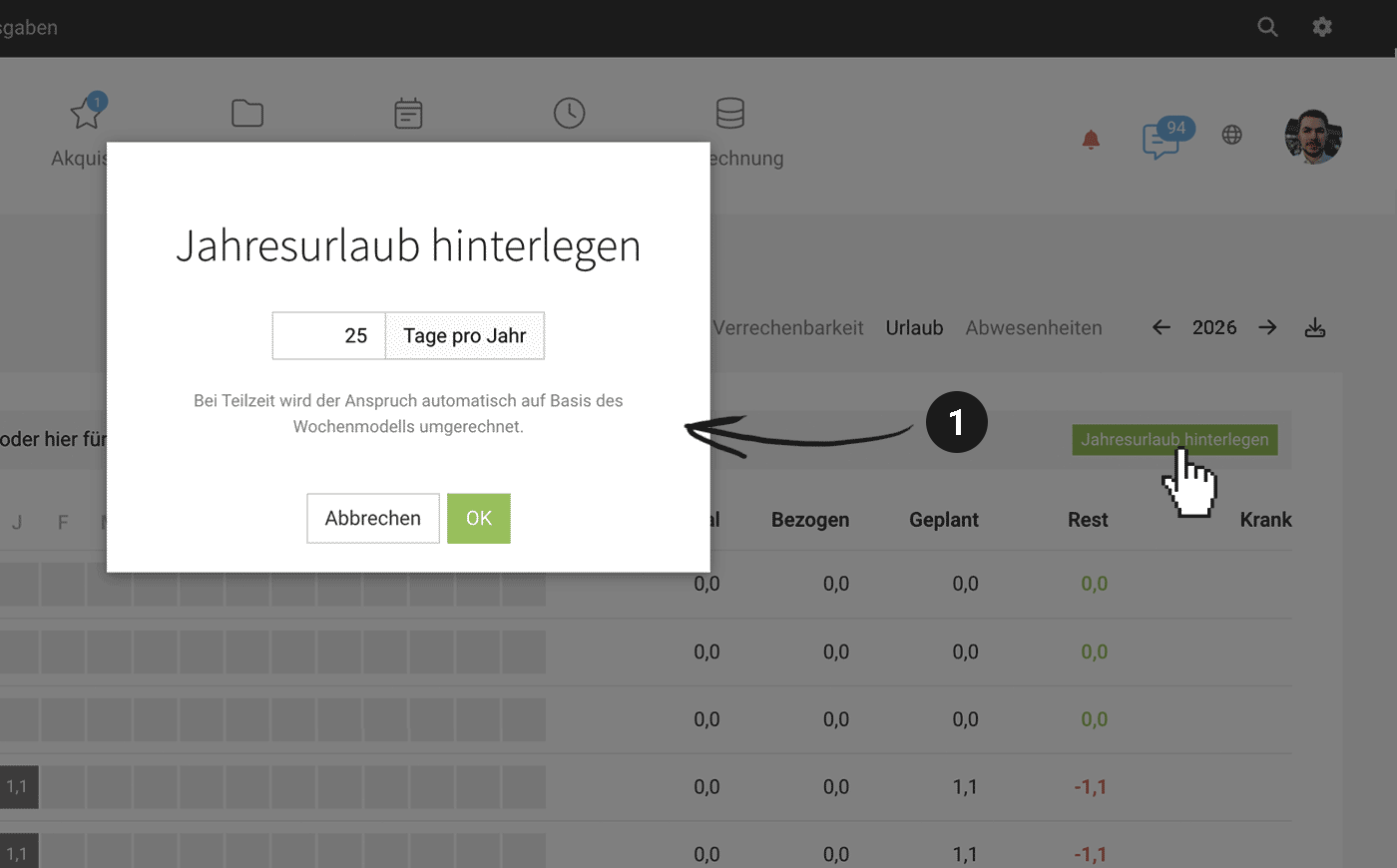
Under Reports > Personnel > Leave, you can in the 2026 view record the same annual balance for all with one click (see below (1)) – and adjust individual exceptions directly in the individual leave account if necessary.
 (English image not yet available)
b) Different balances
Alternatively, in a person's leave account, there is the option to copy a recorded balance from 2025 to the following year (see above (4) "Copy to 2026").
Use the switcher in the top right to quickly jump to the next person.
Note: Check if the basis for display in days needs to be adjusted for 2026 if you use the hourly leave model.
» All information about the leave account and leave model hourly vs. daily
Under Reports > Personnel > Leave, you can in the 2026 view record the same annual balance for all with one click (see below (1)) – and adjust individual exceptions directly in the individual leave account if necessary.
(English image not yet available)b) Different balances
Alternatively, in a person's leave account, there is the option to copy a recorded balance from 2025 to the following year (see above (4) "Copy to 2026").
Use the switcher in the top right to quickly jump to the next person.
Note: Check if the basis for display in days needs to be adjusted for 2026 if you use the hourly leave model.
» All information about the leave account and leave model hourly vs. daily
6. Document Absences in 2025
Absences for all individuals/day
Under Reports > Planning > select "Absences" in the export in the top right. Alternatively, use the export under Reports > Personnel > Absences. Additional filtering is also possible here.
Absences per person/month
Use the export under Reports > Personnel > Target-Actual & Billability in the top right.
Absences per person/day
You will find this export for each individual person under "Target-Actual".
Absences per person/day/type (daily/filterable)
Export the report for 2025 under Report > Personnel > Absences. It shows absences daily and filterable (e.g., sick days) per person.
Under Reports > Planning > select "Absences" in the export in the top right. Alternatively, use the export under Reports > Personnel > Absences. Additional filtering is also possible here.
Absences per person/month
Use the export under Reports > Personnel > Target-Actual & Billability in the top right.
Absences per person/day
You will find this export for each individual person under "Target-Actual".
Absences per person/day/type (daily/filterable)
Export the report for 2025 under Report > Personnel > Absences. It shows absences daily and filterable (e.g., sick days) per person.
7. Review Internal Hourly Rates for 2026
The year-end transition is a good opportunity to review the internal hourly rates for their current relevance and adjust if necessary. Salary increases have a smaller impact than often assumed.
Check under Settings > Services the "Internal Hourly Rates". You can adopt the previous year's hourly rates with two clicks using the blue adoption link.
Check under Settings > Services the "Internal Hourly Rates". You can adopt the previous year's hourly rates with two clicks using the blue adoption link.
Review and Finalise
Are deactivated individuals still appearing in reports?
Then the weekly model (equivalent to the employment relationship) was probably not correctly ended. Check the stored weekly models under Personnel > Weekly Model and set the end date (exit date).
Archive projects after the last invoice
Always archive fully billed projects. The debtor management runs independently under "Billing".
Move completed incoming invoices to the archive
This way, only invoices remain in the inbox that still require action. We recommend completing all invoices for the period to be exported before using the accounting export.
Open or unfinished services 2025
Create export for filing
Use the Excel export under "Projects" in the top right on 31.12.2025 or 01.01.2026. Here you will find the services already rendered but not yet invoiced for each project. Use the average internal hourly rate for valuation based on production costs.
Subsequent evaluation option
In the export of hours (Projects > Timesheet), you will find as an extra column the information of when a service was billed and with which invoice.
Use the Excel export under "Projects" in the top right on 31.12.2025 or 01.01.2026. Here you will find the services already rendered but not yet invoiced for each project. Use the average internal hourly rate for valuation based on production costs.
Subsequent evaluation option
In the export of hours (Projects > Timesheet), you will find as an extra column the information of when a service was billed and with which invoice.
Video Guide for Year-End Transition
In addition to this checklist, our partner Julian Junghöfer has recorded a practical video guide for you. Watch the video to prepare your MOCO for 2026 step-by-step with Julian.

Do you have any questions?
Simply contact us in MOCO via the in-app service at the bottom right or by email at support@mocoapp.com, and we will be happy to assist you!








