Capture Leads
New Lead | Custom Fields & Labels | Reserving Capacity | Create Quotes | Import & Automatic CaptureNew Lead
Acquisition > Leads
Specific enquiries are recorded directly as an active lead with an acquisition stage, and are automatically added to your "Leads" work list. Enter all relevant details:
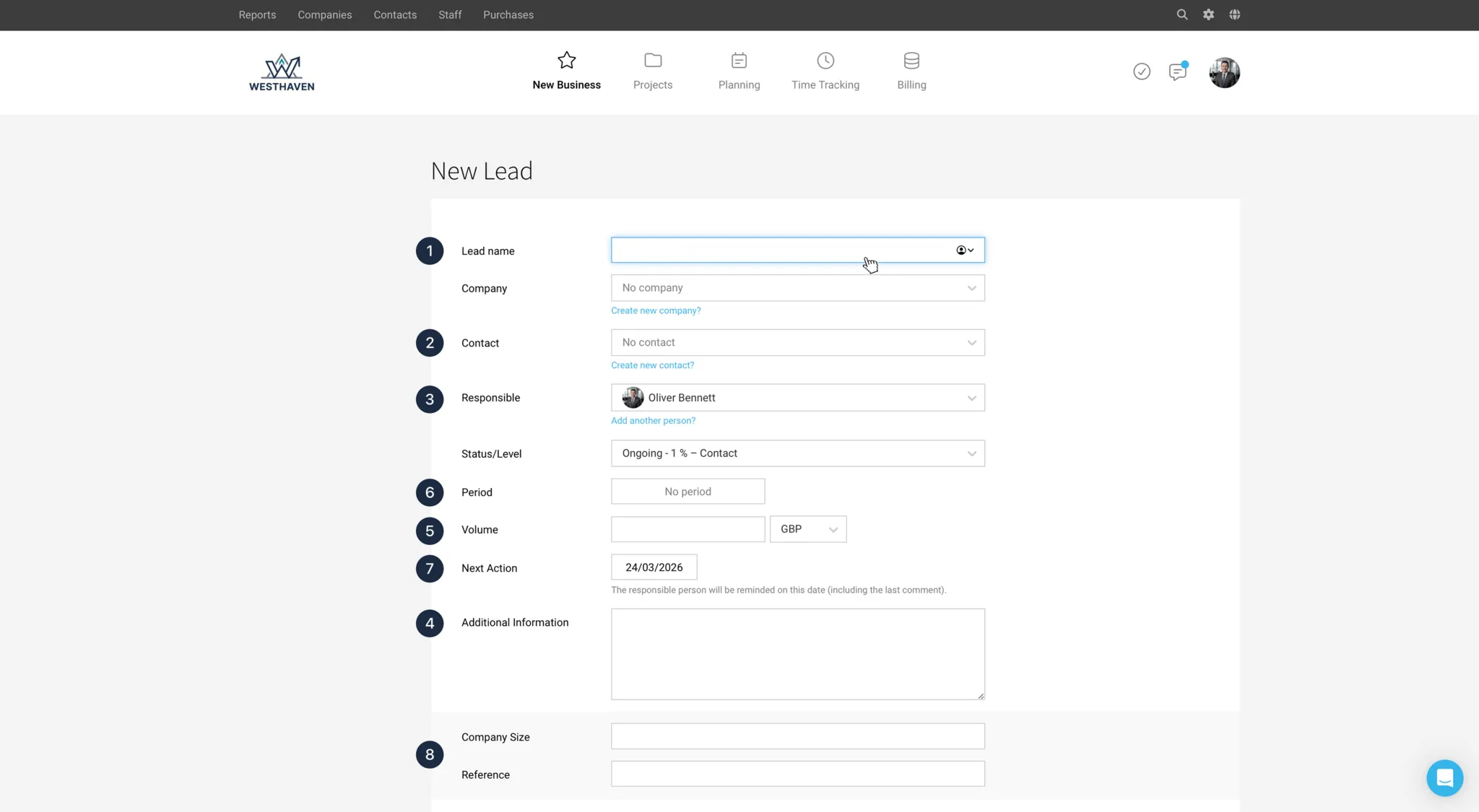
Lead Name (1)
Give the lead a clear, meaningful name. If you don’t want to create a company in MOCO for some leads yet, simply add it in brackets in the lead name.
Company, Contacts (2)
When creating a lead, you don’t need to have a company or contact in place yet. You can assign these later – or use the blue links provided to create them quickly.
Up to two external contacts can be assigned to a contact. You can link additional contacts for special cases in the neutral "Additional Info" field.
Responsible (3)
Just like a second contact, you can also add a second responsible person, for example as cover or for a team colleague.
If you assign a different responsible person to a lead, they will be notified.
More about personal notification settings
Company, Contacts (2)
When creating a lead, you don’t need to have a company or contact in place yet. You can assign these later – or use the blue links provided to create them quickly.
Up to two external contacts can be assigned to a contact. You can link additional contacts for special cases in the neutral "Additional Info" field.
Responsible (3)
Just like a second contact, you can also add a second responsible person, for example as cover or for a team colleague.
If you assign a different responsible person to a lead, they will be notified.
More about personal notification settings
Additional Info (4)
For any quick notes you want to be shown directly in the lead details.
Estimated Volume (5)
This is optional, but relevant if you want to maintain a complete revenue forecast.
Estimated Time Period (6)
This is optional, but relevant if the lead volume should be spread over a specific period. MOCO will then show you the distribution in the chart directly in the work list, in the report/business dashboard, and in the financial forecast.
Next Action (7)
A follow-up reminder for your lead. On the date you set, MOCO will remind you via the inbox when it’s due. This helps ensure no agreed appointment is missed.
Custom Fields (8)
Enrich your lead data with your own information. You can find the lead using the global search (magnifying glass at the top right) based on these details, and they are also included in your Excel export, so you can quickly analyse them. See also Labels & Custom Fields
Custom Fields & Labels
Lead data can be individually expanded. This allows for personalized workflows and analyses. Here's how Custom Fields and Labels differ
Custom Fields – Enrich, Search, Analyze Data
The lead form can be enriched with Custom Fields (see figure above No. 8 for examples). Various field types are available: text fields, dropdowns, date fields with notifications, etc. Record Custom Fields in settings
Searchable
Leads can be searched using this information. Access the global search (magnifying glass top right or keyboard shortcut "/") and enter the search term.
Analysis
Since they are also part of the Excel export, further personalized analyses can be conducted.
Searchable
Leads can be searched using this information. Access the global search (magnifying glass top right or keyboard shortcut "/") and enter the search term.
Analysis
Since they are also part of the Excel export, further personalized analyses can be conducted.
Labels – Short-term Marking or Individual Categorization
Click on a grey marking bar in the list (1) to create or assign a label. With at least one assignment to a label, MOCO shows you the filter option in the side menu.
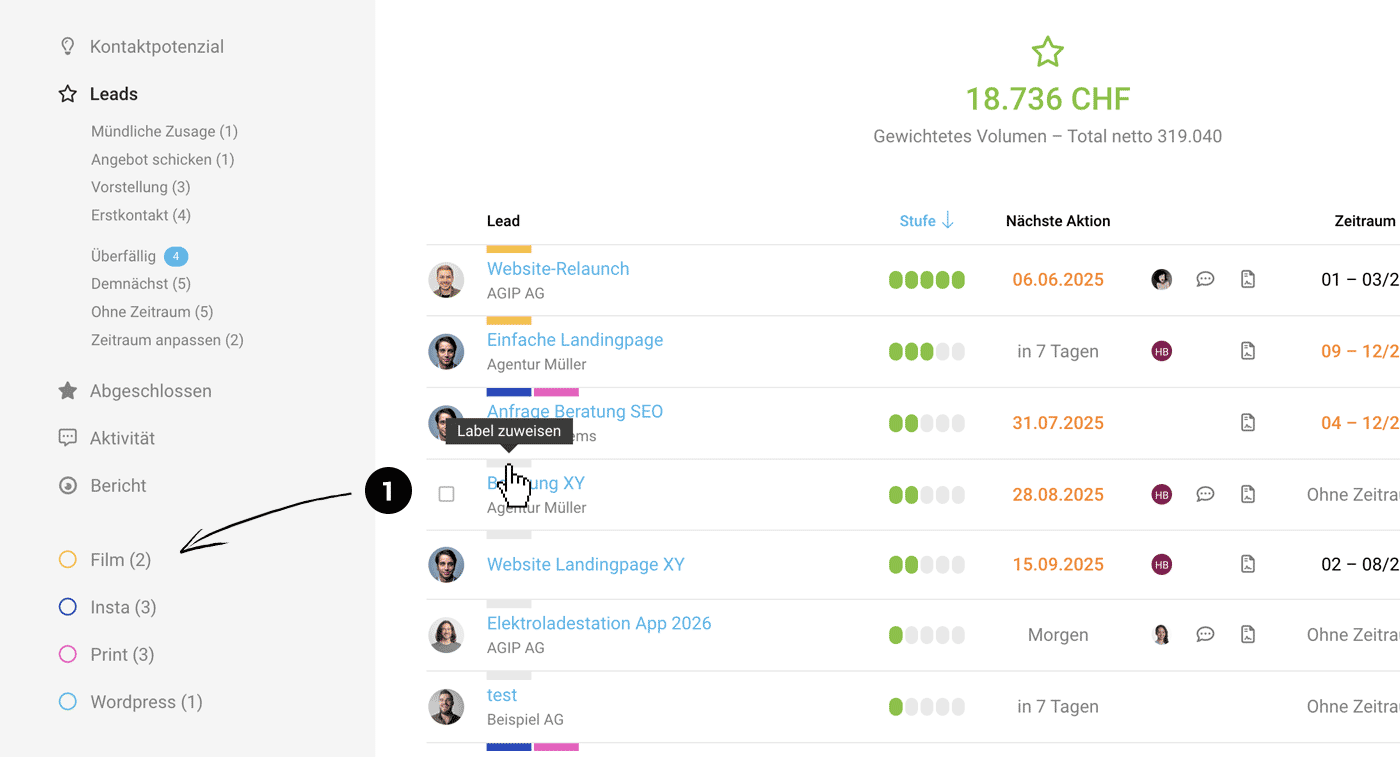 (English image not yet available)
Targeted Filtering with One Click
You can filter by one or more labels with a single click.
Analysis
Since they are also part of the Excel export, further personalized analyses can be conducted.
Reserving Capacity
Planning
With lead planning, you can reserve your staff in advance. This allows for a comprehensive assessment of capacity and workload.
Plan leads
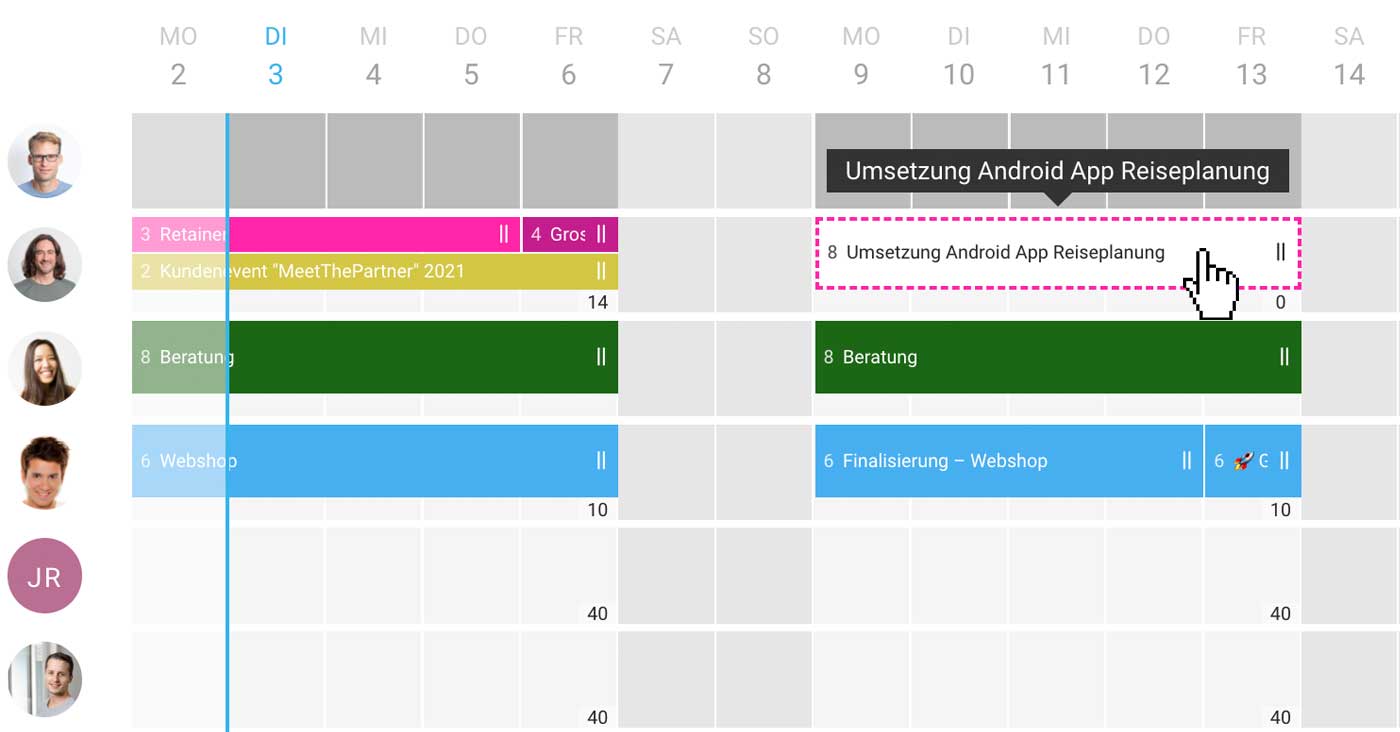 (English image not yet available)
Plan leads
(English image not yet available)Create Quotes
You can create any quotes in the lead via the side navigation under "Quotes". Alternatively, you can assign quotes you have already created to the lead later.
The total of all quotes is then shown on the lead’s detail page as an update to the volume.
More on creating quotes
The total of all quotes is then shown on the lead’s detail page as an update to the volume.
More on creating quotes
Import & Automatic Capture
Import Leads
When switching to MOCO, or if you want to migrate leads from another source, you can use the Lead Import. If needed, enable the feature in Settings.
Capture Leads Automatically
Via our API, AI via MCP, or an integration such as Zapier, Make, or n8n you can, for example, automatically create a lead from a website form enquiry. When capturing a lead, enter all known details such as stage, contact, volume, the expected timeframe, and the next action date.








