Alter News-Artikel!
» Hier geht's zur aktuellen Online-Hilfe
Article from
Forecast Expenditures Part 3: Planned Project Expenditures.
Overview
Part 1 One-time General Expenditures
Part 2 Recurring General Expenditures
Part 3 Planned Project Expenditures
🎥 VIDEO Tutorial on Planned Expenditures
Part 2 Recurring General Expenditures
Part 3 Planned Project Expenditures
🎥 VIDEO Tutorial on Planned Expenditures
Planned project expenditures (external costs, personal expenses) can be directly planned by the project manager – for financial forecasting and efficient allocation of incoming invoices.
How to Plan Project Expenditures
Prerequisite: "Planned Expenditures" must be activated (Settings > Expenditures > Planned).
External costs are represented by additional services in the project. These can be transferred from the proposal into the project – and after commissioning, used as planned expenditures for forecasting and allocation.
External costs are represented by additional services in the project. These can be transferred from the proposal into the project – and after commissioning, used as planned expenditures for forecasting and allocation.
1. Enter Date and Amount for Planned Expenditure in Additional Service
If expenditure allocation is active, record the date and planned costs under "Planned Expenditure". If the planned costs are 0, the additional service will be offered for allocation as usual and not considered in the forecast.
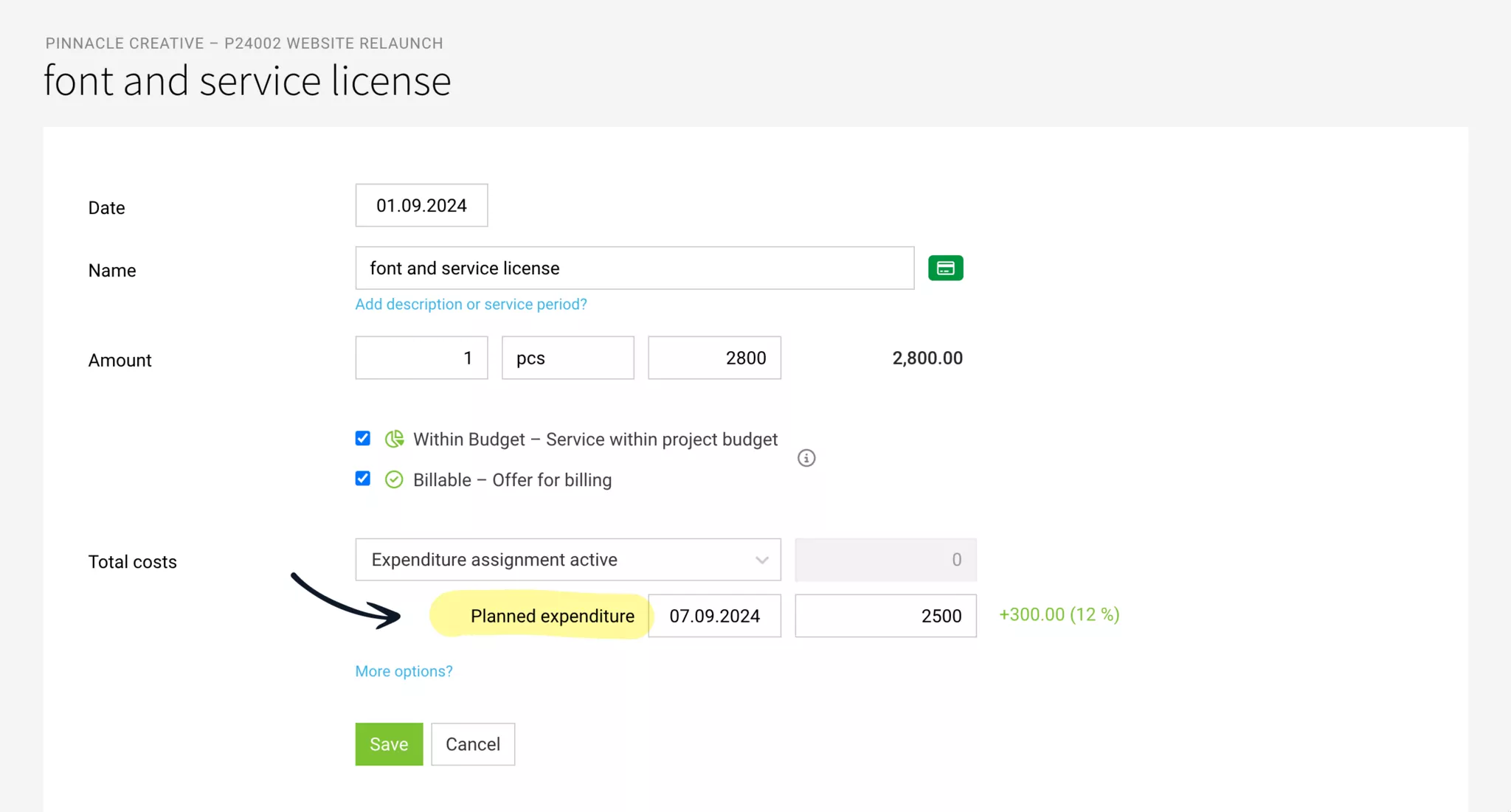
2. The Project Expenditure is Now Planned
This planned project expenditure is now considered accordingly in the forecast and allocation.
Note: The attachment of a receipt when editing the additional service and the change of the responsible person has been hidden under "More Options" as these details are less frequently changed.
Note: The attachment of a receipt when editing the additional service and the change of the responsible person has been hidden under "More Options" as these details are less frequently changed.
Tip to Start:
Declare Already Created Additional Services as Planned Expenditures
In the complete list of additional services (Projects > Additional Services), you can see via the orange icon whether expenditure allocation is active or not. If it is active, and no progress bar is visible under the costs, edit the additional service and define the planned expenditure with date and amount.
Allocate Expenditures (Incoming Invoices and Personal Expenses) and Complete Planned Expenditure
1. Match Planned Expenditures
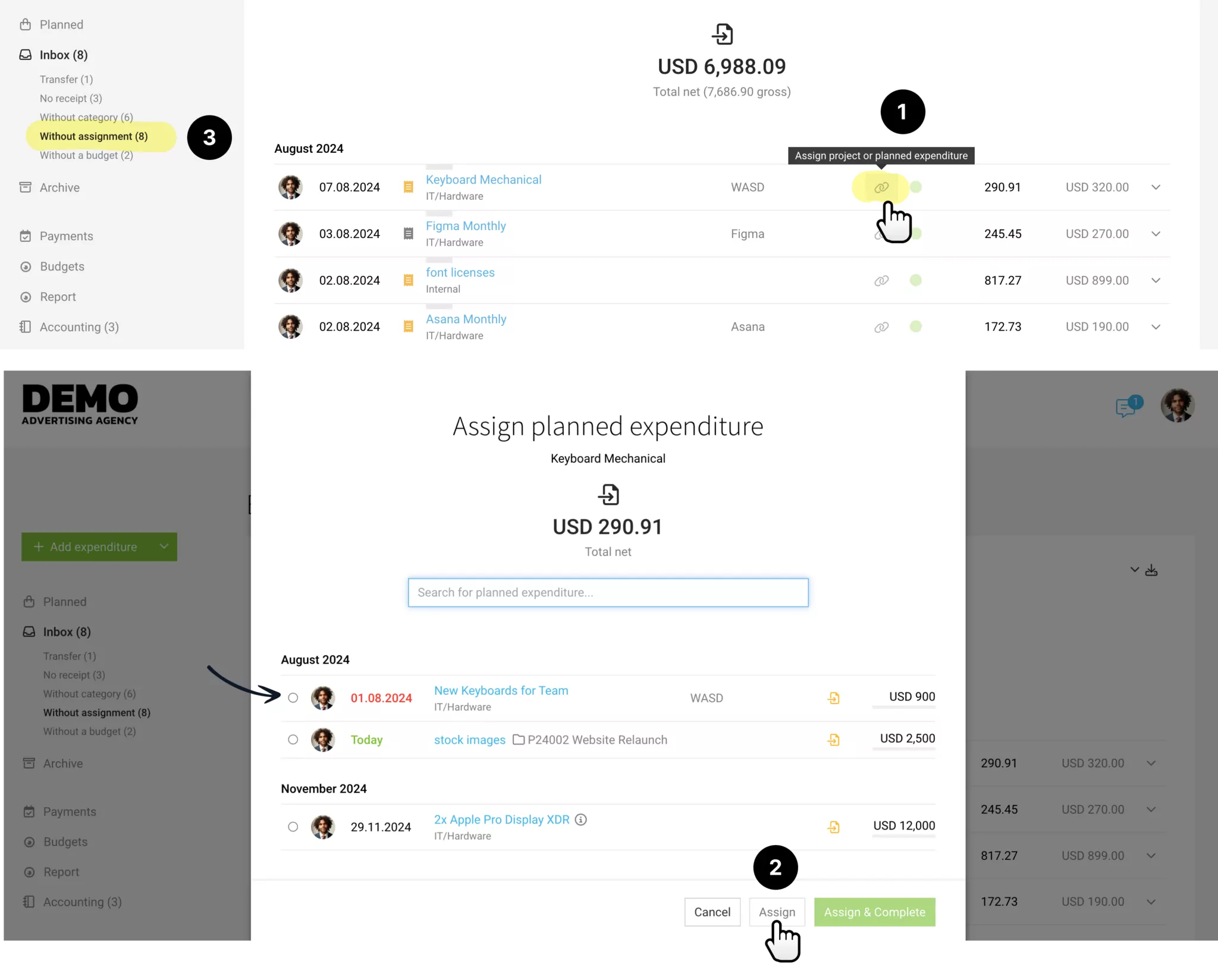
Incoming invoices (or selected items from them) are matched with planned expenditures using the Link Icon (1) – and directly assigned to the additional service.
2. Assign
With the assignment confirmation, you can choose (2) whether the assignment is thereby completed.
a) "Assign & Complete" sets the expenditure allocation for the additional service to inactive and removes it from the forecast.
b) Only "Assign" keeps the planned expenditure with the remaining amount for further assignments.
a) "Assign & Complete" sets the expenditure allocation for the additional service to inactive and removes it from the forecast.
b) Only "Assign" keeps the planned expenditure with the remaining amount for further assignments.
Use Smart Filter
If not all items of an expenditure are assigned, the Smart Filter "Without Assignment" (3) will alert you. With a click, you can quickly complete the assignment if needed before moving the completed expenditures to the archive.
Continue to Assign Projects Without Planning
When assigning, the "Project" selection still offers the option to assign costs to projects without planning.
Tip for Faster Assignment
After the client confirms a proposal and the project is created, the supplier is usually commissioned. Directly provide the project number upon commissioning – so that it can be specified in the invoice title or as an order number. This is the "PO" (purchase order or order number) so that the assignment can happen even faster. In this context, we naturally have numerous further development ideas ... :)
Overviews & Reports
All Planned Project Expenditures at a Glance
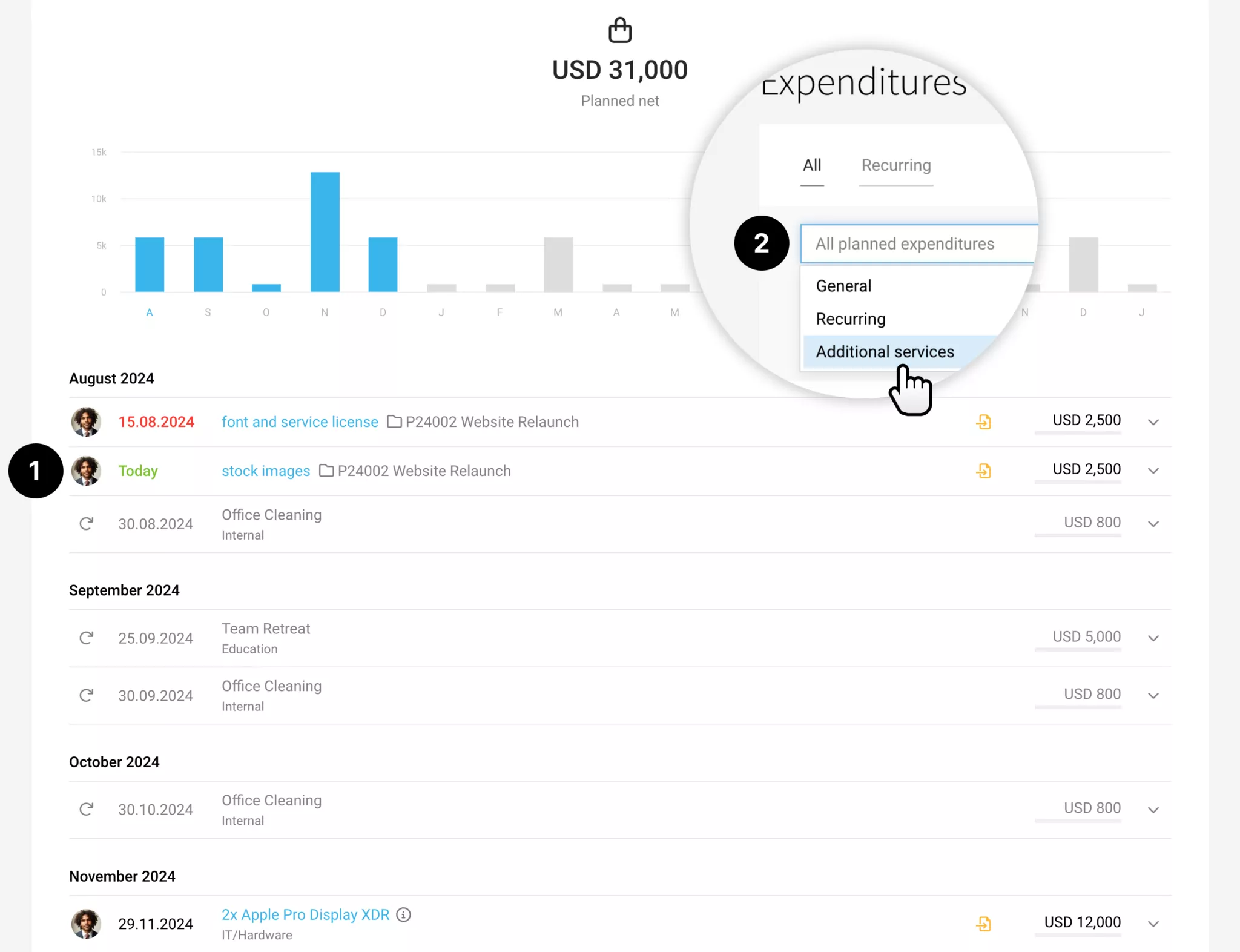
Under Expenditures > Planned, you can always see which project expenditures are still planned (1). To filter only by these in planning, select the Type "Additional Services" (2) in the filter (F).
Planned Date Easily Movable
You can also later directly shift the date in the list with a click – if, for example, a supplier invoice is delayed.
Also Complete Planned Expenditures Here
If all incoming invoices of the planned project expenditure are assigned, you can complete them (right dropdown "Complete"). This automatically sets the expenditure allocation to inactive.
Planned Date Easily Movable
You can also later directly shift the date in the list with a click – if, for example, a supplier invoice is delayed.
Also Complete Planned Expenditures Here
If all incoming invoices of the planned project expenditure are assigned, you can complete them (right dropdown "Complete"). This automatically sets the expenditure allocation to inactive.
Forecast in Financial Reports
In the financial reports under Reports > Finances, the planned project expenditures are also considered. Thus, alongside revenues from additional services, the corresponding costs can be considered in parallel.








