Alter News-Artikel!
» Hier geht's zur aktuellen Online-Hilfe
Article from
Forecast Expenditures Part 1: One-time General Expenditures.
Manage liquidity planning with planned expenditures, incorporate planned amounts into annual budgets, and allocate incoming expenditures. The new section goes online in three easy-to-digest parts – seamlessly integrating into existing structures.
Overview
Part 1 One-time General Expenditures
Part 2 Recurring General Expenditures
Part 3 Planned Expenditures from Projects
Part 2 Recurring General Expenditures
Part 3 Planned Expenditures from Projects
Activate Planned Expenditures
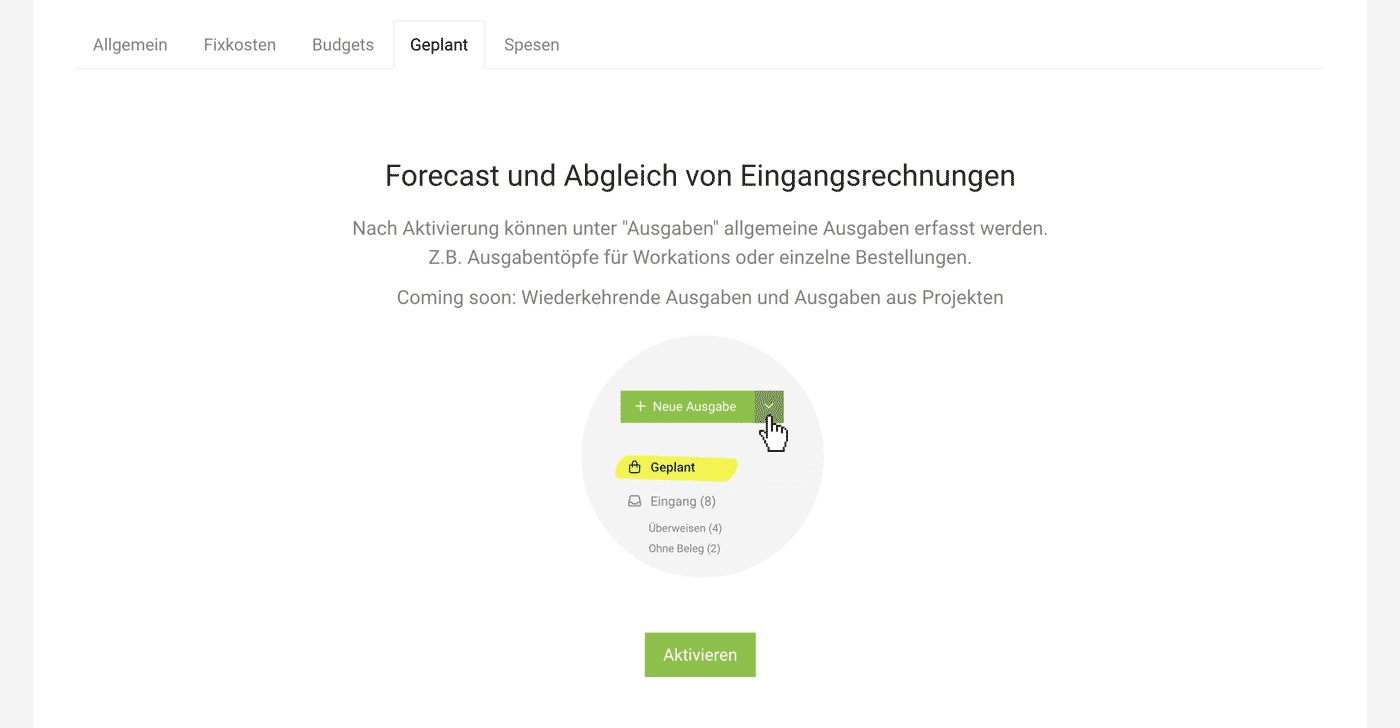
The new section for expenditure forecasting can be activated as needed in the settings (Settings > Expenditures > Planned). Each user can decide if and when to use this section additionally. Existing workflows remain unaffected.
 (English image not yet available)
(English image not yet available)Record One-time General Expenditures
General planned expenditures are typically orders or expenditure pools that should be planned as company expenses – e.g., for marketing, workations, etc.
 (English image not yet available)
Plan
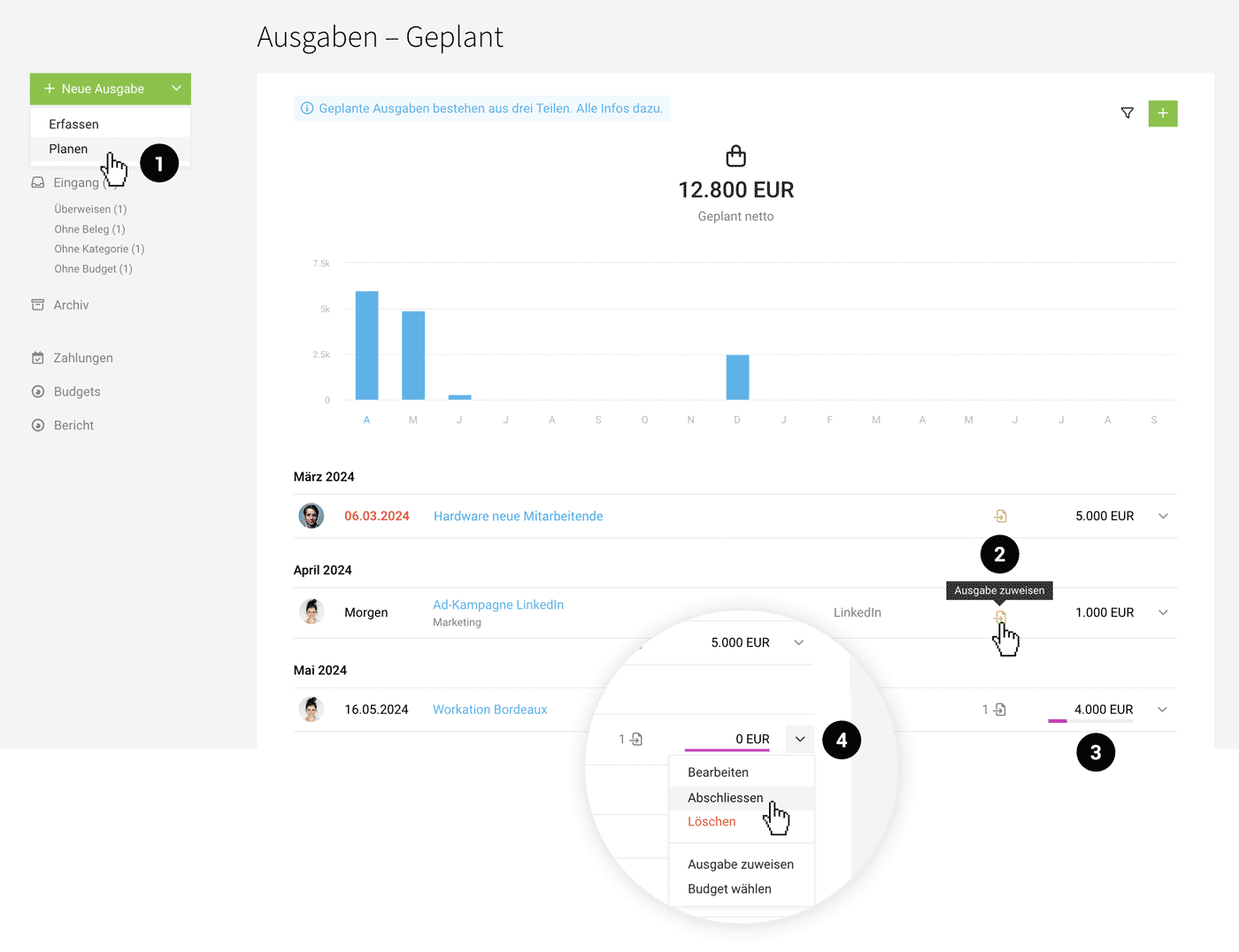
After activation (see above), you will find the new section under Expenditures > Planned. Record planned expenditures using the green button (1) or the "+" at the top right. Each recorded planned expenditure builds up the visualization further. Information entered in the "Additional Info" field is displayed directly in the list via the speech bubble icon.
Assign Receipts
From the planned expenditure, recorded expenditures can be assigned via the list action (2). In the list or on the detail page of the planned expenditure, MOCO indicates if there is still a planned remaining amount (3).
Complete
Once all expenditures are assigned, their purpose is fulfilled, and you complete the planned expenditure (4).
Completed planned expenditures can be accessed later if needed via the filter. The filter can be accessed like in other areas at the top right via the filter icon or with the shortcut "F".
Completed planned expenditures can be accessed later if needed via the filter. The filter can be accessed like in other areas at the top right via the filter icon or with the shortcut "F".
Workflow in Digital Invoice Entry
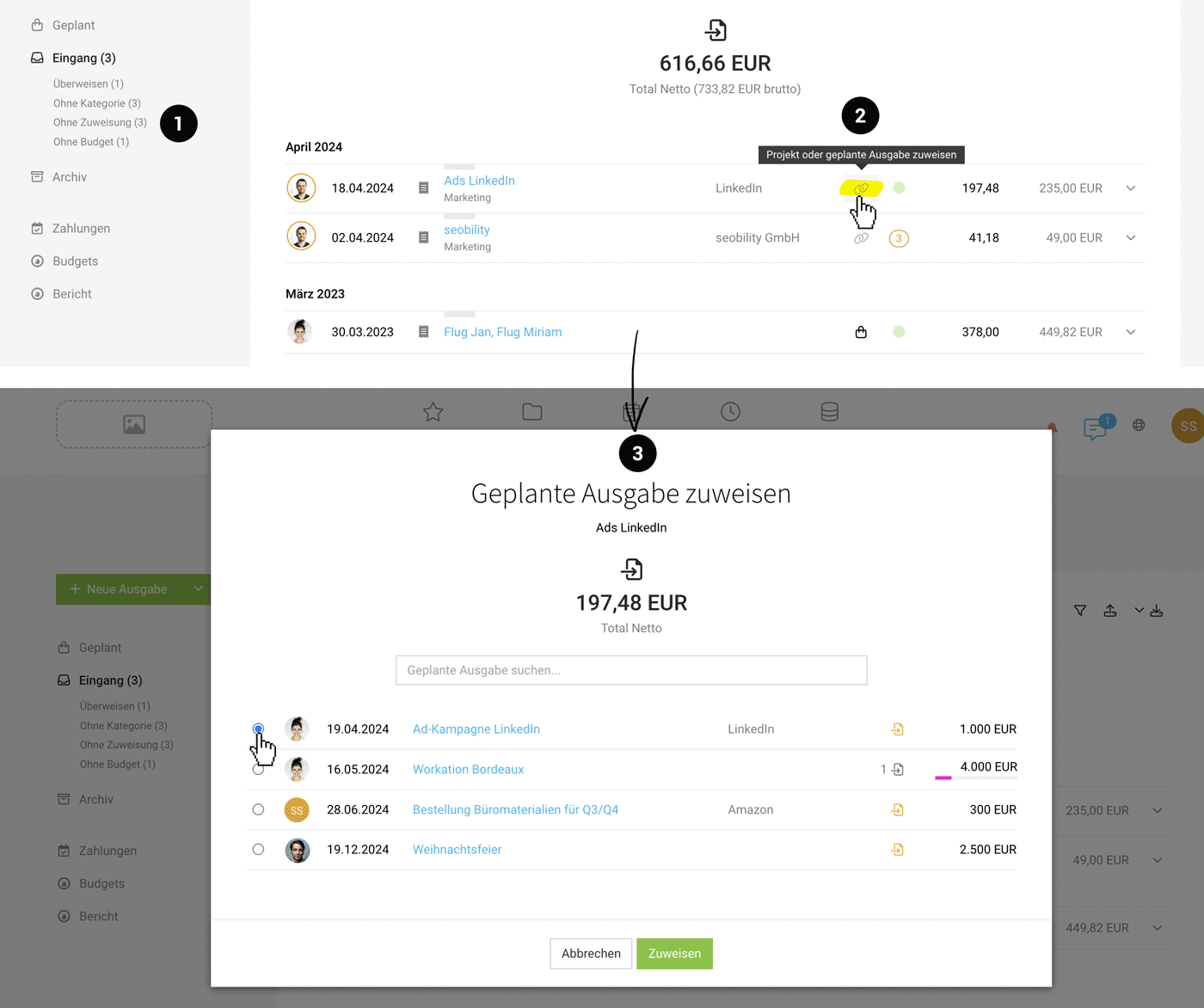
Using the Smart Filter "Unassigned" (1) , you can quickly filter all expenditures that have not yet been assigned. Receipts or recorded expenditures can now be assigned to a project OR a planned expenditure. Instead of the project symbol, a general link symbol is displayed (2).
For individual orders, amounts and any information can be reconciled (3). For pools like workations, all expenditures can be assigned gradually.
 (English image not yet available)
For individual orders, amounts and any information can be reconciled (3). For pools like workations, all expenditures can be assigned gradually.
(English image not yet available)If a planned expenditure is assigned with a budget, the same budget is automatically set for the expenditure (if none is set yet).
With restricted access rights to expenditures, a person can only assign planned expenditures where they are listed as the responsible person.
Consideration in the Financial Overview
The planned expenditure or its remaining amount is considered with the set reference date in the report (Reports > Finances > Overview Beta). All planned expenditures are also broken down in the list below.
Planned expenditures with a date in the past "accumulate" until you complete them.
More info on the Invoice/Expenditure Overview
Planned expenditures with a date in the past "accumulate" until you complete them.
More info on the Invoice/Expenditure Overview
Consideration in Liquidity Planning
 (English image not yet available)
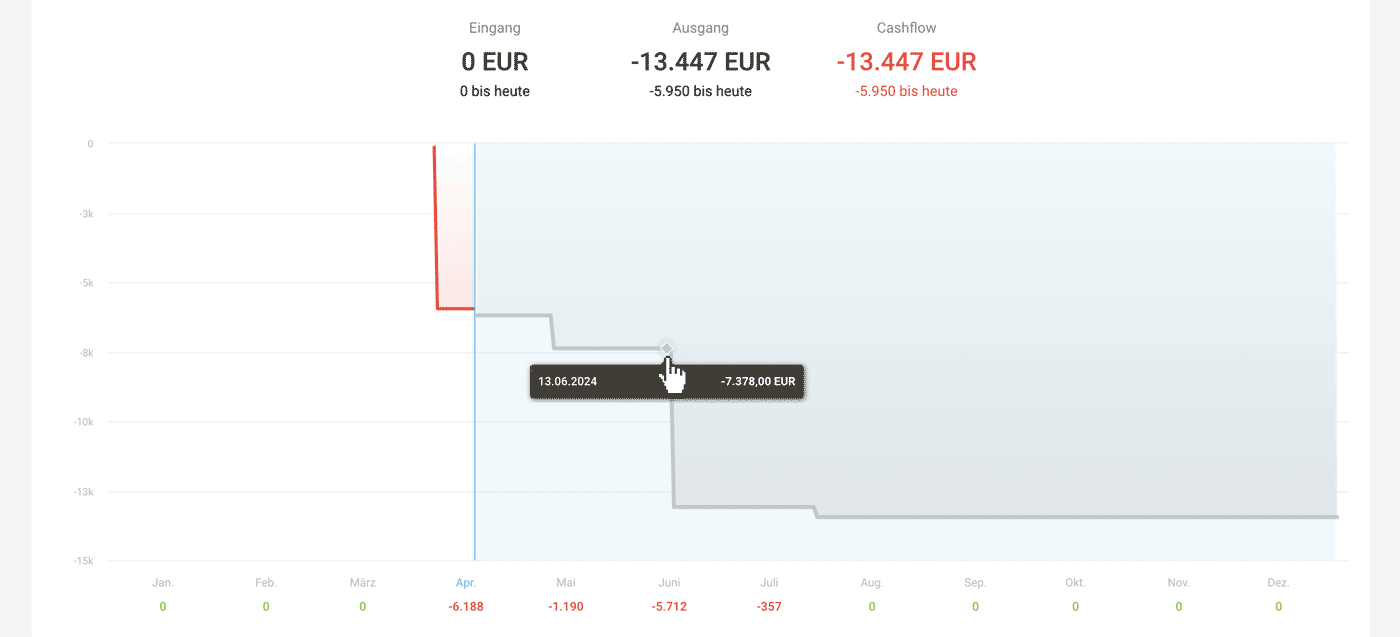
Under "Cashflow" (Reports > Finances > Cashflow), the planned expenditures or their remaining amount plus VAT and the payment target of the set supplier are considered.
More info on Liquidity Planning
Consideration in Annual Budgets
 (English image not yet available)
If a budget is chosen for the planned expenditure, MOCO considers the position or the remaining amount in the annual budgets.
More info on Annual Budgets for Expenditures








