Alter News-Artikel!
» Hier geht's zur aktuellen Online-Hilfe
Article from
Cashflow & Liquidity Planning in MOCO.
 (English image not yet available)
The new Cashflow report is the result of a lot of hard work and dedication (Reports > Finance > Cashflow). The following points have been further developed and added.
Forecast
Expected Income from
- Outstanding Invoices (Payable by)
- Invoicing Plans (Cut-off date + Payment term)
- Billable Hours (End of month + Payment term)
- Billable Additional Services (End of month + Payment term)
Expected Expenditures from
- Outstanding Expenditures (Payable by)
- Recorded Fixed Costs (a payment cut-off date has been added here for precise, day-specific display)
- Coming soon: Planned Expenditures (until then, fixed costs can be used as a workaround)
New View
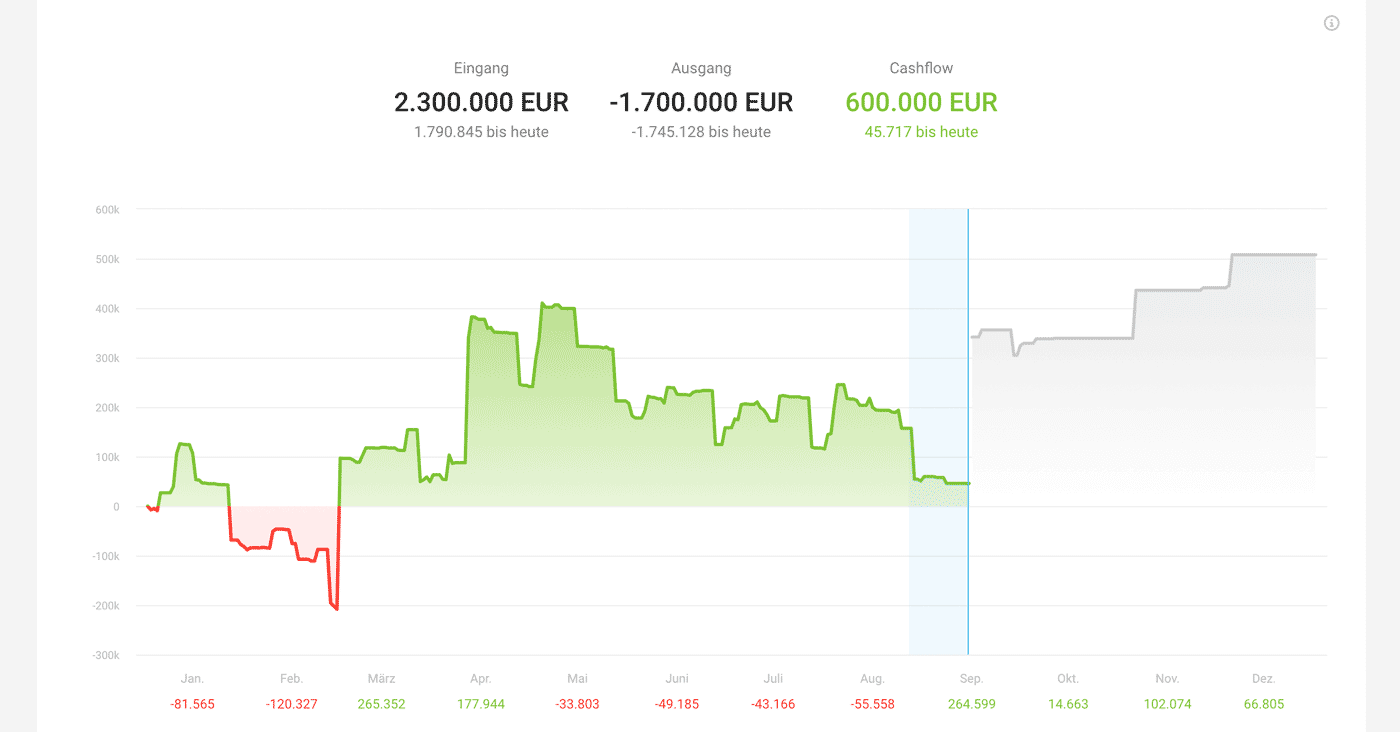
Day-Specific Chart
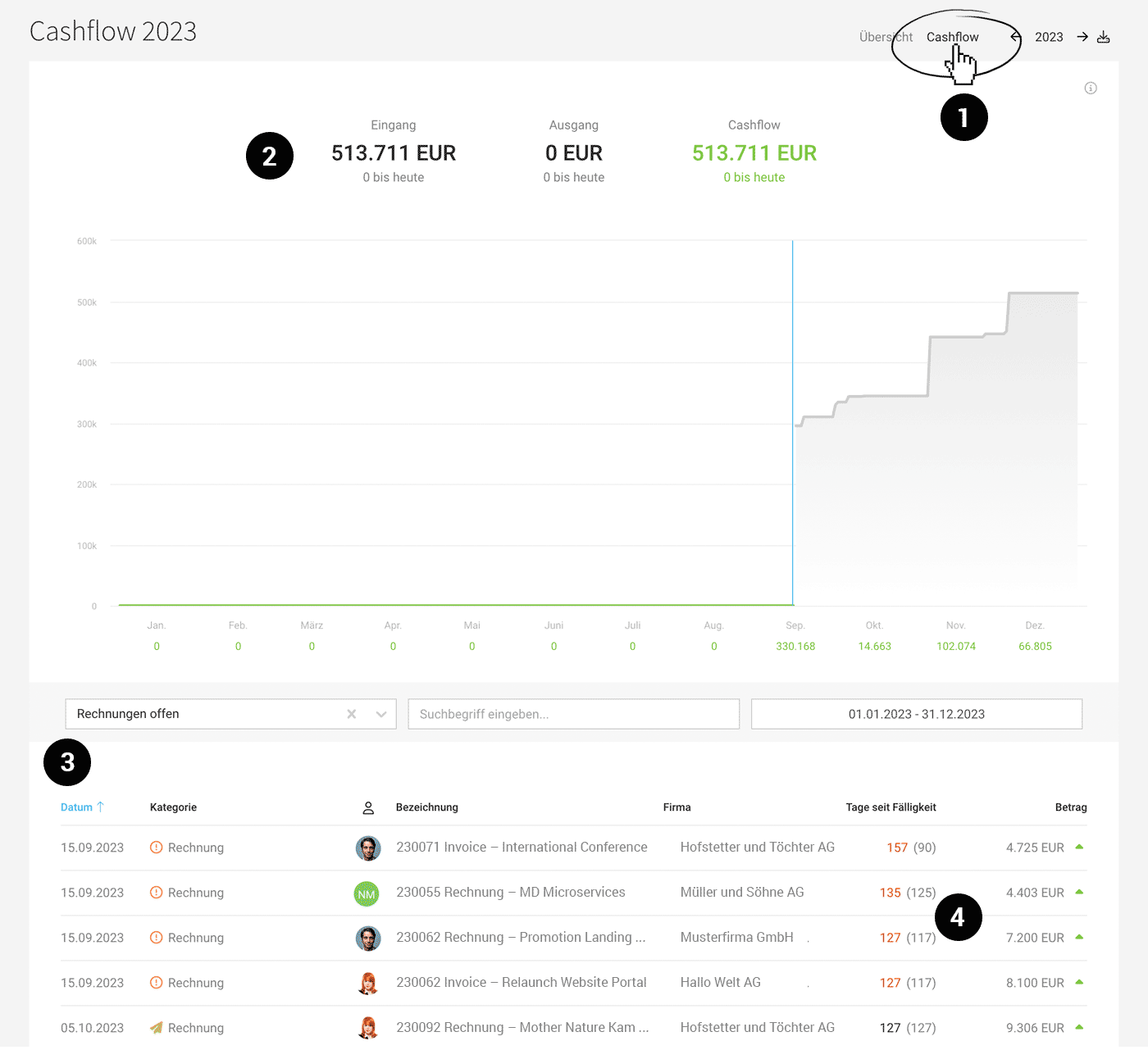
- The report under (Reports > Finance > Cashflow – (1) ) displays your data on a day-specific basis. Previously, the display was monthly.
- However, the differences per month will still be displayed as before.
- The totals (2) now also show the amounts up to and including today.
Interactive
You can select a particularly interesting or suspicious period in the chart by dragging with the mouse. The selected area turns blue (see image above). The list displayed below then breaks down this period exactly.
Breakdown of Amounts as a Position List
- The new position list below breaks down the amounts, making cashflow and liquidity planning comprehensible.
- "Days Past Due" (4) provides information on how far apart the payment target and actual payment are. This is particularly helpful for paid invoices (client payment behaviour) and outstanding invoices.
Filter & Sort
- Categories filter, to specifically check only the outstanding invoices (3) .
- Period filter, to display the specific positions from this period.
- Search Term filter, to filter for specific, individual positions.
- Sort by Date (3)
- Sort by Amount
 (English image not yet available)
Export
- The filtered view can be easily exported in Excel format.
New Chart also in the Overview
- In the overview (Reports > Overview), the chart has been adjusted accordingly. Clicking on it takes you directly to the detailed report.
Your Checklist
Check whether you have stored this information so that you can use the cashflow report effectively – and thus derive the greatest benefit for yourself.
- Add Invoicing Plans in projects (Project list > Smart Filter "Without Invoicing Plan").
- Record Fixed Costs or retrospectively enter the cut-off date
- Record payments via Bank Connection or CAMT
- To start with a specific amount, record a payment without an invoice under "Invoicing" > "Payments" > top right "+".
- If you do not (yet) record incoming invoices in MOCO, you can store the sum of (actual and planned) account outflows under "Fixed Costs" to still assess your cashflow.
- If you do not record payments in MOCO, you can (e.g. monthly) set all outgoing or incoming invoices to paid with one click. This way, these incomes are also visible in the cashflow chart.








