Article from
Import Leads.
With Lead Import, you can effortlessly transfer leads to MOCO – whether from other tools or, for example, after a company merger. Just prepare your Excel spreadsheet, upload it, and you’re done.
Enable
Lead Import uses AI to match your spreadsheet columns to MOCO fields. If you haven’t already, enable the Intelligent Imports feature in Settings under Account > AI.
Before Importing
Companies and Contacts
Referenced companies and contacts must already be set up in MOCO – otherwise the relevant lead will not be imported. However, you can also import leads without linking them to a company or contact, as these are not mandatory fields.
Status/Stage
The status must match your saved Sales Stages exactly. Leads with a different status will be added to the error file.
Referenced companies and contacts must already be set up in MOCO – otherwise the relevant lead will not be imported. However, you can also import leads without linking them to a company or contact, as these are not mandatory fields.
Status/Stage
The status must match your saved Sales Stages exactly. Leads with a different status will be added to the error file.
Import Leads
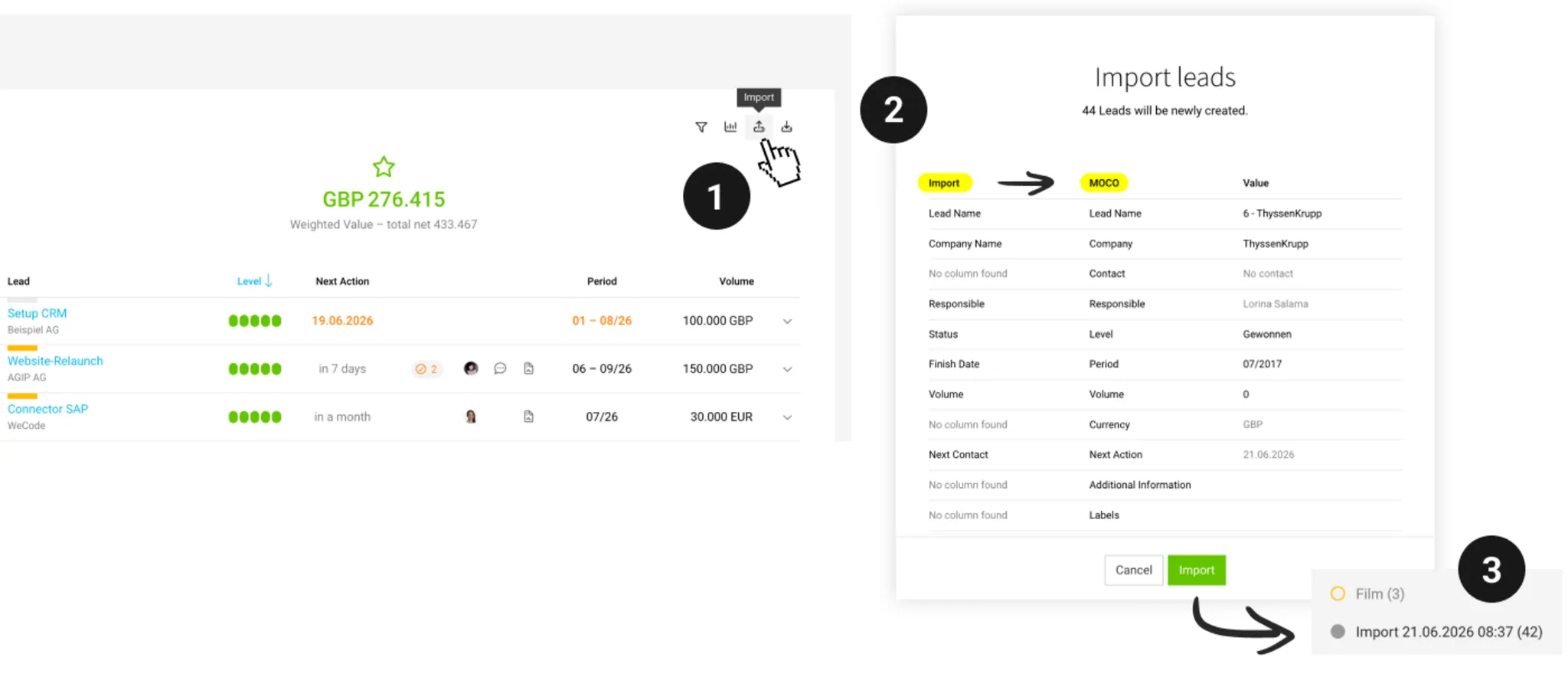
In the lead list, click the import icon (1) and upload your XLSX file. MOCO reads the column names and assigns them to the appropriate fields in MOCO (2). Check the mapping and start the import.
Invalid Records
Records that could not be imported are available to download as an XLSX file. Simply fix the errors directly in the file and then upload it again.
Records that could not be imported are available to download as an XLSX file. Simply fix the errors directly in the file and then upload it again.
Review & Finish
After the import, MOCO automatically creates a label so you can see all newly imported leads at a glance (3). If everything looks right, simply delete the label. If something isn’t right, you can delete incorrect entries using a bulk action.