Article from
Multiple Payment Accounts for Invoices and Purchases.
In MOCO, you can now store multiple payment accounts – and select the right account for each Invoice or Purchase.
Until now, MOCO only allowed you to store one default account. You can now add additional accounts whenever you need them. Payment accounts are referenced in incoming and outgoing payments. You can also use them in e-invoices for payment details when paying by bank transfer, or in the bank transfer order for Purchases.
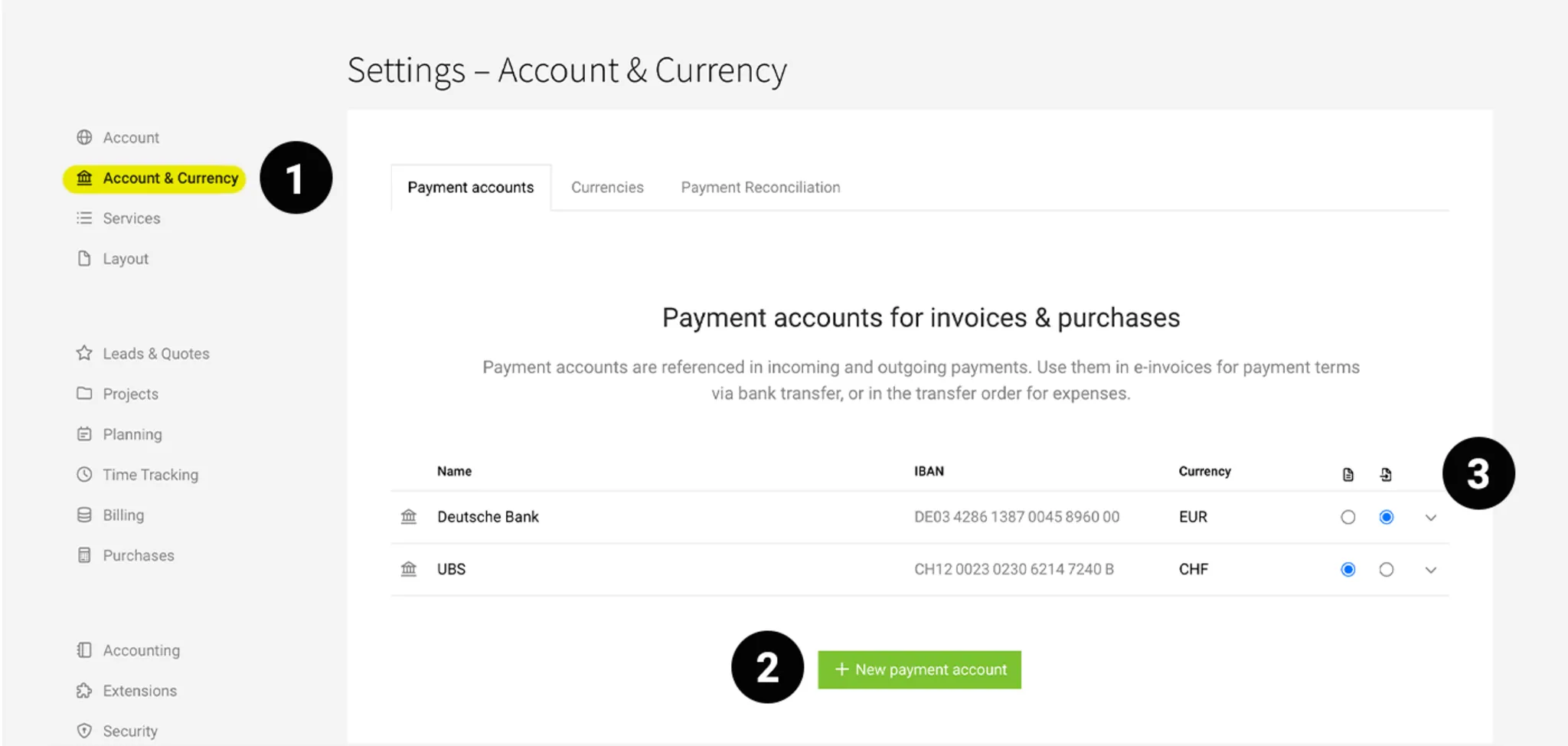
Setting Up Payment Accounts
You manage your accounts under Settings > Account & Currency (1). Use New Payment Account (2) to create one or more accounts, and select a Default Account (3) for Billing and Purchases.
Accounts you no longer need can be deactivated – they will no longer be available for selection, but will remain as a reference for existing data.
Using Payment Accounts
If you have stored multiple accounts, you benefit from the following updates:
Enhancement for E-Invoices
If you select “Bank Transfer” as the payment method in an e-invoice, you can now include a payment account as well. You can also predefine the account on the client, so it is selected by default on all invoices for that client.
Important: Remove payment account details from the closing text and letterhead to avoid confusion when making the transfer.
Important: Remove payment account details from the closing text and letterhead to avoid confusion when making the transfer.
Control the Bank Transfer Order
When creating a bank transfer order, you can choose which account it should be created for. MOCO will then store the corresponding payment information.
Filter/Track Payments by Account
With the new filter in Payments, you can now filter by payment account. This applies to both incoming and outgoing payments. The tooltip on an individual payment also shows the account.








