AI in MOCO
MOCO AI | Intelligent Import | MCPMOCO AI
Closed beta: This feature is currently in development and is not available to all accounts. Scope, availability, and behaviour may be adjusted, extended, or changed at any time.
Ask questions about your leads, quotes, projects, invoices, and more. MOCO answers your query – powered by AI – prepares data as tables, lists, or charts, and can create or edit the relevant entries for you if you want.
The feature is available throughout MOCO and can be accessed via the eye icon on the right-hand edge. With one click – or using the "X" shortcut – you can open and close the sidebar. At the top left, you can find previous conversations or start a new chat (shortcut "N").
MOCO AI pulls information from your account and analyses it for you. If you want, MOCO can go a step further and create or edit entries directly for you.
- Ask instead of clicking: Ask in plain language about time, projects, invoices, or clients. MOCO reviews your data and replies, without you having to search yourself.
- Connect areas: Combine information from multiple sources, e.g. your logged hours with project profitability or invoice status – things that would otherwise be spread across several pages.
- On-demand analysis: Create ad hoc bar, line, or pie charts and calculate totals, time periods, or comparisons – exactly as you need in the moment.
- Create and edit: Tell MOCO what should be created or adjusted – for example, for quotes, projects, and more. MOCO carries it out as soon as you confirm.
In addition, in certain situations MOCO suggests specific actions that can simplify your day-to-day work:
"Overview" action
Instead of gathering all the data yourself, you can use the AI "Overview" feature to generate a concise summary of a project, a client, a supplier, or specific people at the click of a button.
Access Rights
MOCO AI has the same access rights as you. By default, MOCO only reads data. You can enable write access for creating and editing under Settings > Account > AI. MOCO only applies any change after your confirmation and records it in the change log as usual.
Data Protection
MOCO AI uses language models (LLMs) – by default, the MOCO model on our own infrastructure. When you use this model, all your data stays on our servers.
Optionally, Claude or ChatGPT models are available if you enable them in the settings under Account > AI.
Intelligent Import
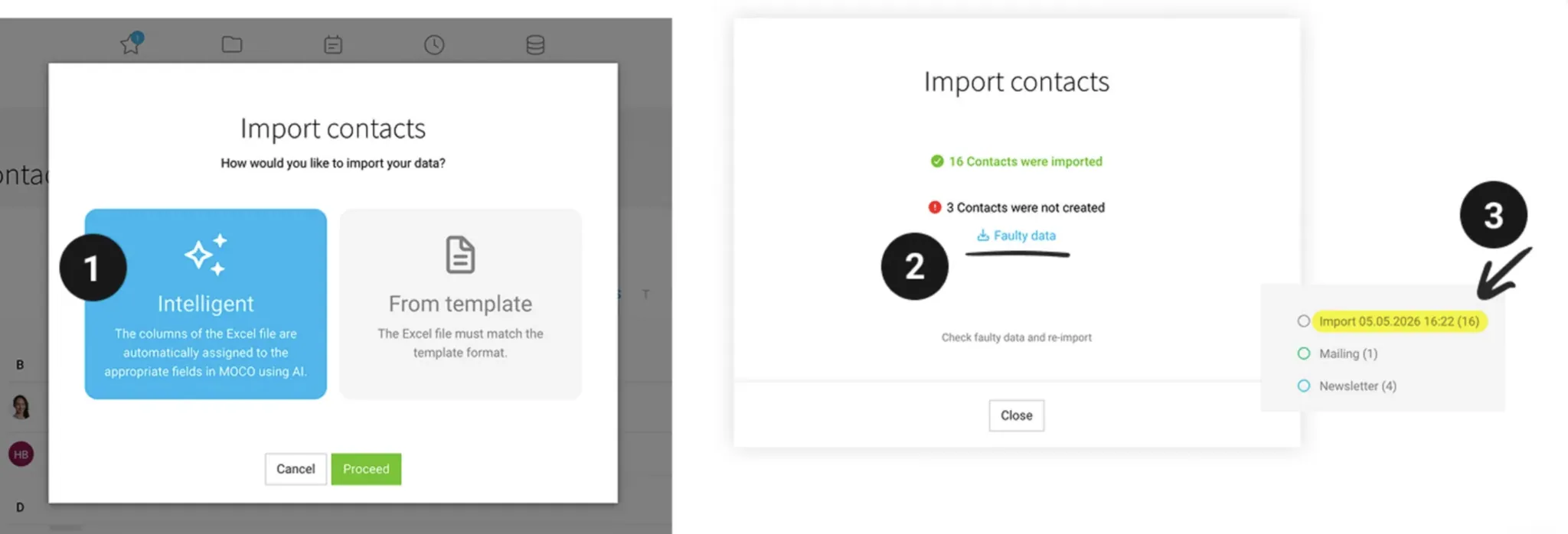
With Intelligent Import, you can migrate companies, contacts, and leads to MOCO. Instead of manually adapting your data to an import template, simply upload your existing XLSX file – the AI automatically assigns the columns to the right MOCO fields.
Enable AI Import
Enable the feature under Account > AI.
Import
- Go to Companies/Contacts/Leads > Import > Intelligent (1).
- Upload your XLSX file.
- MOCO analyses the columns and suggests the right mapping.
- Review the mapping and start the import.
If individual records could not be imported, you will receive an XLSX file with error messages (2). Correct the data and import it again.
Review or Undo an Import
Every import – whether classic or via AI – automatically gets an import label with the date and time (3). This makes it easy to find imported companies again and, if needed, delete them via a bulk action.
MCP
With the Model Context Protocol (MCP), you can connect MOCO directly to your AI chatbot. This lets you query your MOCO company data easily via chat – and, if you want, trigger actions directly in MOCO.
Enable & Use
You can enable the MCP interface optionally (opt-in). During the beta phase, you can try the feature free of charge. We’ve summarised how to use the interface, which commands are available, and what you can do with it on the MCP Integration page.
Whether you give the AI read-only access as standard or also allow write access is up to you. In addition, each person in MOCO, of course, only has access to the areas they can see in MOCO.