Account & Currency
Accounts | Payment Reconciliation | CurrenciesAccounts
Settings > Account & Currency > Accounts
Payment Accounts for Invoices & Purchases
Payment accounts are referenced in incoming and outgoing payments. Add one or more accounts and set the default account for Billing and Purchases.
Payment accounts can also be used, for example, in e-invoices for payment details for bank transfers, or in the bank transfer order for Purchases.
Deactivate an Account
Accounts you no longer need can be deactivated. They will no longer be available for selection, but will remain as a reference for existing data.
Payment Reconciliation
Settings > Account & Currency > Payment Reconciliation
Direct Bank Connection
Connect Bank
1. Use the dropdown to choose which payments should be retrieved.
2. Then click "Connect Bank". Don’t forget to select "Save PIN" during the connection process, so you don’t have to renew the connection regularly.
3. After a successful connection via FinAPI, the bank will be listed along with your accounts.
4. Select the accounts.
Note on Re-Authentication
Re-authentication is usually required if a third-party program retrieves data via the same FinAPI login. To avoid re-authentication, you should use separate login details for each application.
1. Use the dropdown to choose which payments should be retrieved.
2. Then click "Connect Bank". Don’t forget to select "Save PIN" during the connection process, so you don’t have to renew the connection regularly.
3. After a successful connection via FinAPI, the bank will be listed along with your accounts.
4. Select the accounts.
Note on Re-Authentication
Re-authentication is usually required if a third-party program retrieves data via the same FinAPI login. To avoid re-authentication, you should use separate login details for each application.
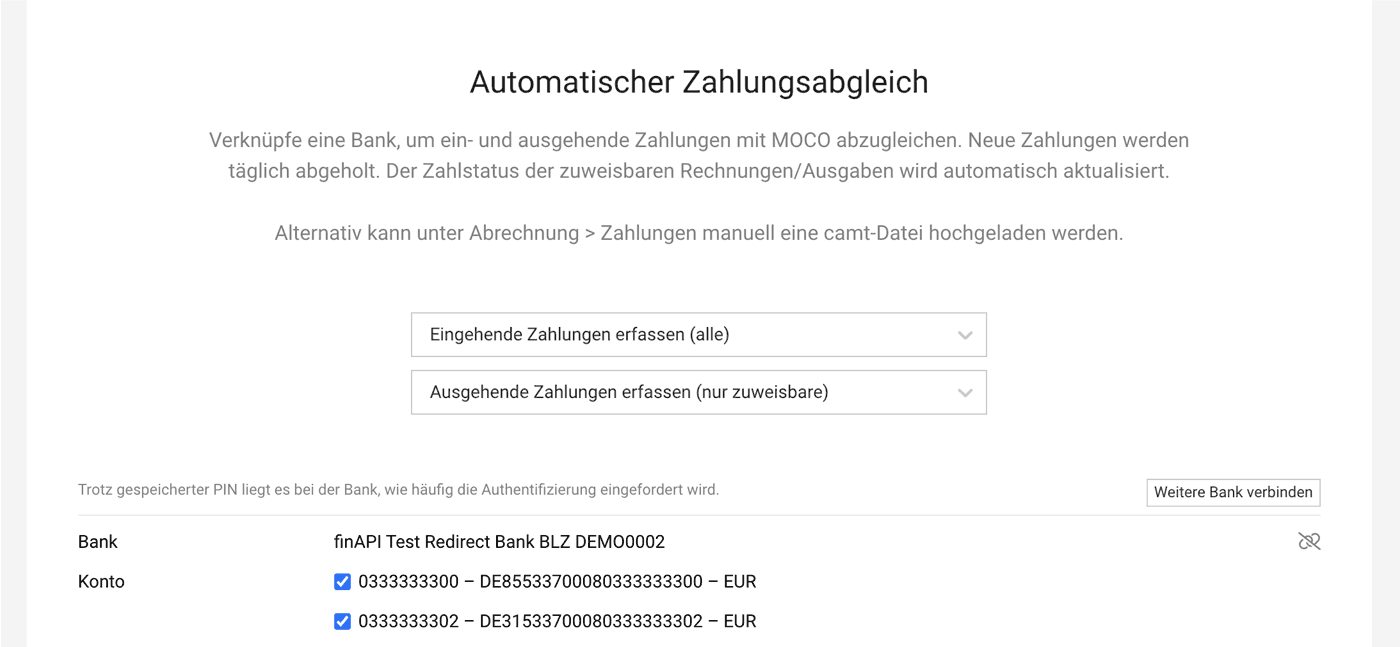 (English image not yet available)
Alternative: Payment Reconciliation via CAMT
finAPI supports many countries and banks – but not Switzerland. For Swiss accounts, we currently recommend reconciliation via CAMT. To do this, go to Billing or Purchases, then under "Payments" upload your bank’s .camt file in the top right.
This can also be used in addition to the direct bank connection if you have more accounts.
This can also be used in addition to the direct bank connection if you have more accounts.
Incoming Payments
More detailed information on how payment reconciliation works for your sent invoices (incoming payments):
Outgoing Payments
More detailed information on how payment reconciliation works for your supplier invoices (outgoing payments):
Currencies
Settings > Currency & Account > Currencies
Account Currency
This shows your account currency, which is set when you create your account, depending on the country you select.
Add Additional Currencies
You can add additional currencies. Once added, you can select them for clients, projects, quotes, purchases, etc.








