Cancellation & Credit Note
Cancellation Invoice / Invoice Correction | Credit Note | Delete InvoiceCancellation Invoice / Invoice Correction
If you need to withdraw an incorrectly issued invoice, you cancel it. When you cancel an invoice, a cancellation invoice is created. The original invoice remains on record.
Cancelling
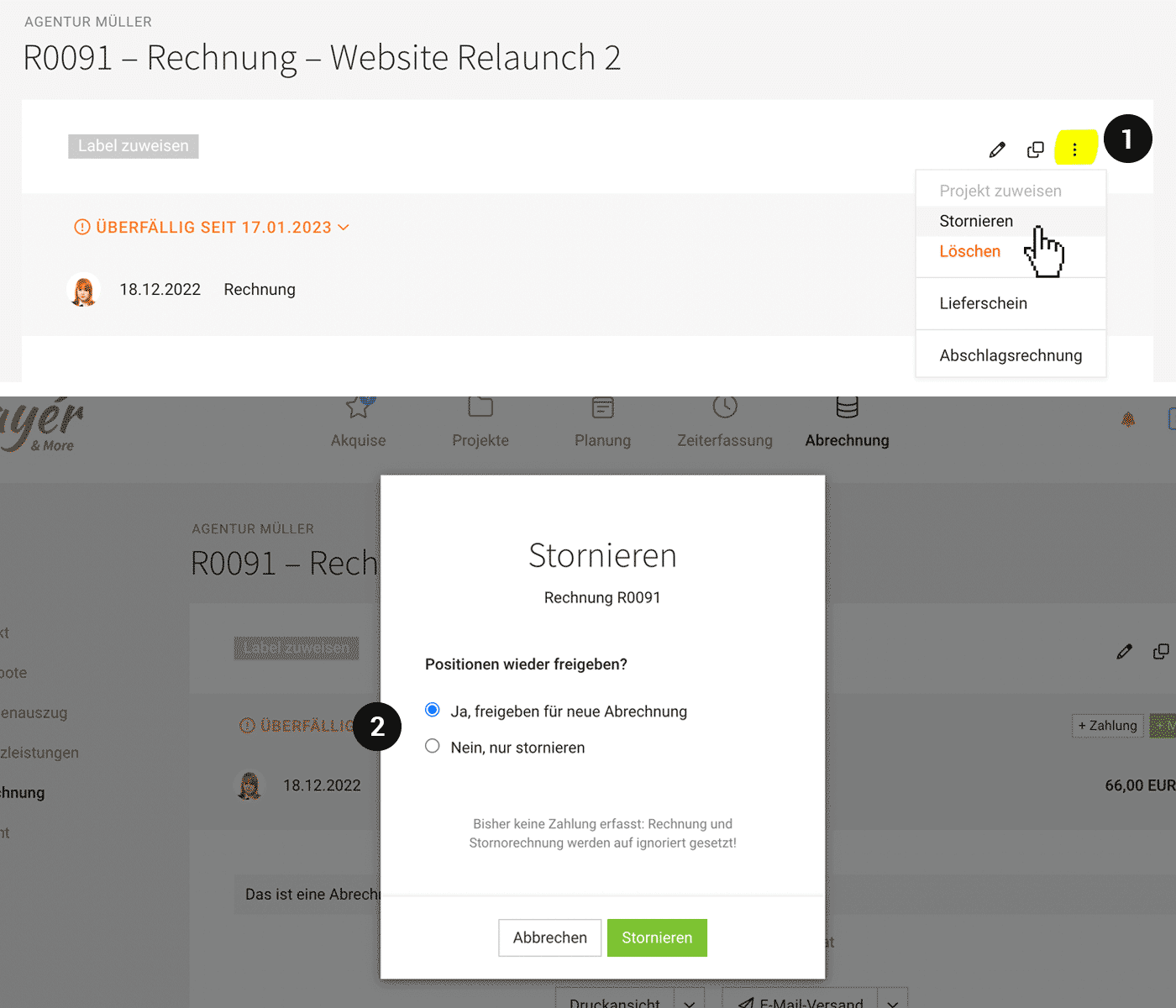
1. On the invoice, in the top right, select (1) "Cancel".
 (English image not yet available)
2. Choose whether the hours should be released for re-invoicing.
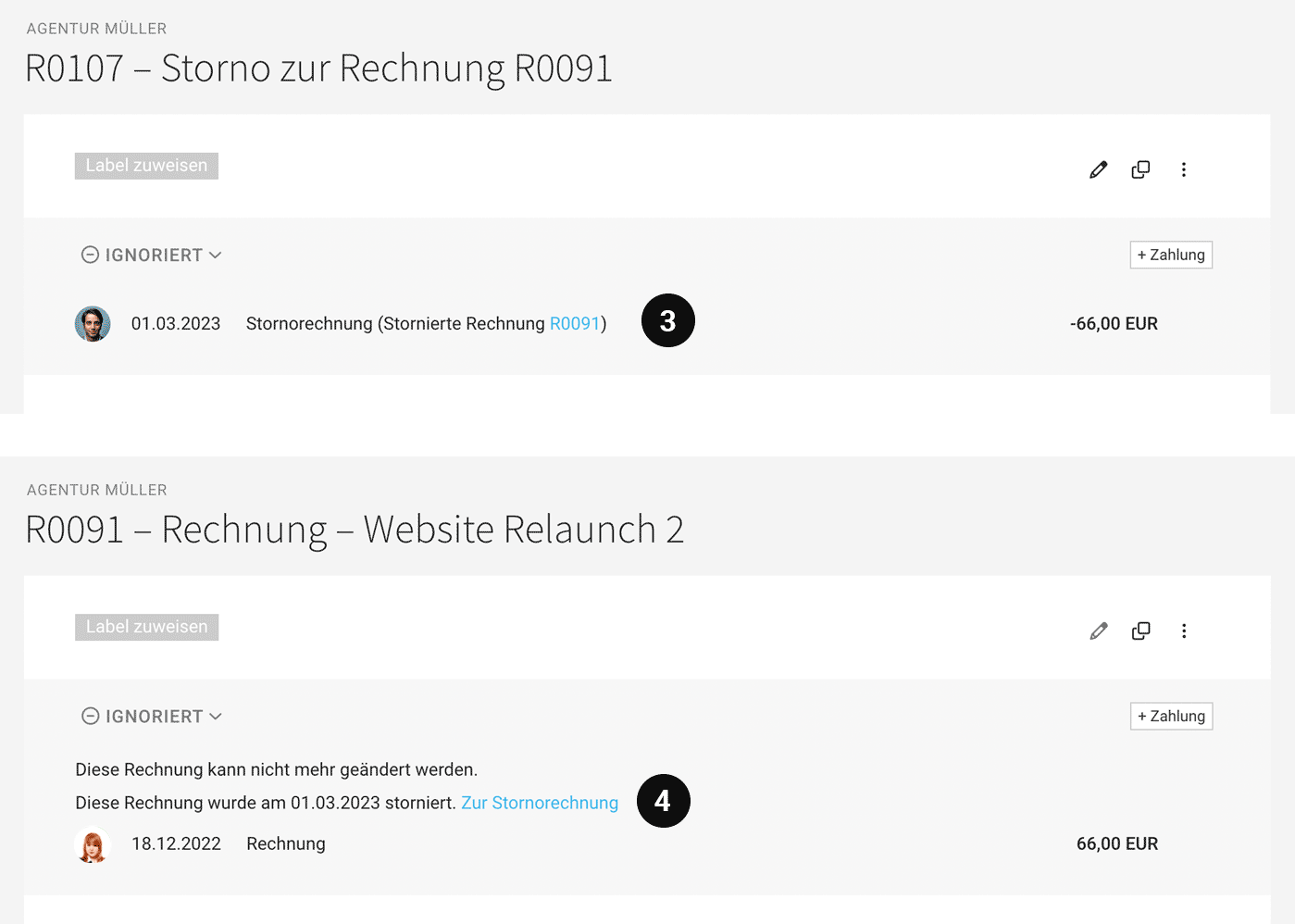
3. Create the cancellation invoice (adjust or add to it if needed). The cancellation invoice contains the same line items, but as negative line items, and it has a new invoice number. The cancelled original invoice is linked.
 (English image not yet available)
4. The original invoice links to the corresponding cancellation invoice. It is locked once cancelled.
Create a New Corrected Invoice
Copy the original invoice and create a new corrected invoice from it, or
create a new invoice from the released line items (see 2.).
create a new invoice from the released line items (see 2.).
Invoice Status "Ignored" or "Paid"
If no payments have been recorded yet, MOCO automatically sets both the cancelled invoice and the cancellation invoice to "ignored" (see example). If the invoice has been paid, the payment and refund are recorded as usual, and the invoice and cancellation invoice will appear under "paid" as normal.
Partial Cancellation
If you only want to cancel individual line items on an invoice, proceed as follows:
1. Create the cancellation invoice (see above).
2. Delete all line items you do NOT want to cancel and label the invoice as "Partial Cancellation".
3. Save & done.
You can predefine a standard text for cancellation invoices, including variables, in the settings.
1. Create the cancellation invoice (see above).
2. Delete all line items you do NOT want to cancel and label the invoice as "Partial Cancellation".
3. Save & done.
You can predefine a standard text for cancellation invoices, including variables, in the settings.
Credit Note
Invoice Correction
Important to note: 'Credit Note' is a colloquial term. Typically, you mean an invoice correction – in Germany, this must be explicitly named a cancellation invoice.
All information on cancellation invoices
All information on cancellation invoices
Creating Genuine Credit Notes - e.g., for Commissions
Genuine credit notes are independent of an issued invoice. MOCO cannot create credit notes with its own numbering sequence. Current possible methods:
a) Ideally, the counterpart can issue an invoice.
b) Create an invoice with a negative amount and label it as a "Credit Note".
a) Ideally, the counterpart can issue an invoice.
b) Create an invoice with a negative amount and label it as a "Credit Note".
Receiving a Credit Note
If you receive credit notes, e.g., commissions with a receipt, you can
a) record them as an incoming invoice with a negative amount. Assign the incoming invoice to a project, which generates negative costs on the project and positively impacts the profitability calculation.
b) You can also record an invoice within the project, name it "Credit Note from xy Number (See Attachment)" – and upload the original receipt as an attachment. The receipt will be directly integrated into the invoice PDF.
Other income at the account level can be recorded under "Invoicing" > "Payments" > "+" as "Payment without Invoice".
a) record them as an incoming invoice with a negative amount. Assign the incoming invoice to a project, which generates negative costs on the project and positively impacts the profitability calculation.
b) You can also record an invoice within the project, name it "Credit Note from xy Number (See Attachment)" – and upload the original receipt as an attachment. The receipt will be directly integrated into the invoice PDF.
Other income at the account level can be recorded under "Invoicing" > "Payments" > "+" as "Payment without Invoice".
Delete Invoice
Typically, you cancel incorrect invoices and issue a new corrected invoice.
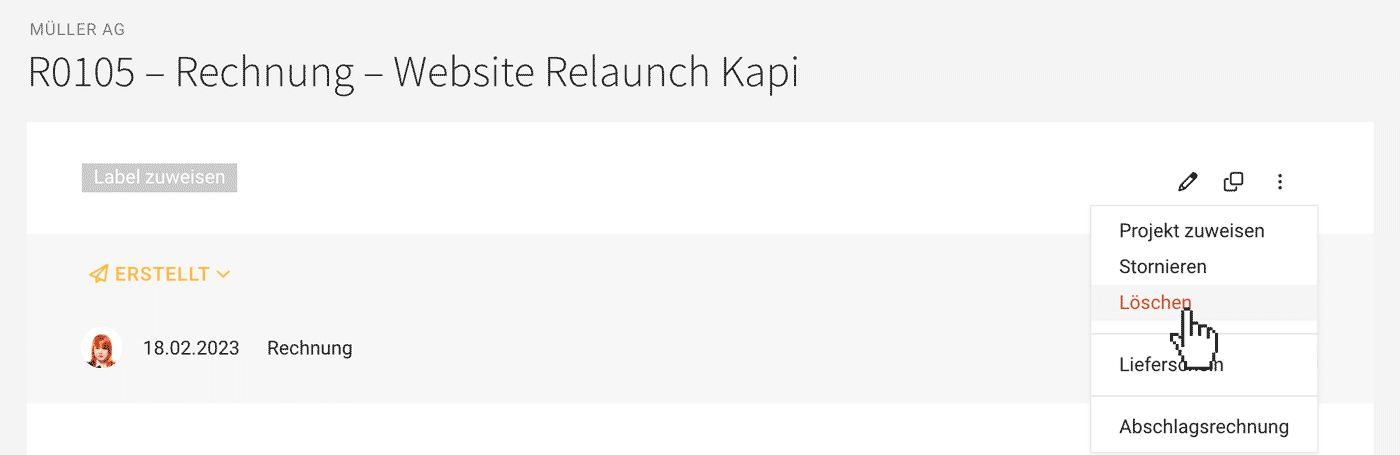
In exceptional cases where deletion is more appropriate, the invoice can be deleted from the top right corner depending on its status. MOCO ensures retrospective traceability.
In exceptional cases where deletion is more appropriate, the invoice can be deleted from the top right corner depending on its status. MOCO ensures retrospective traceability.
What Happens When an Invoice is Deleted
When deleting, the billed efforts can be released again. Deletion also requires entering a comment for future traceability. The number of the deleted invoice is not automatically reassigned.
 (English image not yet available)
(English image not yet available)Common Misconception "There Must Be No Gaps"
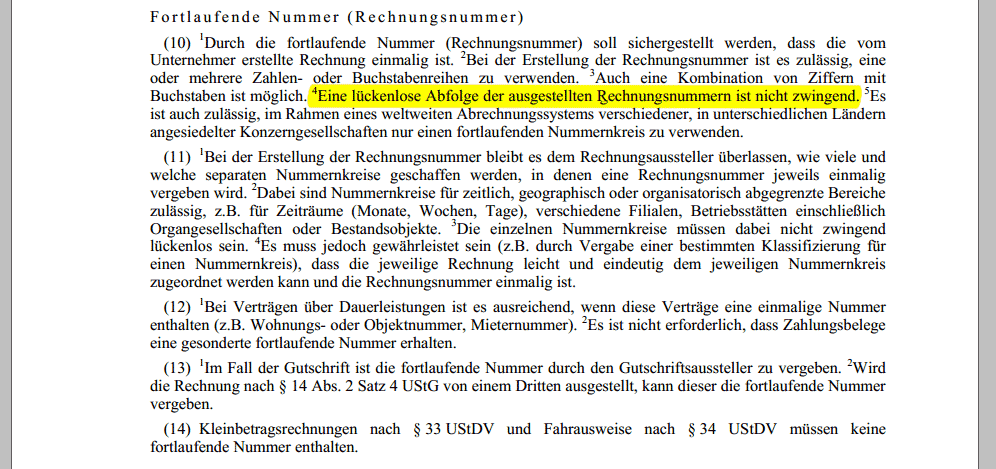
Germany requires continuous invoice numbering according to § 14 Abs. 4 S. 1 Nr. 4 UStG. The continuous number (invoice number) ensures that the invoice created by the entrepreneur is unique. However, a seamless sequence of these invoice numbers is not mandatory, according to the VAT Application Decree
 (English image not yet available)
 In any case: MOCO guarantees the traceability of deleted invoices and their numbers (see below).
Reassigning an Invoice Number
Manipulating the automatic numbering sequence is always tricky. However, a number can be reassigned as follows:
1. Create an invoice draft
2. Temporarily switch the numbering sequence to "manual"
3. Assign the number (the invoice will be set to "Created")
4. Switch the numbering sequence back to "automatic"
1. Create an invoice draft
2. Temporarily switch the numbering sequence to "manual"
3. Assign the number (the invoice will be set to "Created")
4. Switch the numbering sequence back to "automatic"
Traceability: Finding Deleted Invoices
Document with Deletion Reason as Watermark:
Enter the full invoice number or deletion comment in the search (magnifying glass top right or keyboard shortcut "/").
Excel Export
The export includes the invoice with the comment.
Enter the full invoice number or deletion comment in the search (magnifying glass top right or keyboard shortcut "/").
Excel Export
The export includes the invoice with the comment.








