Tips
Notify | Comments & Files | Labels (Tags) vs. Custom Fields | Shortcuts / Keyboard Shortcuts | Smart Filter | The Global Search | Combine Excel ExportsNotify
Almost everywhere on the detail page > Comments
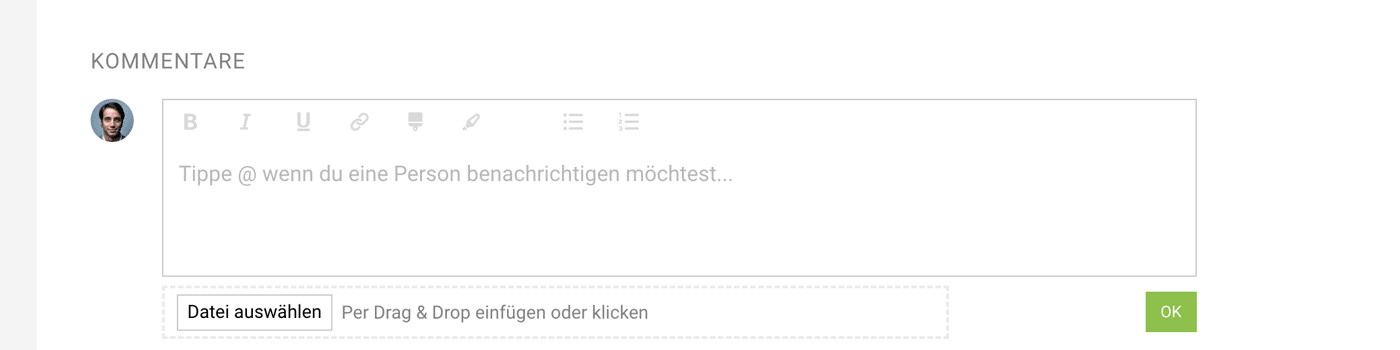
The @mention functionality is familiar to most who use Trello, Slack, Twitter, or WhatsApp groups. It allows you to easily and specifically notify individuals.
When you type under "Notes & Files" @M..., all colleagues whose names start with "M" are offered as options. For example, if we select @MiaMaier and add a message: "@MiaMaier Please create a proposal for the lead here". Mia then receives a notification with this request and can either respond or take action immediately.
 (English image not yet available)
Application Examples
Expenditures
→ Obtain confirmation from the project leader that the invoice is correct.
→ Inquiry about which project the incoming invoice can be assigned to.
→ Obtain confirmation from the project leader that the invoice is correct.
→ Inquiry about which project the incoming invoice can be assigned to.
Proposals or Invoices
→ Get approval for sending.
→ Notify about overdue invoices.
Acquisition
→ Communicate information/status more quickly.
→ Request to create or supplement a proposal.
→ Communicate information/status more quickly.
→ Request to create or supplement a proposal.
Contacts
→ Request to update the details.
Comments & Files
Almost everywhere on the detail page > Comments (see above)
 (English image not yet available)
(English image not yet available)History
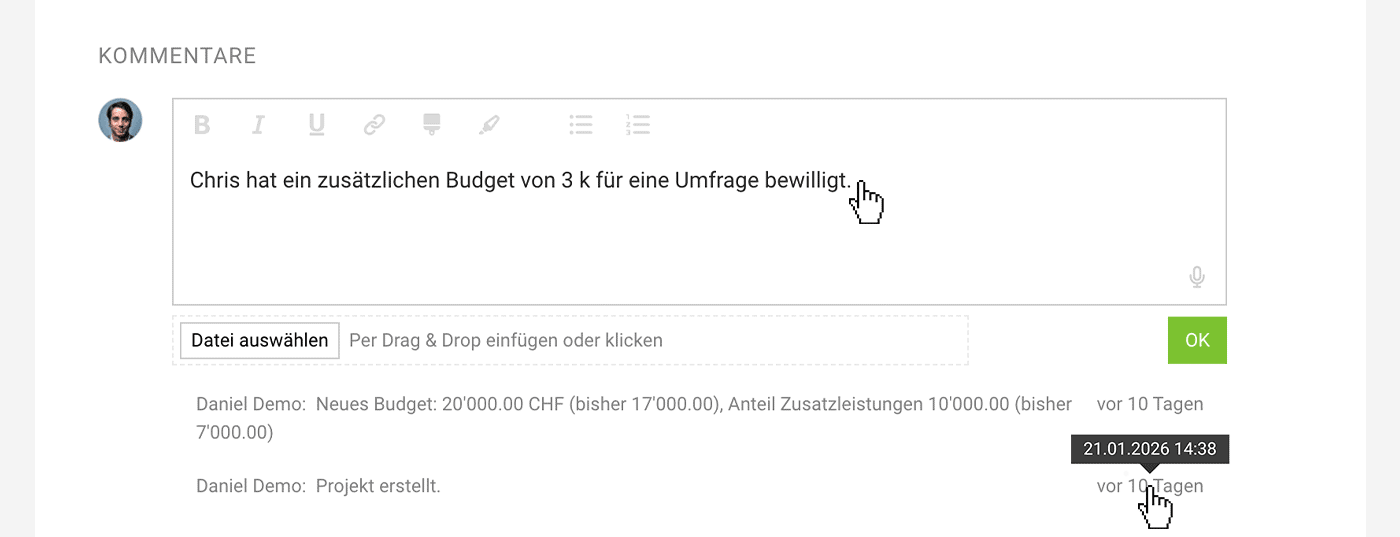
On the detail page for a client, project, invoice, etc., there is a section at the bottom of the page called "Comments". This is where you can add supporting material and your own notes. MOCO also automatically shows events for traceability here, for example budget adjustments, status changes, and texts and information about email sending.
- To make it easy to tell them apart, your own comments are highlighted in blue, and others in grey
Files
The file upload is intended for supporting material such as a contract or a briefing, and can, for example, be used as a personnel file for staff. For quick access, files are also listed at the top alongside the detail information in some places.
Voice Input
Voice input lets you add comments more quickly. Voice input is available on all pages with a comments section. As this is an AI feature, it must be enabled under Account > AI.
Labels (Tags) vs. Custom Fields
Benefits of Labels and Comparison with Custom Fields
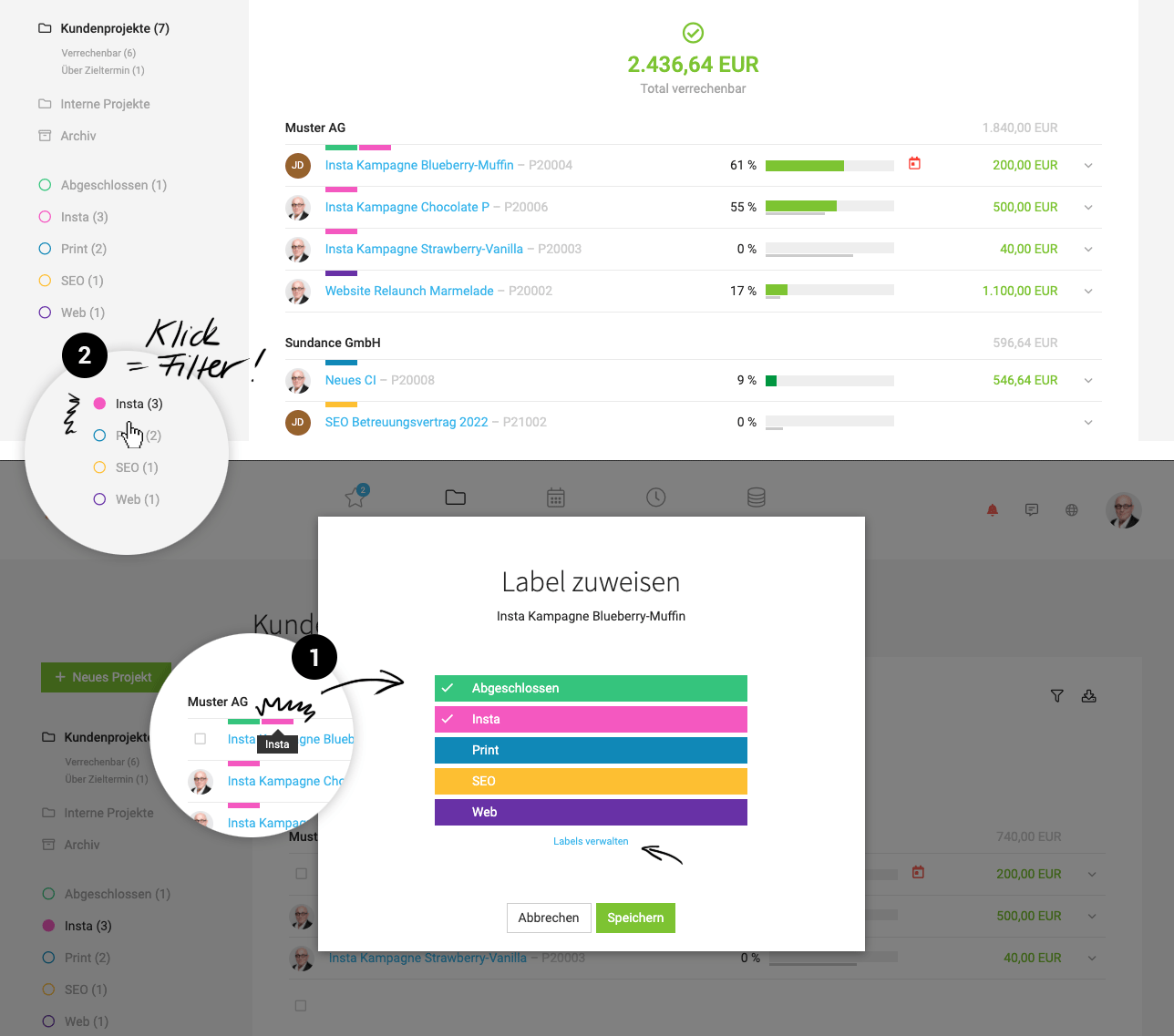
Labels are useful for temporary marking or categorisation. You can specifically filter lists (2) and reports by labels.
Custom Fields are used for individual data extension of master data. Entries can also be found via the search (magnifying glass or Shift +7) (Example: Find person by Bahncard number). Depending on the field type, you can display these in the info block on the proposal/invoice (Example: PO number). For the "Date" field type, you can set up a notification (Example: Client contract expiry date).
Custom fields are also directly possible for proposals and invoices, as well as for additional services.
Custom Fields are used for individual data extension of master data. Entries can also be found via the search (magnifying glass or Shift +7) (Example: Find person by Bahncard number). Depending on the field type, you can display these in the info block on the proposal/invoice (Example: PO number). For the "Date" field type, you can set up a notification (Example: Client contract expiry date).
Custom fields are also directly possible for proposals and invoices, as well as for additional services.
Commonality: Both labels and custom fields are included in Excel exports, aiding further processing or additional individual evaluations.
 (English image not yet available)
(English image not yet available)Modal mit Label-Zuweisung nach Klick auf den kleinen grauen Balken in der Zeile. Im Beispiel sind bereits alle Objekte gelabelt
Creating & Assigning Labels
Click on the small light grey bar above the name in the list to create or assign a label. A coloured bar with information about the set label will then be displayed (1). By clicking on it again, you can change the labels.
Alternatively, you can assign the label directly in the detail view of the object at the top left.
Labelling Multiple Objects Simultaneously
In some areas, you can select the objects on the left and choose a common label at the bottom right.
Alternatively, you can assign the label directly in the detail view of the object at the top left.
Labelling Multiple Objects Simultaneously
In some areas, you can select the objects on the left and choose a common label at the bottom right.
Shortcuts / Keyboard Shortcuts
General
- Open Search – /
(usually = Shift + 7) Search is often the quickest way to get where you need to be, especially if you want to open a person, a project, or a client directly.
Lists
- Show Only My Items – Q
In lists, Q filters to your own projects, leads, contacts, clients, and purchases. It also applies to purchase approvals and leave requests. - Open Filter – F
Press F to show or hide the filter panel in the main lists. In the archive, the filter is expanded by default. - Variables in Intro and Closing Text – {
Open and insert
Time Tracking
- Start Voice Input – M
Starts voice input in time tracking, provided the opt-in in Settings has been enabled. - Show Suggestions – B
- Copy Entry – Drag + Alt/Opt
This lets you quickly copy an entry from yesterday to today, and adjust it if needed. - One click on the plus or minus button + Alt/Opt
Rounds time in 5-minute steps (instead of 15-minute steps). - Ctrl/Cmd + Shift + K
Open the time tracking window: if you install the browser extension, you can track time using this shortcut from any browser tab. You may need to configure this shortcut in your browser.
Working Time Tracking
- Alt/Opt + Enter (or Cmd + Enter on macOS)
Automatic fill with project time - Control minute or quarter-hour steps: minutes with +/-, and quarter-hours with Up/Down
Notifications
- Go to Inbox – Shift + W
Open or close the notifications panel.
Planning
- Filter by Project –
ALT/OPT + click on an entry
or click on the selected project favourite
See Reduce the view to one project. - Show Only My Planning – Q
Reduces the view to your own planning and also switches to zoom mode. - Copy entries or individual sequence items – ALT/OPT + drag
Projects
- Enter the number of hours and an “h”,
to enter budgets in hours (an hourly rate must be stored in the project).
Comments
- Start Voice Input – M
Starts voice input in time tracking, provided the opt-in in Settings has been enabled.
Smart Filter
Quick Overview, Get Important Tasks Done
In MOCO, the so-called "Smart Filters" are integrated across all areas. They highlight projects with specific characteristics in the client project list, such as over budget, past the target date, billable, or without a billing plan. Clicking on the Smart Filter (visually a sub-navigation point) then filters specifically by this characteristic.
MOCO uses these characteristics to indicate where action is required. Typically, this means some action is necessary. Completing the task automatically reduces the number displayed in the Smart Filter.
A Smart Filter only appears when the characteristic is present.
Once everything is completed, the Smart Filter disappears.
Notification
You can also choose to receive notifications about these matters.
Smart Filter "Without Label"
If you use labels and your goal is for all items in a list to be labelled, you can enable the "Without Label" Smart Filter in the settings for the desired areas.
MOCO uses these characteristics to indicate where action is required. Typically, this means some action is necessary. Completing the task automatically reduces the number displayed in the Smart Filter.
A Smart Filter only appears when the characteristic is present.
Once everything is completed, the Smart Filter disappears.
Notification
You can also choose to receive notifications about these matters.
Smart Filter "Without Label"
If you use labels and your goal is for all items in a list to be labelled, you can enable the "Without Label" Smart Filter in the settings for the desired areas.
The Global Search
Access: Magnifying glass top right or keyboard shortcut "/ " (Shift + 7)
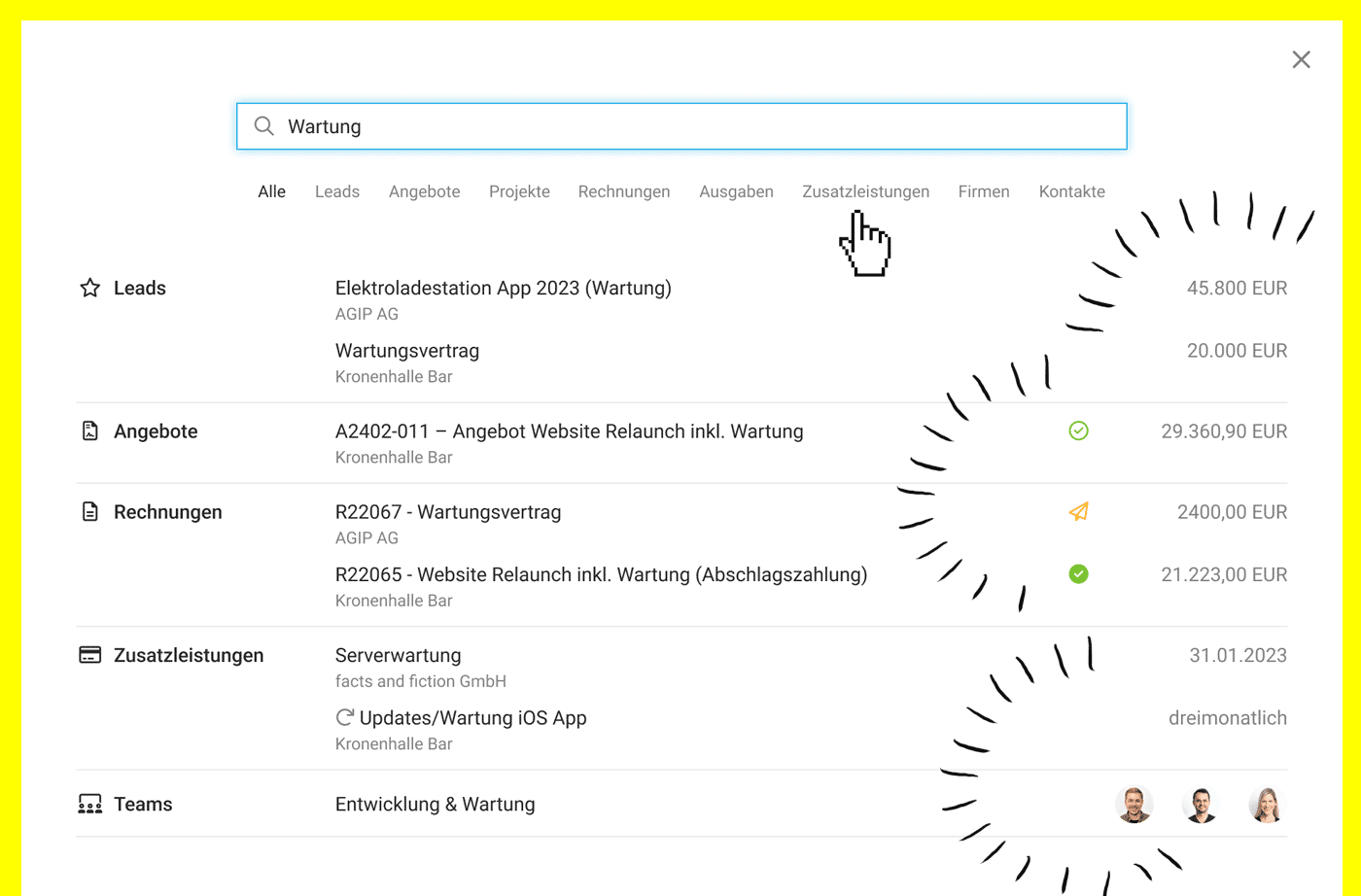
With the global search, you can quickly jump to the desired client, contact, invoice, etc. – or find suppliers, people, etc. using custom fields.
 (English image not yet available)
With the global search, you can quickly jump to the desired client, contact, invoice, etc. – or find suppliers, people, etc. using custom fields.
(English image not yet available)Search via Custom Fields — Example Use Case
You categorize your suppliers with a custom "Multiple Choice" field by industry or material: Litho, Printing, Services, etc. In the search, you can then enter "Printing" and all printing companies will be displayed.
Further example on Personnel & Skills for a more detailed description of custom fields and their benefits.
Further example on Personnel & Skills for a more detailed description of custom fields and their benefits.
Combine Excel Exports
With the XLOOKUP, you can combine or link data from Excel exports.
Thomas shows you how to do this in the video here:
 (English image not yet available)
Find this and more Excel tips here
Thomas shows you how to do this in the video here:
(English image not yet available)Find this and more Excel tips here